Travel Time Tracking is an account setting that decides whether your staff can log travel time from the Trades Panel app. It is on unless an owner or admin has turned it off.
Who can change this: owners and admins.
What it affects
- The Travel button on the app's clocking sheet. When the setting is on, staff tap Travel, can link the trip to a job and add a note, and tap Start Travel. They tap Arrived when they get there. Travel only shows when nothing else is running. When the setting is off, the button is not shown.
- When staff see a change. The app picks up the setting the next time someone opens the clocking sheet or pulls it down to refresh.
- Travel that is already running. If you turn the setting off while someone is travelling, they can still end it with Stop on the timer at the top of the clocking sheet. If breaks are set up for that day, starting a break also ends it, after they confirm.
Turning the setting off does not remove travel that has already been logged. It stays on timesheets, in time logs and in job costs.
Where travel time shows up
- Staff > Timesheets - travel is listed as Travel, or Travel with the note, and counts towards the day's hours. See Timesheets.
- Reports > Staff Time Logs - filter Source Type to Travel to see only travel. See Staff Time Logs.
- A job's Finance tab - travel linked to the job is costed at the staff member's normal pay rate. It shows in the Travel total under Outgoings > Labour Budget, and in the job's logged labour. See Labour, Material and Plant Budgets and The Job Finance Tab.
Travel that is not linked to a job shows on timesheets and in time logs, but is not costed to any job. Travel by someone with no pay rate is costed at £0 - see Set a Staff Member's Pay Rate.
If your account uses a daily auto clock-out time, travel still running at that time is ended automatically. See Set Up Auto Clock-Out.
Turn it on or off
- Open Settings and click Features, under Team & Time in the menu on the left.
- Under Time Tracking, tick or untick Travel Time Tracking.
- Click Save Changes at the bottom right of the Settings window.
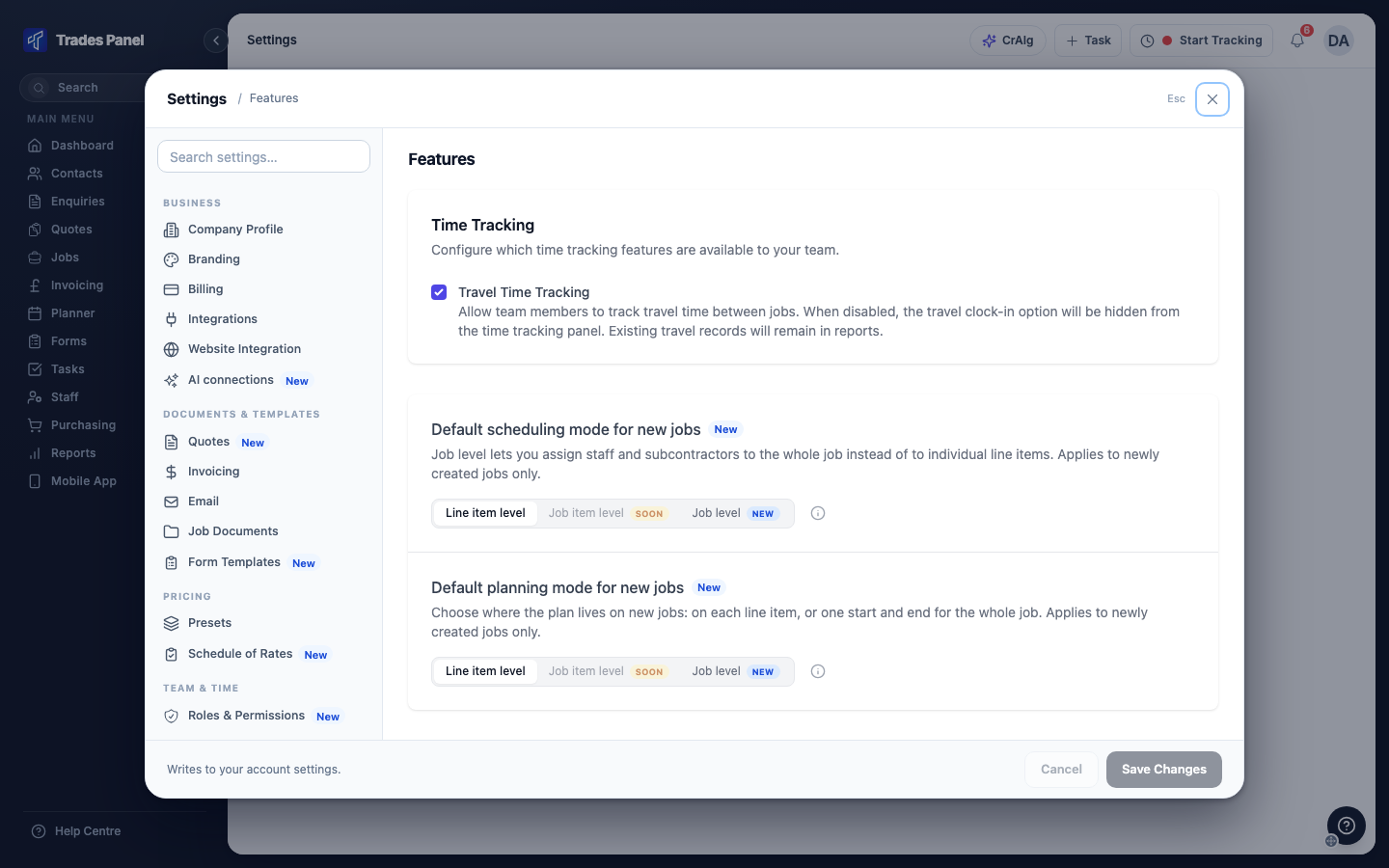
The change applies to everyone on your account.
Related articles
- Clock In and Out on the Mobile App - how staff log travel, breaks and clock-ins on site
- Timesheets - checking hours, including travel, before payroll
- Staff Time Logs - every time log, with a filter for travel
- Labour, Material and Plant Budgets - where travel appears in a job's labour costs
- Edit or Delete a Time Log - correcting a travel log
- Roles and What Each One Can See - who counts as an admin