What It Does
The Outgoings Tab in Trades Panel provides a detailed overview of your project’s expenditure — covering labour, materials, plant, and purchase invoices.
This section helps you monitor every aspect of your spending, stay on top of costs, and maintain full control of your project’s financial performance.
Learn more about financial tracking.
Accessing the Outgoings Tab
What It Does
All outgoing costs for a project can be viewed and managed within the Finance section of the job.
Steps
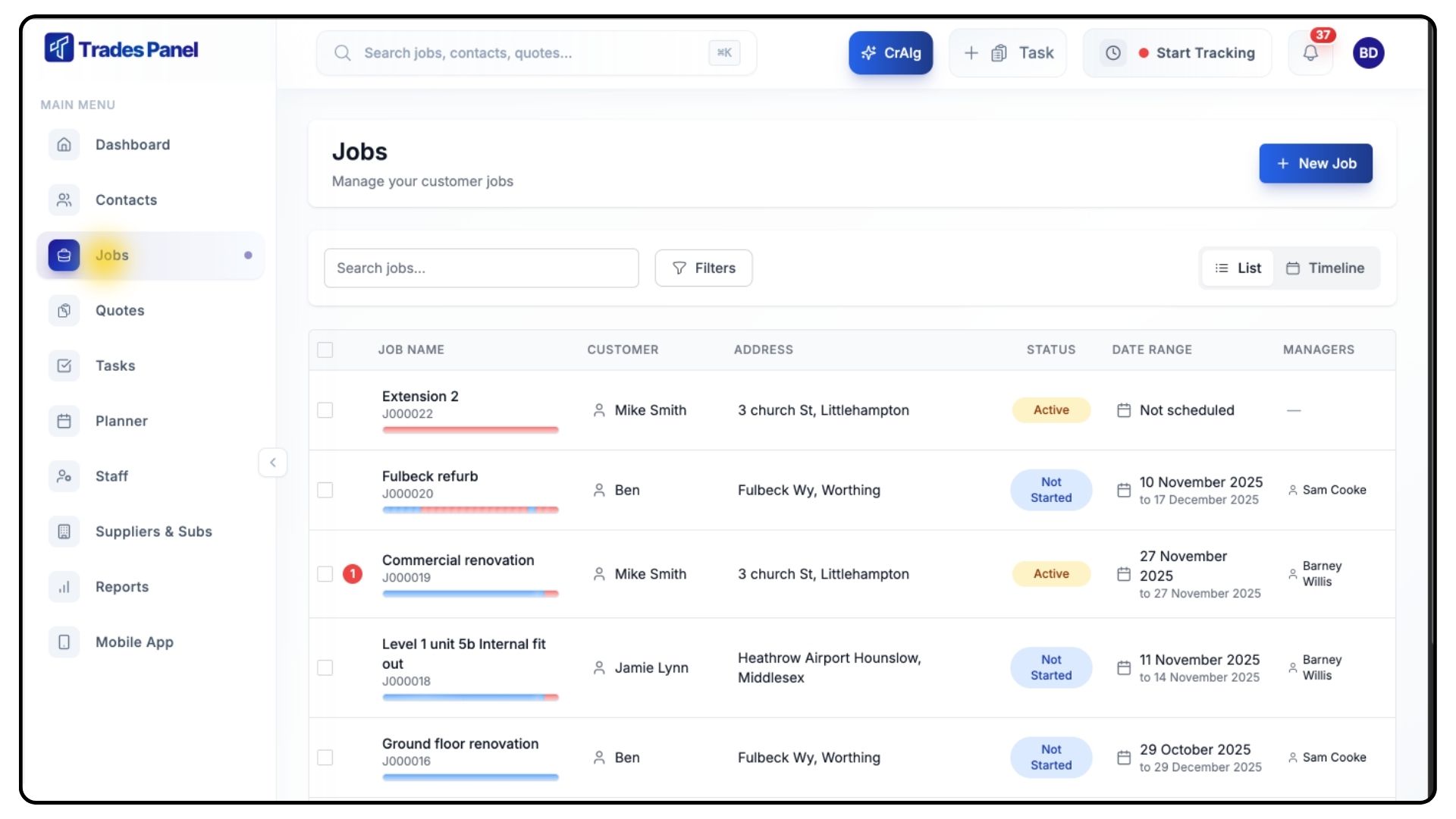
Open the Jobs tab from the main menu.
Select the project you’d like to review.
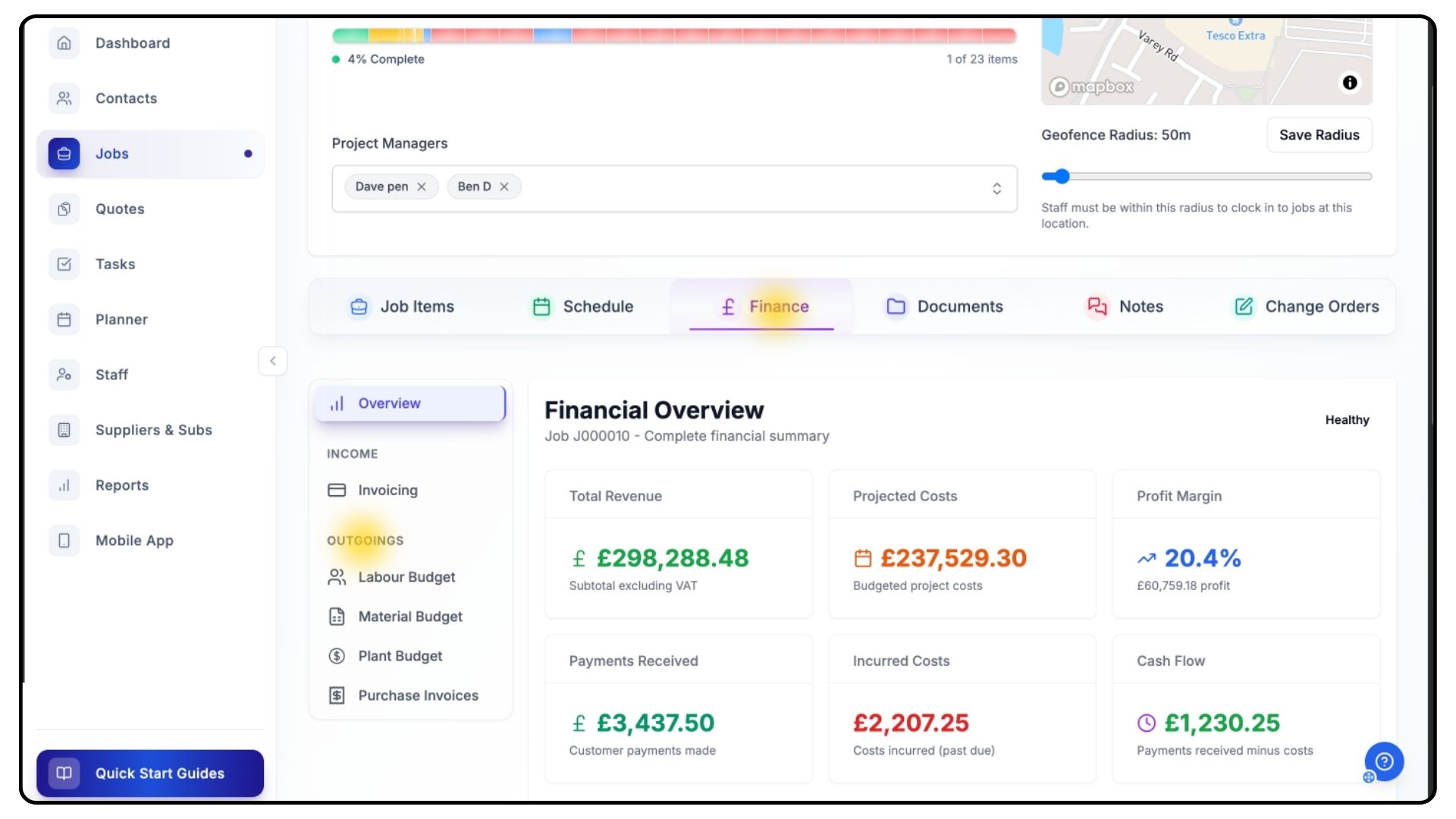
Once inside, click on the Finance tab.
On the left-hand side, you’ll see a list of outgoing categories:
Labour
Materials
Plant
Purchase Invoices
Each section provides detailed insights into specific areas of project expenditure.
Viewing the Labour Budget
What It Does
The Labour Budget allows you to track your team’s performance against allocated budgets, showing actual spend versus forecasted costs.
Steps
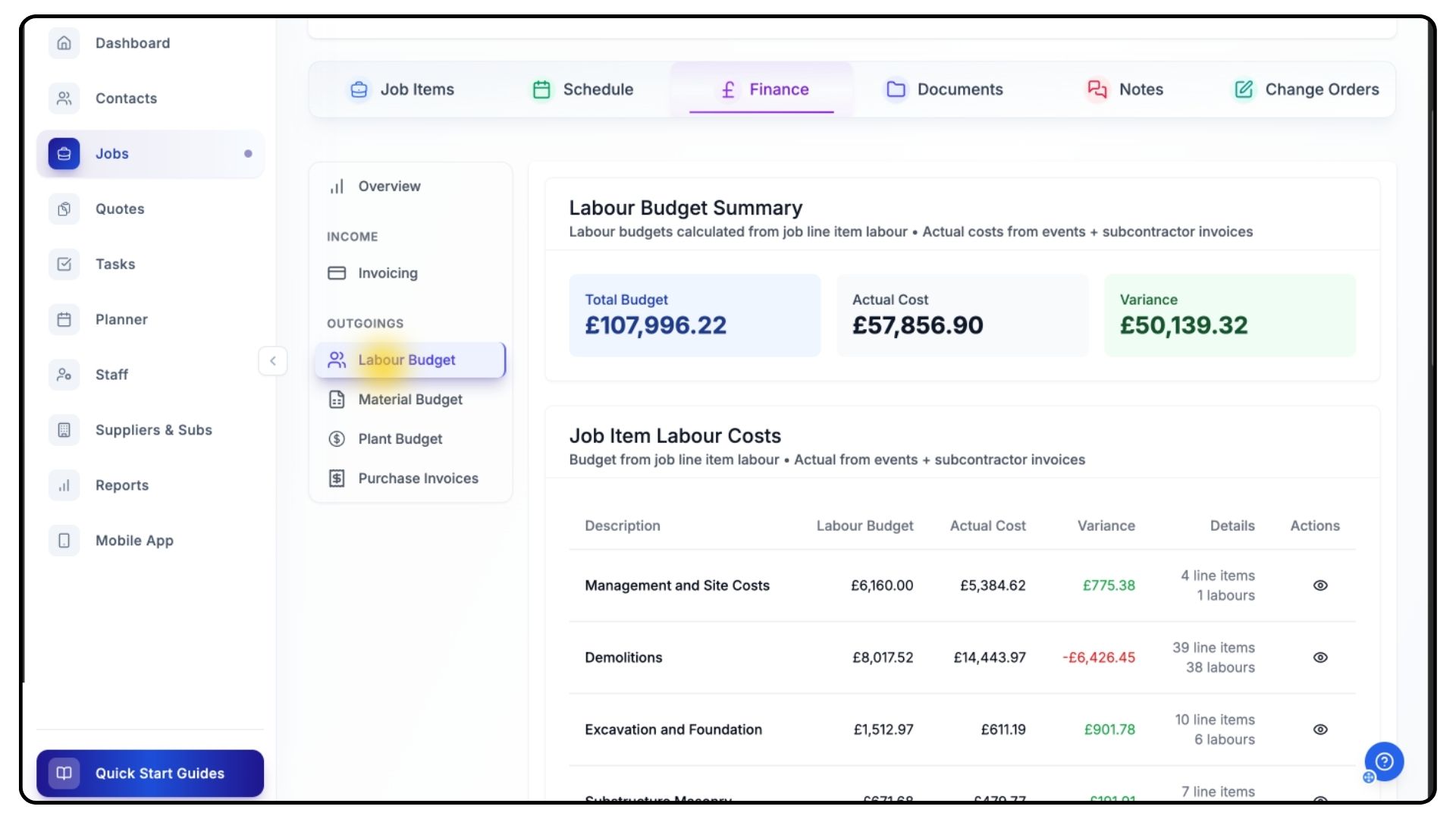
Click Labour Budget in the menu on the left-hand side.
Review the summary totals, which display:
Total Labour Budget
Actual Costs Incurred
Variance between the two.
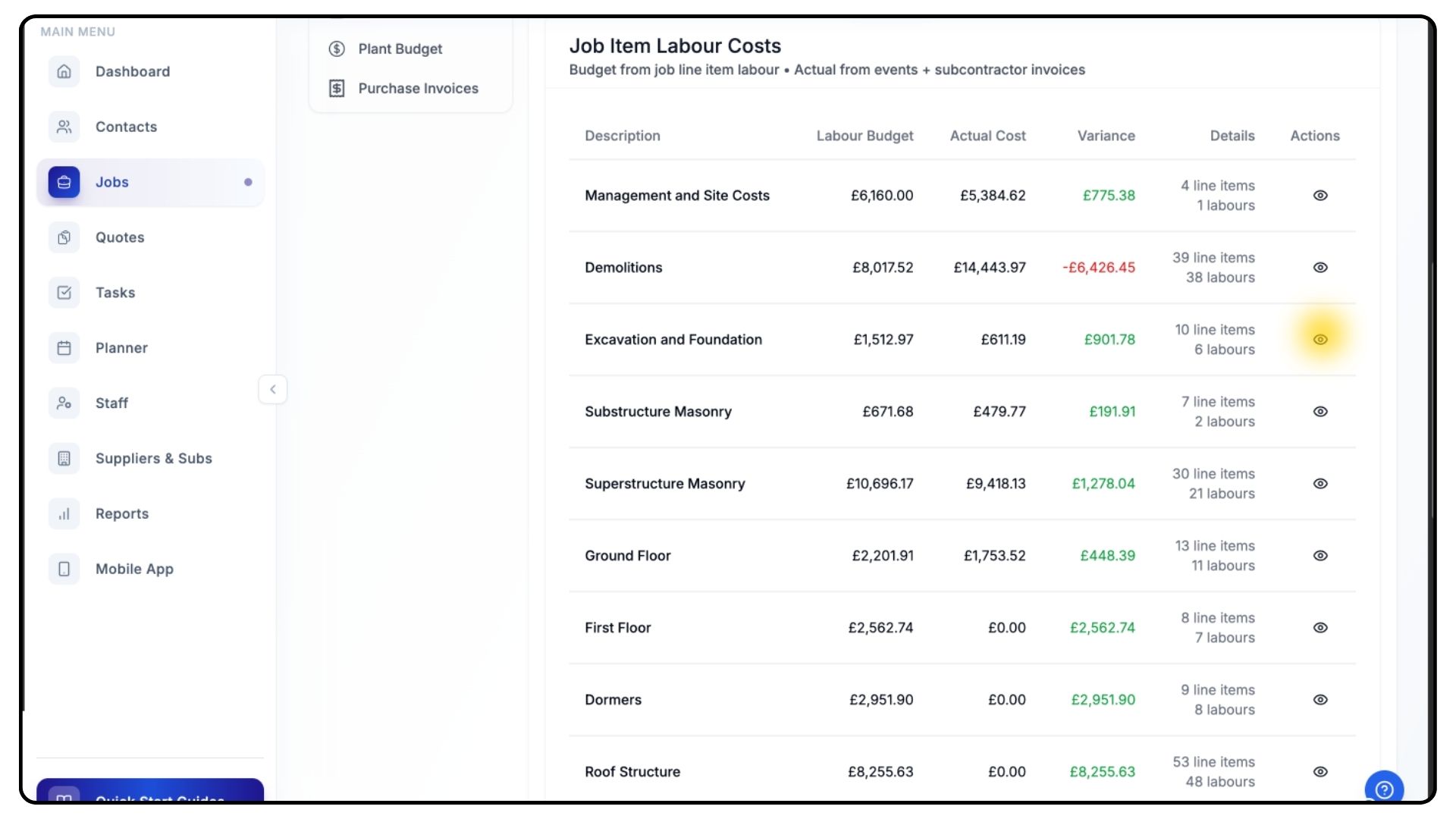
Beneath the summary, each Job Item is listed with its:
Budget value
Actual cost
Variance amount
Number of line items and labour entries linked.
To see more detail, click the Eye Icon next to a job item.
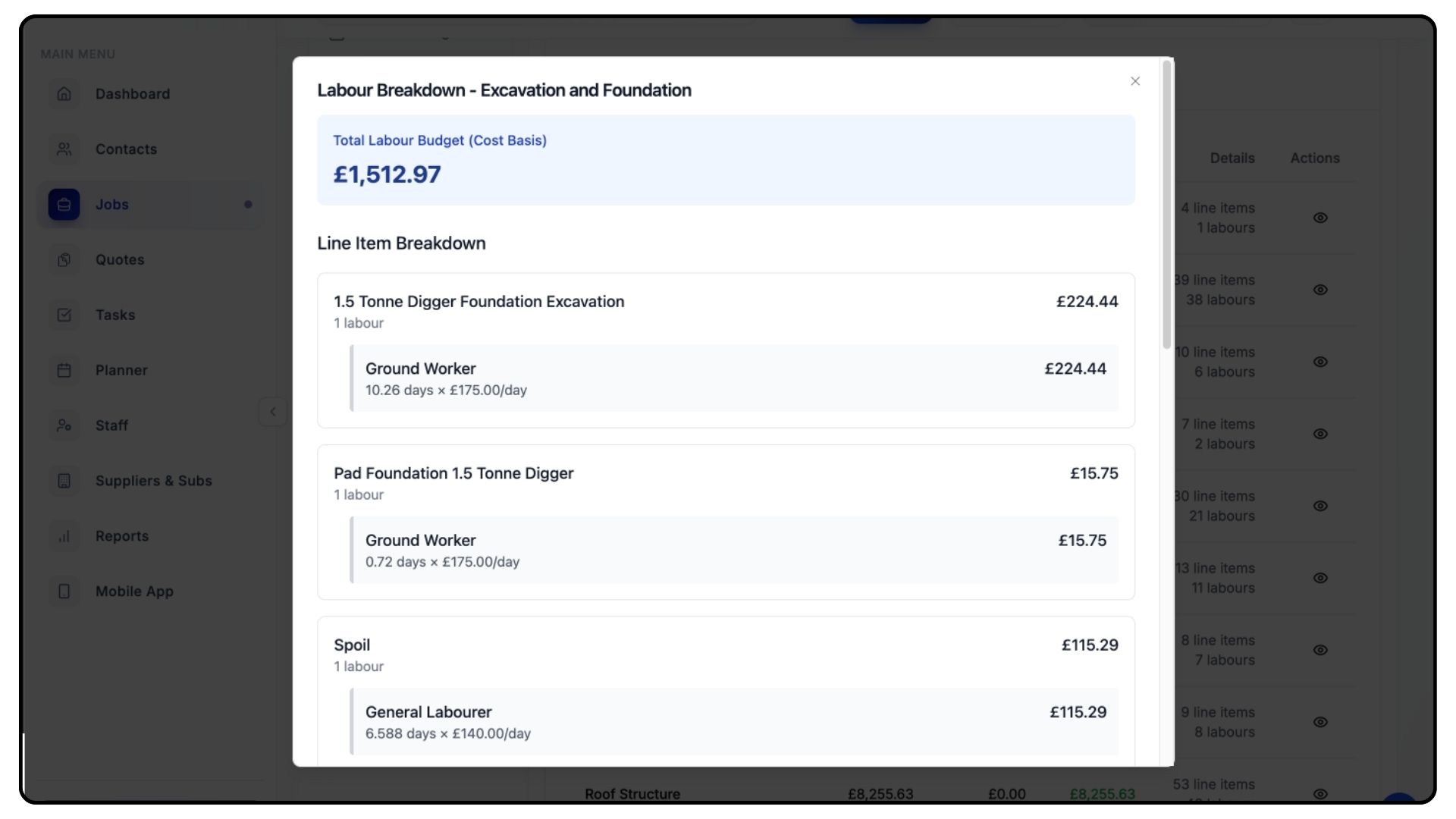
This opens a full breakdown showing every line item within that job item, along with the specific labour costs attached.
Viewing the Material and Plant Budgets
What It Does
The Material and Plant Budgets follow the same structure as the Labour Budget, allowing you to analyse spending by category and job item.
Steps
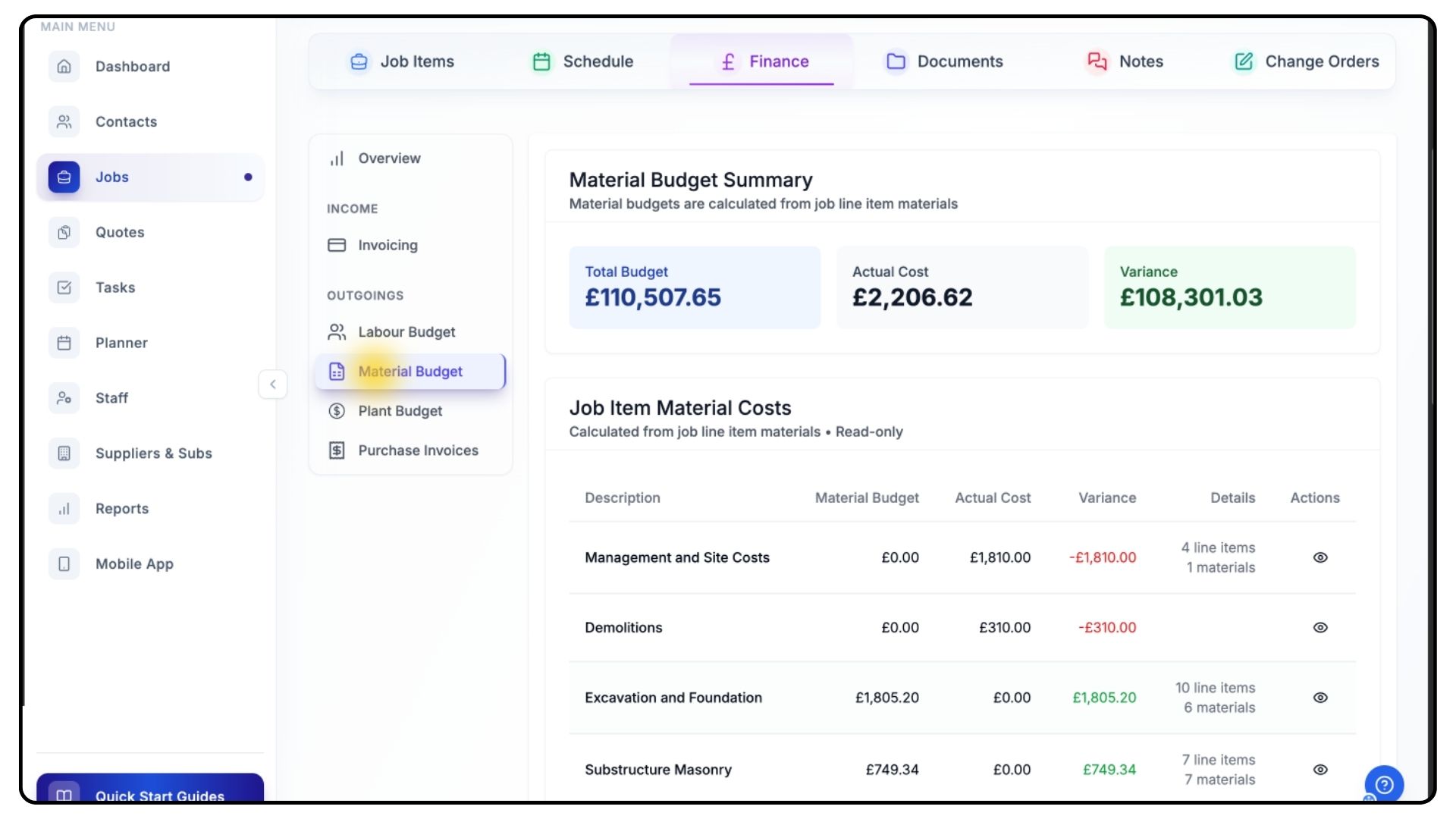
Switch to the Material Budget tab using the menu on the left-hand side.
Review your total material budget, actual spend, and job item breakdown.
Repeat this process for the Plant Budget tab to review your equipment-related expenses.
All figures in these sections update automatically whenever you modify job items, cost rates, or charge rates — giving you a real-time financial overview.
Using the Purchase Invoices Section
What It Does
The Purchase Invoices section stores all project-related invoices, allowing you to upload, search, and track costs efficiently.
Steps
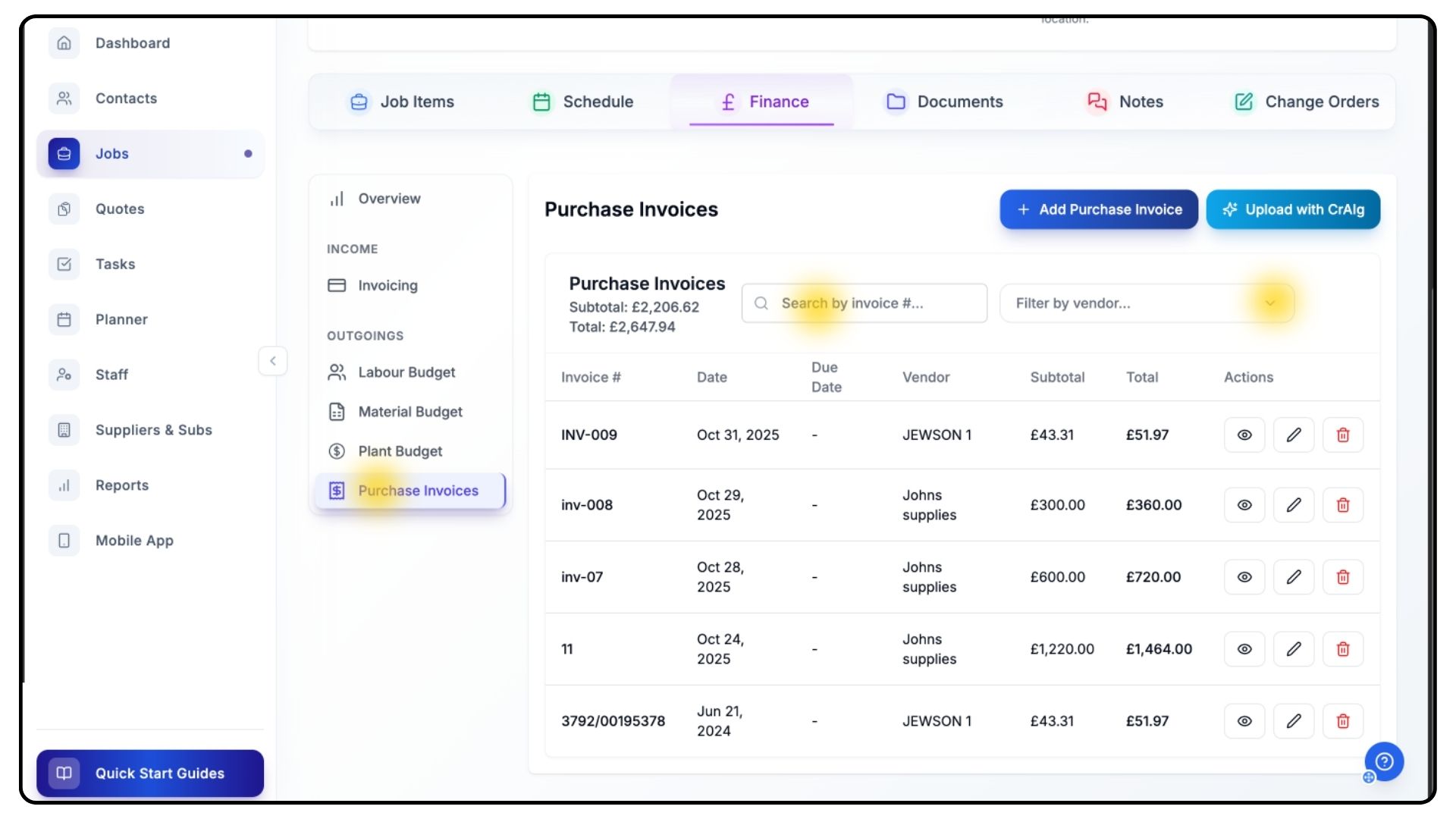
Scroll to the bottom of the Finance menu and click Purchase Invoices.
Use the Search Bar to locate invoices by number.
Use the Vendor Dropdown Menu to filter invoices by supplier or subcontractor.
Trades Panel offers two upload methods:
Upload with CrAIg (AI Extraction)
Add Manually
Uploading Invoices Using CrAIg
What It Does
CrAIg is Trades Panel’s built-in AI tool that automatically extracts data from invoice PDFs, saving time and reducing manual entry.
Steps
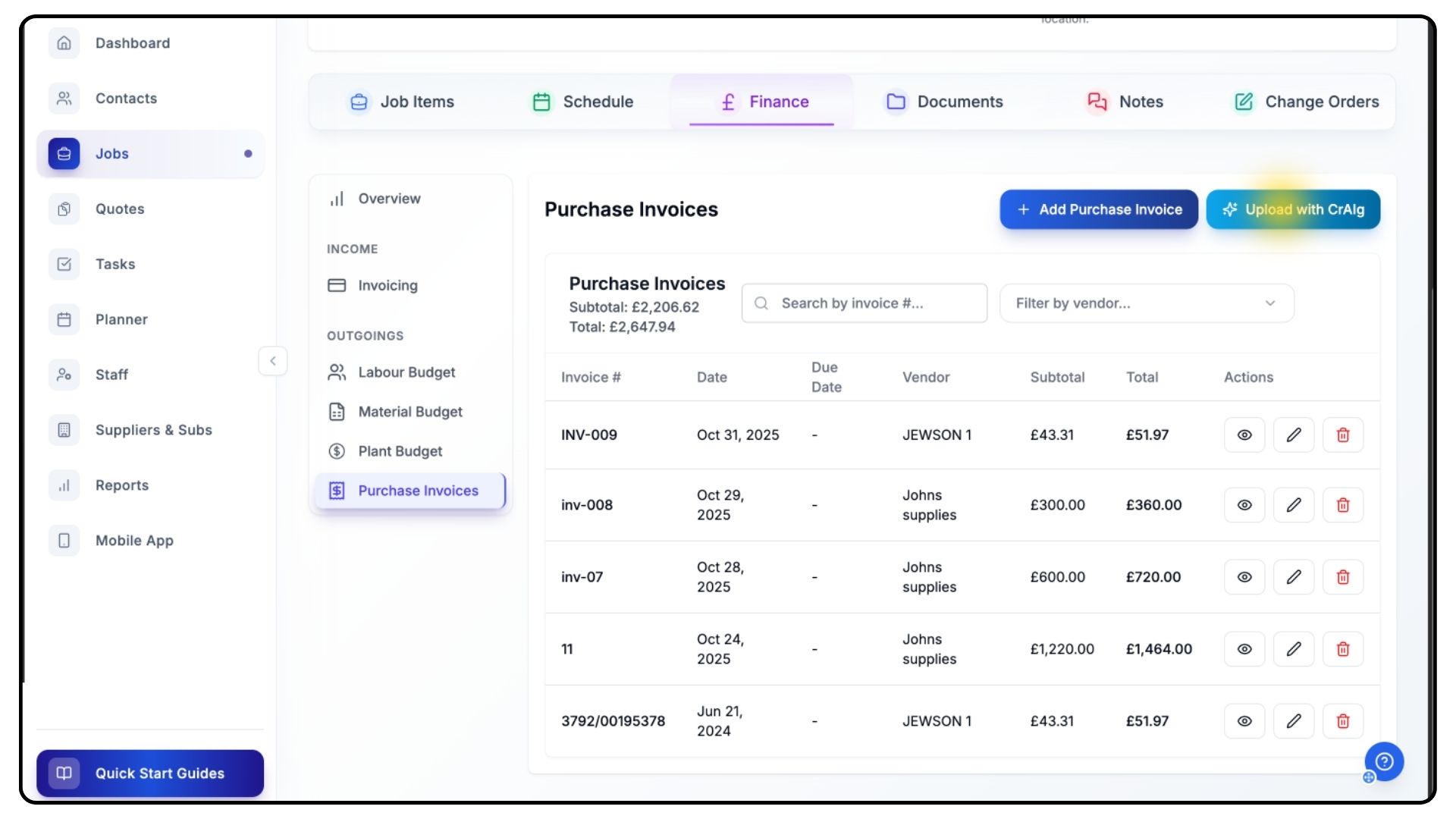
Click Upload with CrAIg.
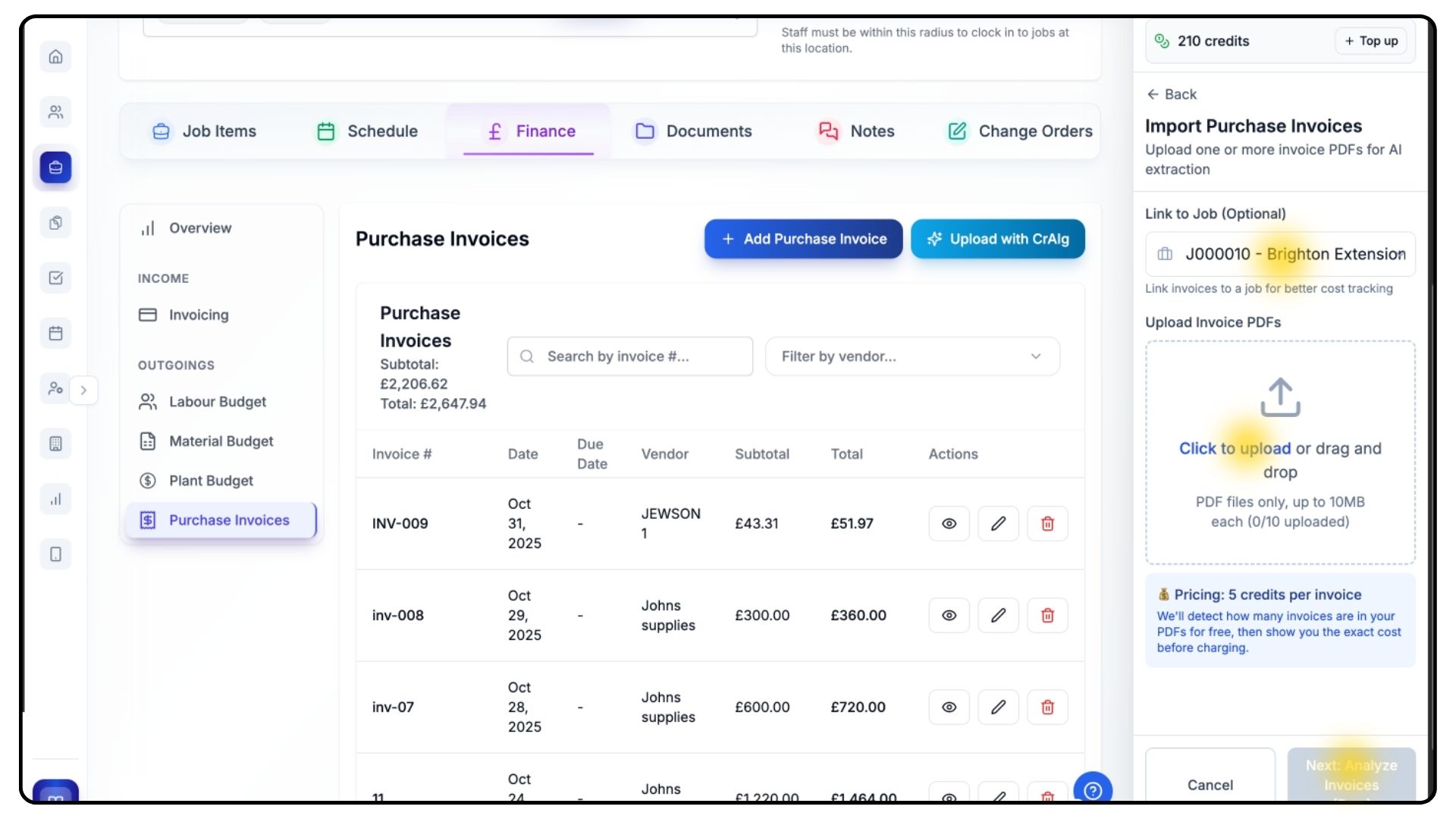
From the dropdown list, select the job the invoice relates to.
Click Upload and choose your PDF file.
Once uploaded, click Start AI Extraction.
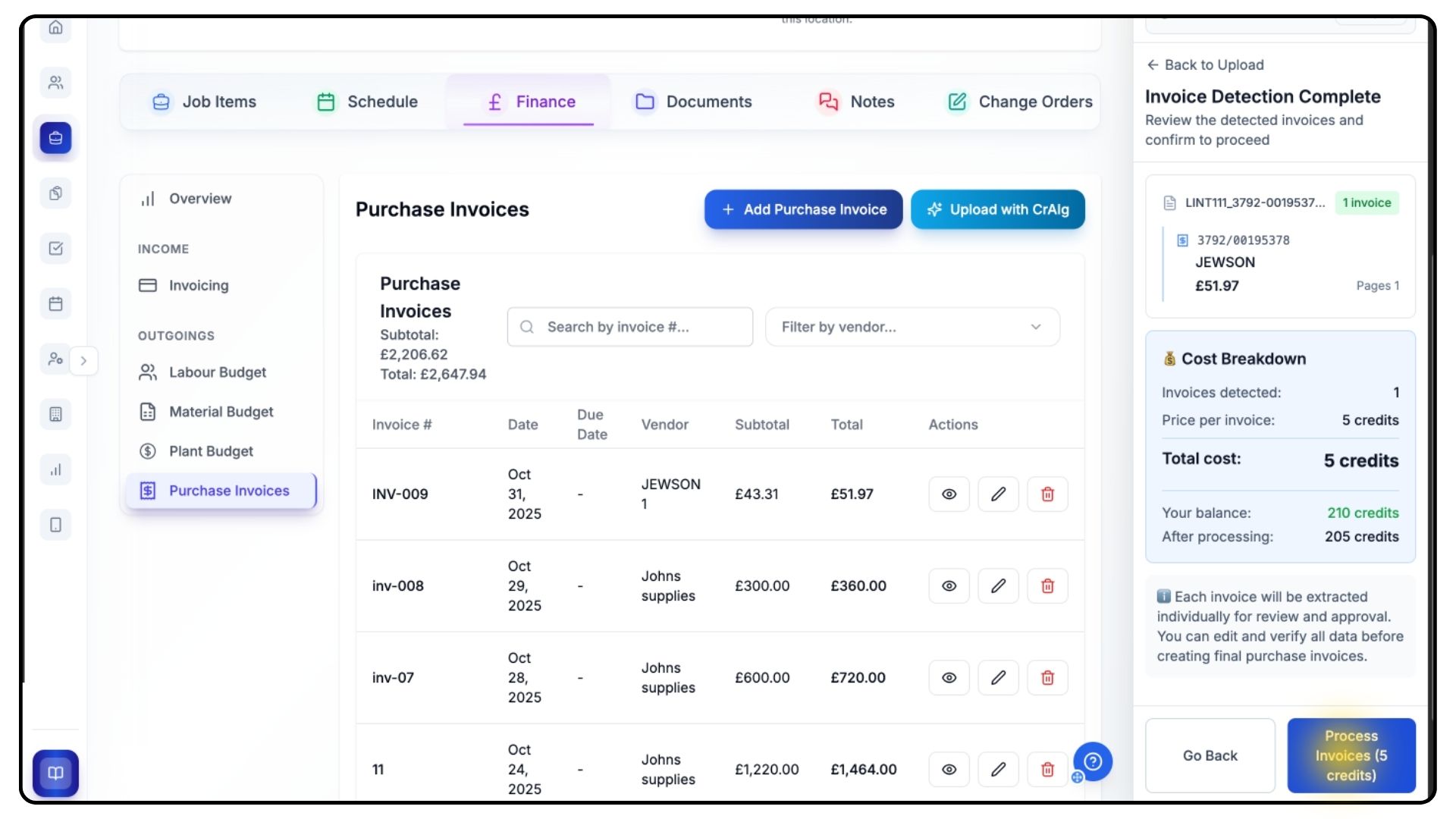
Before your invoice is uploaded to the system, you’ll see a cost breakdown showing how many AI credits will be used for this upload.
Review the breakdown carefully, and if you’re happy to proceed, click Process Invoices to continue.CrAIg will use your available AI credits to extract and process all invoice data automatically.
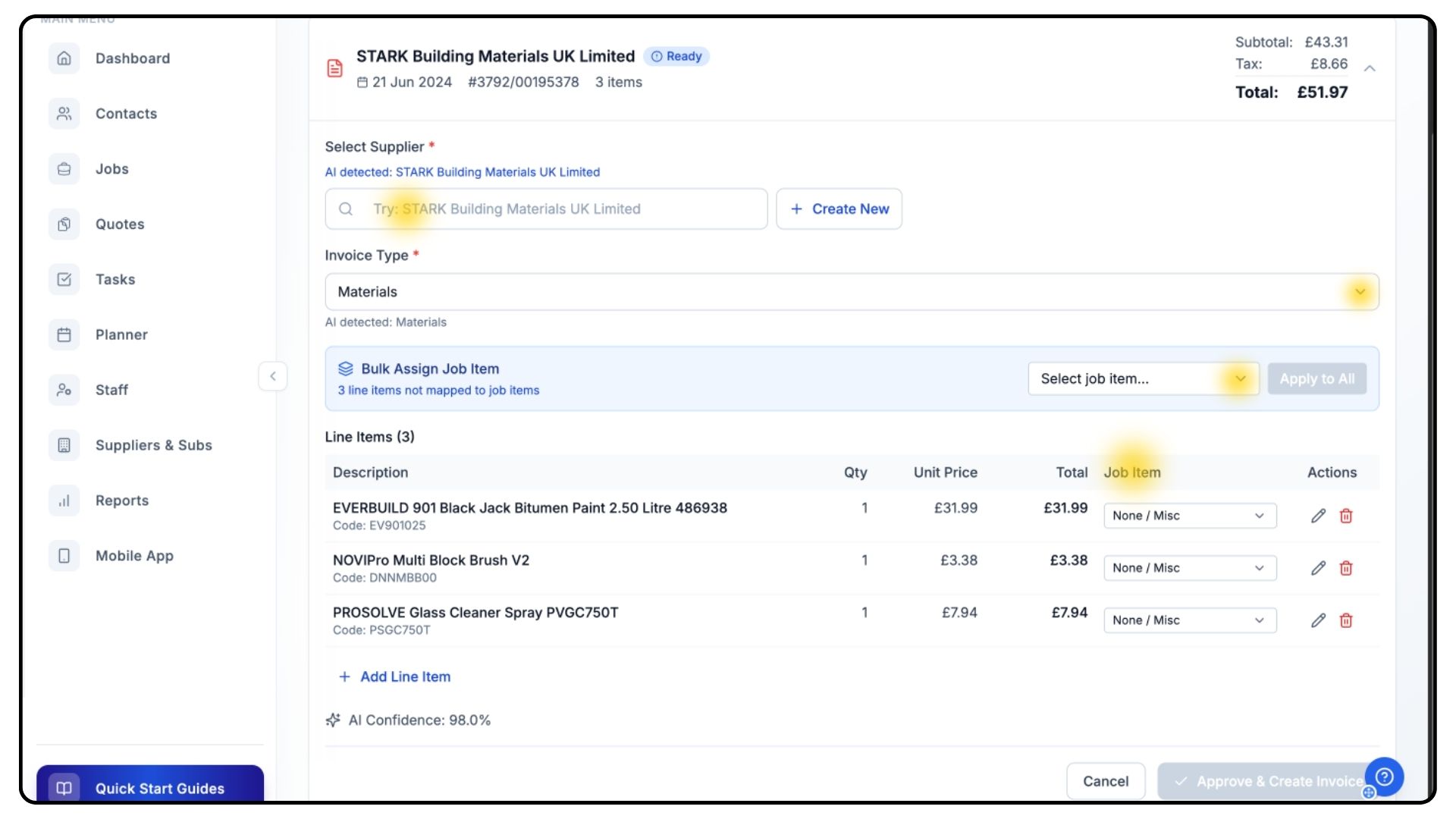
Inside your invoice, select the Supplier the invoice relates to from the dropdown list, or create a New Supplier if needed.
Choose the appropriate Invoice Type from the available options.
You’ll then need to assign the items from your purchase invoice to the relevant Job Items within your project.
This can be done in one of two ways:
Bulk Assign – Select a job item from the bulk assign dropdown to allocate all lines at once.
Manual Assign – Use the dropdown beside each individual line item to assign them separately.
Once all items are correctly assigned, review all information carefully to ensure accuracy.
When you’re satisfied, click Approve and Create Invoice to finalise.
The invoice will now appear in the Purchase Invoices list for that project.
Uploading Invoices Manually
What It Does
Manual uploads allow you to enter invoice data directly, giving you full control over each field and saving AI credits.
Steps
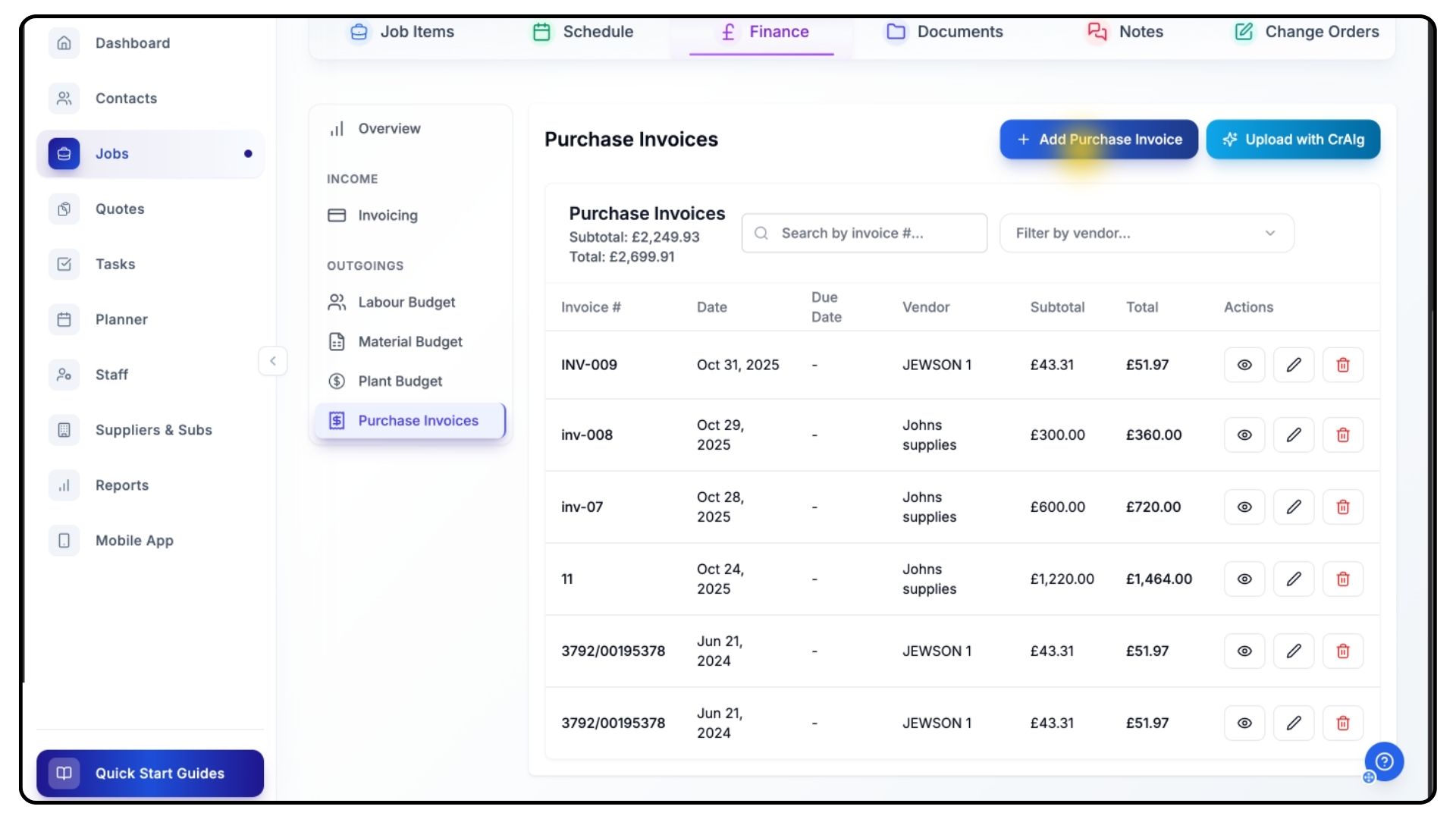
Go back to the Purchase Invoices tab.
Click Add Purchase Invoice.
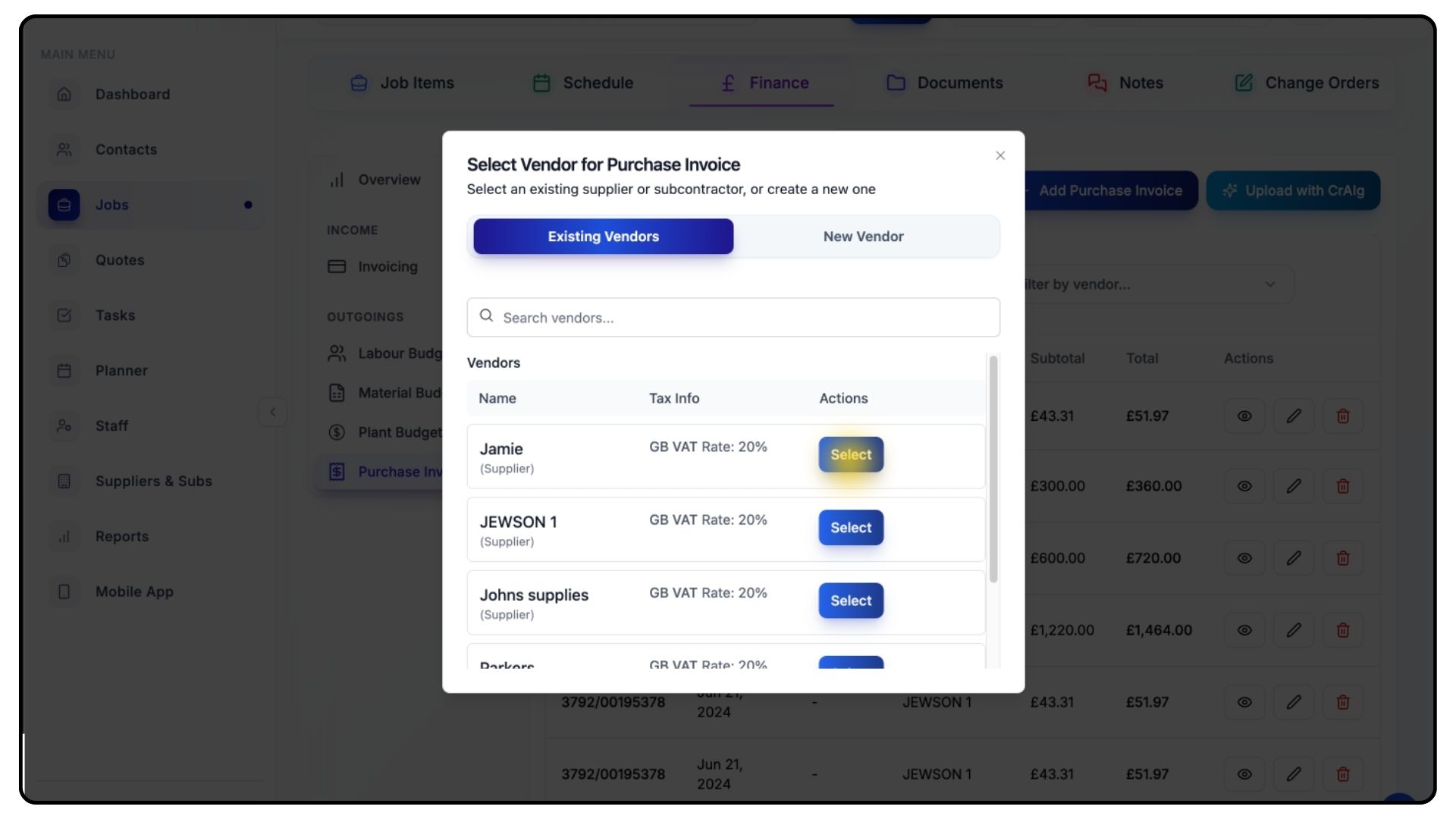
Select an existing Vendor, or create a new one by switching to New Vendor.
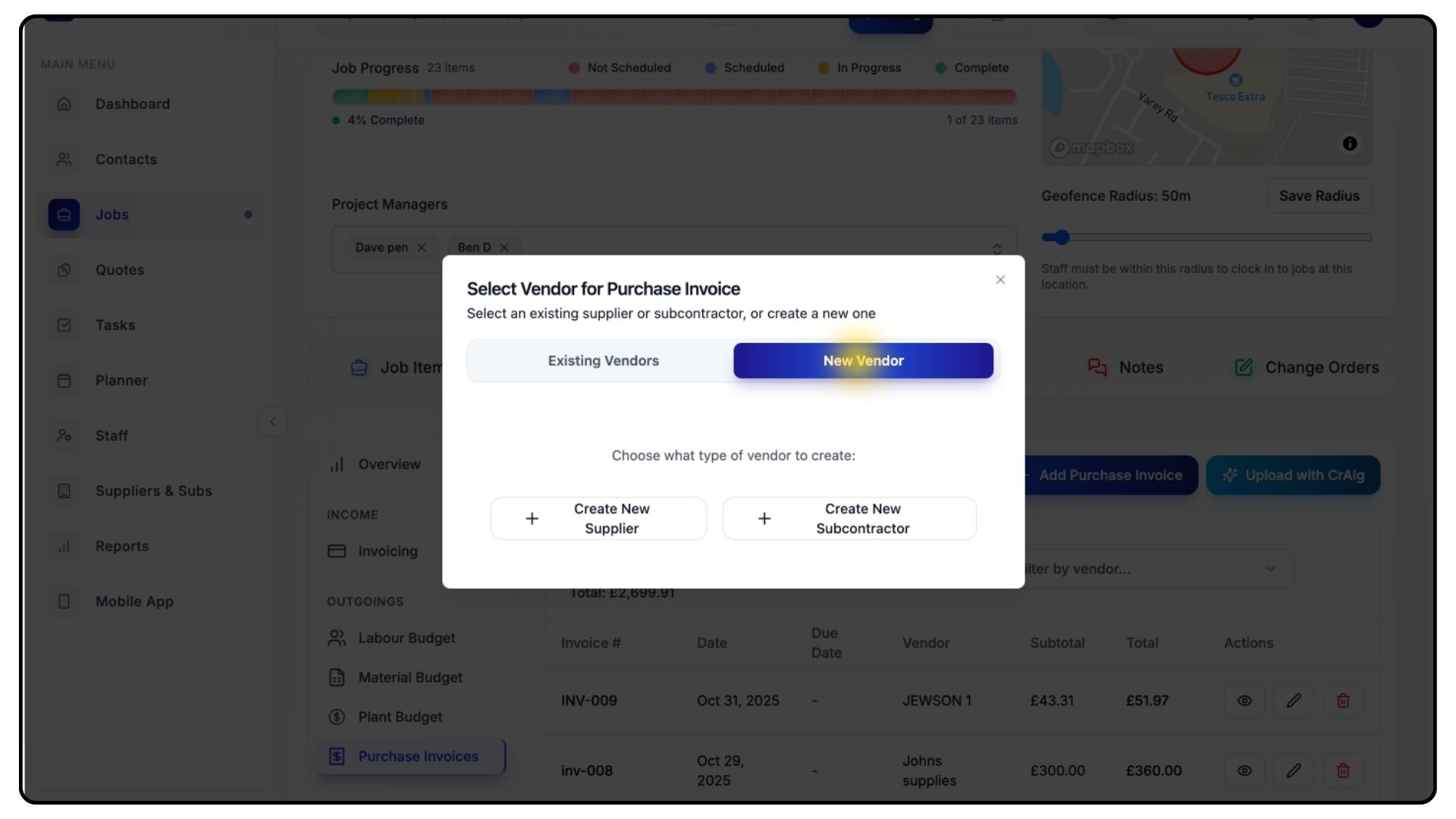
Choose the vendor type:
Supplier
Subcontractor
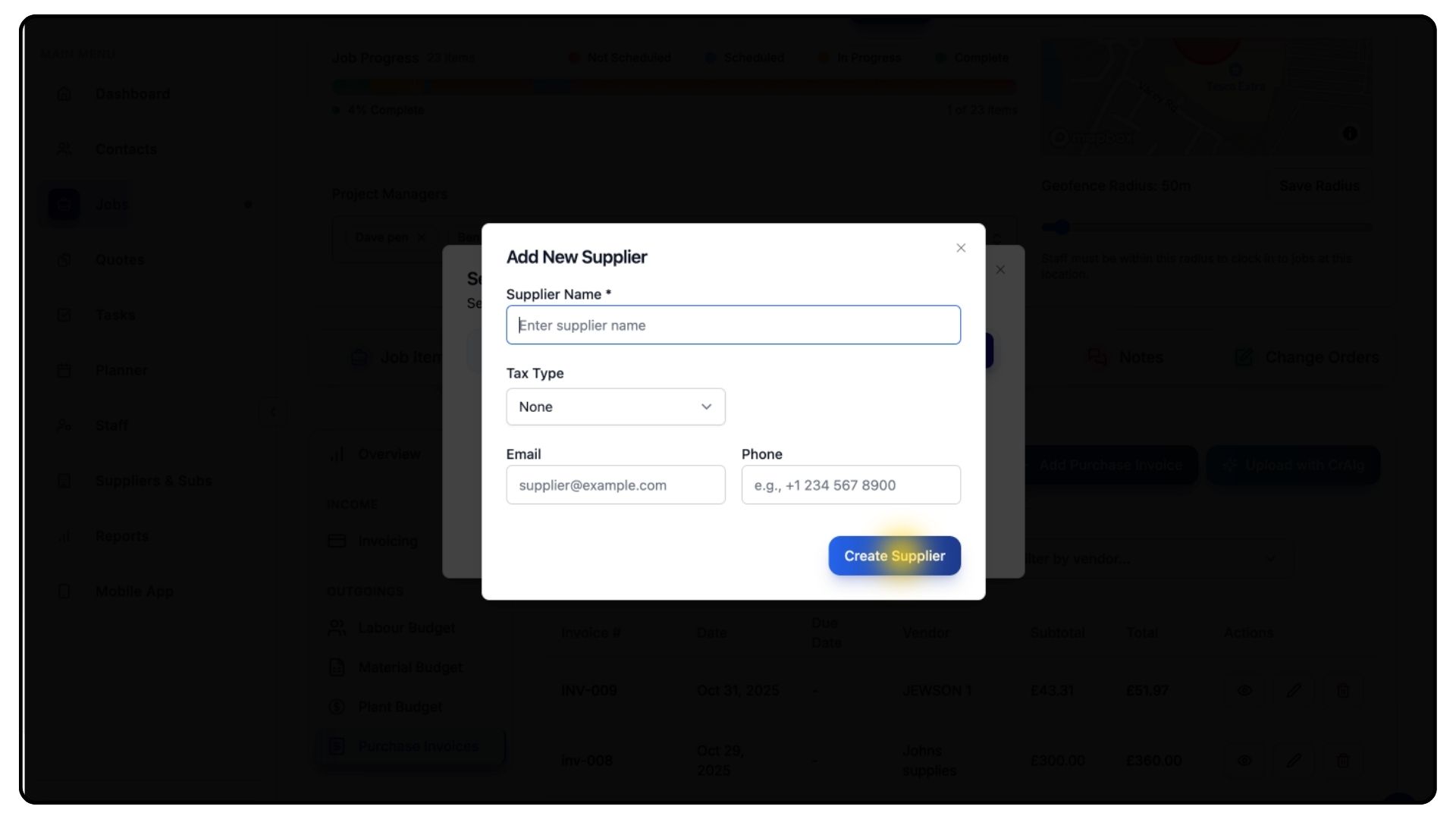
Fill in the Vendor Details and select the correct Tax Type from the dropdown menu.
(If you’re not familiar with adding new suppliers or subcontractors, refer to the dedicated tutorial on the Guides page.)
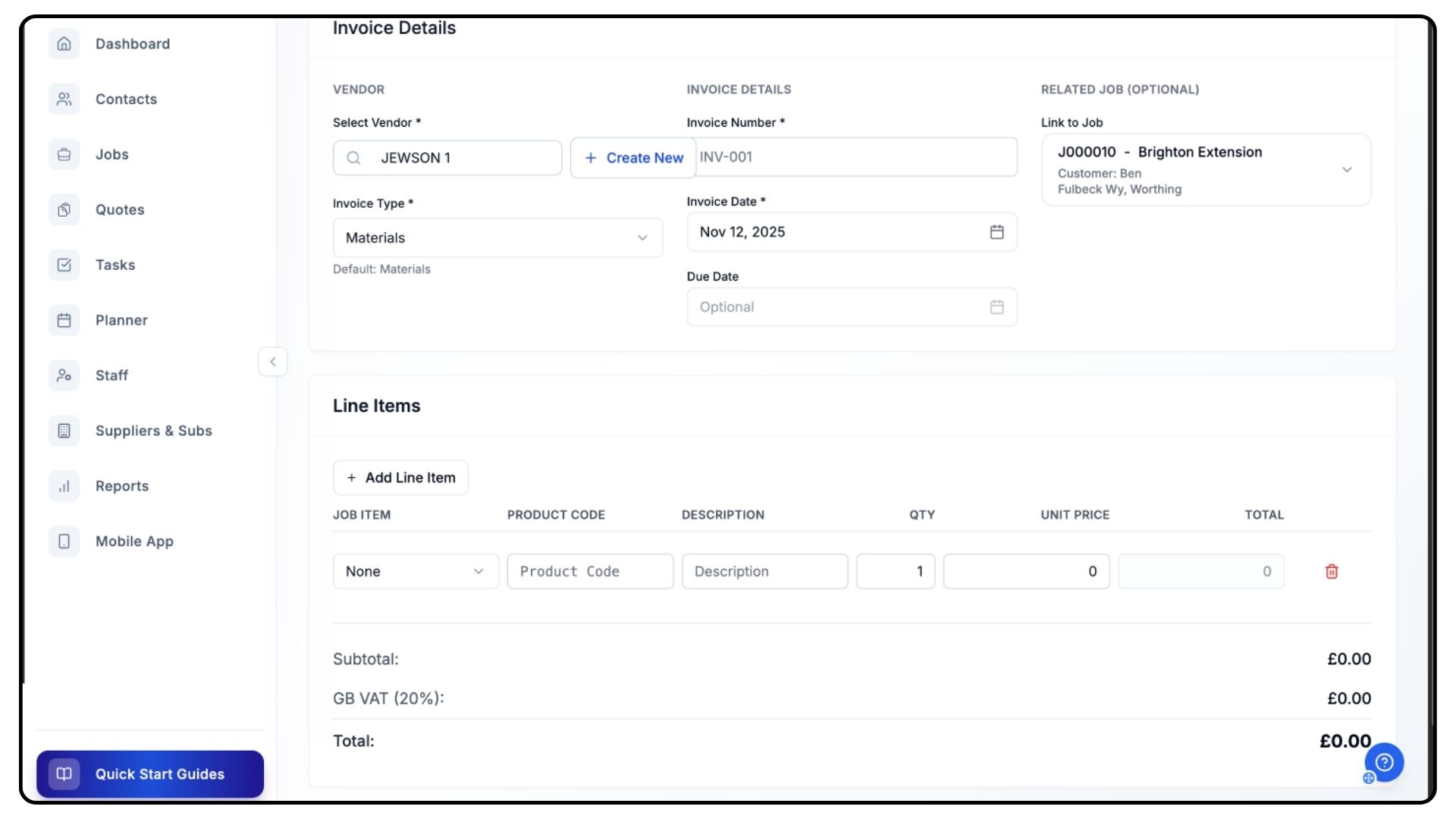
Fill in the Invoice Details, including:
Invoice Number
Type
Dates
Linked Job
Add Line Items representing the products or services on the invoice.
For each line item:
Select the Job Item it belongs to.
Enter the Product Code, Description, Quantity, and Unit Price.
The system will automatically calculate the total amount, including VAT.
Review all entries for accuracy.
When ready, click Create Invoice.
The page will refresh, and your invoice will now appear in your Purchase Invoices list for that project.
Final Steps
What It Does
The Outgoings tab acts as your live cost-tracking dashboard, keeping your budgets and expenditure aligned with project progress.
Steps
Regularly review each budget category to monitor performance and prevent overspending.
Upload new purchase invoices as soon as they’re received.
Ensure job item updates are reflected to maintain accurate financial tracking.
Use this section to identify cost overruns early and maintain strong budget control.
Common Questions
Q: How often does the Outgoings tab update?
It updates automatically whenever job items, rates, or costs are edited.
Q: What’s the difference between budget and actual costs?
The Budget represents your planned spend, while Actual Costs reflect recorded expenses.
Q: Can I edit or delete invoices after uploading?
Yes. You can edit or delete invoices as long as they haven’t been finalised in your accounting system.
Q: Do labour or material rate changes affect budgets automatically?
Yes. Any updates to presets or job item rates will automatically recalculate your budgets.
Q: How are AI credits used in CrAIg uploads?
Each AI invoice extraction uses one credit. You can upload manually instead to conserve credits.