What It Does
The Planner allows you to schedule and assign work across all jobs by dragging line items directly onto your team’s schedule. It gives you full visibility of outstanding work and helps you keep projects moving without clashes or missed tasks.
Accessing the Planner and Scheduling Tool
What It Does
Provides a central view of your team’s schedule and all unscheduled line items.
Steps
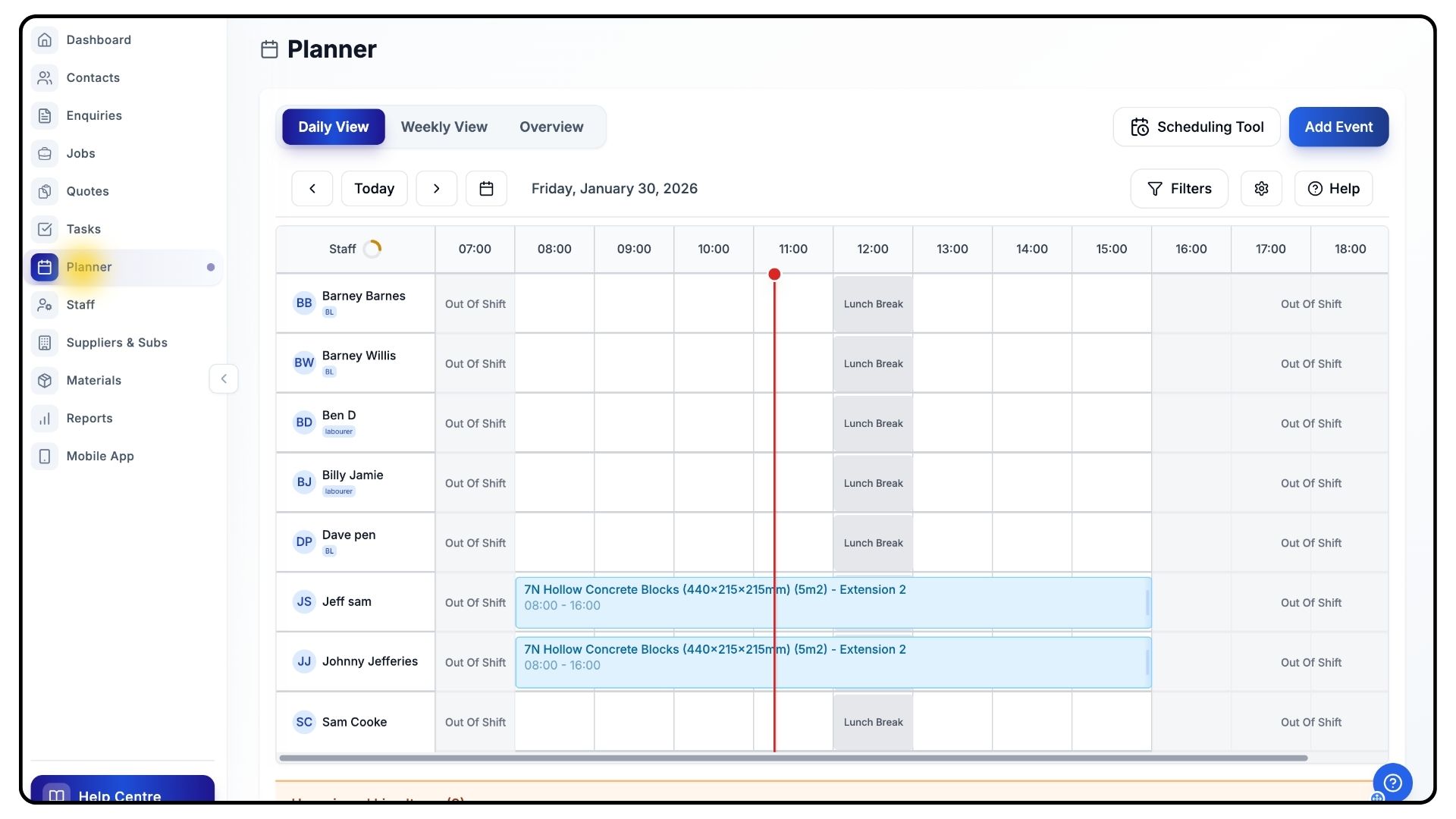
Open the Planner from the main navigation.
Here, you’ll see your entire team’s schedule for the day or week.
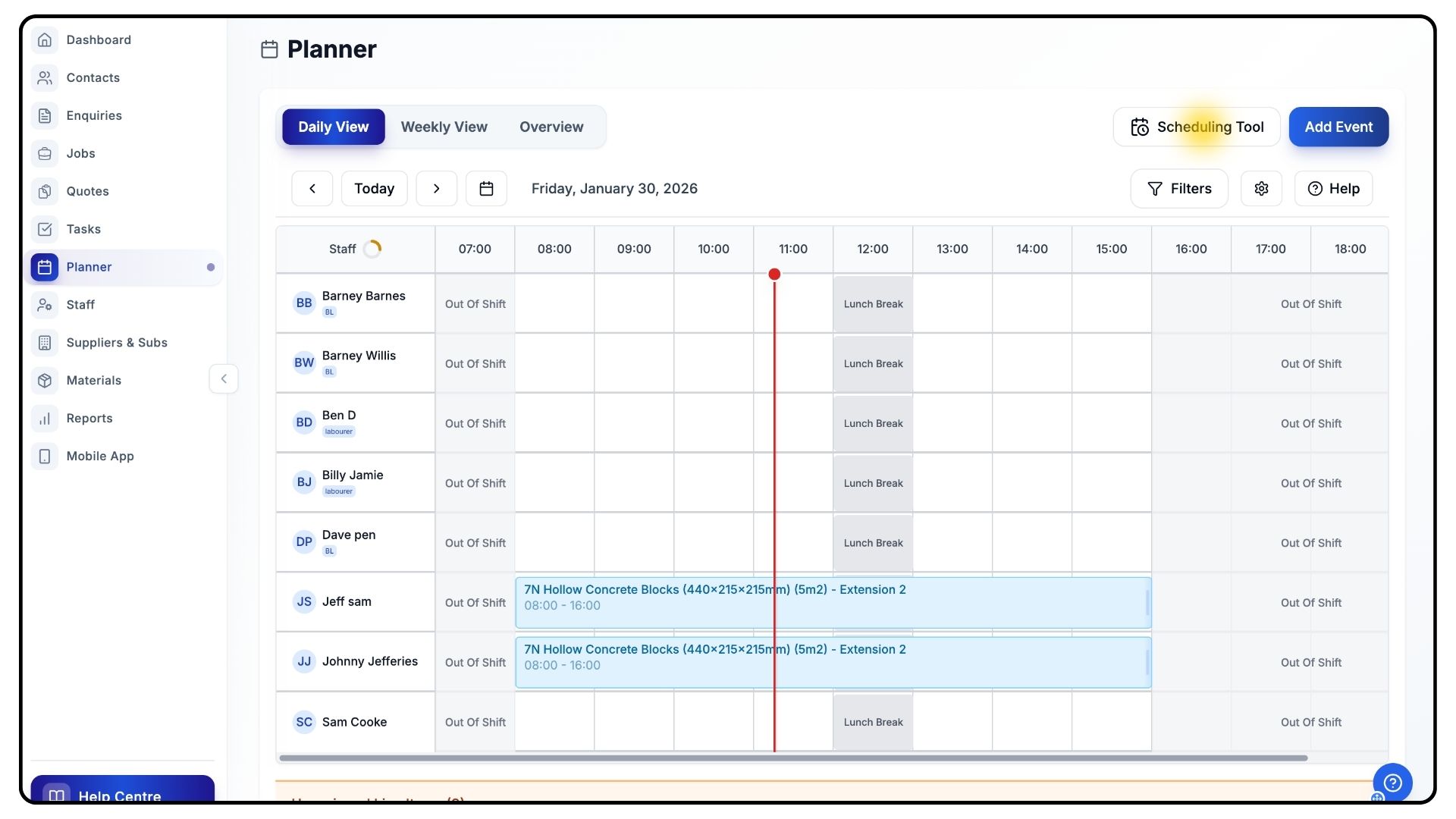
In the top-right corner, click the Scheduling Tool button.
This opens the scheduling panel, showing all available line items across all jobs.
Understanding the Scheduling Panel
What It Does
Helps you prioritise and organise work that still needs scheduling.
Steps
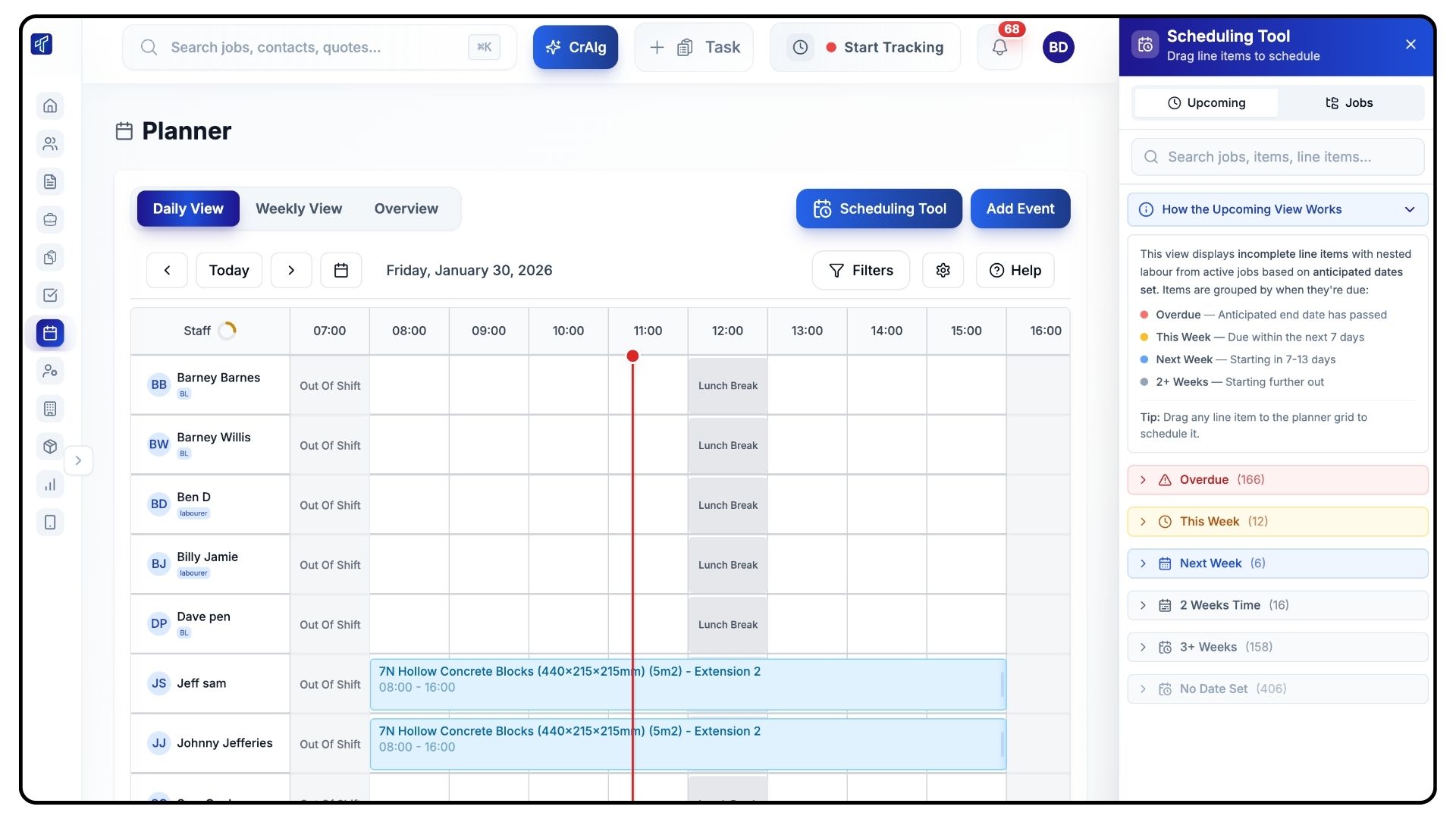
Inside the scheduling panel, you’ll see tabs such as:
Overdue
This Week
Next Week
Upcoming
These tabs help you stay on track — as long as Overdue and This Week are empty, your scheduling is up to date.
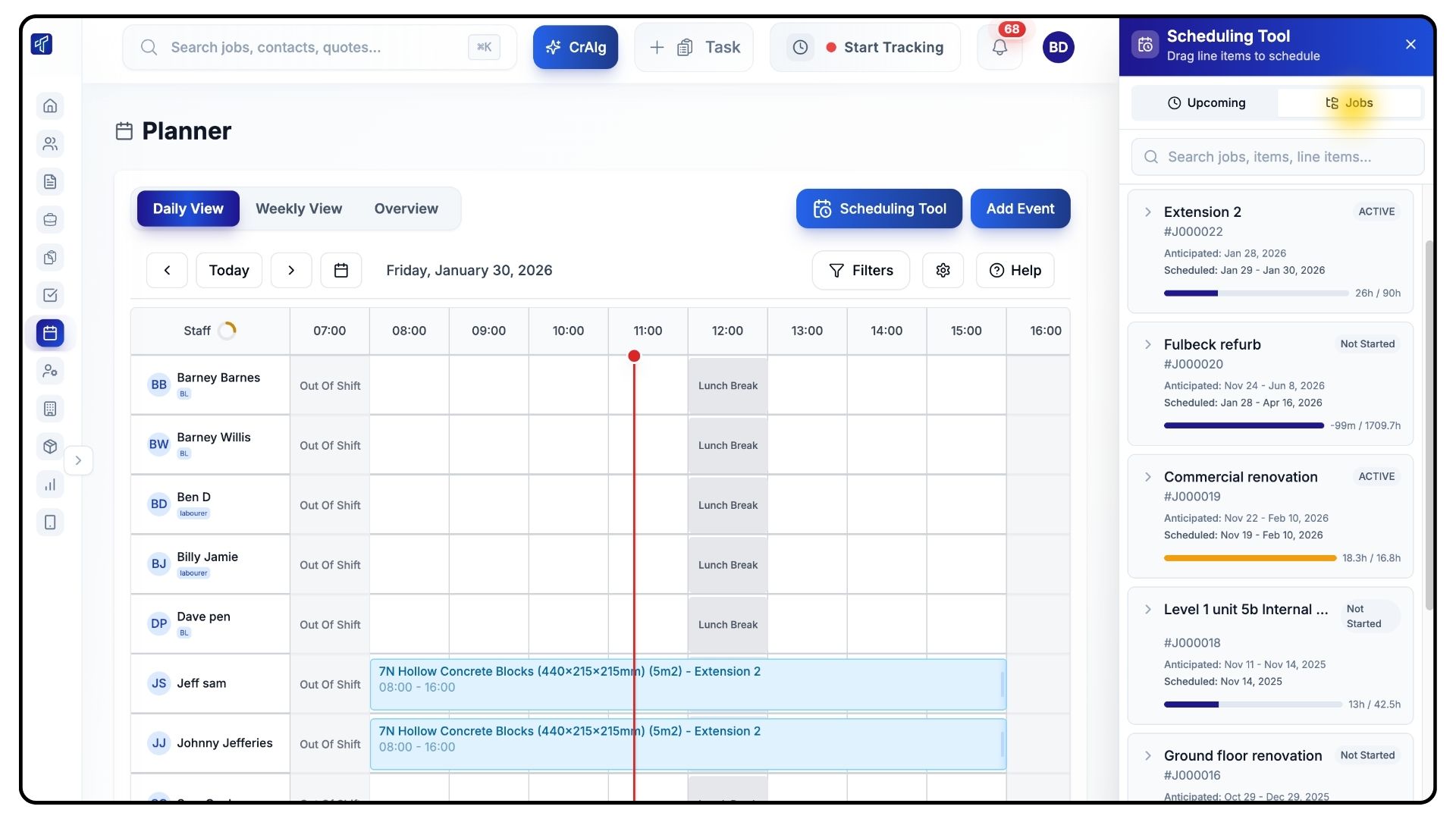
You can also switch to the Jobs tab to view line items grouped by project, making it easier to plan work for a specific job.
Scheduling Individual Line Items
What It Does
Allows you to assign and schedule work in one action.
Steps
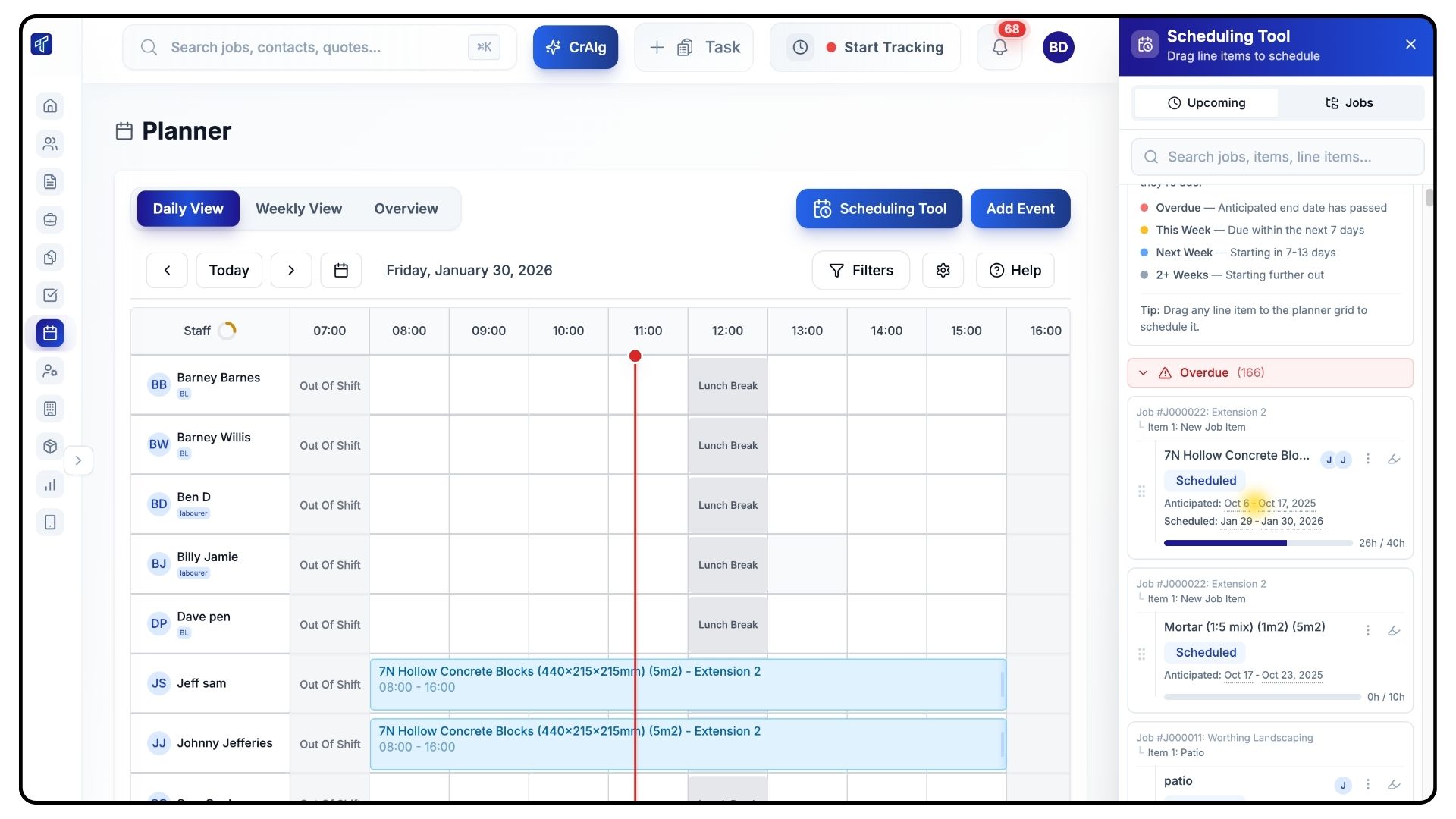
Search for the line item you want to schedule.
Inside the item card, you’ll see the anticipated date shown in smaller text.
Clicking this date will jump you directly to that day in the planner view.
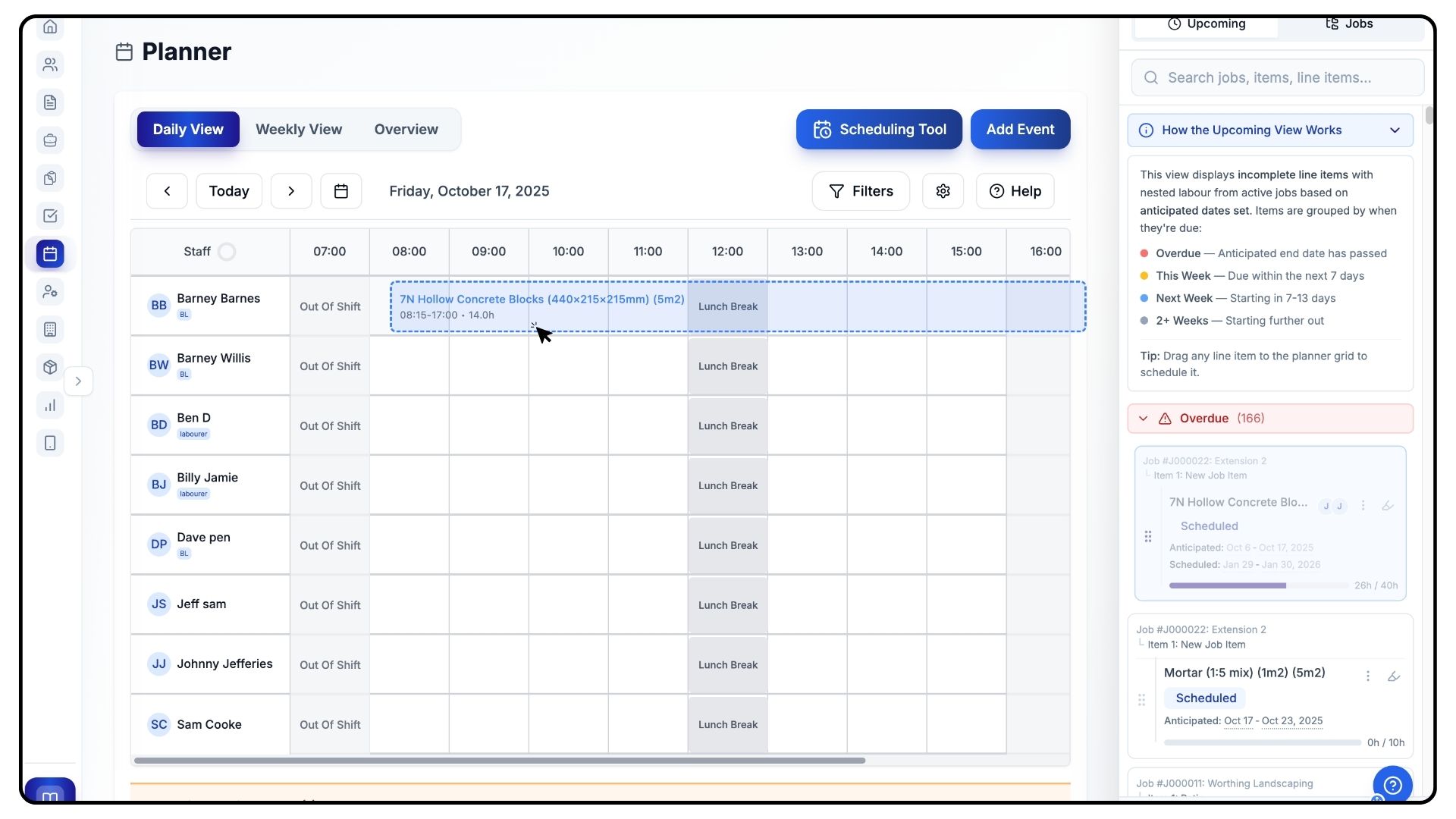
Click, drag, and drop the line item onto the relevant team member’s day.
This assigns the work and schedules the item in one action.
Bulk Scheduling Work
What It Does
Speeds up scheduling when assigning multiple items at once.
Steps
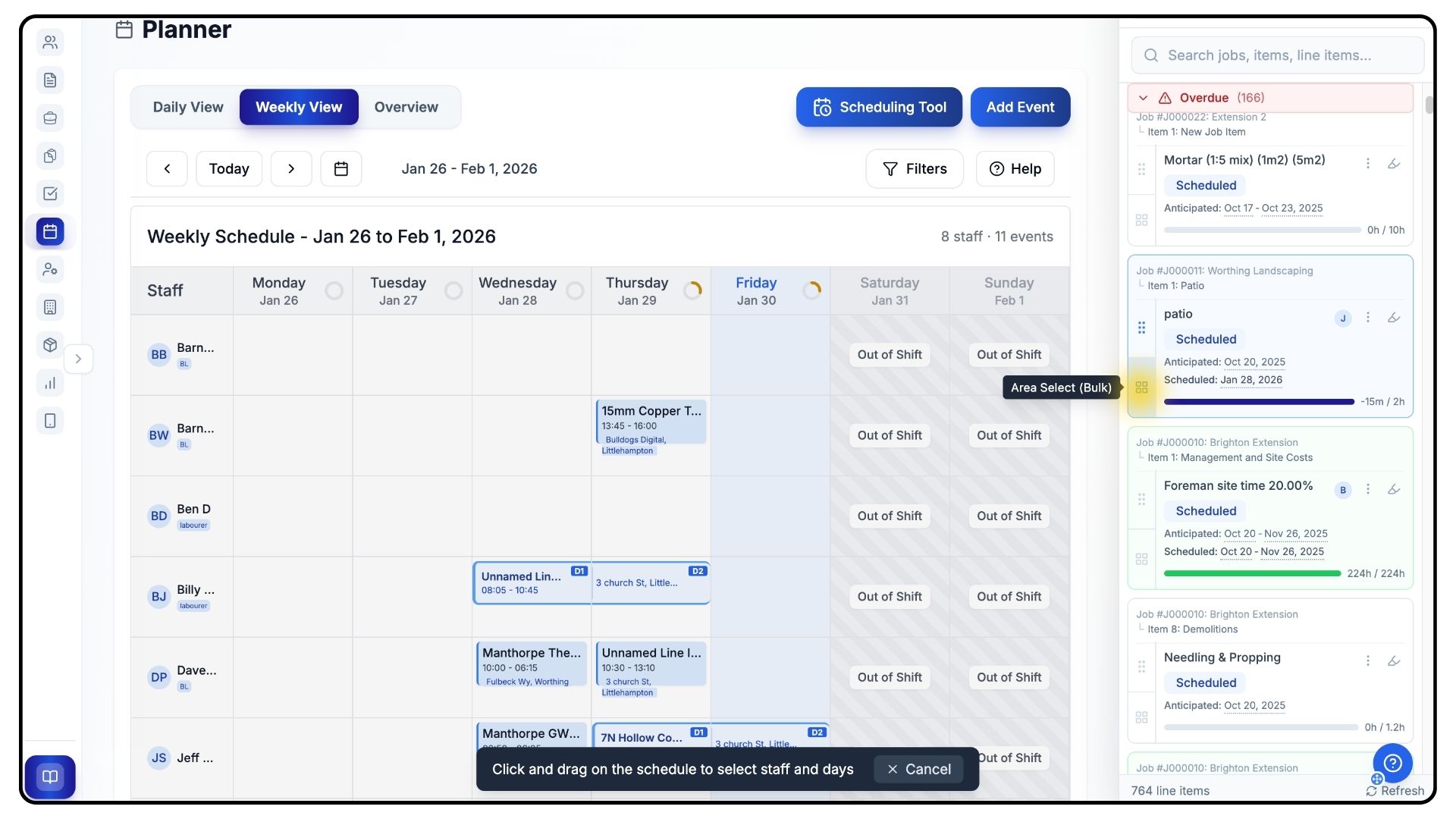
Switch to the Weekly or Overview view.
Click the Grid Tool.
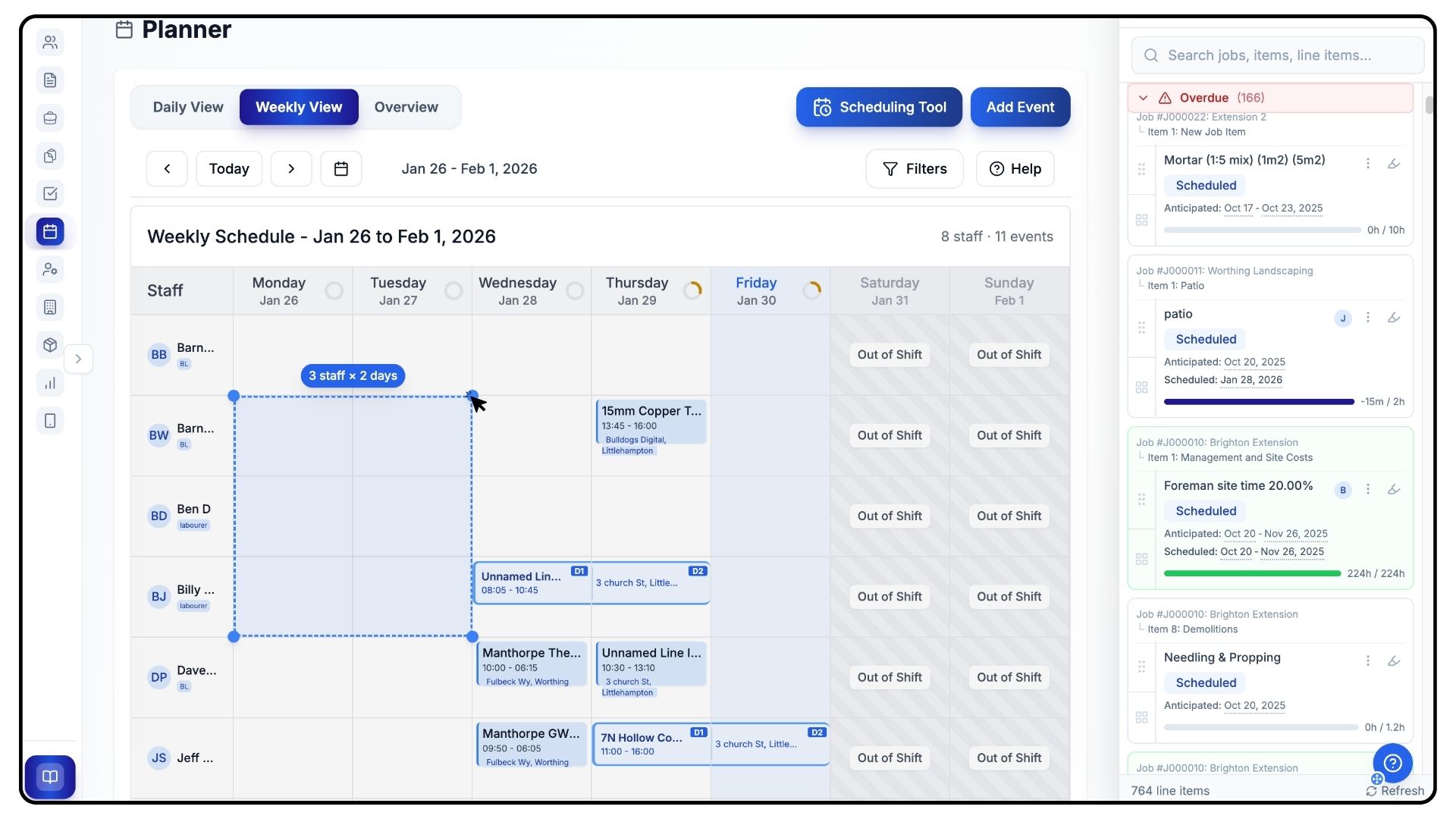
Drag across the required time period and staff members on the planner.
This assigns the selected work in one action.
Unscheduling and Managing Assignments
What It Does
Allows you to remove or adjust scheduled work.
Steps
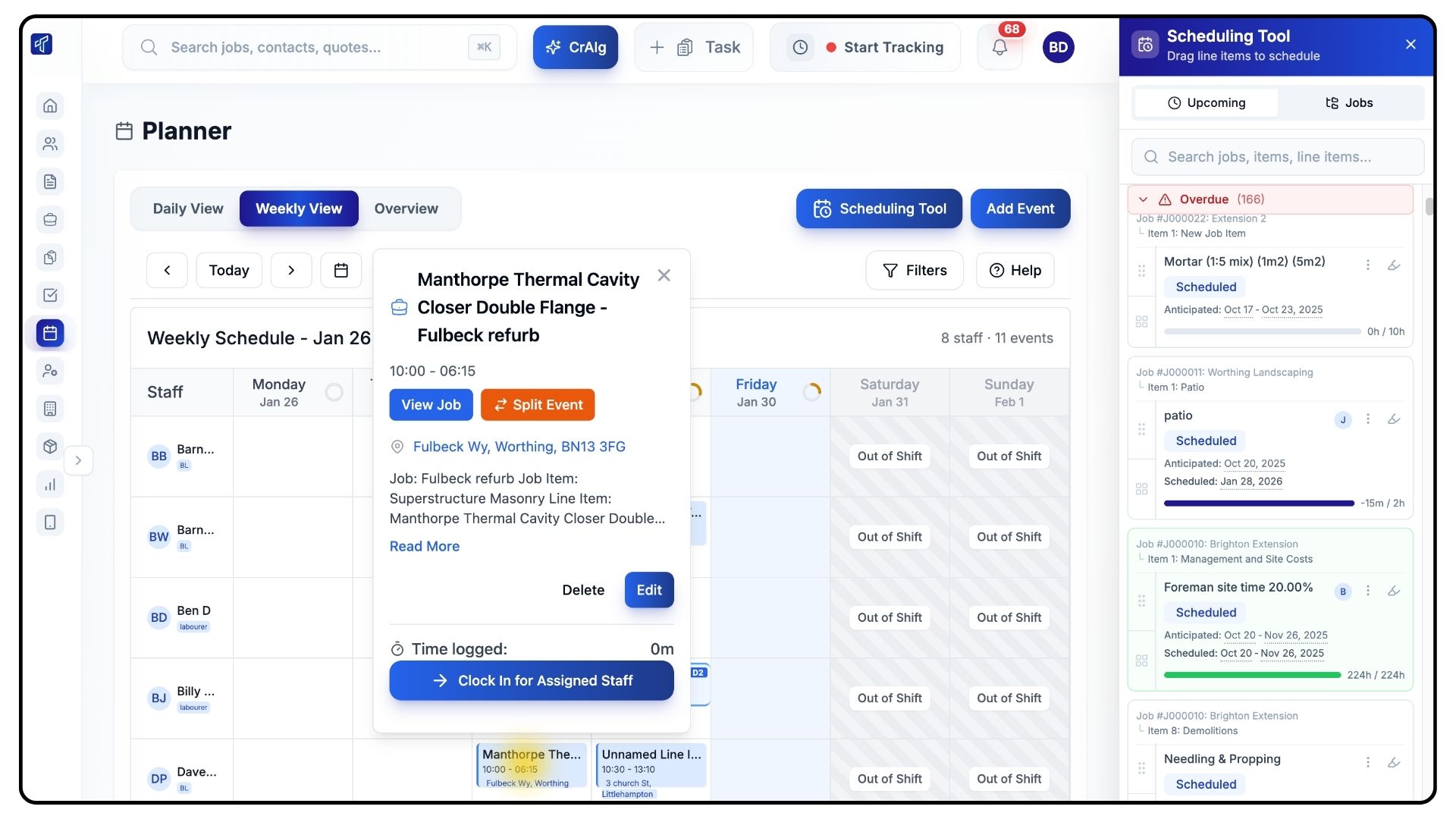
To unschedule an event from a staff member:
Click the event and press Delete, or
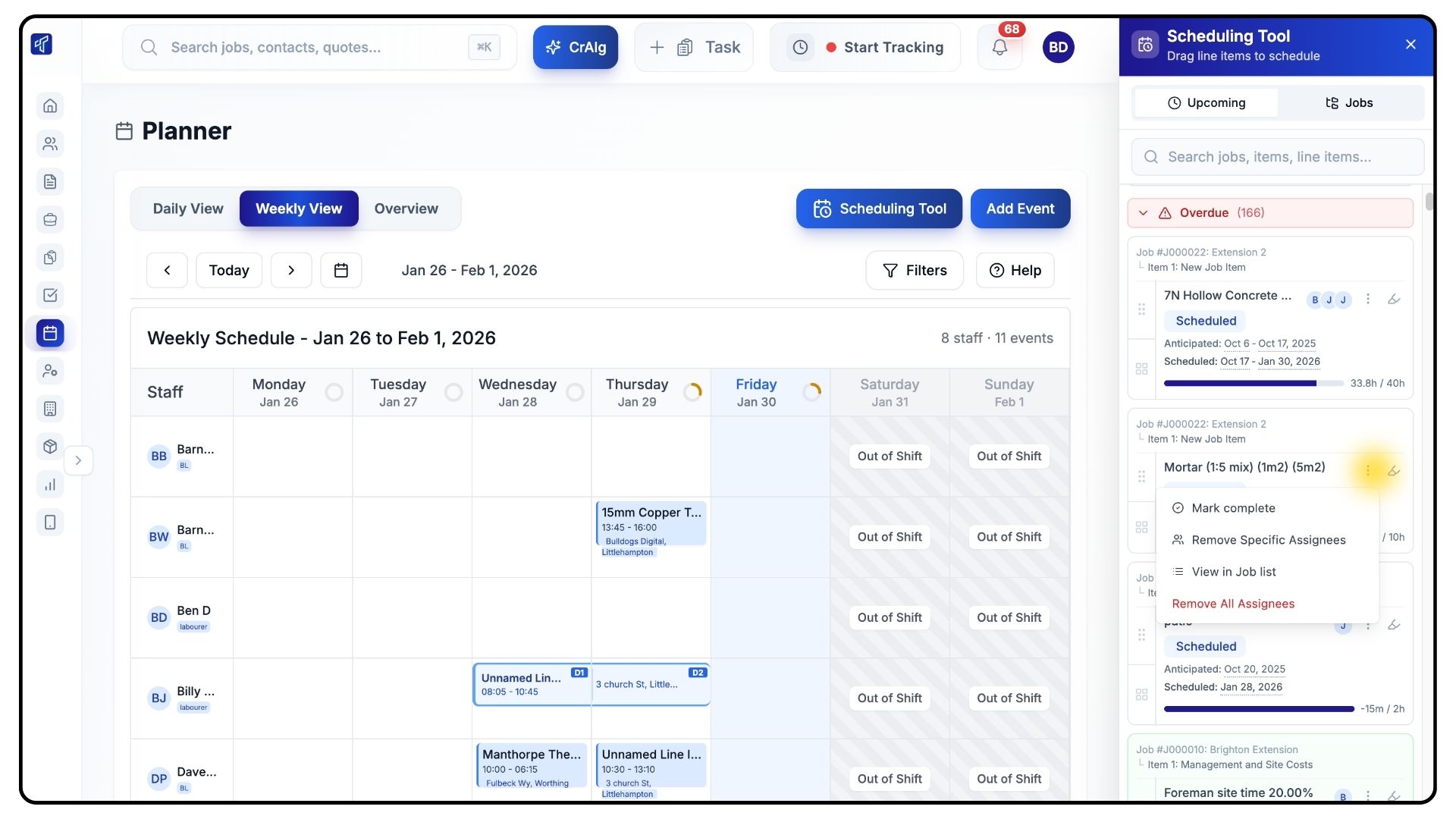
Click the three dots menu inside the item card
From here, you can:
Unassign the individual line item, or
Select Manage Assignees to bulk unschedule all current job events from that staff member
Filtering the Planner by Role
What It Does
Helps you focus on specific teams or trades.
Steps
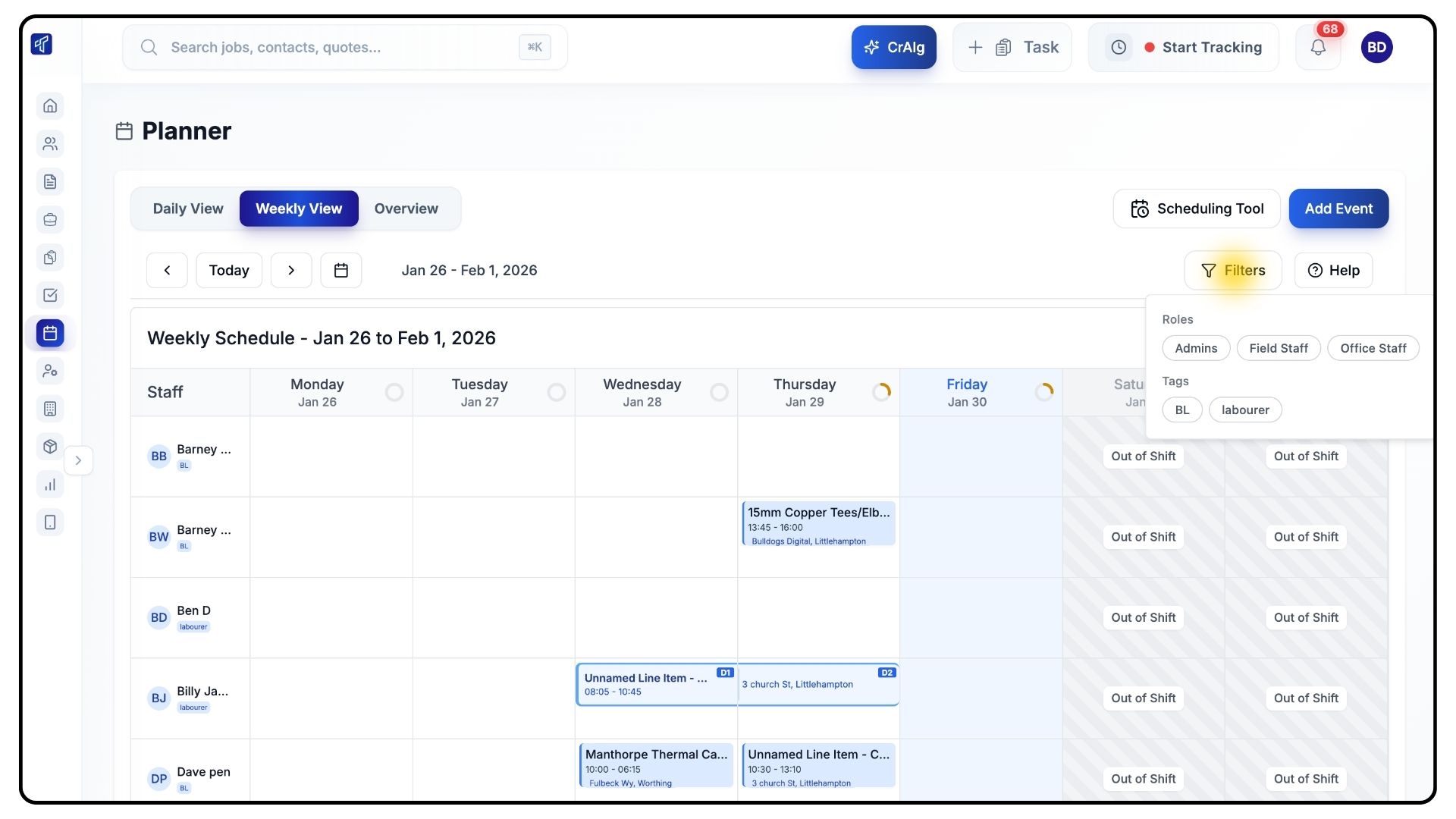
Click the Filters button on the planner.
Select the role you want to view.
The planner will update to show only relevant staff and work.
And that’s how to plan, schedule, and assign work using the Planner in TradesPanel.
For more tutorials and walkthroughs, visit the Guides section in the navigation bar.