Creating a New Contact
What It Does
Contacts are the foundation of your customer management system. Every quote, job, and appointment links back to a specific contact record, ensuring all project information stays connected.
Steps
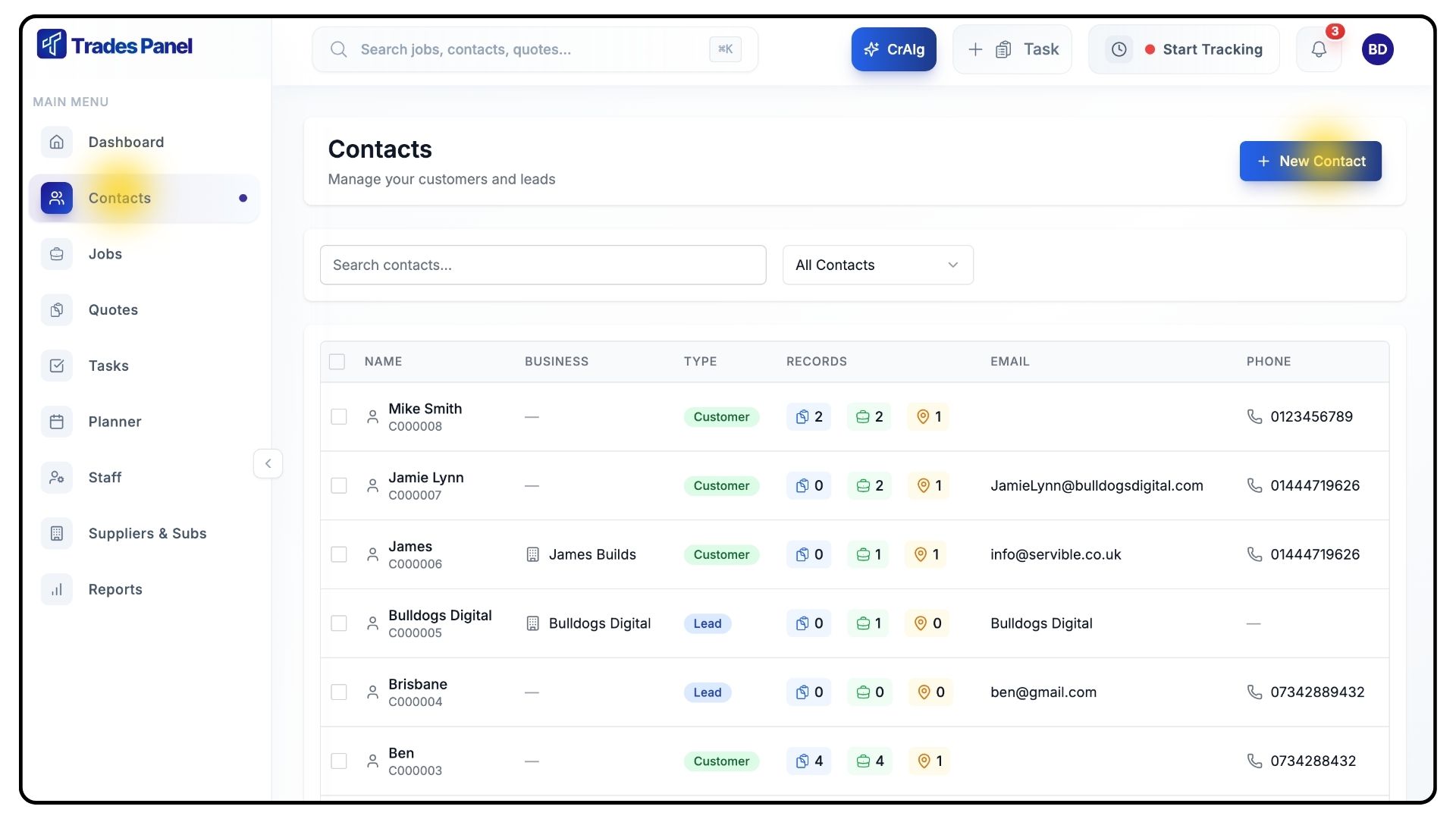
- Navigate to Contacts from the main menu.
- Click New Contact in the top right corner.
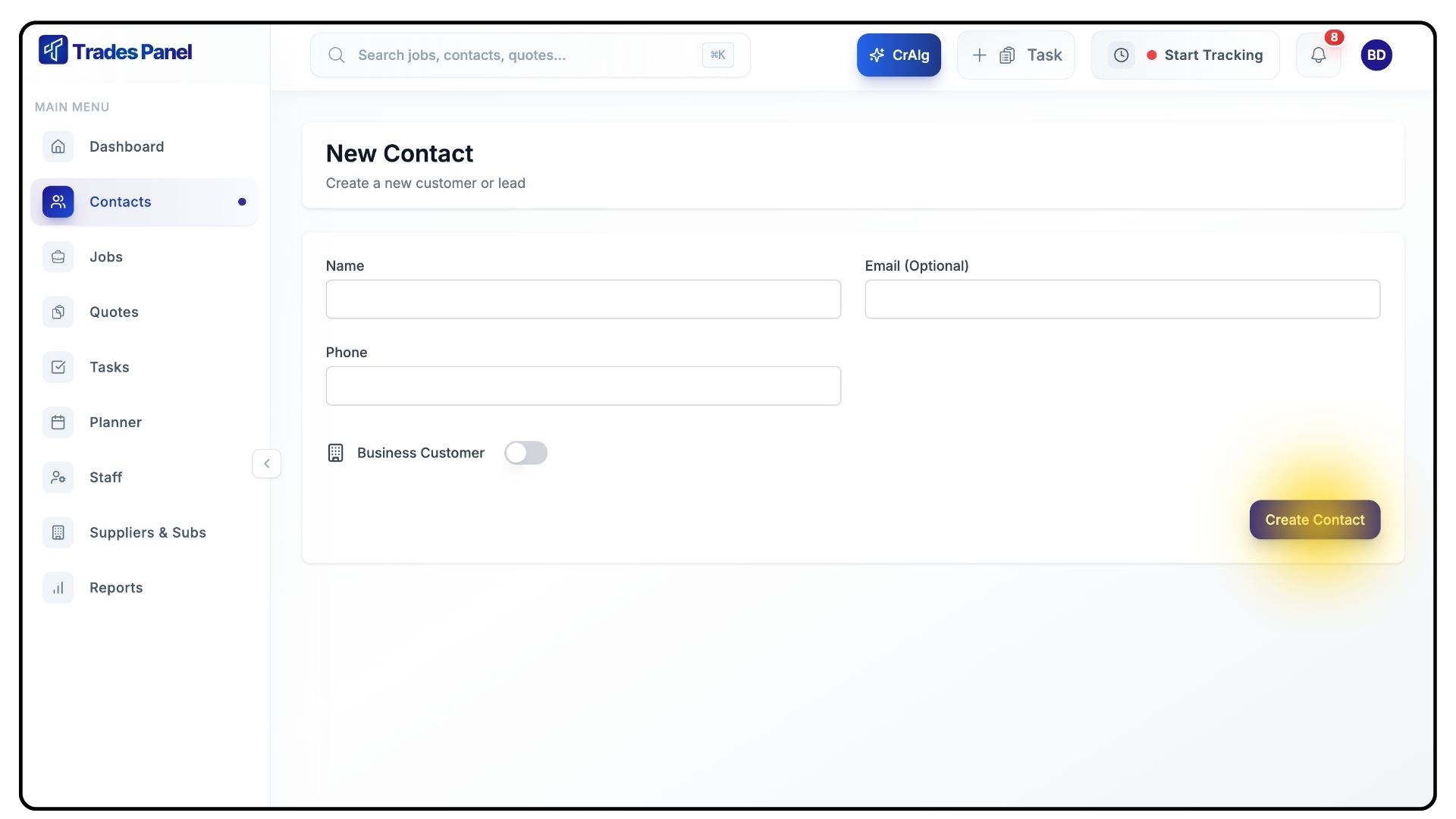
- Fill in the Name field.
- Add a Phone Number and Email Address.
- If the contact is a business, toggle Business Customer and enter the Business Name.
- Click Create Contact to create your new contact.
Add and Manage Addresses
What It Does
Addresses are used in quotes and jobs, helping you track where work is taking place. Each contact can have one or more stored addresses for easy reference.
Steps
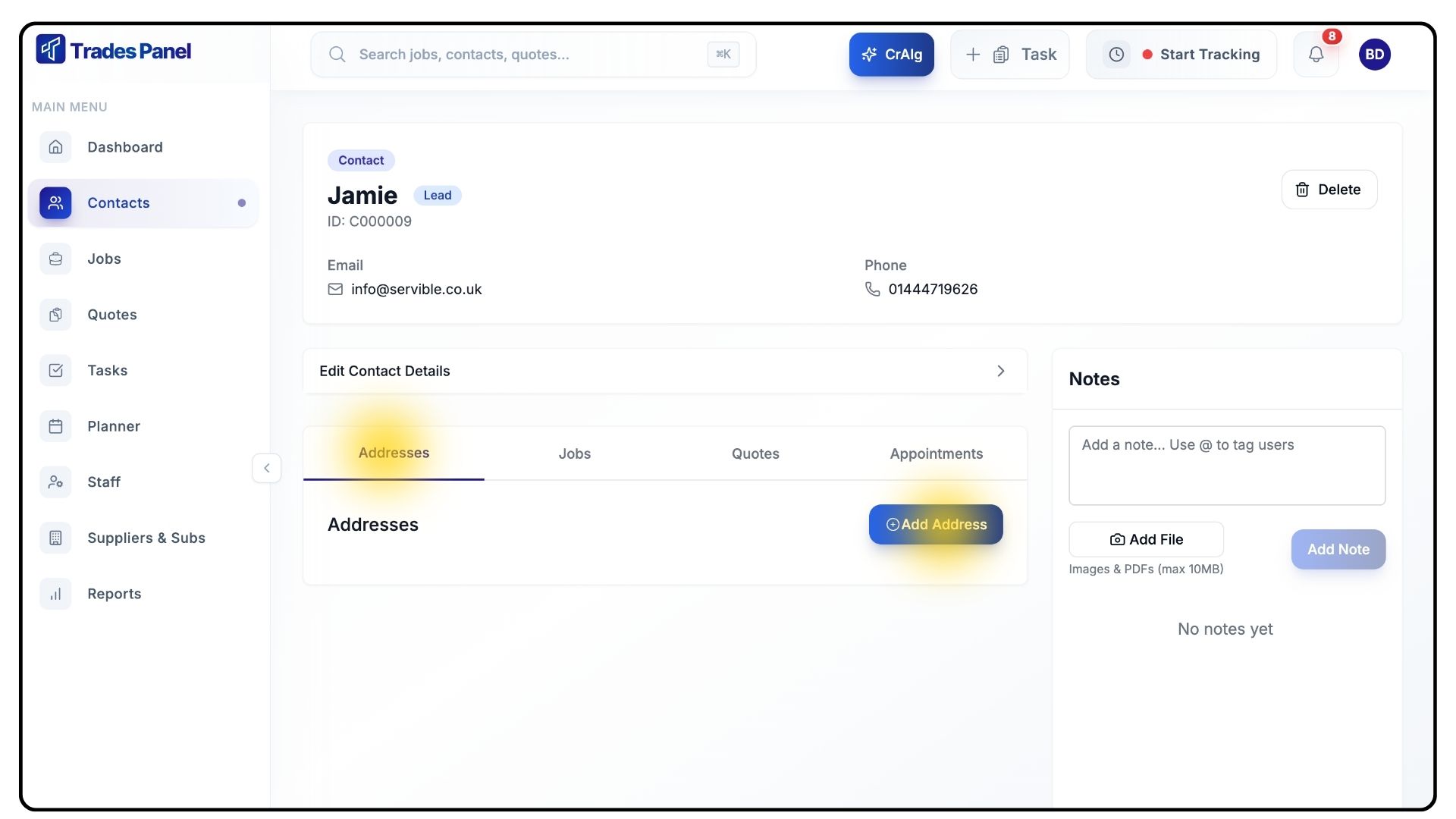
- Open the contact profile and go to the Addresses tab.
- Click Add New Address.
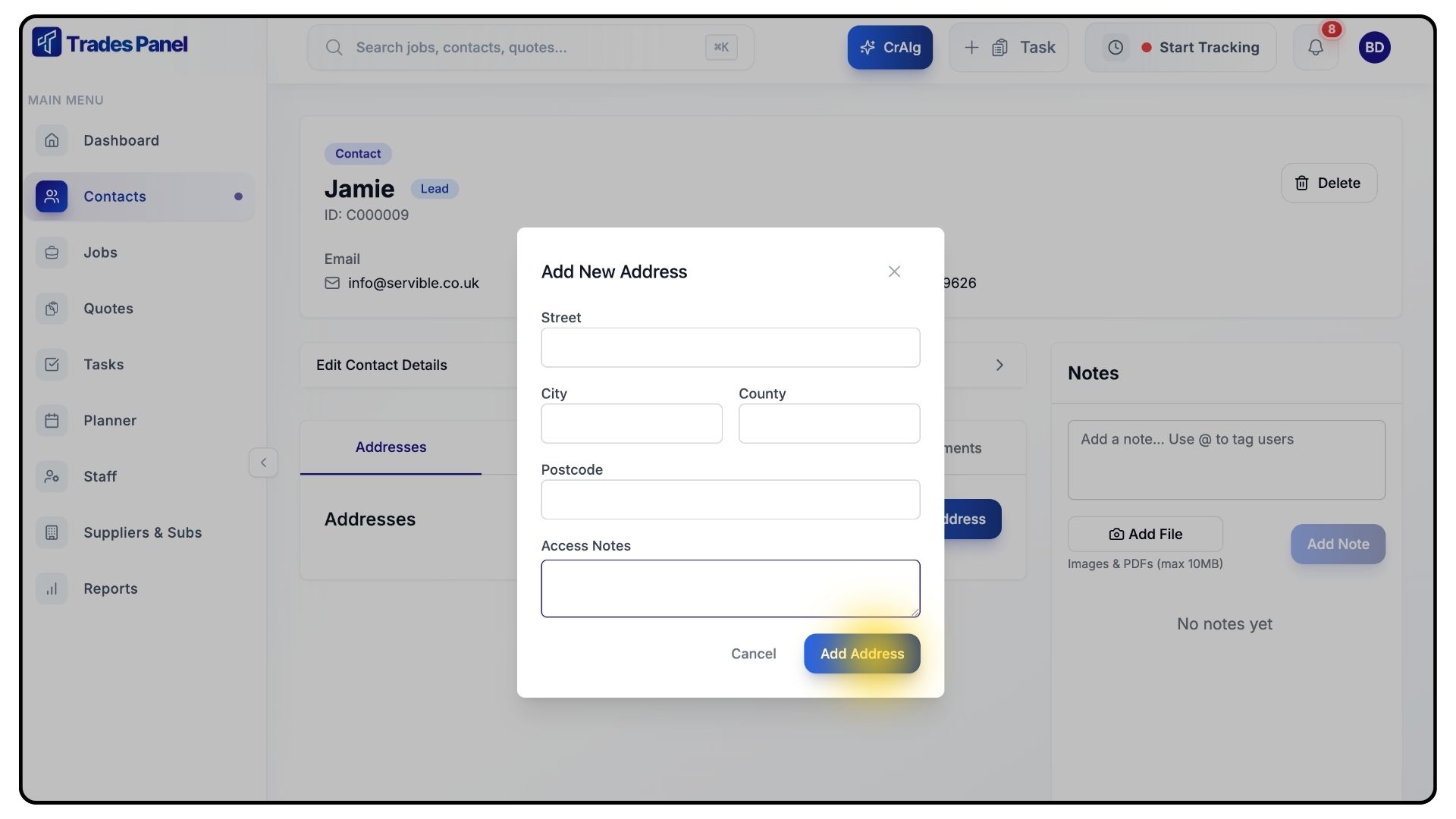
- Enter the Street Address, City, Postcode, and any Access Notes.
- Click Add Address.
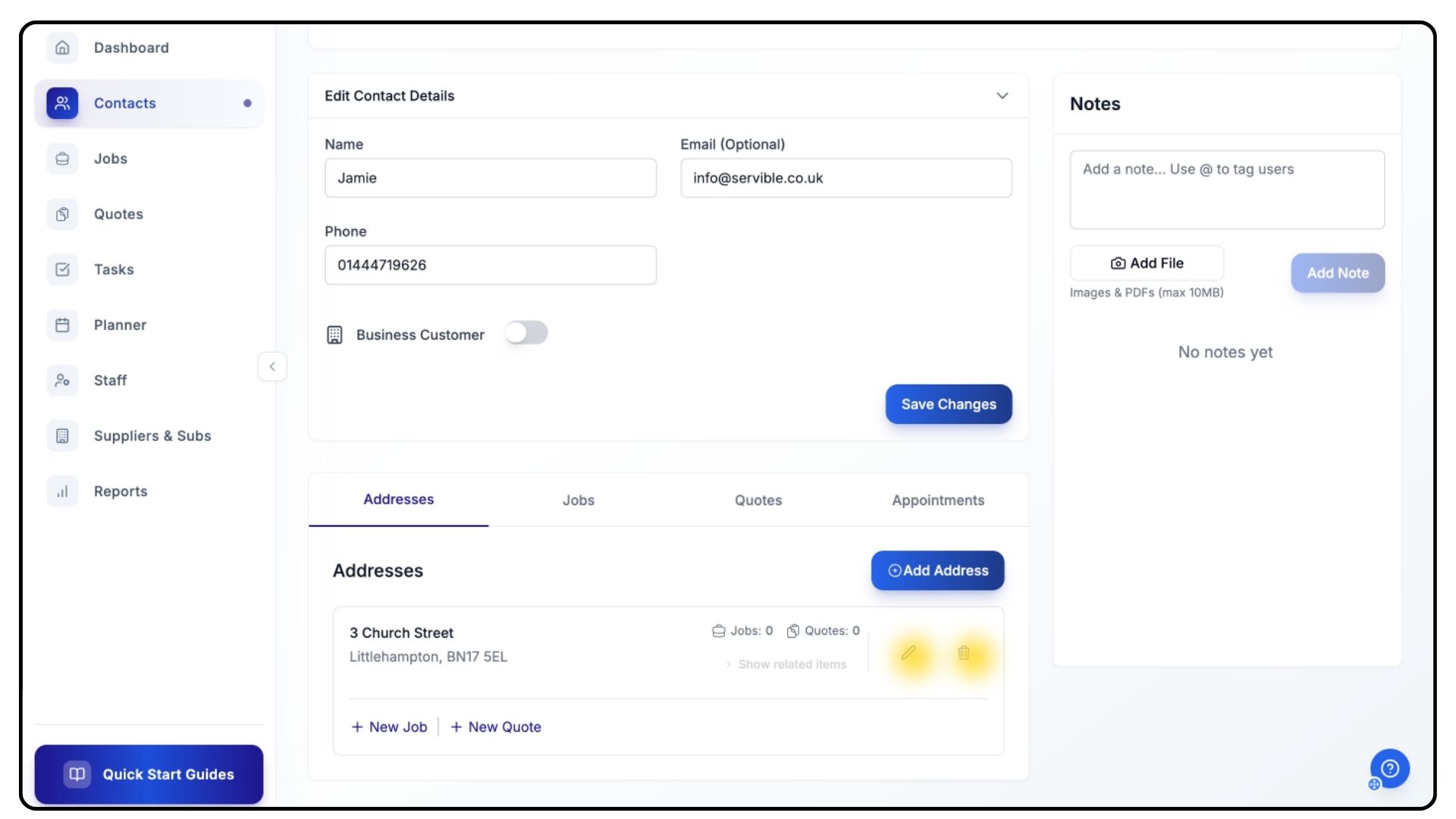
- To edit or delete addresses, use the Edit or Delete icons beside each entry.
Create an Appointment
What It Does
Appointments let you schedule meetings, site visits, or follow-ups directly from the contact profile. Each appointment links to both the contact record and the Planner for easy coordination.
Steps
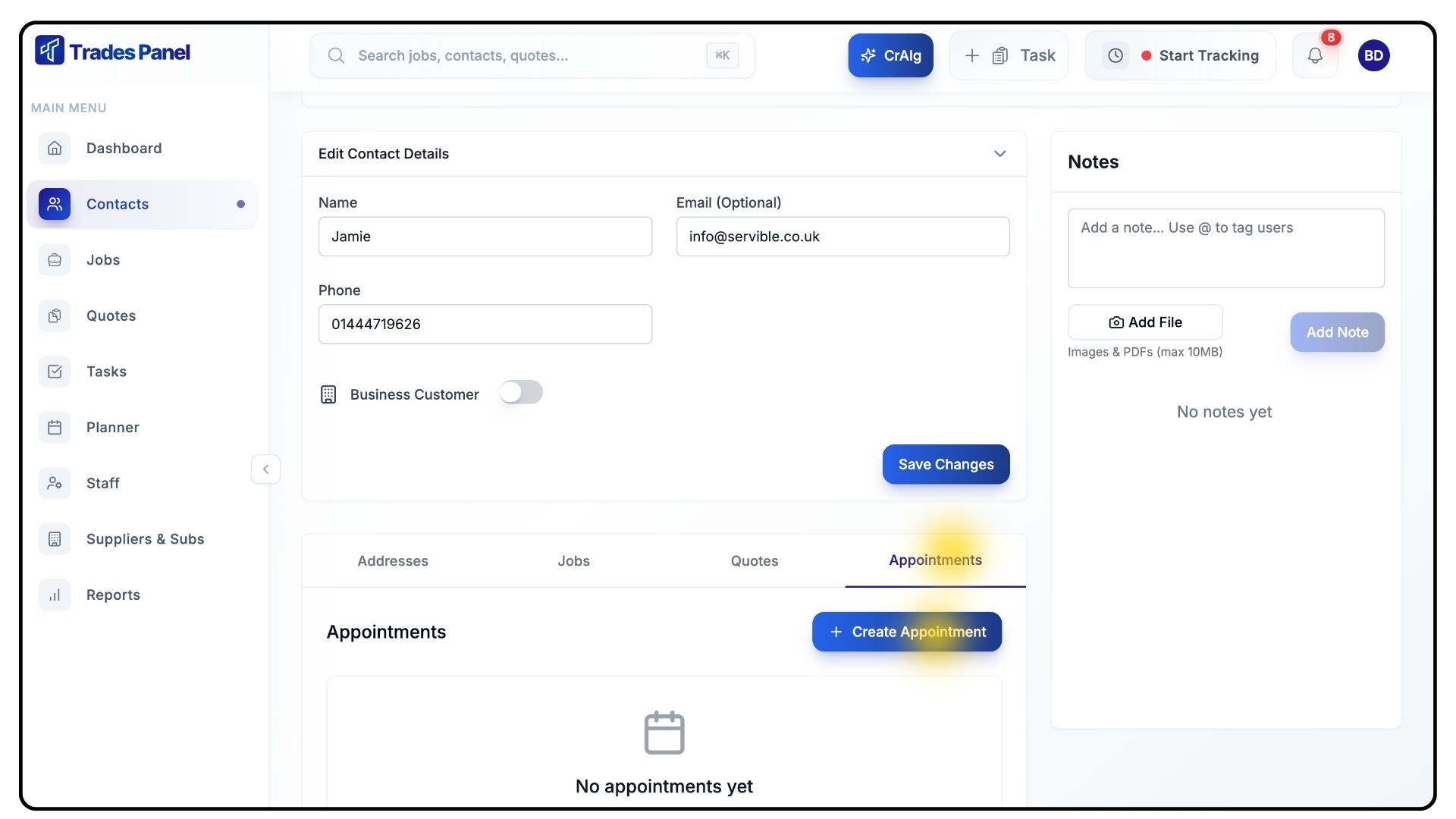
- Within the contact profile, open the Appointments tab.
- Click Create Appointment.
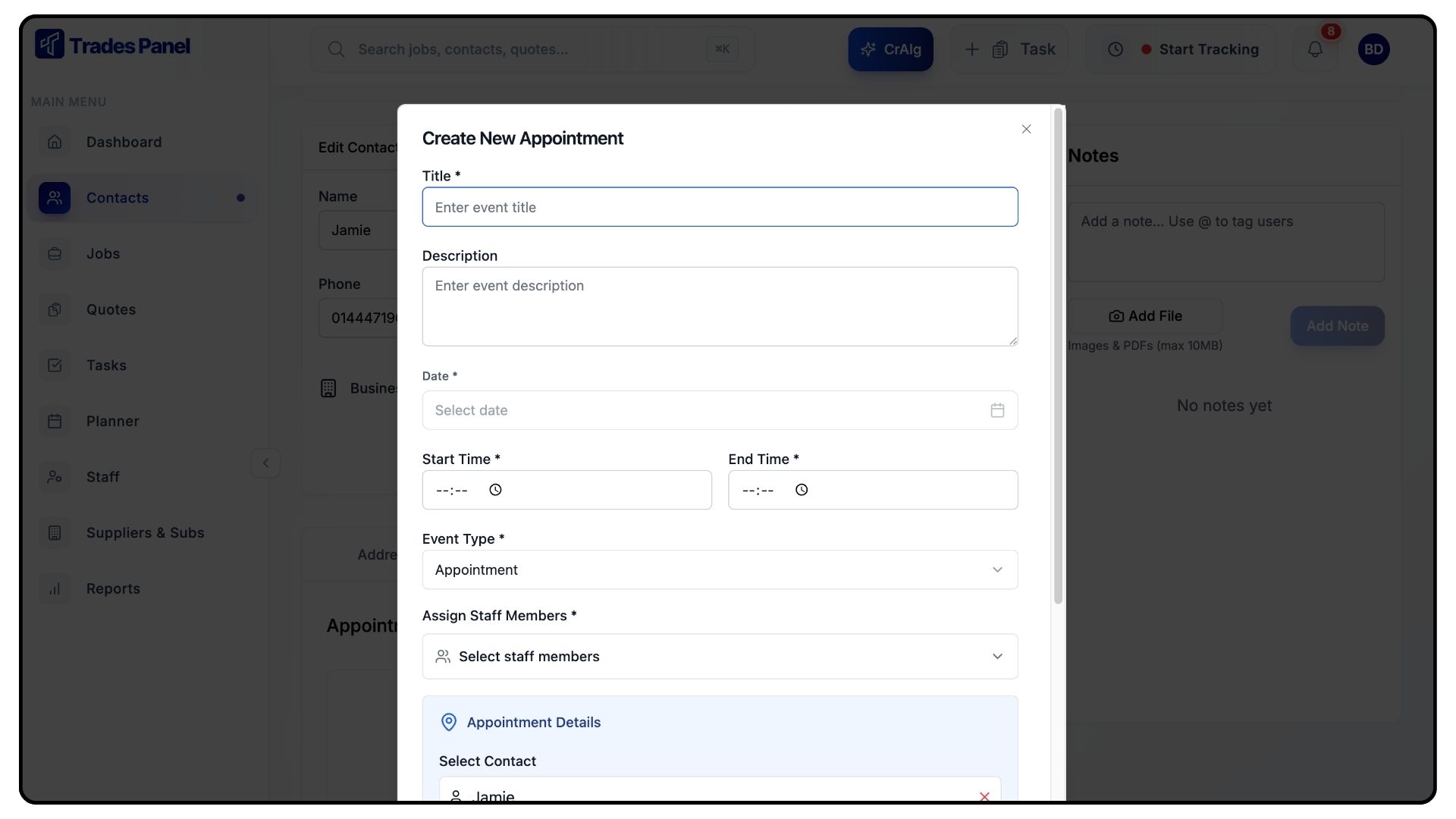
- Add a Title and Description.
- Choose a Start Date/Time and End Date/Time.
- Select the Event Type and Assign a Staff Member.
- Add a Location and click Create Event.
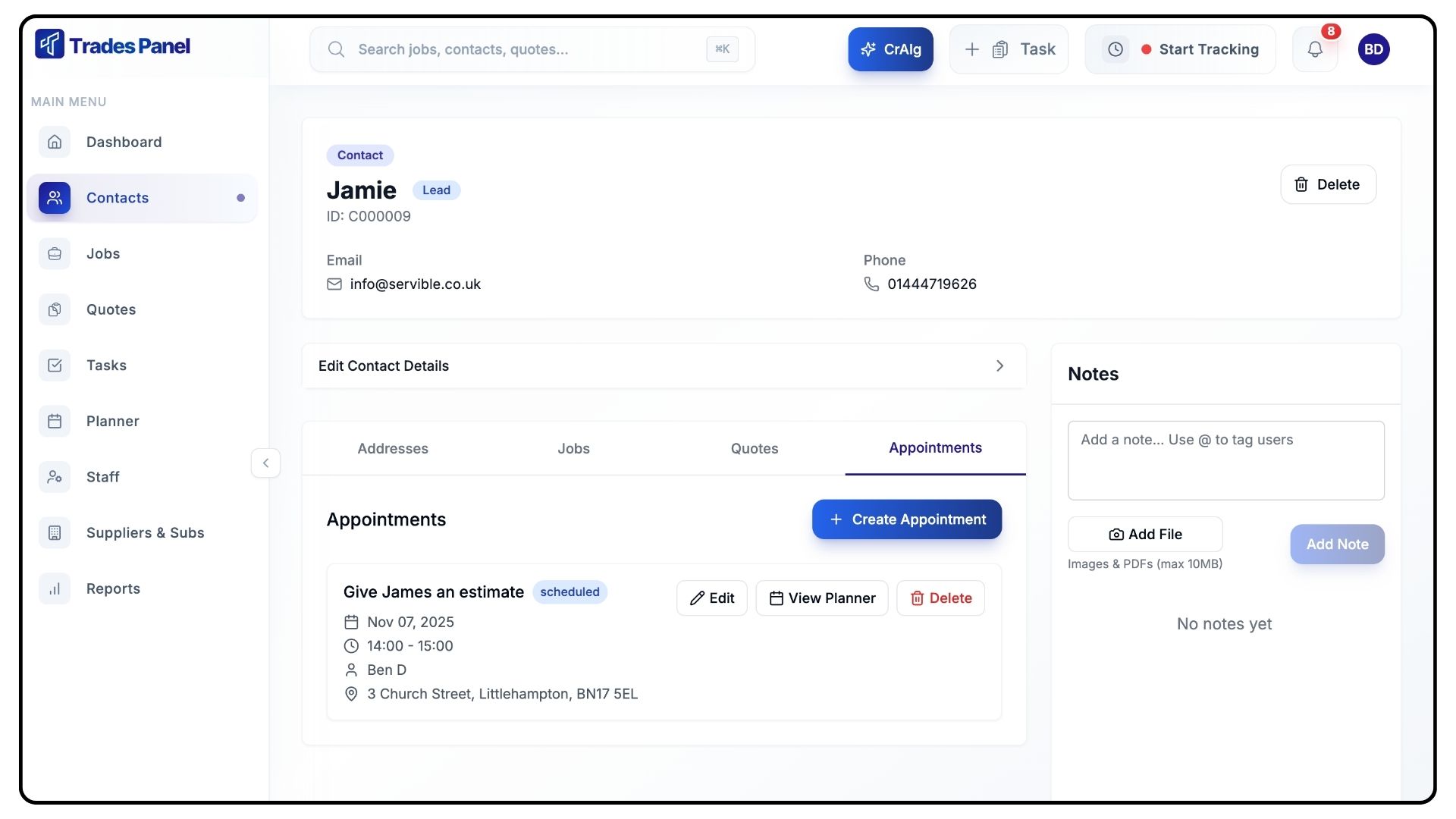
- Appointments will now appear both in the Contact Profile and the Planner.
Add Notes
What It Does
Notes are used to record customer preferences, communication history, and any important details or files related to the client.
Steps
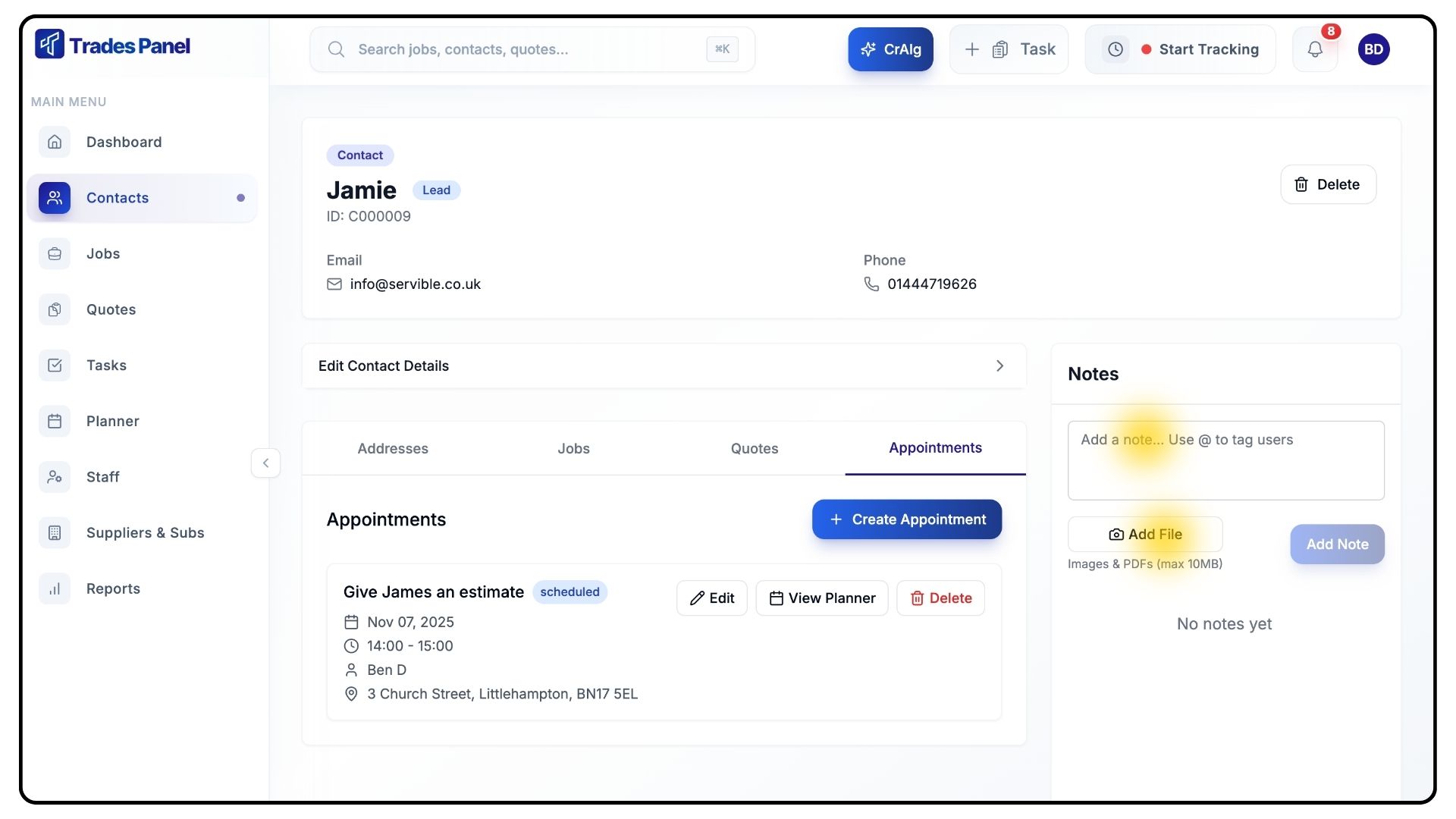
- Click inside the Notes box to record customer preferences or communication history.
- Attach any relevant files directly to the note entry.
Edit Contact Details
What It Does
You can update contact details at any time to keep your information accurate and consistent across the system.
Steps
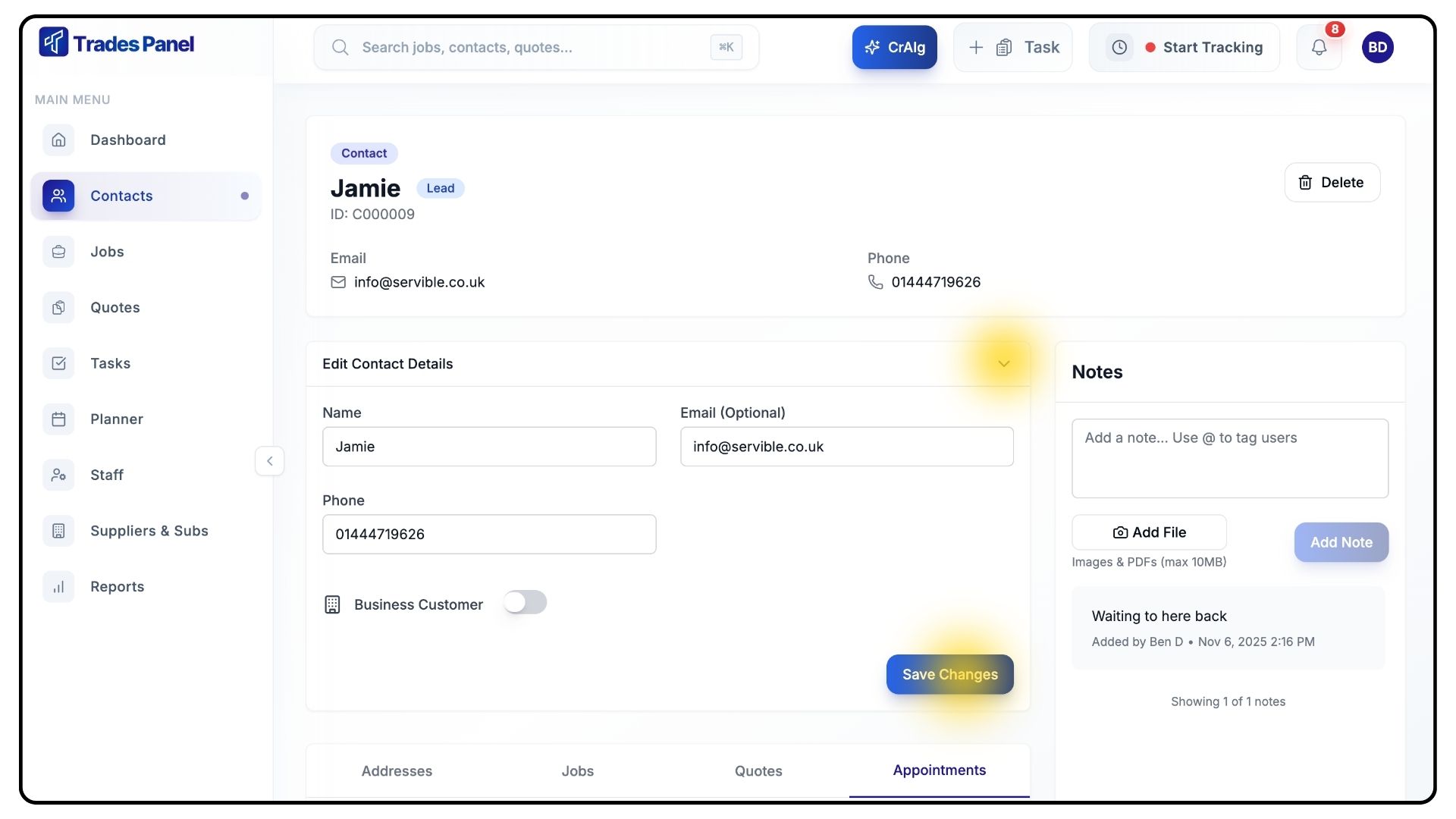
- From the contact profile, click Edit Contact Details.
- Update fields such as Business Info, or Contact Information.
- Click Save to confirm your changes.
Common Questions
Q: Can I add multiple addresses for a single contact?
Yes. You can store several addresses for each contact, which can then be selected when creating jobs or quotes.
Q: Can I edit or delete appointments later?
Yes. You can edit or remove any appointment directly from the Appointments tab within the contact profile.
Q: What happens if I edit contact details - will it affect existing jobs or quotes?
Updating a contact’s details will update their information system-wide, including in linked quotes and jobs.