Trades Panel gives subcontractors their own account, allowing you to manage your work independently while collaborating with main contractors on shared jobs. From your account, you can manage staff, view schedules, track progress, upload documents, and also run your own projects.
Accepting a Project Invitation
What It Does
Allows you to access jobs shared with you by a main contractor.
Steps
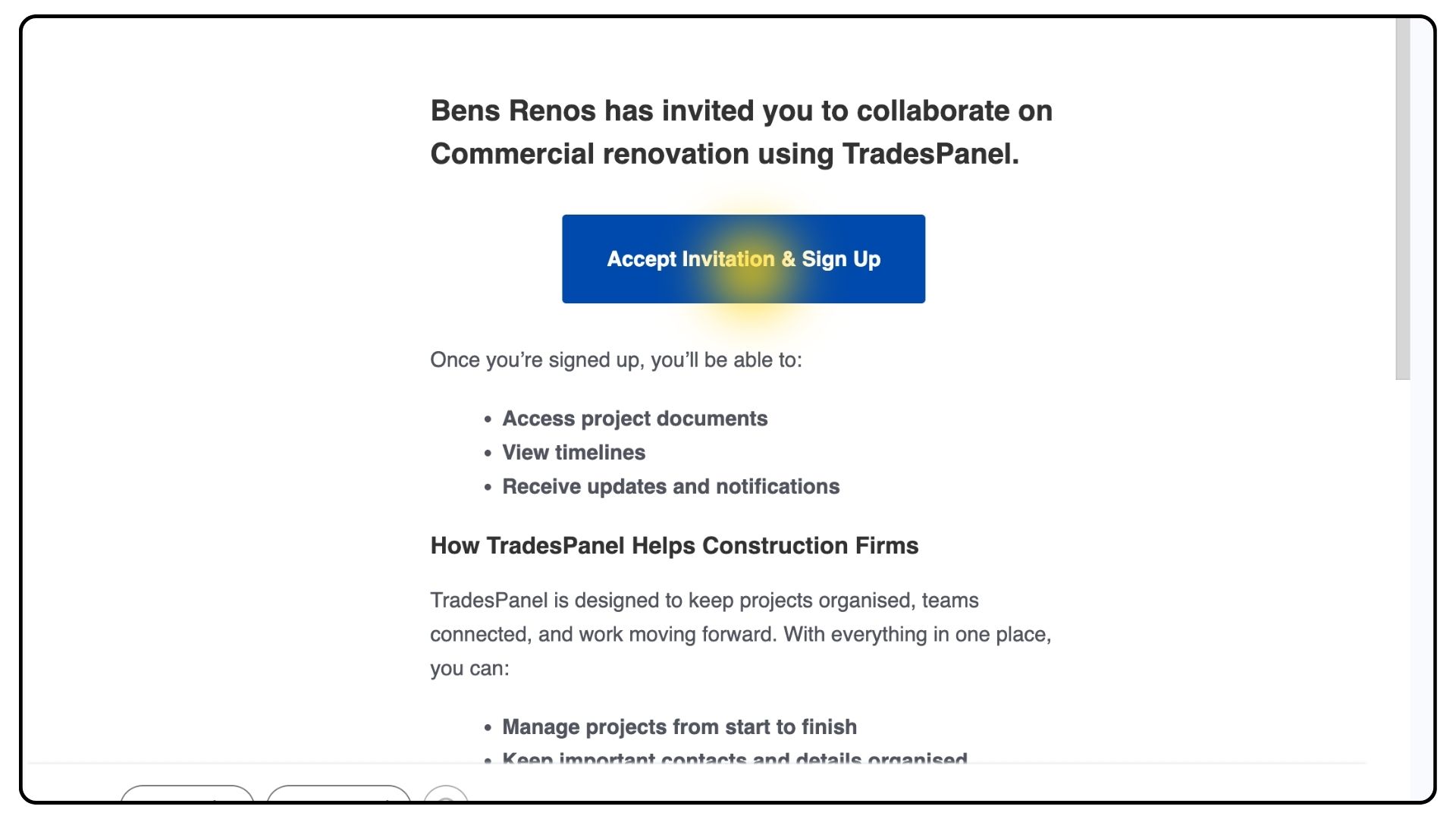
Once a main contractor invites you to a project, you’ll receive an email invitation.
Open the email and click Accept Invitation.
Create your account by entering your business name and contact details.
Follow the onboarding steps to complete your setup.
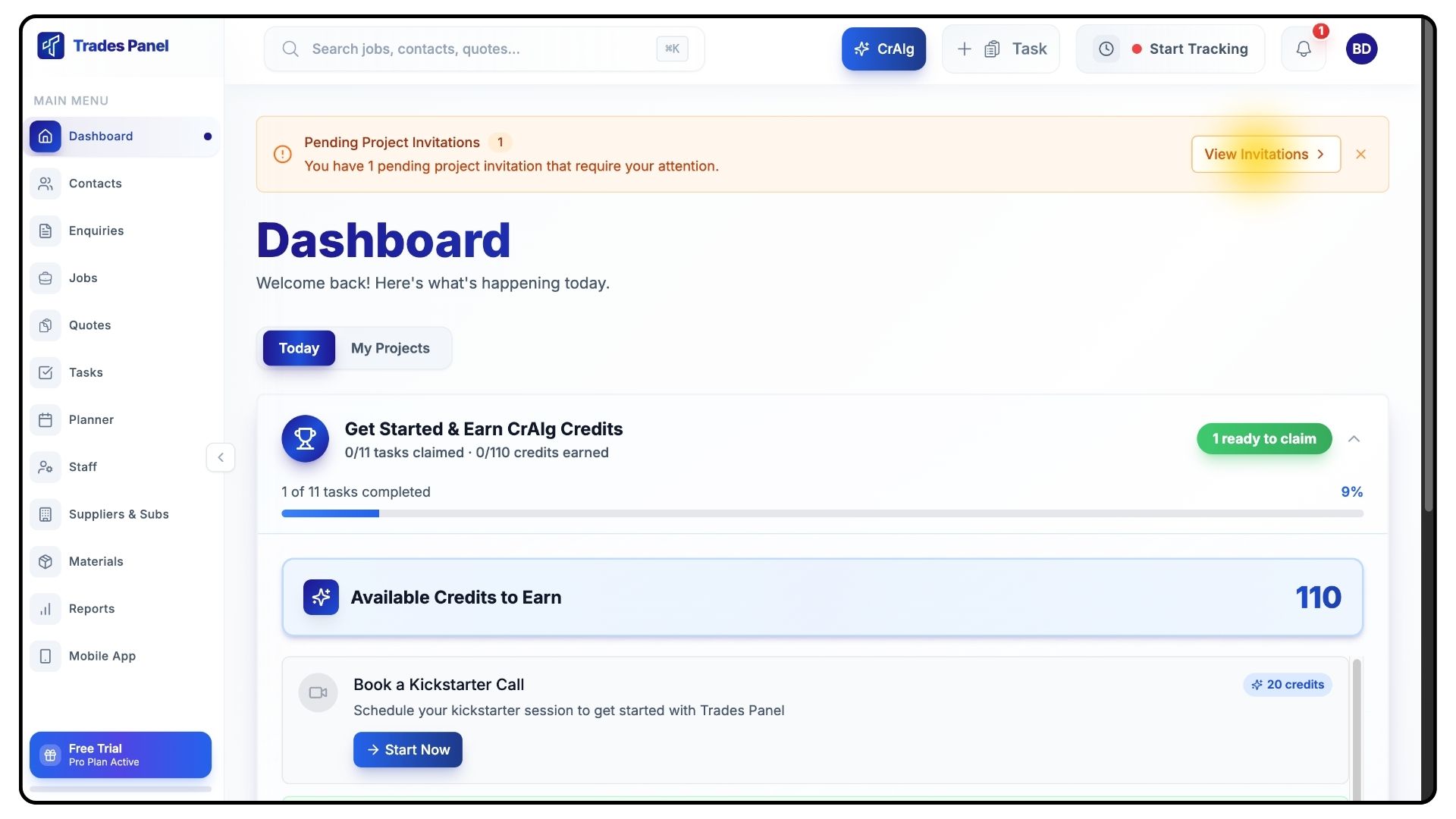
After onboarding, you’ll land on your dashboard.
If you’ve been invited to a project, you’ll see a pending project invitation.
Open the invitation and accept it to gain access to the assigned job.
Adding Your Staff
What It Does
Adding staff allows you to assign your team to job stages and manage scheduling and time tracking.
Steps
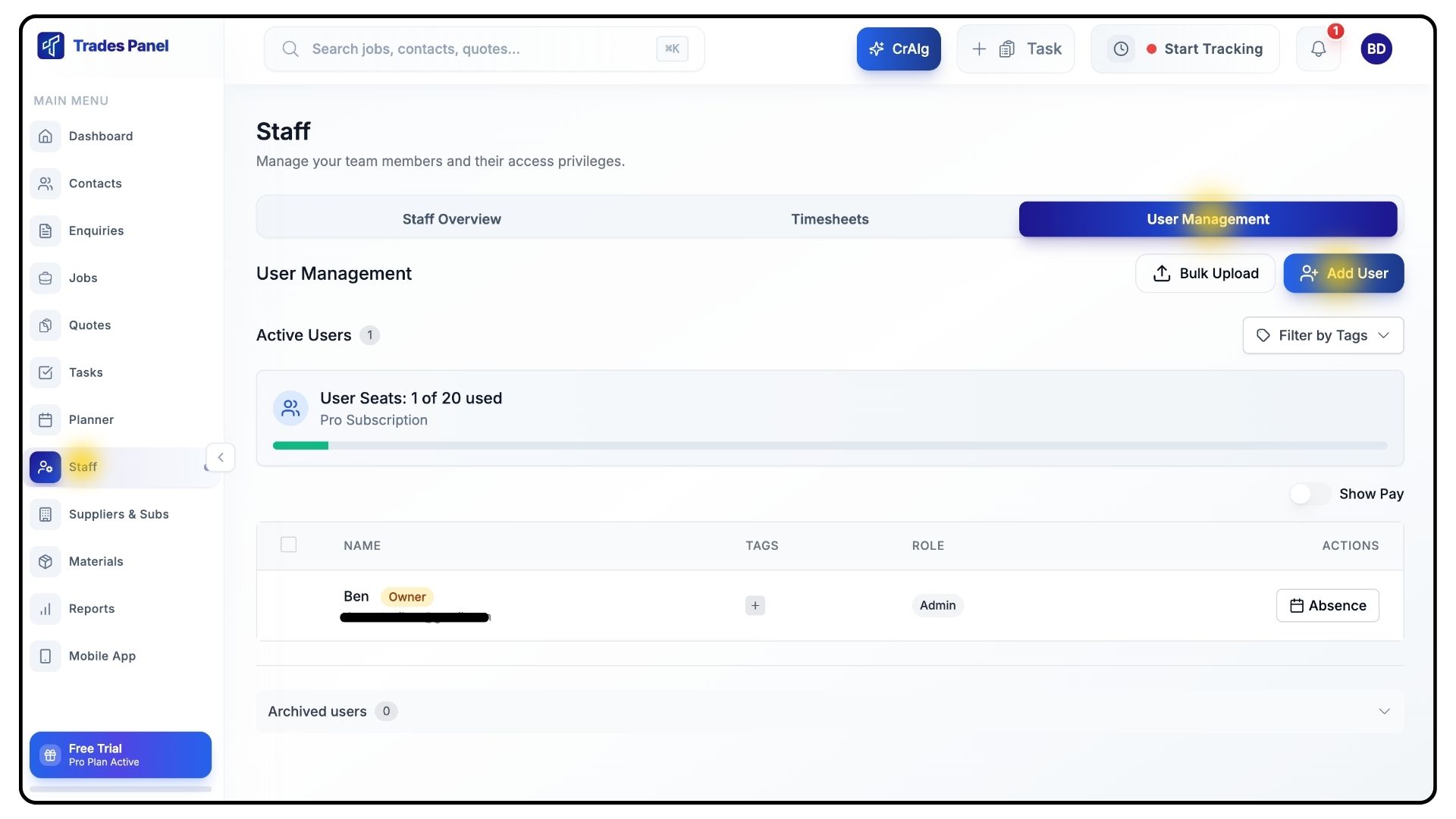
Go to the Staff tab in the main navigation.
Open User Management and click Add User.
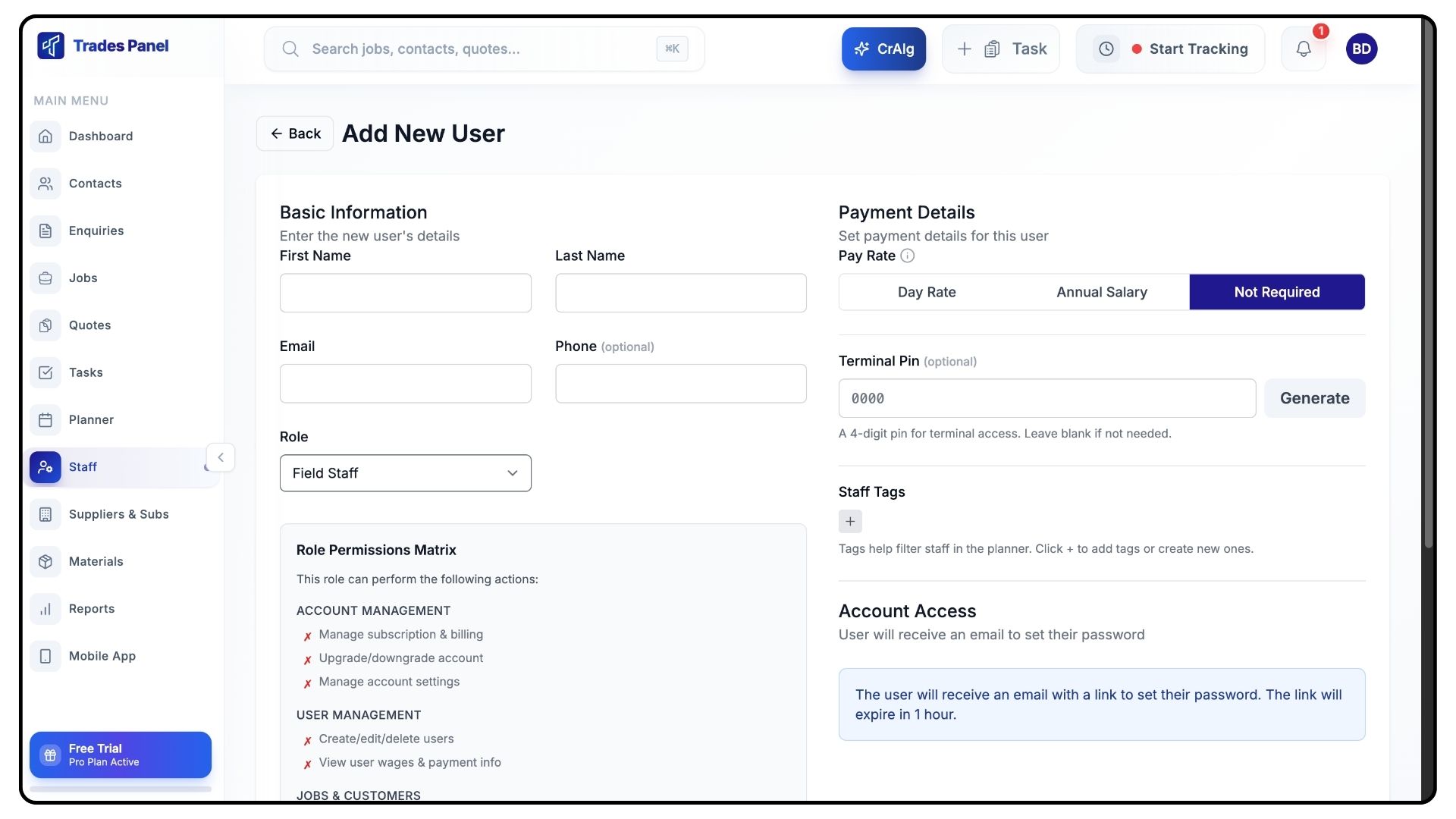
Enter the staff member’s details, including:
Name
Pay type (day rate or salary)
You can also apply staff tags, which are useful later when assigning work or reviewing schedules.
Click Add User to confirm.
Bulk Uploading Staff
What It Does
Allows you to add multiple staff members at once.
Steps
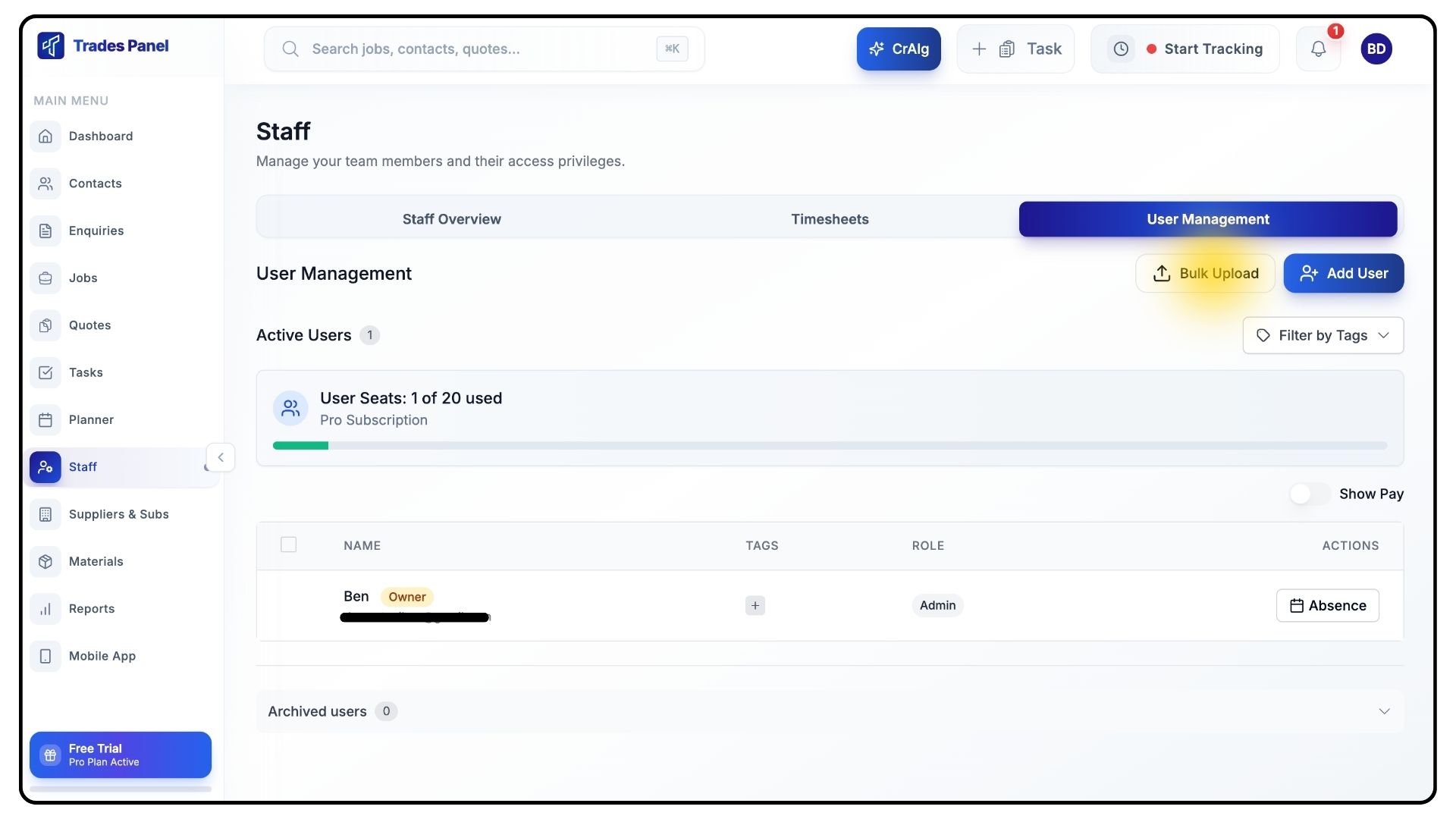
If you need to add multiple team members, use the Bulk Upload feature.
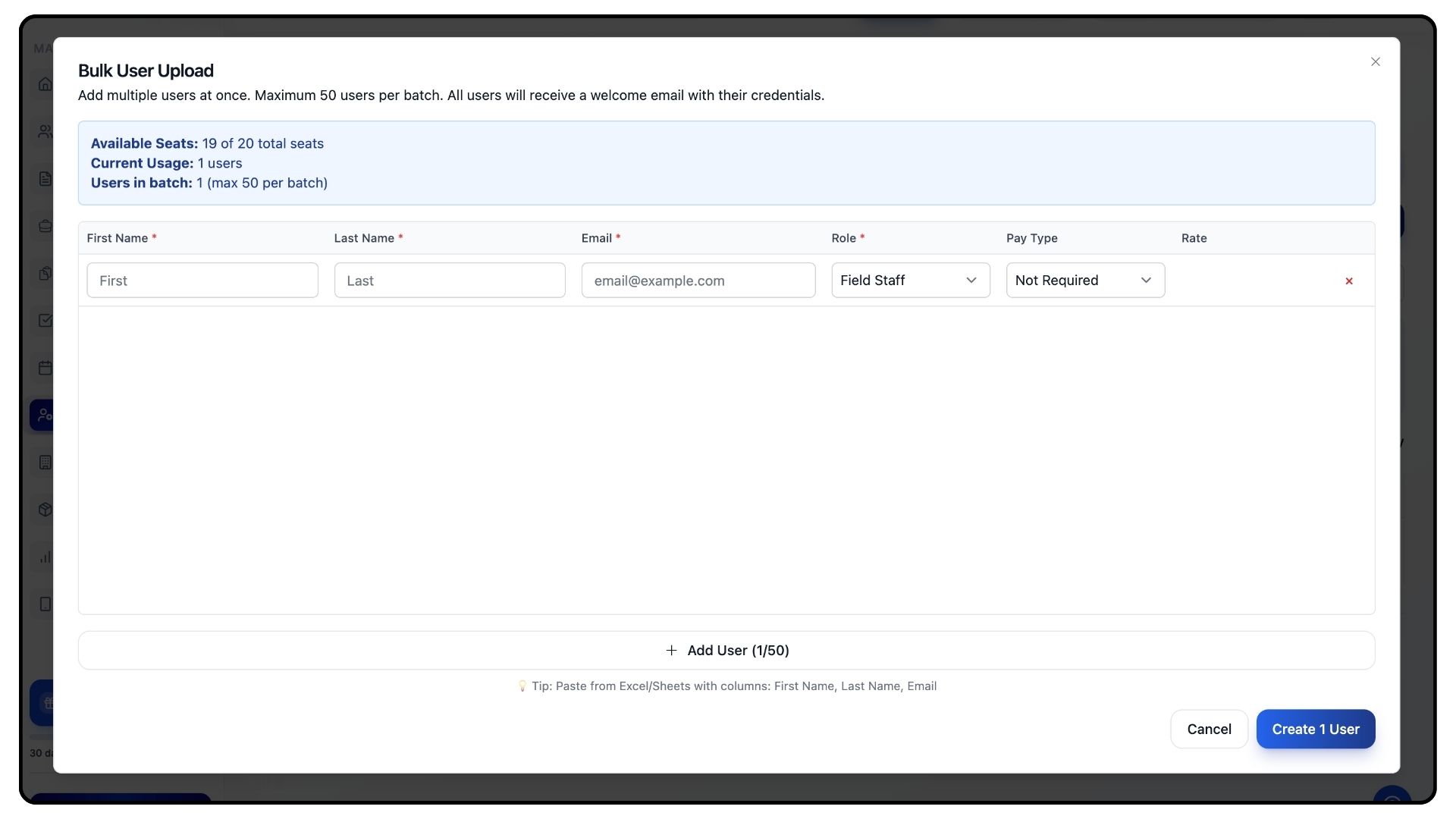
Prepare a CSV file with your staff details.
Copy and paste the data to add several users in one go.
Viewing and Working on Jobs
What It Does
Allows you to view assigned jobs and assign your staff to job stages.
Steps
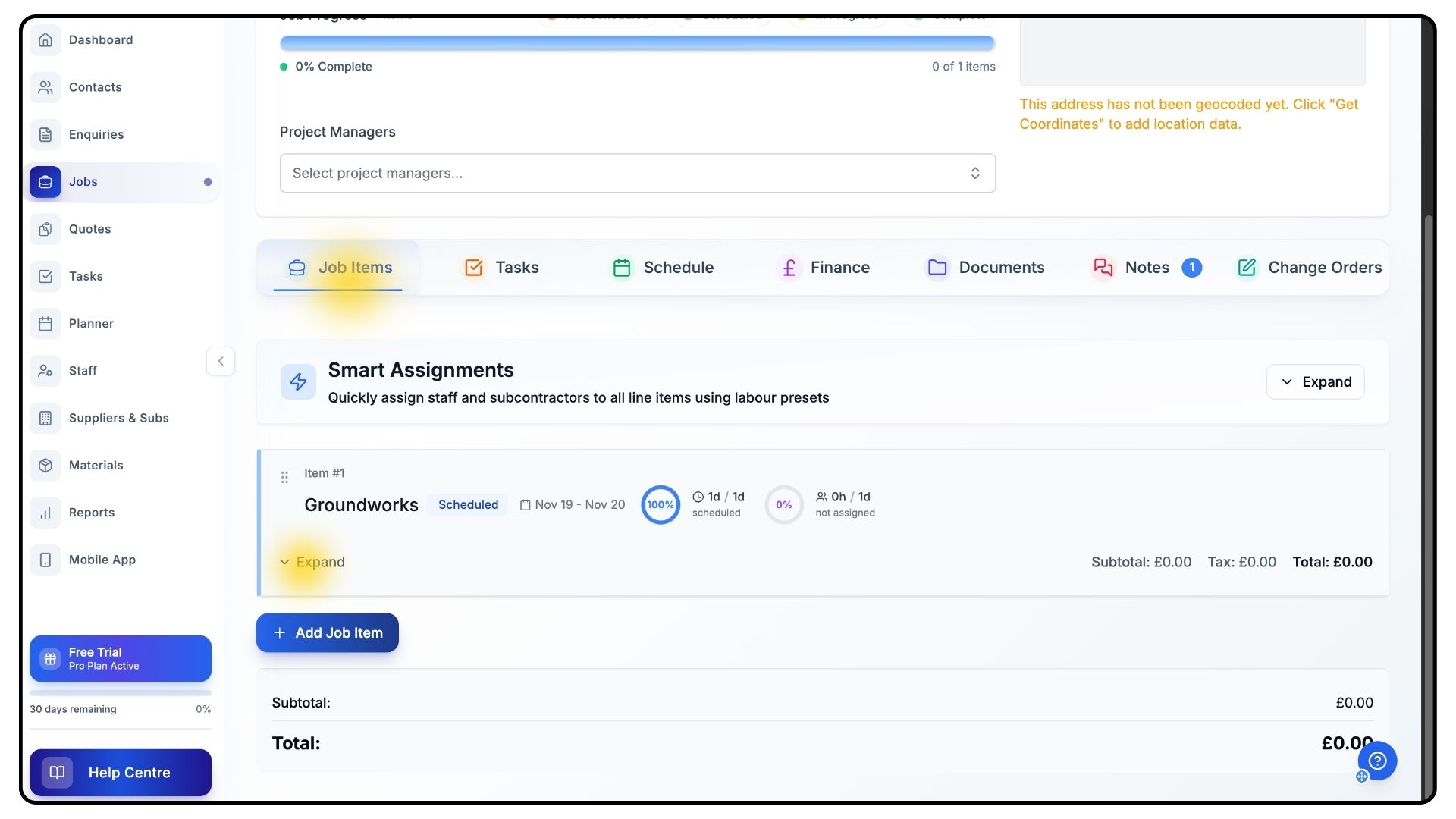
Go to the Jobs tab and open the job you’ve been invited to.
Scroll down to the Job Items section and click Expand.
You’ll see the schedule and stages set by the main contractor.
Job dates and schedules are controlled by the main contractor and cannot be changed by subcontractors.
Assigning Staff to Job Items
What It Does
Assigns your team to specific stages of the job.
Steps
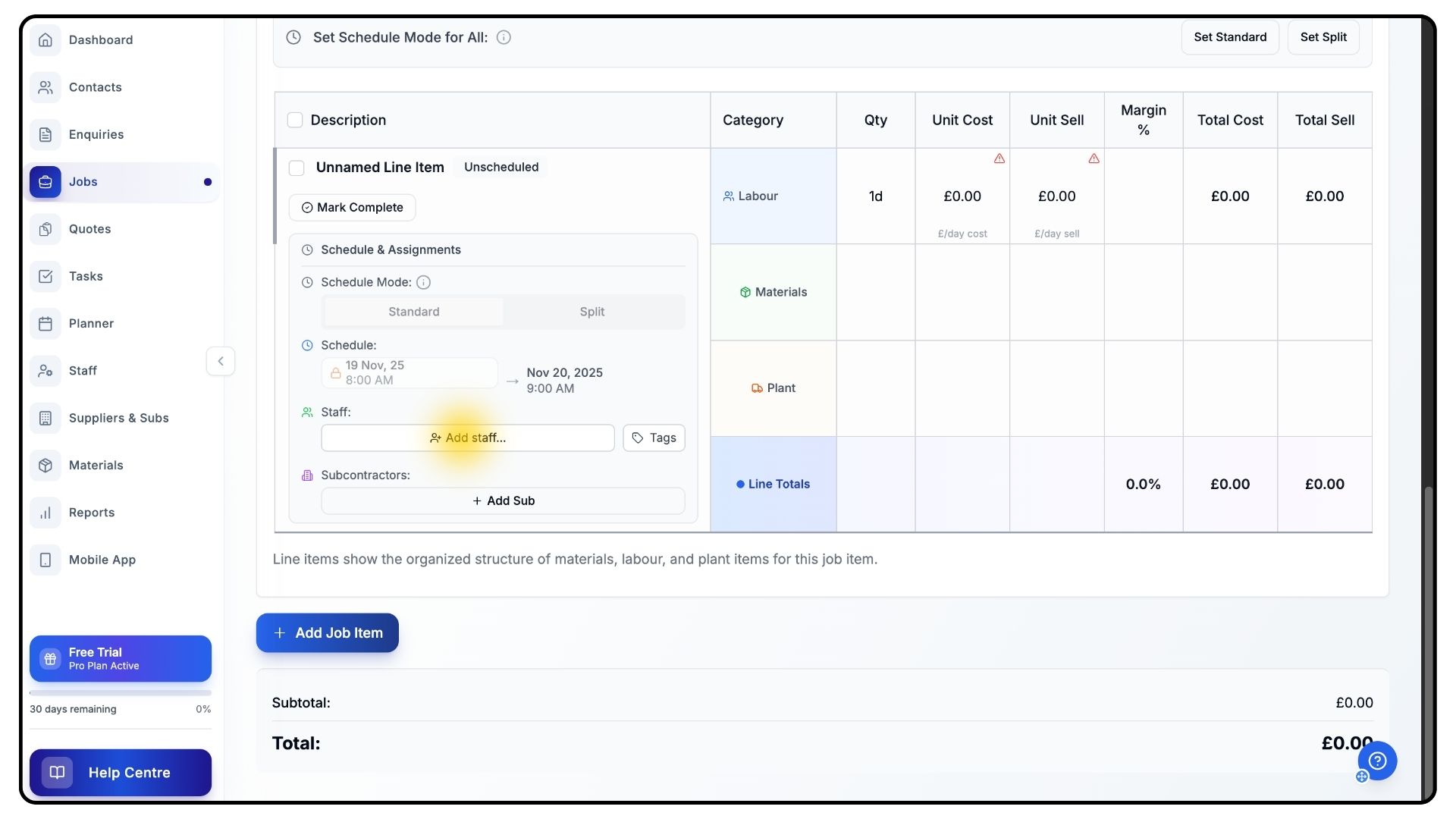
Click Add Staff.
Select the relevant staff members for the job item.
Click Apply Changes.
Your staff are now assigned to that stage of the job.
Enabling Site Clock-Ins
What It Does
Allows staff to clock in and out when they arrive on site.
Steps
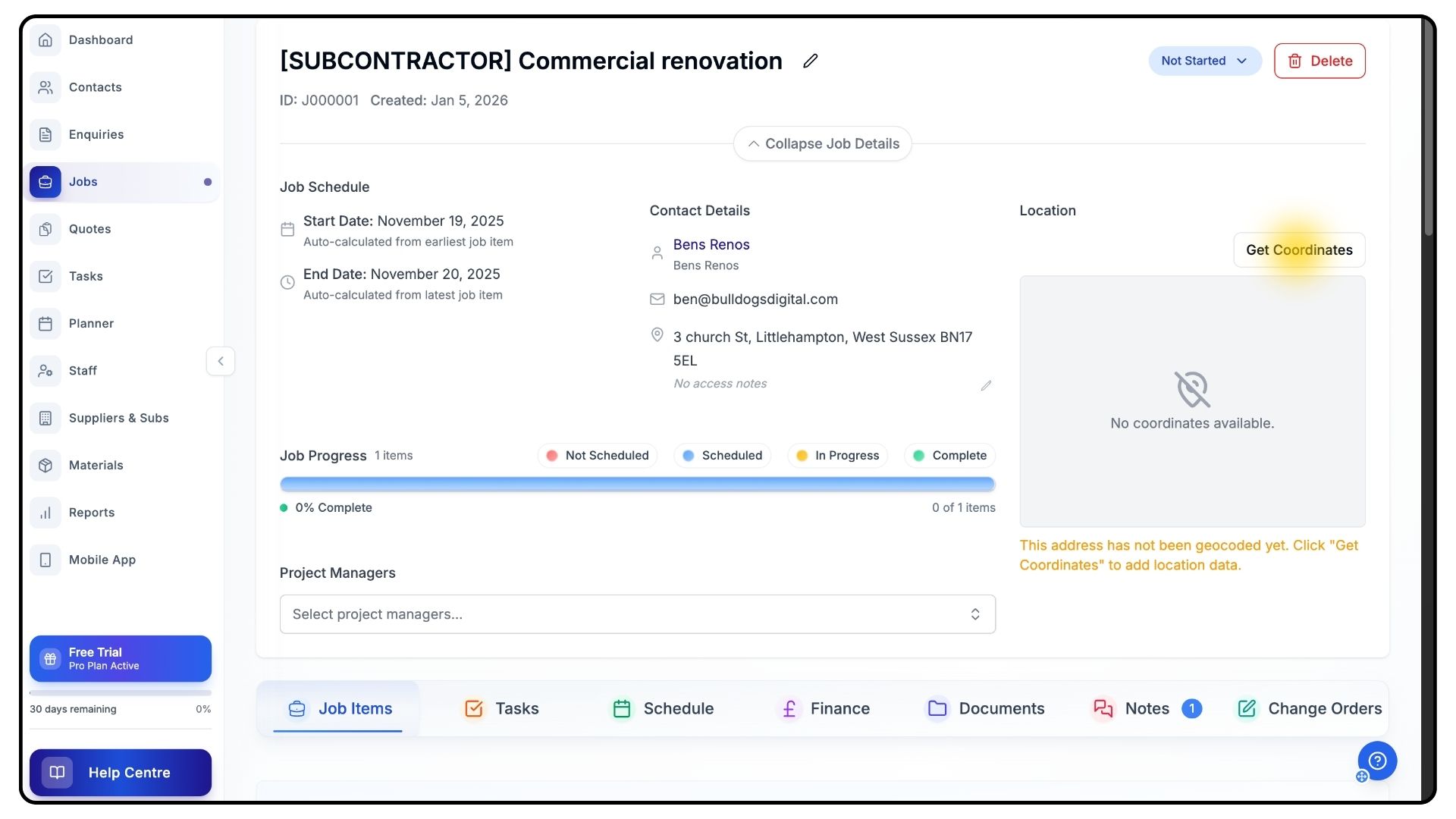
Scroll back to the top of the job.
Click Get Coordinates.
This creates a geofenced radius around the site, allowing staff to clock in and out when on location.
You can also assign a Project Manager using the dropdown provided.
Tasks, Documents, and Notes
What It Does
Helps you track progress, store documents, and log job updates.
Steps
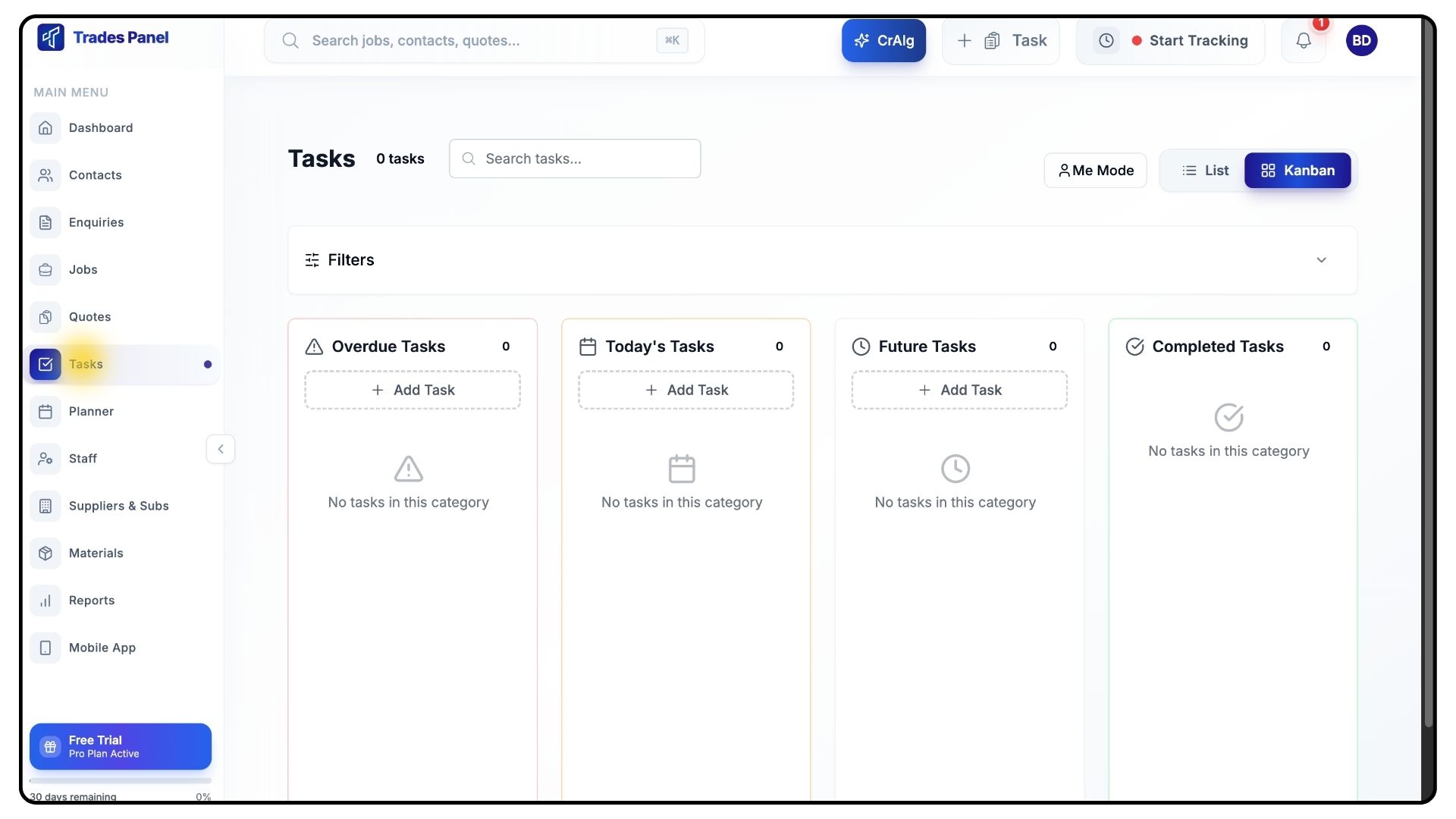
Use Tasks to create custom tasks linked to the job schedule.
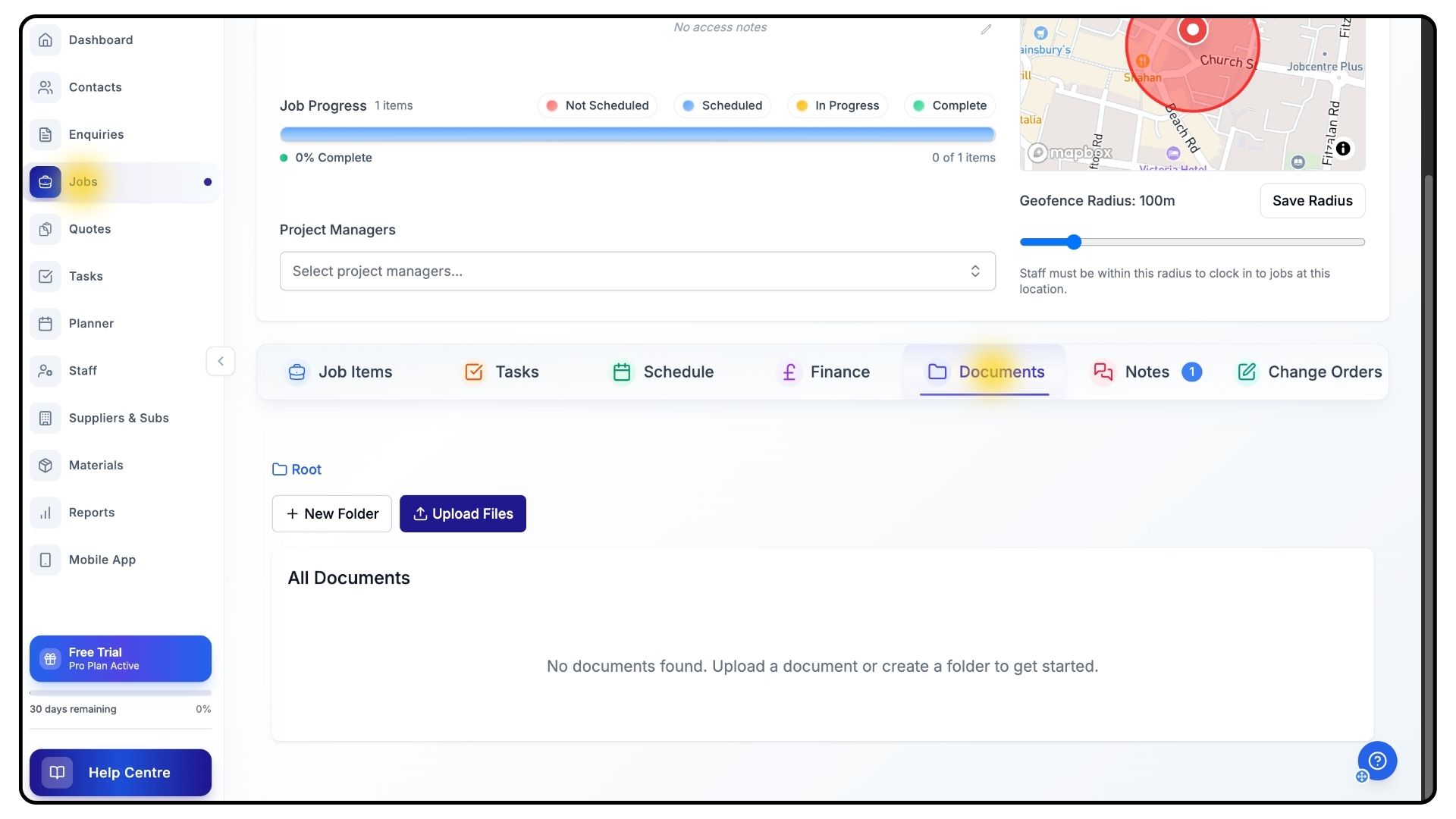
Use Documents to upload folders and files such as drawings, RAMS, or certificates.
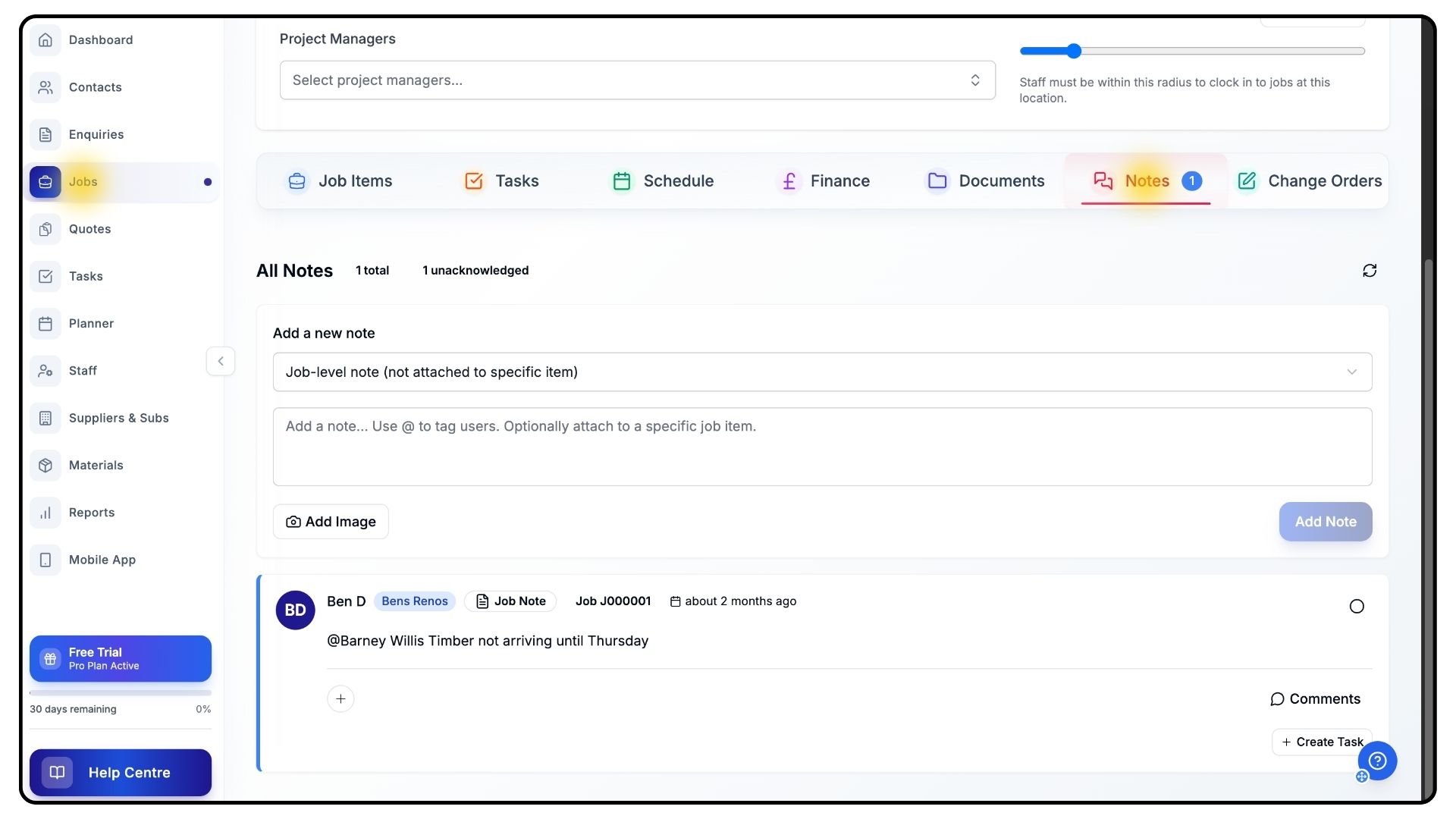
Use Notes to log progress updates or record important job-related information as work progresses.
Viewing the Planner
What It Does
Provides a clear overview of your staff schedules and assigned work.
Steps
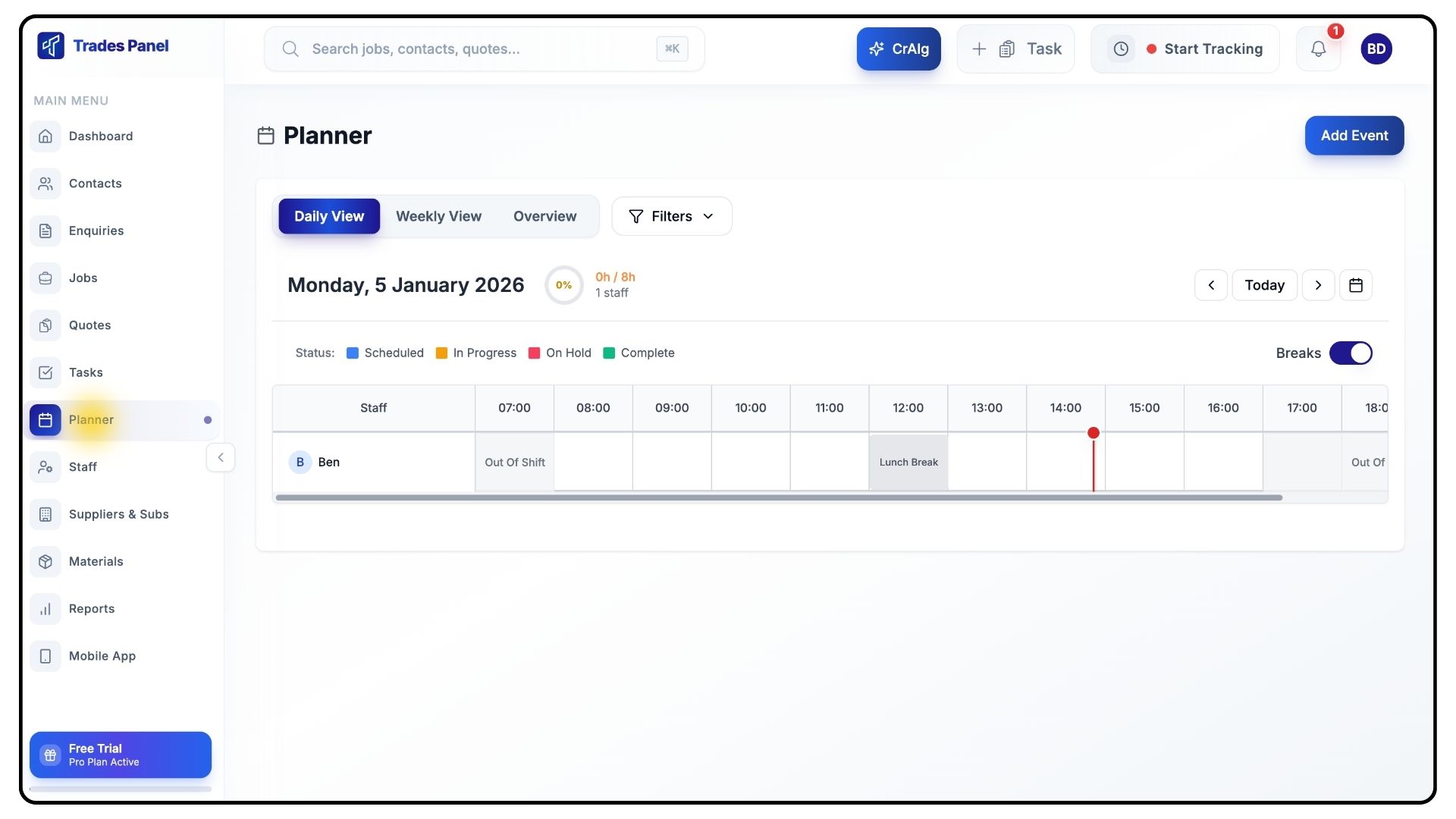
Go to the Planner tab in the main navigation.
View the schedule assigned to your staff to see who is working where and when.
Staff Overview and Timesheets
What It Does
Gives you visibility of attendance, site activity, and time tracking.
Steps
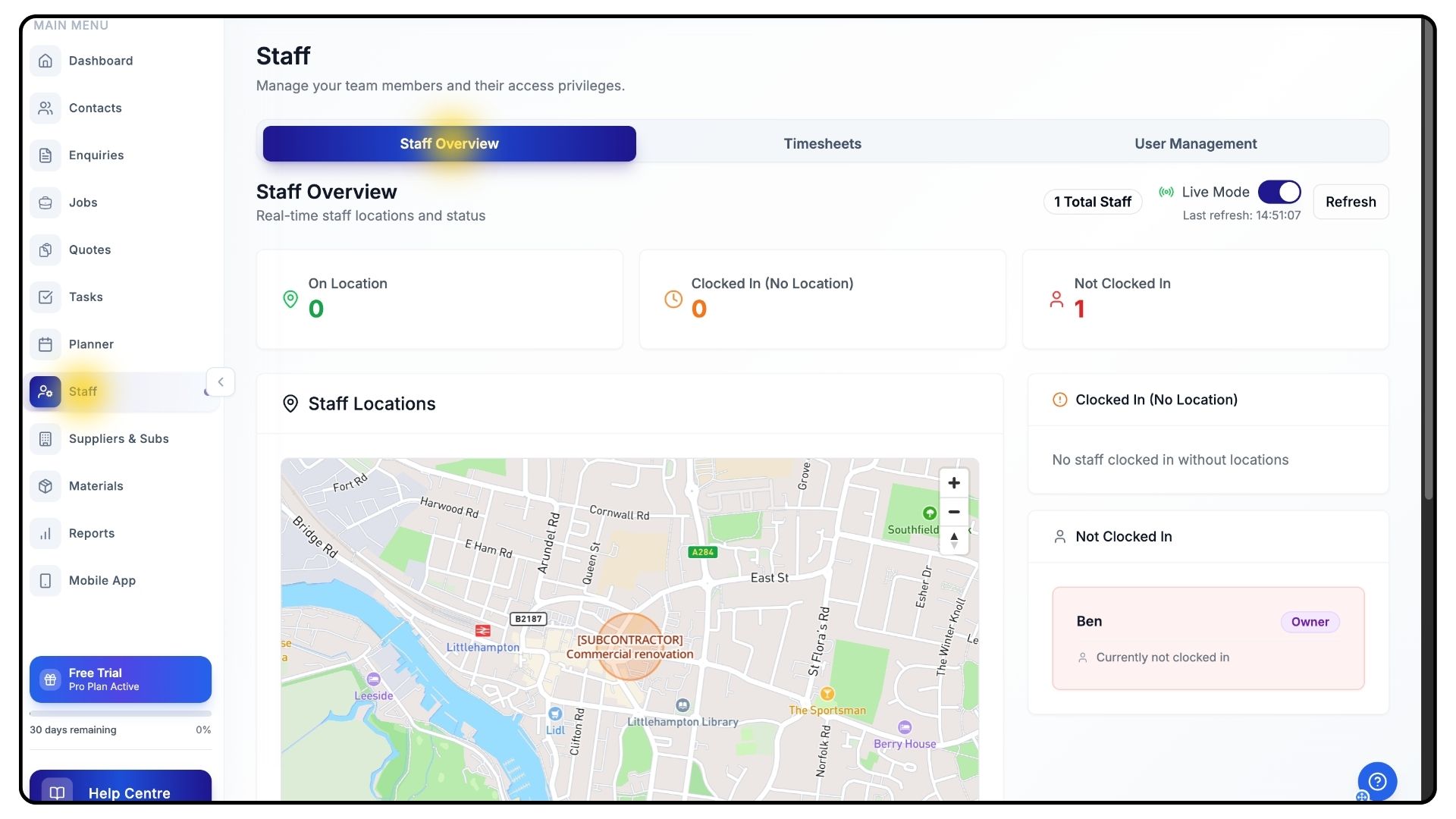
Go to the Staff section.
View who is clocked in, where they’re working, and access timesheets and user management tools.
Running Your Own Projects
As a subcontractor, you can manage your team, track progress, view schedules, upload documents, and collaborate with main contractors — all from your own account.
You can also run your own projects in Trades Panel, creating and managing up to five jobs on the free plan, with full control over:
Project dates
Staff assignments
Time tracking
Job costs and finances
Getting Help and Support
If you’d like help using other features, visit the Help Centre and Knowledge Base, where you’ll find step-by-step guides covering jobs, staff, contacts, finance, and more.
If you need further assistance, you can raise a support ticket or book a walkthrough call with the team.