What It Does
The Quotes section in Trades Panel allows you to create, manage, and track all your project quotes in one place.
You can build quotes manually or use CrAIg, Trades Panel’s built-in AI assistant, to generate professional quotes in minutes.
Once approved, quotes can be instantly converted into active jobs — keeping your workflow fast and consistent.
Explore all estimating features.
Accessing the Quotes Section
What It Does
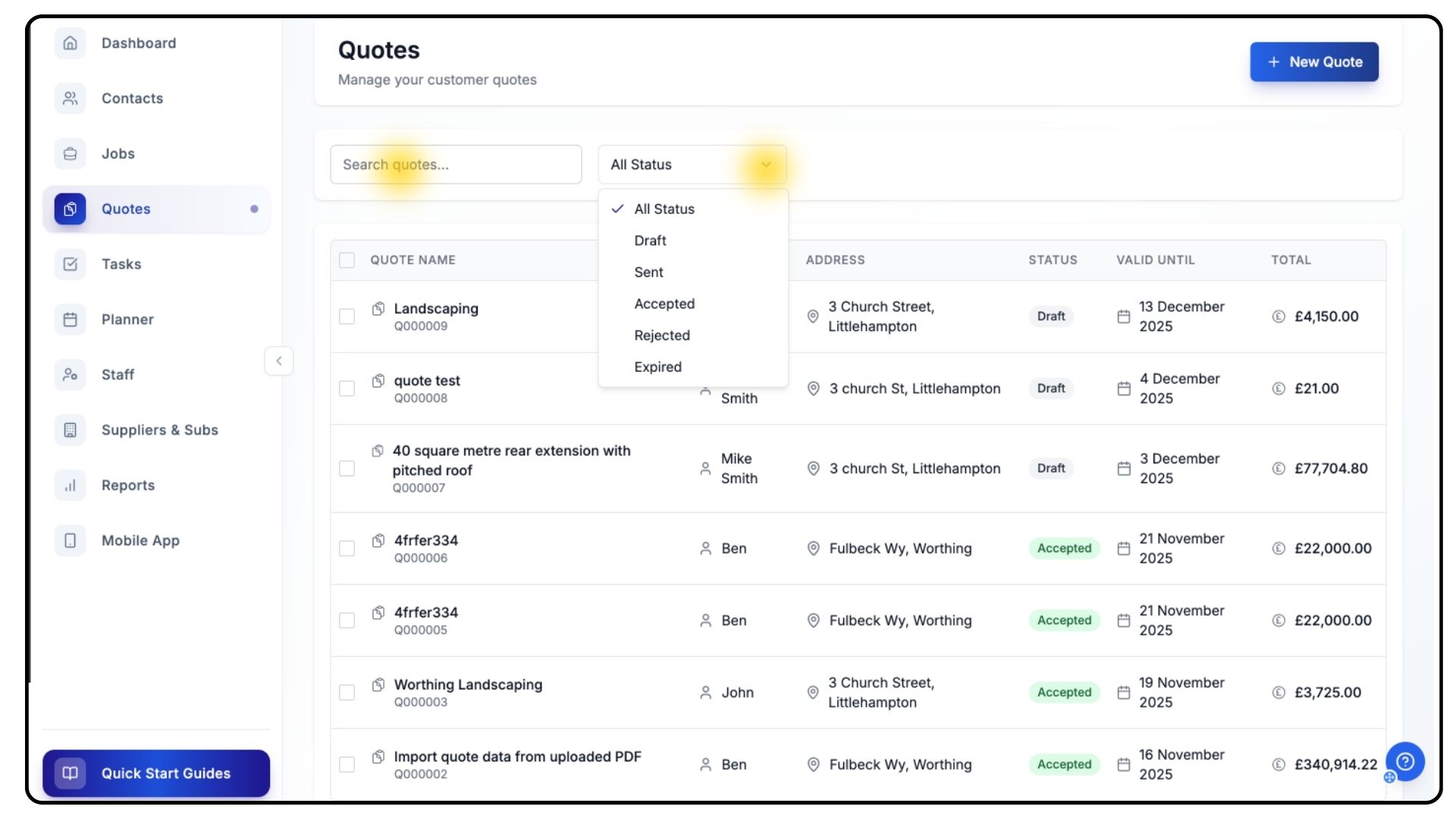
All your project quotes are stored within the Quotes area, which also allows you to search, filter, and manage their status.
Steps
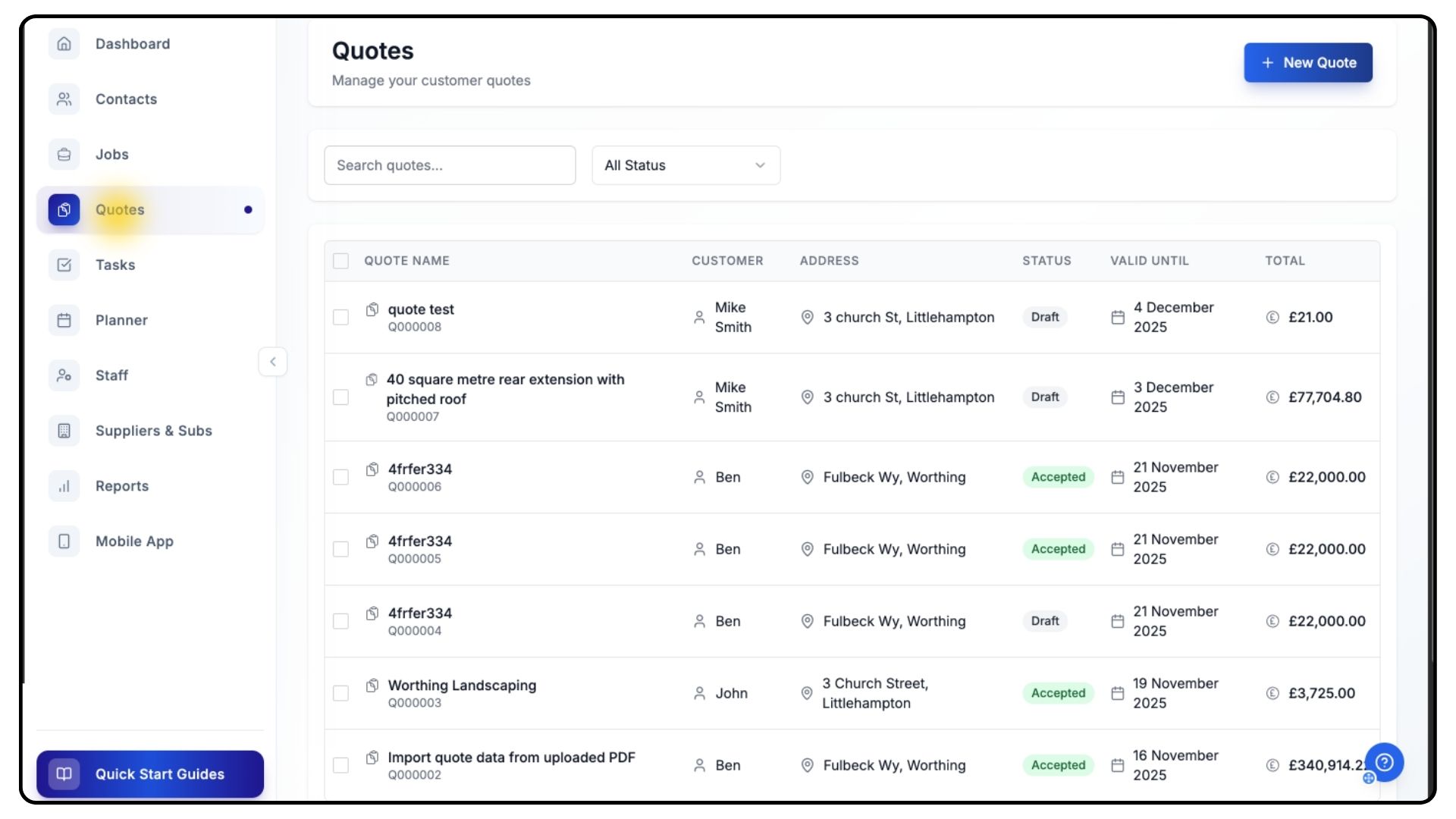
Click Quotes from the main menu.
This page displays all quotes currently stored in your account.
You can filter quotes by status or use the search bar to locate specific ones.
Creating a Quote Manually
What It Does
Manual quotes give you full control over your pricing and structure, allowing you to build detailed, stage-by-stage estimates.
Steps
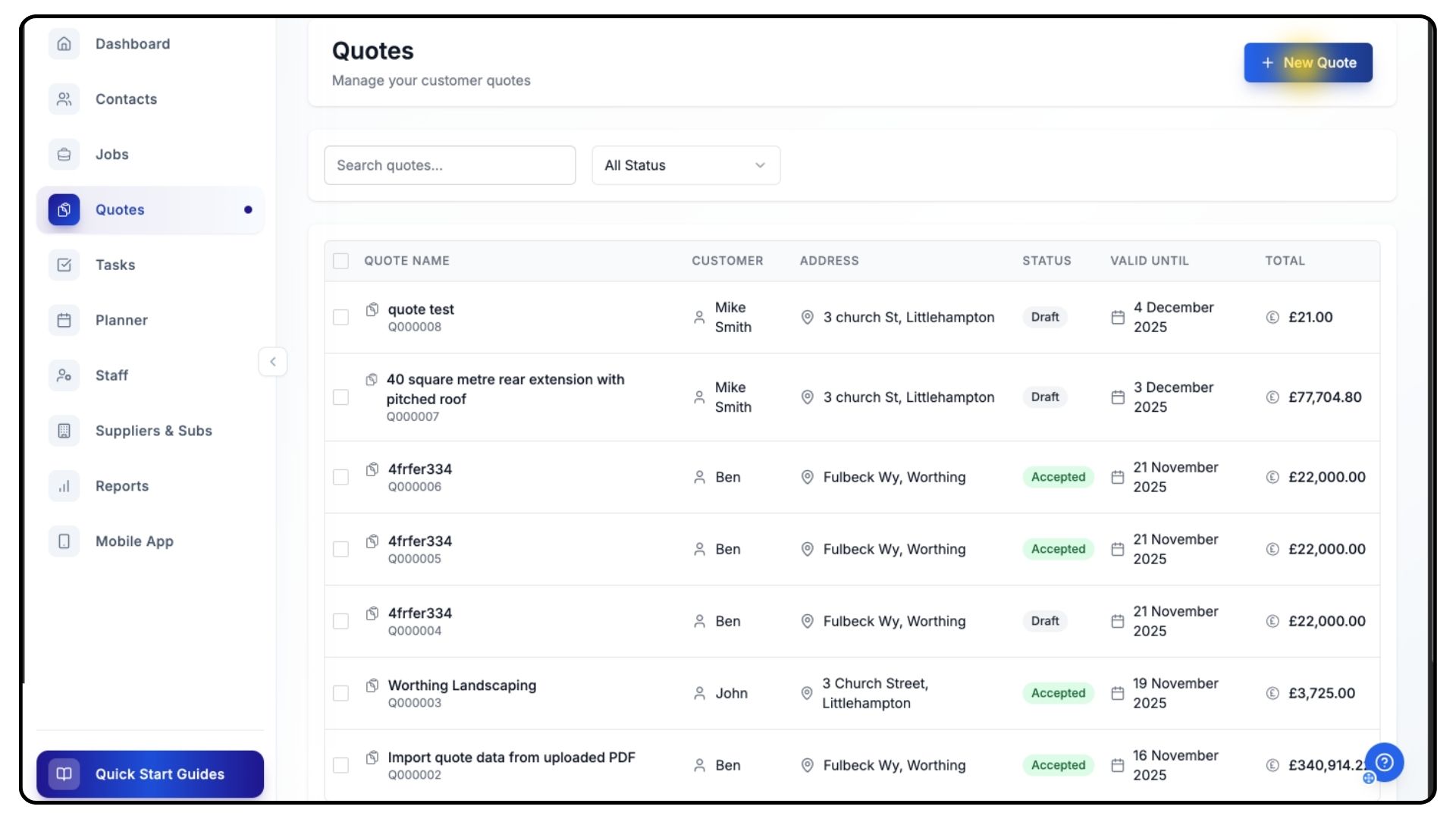
Click New Quote in the top-right corner.
Select an existing contact from the dropdown list, or create a new one by adding their name, address, and any relevant details.
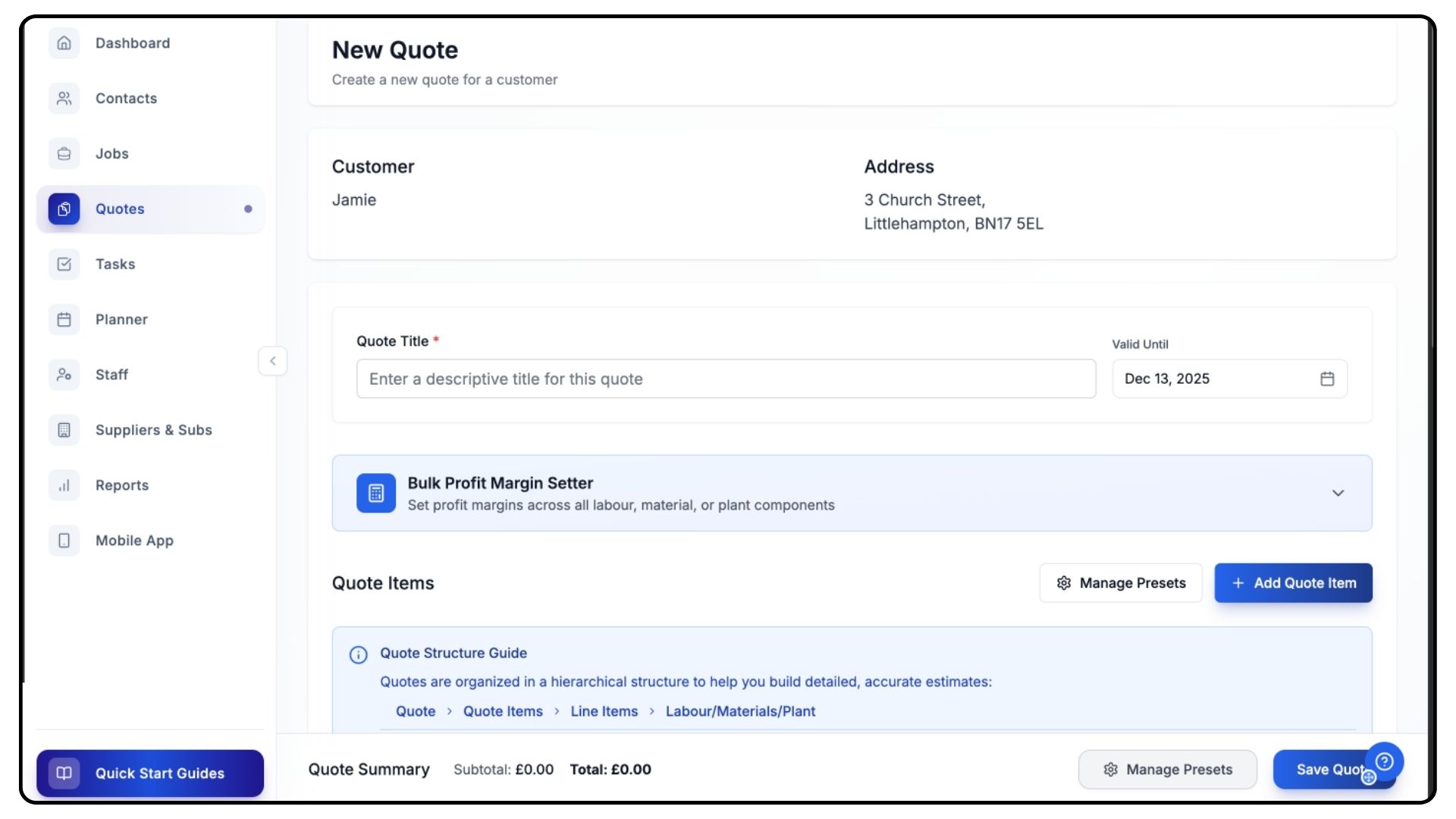
Your quote template will now open.
At the top, enter a Title for the quote and set a Validity Date using the button on the right.
Click Add Quote Item to create your first stage of work — for example, Foundations or Roofing.
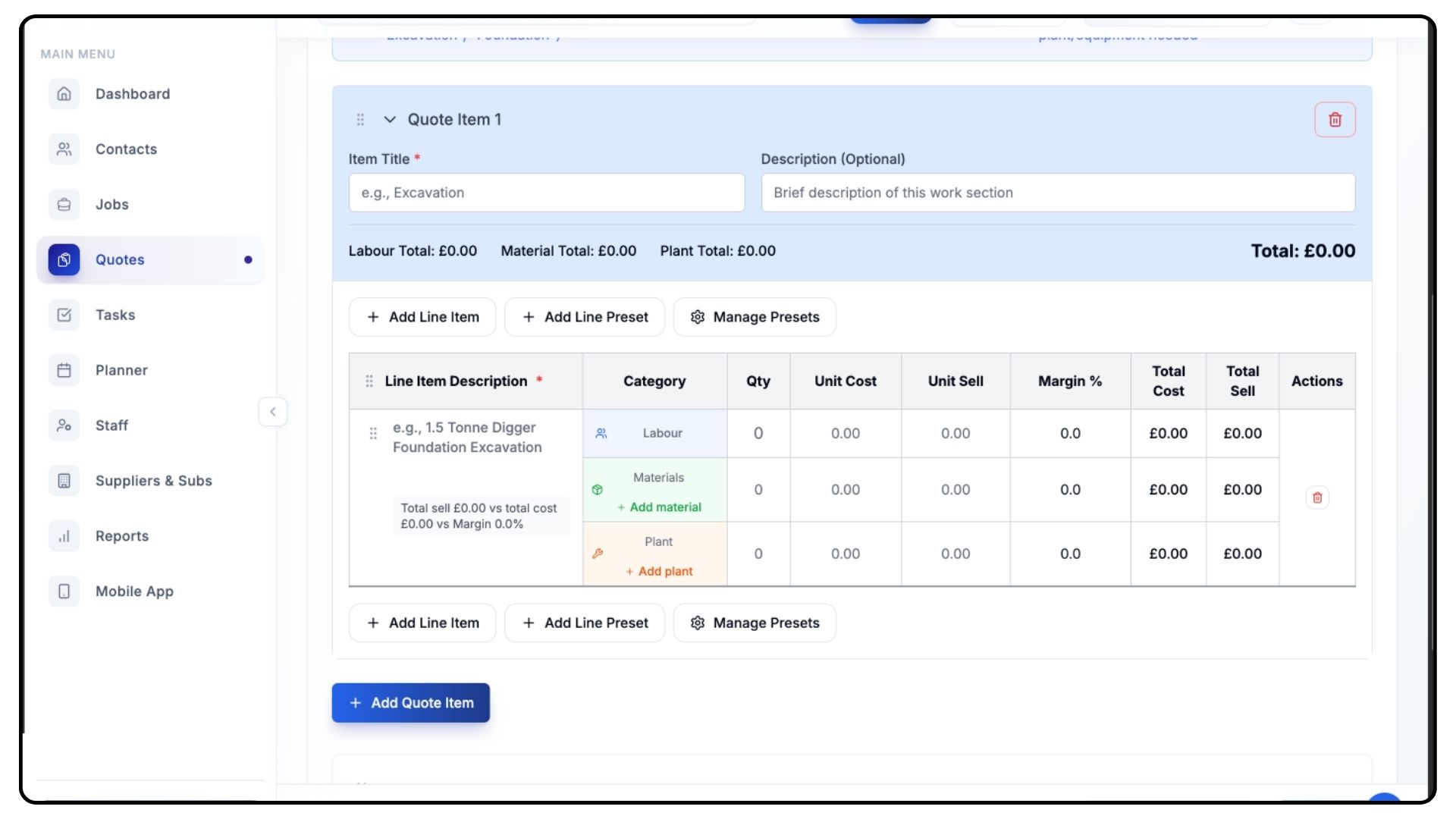
For each quote item:
Enter a title and short description.
Add Labour, Materials, and Plant details.
Include quantities, unit costs, and unit sell prices.
When adding labour, ensure the unit cost reflects the day rate and the quantity reflects the number of days or team members.
Continue adding quote and line items until the project is fully detailed.
Use Add Line Item to add components and Add Quote Item to create new stages.
Once complete, scroll down and click Save Quote.
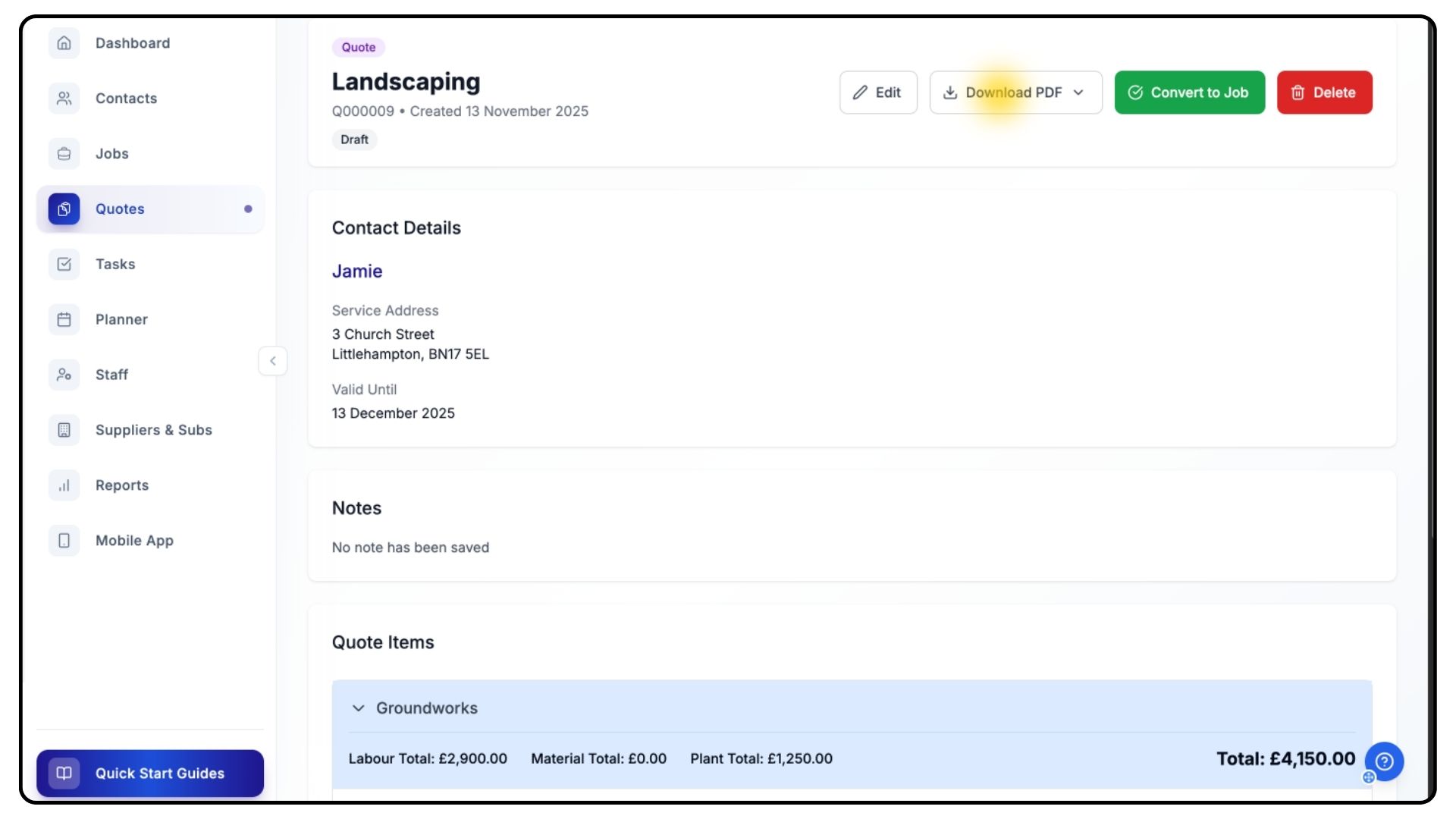
Your quote is now saved in the system.
To send it to your client, click Download PDF to generate a professional copy.
When the client approves, click Convert to Job — all items and details will automatically transfer across to create a live project.
Creating Quotes with CrAIg
What It Does
CrAIg uses AI to build structured quotes automatically, based on your written instructions and stored presets.
Steps
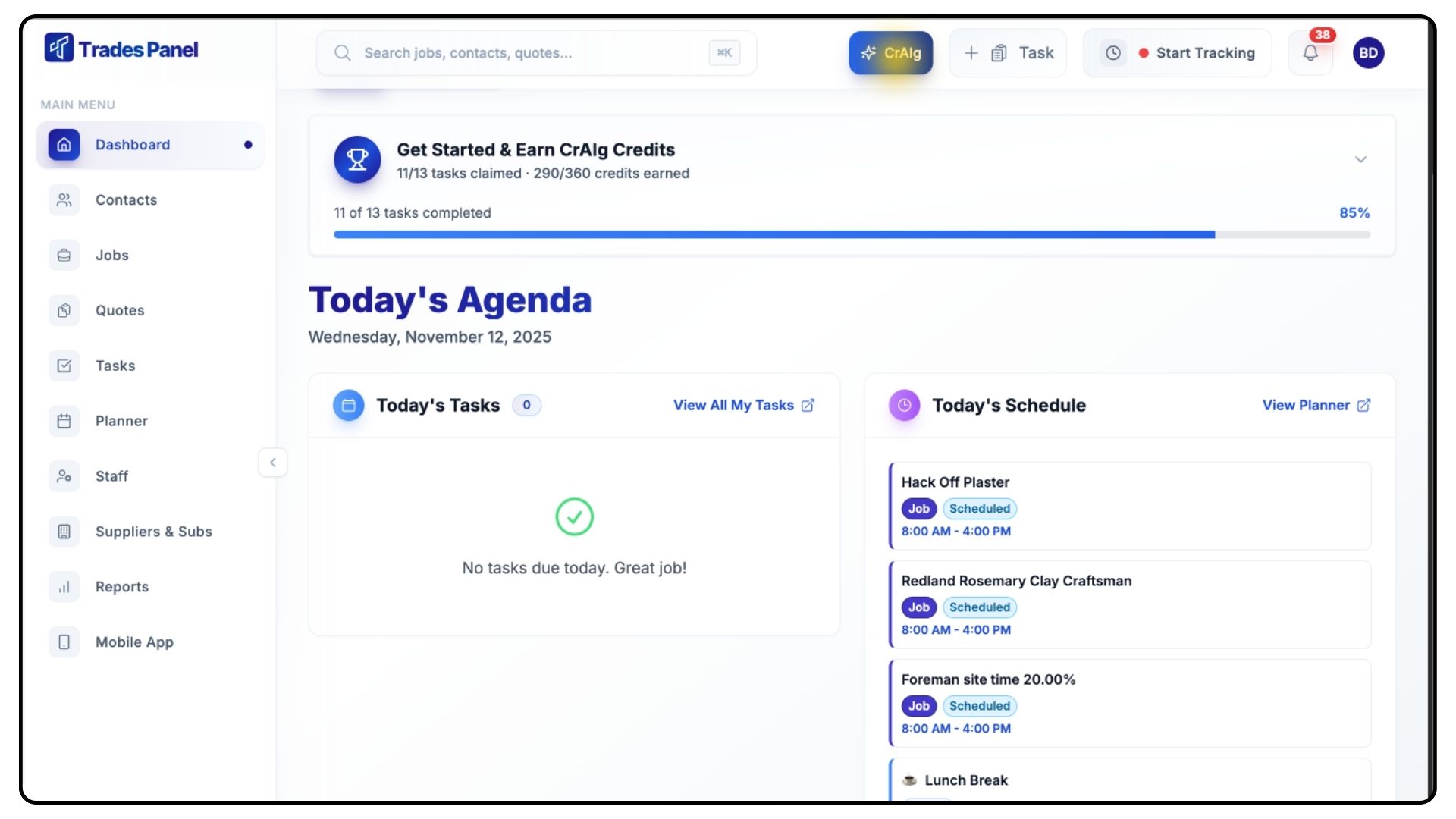
Click the CrAIg button pinned to the top of your screen.
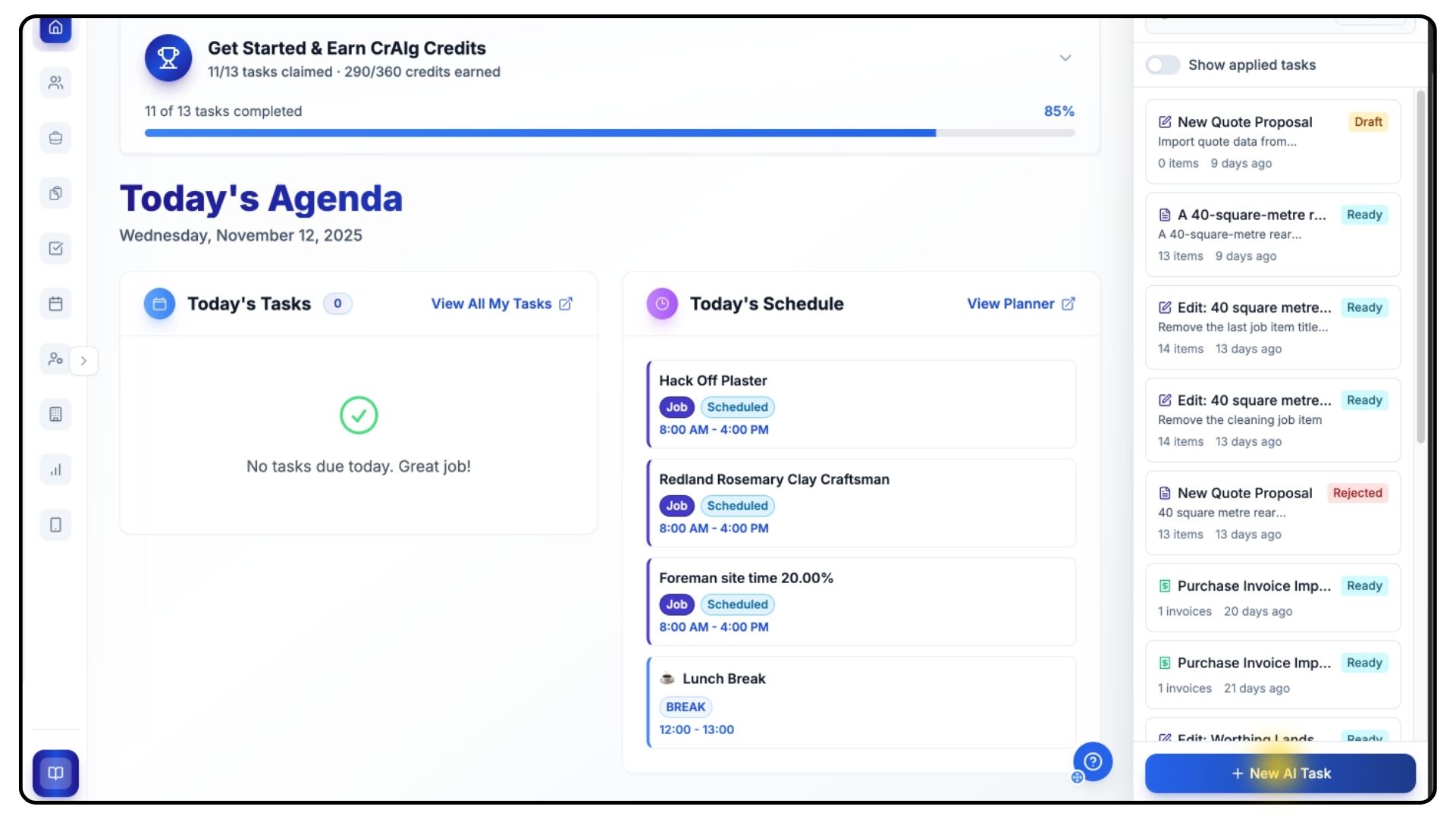
Any previous chats with CrAIg will appear here.
To create a new quote, click New AI Task.
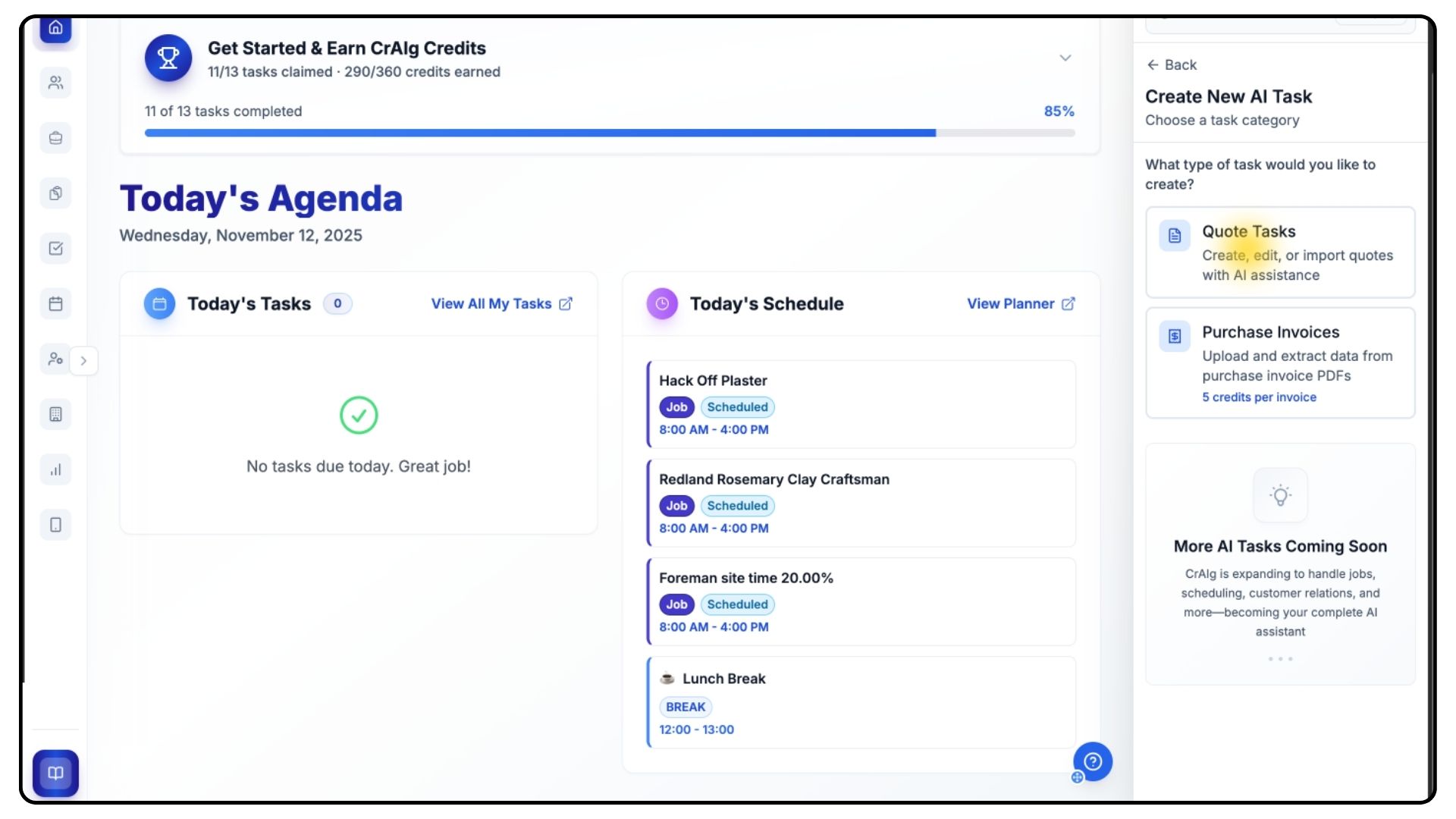
Select Quote Tasks.
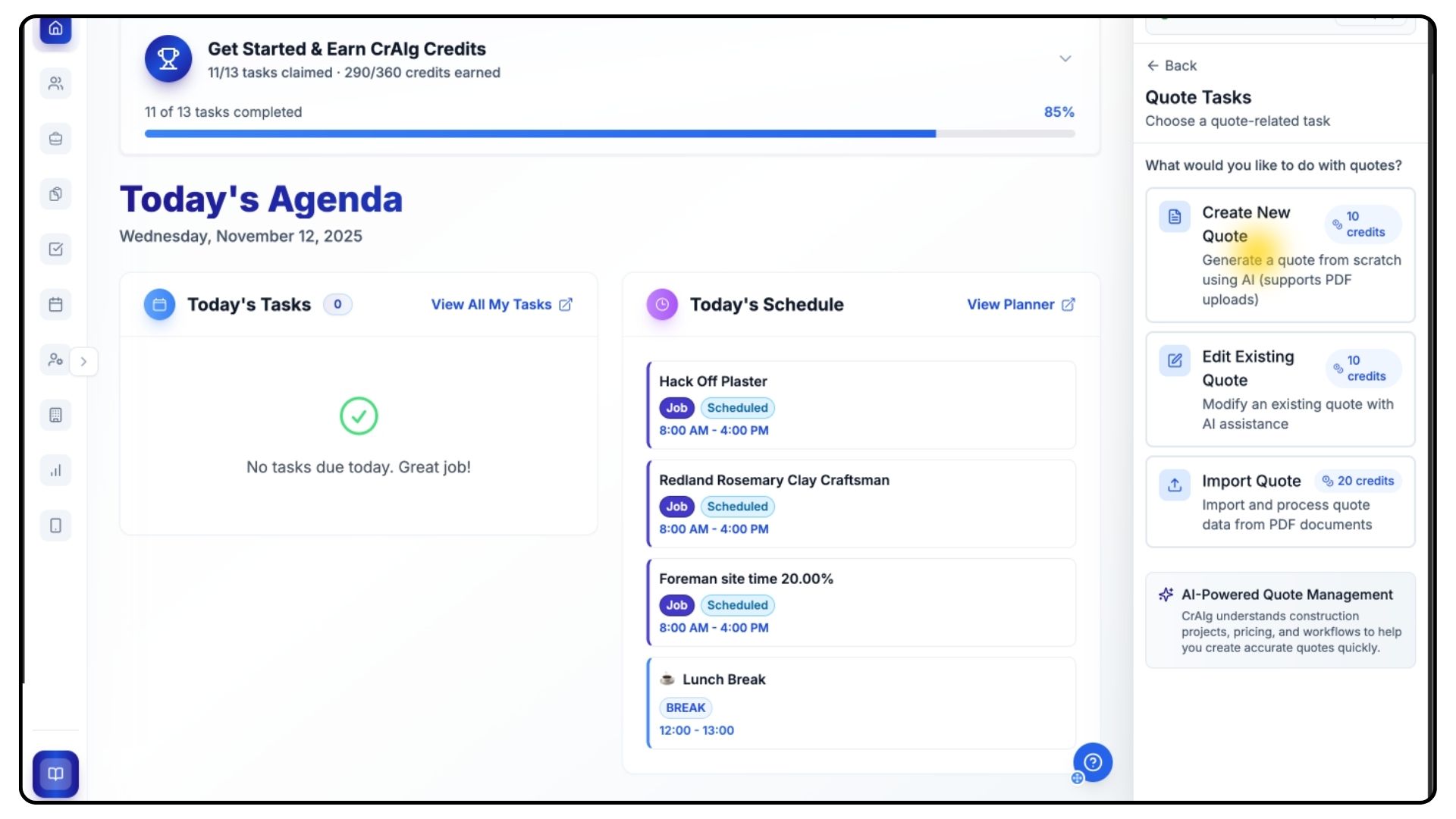
Choose Create New Quote
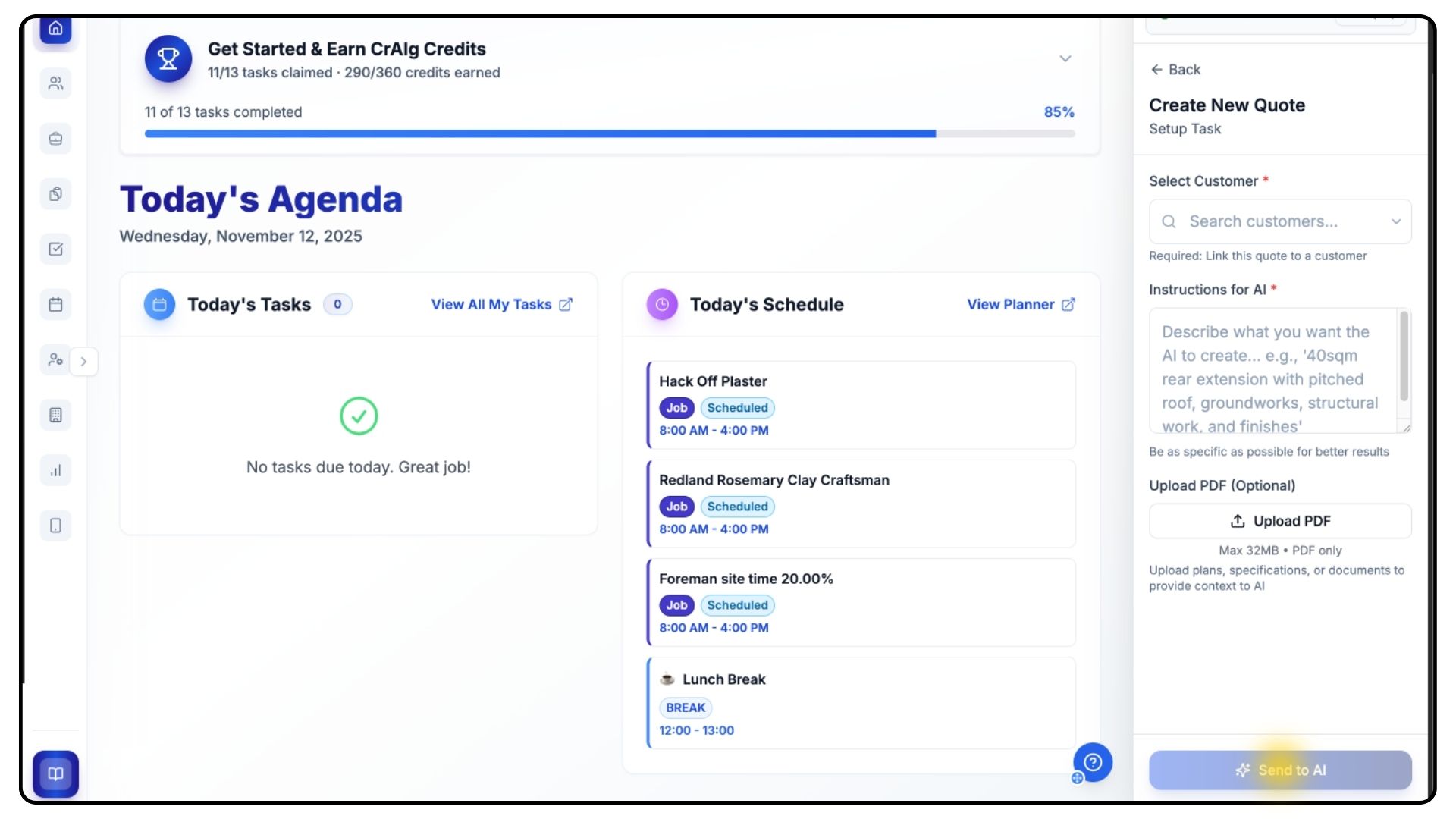
Select the customer and project address.
In the instruction box, type detailed information about the work — for example, “A 40-square-metre rear extension with a pitched roof.”
The more detail you provide, the more accurate the quote will be.
Upload any relevant PDFs such as drawings or specifications.
Once ready, click Send to AI and wait for CrAIg to generate your proposal.
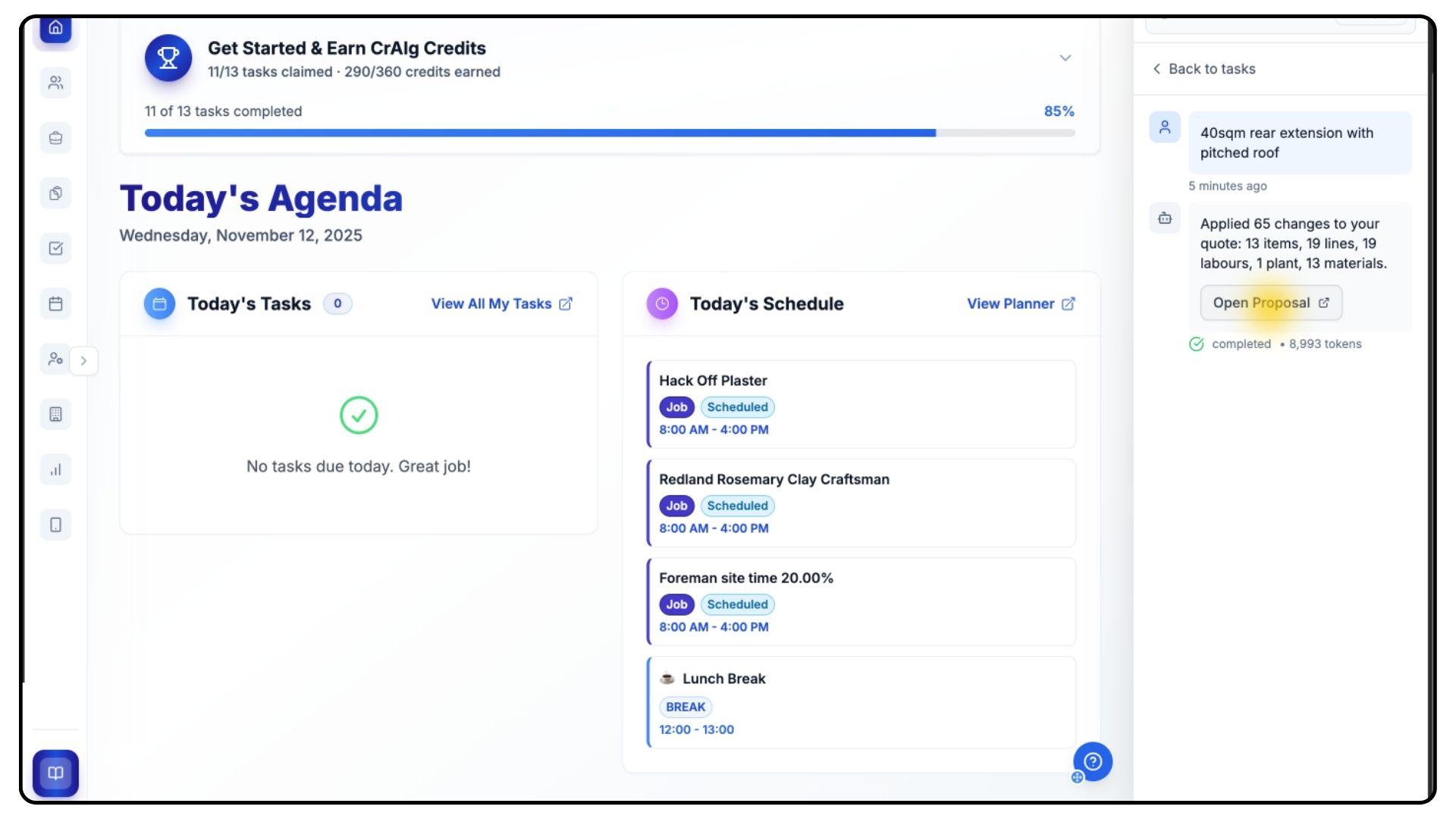
When ready, click Open Proposal.
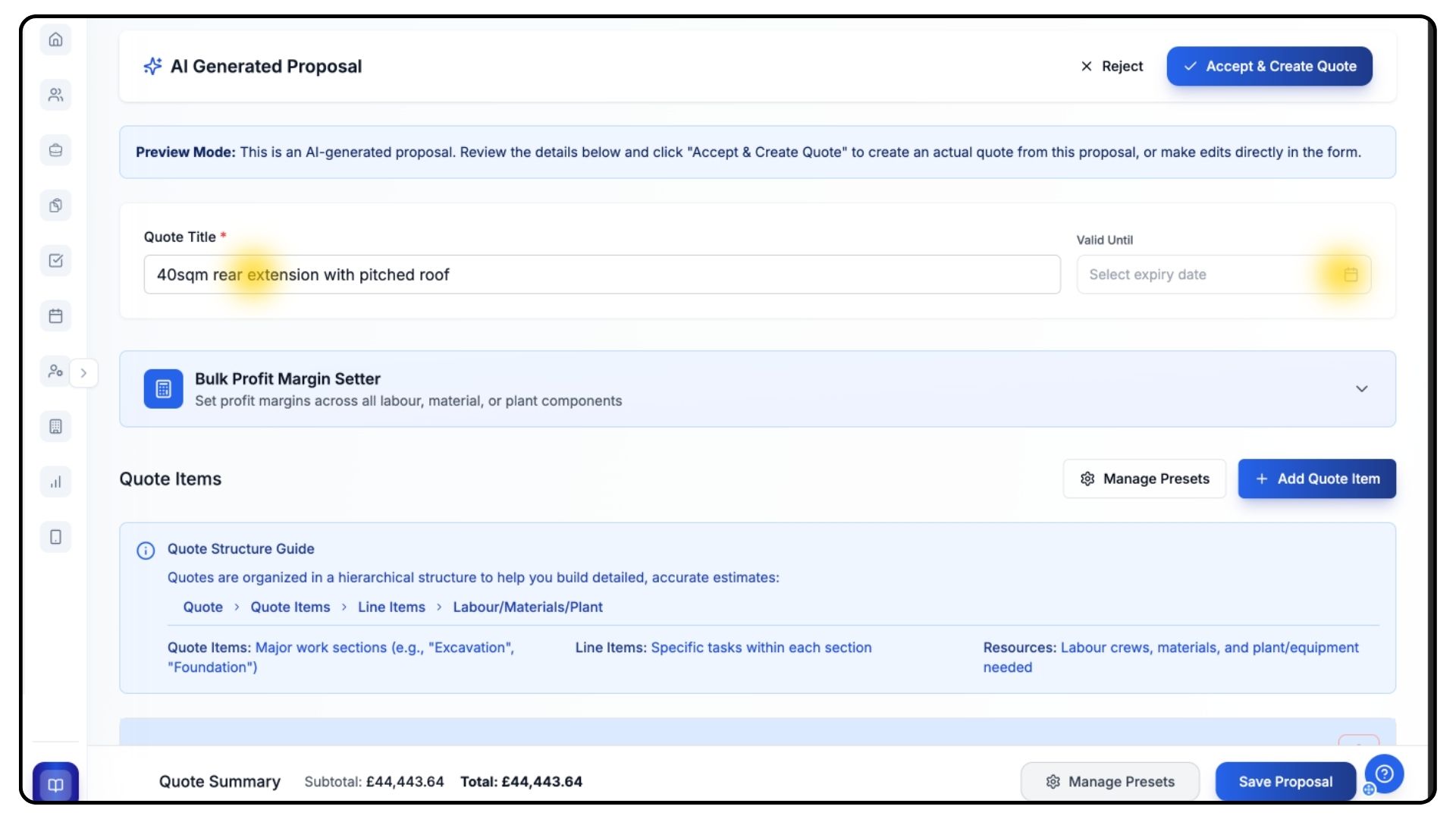
CrAIg will automatically name your quote, but you can edit the title and set a validity date.
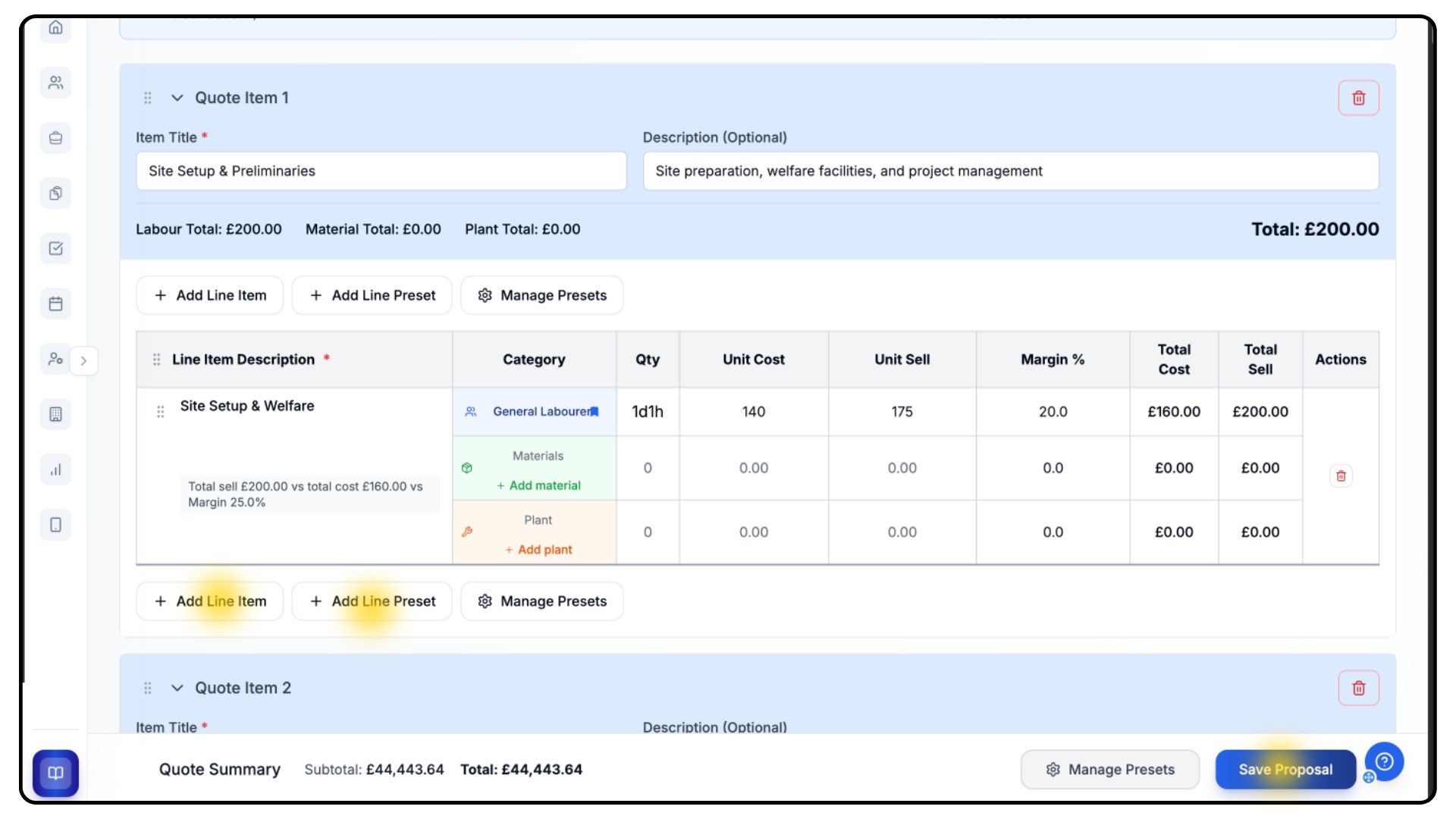
Review the job and line items created.
CrAIg’s output is a starting point — it uses your saved day rates and presets to estimate costs for labour, materials, and plant.
Always check and edit these for accuracy.
You can:
Add new items with Add Line Item
Insert existing templates with Add Presets
Create new stages using Add New Quote Item
When everything looks correct, click Save Proposal, then Accept and Create Quote.
You’ve now created a quote using CrAIg.
Importing Existing Quotes
What It Does
If you already have a quote in PDF format, CrAIg can extract the data and import it directly into Trades Panel.
Steps
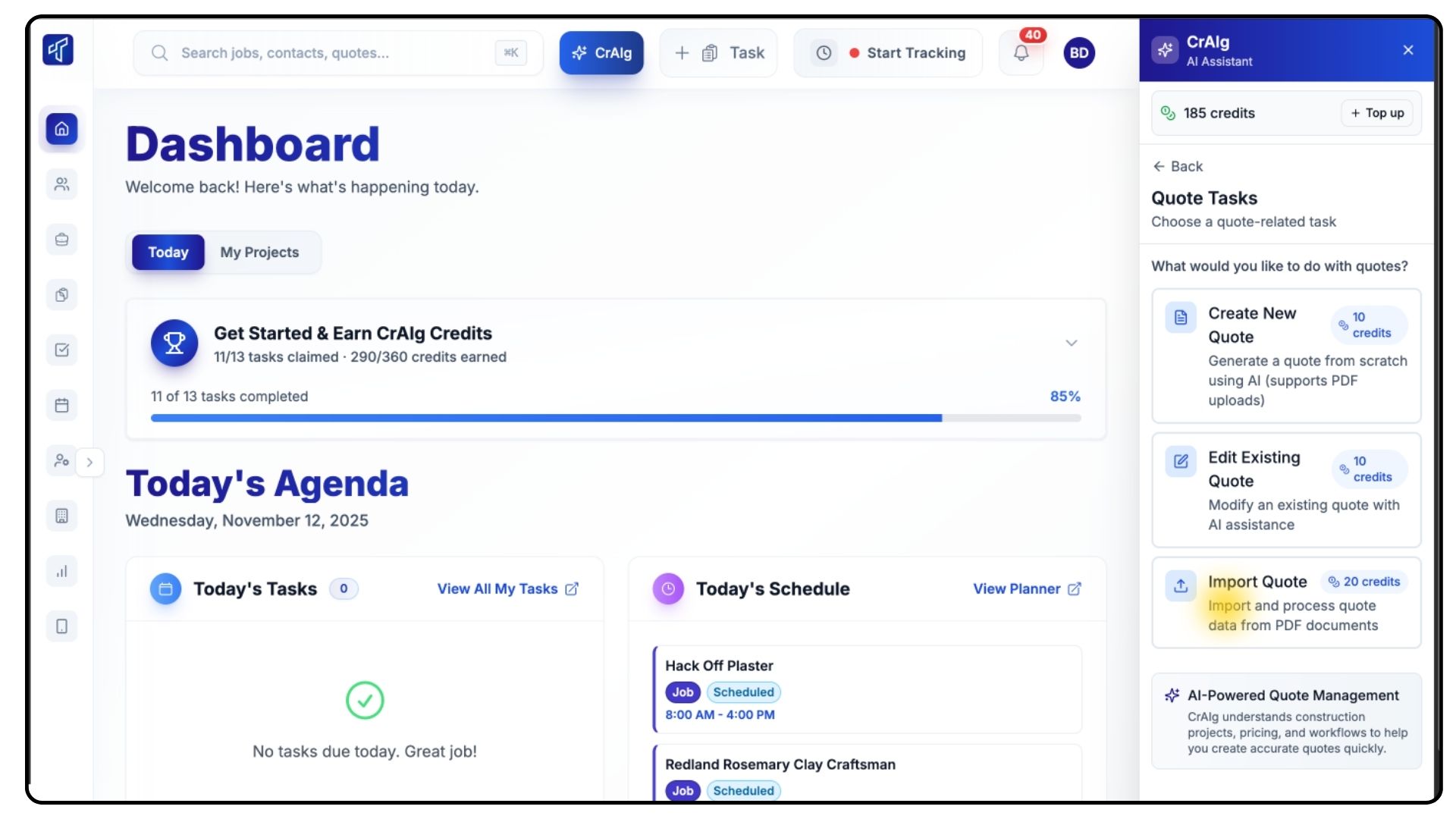
Open CrAIg, click New AI Task, select Quote Tasks, and choose Import Quote.
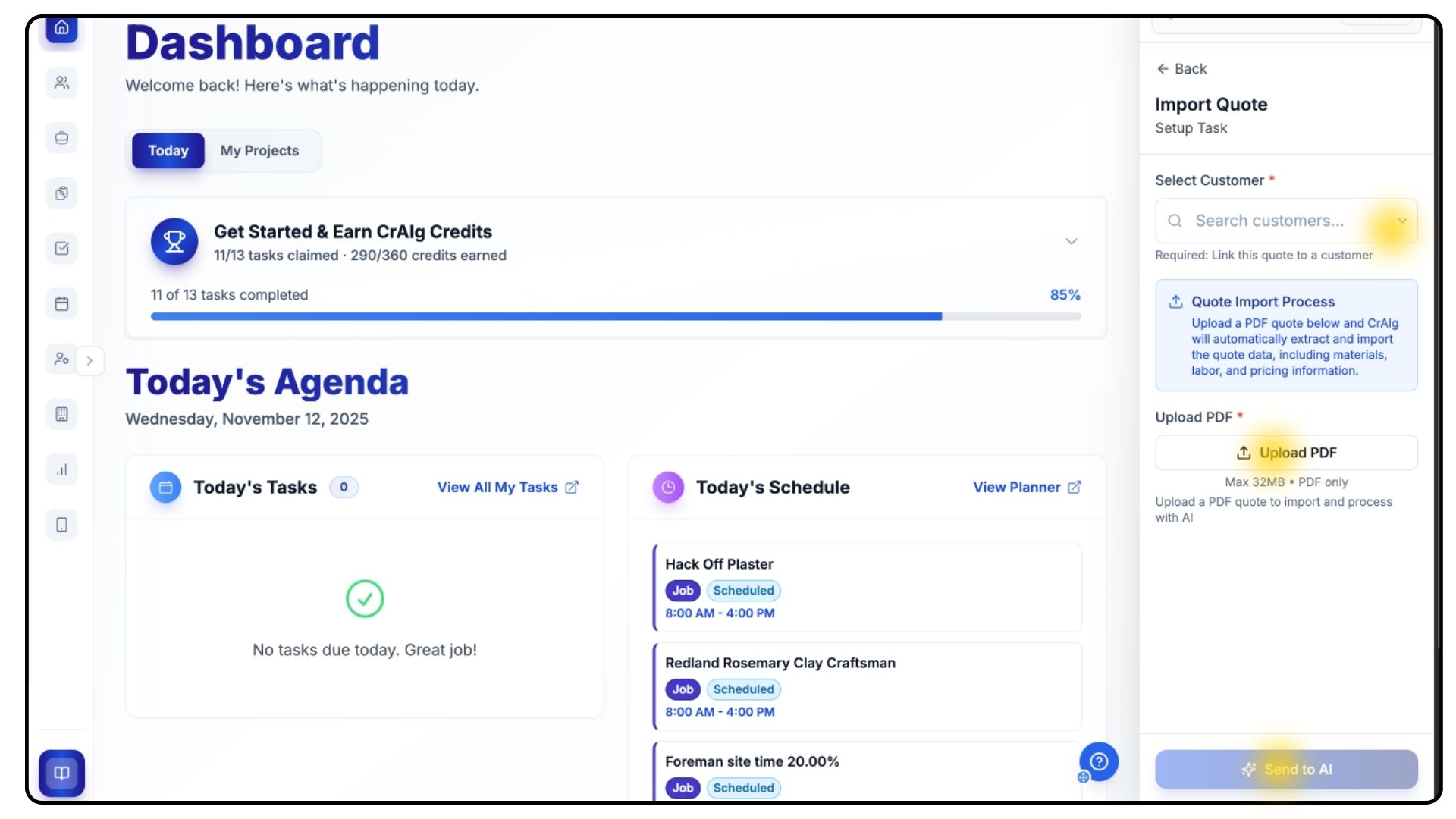
Select the customer, upload your PDF, and click Send to AI.
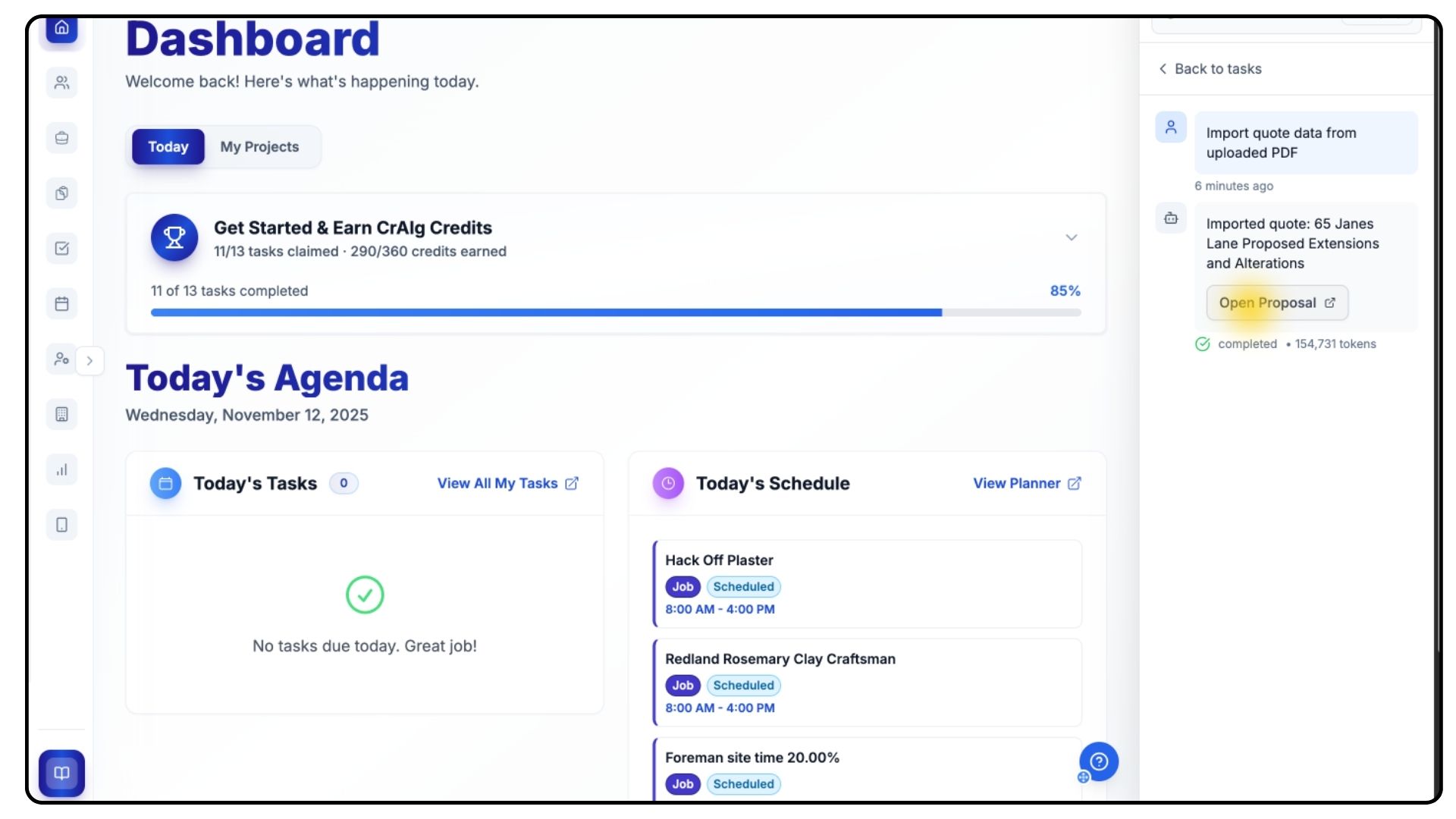
When processing is complete, click Open Proposal to review the imported data.
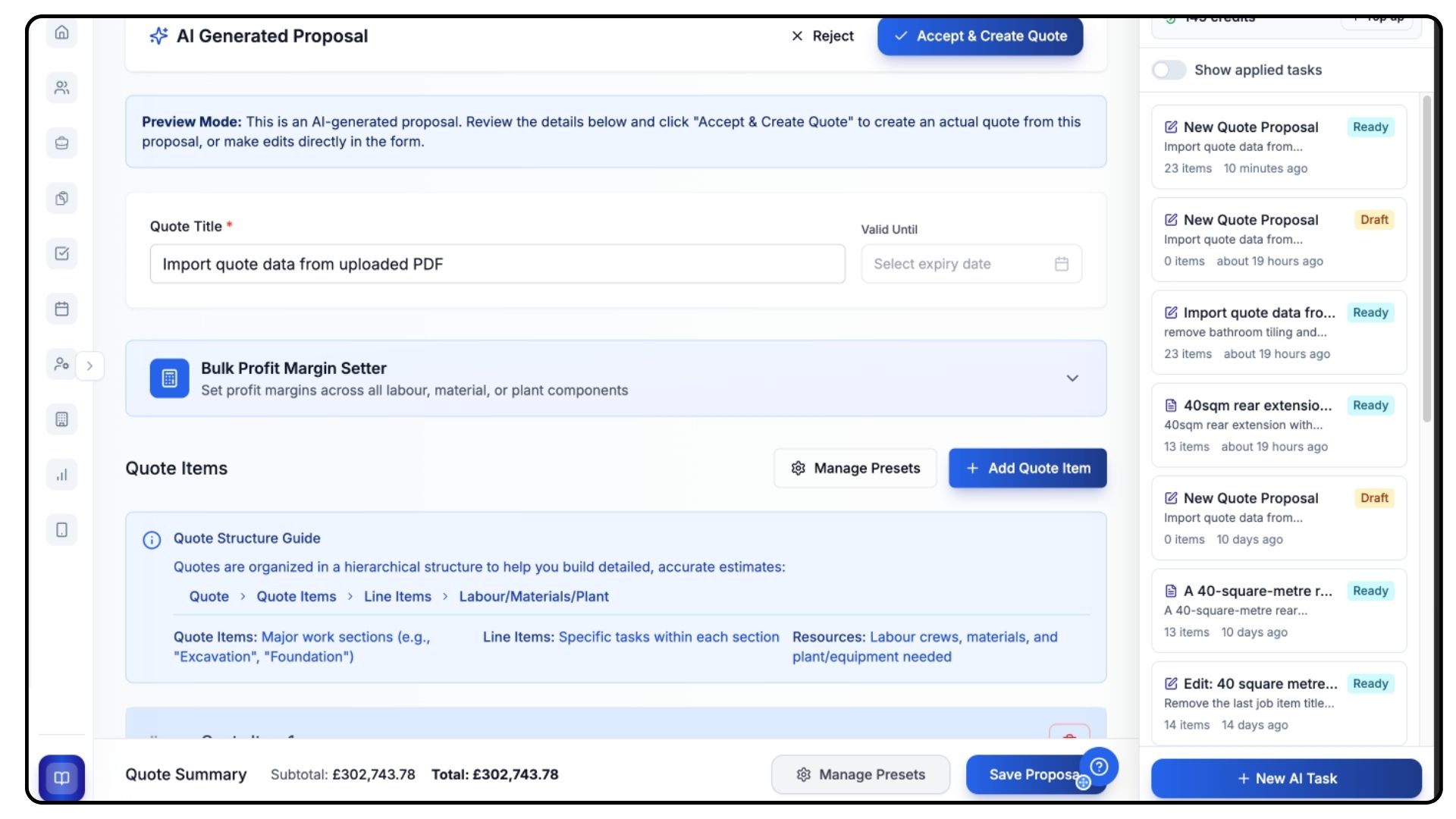
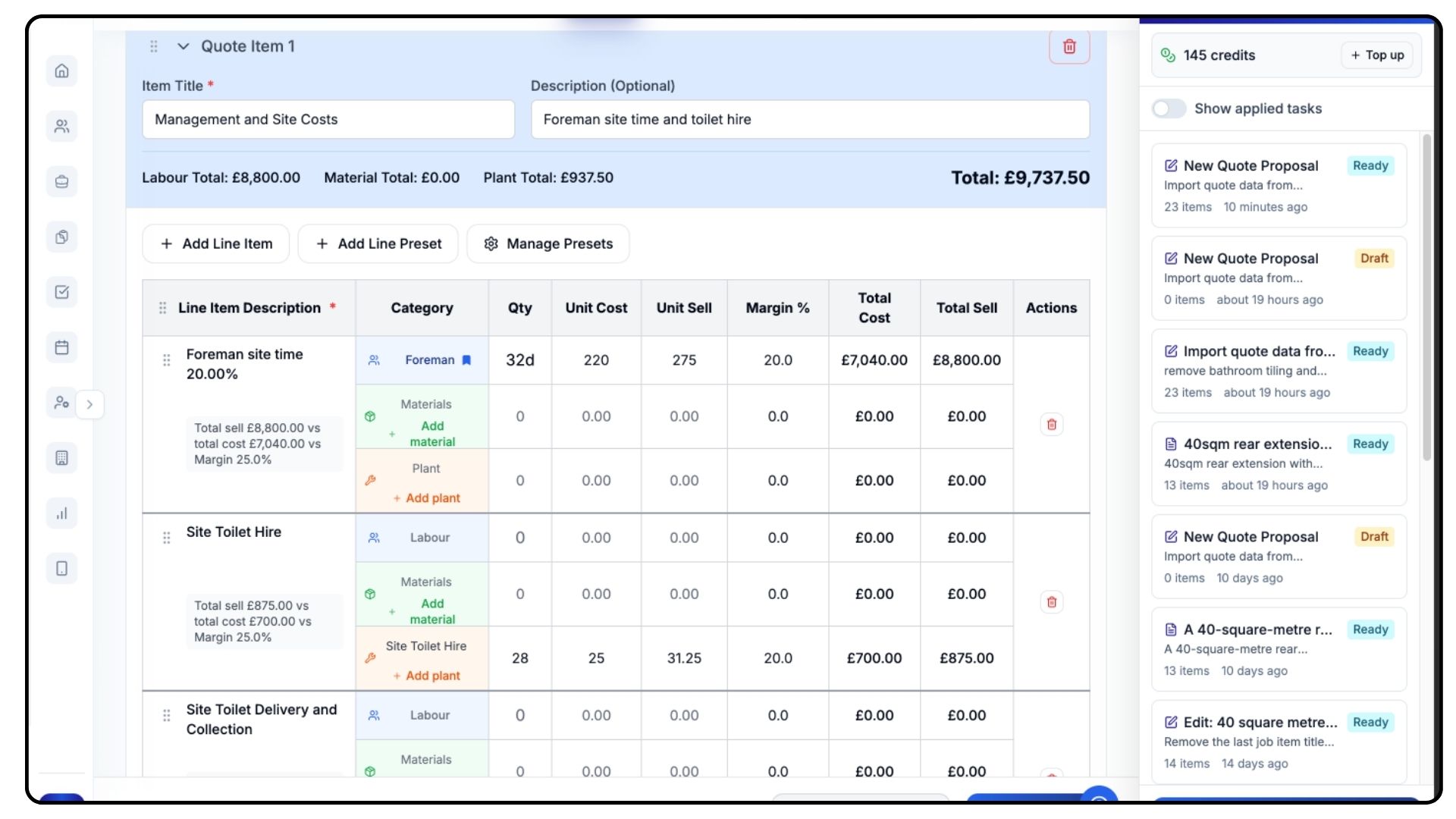
Check all quantities, line items, and prices for accuracy.
Click Save, then Accept and Create Quote.
Your imported quote will now appear in your Quotes list.
Managing Quotes
What It Does
The Quotes section provides full visibility over all quotes, including their status, value, and expiry dates.
Steps
Return to the Quotes section.
Each quote is labelled with:
Customer name
Status
Expiry date
Total value
Use the Status Filter at the top to view quotes by stage.
Statuses include:
Draft – not yet sent
Sent – issued to client
Expired – validity date passed
Accepted – approved by client
Rejected – declined or replaced
You can also use the Search Bar to locate quotes by title or customer.
Common Questions
Q: Can I edit a quote after saving it?
Yes. You can reopen and edit any quote unless it has already been converted into a job.
Q: What happens when I convert a quote to a job?
All job and line items automatically transfer, allowing you to assign staff and start scheduling immediately.
Q: Does CrAIg replace manual quoting?
No. CrAIg assists with drafting quotes quickly, but all AI-created quotes should still be reviewed for accuracy.
Q: Can I reuse an old quote for a new client?
Yes. Duplicate any existing quote and edit the details to fit your new project.
Q: How do I know when a quote has expired?
Expired quotes are marked in red and automatically move to the Expired status once their validity date passes.