What It Does
Job Document Templates allow you to create reusable folder structures that automatically appear inside every new job.
This is ideal for standardising documentation such as Health & Safety, Site Plans, RAMS, Certificates, or any other folders you consistently use across projects.
See all document management features.
Accessing the Job Documents Template Settings
What It Does
This is where you build and manage the folder structure that will be applied to all new jobs.
Steps
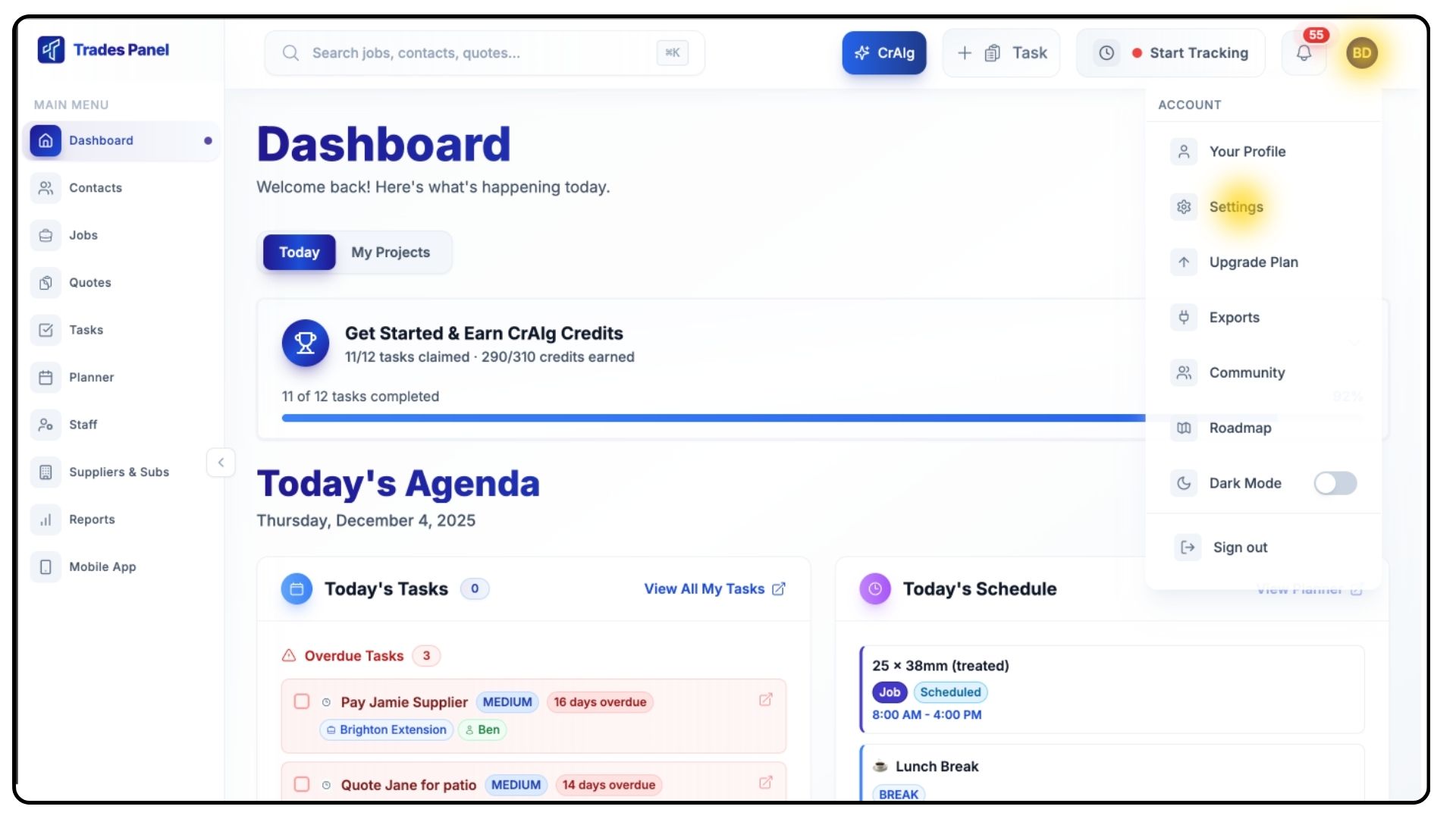
Click your Profile Icon in the top-right corner and select Settings.
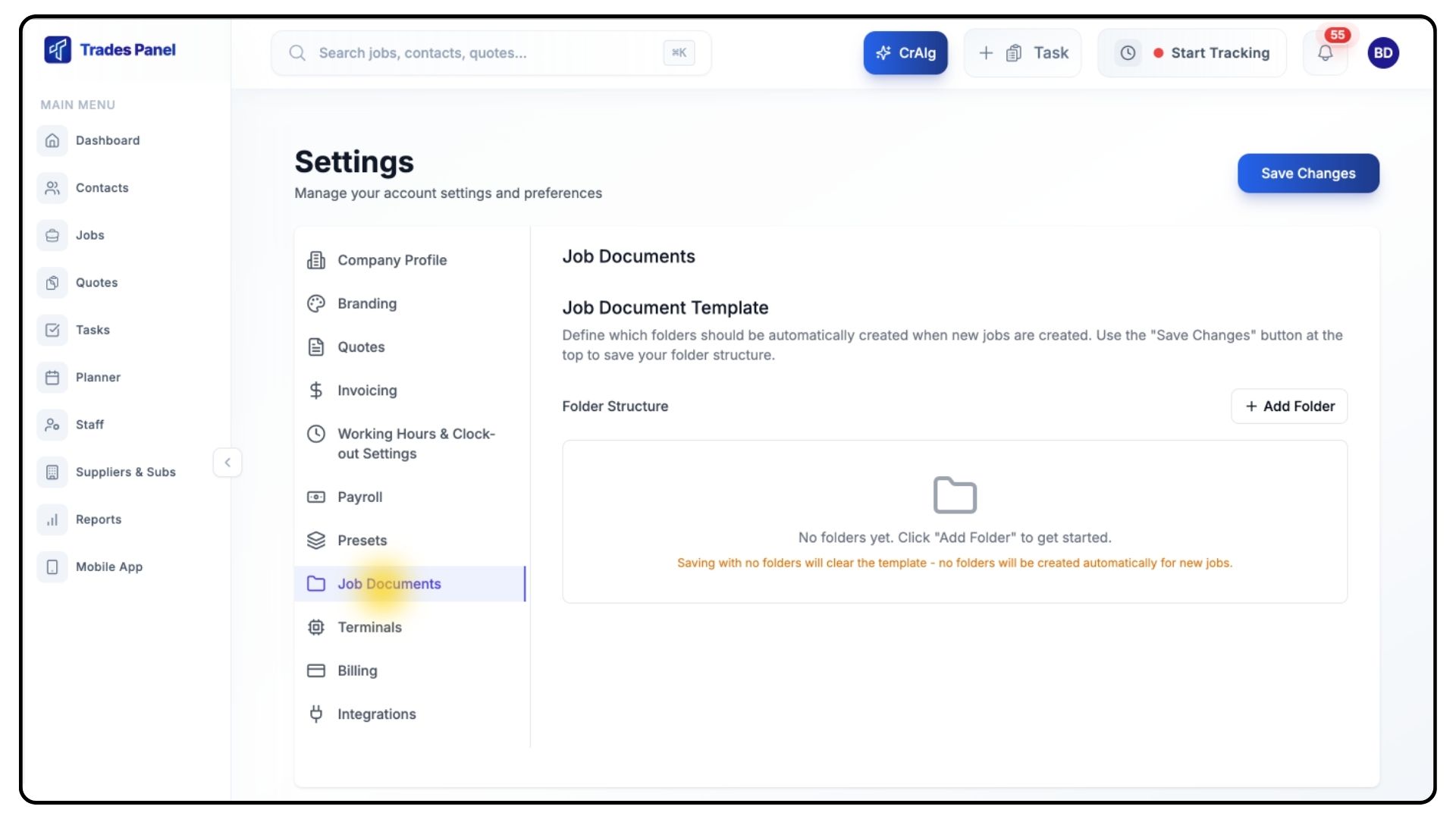
From the left-hand menu, click Job Documents.
Creating a Folder Template
What It Does
Allows you to create folders that will automatically appear in every job’s Documents section.
Steps
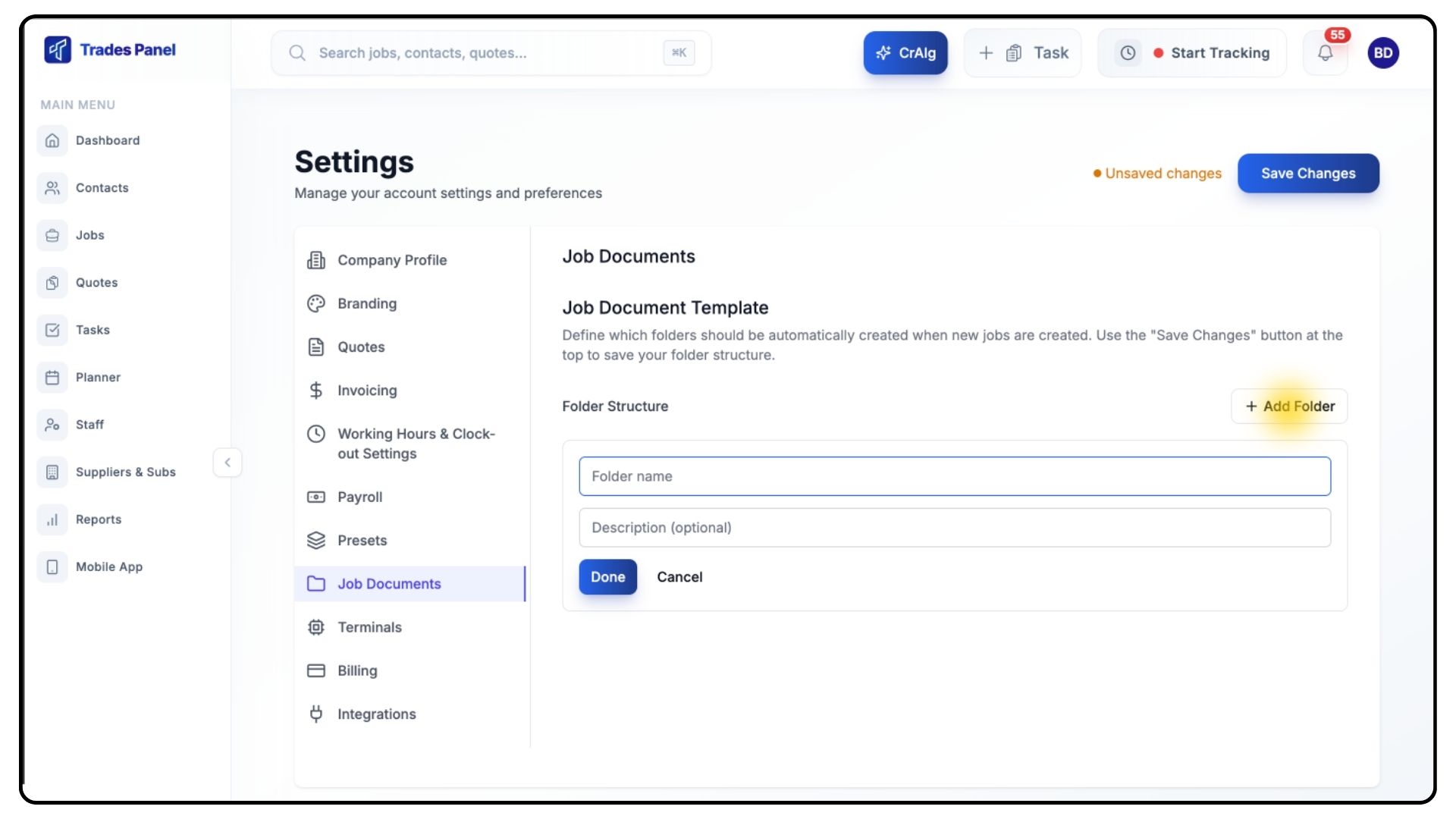
Click Add Folder.
Enter a Folder Name.
(Optional) Add a Description to help clarify its purpose.
Click Done.
Your new folder will now appear in the template list.
Setting Folder Permissions
What It Does
Permissions allow you to control which user roles can view, download, upload, or edit documents within a specific folder.
Steps
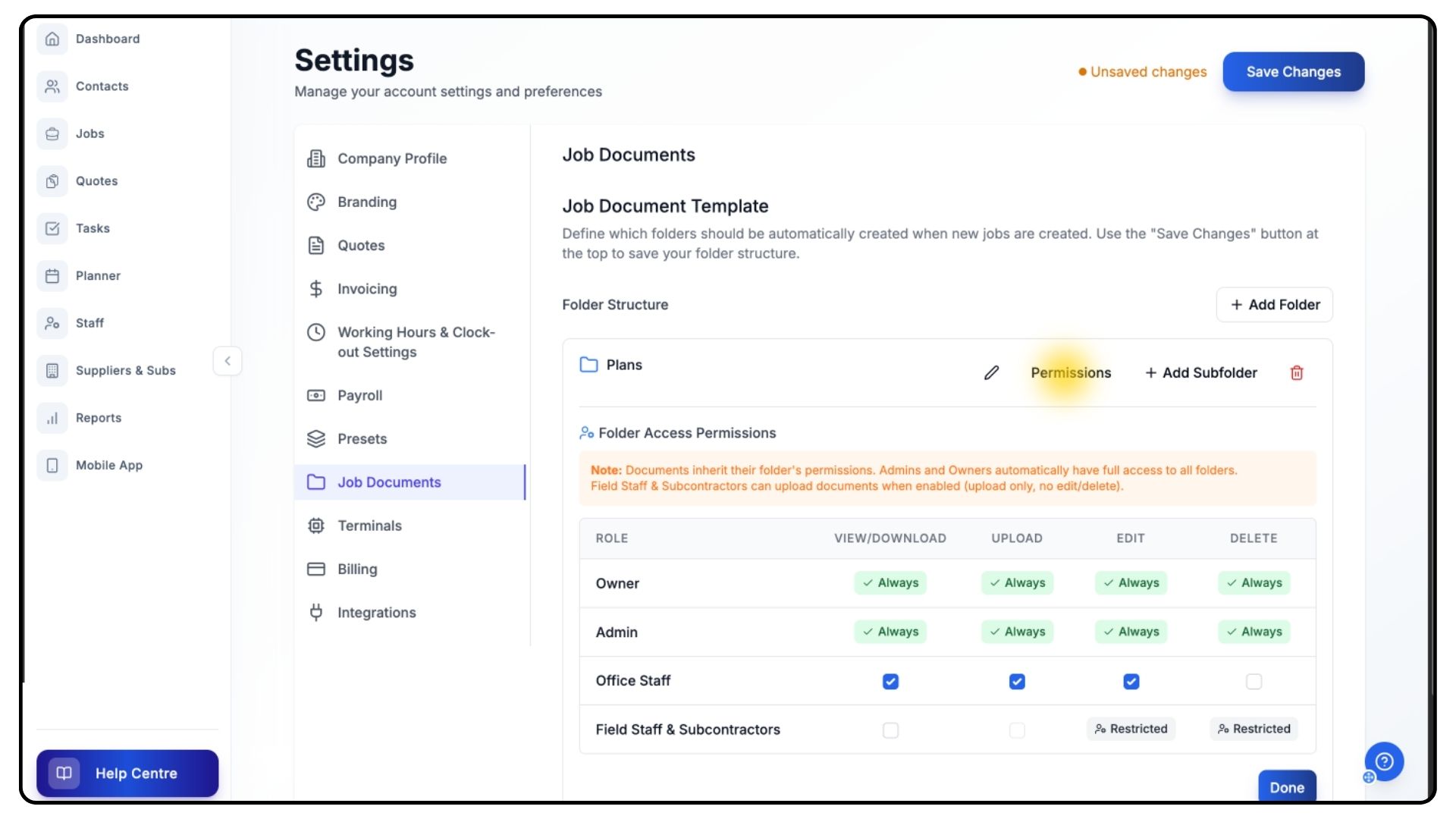
Find your newly created folder and click the Permissions button.
For each user role, tick the permissions you want to allow:
View
Download
Upload
Edit
Click Done to save the permission settings.
Adding Sub-Folders
What It Does
Sub-folders help you create a structured document system - ideal for grouping related files such as RAMS, Drawings, Certificates, or H&S records.
Steps
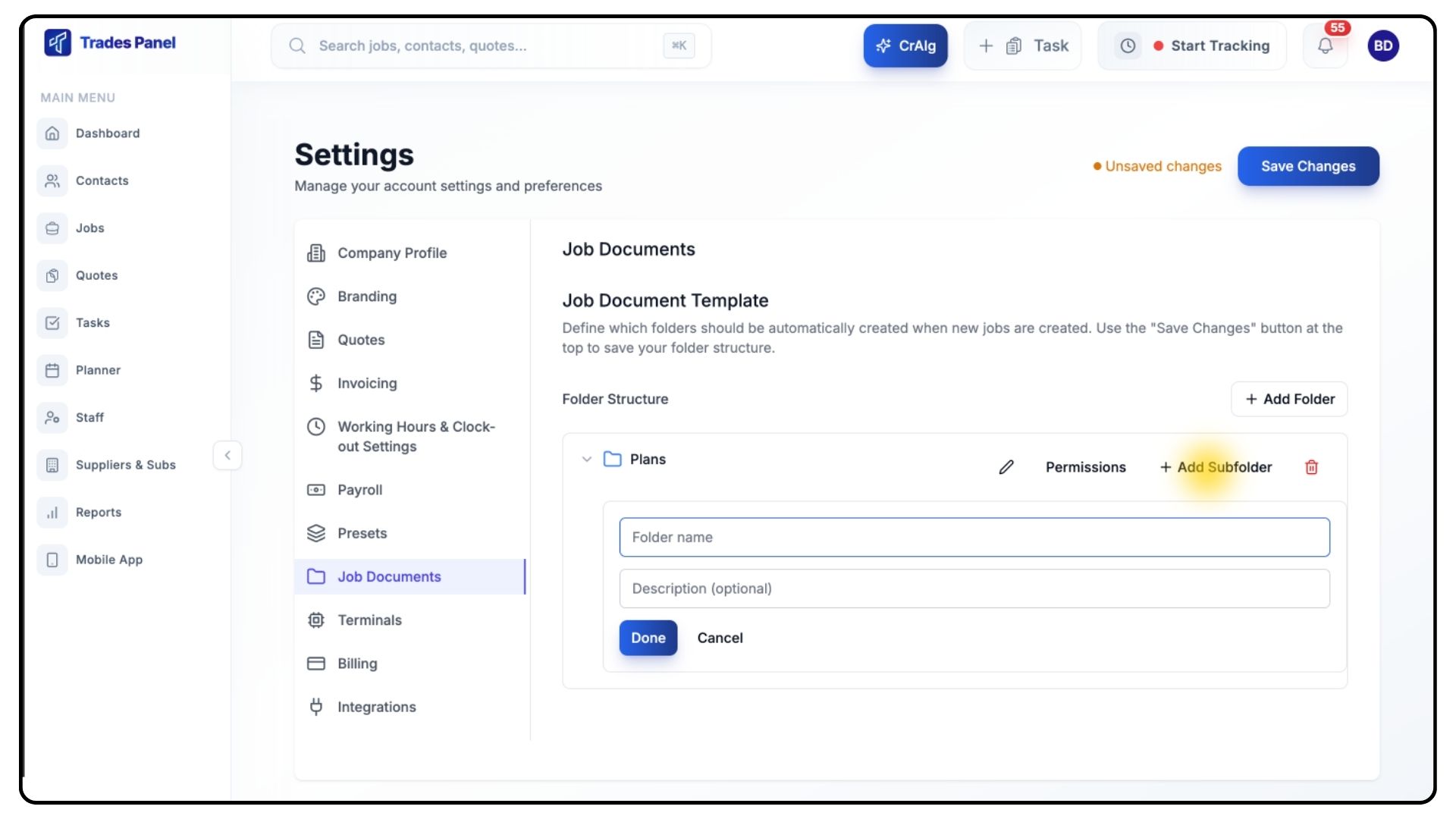
Select the folder you want to add sub-folders to.
Click Add Folder underneath it to create a sub-folder.
Enter the Folder Name and optional Description.
Click Done.
Repeat this process to build out your full template structure.
Saving Your Job Document Template
What It Does
Applies your folder structure to all future jobs created in TradesPanel.
Steps
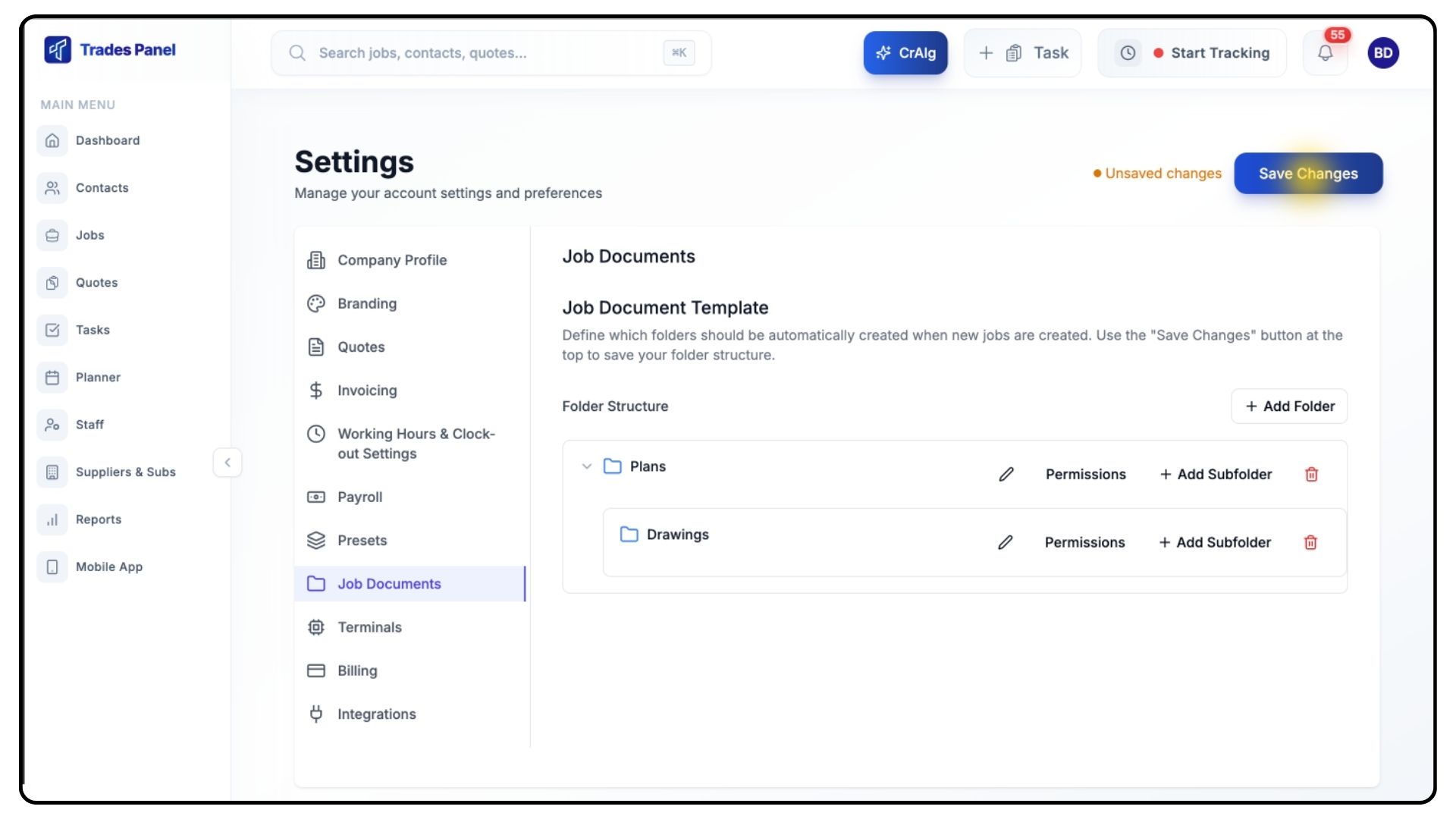
Once your folder structure is complete, click Save Changes in the top-right corner.
From this point on, every new job you create will automatically include this folder structure inside its Job Documents tab.
Common Questions
Q: Do changes apply to existing jobs?
No. Job Document Templates only apply to new jobs created after saving your changes.
Q: Can I edit my template later?
Yes. You can add, remove, or rename folders and update permissions at any time.
Q: Will sub-folders also carry permissions?
Yes, each folder and sub-folder has its own permission controls.
Q: Can I reorder folders?
Folder order is currently fixed by creation sequence but can be reorganised by recreating them in your desired order.