What It Does
The Timesheets section in Trades Panel provides a clear weekly overview of your team’s worked hours, calculated earnings, and payment status.
It automatically pulls data from clock-ins and clock-outs, while still allowing you to manually adjust hours when required.
Accessing the Timesheets Section
What It Does
This is where you review, edit, and approve your staff’s weekly time logs.
Steps
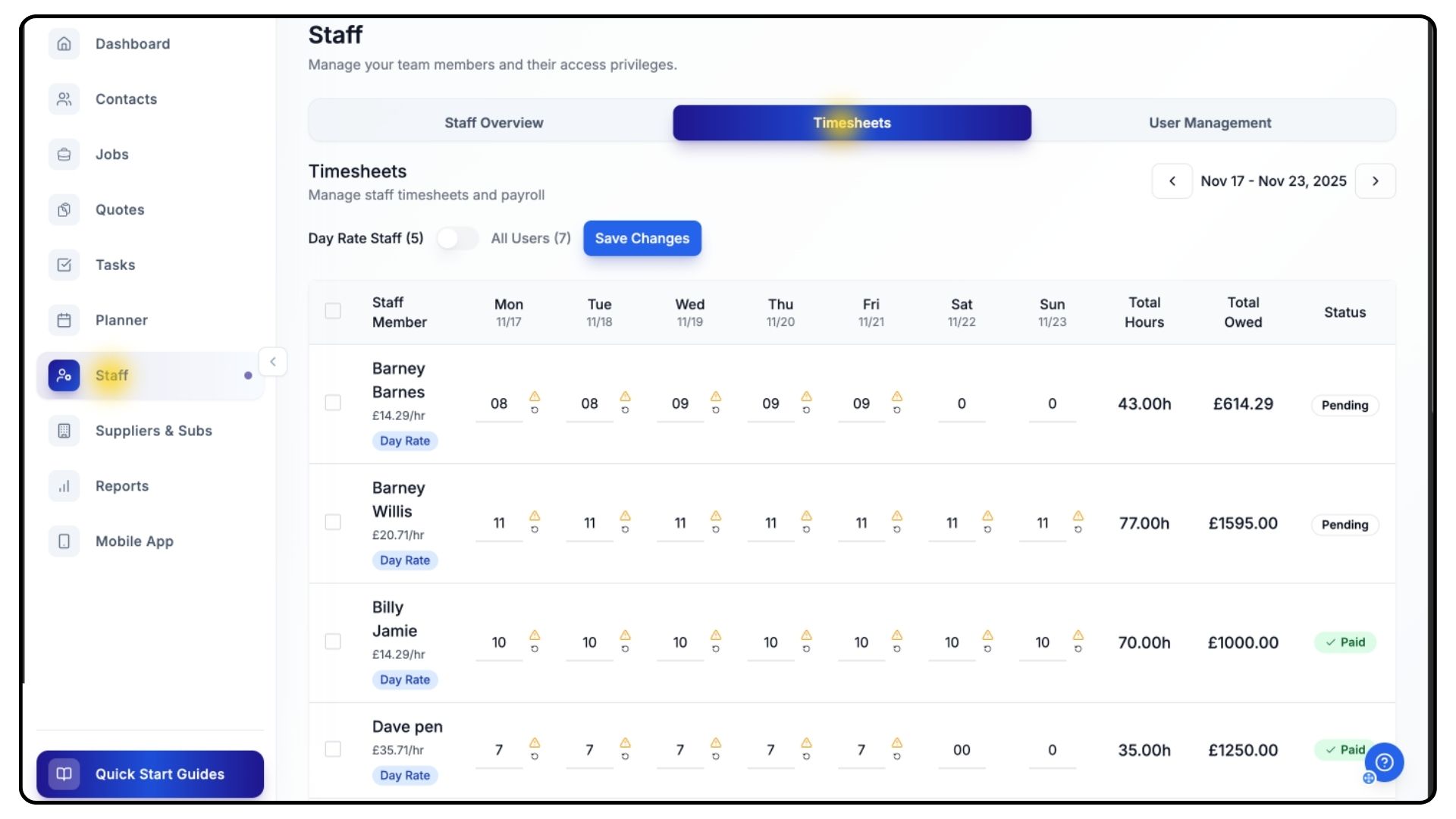
Go to the Staff section from the main menu.
Click Timesheets from the top bar.
You’ll now see a list of all staff members, along with their calculated hourly rate, which is derived from their day rate divided by their set working hours.
(If you haven’t set staff working hours yet, there’s a dedicated guide available on the Quick Start Guides page.)
Viewing and Editing Daily Hours
What It Does
Daily hours are automatically calculated from each staff member’s clock-in and clock-out times.
Steps
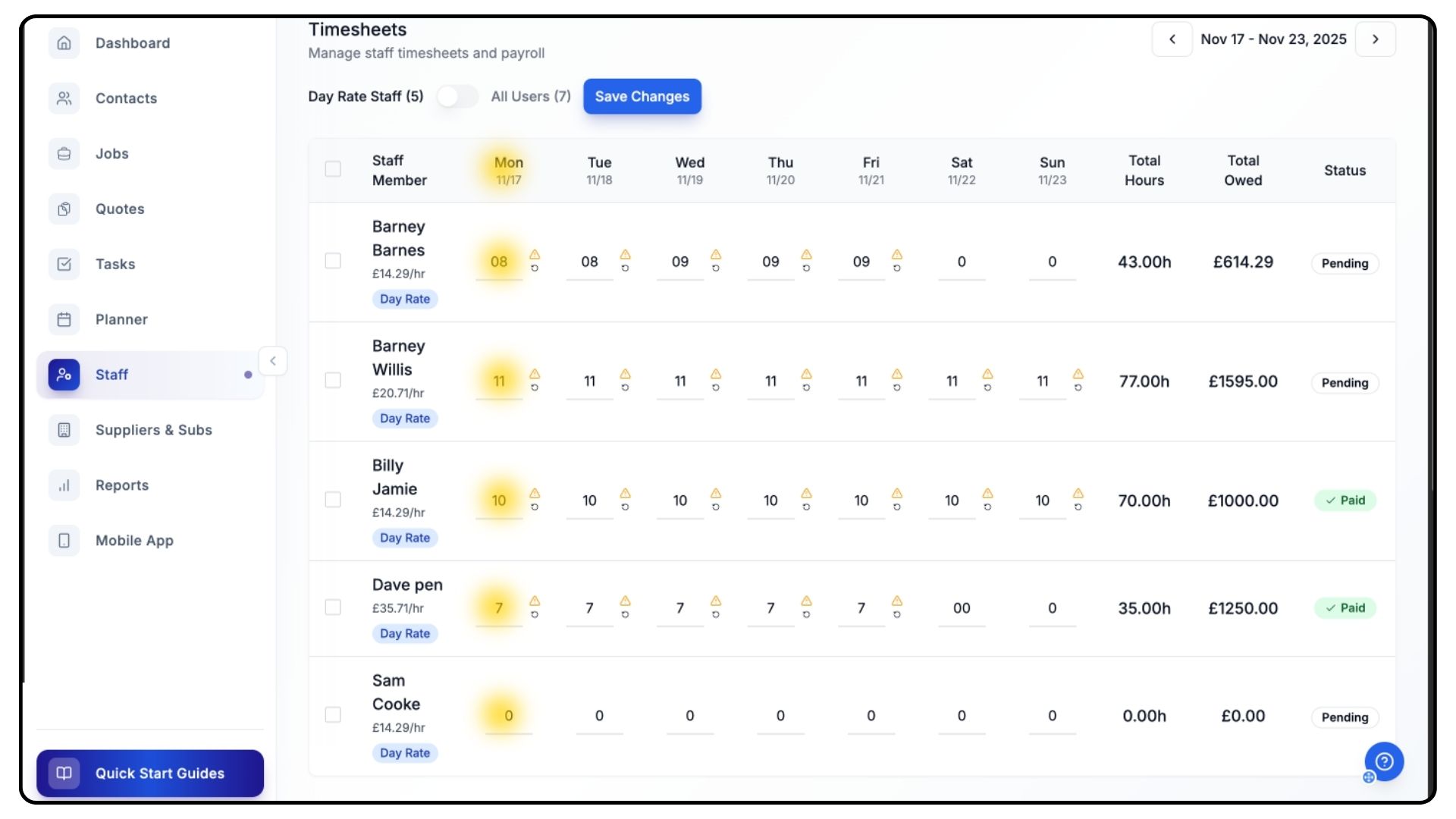
Each row represents a staff member.
Across the top, you’ll see all seven days of the week.
Under each date, you’ll find the total hours worked for that day.
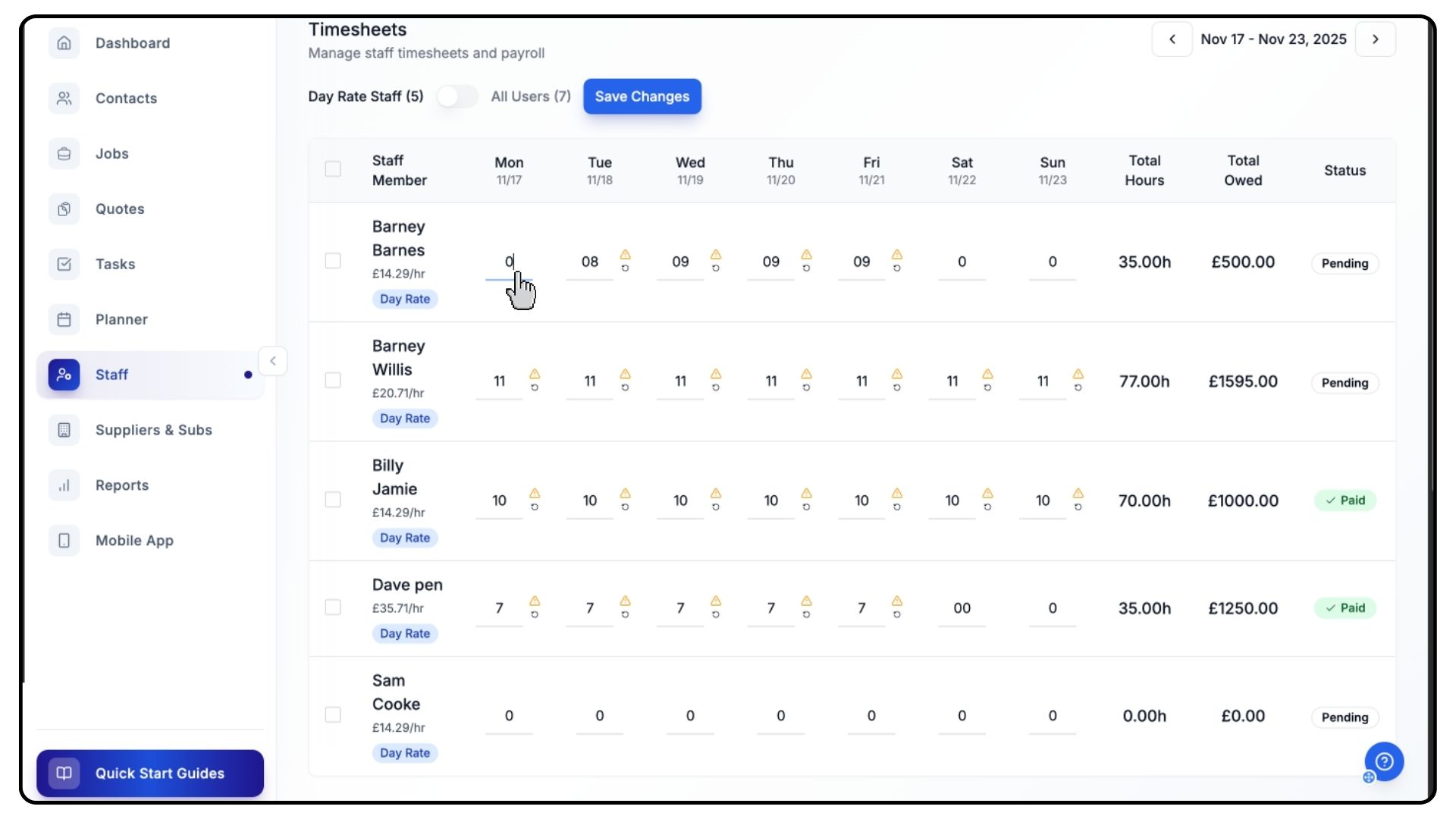
If you need to make corrections, click inside any field to manually override the hours.
Weekly Totals & Marking Staff as Paid
What It Does
Shows weekly totals, earnings, and allows you to mark staff as paid.
Steps
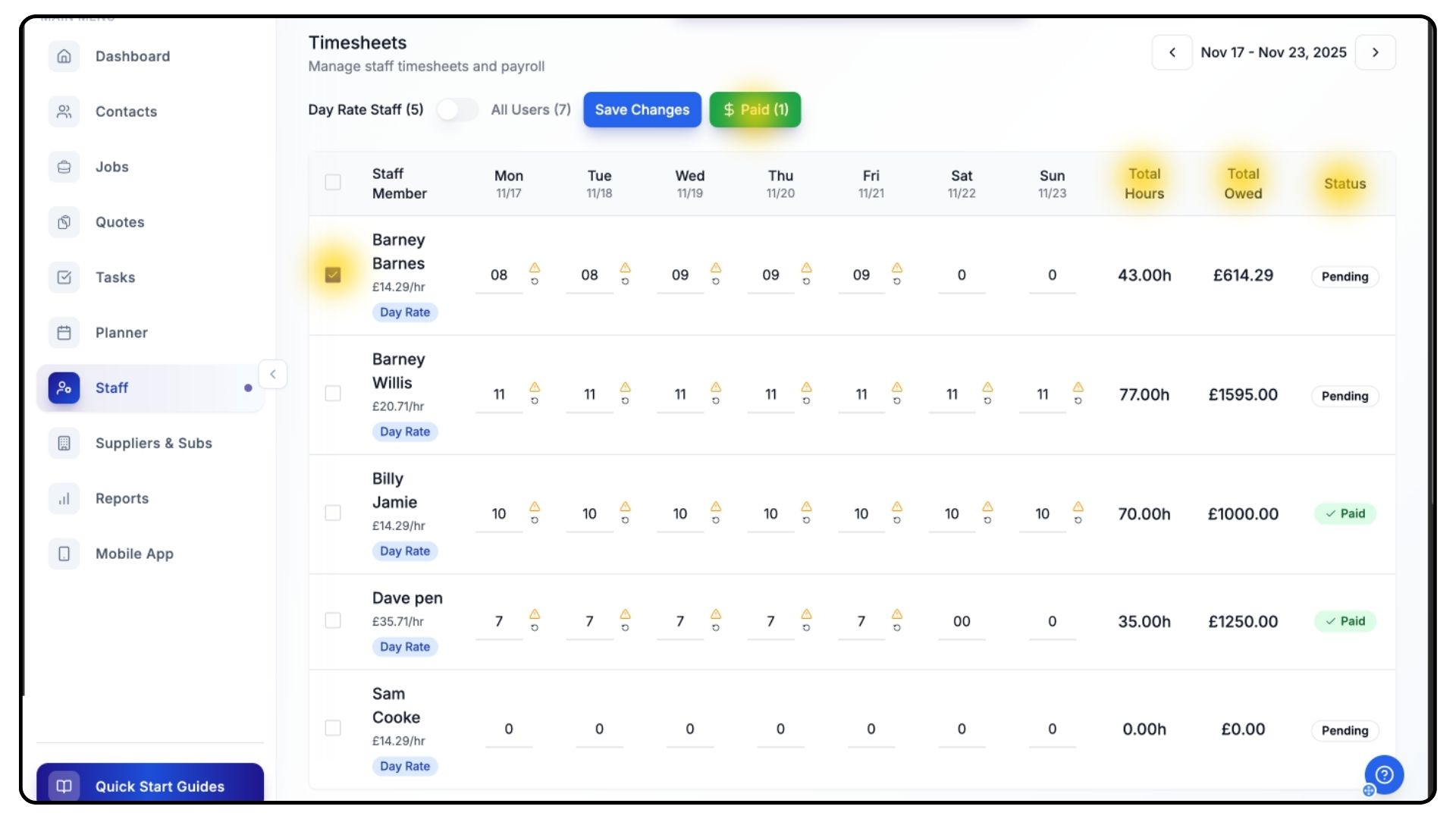
On the right-hand side of each row, you’ll see:
Total Hours Worked
Total Amount Owed
Payment Status
If you’ve paid a staff member, tick the box beside their name and click the green Paid button that appears.
Filtering Users & Navigating Between Weeks
What It Does
Allows you to control which users are displayed and move between different weeks.
Steps
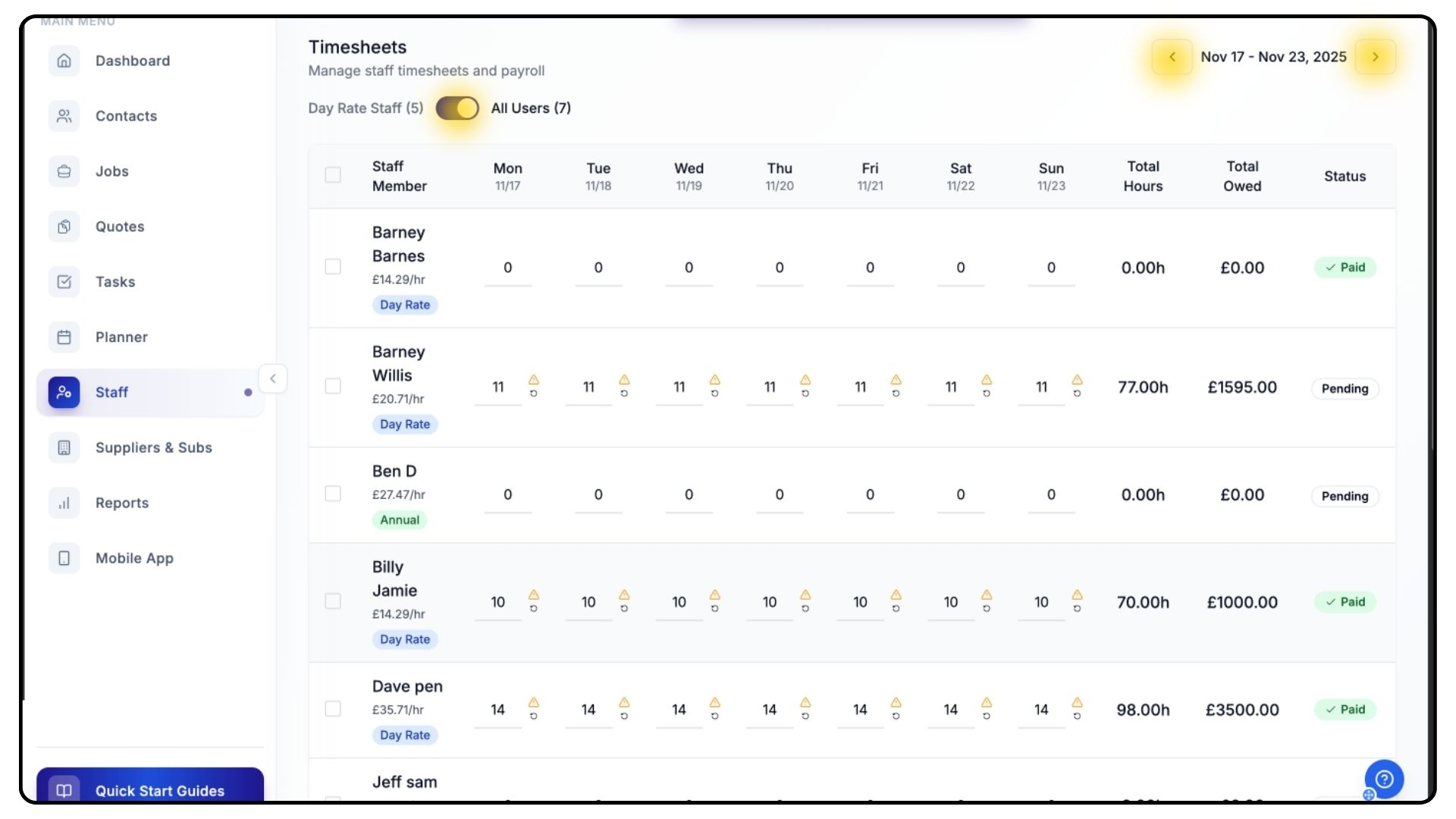
Use the toggle in the top-left to switch between:
Day Rate Users Only
All Users
Use the arrows in the top-right to browse past or upcoming weeks.
Viewing Auto Clock-Out Alerts
What It Does
Shows alerts when Trades Panel automatically clocks out a staff member who forgot to end their shift.
Steps
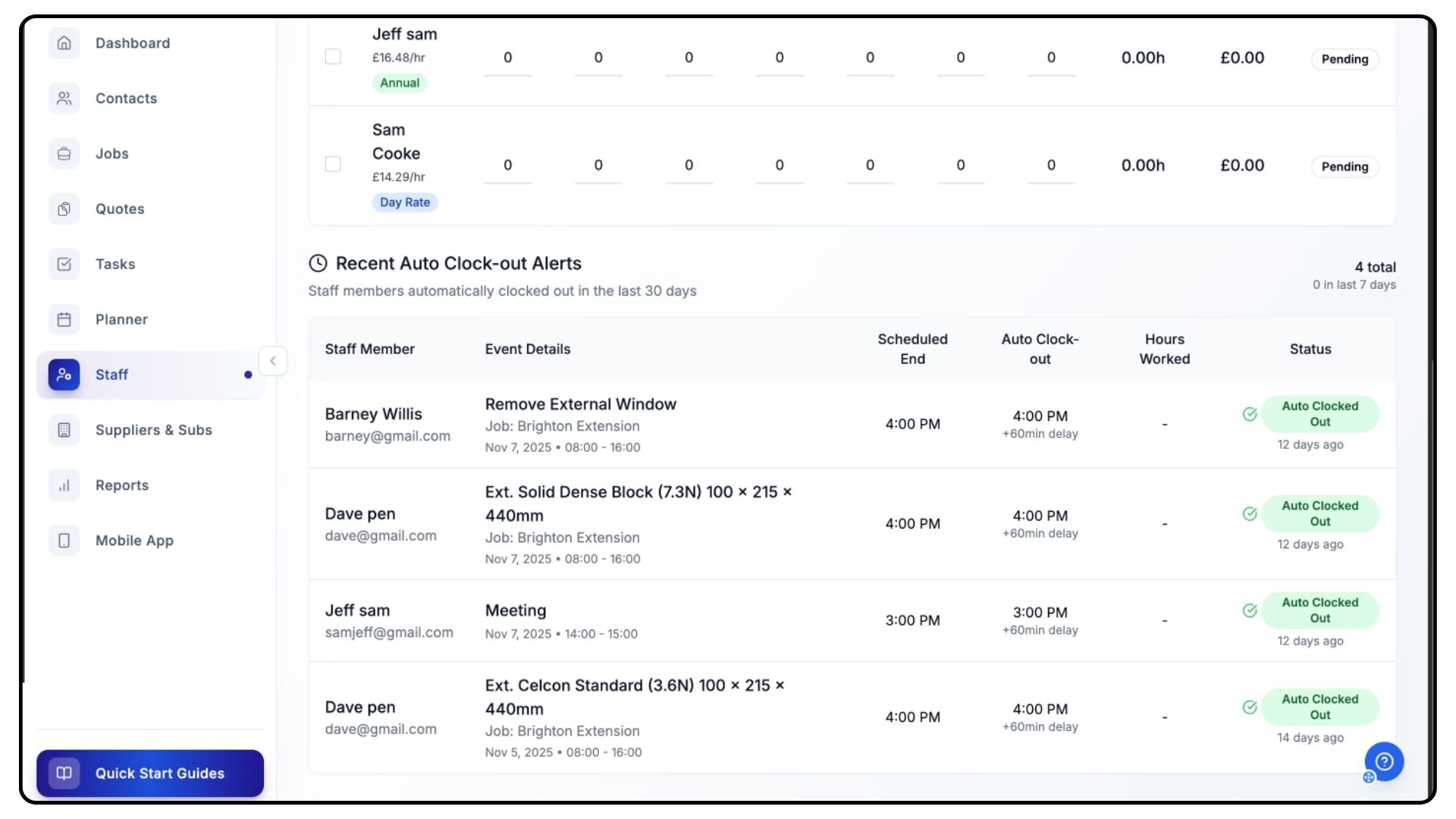
Scroll to the bottom of the Timesheets page.
You’ll see Auto Clock-Out Alerts — these are created when the system ends a shift based on your auto clock-out settings.
If you haven’t configured auto clock-outs, there’s a walkthrough video available on the Guides page.
Learn more about time tracking.
Common Questions
Q: Can I manually adjust hours if someone forgets to clock in or out?
Yes. Simply click into the field and enter the correct hours.
Q: Does marking a staff member as Paid affect payroll reports?
Yes. It updates their payment status across the system.
Q: Can I view timesheets for future weeks?
Yes. Use the arrows in the top-right corner to move to past or future weeks.
Q: What if a staff member works multiple shifts in a day?
Trades Panel will combine all clock-ins and clock-outs for that day into a single total.
Q: Do hourly rates update automatically if I change someone’s day rate?
Yes. Adjusting a staff member’s day rate recalculates their hourly rate automatically.