Overview
hCaptcha is an anti-bot protection service that helps prevent spam submissions on your website contact form. When enabled, users must complete a hCaptcha challenge before submitting the form.
Key Features:
Protects your form from spam and bot submissions
Works alongside the built-in honeypot field for enhanced security
Free tier available for most use cases
Prerequisites
Before setting up hCaptcha, ensure you have:
✅ An Enquiries Pipeline configured - Navigate to https://www.tradespanel.com/app/enquiries to set this up
✅ At least one Pipeline Stage - Your pipeline must have at least one stage. New enquiries form your form will always be created in the first stage of your pipeline.
✅ Company Email configured - Set in Company Profile settings (https://www.tradespanel.com/app/settings?tab=company)
✅ A hCaptcha account - Sign up at https://www.hcaptcha.com (free tier available)
Step 1: Create a hCaptcha Account
Visit https://www.hcaptcha.com
Click "Sign Up" or "Get Started"
Complete the registration process
Step 2: Create a Site in hCaptcha Dashboard
Log in to your hCaptcha dashboard
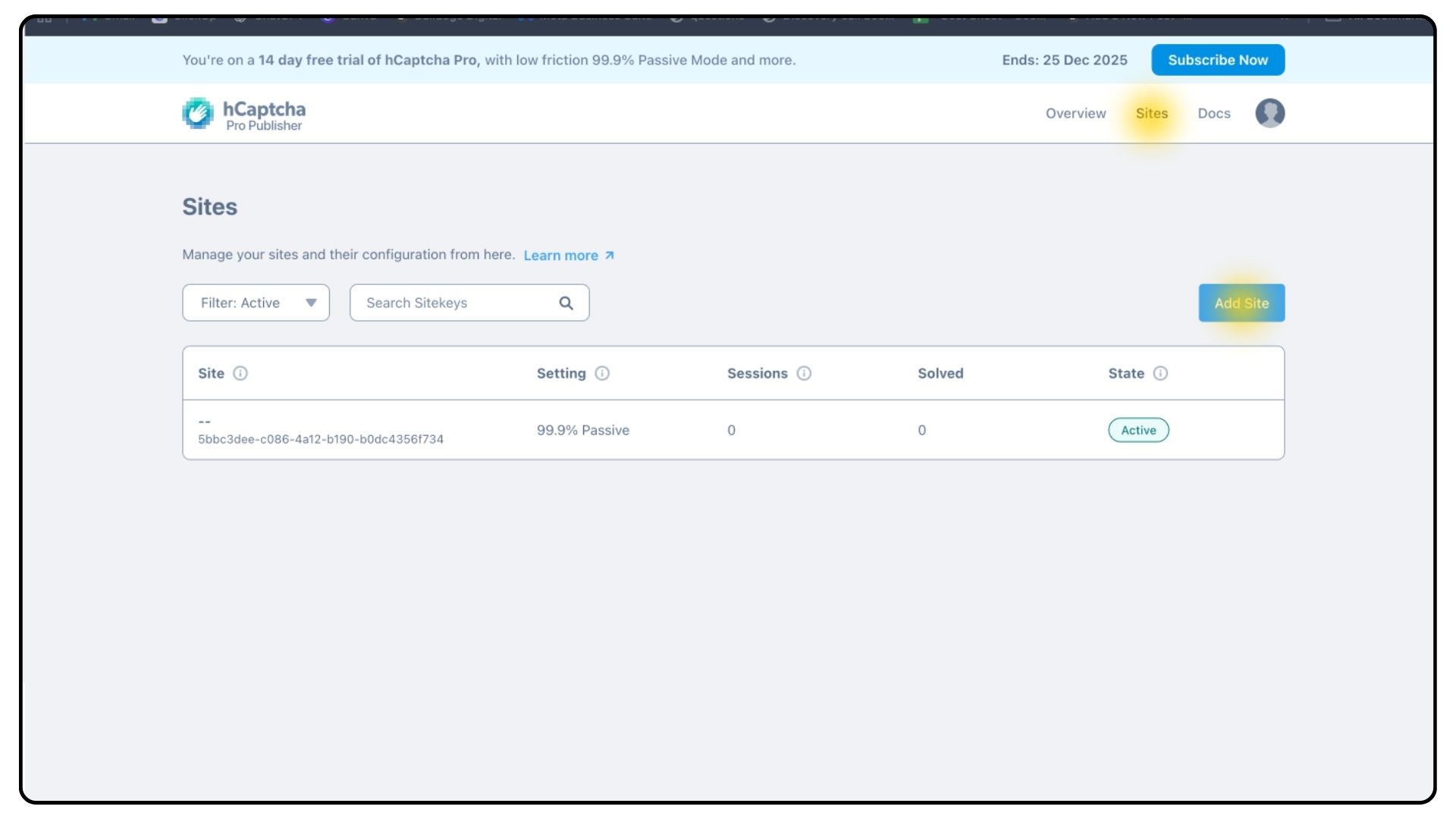
Navigate to "Sites" or "Add New Site"
Click "Add Site" or "Create Site"
Fill in the site details:
Label: Give your site a name (e.g., "My Company Website")
Domain: Enter your website domain (e.g.,
example.comor*.example.comfor subdomains)hCaptcha Behaviour: Determines the hCaptcha behaviour type that will be applied to the sitekey. We recommend using 'Always Challenge' mode as this is included in the free plan. (Start with the 'Auto' setting. If you are finding you are receiving a lot of spam you can harden this)
Click "save"
Then press 'View integration' - (If you miss this, press the icon in the top right and head to settings to generate a new secret key)
Click 'Generate a new secret'
Step 3: Get Your hCaptcha Keys
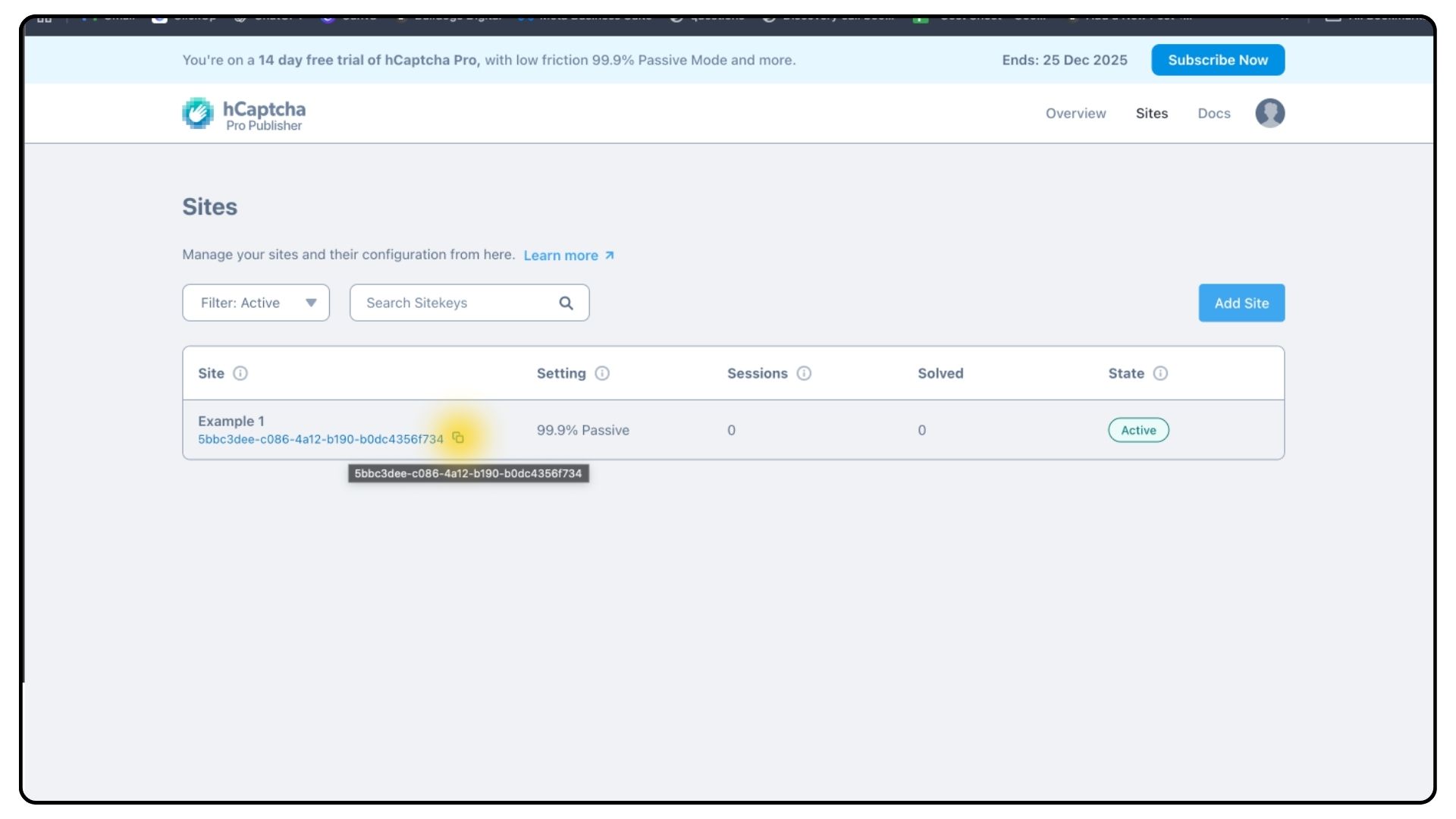
Site Key (Public Key) - This is safe to expose in your frontend code
Format: Usually starts with a long alphanumeric string (e.g.,
10000000-ffff-ffff-ffff-000000000001)Found in: Site settings page, labeled as "Site Key" or "Public Key"
Secret Key (Private Key) - This must be kept secure and never exposed
Format: Usually starts with
0xfollowed by a long hexadecimal string (e.g.,0x0000000000000000000000000000000000000000)Found in: Site settings page, labeled as "Secret Key" or "Private Key"
⚠️ Important: Copy this immediately as it may only be shown once. If you need to regenerate this, you can do so ONLY THREE TIMES in the settings menu, accessed from by clicking on your icon in the top right.
Step 4: Configure hCaptcha in Settings
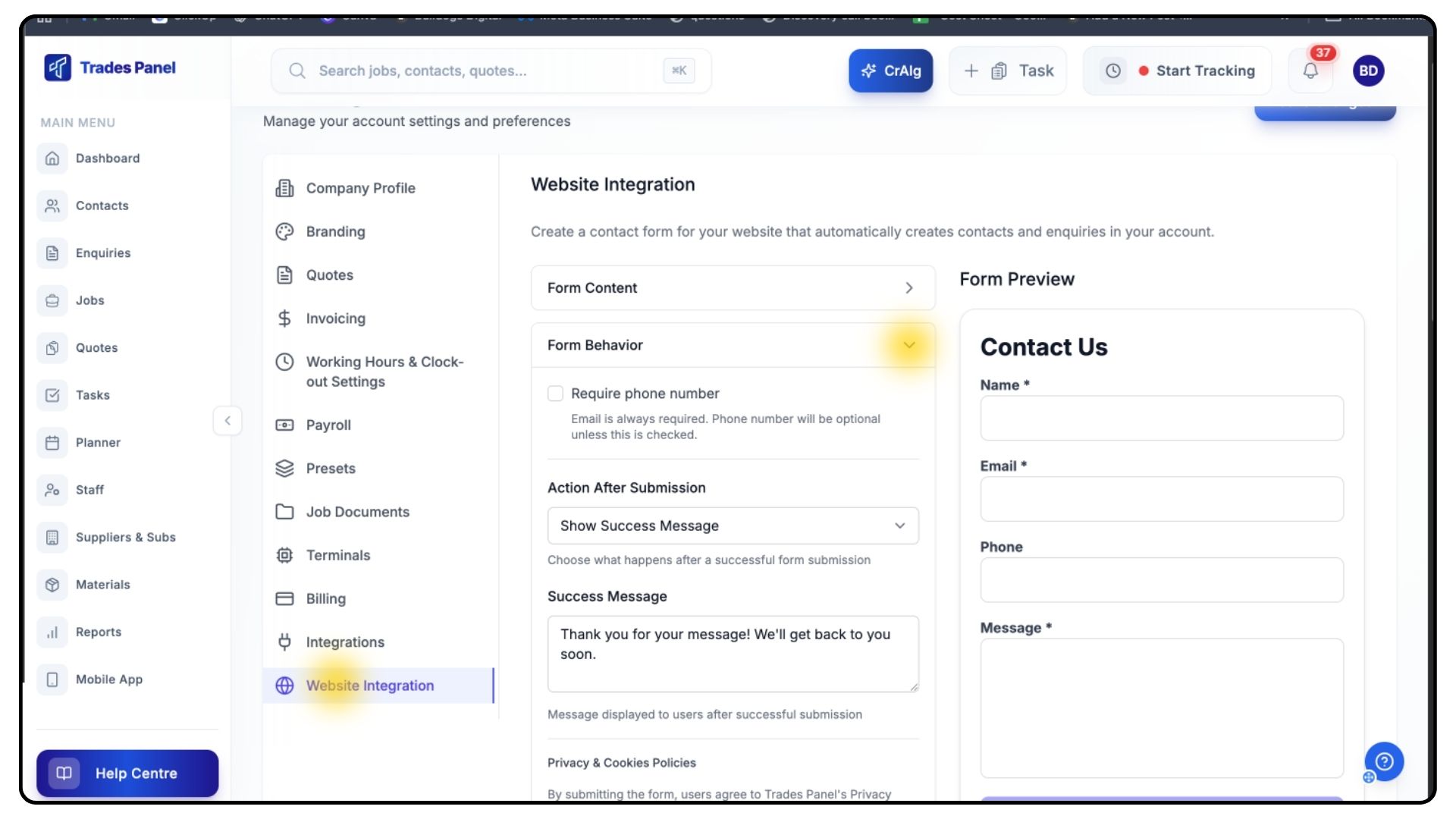
Navigate to Settings → Website Integration
Direct link: https://www.tradespanel.com/app/settings
Ensure you're on the Website Integration tab
Scroll down & expand the "Form Behavior" section
Expand the "Anti-Spam Protection" section within Form Behavior
Enable hCaptcha:
Check the checkbox labeled "Enable hCaptcha"
Enter your Site Key:
In the "hCaptcha Site Key" field, paste your Site Key (public key)
Example:
10000000-ffff-ffff-ffff-000000000001
Enter your Secret Key:
In the "hCaptcha Secret Key" field, paste your Secret Key (private key)
Example:
0x0000000000000000000000000000000000000000⚠️ Note: This field is masked for security. The secret key is stored securely and never exposed to clients.
Save your configuration:
Click the "Save Form Configuration" button at the bottom of the settings panel
Wait for the success message confirming your settings have been saved
Step 5: Verify the Integration
Check the Form Preview:
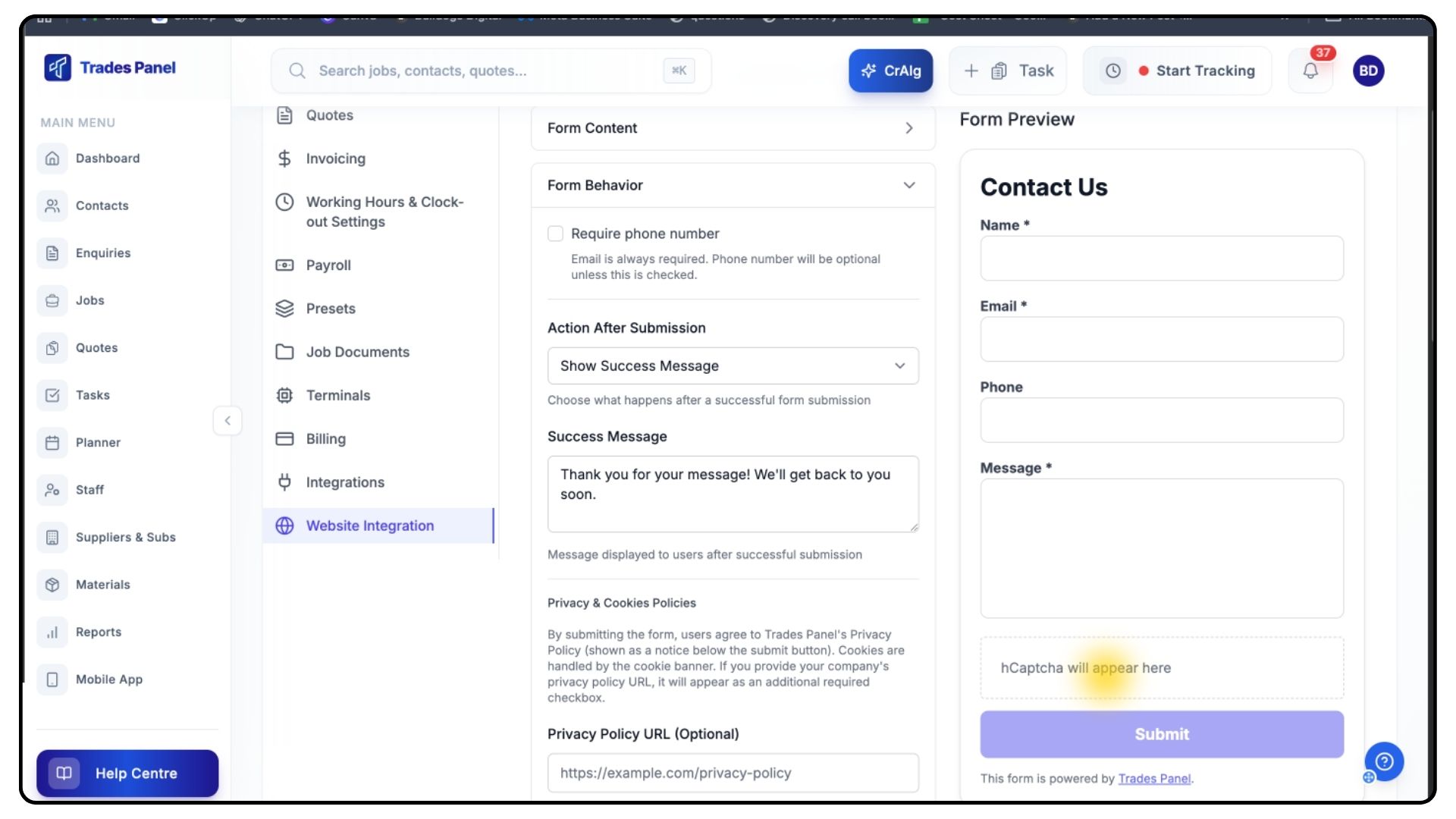
In the right column of the Website integration page, you should see a form preview
When hCaptcha is enabled, you'll see a placeholder indicating "hCaptcha will appear here"
The actual hCaptcha widget will appear when the form is embedded on your website
Test the Embedded Form:
Copy your embed code from the settings page
Paste it into a test HTML page or your website (read more: FORM SETUP GUIDE)
The hCaptcha widget should appear above the submit button
Complete a test submission to verify everything works
Disabling hCaptcha
To disable hCaptcha:
Navigate to Settings → Website Integration (https://www.tradespanel.com/app/settings)
Scroll to the "Anti-Spam Protection" section
Uncheck the "Enable hCaptcha" checkbox
Click "Save Form Configuration"
Note: Your form will still have honeypot protection even when hCaptcha is disabled.