What It Does
Custom Clock-In Locations allow you to approve specific places where staff can clock in that aren’t tied to a job site.
This is ideal for locations such as your office, yard, or a builders’ merchant, where staff may need to start tracking time away from site.
Accessing Custom Clock-In Locations
What It Does
This is where you create and manage approved clock-in locations for your team.
Steps
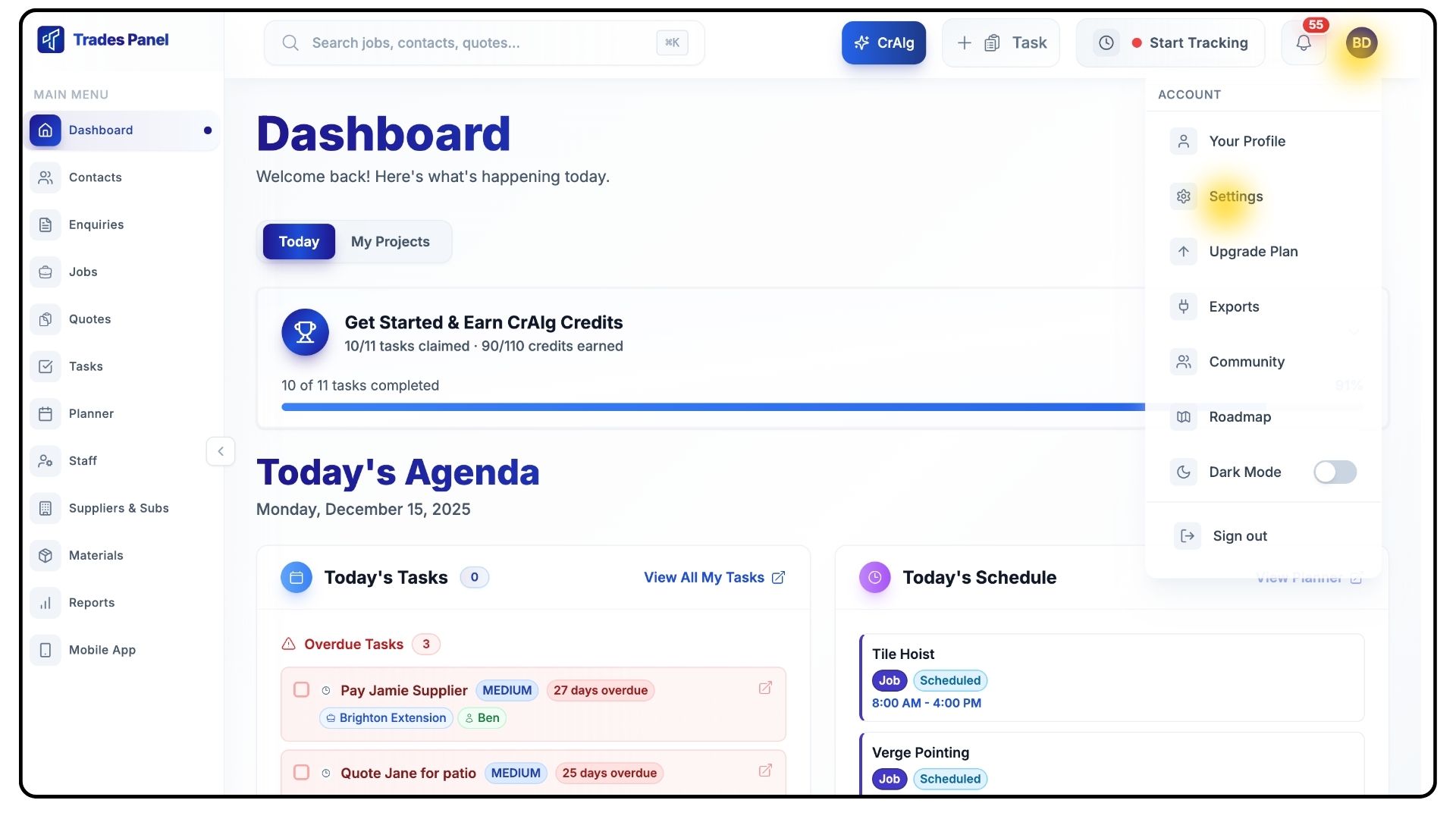
Click your Profile Icon in the top-right corner and select Settings.
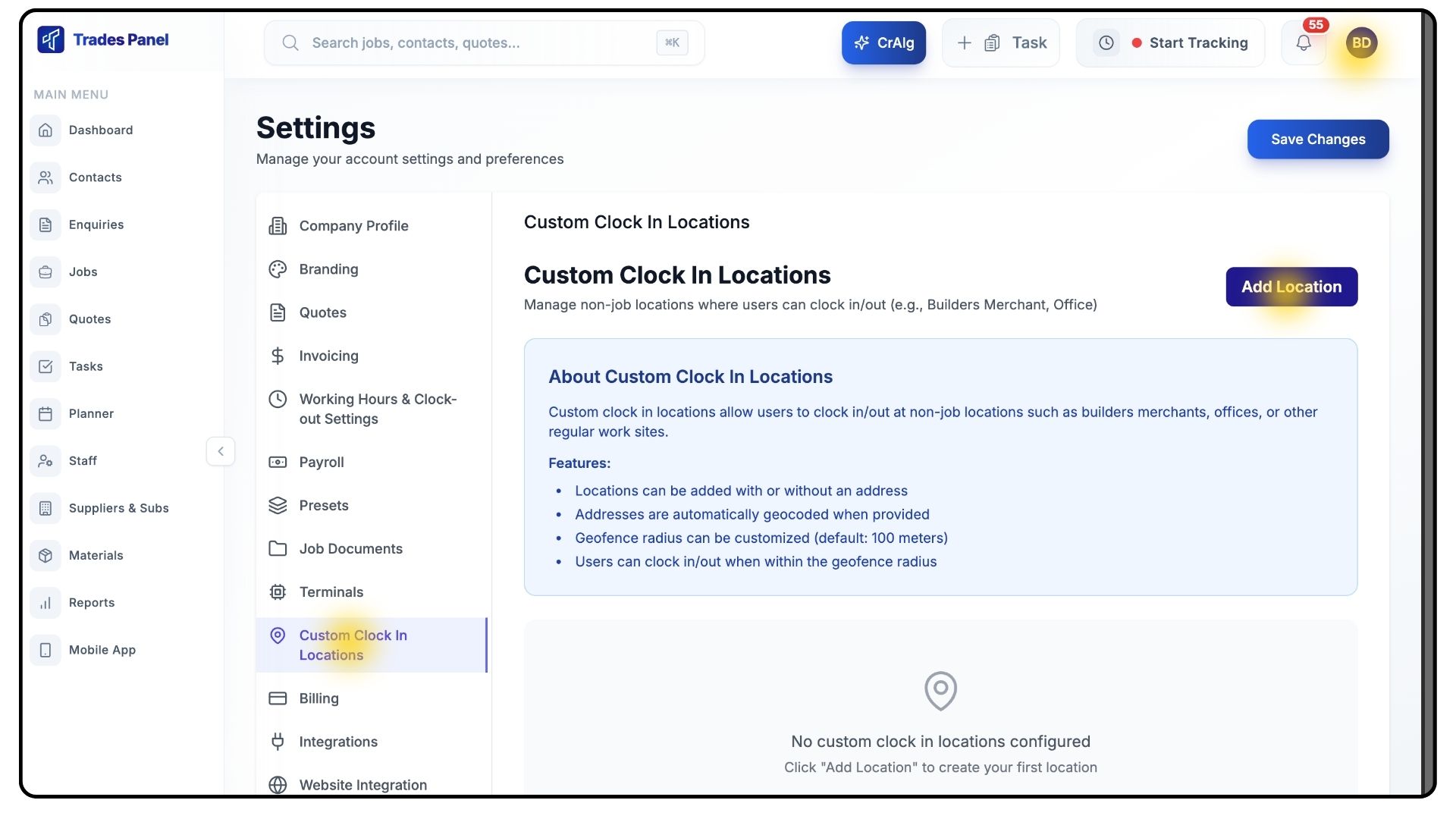
From the Settings menu, click Custom Clock-In Locations.
Creating a Custom Clock-In Location
What It Does
Allows you to define an approved location and geofence where staff are allowed to clock in.
Steps
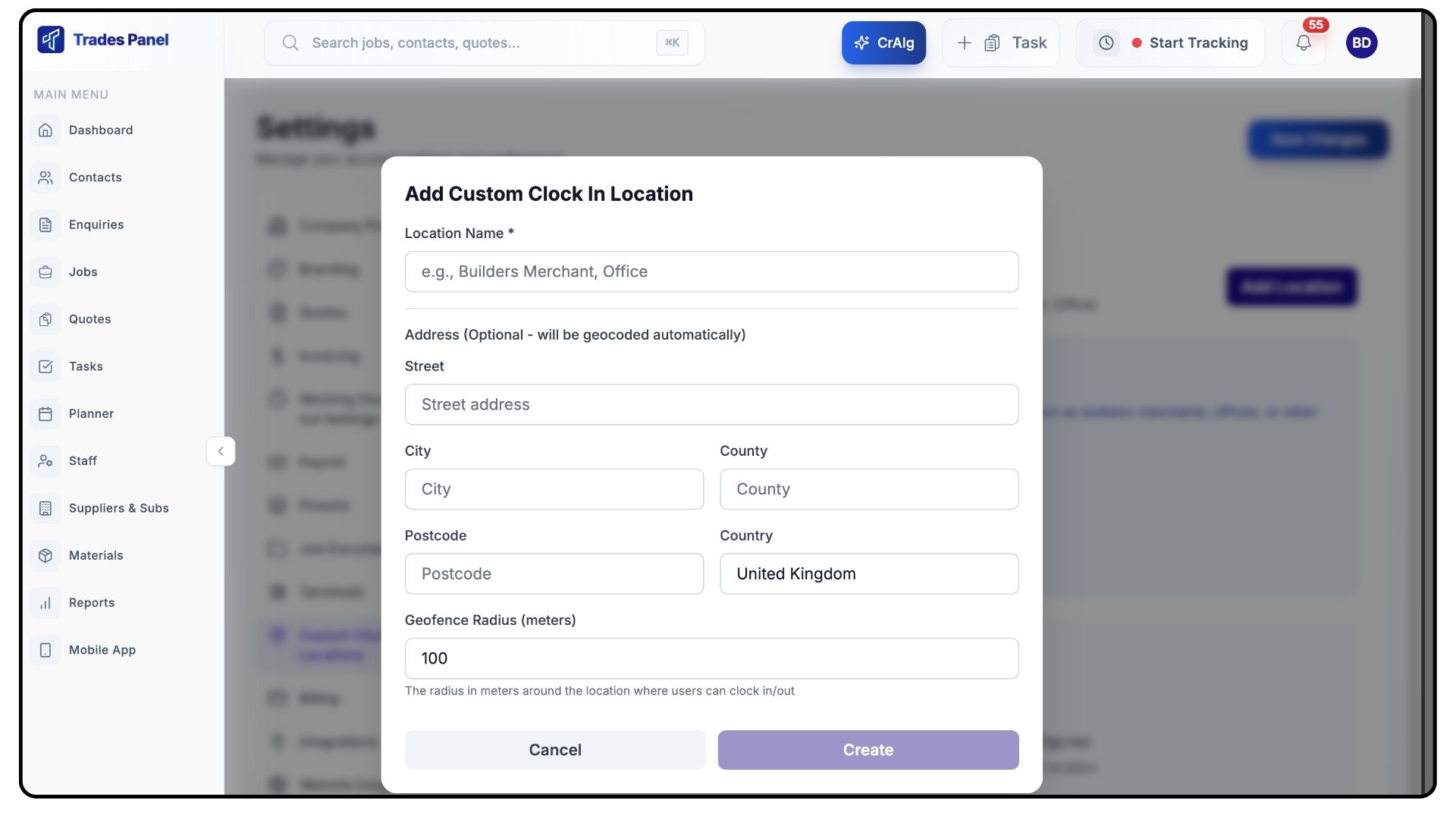
Click Add Location.
Enter the Location Name.
Enter the Address.
Set the Geofence Radius.
We recommend a radius of around 100 metres to allow for GPS and satellite positioning variations.
Click Create.
Managing Existing Locations
What It Does
Allows you to keep clock-in locations accurate and up to date.
Steps
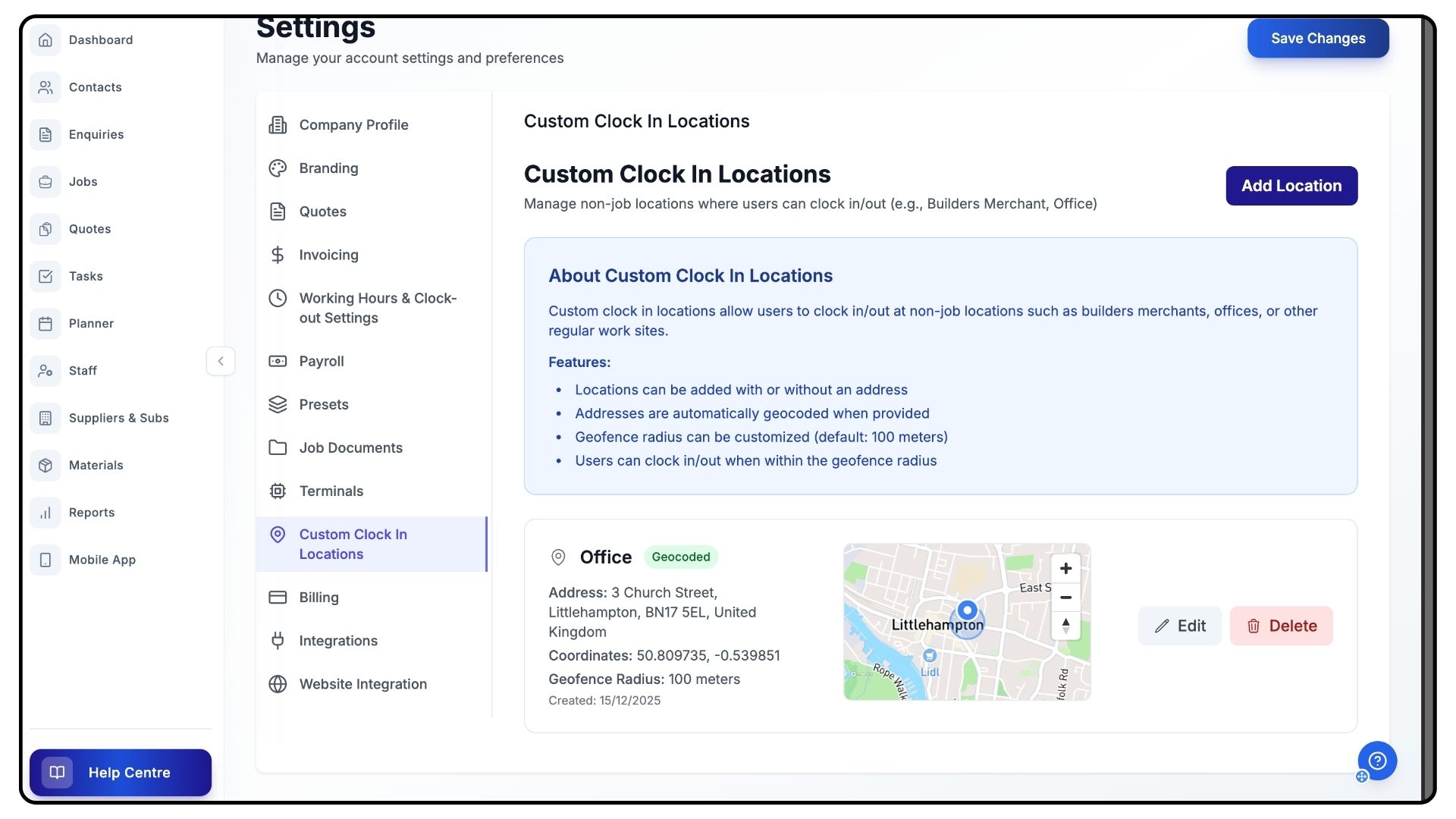
Once created, the location will appear in the list below.
Use the Edit or Delete options to update details or remove locations that are no longer needed.
Clocking In Using Custom Locations
What It Does
Allows staff to start tracking time from approved locations that are not job-specific.
Steps
Staff press Start Tracking when clocking in.
Nearby approved custom locations will appear automatically.
Select the relevant location to begin tracking time.
To keep things simple, locations will only appear when staff are physically close to them — preventing long or unnecessary lists.
Final Notes
Custom Clock-In Locations help ensure accurate time tracking while giving flexibility for non-site-based starts.
And that’s how Custom Clock-In Locations work in TradesPanel.
For more tutorials and walkthroughs, visit the Quick Start Guides section in the navigation bar.