What It Does
The Finance section gives you a complete overview of your project’s financial performance — showing exactly how much money is coming in, how much is going out, and whether the job is staying on budget.
It provides a clear, centralised view of all your costs and income in one place, helping you track profitability throughout every stage of your project.
View all finance & invoicing features.
Accessing the Finance Section
What It Does
Every job in Trades Panel includes its own financial dashboard. This makes it easy to monitor performance without needing to switch between spreadsheets or external tools.
Steps
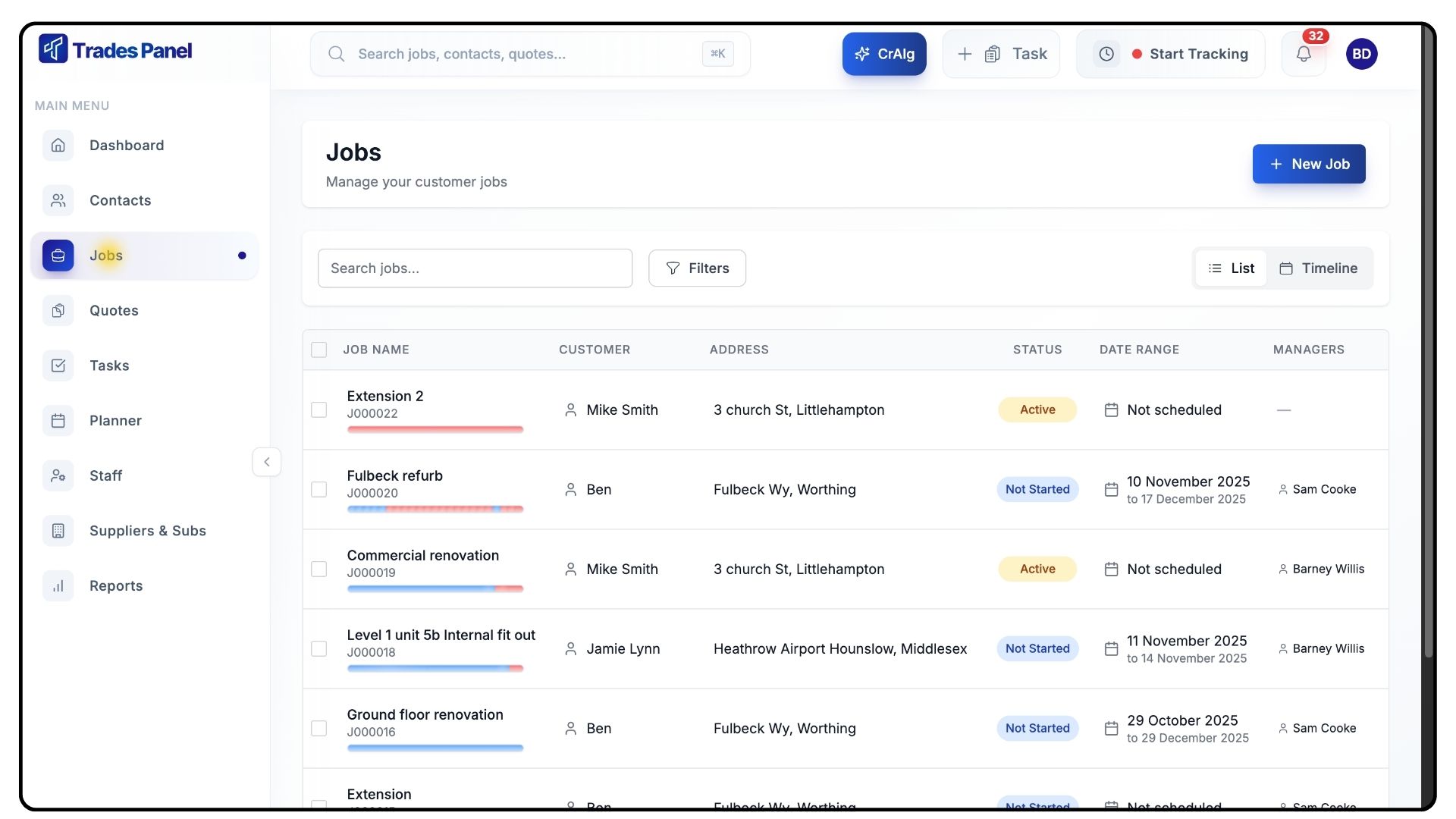
Click Jobs in the main menu.
Select the job you want to view from the list.
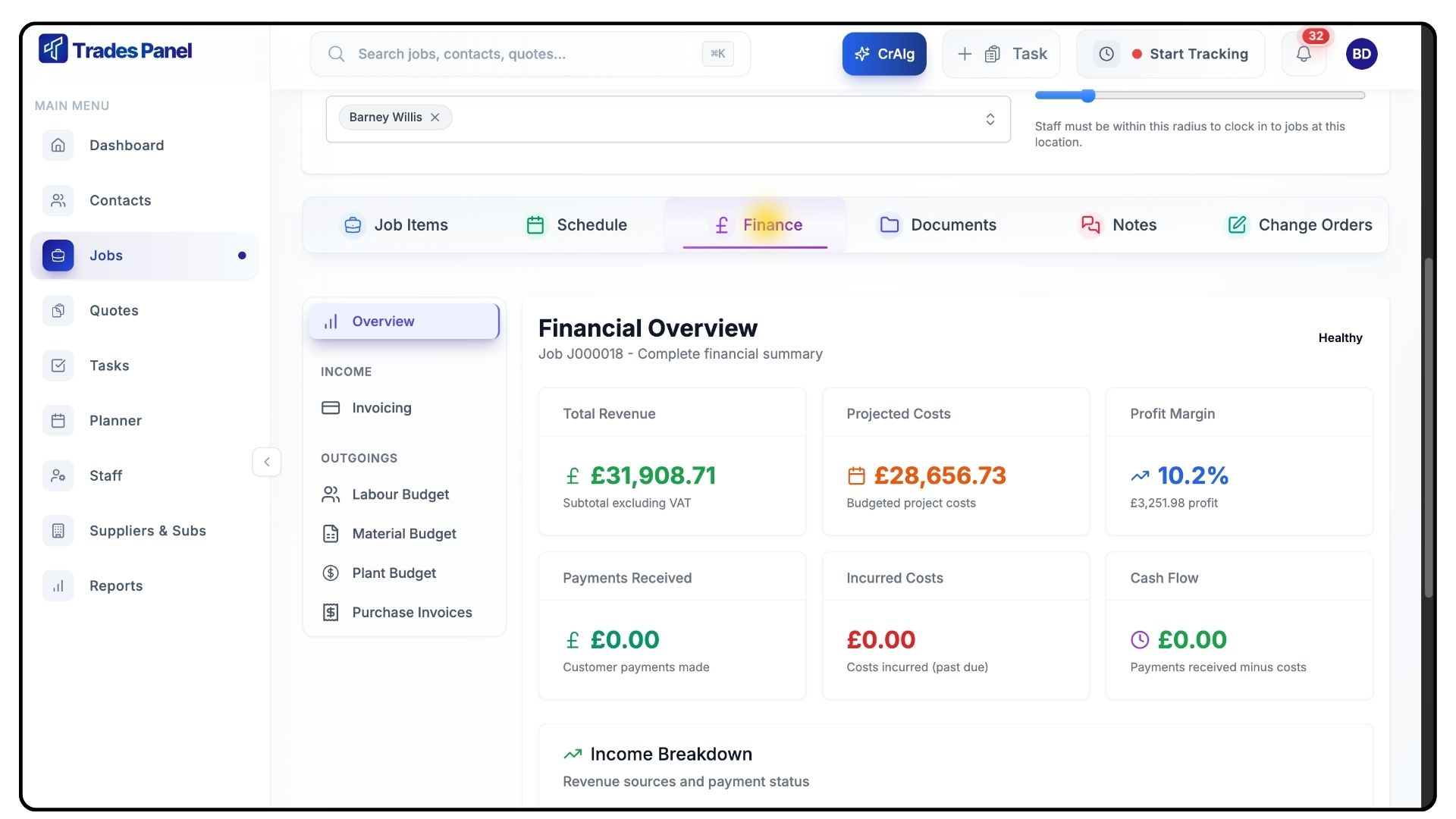
Once inside, open the Finance tab at the top of the screen.
Viewing the Financial Summary
What It Does
The first page of the Finance tab provides a summary of all key financial metrics for your selected job. This snapshot helps you quickly assess the project’s financial health at a glance.
Steps
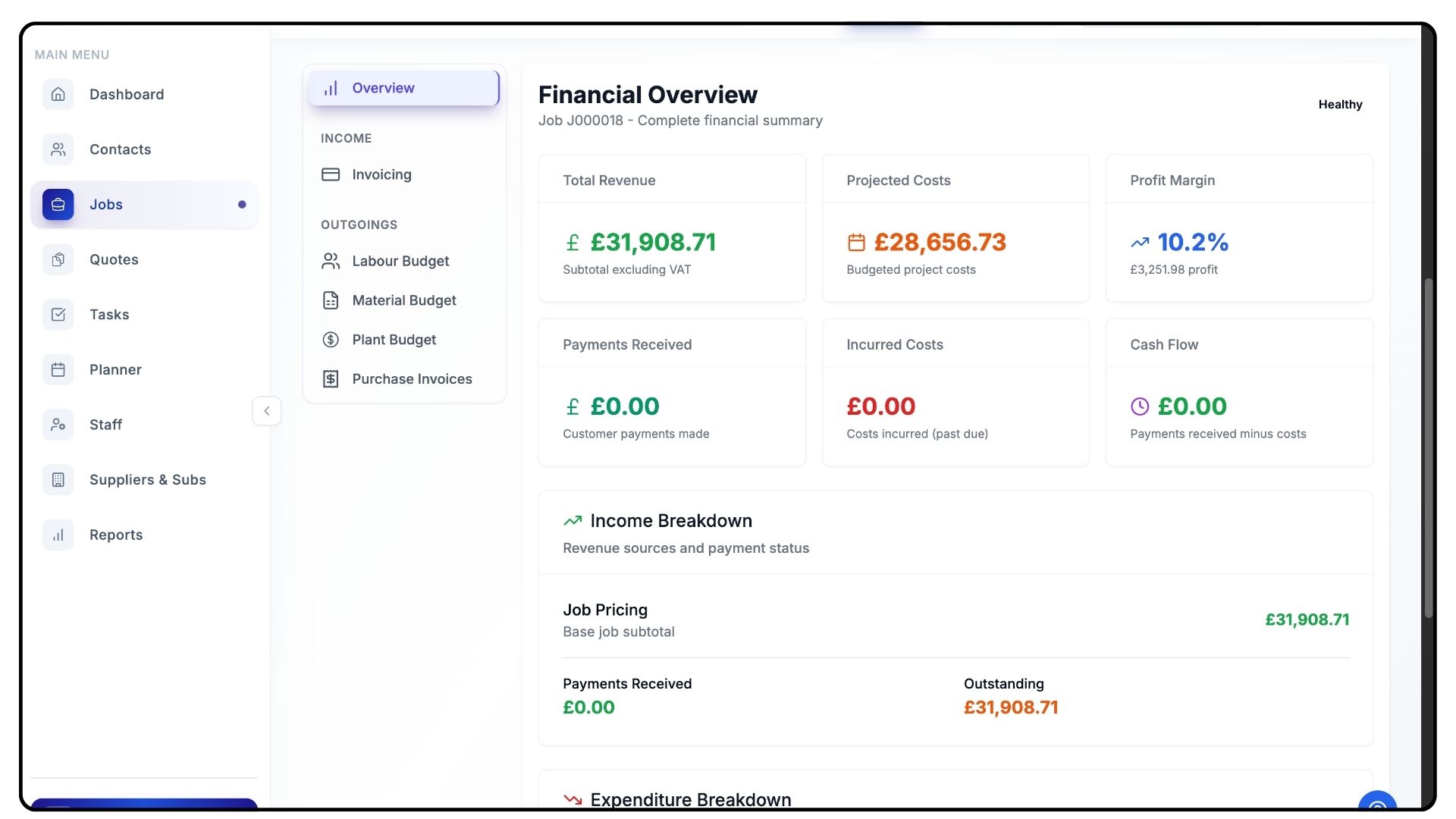
Review the financial summary at the top of the page, which includes:
Total Revenue – Total amount invoiced or expected income.
Projected Costs – Estimated costs based on job data.
Profit Margin – Calculated from projected revenue vs. total costs.
Payments Received – Amount already paid by the client.
Incurred Costs – Expenses that have already been logged.
Cash Flow – Real-time balance of income versus expenses.
Use this section to get a clear overview of how your project is performing financially.
Exploring the Detailed Breakdown
What It Does
The detailed breakdown section helps you see where money is being spent and earned across the project, providing full transparency into every component.
Steps
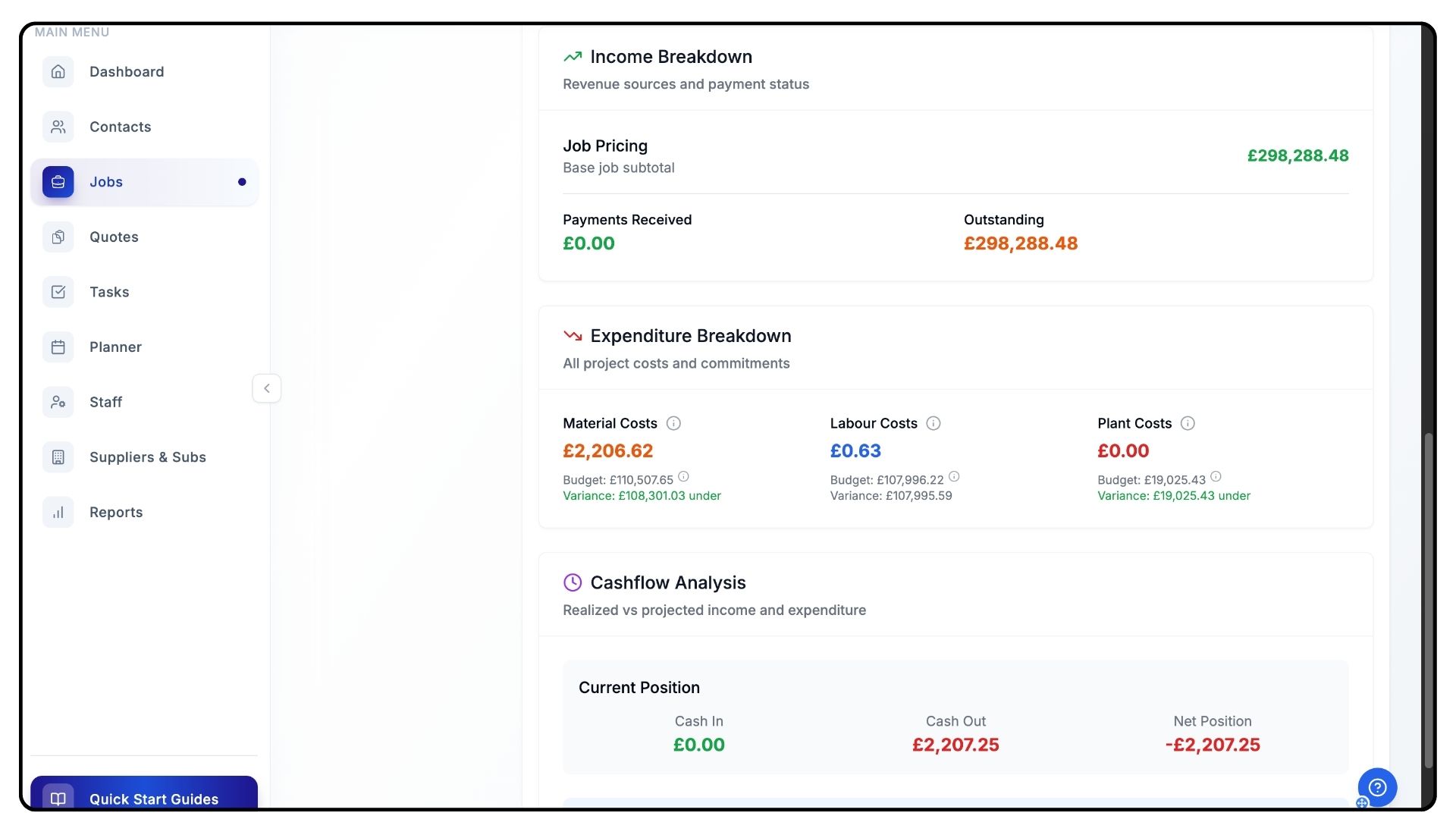
Scroll down to view the detailed breakdown of each financial category.
Use this data to identify trends, overspending, or areas for cost-saving opportunities.
Updating Financial Data
What It Does
If any figures in the Finance section appear inaccurate or outdated, they can be corrected directly through the related job items.
Steps
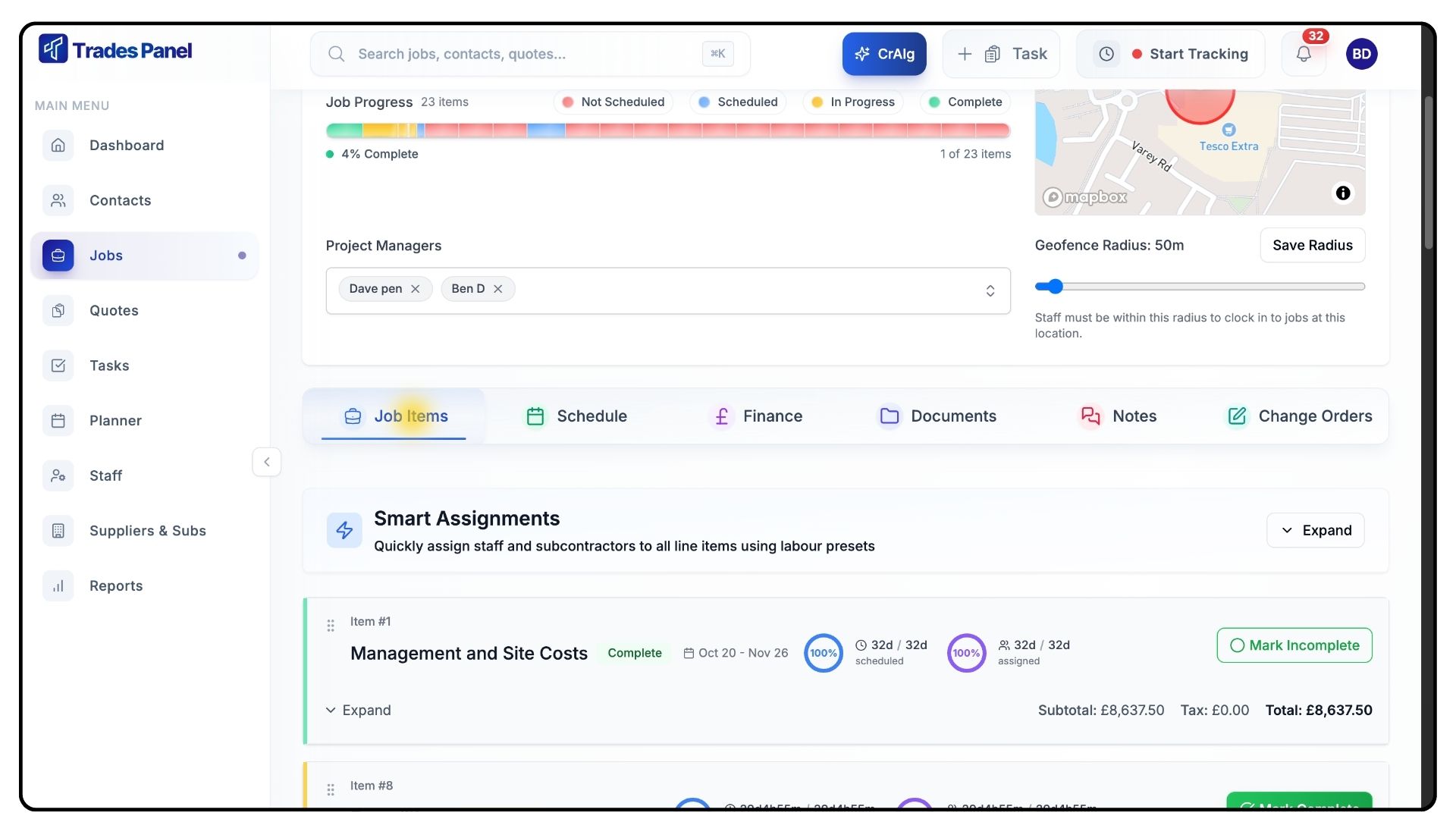
Return to the Job Items tab within the same job.
Find the related Job Item that needs amending.
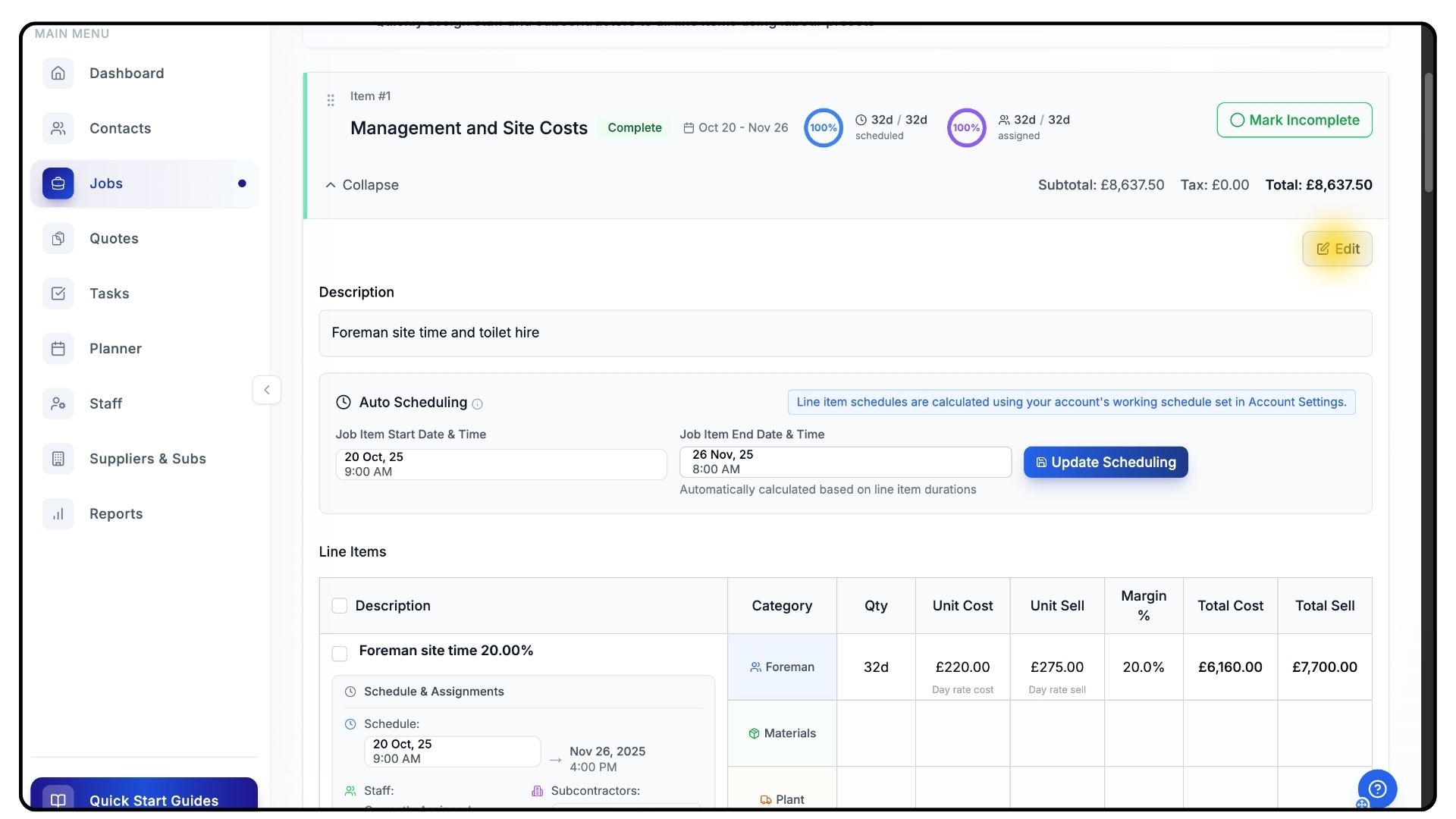
Expand and Click Edit
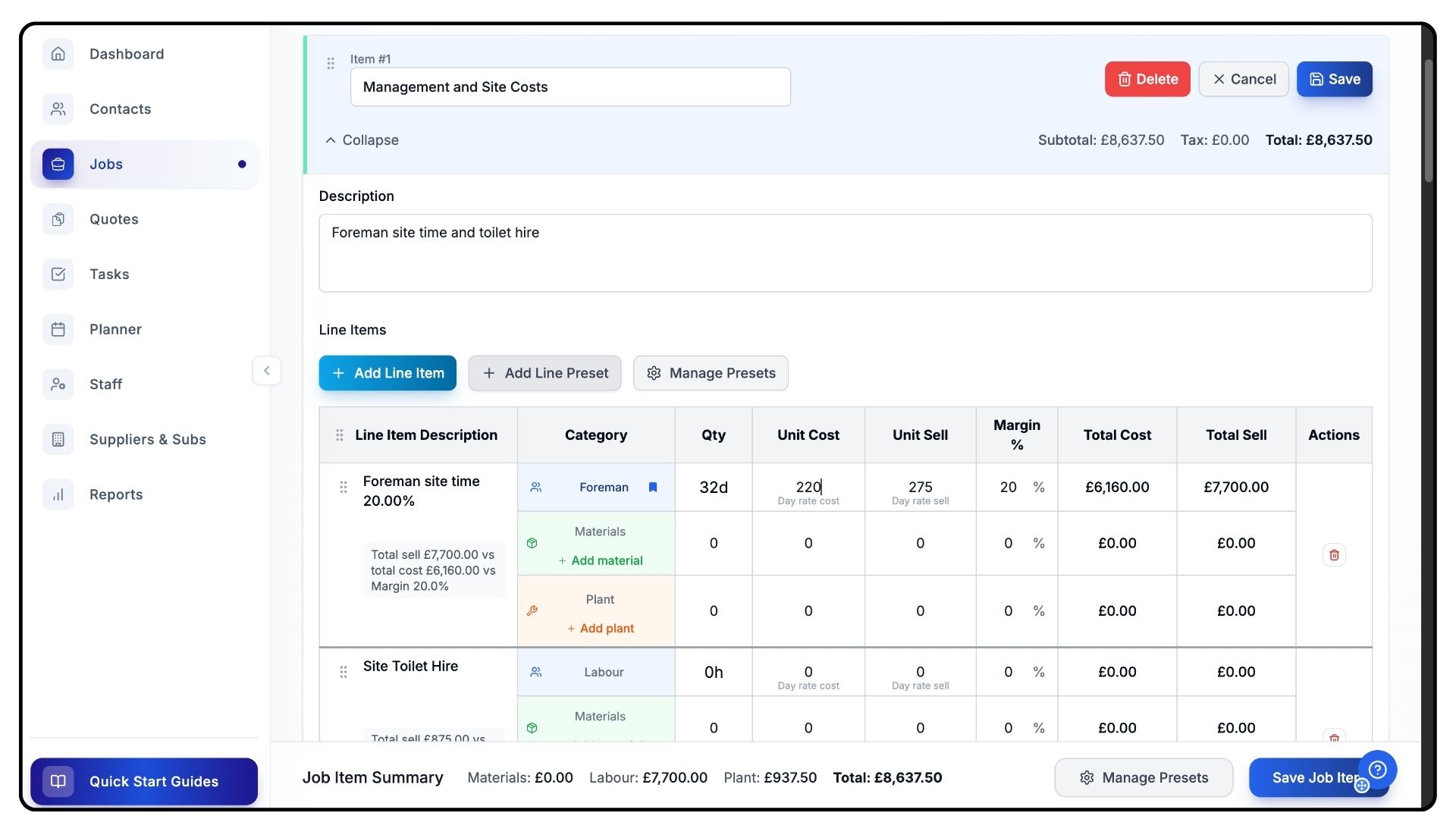
Locate the relevant Line Item associated with the incorrect figure.
Edit the necessary cost, price, or quantity details.
The Finance section will automatically update to reflect the latest changes.
Learning More About Financial Tools
What It Does
Trades Panel’s financial tools work together to provide a full picture of your project’s finances — from quotes and invoices to payments and expenses.
Steps
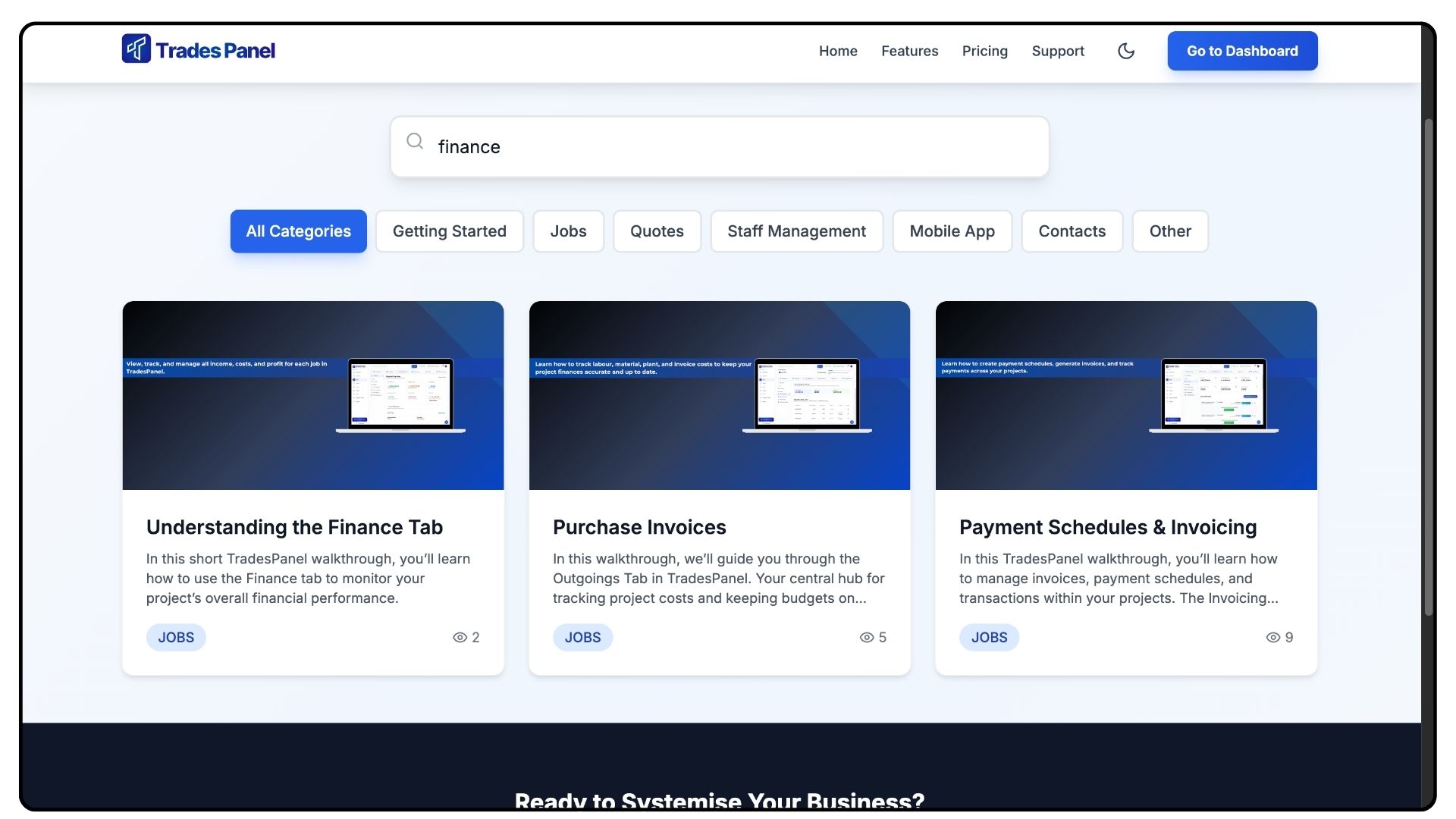
For a deeper understanding of each area, watch the dedicated training videos on:
Invoicing Tab – Managing invoices and client billing.
Adding Payments – Tracking income as payments are received.
Outgoings Tab – Recording and monitoring project expenses.
Each video explains how these components contribute to your overall financial summary.
Final Steps
What It Does
Once you’re familiar with the Finance section, you can use it as your central dashboard for all job-related financial tracking.
Steps
Regularly review your financial summary to stay on top of project profitability.
Update job items whenever costs or revenue change to keep figures accurate.
Use the Finance tab to make informed decisions and maintain control over your budget.
Common Questions
Q: Why are some figures missing from my Finance summary?
Check that all line items within the job include both costs and prices — missing data can affect total calculations.
Q: Can I manually adjust totals in the Finance section?
No. All financial figures are automatically generated from your job and line item data to ensure consistency.
Q: How often does the Finance section update?
It updates automatically whenever you make changes to line items, invoices, or payments.
Q: What’s the difference between Projected Costs and Incurred Costs?
Projected Costs are estimates based on planned work, while Incurred Costs are actual expenses already recorded.
Q: Can I export the Finance data?
Yes. You can export financial summaries and detailed breakdowns for reporting or accounting purposes.