What It Does
The Change Orders section in Trades Panel allows you to make amendments to job items and line items within a project while keeping every modification properly documented and tracked through an authorisation process.
For example, if you realise that additional materials are needed for a specific stage of the project, the Change Orders feature provides a structured way to record and approve those adjustments.
View all project management features.
Accessing the Change Orders Tab
What It Does
All job and line item modifications are made within the Change Orders tab, keeping a full audit trail of every adjustment.
Steps
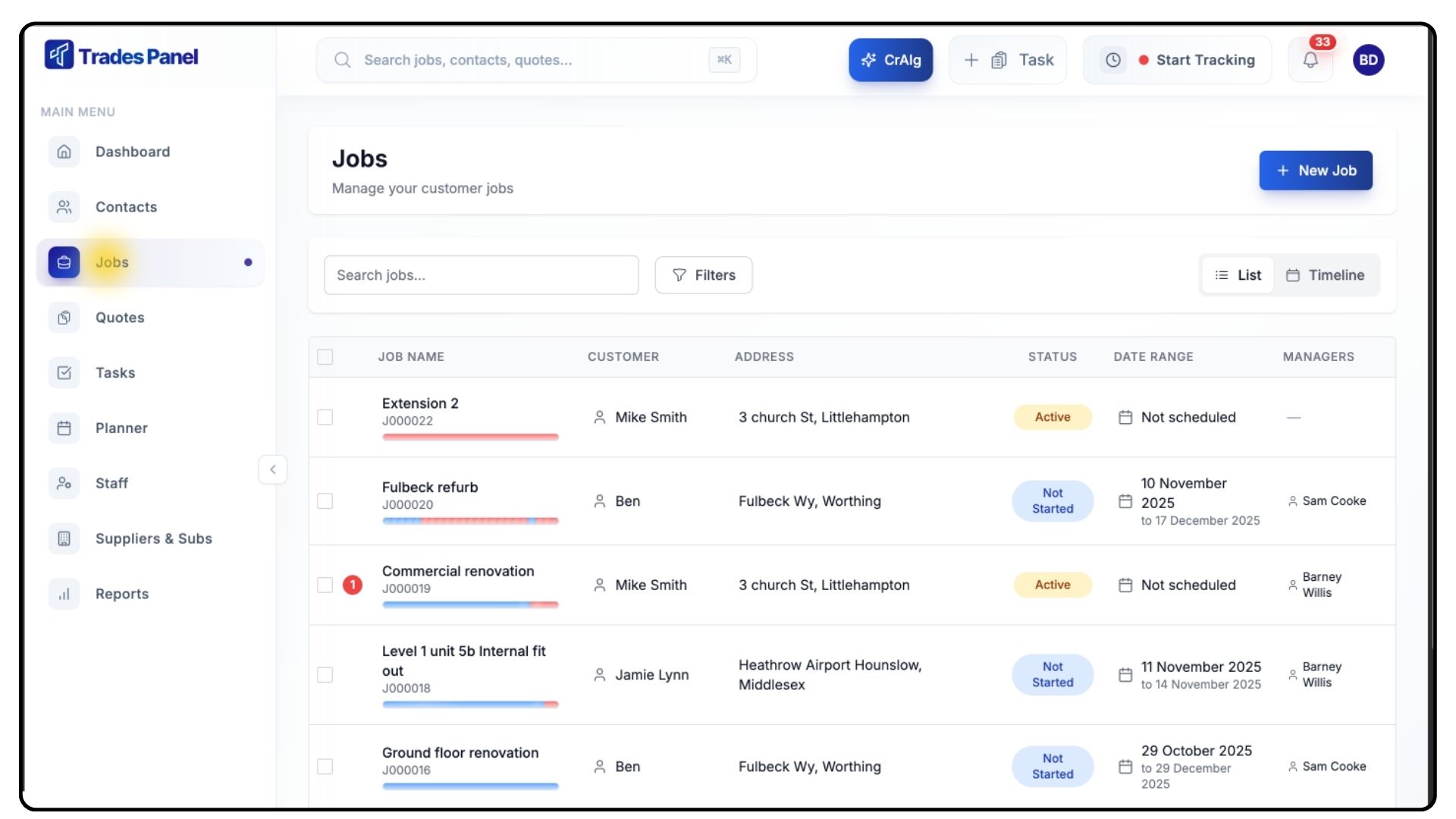
Open the project you want to edit.
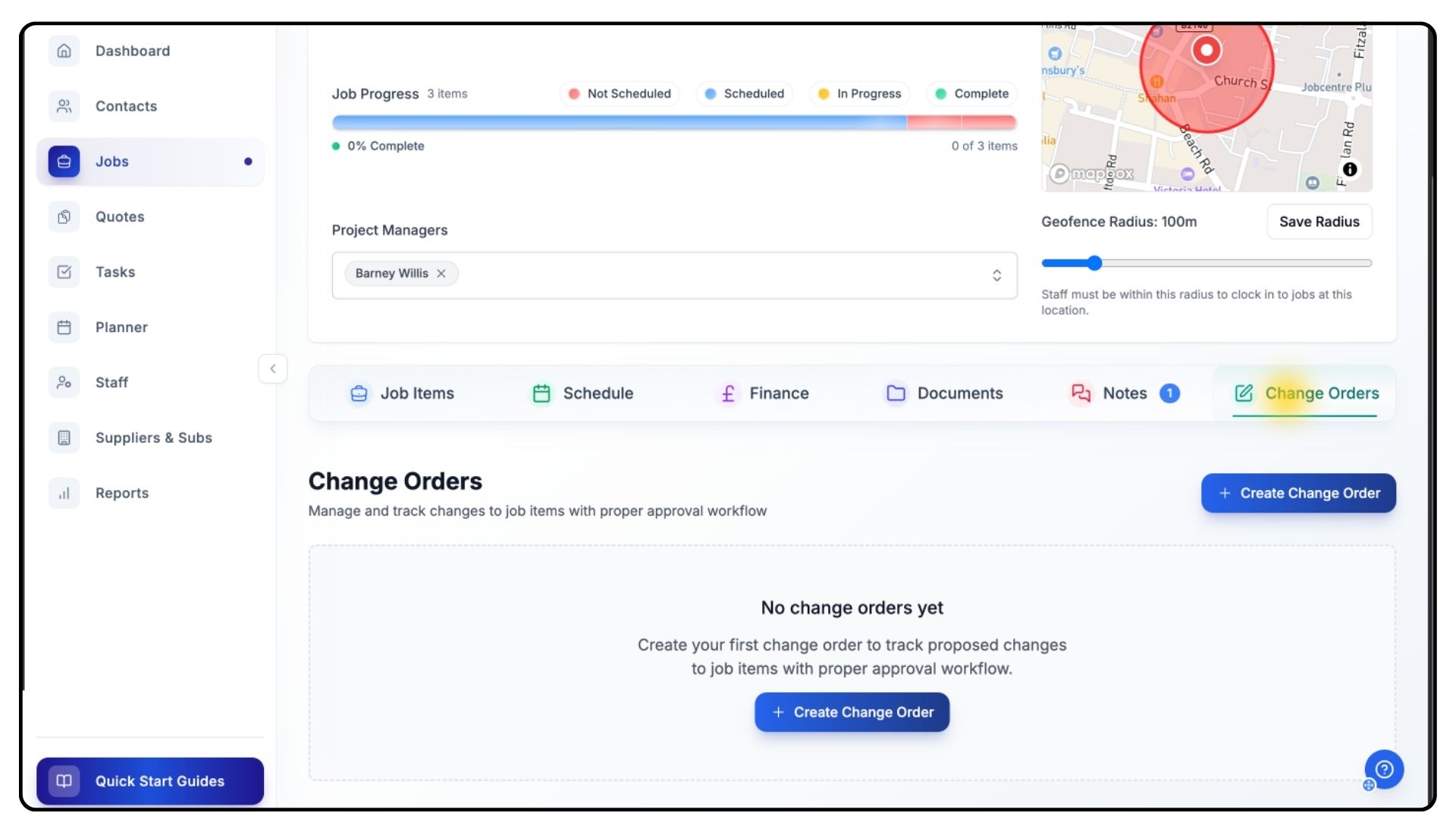
Once inside, click the Change Orders tab.
From here, you can create or modify job items and line items within the selected project.
Whether you’re adding new elements or removing existing ones, all updates are managed through this section.
Creating a Change Order
What It Does
Change orders provide a structured process to document and apply project changes, ensuring transparency and financial accuracy.
Steps
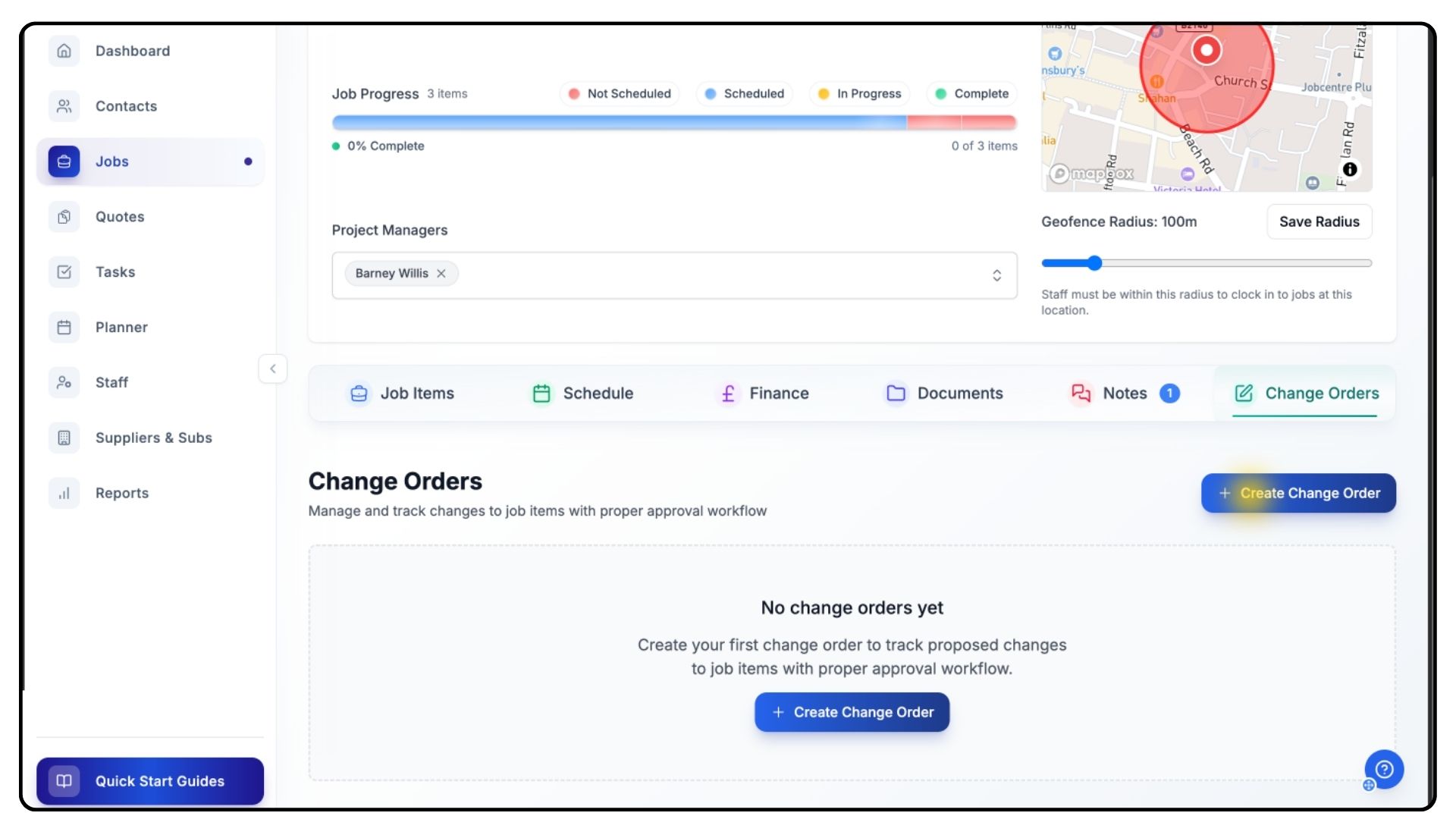
Click Create Change Order.
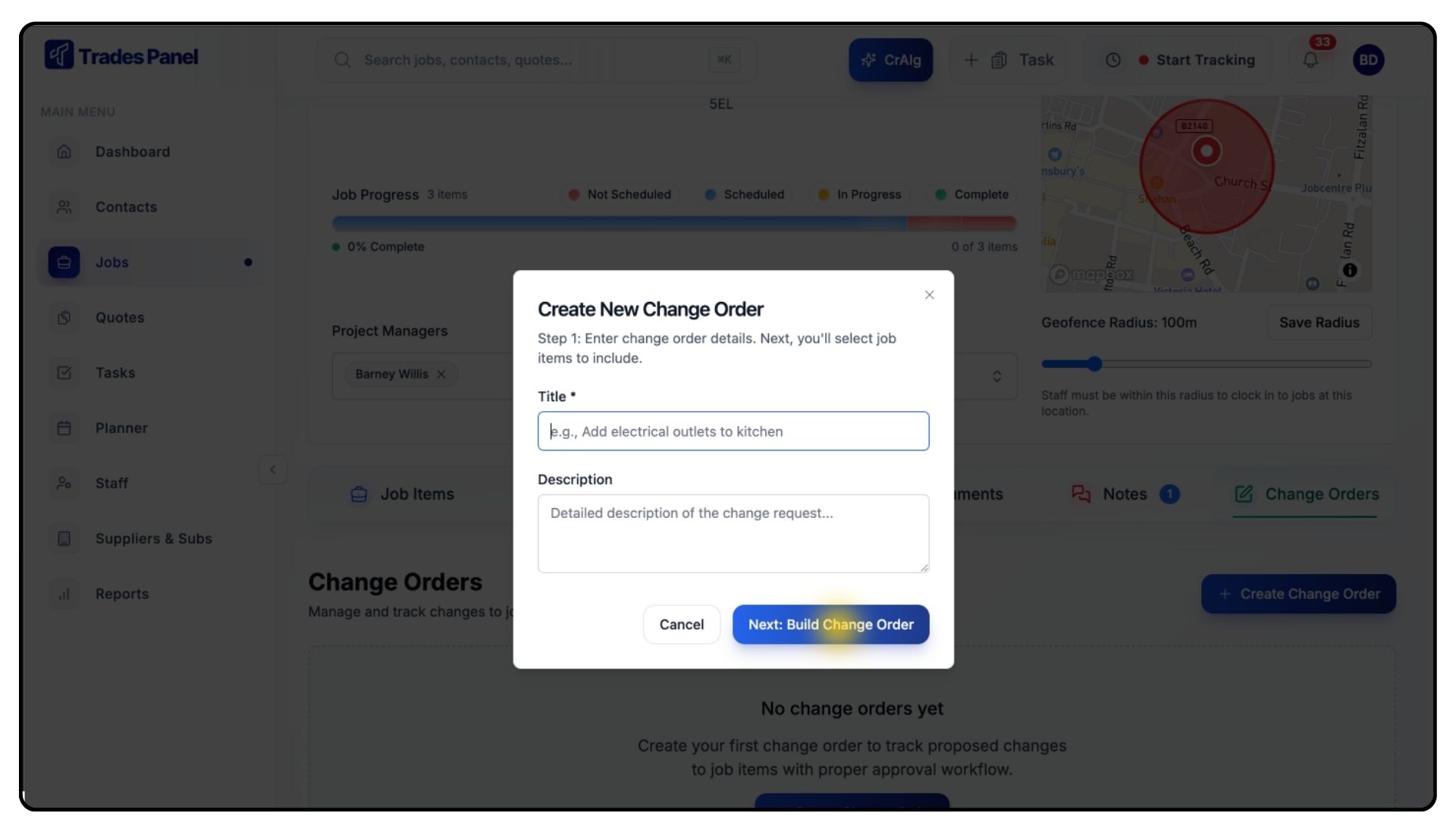
Give your change order a clear title that reflects the modification — for example, “Additional Electrical Outlets in Kitchen”.
Add a detailed description explaining the reason for the change.
Once complete, click Build Change Order.
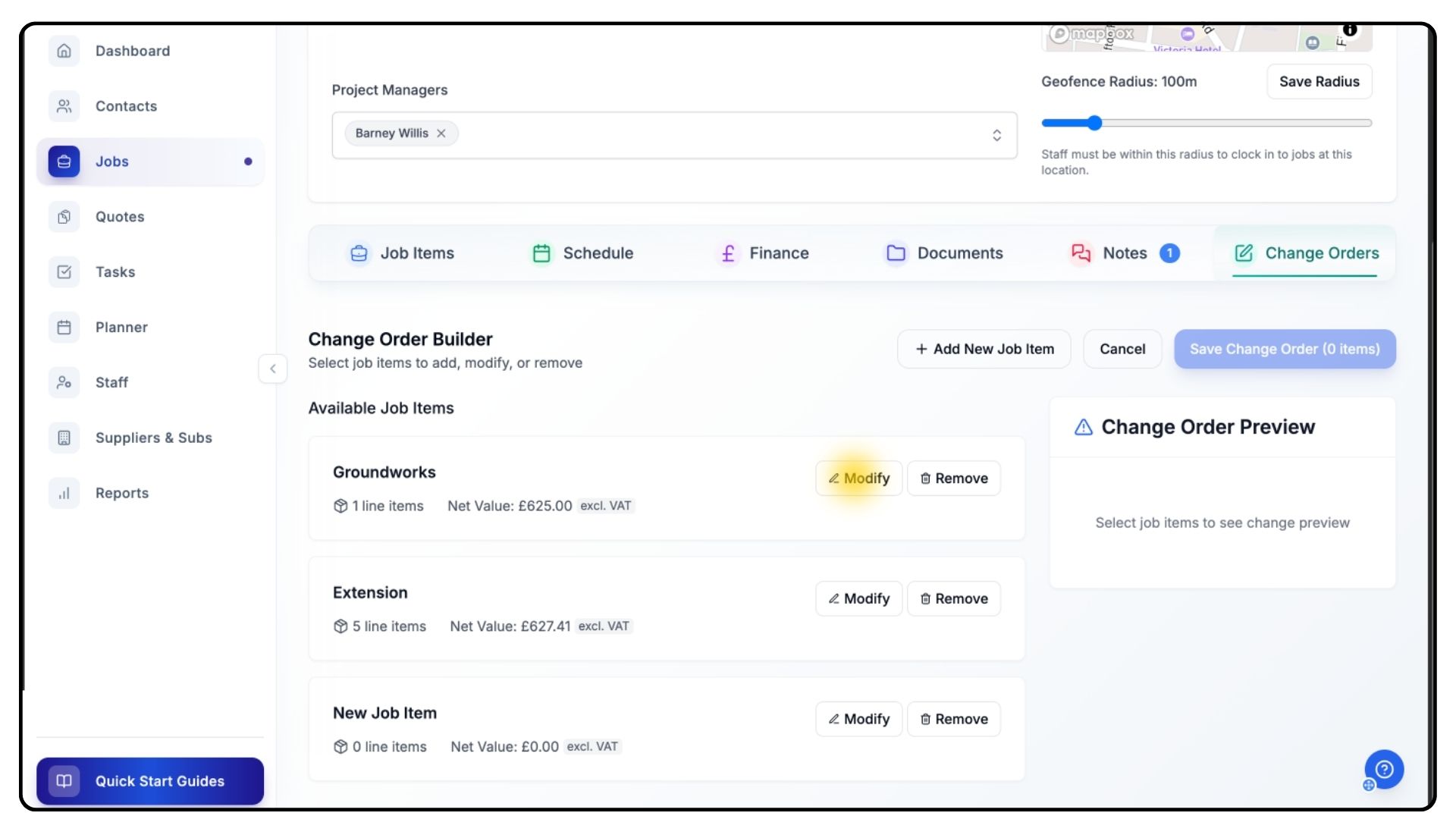
A list of all associated Job items will appear.
Scroll to find the job item that you want to make the change within.
Click Modify.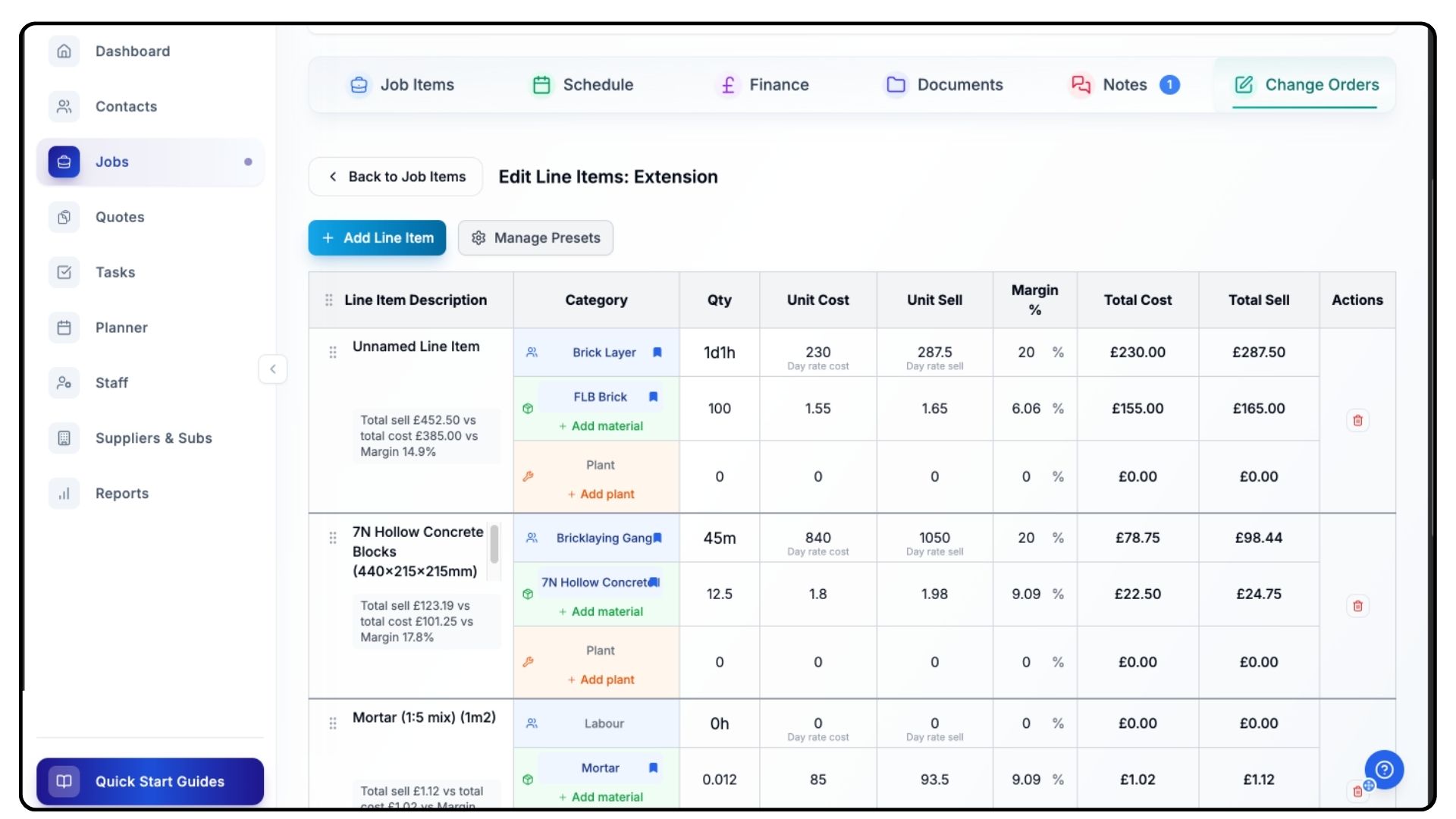
To adjust an existing line item, you can:
Change quantities
Update cost rates or charge rates
Remove a line item entirely if needed
Click add new line item, if you need to make any additions, fill it out as you normally would, including any relevant presets.
When finished, scroll to the bottom and click Done Editing.
Reviewing and Applying Change Orders
What It Does
Trades Panel automatically highlights modified job items and provides a live preview of your changes, showing financial impact before you save.
Steps
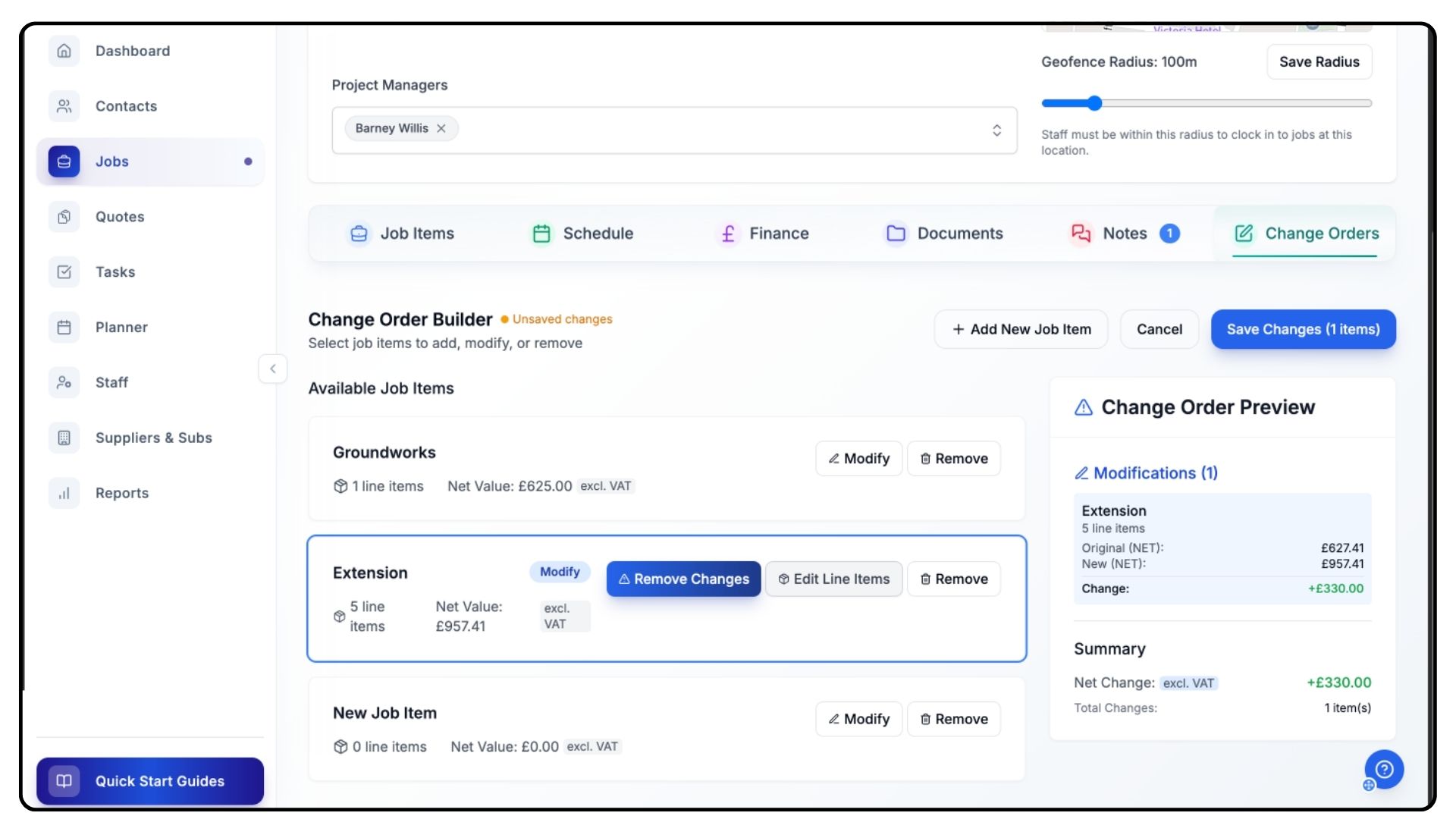
You’ll return to the Job Item List, where the modified item appears highlighted in blue.
On the right-hand side, review the Change Order Preview, which displays:
Original Net Change
Updated Net Change (excluding VAT)
The preview provides a quick overview of the profit or loss resulting from your modifications.
If you wish to remove the changes made, click Remove Changes beside the job item.
Once satisfied, click Save Changes to apply your edits.
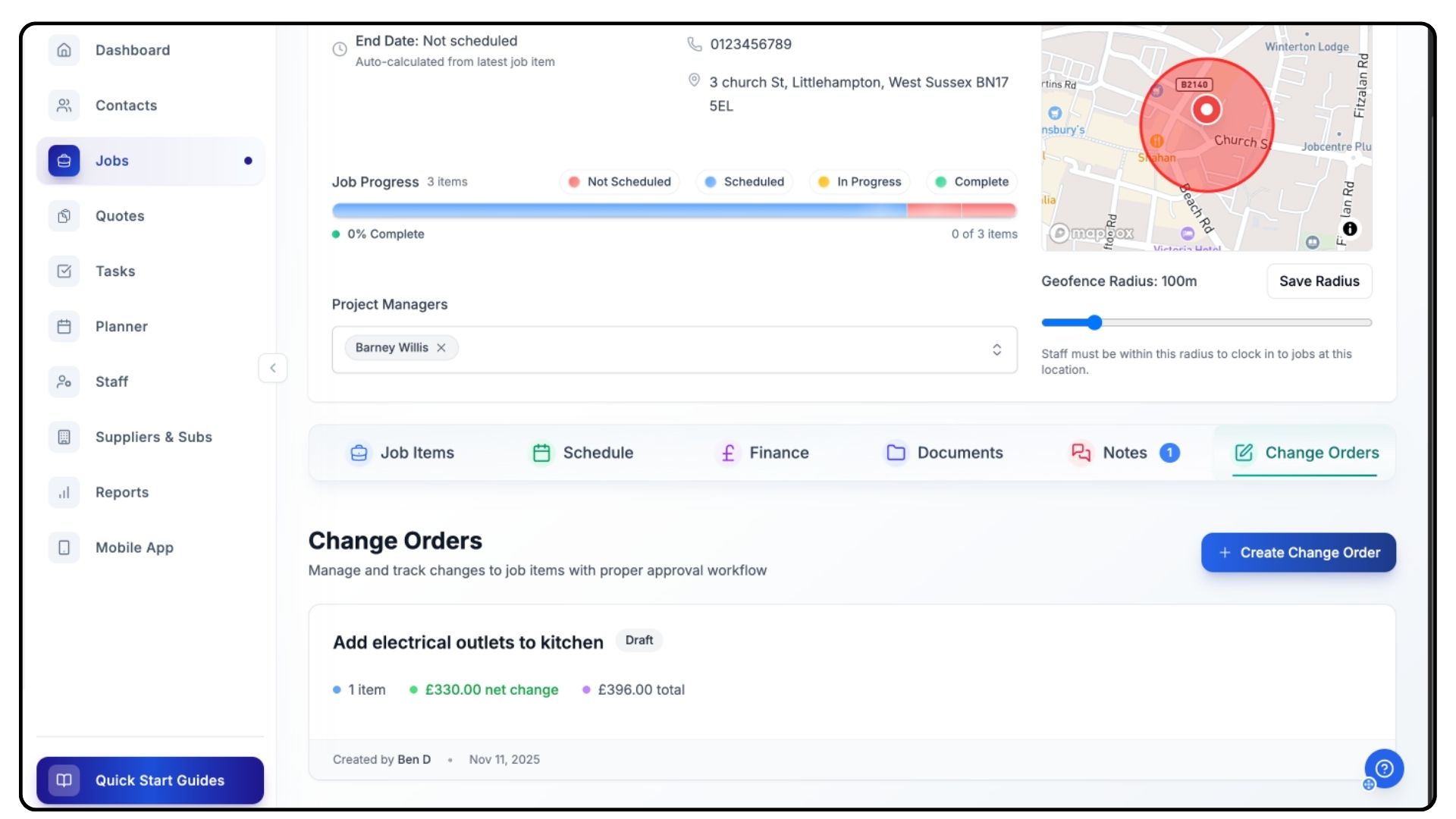
The change order will now appear in your Completed Change Orders List.
Adding a New Job Item Through Change Orders
What It Does
Change orders can also be used to add entirely new work phases to a project.
Steps
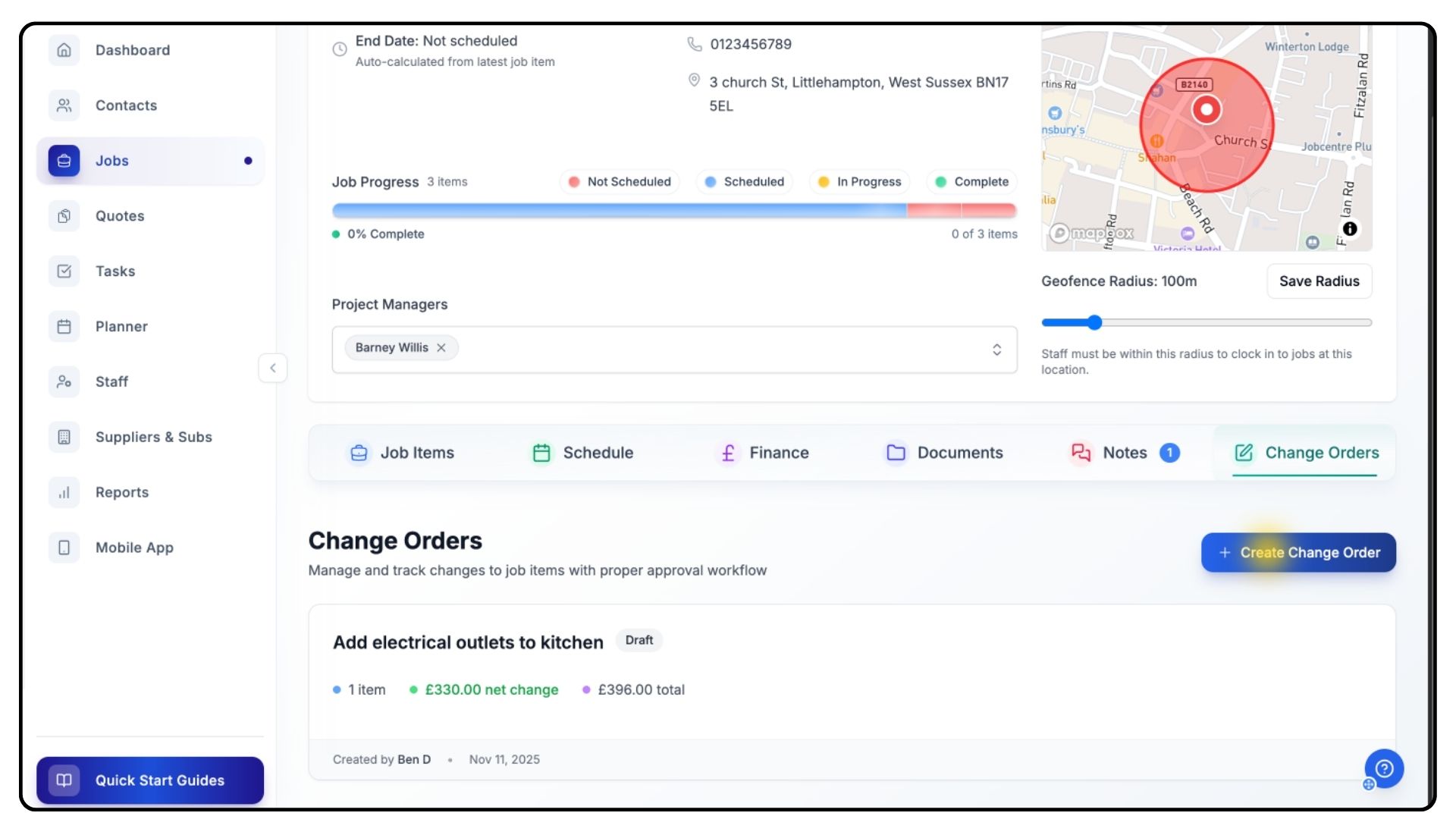
Follow the same steps to create a change order. Click Create Change Order and title your change.
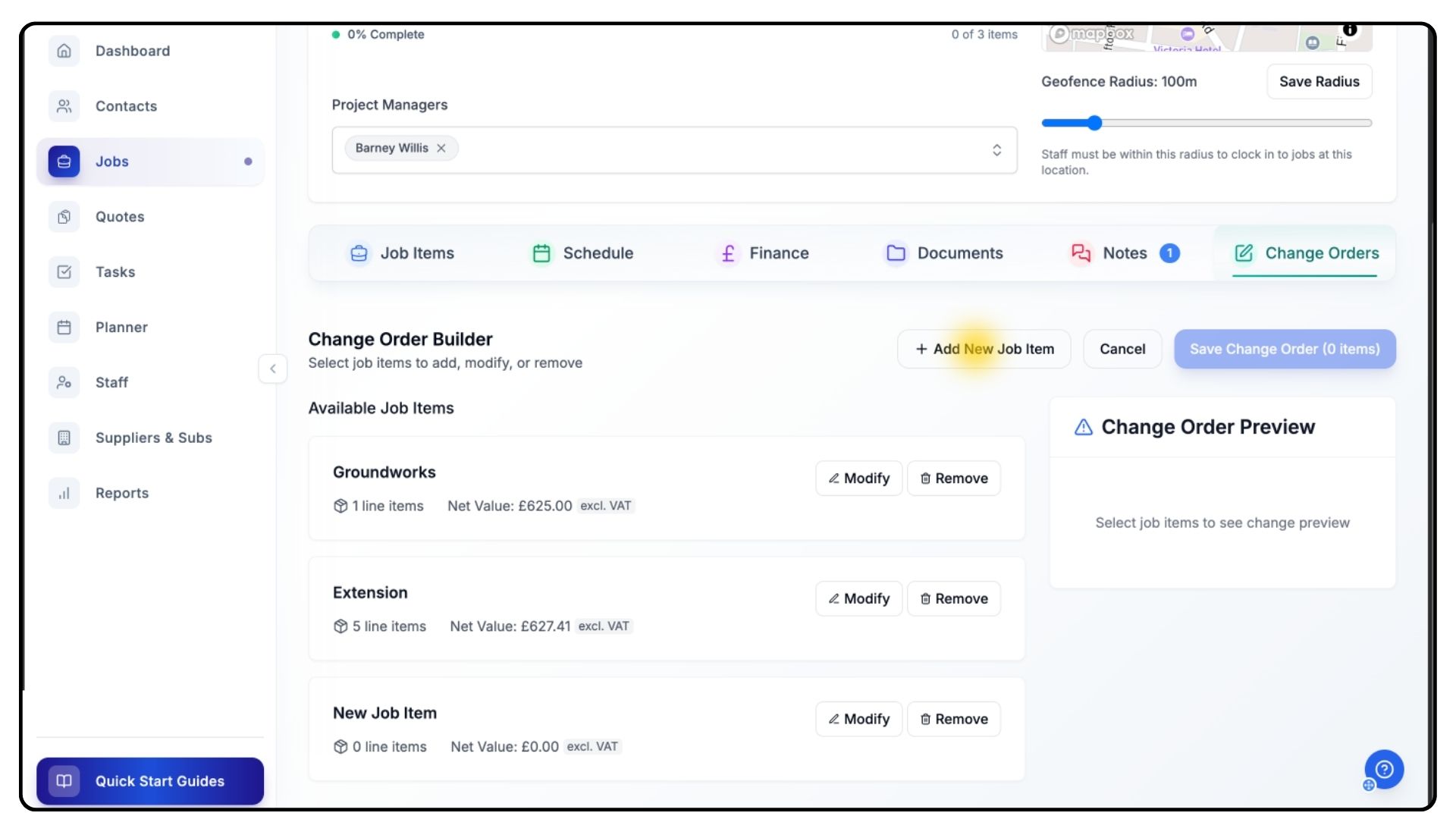
Once in the builder view, click Add New Job Item in the top-right corner.
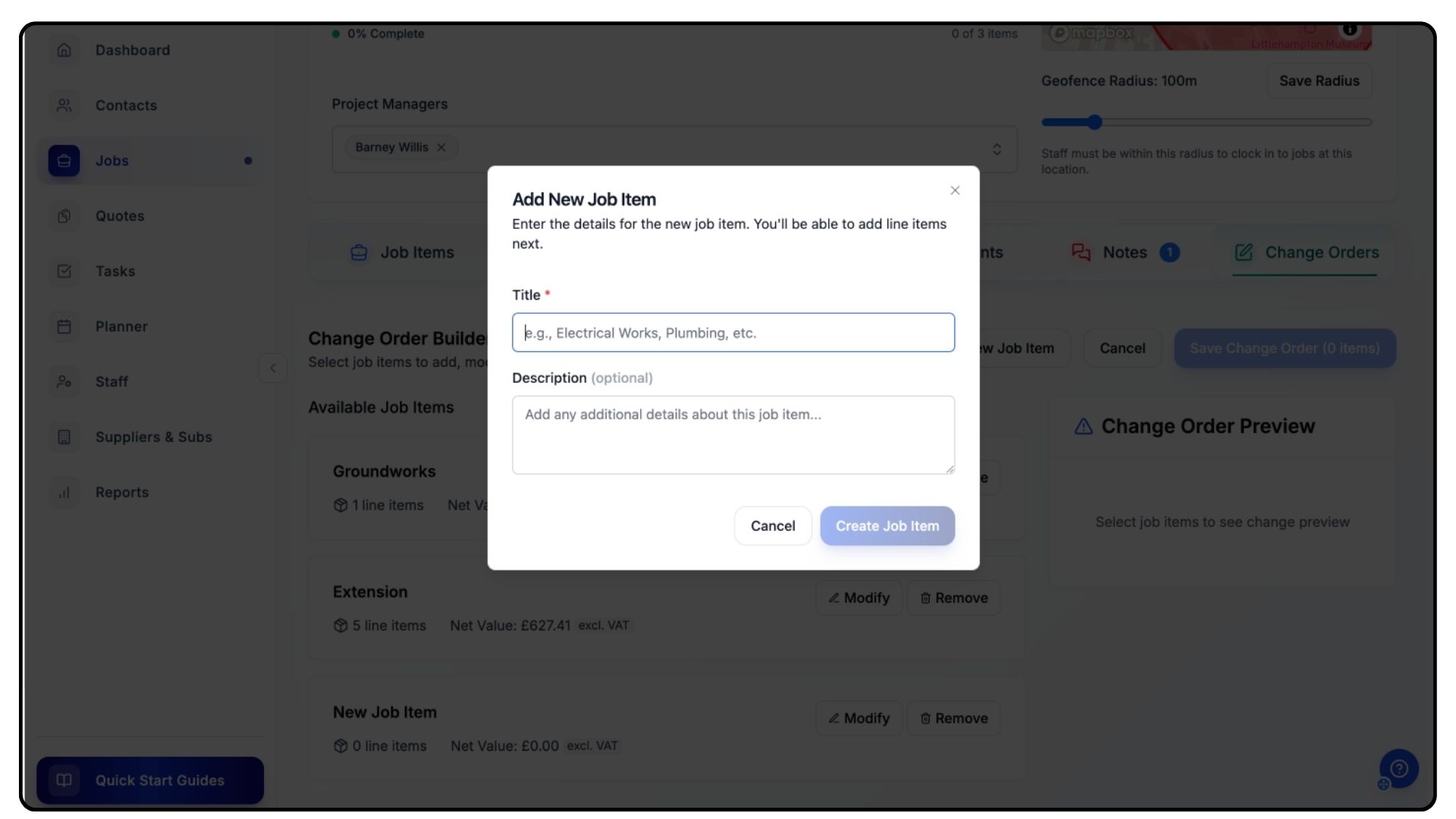
Enter a Title and Description for the new work phase — for example, “Electrical works”.
Click Create Job Item — it will open automatically.
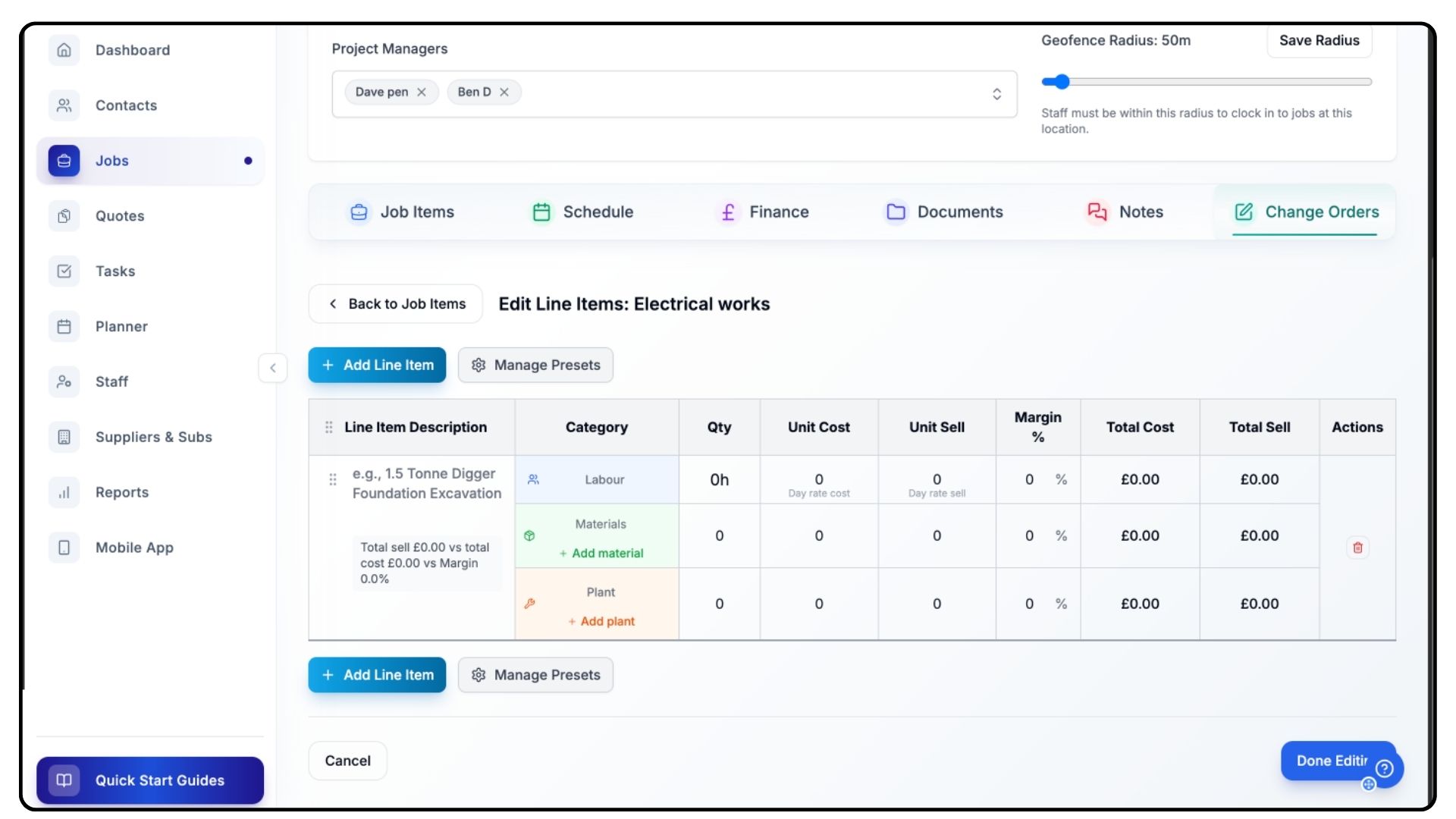
Add your required Line Items using the Add Line Item button.
Include any presets you’ve already created.
(If you haven’t yet set up presets, we recommend watching the dedicated Presets tutorial on the Guides page.)
When your new job item is complete, click Done Editing.
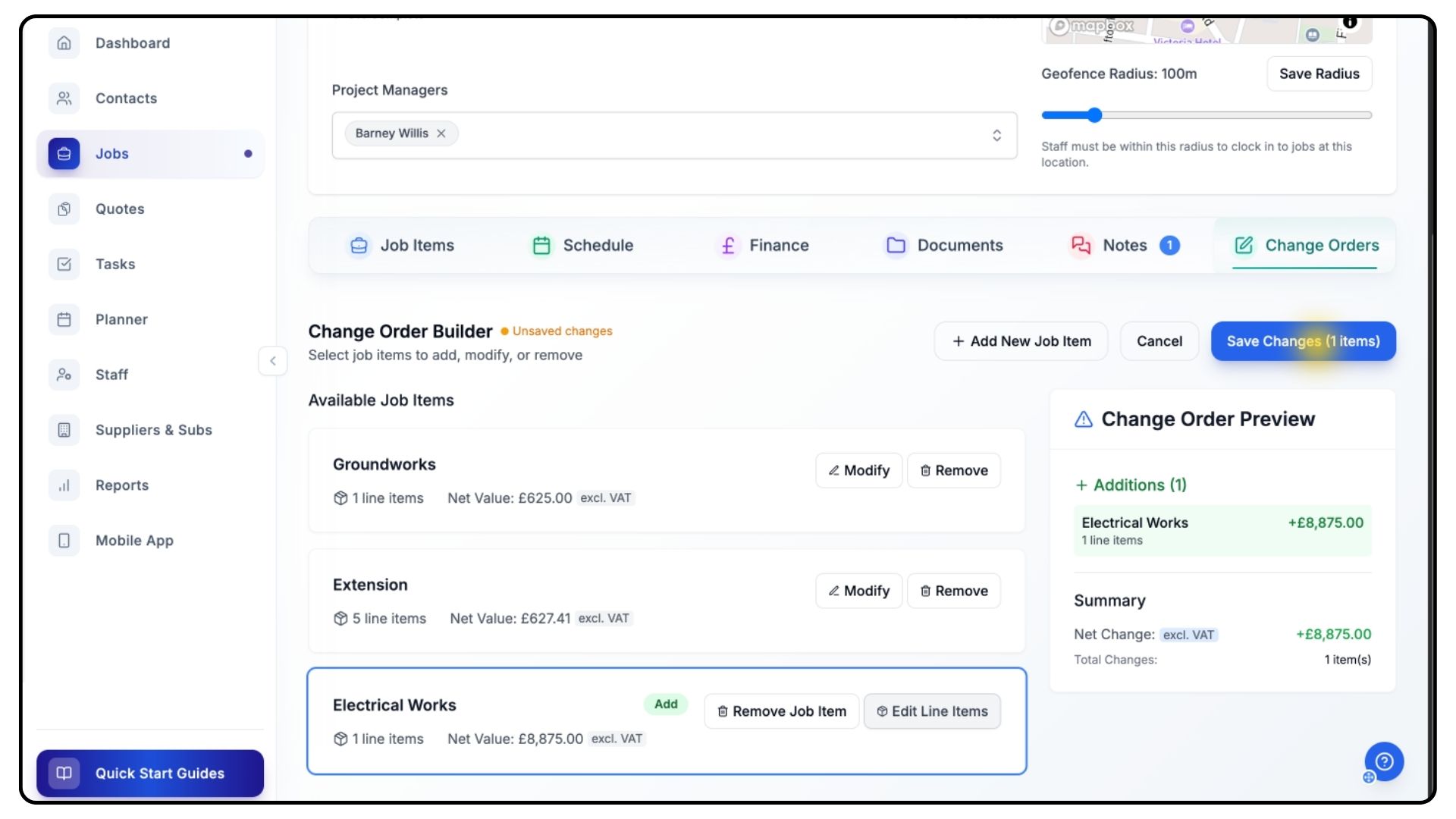
The Change Order Preview will update on the right-hand side to show the Net Change.
Review the figures carefully.
Once happy, click Save Changes to finalise the update.
Managing and Reviewing Change Orders
What It Does
Once your change orders are created, you can review all modifications, their financial impact, and authorisation status from one central screen.
Steps
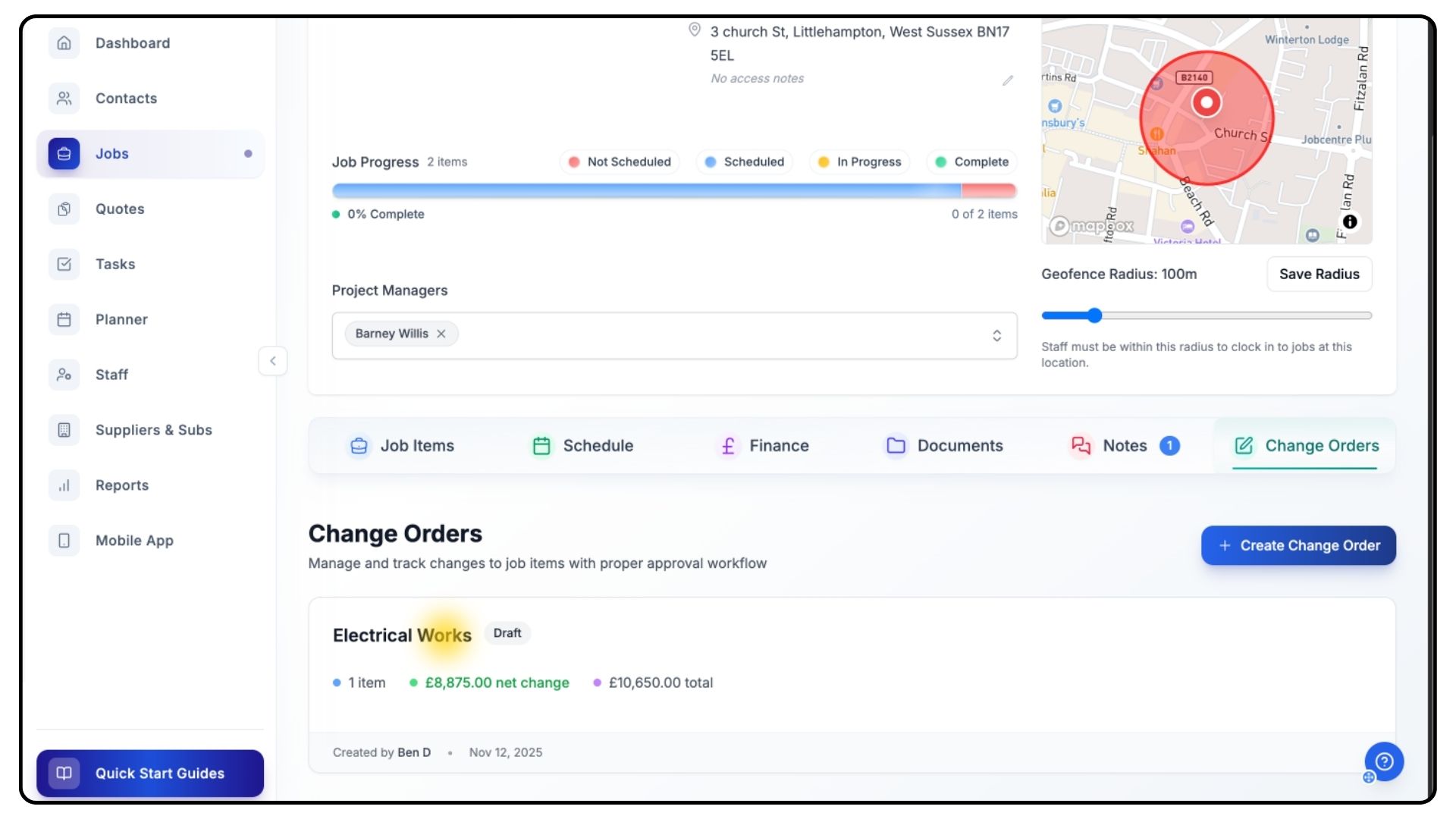
Open the Change Orders tab to view your full list of recorded changes.
Click on any Change Order to open it.
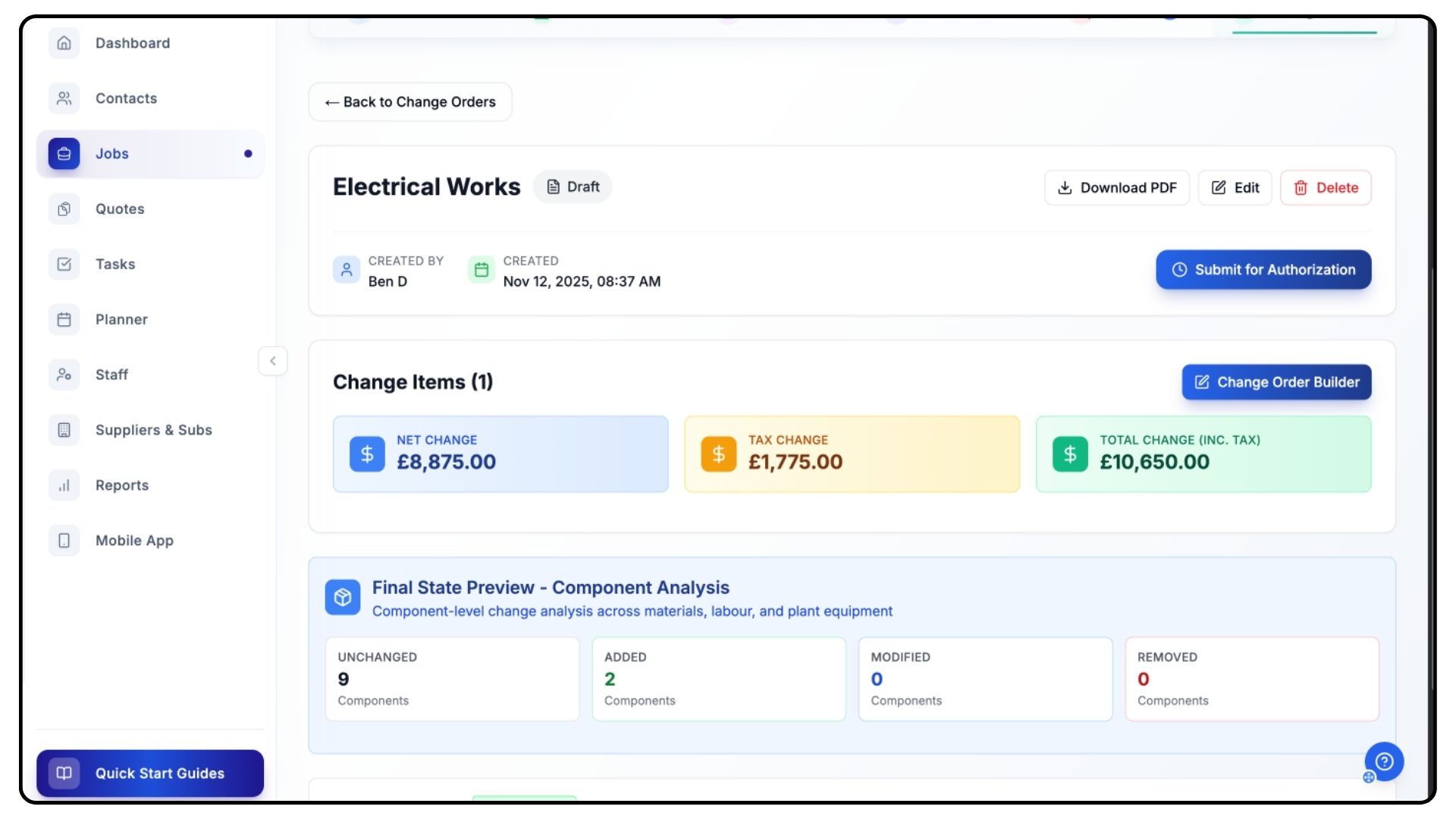
At the top of the page, review the three key totals:
Net Change
Tax Change
Total Change
Scroll down to view the Final State Preview, which summarises all affected project components.
This shows how many have been added, modified, or removed across the three main categories:
Labour
Materials
Plant
For example, if an additional day of labour was added, it will appear as one modified component.
At the bottom of the screen, review the detailed table listing all affected Line Items and their Current Status.
Authorising Change Orders
What It Does
Change orders require client approval before being applied to a project. Trades Panel provides built-in approval tools and export options.
Steps
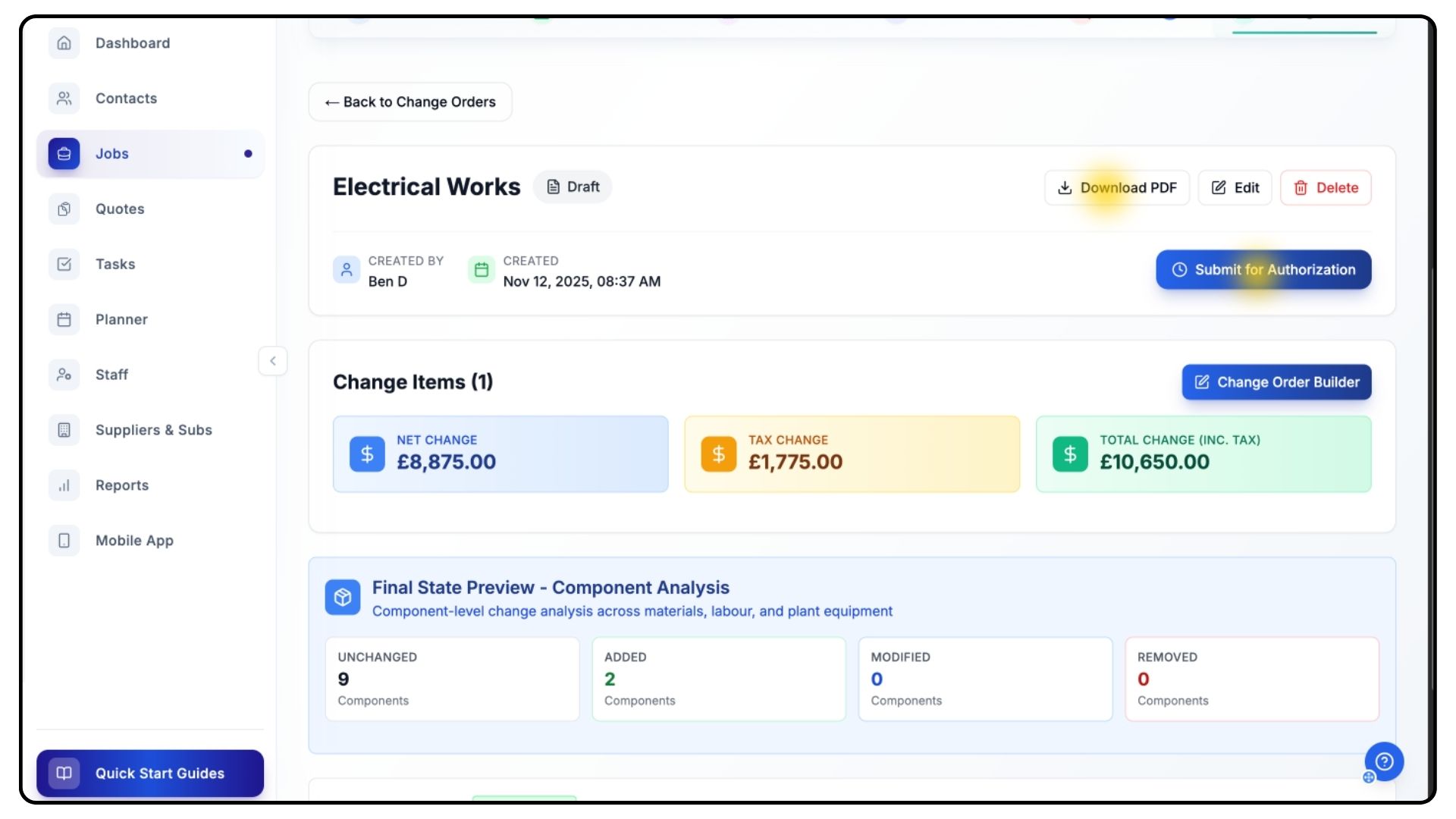
When ready to submit for client review, click Submit for Authorisation in the top-right corner.
This will generate two options: Approve and Reject.
You can also click Download PDF to export a copy for your client.
Once the client has reviewed the document, return to this page and:
Click Approve if authorised
Click Reject if declined
After approval, click Apply to Job Items.
The change order will now be fully implemented within your project.
Final Steps
What It Does
Change Orders ensure that all modifications are properly tracked, authorised, and recorded to maintain accountability and budget control.
Steps
Regularly review your Change Orders list to ensure all adjustments are approved.
Use the Change Order Preview to monitor financial impact before applying updates.
Always submit changes for authorisation before implementing them.
Export approved change orders for your client records or internal documentation.
Common Questions
Q: Can I edit a change order after submitting it for authorisation?
You can make edits until it has been approved. Once approved, the change order is locked and must be revised through a new order.
Q: Do change orders affect the project budget automatically?
Yes. Approved change orders automatically update job and line item costs in your project’s financials.
Q: What happens if a change order is rejected?
The change order remains in the list with a “Rejected” status and does not affect your job until resubmitted or approved.
Q: Can I add multiple job items in a single change order?
Yes. You can modify or add several job items within one change order before saving.
Q: How can I share a change order with a client?
Use the Download PDF option to generate a client-ready version for review and approval.