What It Does
The User Management section in Trades Panel allows you to add new staff members, edit their details, assign roles, organise them using tags, and archive staff when needed.
It helps keep your workforce structured, searchable, and up to date — making it easier to assign labour, manage absences, and organise your team effectively.
Accessing User Management
What It Does
This is where you control all user accounts and staff records within your business.
Steps
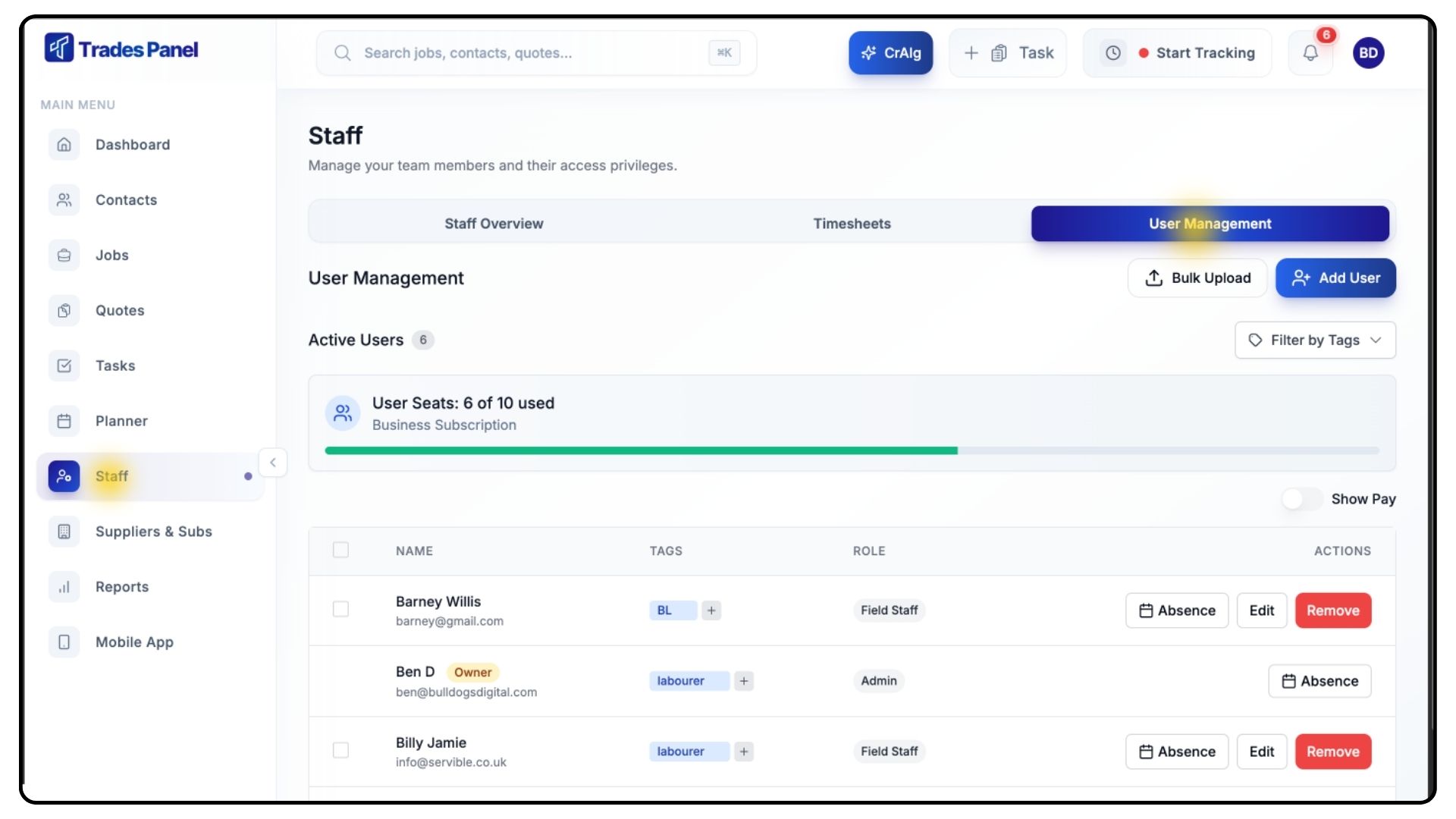
Click Staff from the main menu.
Select the User Management tab at the top of the screen.
Adding a New User
What It Does
Adding a user creates a new staff profile that can be scheduled, assigned to jobs, tracked for payroll, and included in project planning.
Steps
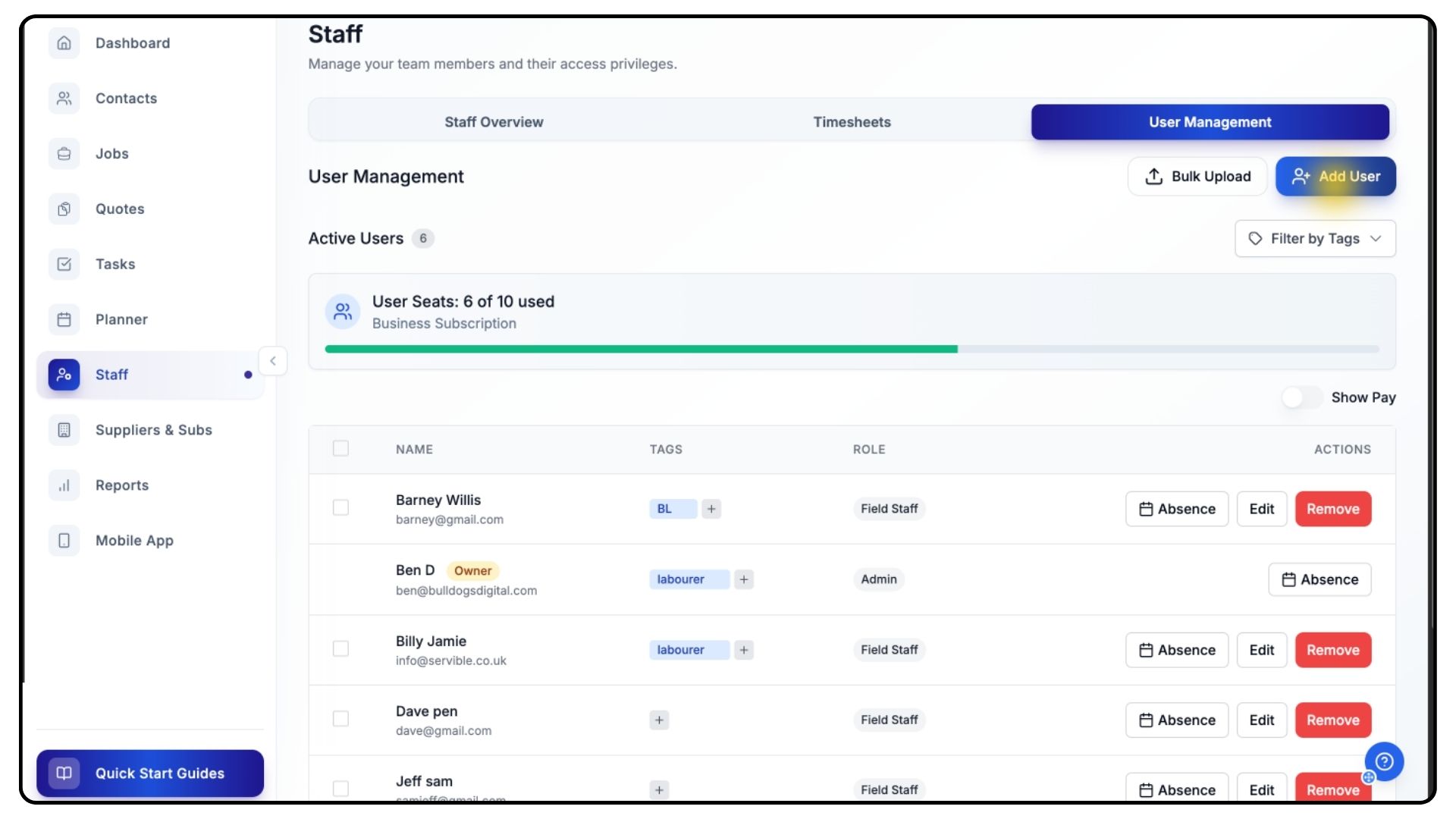
Click Add User in the top-right corner.
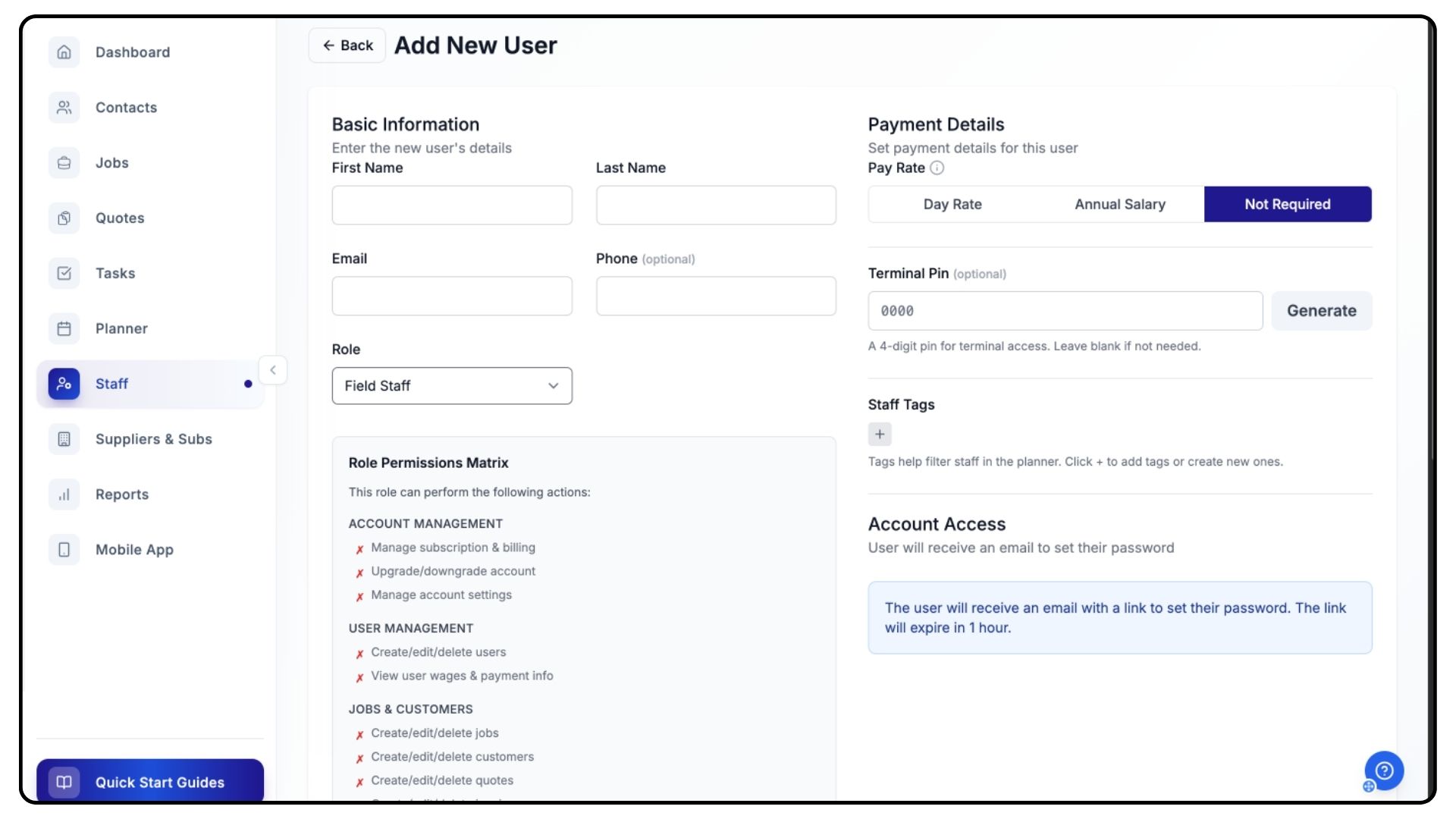
Fill in the staff member’s:
Name
Contact Details
Role (select from the dropdown)
Optional: Create Staff Tags to group workers by trade or skill.
For example:BL = Bricklayer
GW = Groundworker
CRP = Carpenter
Tags make it easier to assign staff to line items or group them into gangs.
Entering Pay Details
What It Does
Pay details determine how labour costs are calculated throughout the system, including job costings and scheduling.
Steps
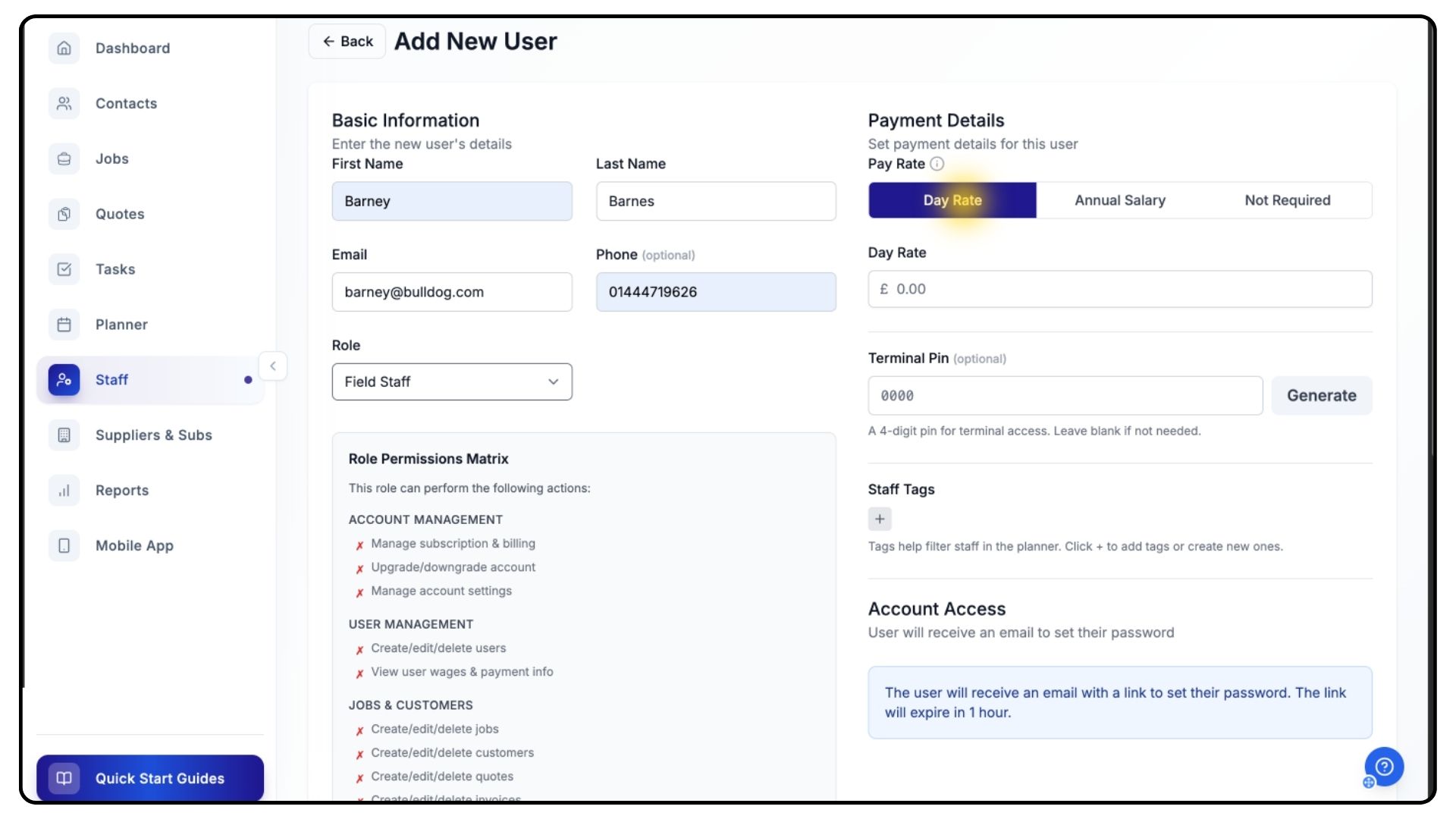
Use the top two tabs to choose between:
Day Rate, or Annual Salary
Enter the appropriate rate in the box provided.
Double-check all details.
Create a Terminal Pin if need be. This is a shared check-in point for busy sites where multiple teams are coming and going throughout the day.Click Add User to save.
The new staff member will now appear in your User Management list.
Managing Existing Users
What It Does
You can update staff details, adjust tags, or archive users who no longer work with you — without deleting historical data.
Steps
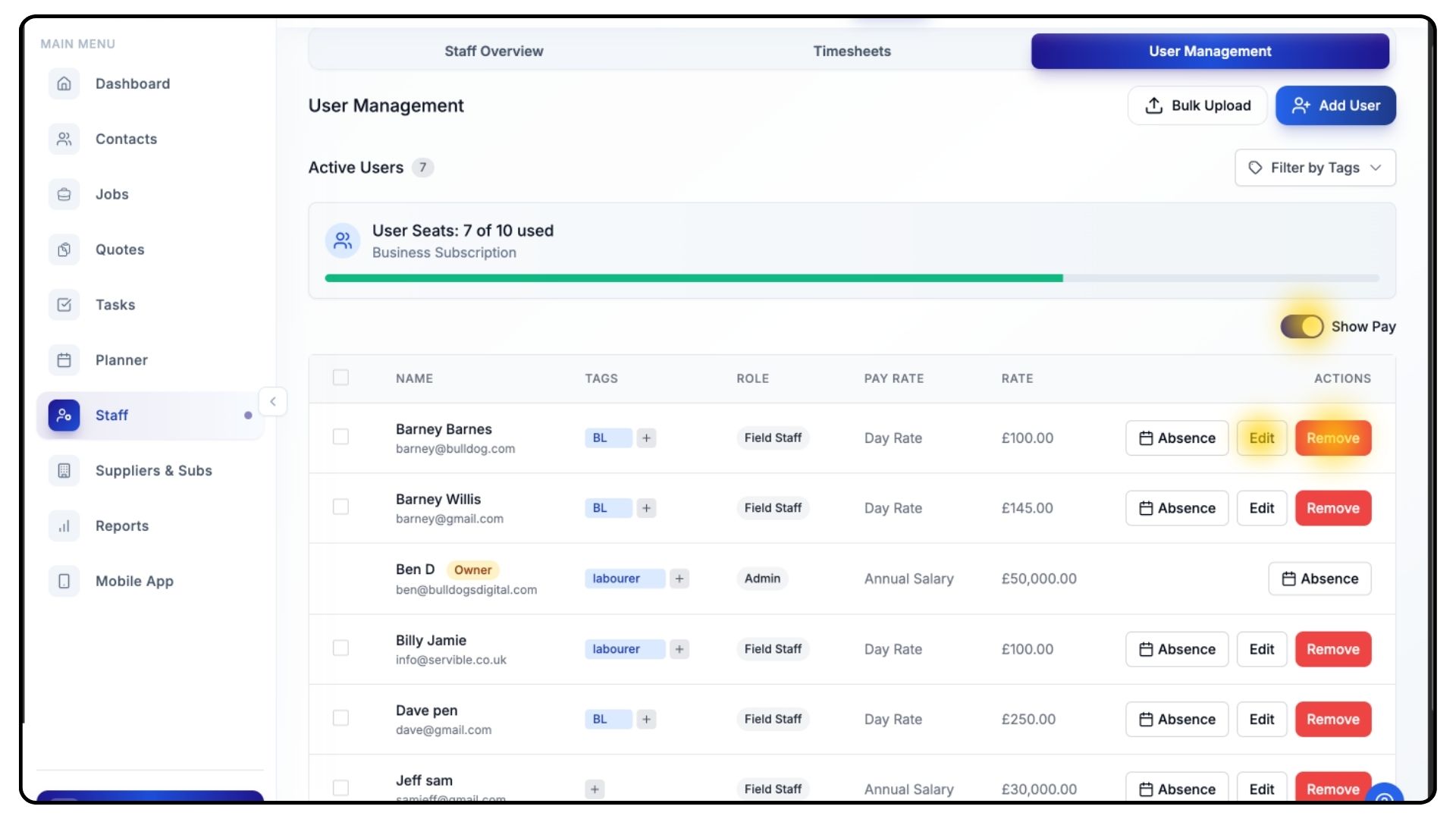
Your staff list will show:
Name
Tags
Role
Toggle Show Pay to display each staff member’s rate.
From here, you can also:
Edit user details
Remove a staff member
Removing does not delete their record — it simply archives them from the team and unassigns them from any active items.
If they return in the future, you can easily reinstate them with all their previous data intact.
Recording Staff Absences
What It Does
Absences help maintain accurate scheduling and ensure staff are not assigned when unavailable.
Steps
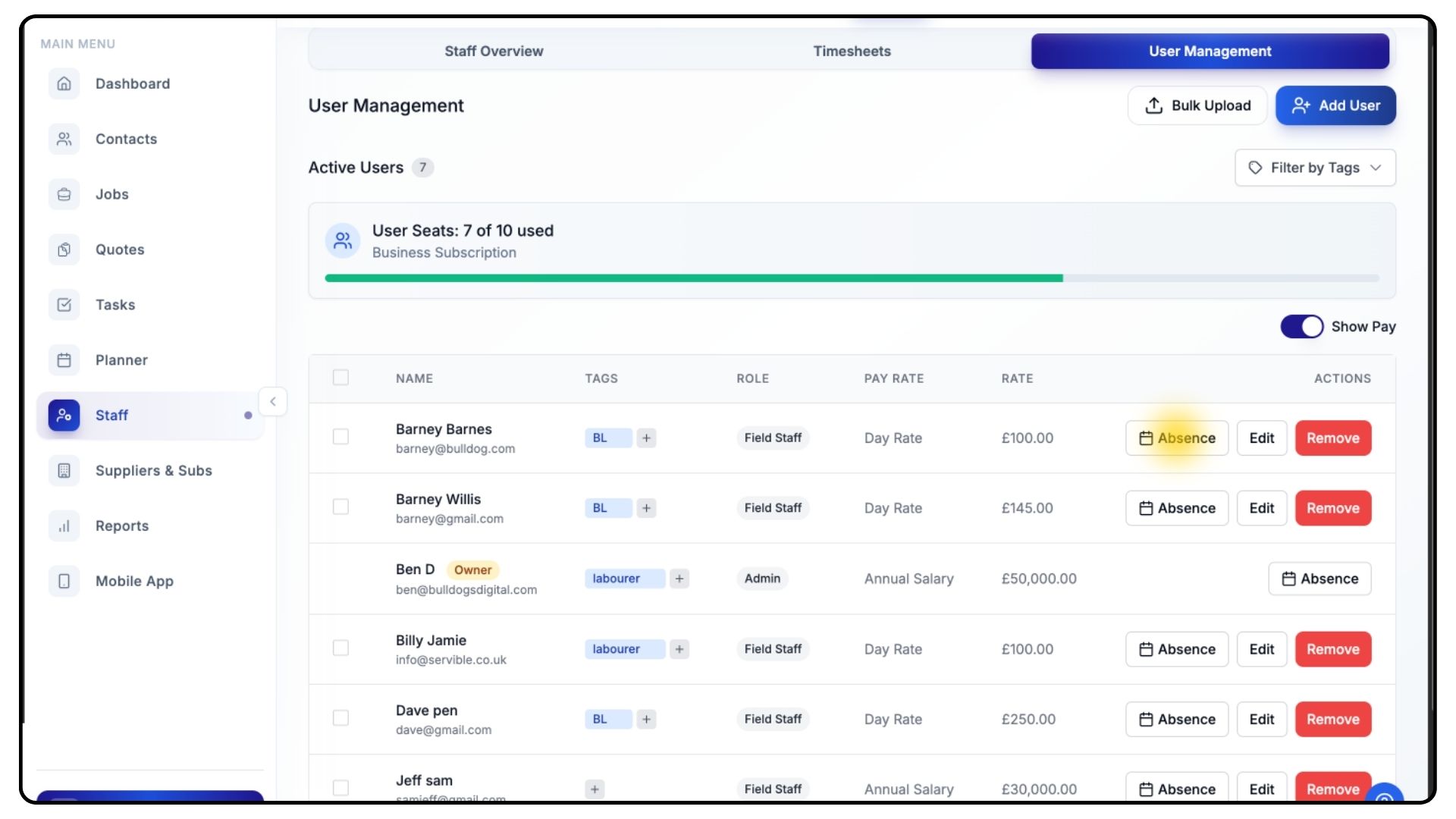
Click the Absence button next to a staff member to record time off.
There is a full Absences Walkthrough available on the Guides page for more detail.
Filtering Users by Tag
What It Does
Filtering by tag allows you to quickly display only the staff members with a specific trade or skill.
Steps
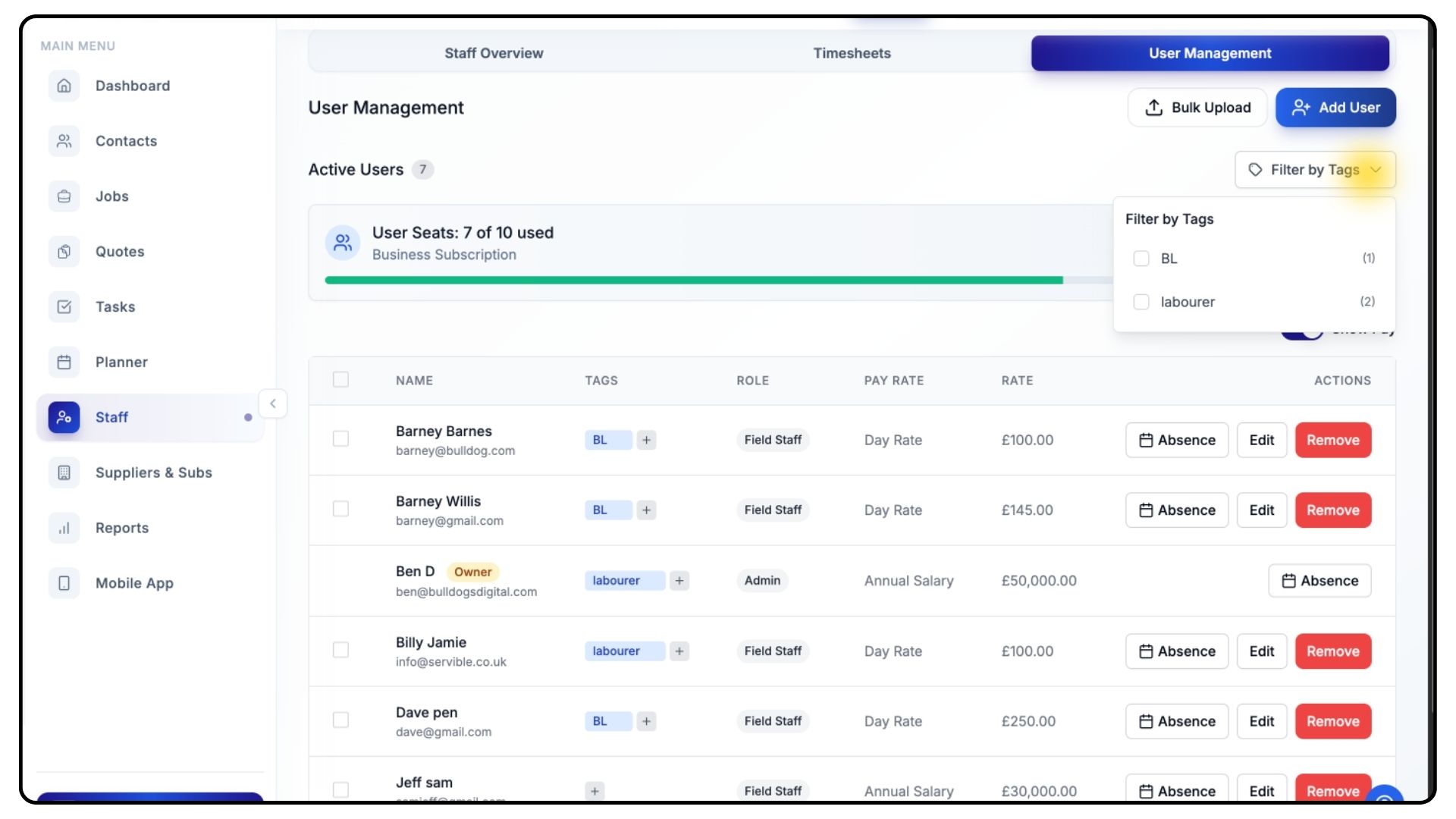
Click Filter by Tag.
Select one or more tags to refine your list.
This makes it easy to find specific trades when assigning labour or managing schedules.
Bulk Uploading Users
What It Does
The Bulk Upload feature allows you to add up to 50 users at once, saving time and ensuring your entire team can be set up quickly and consistently.
Steps
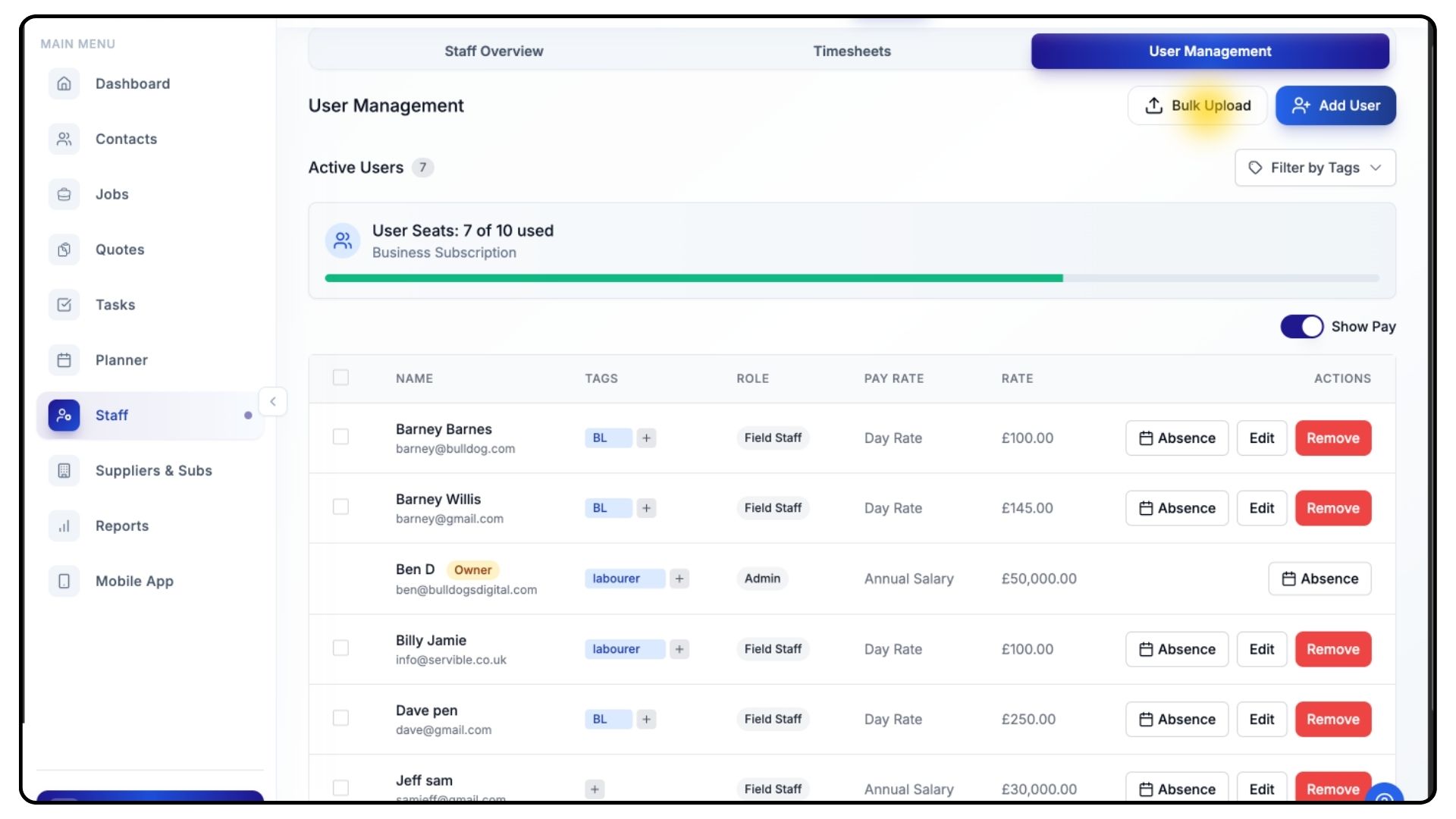
Click Bulk Upload in the top-right corner of the User Management section.
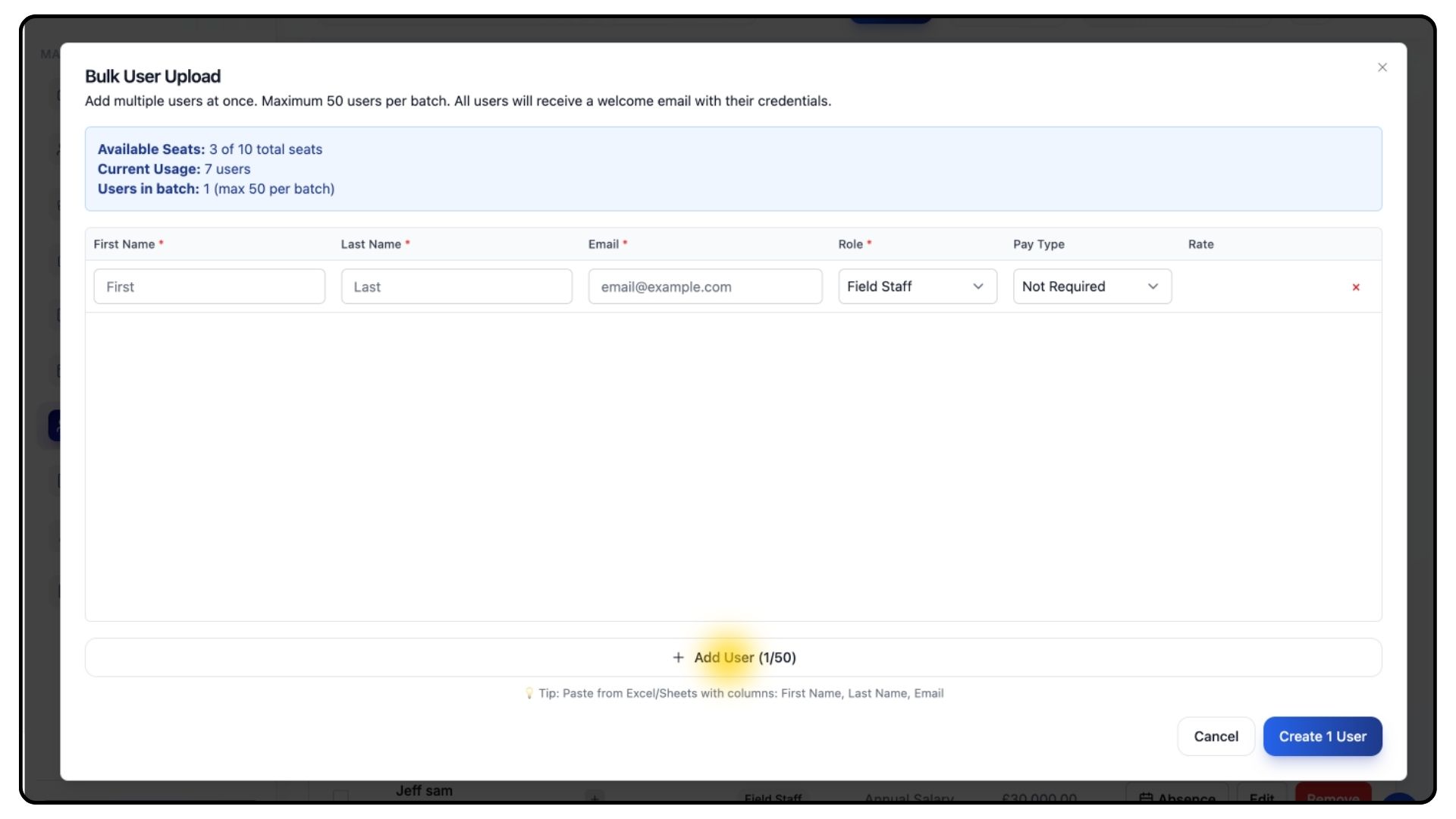
You’ll be taken to the Bulk Upload page, where you can add multiple users in a single batch (up to 50 at a time).
Click Add User at the bottom of the page to create each new entry.
For every user, fill in their basic details, assign their role, and enter their pay rate.
Continue adding users until your full list is complete.
Once all entries are correct, click create to add all users in one go.
Common Questions
Q: Does archiving a user delete them?
No. Archiving removes them from active use but keeps all historical data. You can reactivate them at any time.
Q: Can I assign multiple tags to one user?
Yes — you can give a staff member as many tags as needed to reflect their skills.
Q: Do pay changes affect existing jobs?
Updating a staff member’s pay will update future cost calculations but will not change historical job data.
Q: Can subcontractors be added here?
No — subcontractors are managed separately under the Suppliers & Subs section.