How to Import Price a Job Quotes into Trades Panel
What It Does
Trades Panel allows you to import quotes created in Price a Job directly into the system, turning them into fully built jobs without rebuilding everything manually.
Exporting a Quote from Price a Job
What It Does
Prepares your Price a Job quote for import by exporting it in a compatible format.
Steps
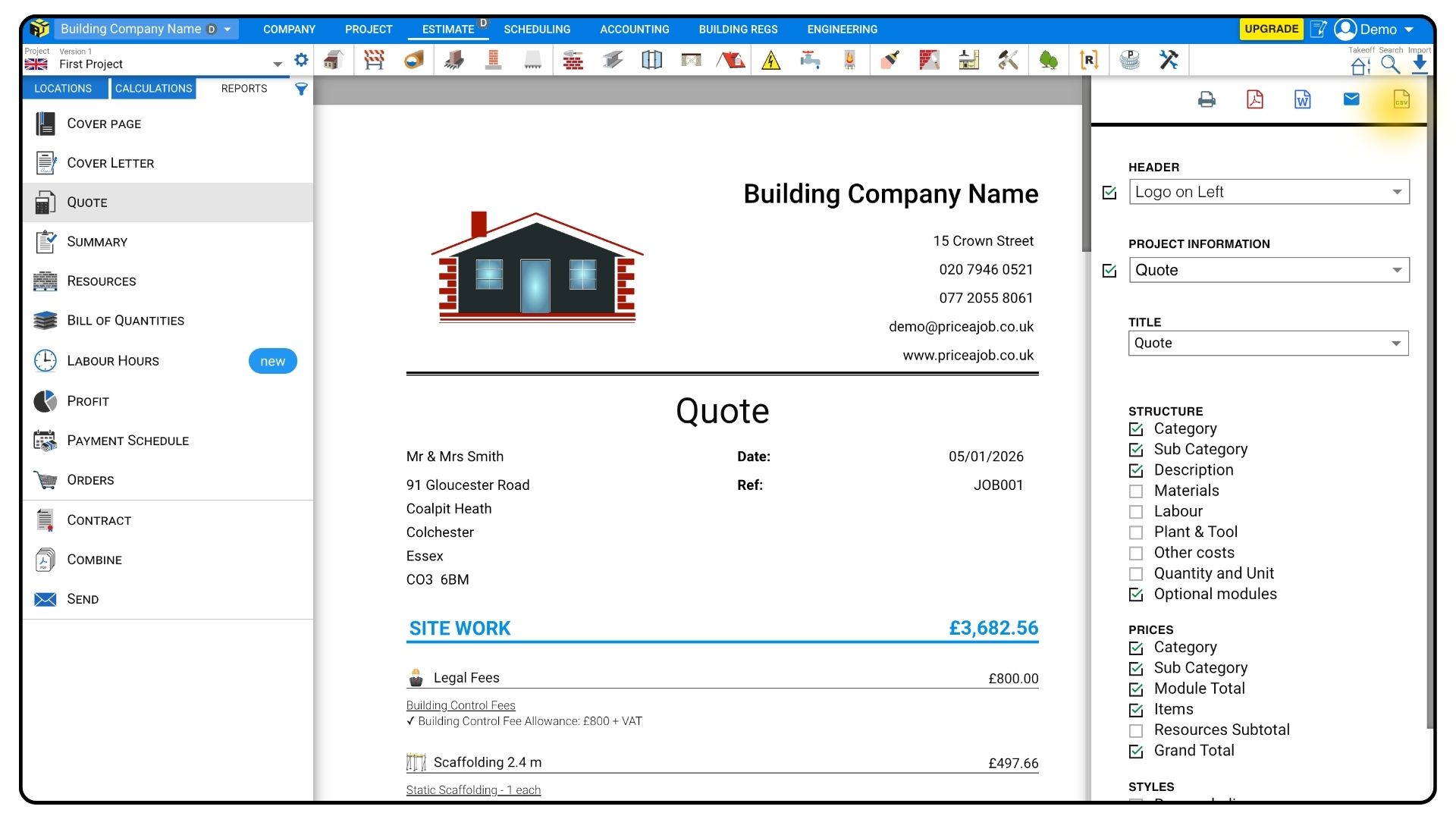
Open your Price a Job account and load the quote you want to import.
Click the Reports tab.
Select Quote from the options on the right-hand side.
Before exporting, make sure Labour Only (Hours) is selected.
Export the quote and ensure the file format is set to CSV.
Make sure all components are selected, then click Export.
Preparing the CSV File
What It Does
Ensures the CSV file matches Trades Panel’s import requirements.
Steps
Open the exported CSV file.
Review the Resource Type column carefully.
Each row must be labelled as one of the following:
Materials
Plant and Tool
Labour
If any rows are labelled Other, change them to Materials, Plant and Tool, or Labour.
If you change a row to Labour, you must also:
Assign a trade (for example, Engineer or Groundworker)
Set the unit to hour
If these fields are not completed correctly, the CSV file will not import into Trades Panel.
Importing the CSV into Trades Panel
What It Does
Imports your Price a Job quote and converts it into a job inside Trades Panel.
Steps
Once your CSV file is ready, return to Trades Panel.
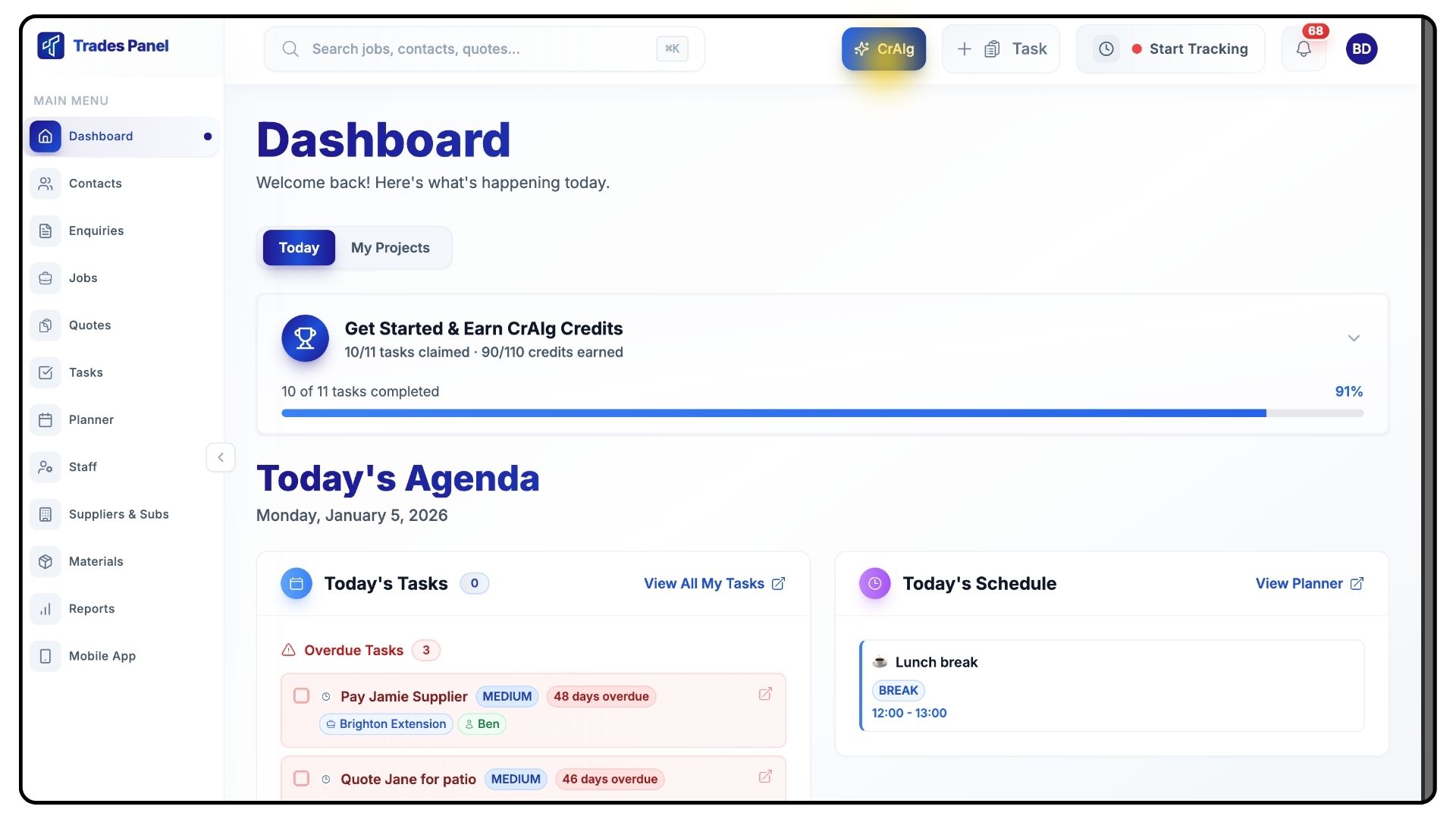
Click the CrAIg button.
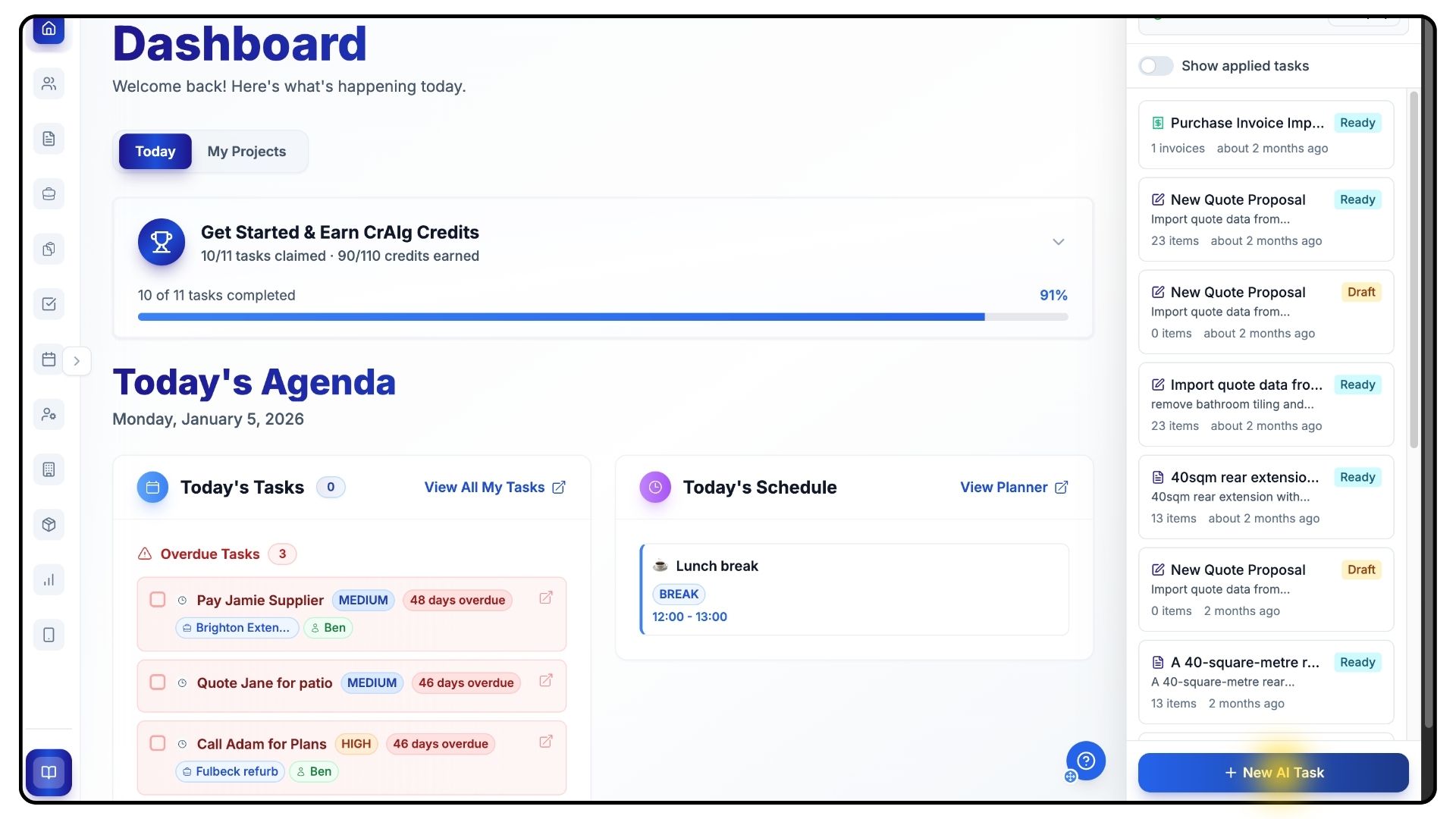
Select New Task.
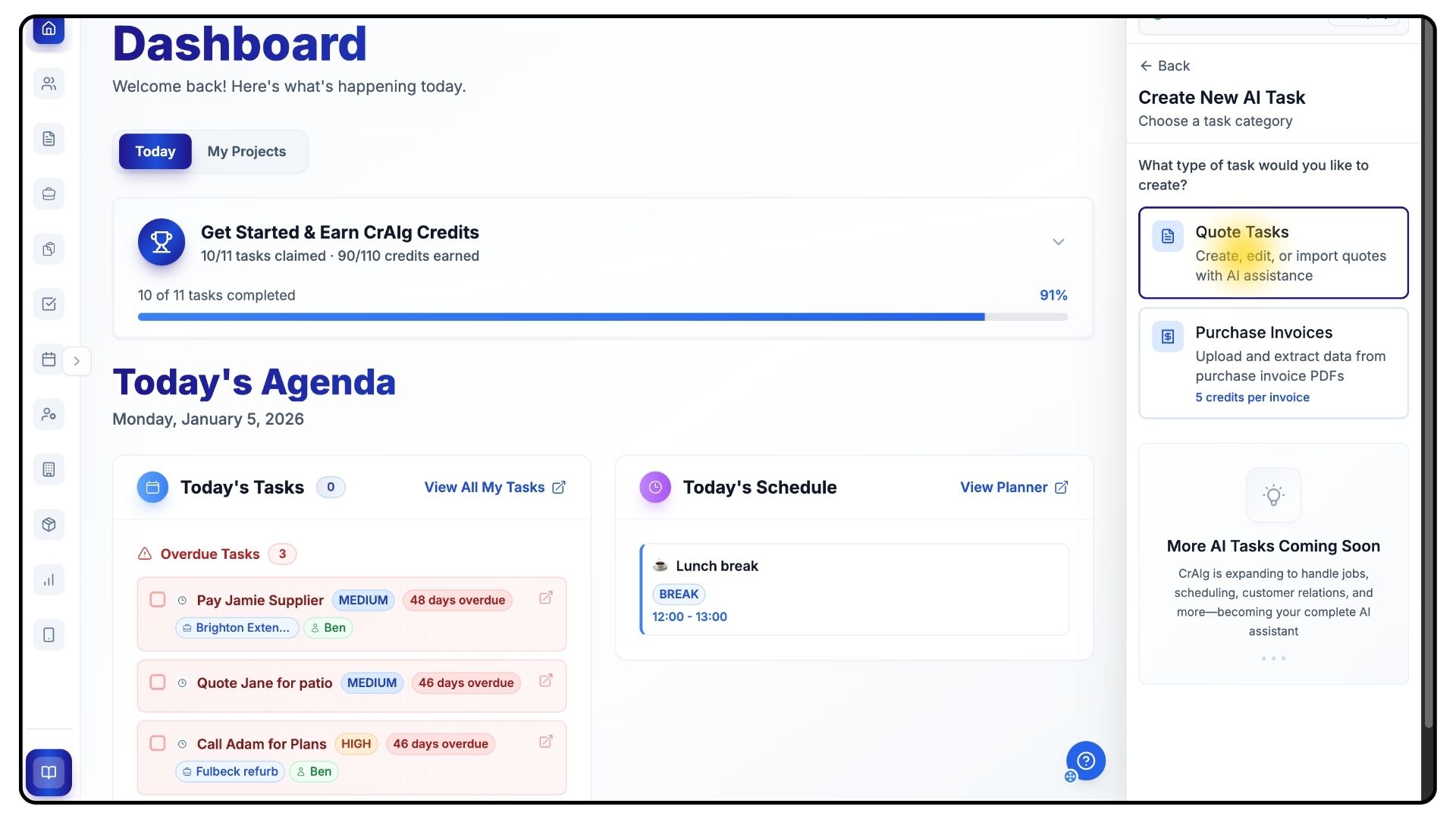
Choose Quote Tasks.
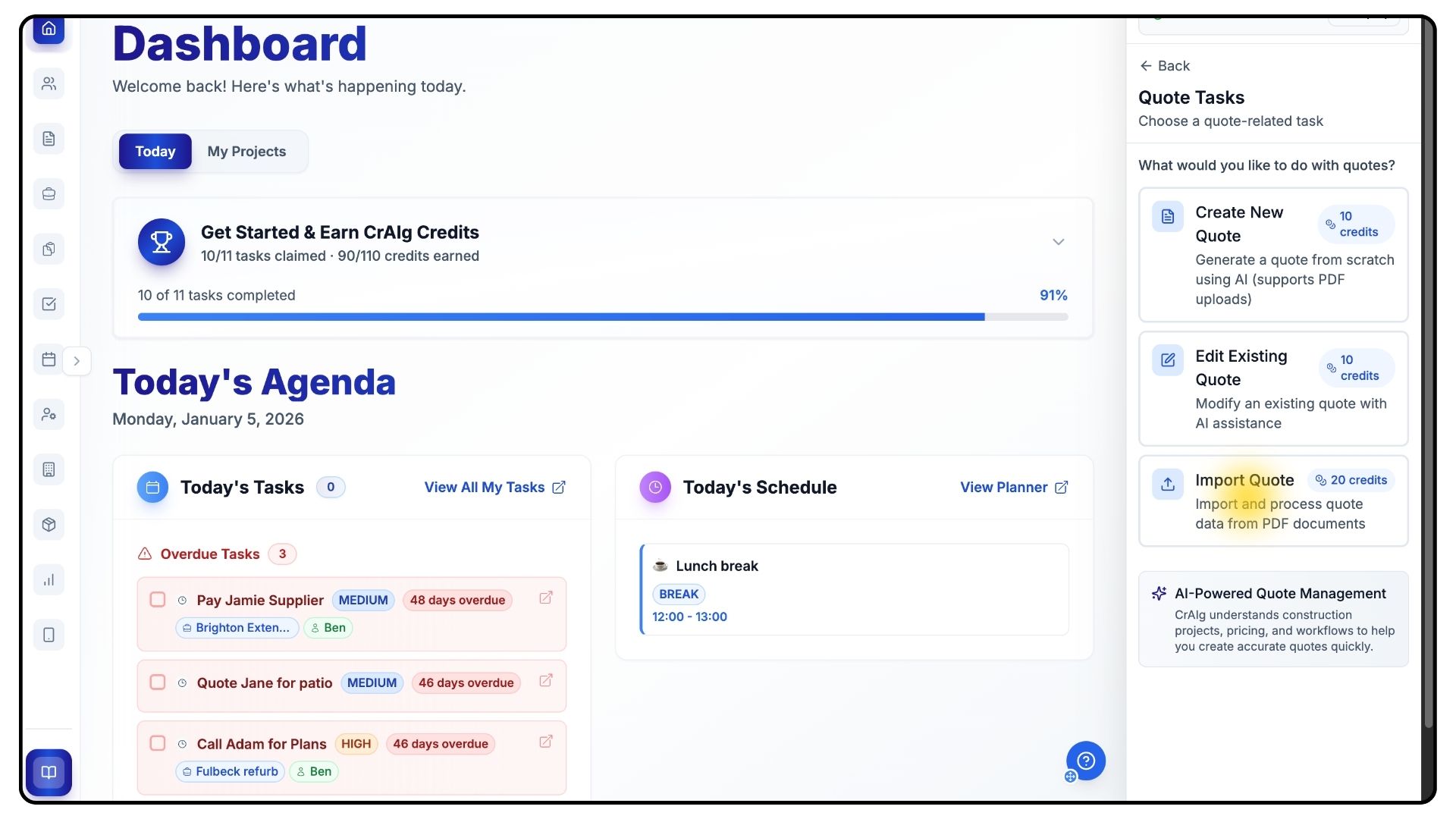
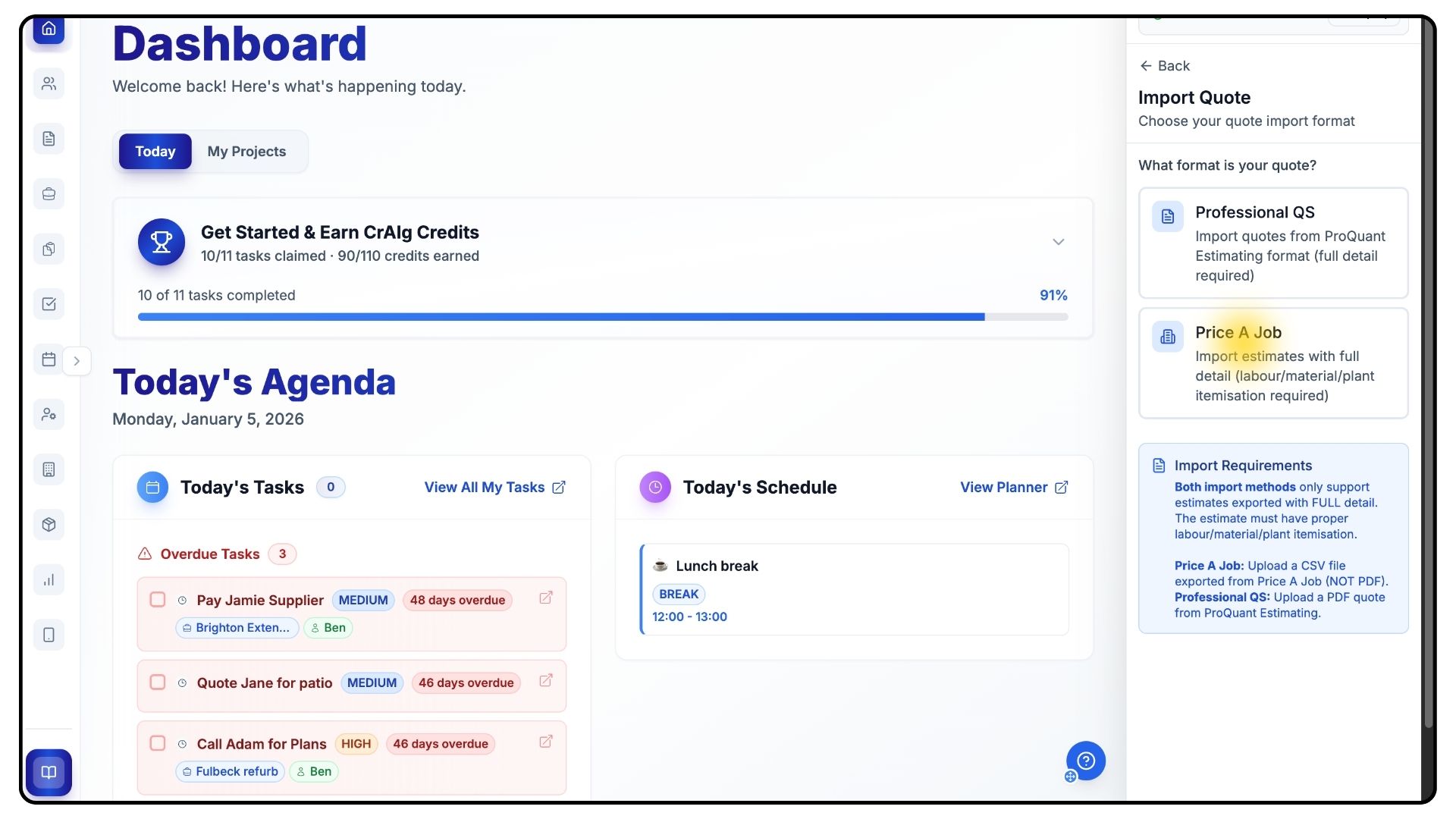
Choose Import Quote, then select the Price a Job format.
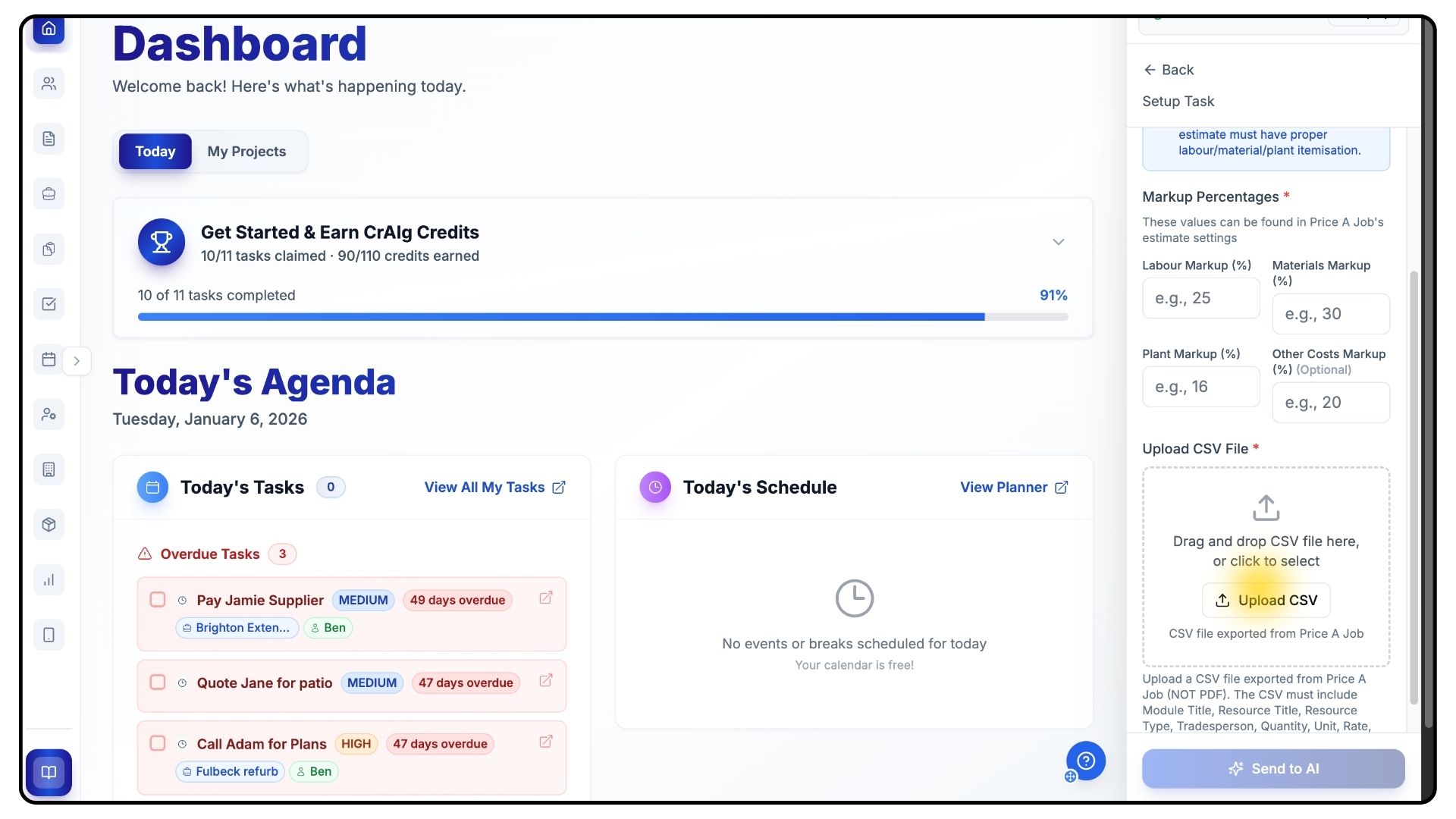
Select the customer you want to associate the job with.
Apply any markup preferences if required.
Upload your CSV file.
We recommend enabling AI recognition to help validate and map the data during import.
And that’s how to import Price a Job quotes into Trades Panel.
For more tutorials and walkthroughs, visit the Quick Start Guides section in the navigation bar.