What It Does
The Time Logs report in Trades Panel provides a complete overview of every recorded time entry.
It helps you monitor how long staff spend on tasks, ensure accuracy, and quickly correct any errors.
Accessing the Time Logs Report
What It Does
This is where you view, filter, edit, and manage all staff time entries across your business.
Steps
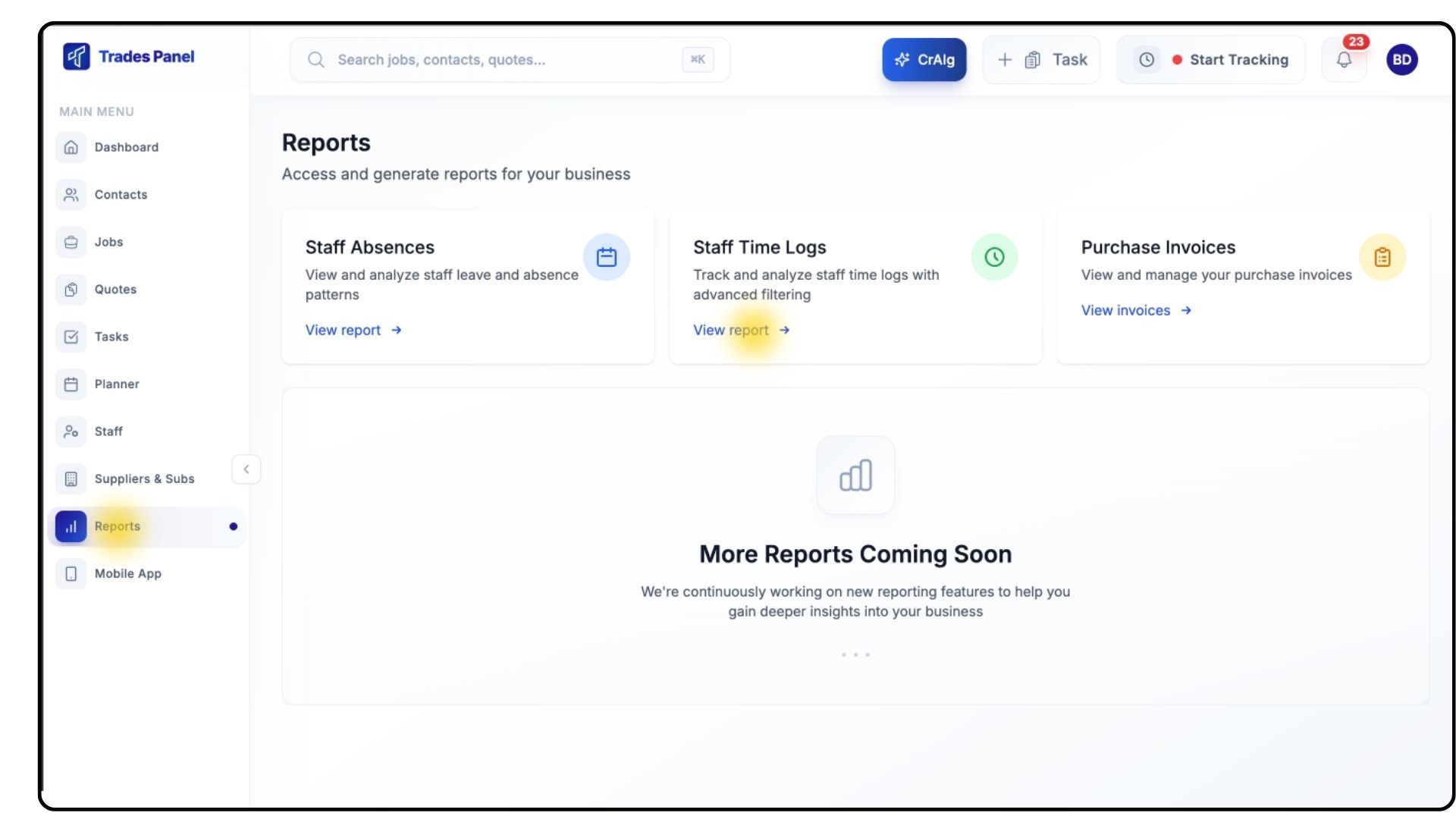
Go to Reports from the main menu.
Select Staff Time Logs.
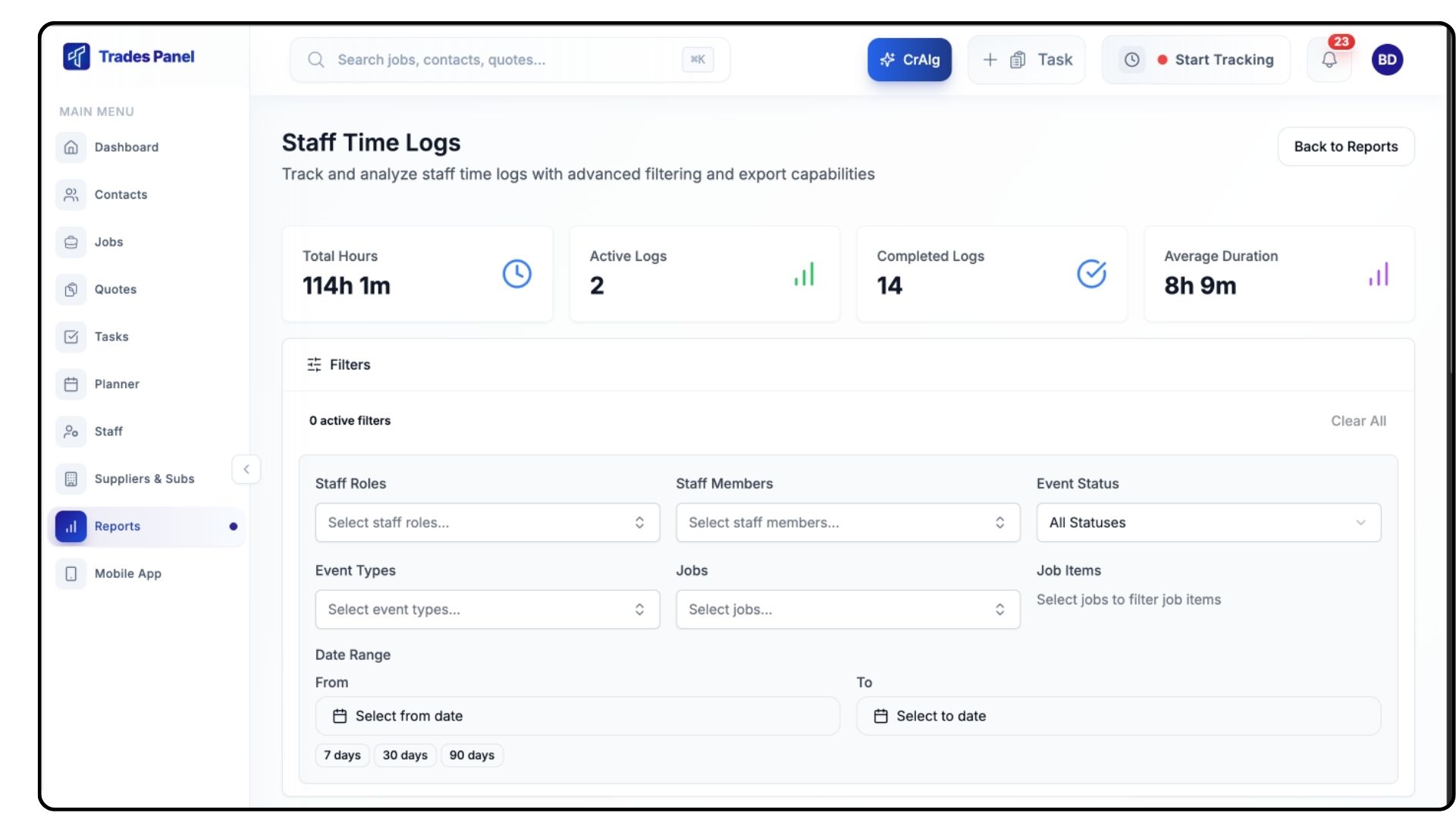
At the top of the page, you’ll see key metrics, including:
Total Hours Logged
Number of Active Logs
Number of Completed Logs
Average Duration Per Log
These figures provide an instant snapshot of your team’s time usage.
Viewing Individual Time Logs
What It Does
Shows all time entries for all staff, including timings, durations, and linked events.
Steps
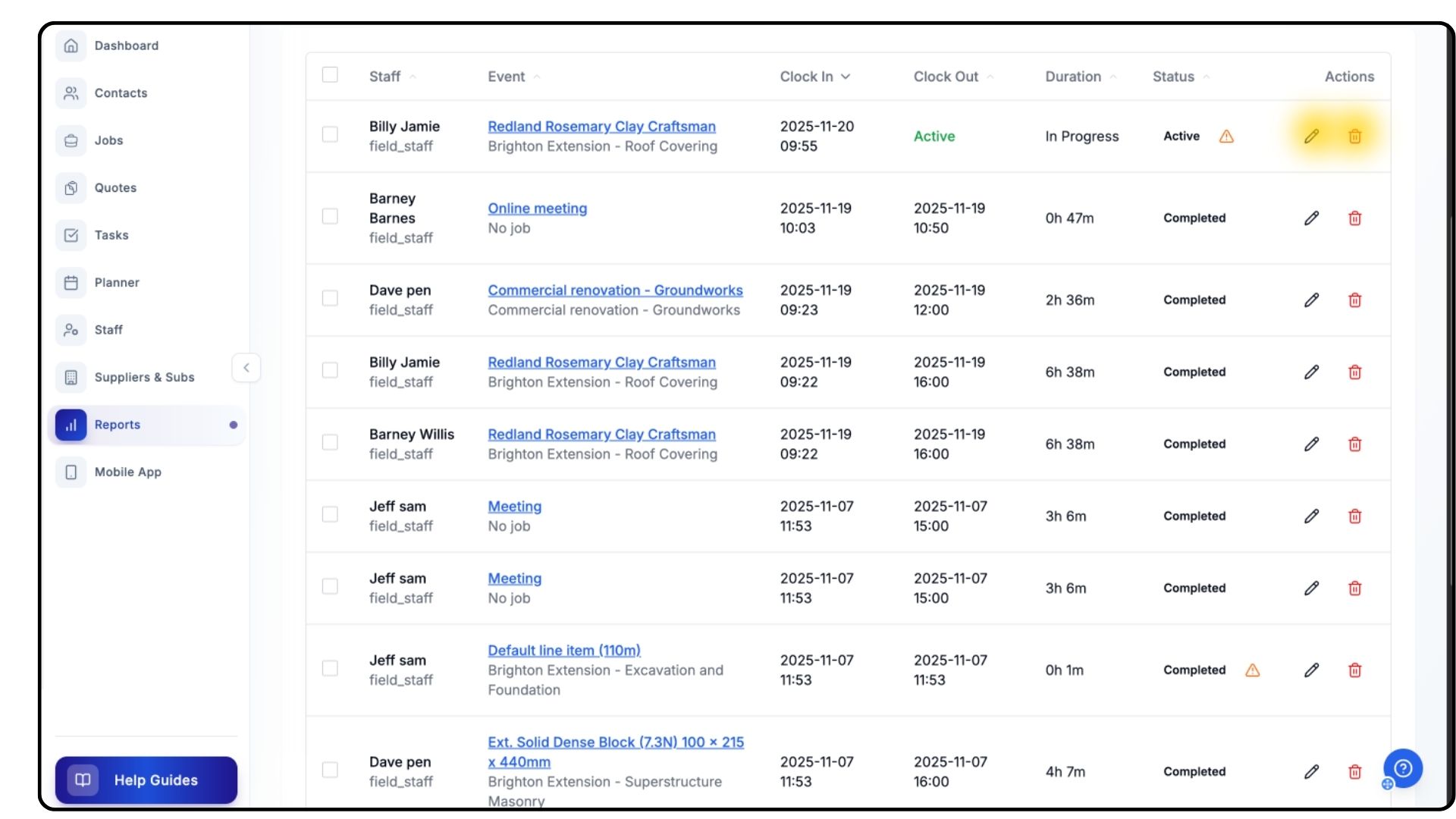
Scroll down to view the full list of recorded time logs.
Each log displays:
Staff Member
Related Event
Clock-In Time
Clock-Out Time
Total Duration
Status
To edit a log, click the Pen Icon and adjust the clock-in or clock-out times.
To delete a log, click the Bin Icon if it was created in error or is no longer needed.
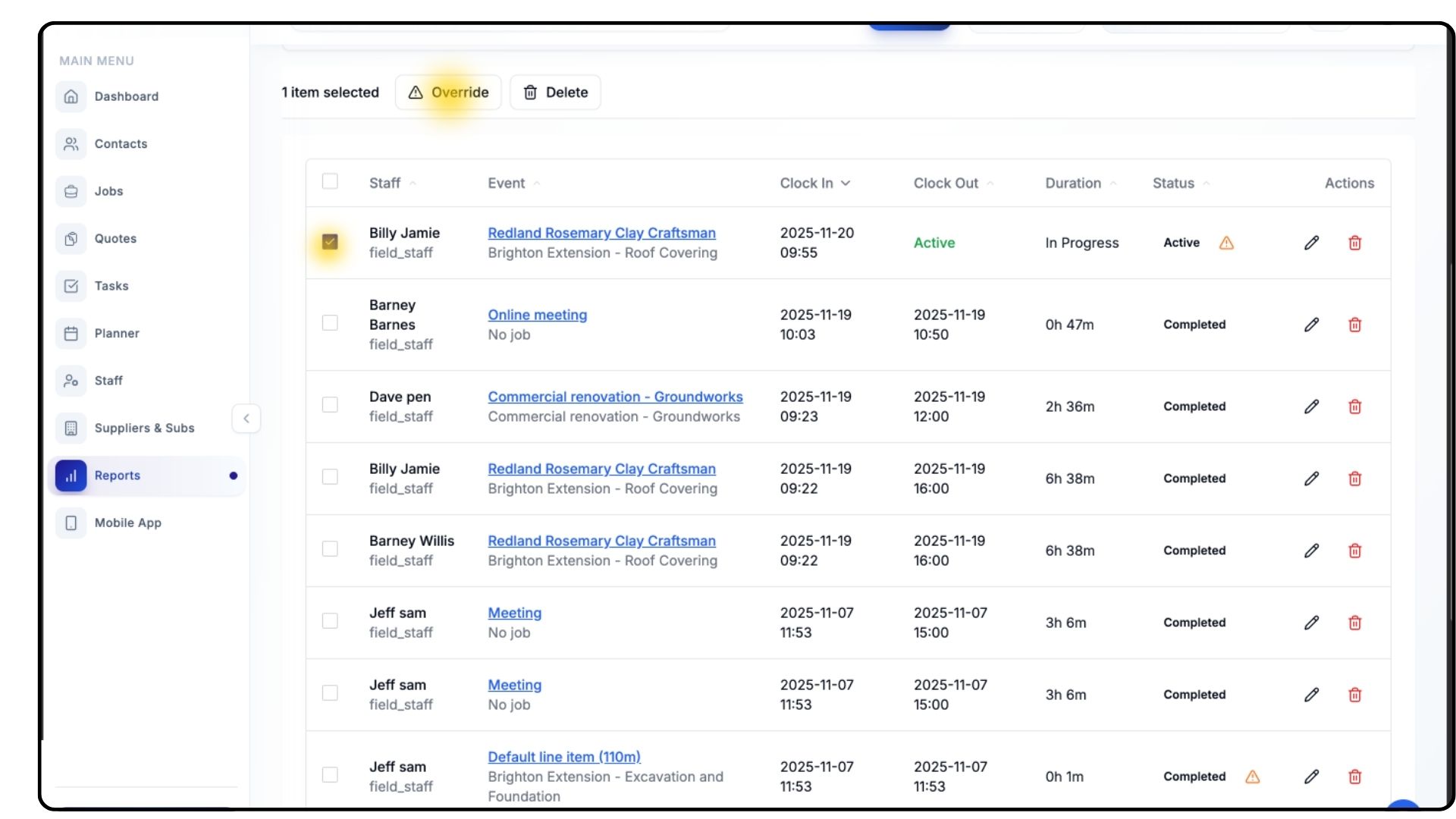
You can also select the box to the left of your time log and override the log by clicking the override button that appears.
Filtering Time Logs
What It Does
Filters make it easy to analyse time entries by team member, job, status, or time period.
Steps
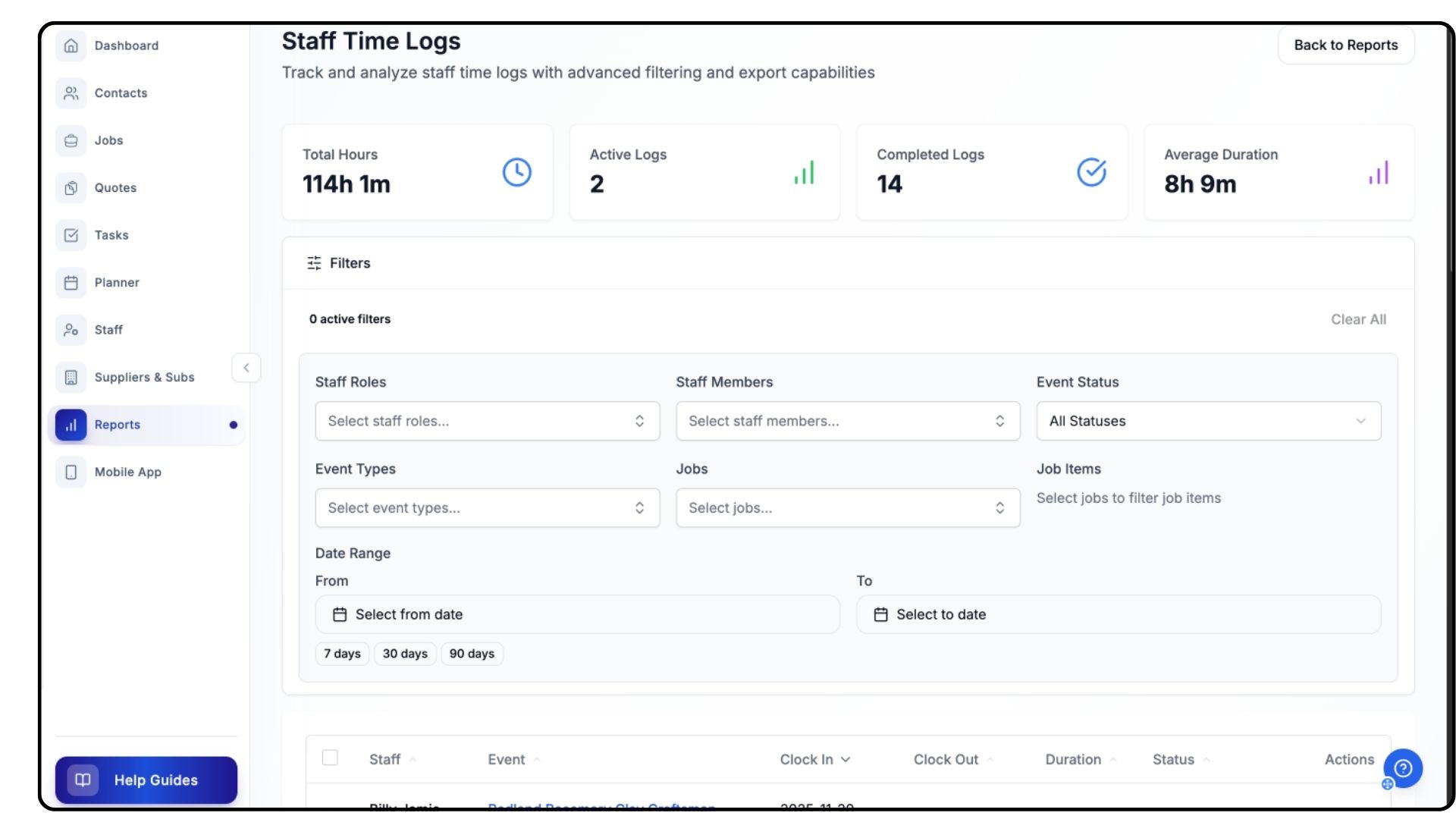
Use the dropdown menus at the top to filter by:
Role
Staff Member
Event Status
Event Type
Job
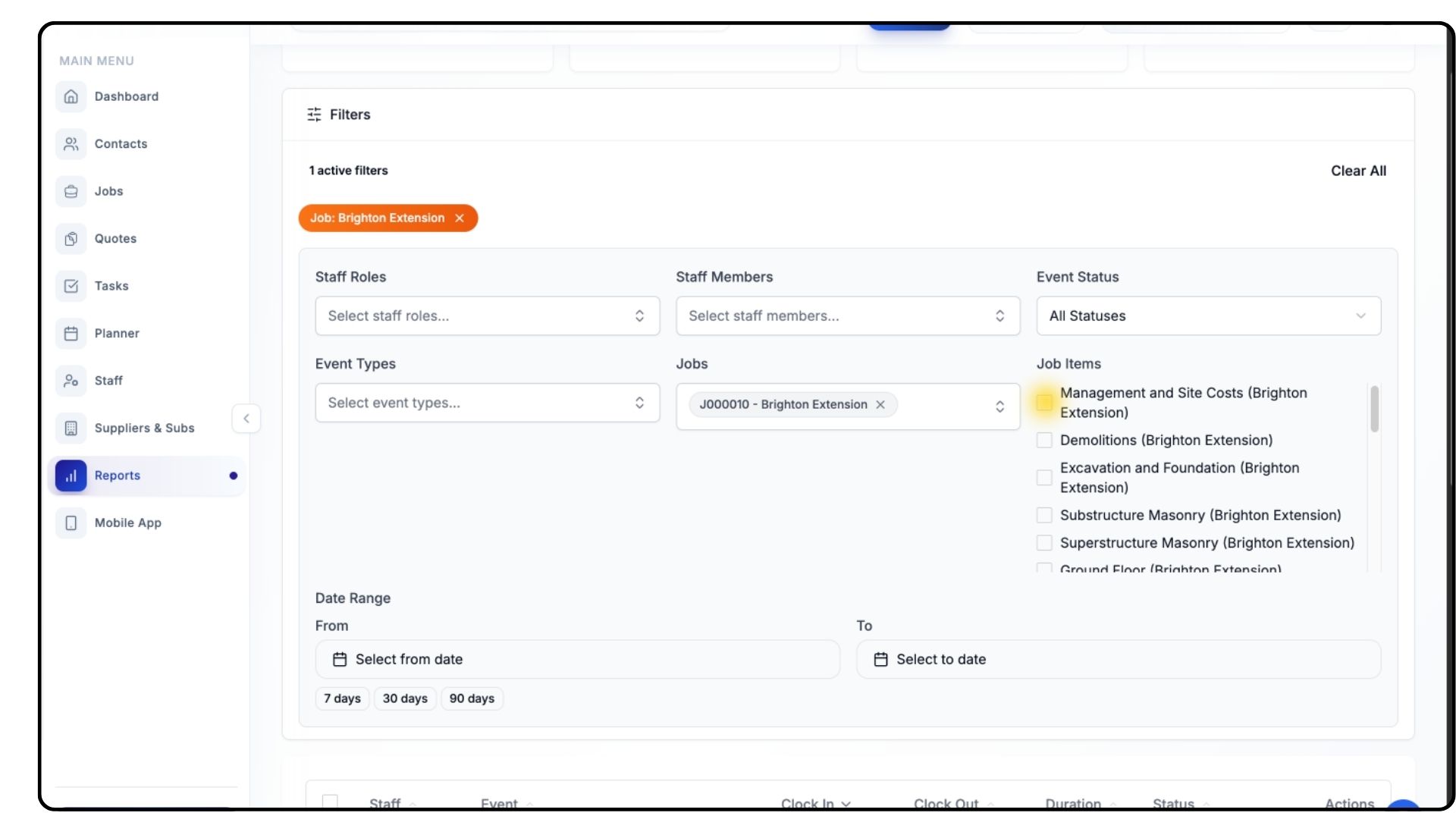
When you select a job, you can also filter by the individual job items within that project.
To filter by timeframe, use the two Date Range selectors.
Choose your start and end dates to view logs for:
A selected week
A month
A project phase
Or any custom period
The table will update automatically based on the filters applied.
Explore time tracking features.
Common Questions
Q: Can I correct incorrect clock-in or clock-out times?
Yes — click the pen icon next to the log to edit it.
Q: What happens if I delete a time log?
It is permanently removed from the report, so only delete logs that were created in error.
Q: Why can’t I see a staff member’s logs?
Check your filters — filtering by job, date, or role may hide some entries.
Q: Can I view time logs for completed jobs?
Yes — all logs remain visible unless deleted.
Q: Do changes here affect Timesheets?
Yes — edited time logs automatically update Timesheets and relevant financial calculations.