What It Does
The Branding settings allow you to customise all your Trades Panel documents — including quotes, invoices, and change orders — with your company logo and brand colour. This ensures consistent, professional branding across every exported document.
Accessing the Branding Settings
What It Does
This is where you upload your logo and set the colour theme used across your documents.
Steps
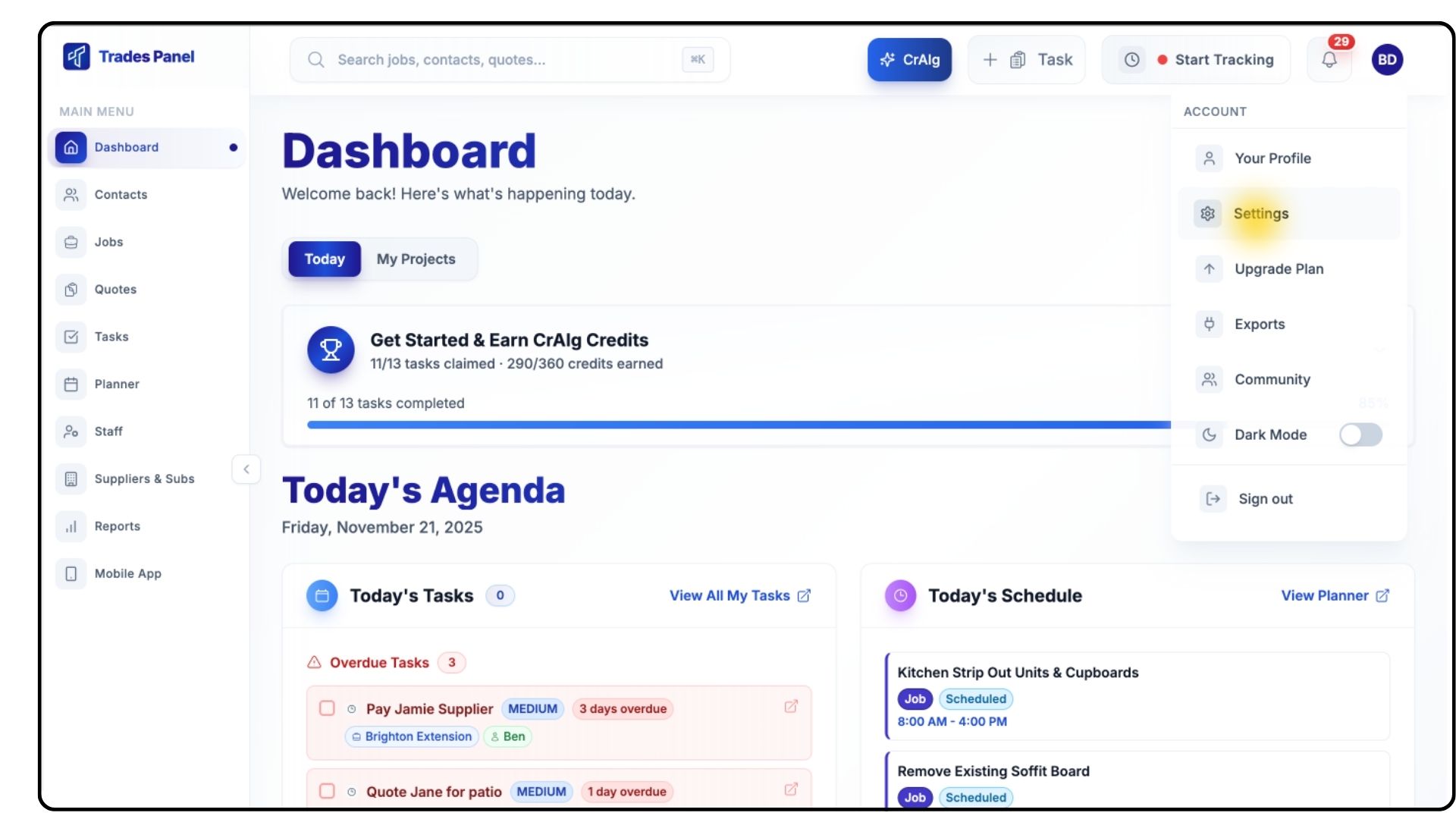
Click your Profile Icon in the top-right corner and select Settings.
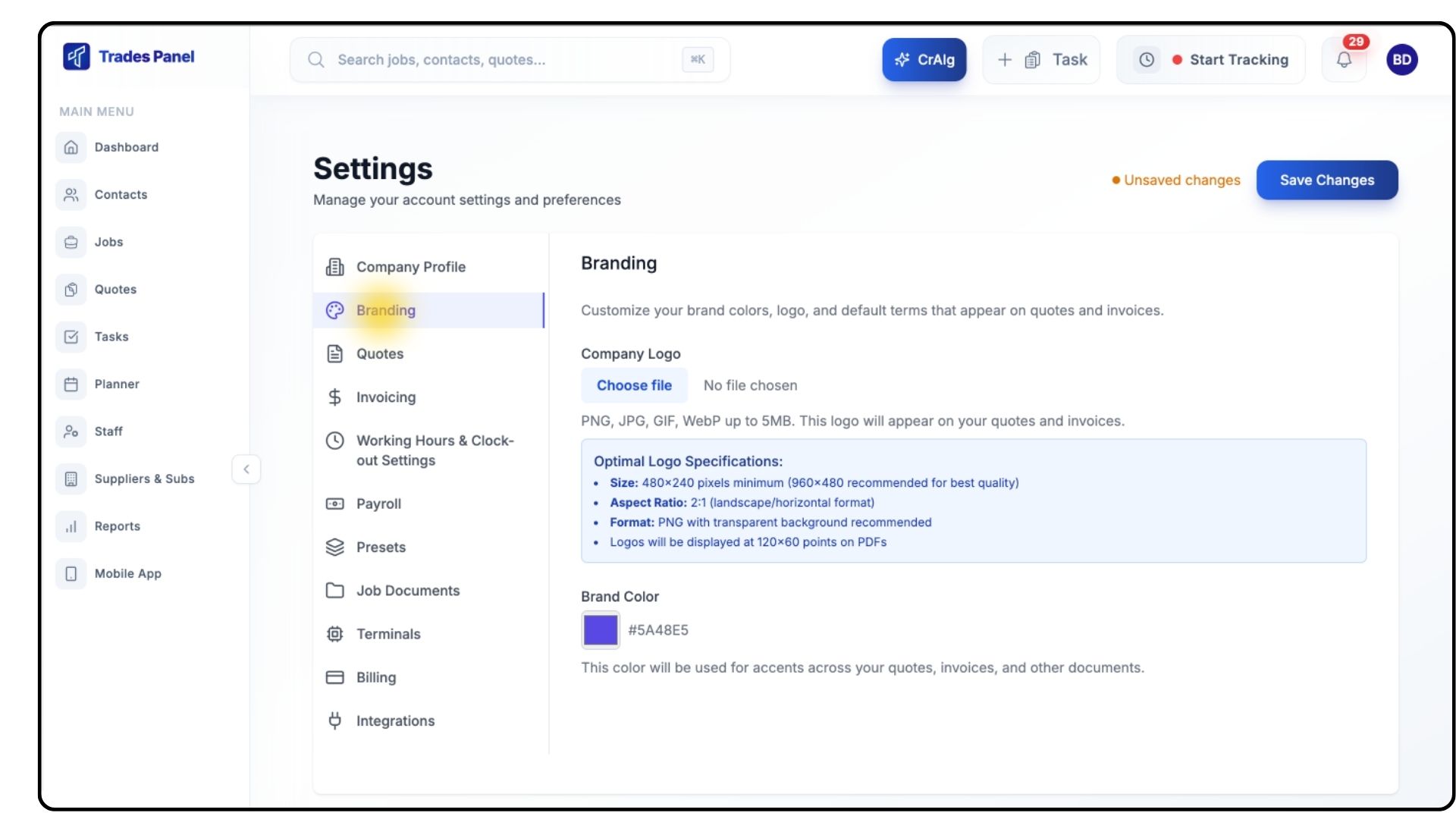
From the left-hand menu, click Branding.
Uploading Your Company Logo
What It Does
Allows you to apply your company logo to all generated documents in Trades Panel.
Steps
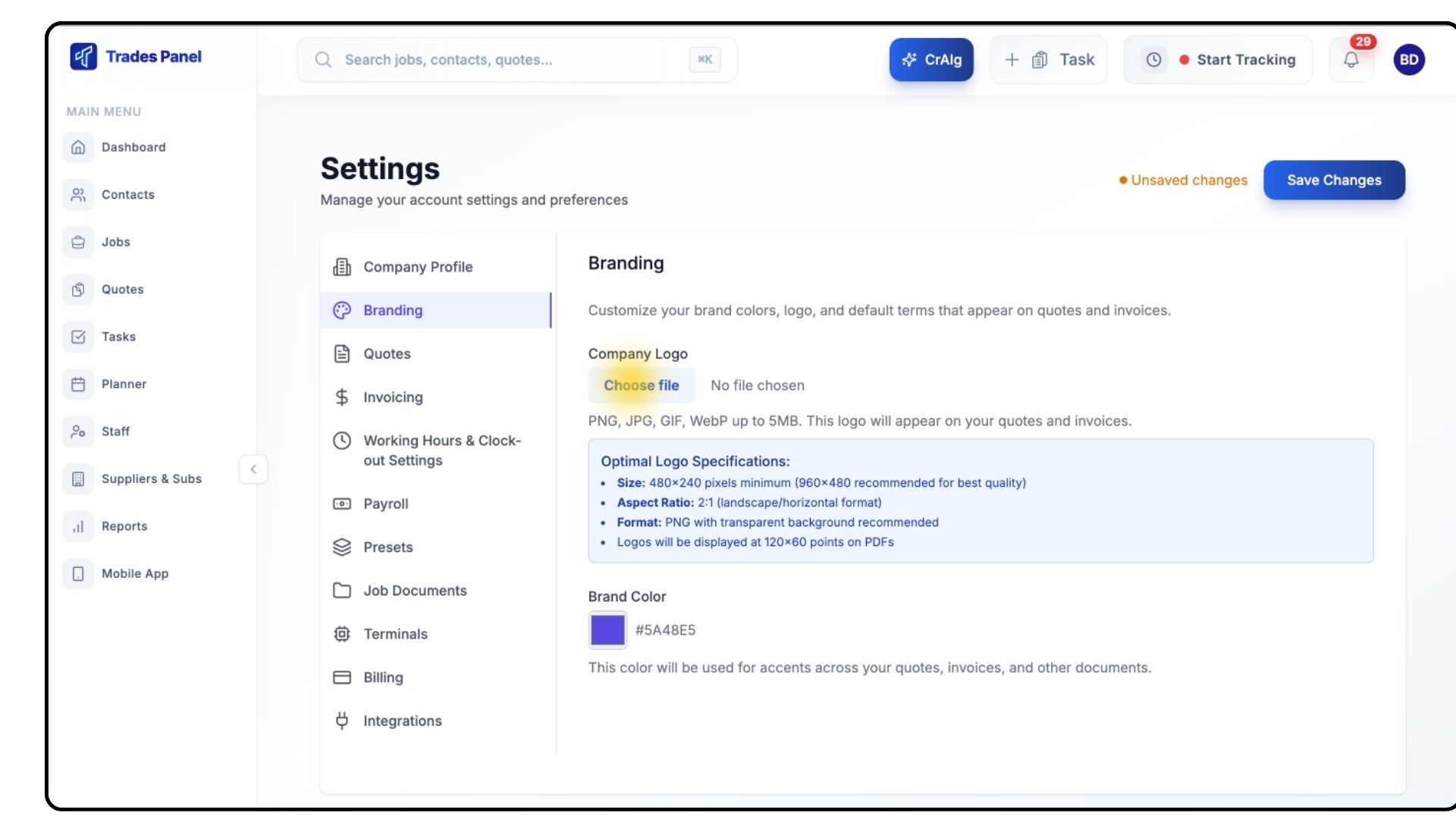
Click Choose File.
Select your logo image (supported file formats will be shown).
This will appear on all your quotes & invoices.
Your logo preview will appear once uploaded.
Setting Your Brand Colour
What It Does
Applies your chosen colour to headings, highlights, and elements across all exported documents.
Steps
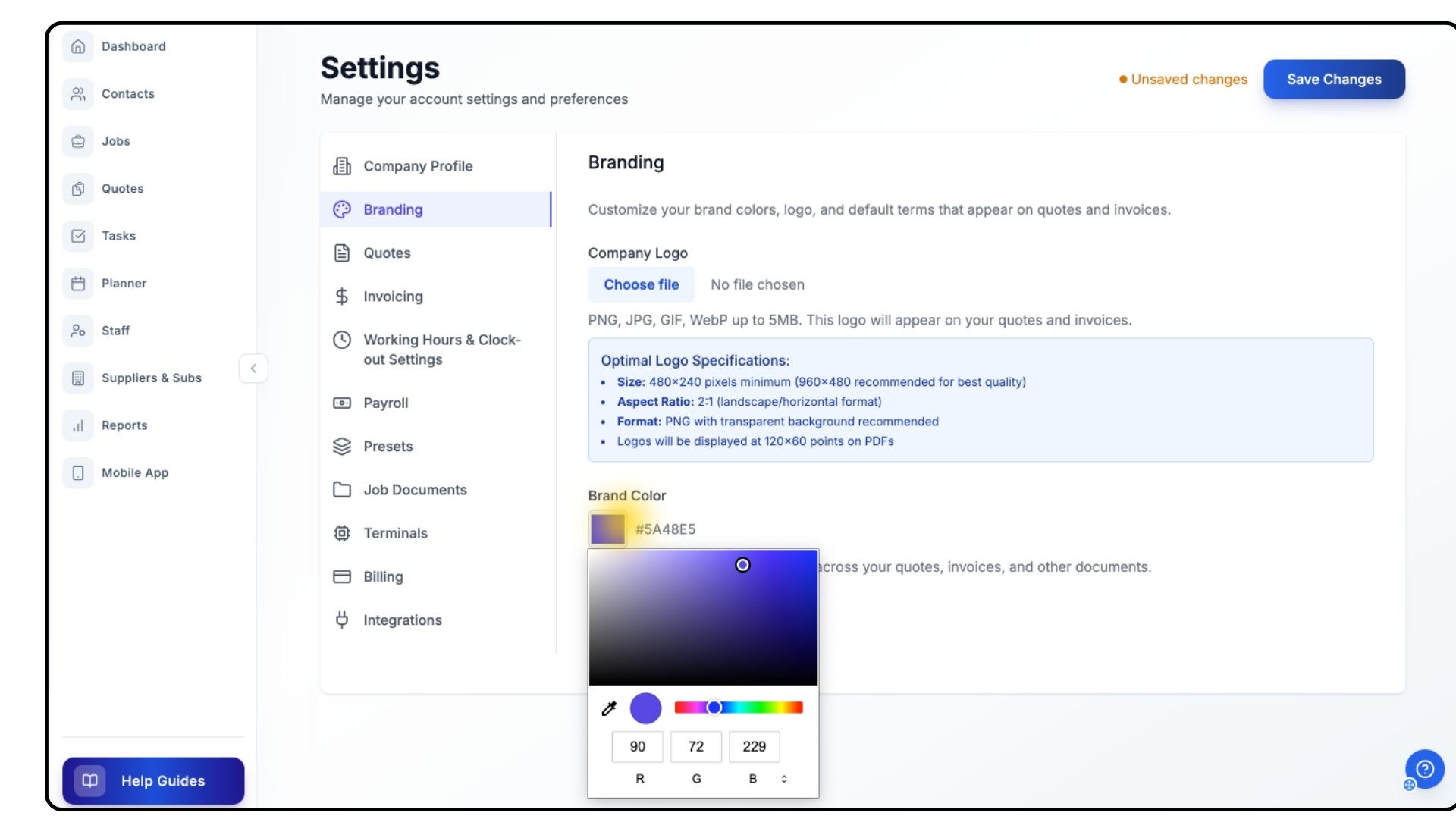
Click the Colour Box to open the colour picker.
Select your preferred brand colour.
Saving Your Branding Settings
What It Does
Ensures your chosen logo and brand colour are applied across all documents.
Steps
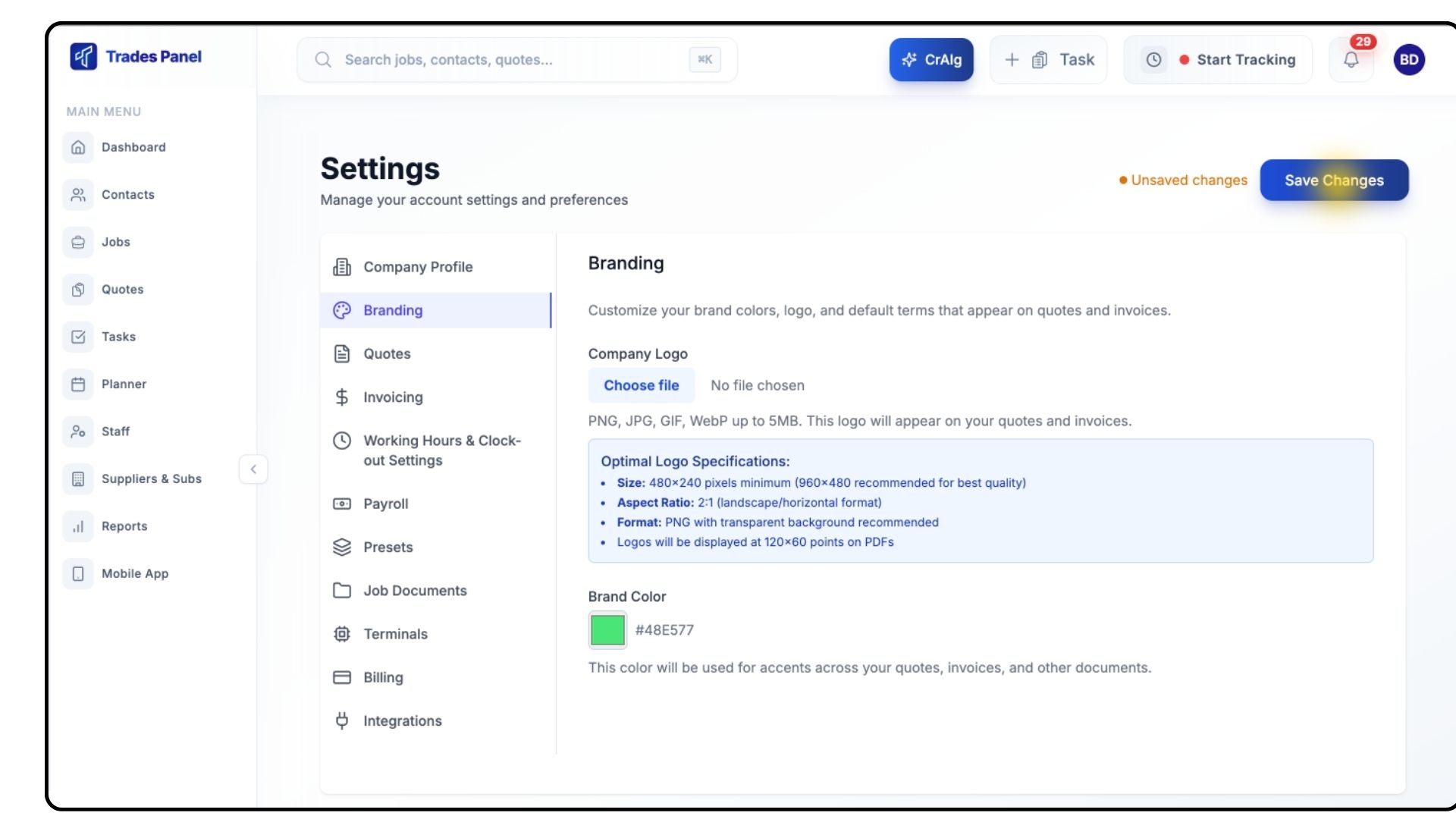
Click Save Changes in the top-right corner.
Your branding will now automatically appear on:
Quotes
Invoices
Payment schedules
Any other exported documents
Common Questions
Q: What file type should my logo be?
PNG or JPG is recommended for best quality.
Q: Can I upload multiple logos?
No — only one active logo can be used at a time.
Q: Will branding update old documents?
No — existing exported PDFs will not change. Branding applies to new exports only.