What It Does
The Tasks section in Trades Panel helps you track, manage, and organise every task across your business — including your own and those assigned to your team.
It provides a clear view of overdue tasks, today’s work, upcoming tasks, and completed items.
See project management features.
Accessing the Tasks Section
What It Does
This is where you can view, filter, edit, complete, and create tasks for yourself and your team.
Steps
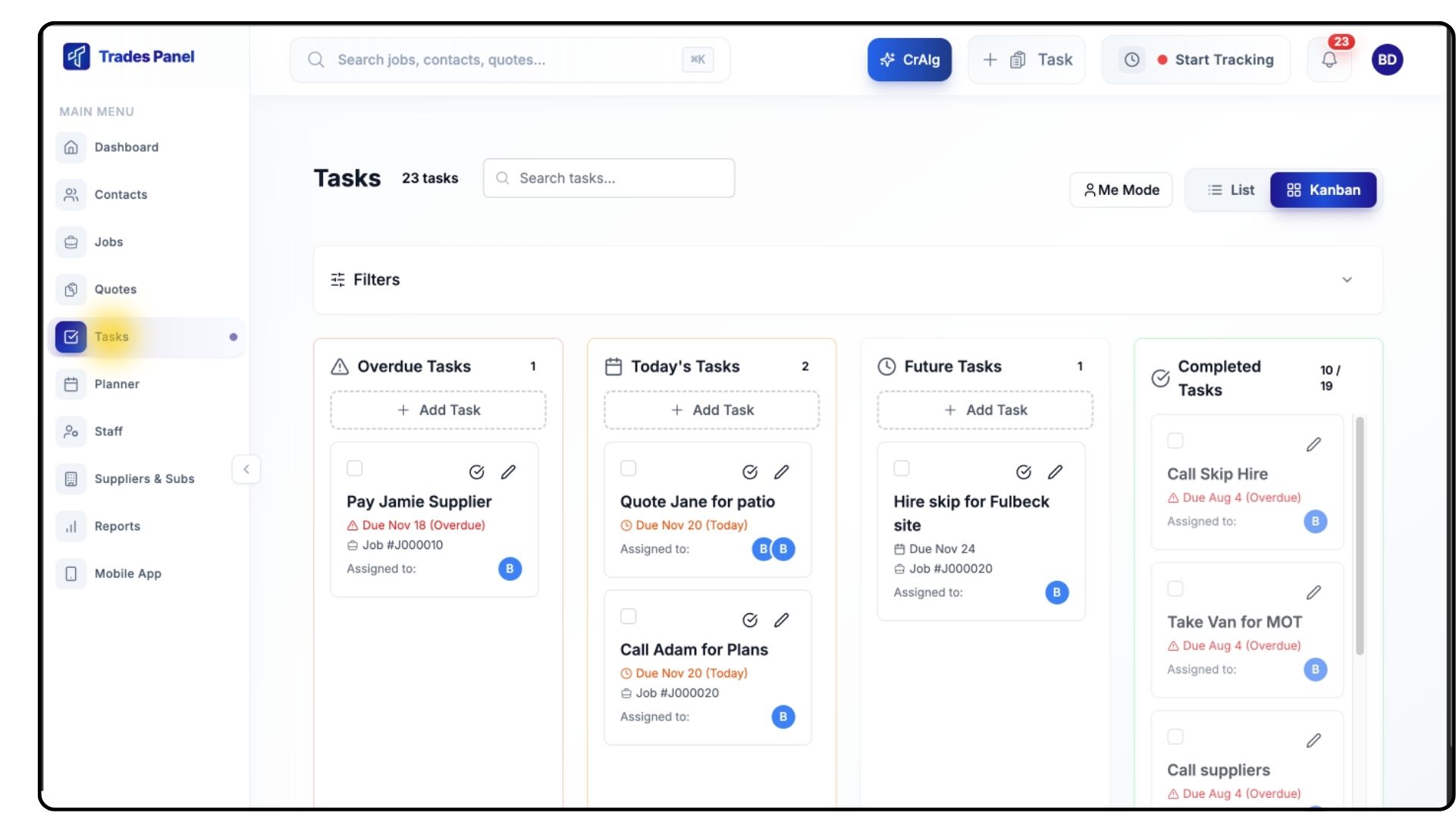
Go to Tasks from the main menu.
The Tasks page is divided into four sections:
Overdue Tasks
Today’s Tasks
Future Tasks
Completed Tasks
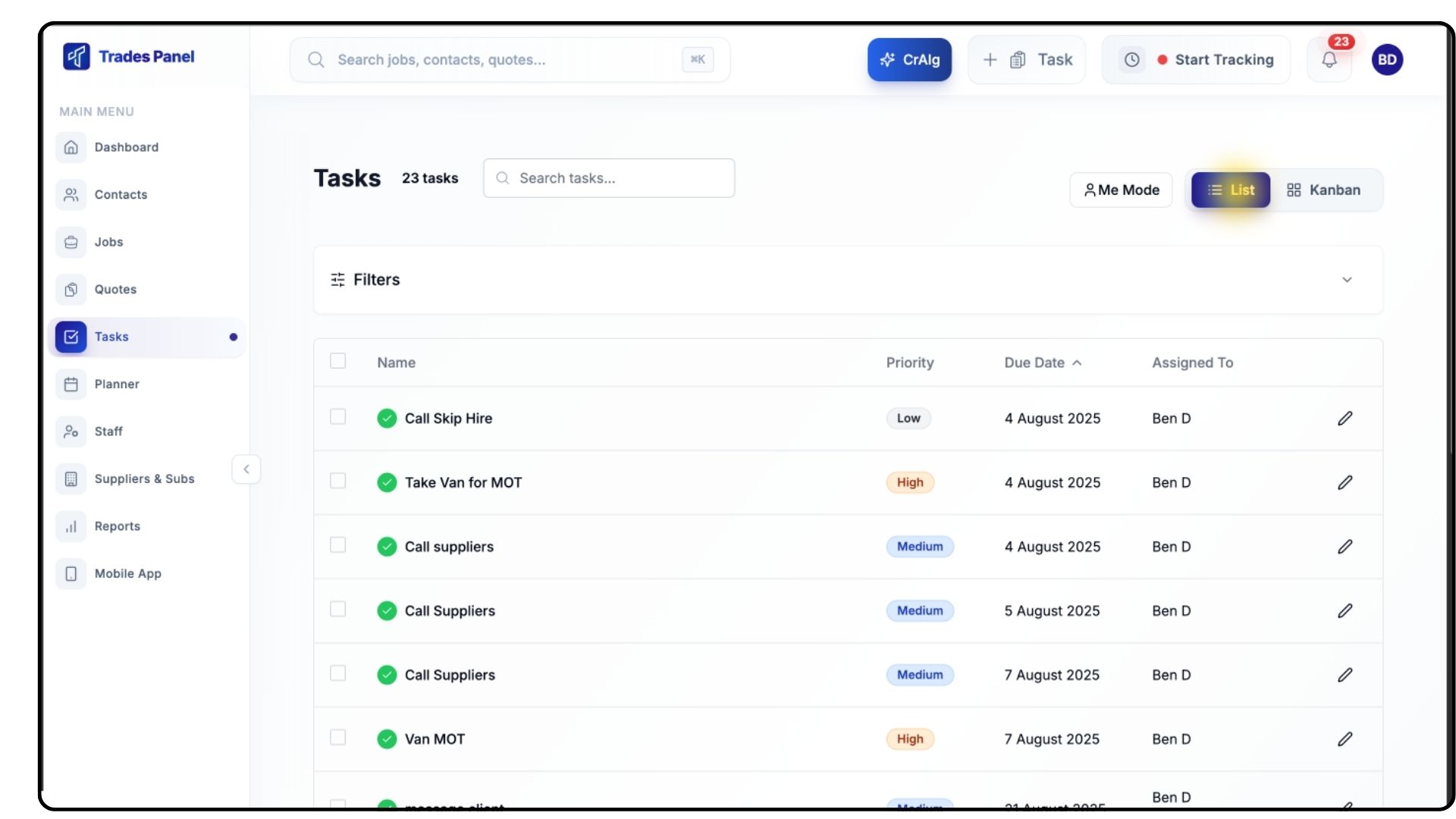
Use the toggle on the right-hand side to switch between List View and Kanban View.
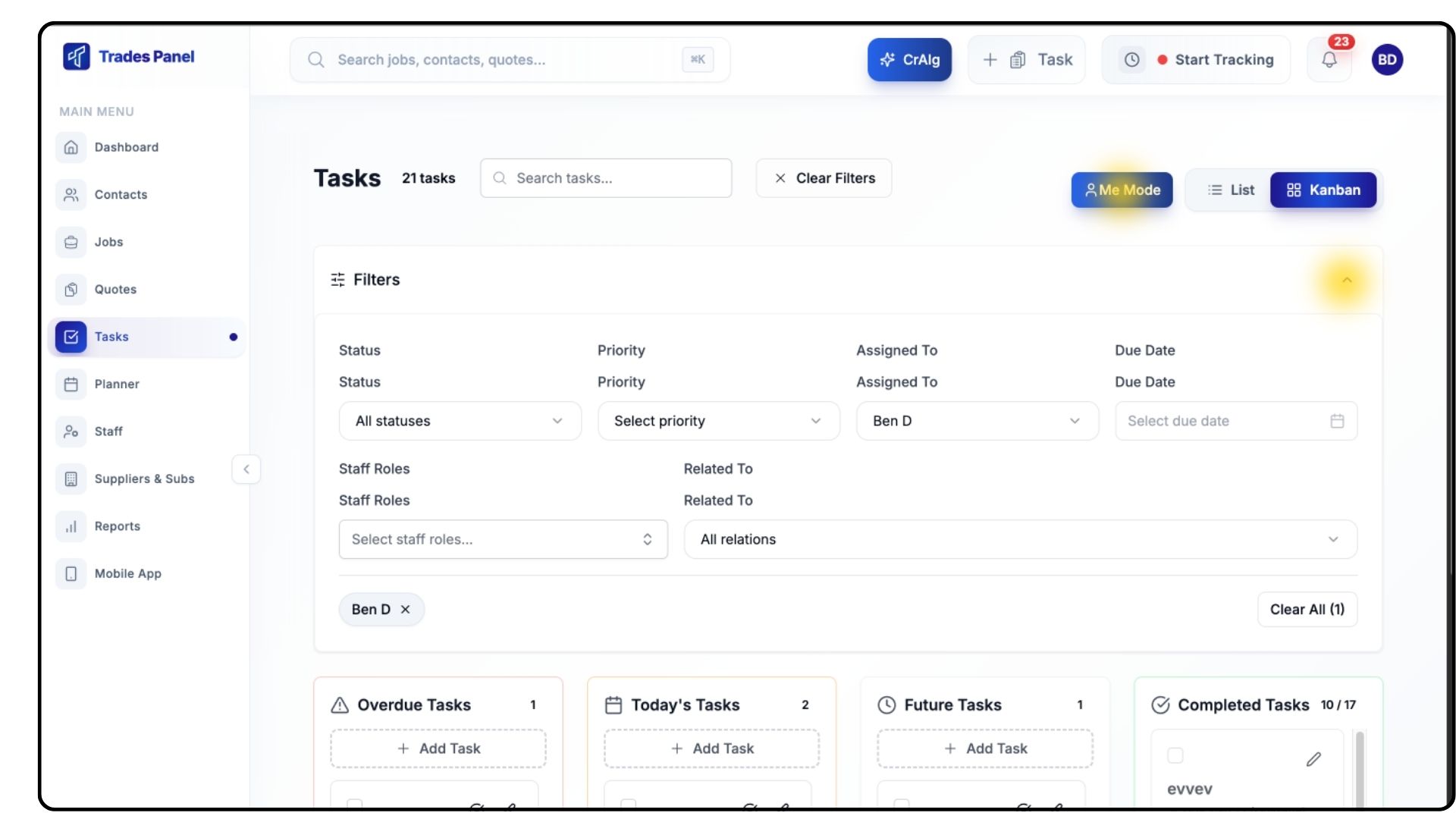
To view only your own tasks, click Me Mode at the top.
Use the Filter dropdown to sort tasks by:
Status
Priority
Assignee
Due Date
Staff Role
Related Job, Quote, or Customer
Managing Existing Tasks
What It Does
This allows you to complete, edit, or delete tasks as needed.
Steps
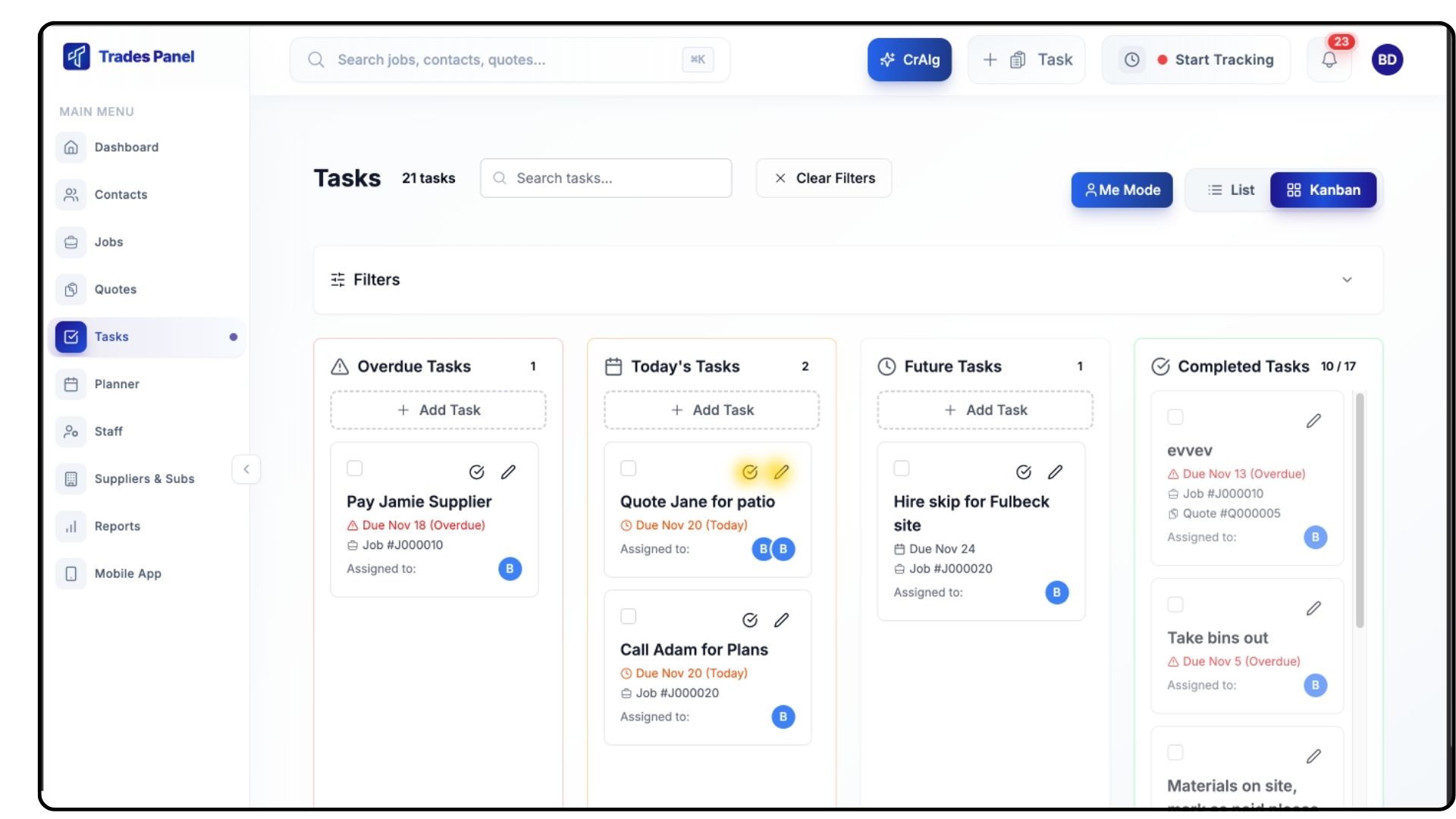
To mark a task as complete, click the Tick Icon next to it.
To edit a task, click the Pen Icon on the right-hand side.
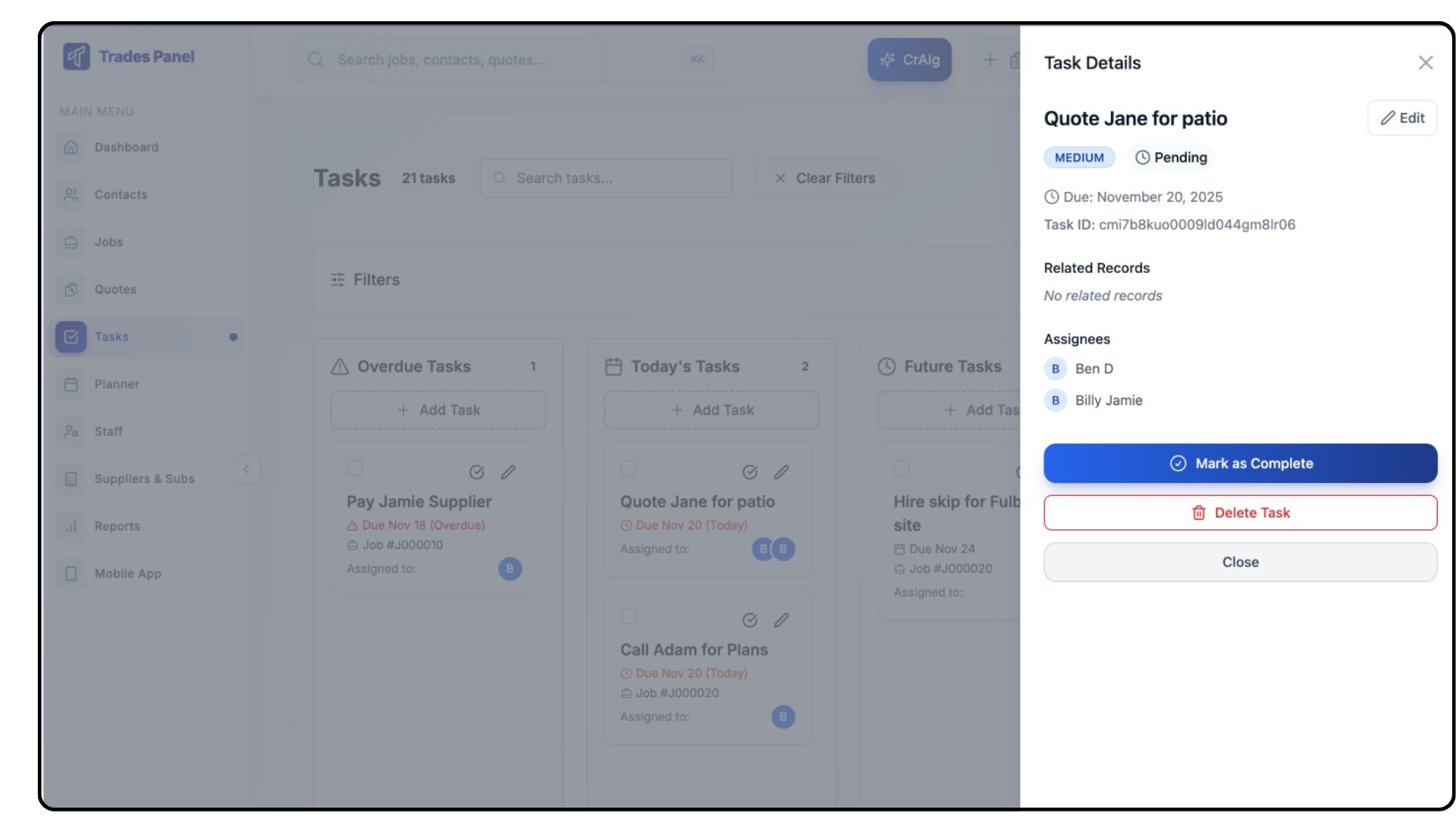
A pop-up window will open, allowing you to:
Mark it as complete
Edit details
Delete the task
Once saved or closed, the task list will update automatically.
Creating a New Task
What It Does
Lets you assign work to yourself or your team, link tasks to jobs, quotes, or customers, and set deadlines and priorities.
Steps
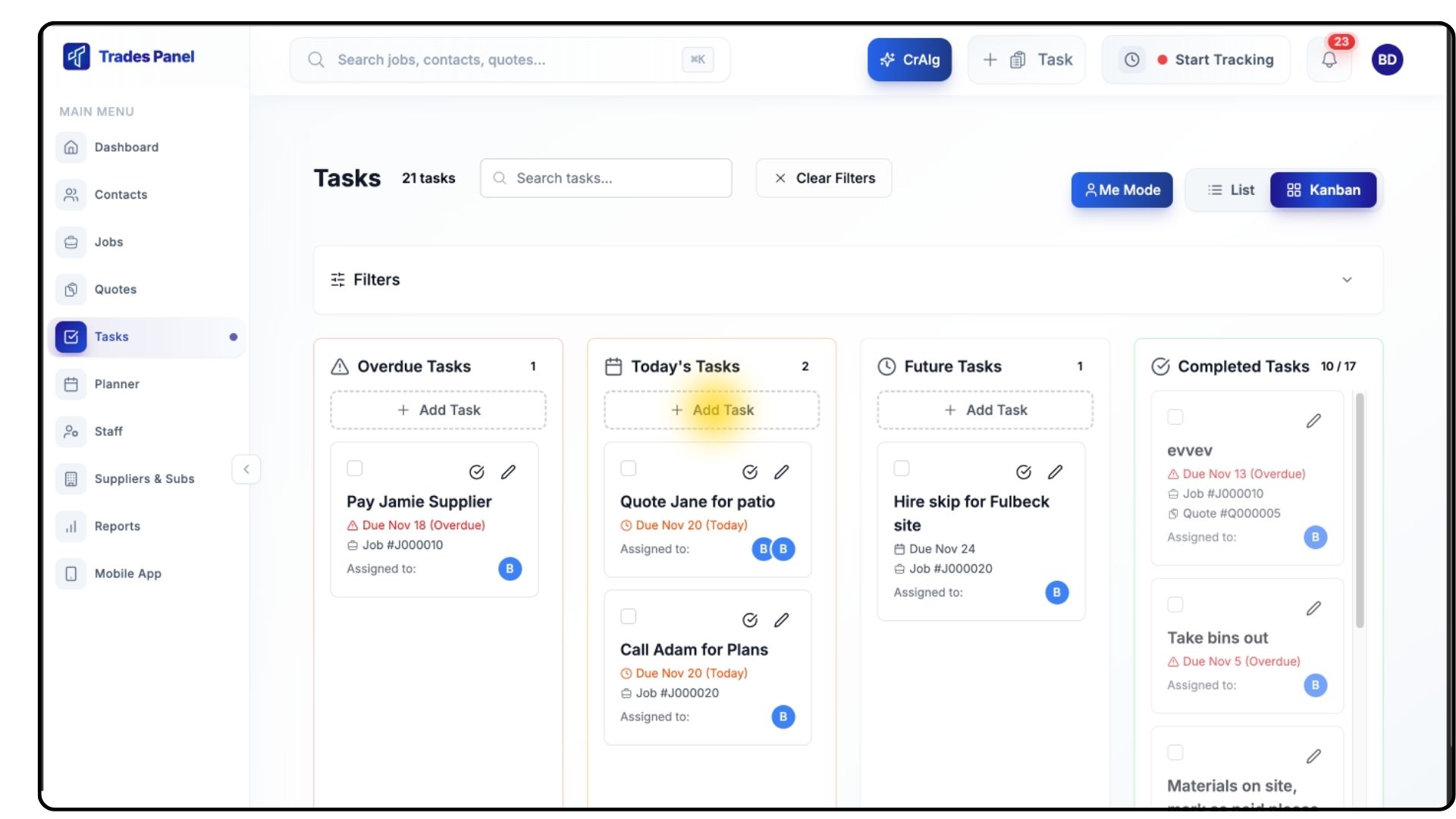
Click Add Task at the top of any section.
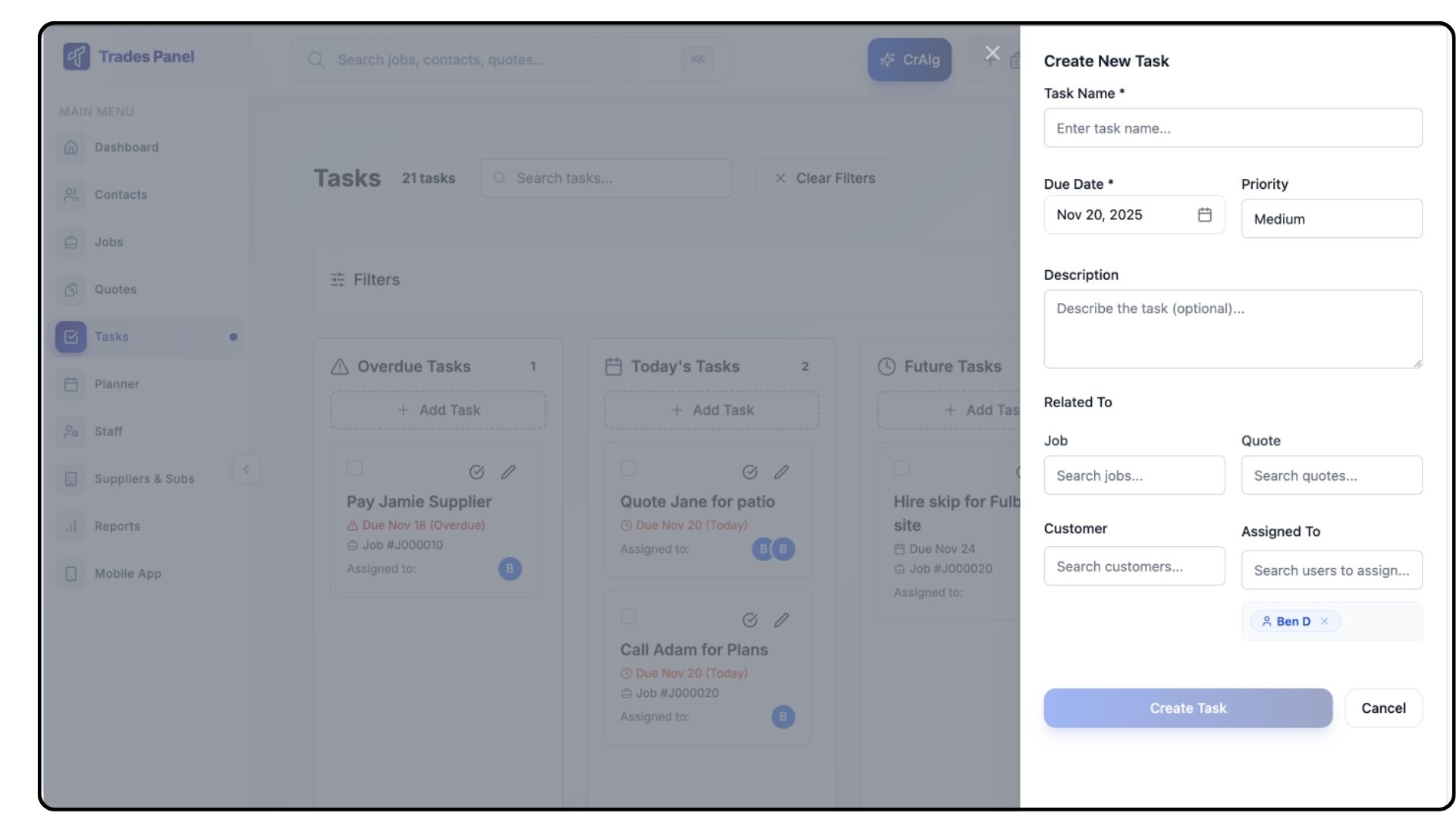
Fill in the required fields:
Task Name
Due Date
Priority Level (Low, Medium, High, Urgent)
Description
If applicable, link the task to a:
Job
Quote
Customer
Assign the task to yourself or a team member.
Click Create Task.
The task will now appear in the appropriate section based on its due date.
Viewing Today’s Tasks from the Dashboard
What It Does
Gives you a quick snapshot of tasks due today or overdue, directly from the Dashboard.
Steps
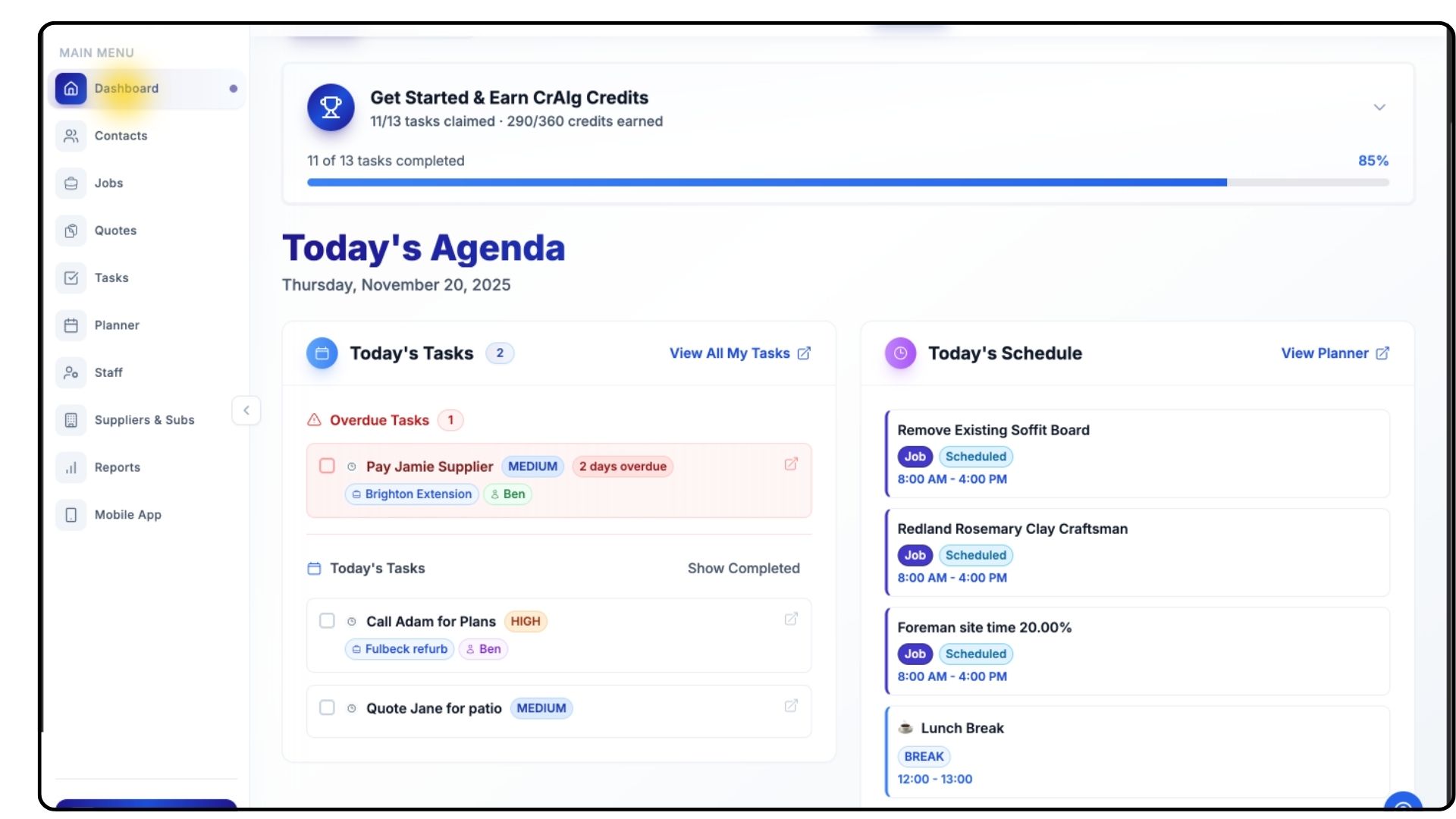
Go to the Dashboard from the main menu.
You’ll see a simplified list of:
Today’s Tasks
Overdue Tasks
Mark a task as complete by clicking the small square next to it.
Click View All My Tasks to return to the full Tasks page.
Common Questions
Q: Can I assign multiple staff members to a task?
No — each task can be assigned to one staff member.
Q: Can tasks be linked to more than one job or quote?
No, but you can describe multi-job tasks in the description field.
Q: Can I hide completed tasks?
Yes — switch to Kanban View or filter out completed tasks using the Filter dropdown.
Q: Do tasks appear in the Planner?
Only if they are linked to a scheduled event or line item; standalone tasks remain in the Tasks section.
Q: Can team members edit tasks assigned to them?
Yes — unless restricted by their account role.