What It Does
The Working Hours and Auto Clock-Out settings allow you to define your company’s standard working schedule and ensure staff are automatically clocked out when they forget to do so manually. These settings maintain accurate time tracking, pay calculations, and planner visibility.
Accessing Working Hours & Auto Clock-Out Settings
What It Does
This is where you manage your organisation-wide working hours and automated clock-out rules.
Steps
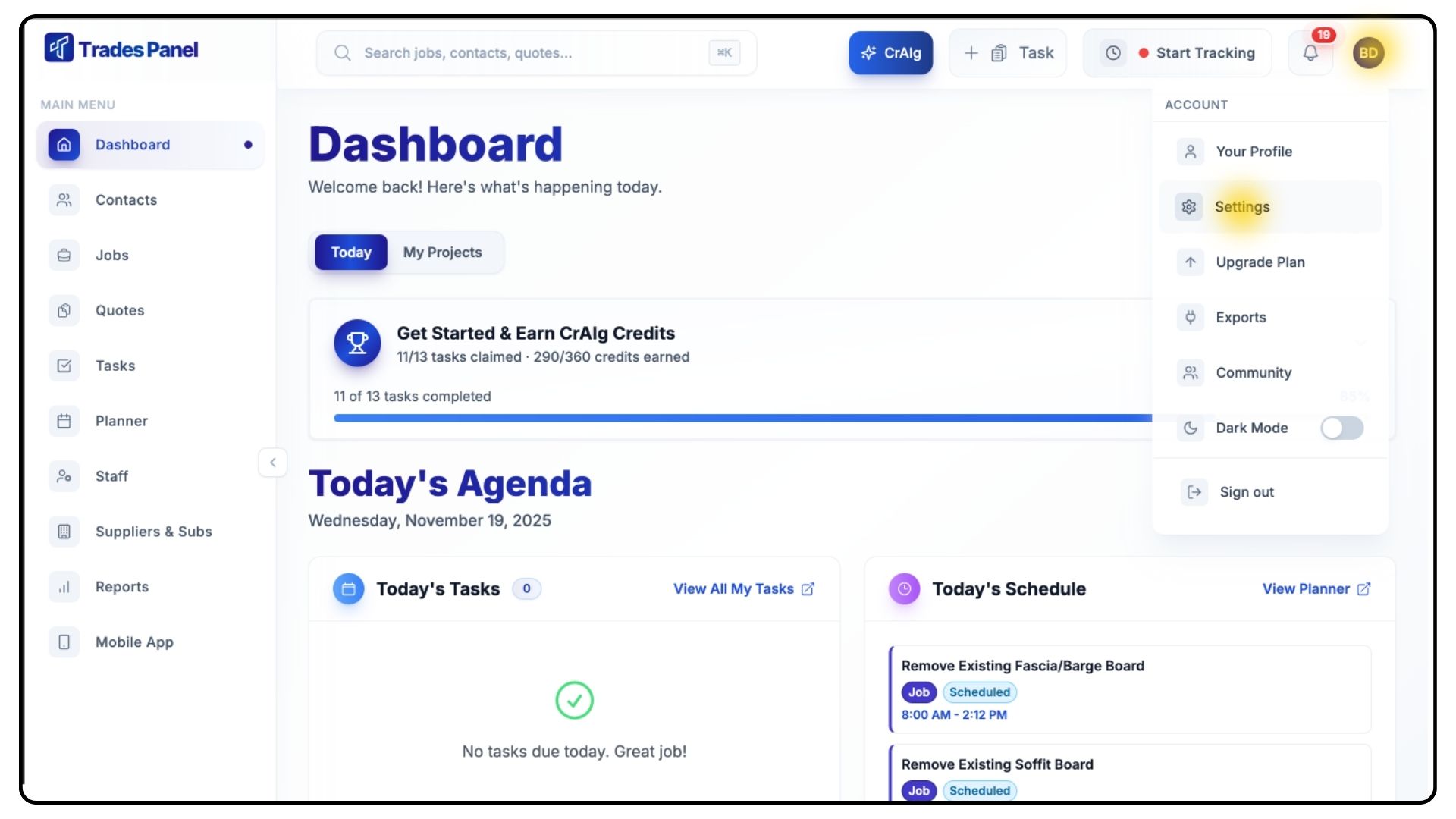
Click your Profile Icon in the top-right corner.
Select Settings from the dropdown menu.
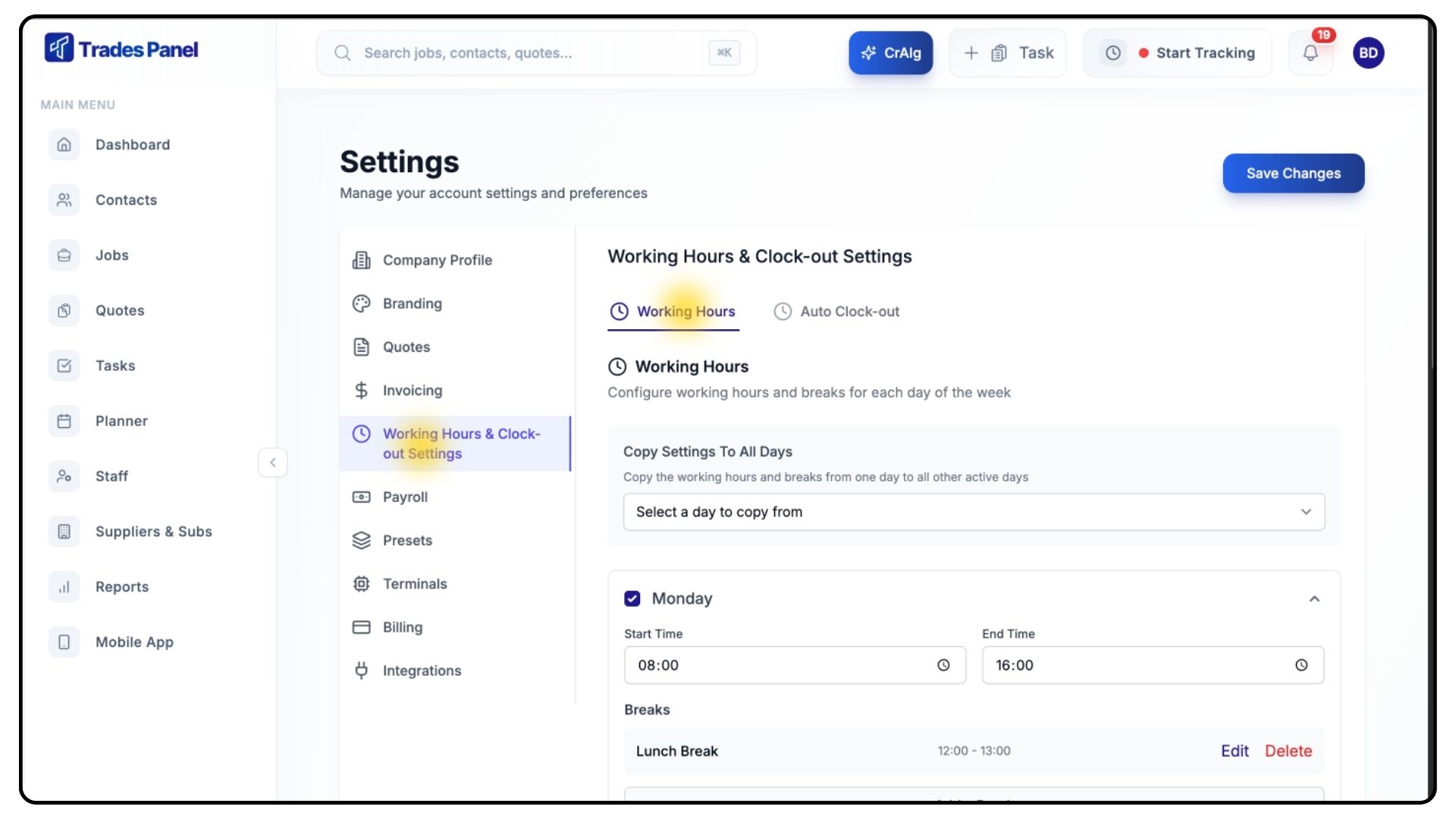
From the left-hand menu, click Working Hours & Clock-Out Settings.
Setting Standard Working Hours
What It Does
Defines your company’s working days, start and end times, and break periods.
These hours appear on your planner and are used to calculate hourly pay rates.
Steps
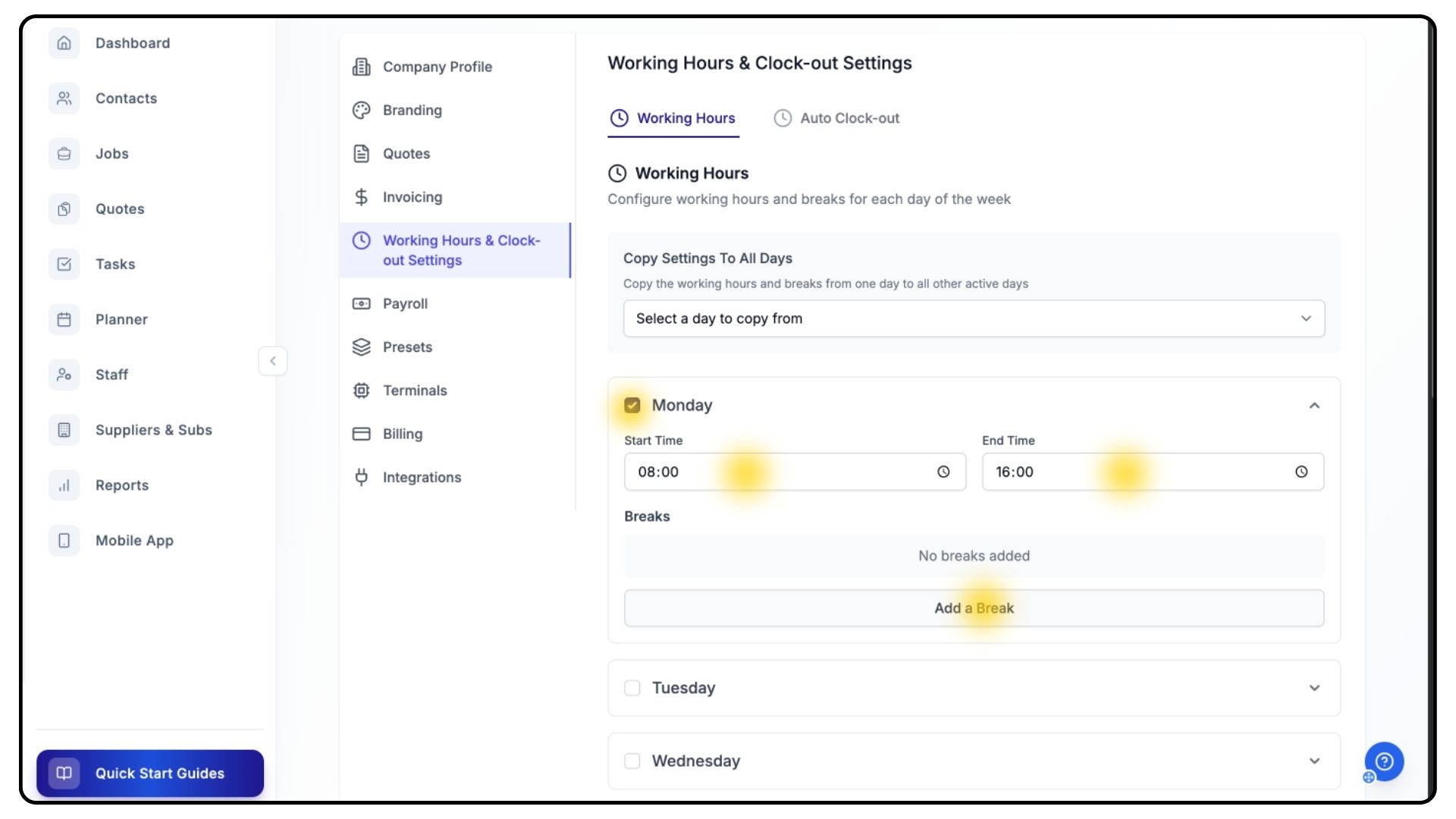
Use the tick boxes to select which days of the week your team works.
Set your Start Time and End Time for each day.
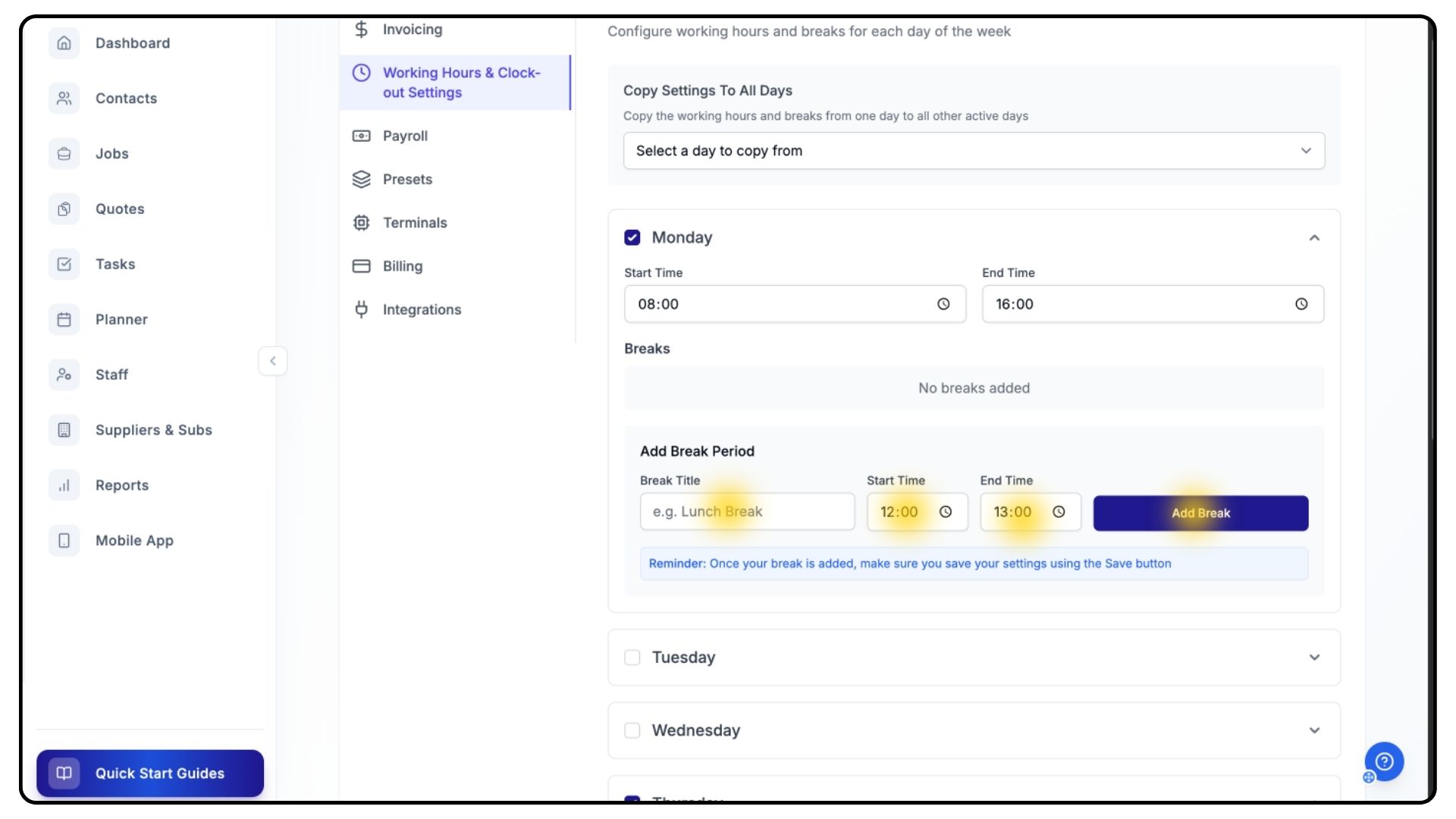
To add breaks:
Click Add Break
Enter a Break Title
Choose the Start and End Times
You can add as many breaks as needed.
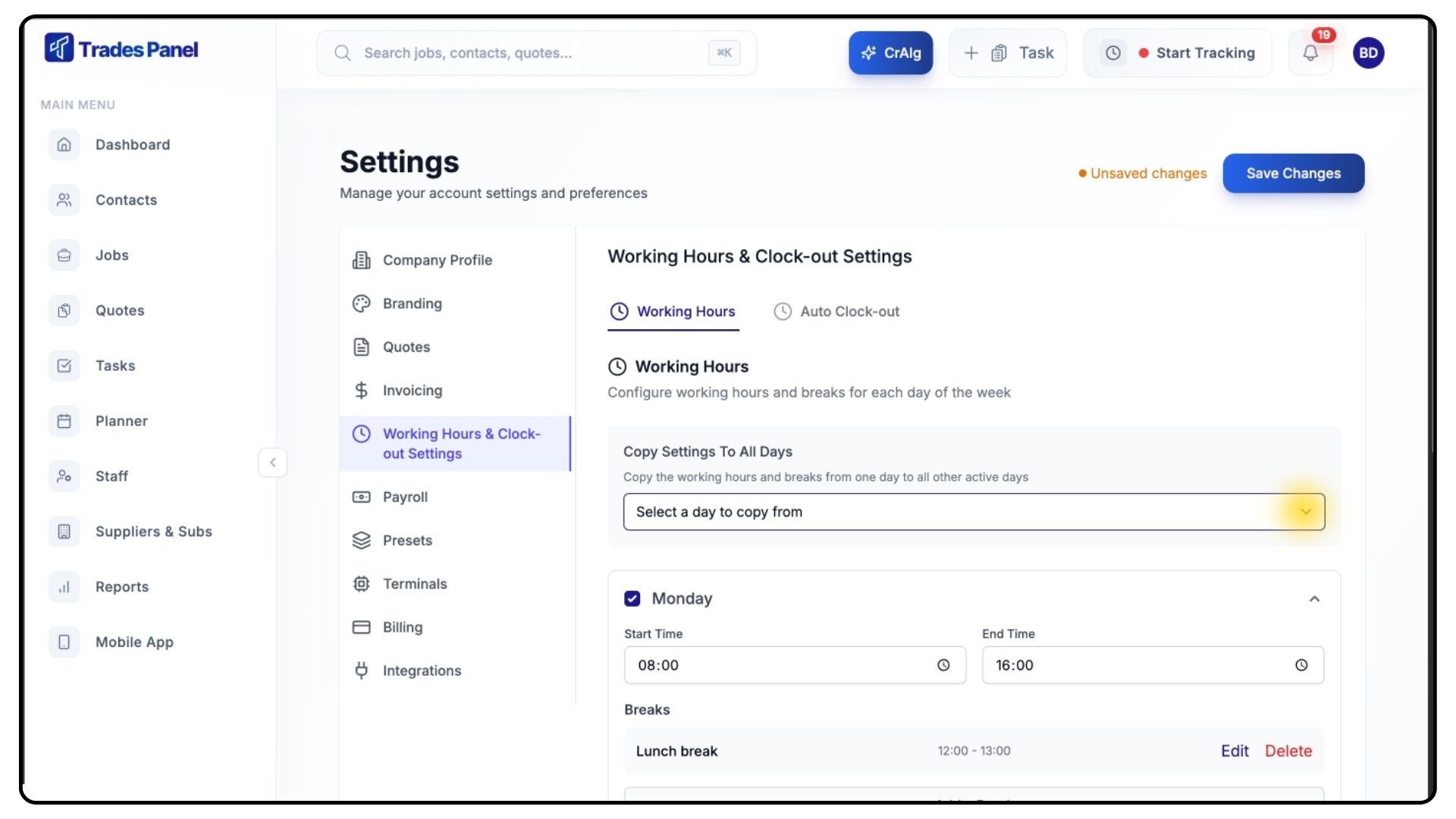
If multiple days follow the same schedule, use the Copy From dropdown:
Select the day you want to copy
The system will apply those hours across the week
When everything is set, click Save Changes in the top-right corner.
Setting Up Auto Clock-Outs
What It Does
Automatically clocks out staff when they forget to do so manually, keeping timesheets accurate.
Steps
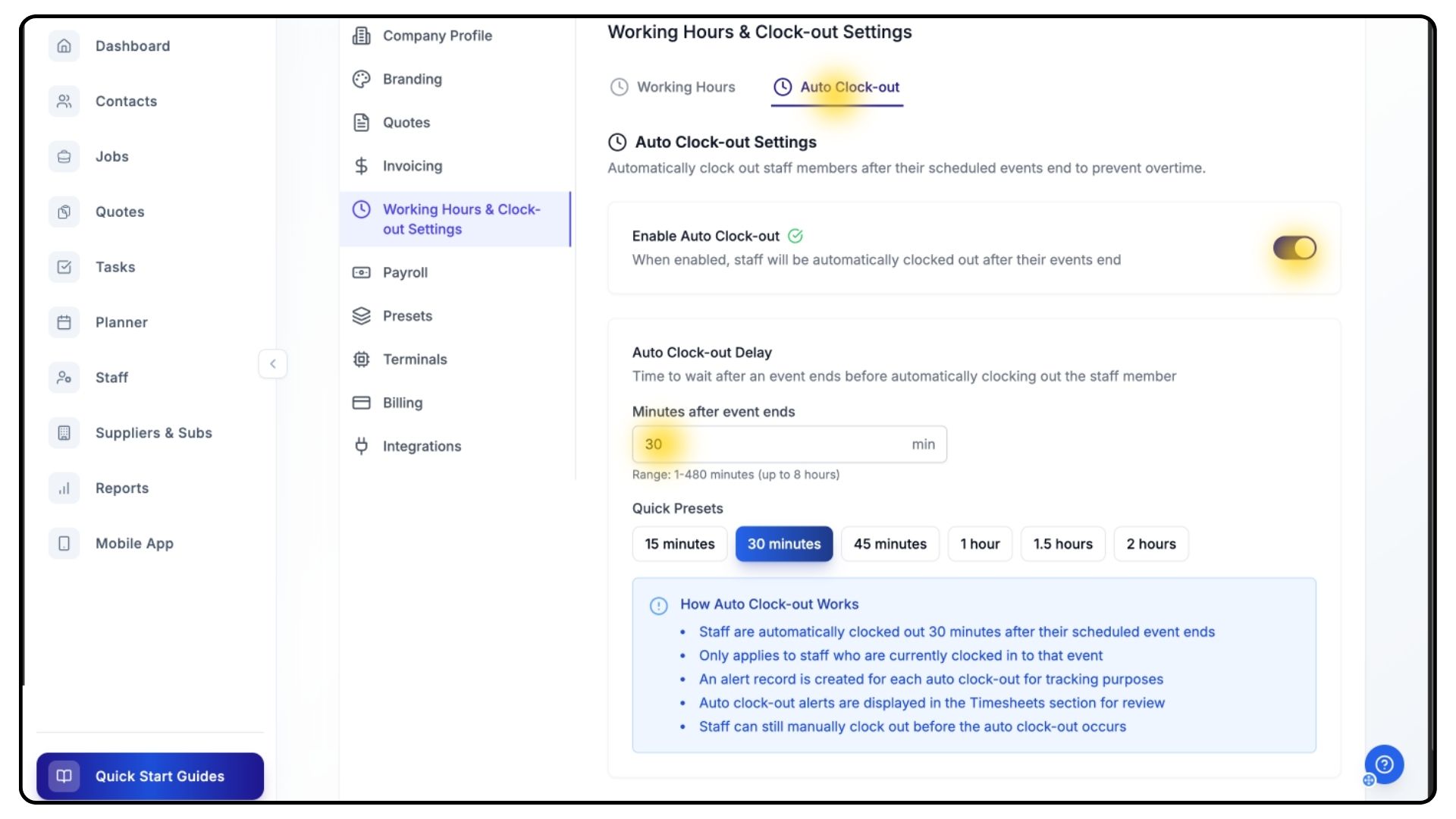
Click the Auto Clock-Out tab at the top of the page.
Toggle Auto Clock-Out ON.
Enter how many minutes after an event ends the system should auto clock out staff
— or select one of the preset options.
Click Save Changes in the top-right corner to activate your settings.
Learn more about time tracking.
Common Questions
Q: Do working hours affect hourly rate calculations?
Yes — hourly rates are calculated from day rates divided by your set working hours.
Q: Can individual staff have custom working hours?
Not here. These settings apply company-wide. Individual adjustments can be made in staff profiles.
Q: Does Auto Clock-Out trigger if a user clocks out manually?
No — manual clock-outs always override auto clock-outs.
Q: Can I turn Auto Clock-Out off later?
Yes, you can toggle it off at any time.
Q: What happens if someone works outside the defined hours?
Their clock-in and clock-out will still be recorded as normal.