What It Does
The Terminal feature provides a shared on-site access point where staff can log in, clock in and out, view their tasks, see their daily schedule and job-related documents.
It’s ideal for busy sites with multiple team members using a single device — such as a site office, welfare cabin, or sign-in station.
Accessing the Terminal Settings
What It Does
This is where you create and manage terminals, generate terminal codes, and control login access.
Steps
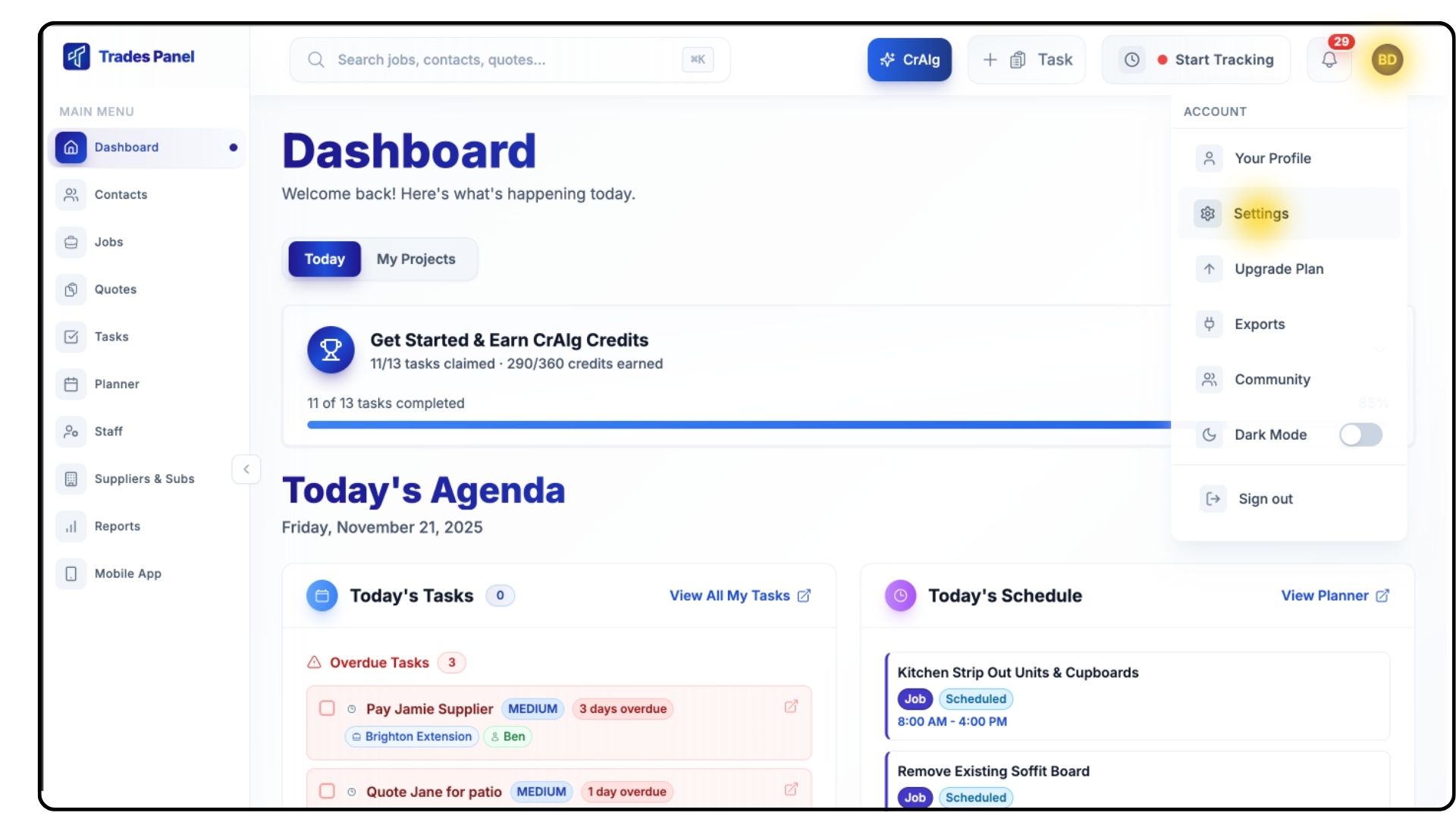
Click your Profile Icon in the top-right corner and select Settings.
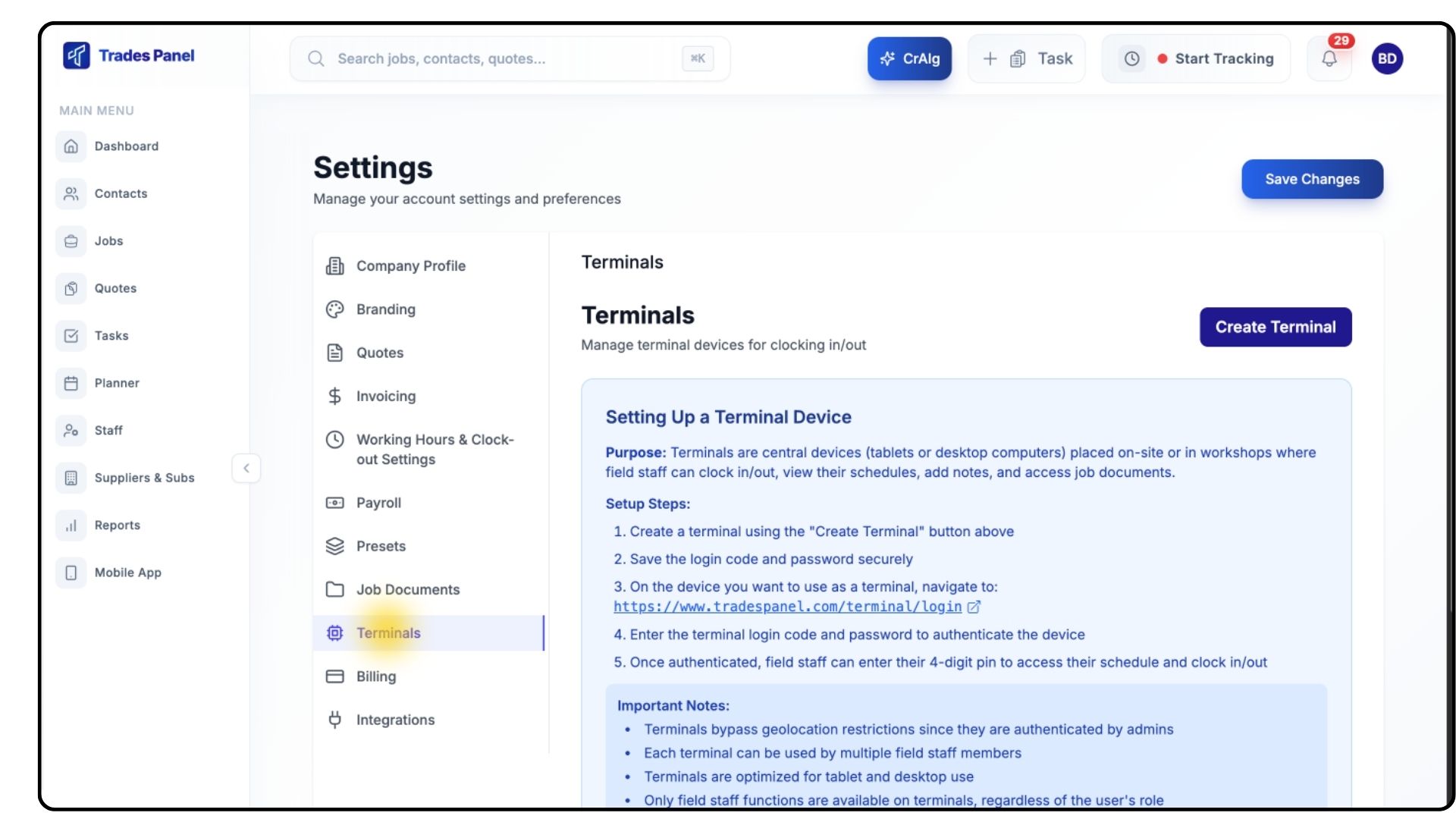
From the left-hand menu, click Terminals.
Creating a New Terminal
What It Does
Allows you to set up a dedicated device that staff can use to clock in, log activity, and access task information.
Steps
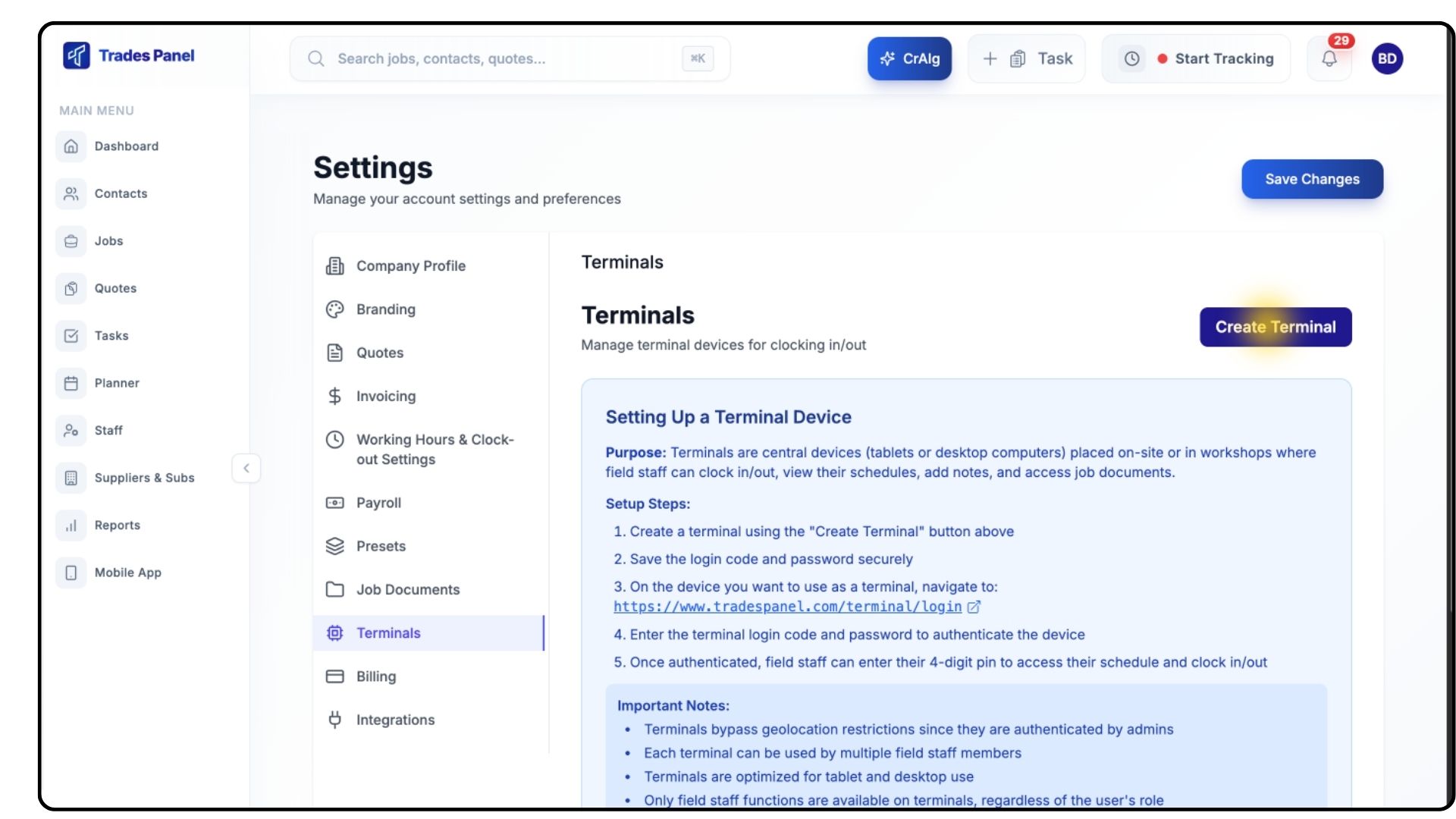
Click Create Terminal.
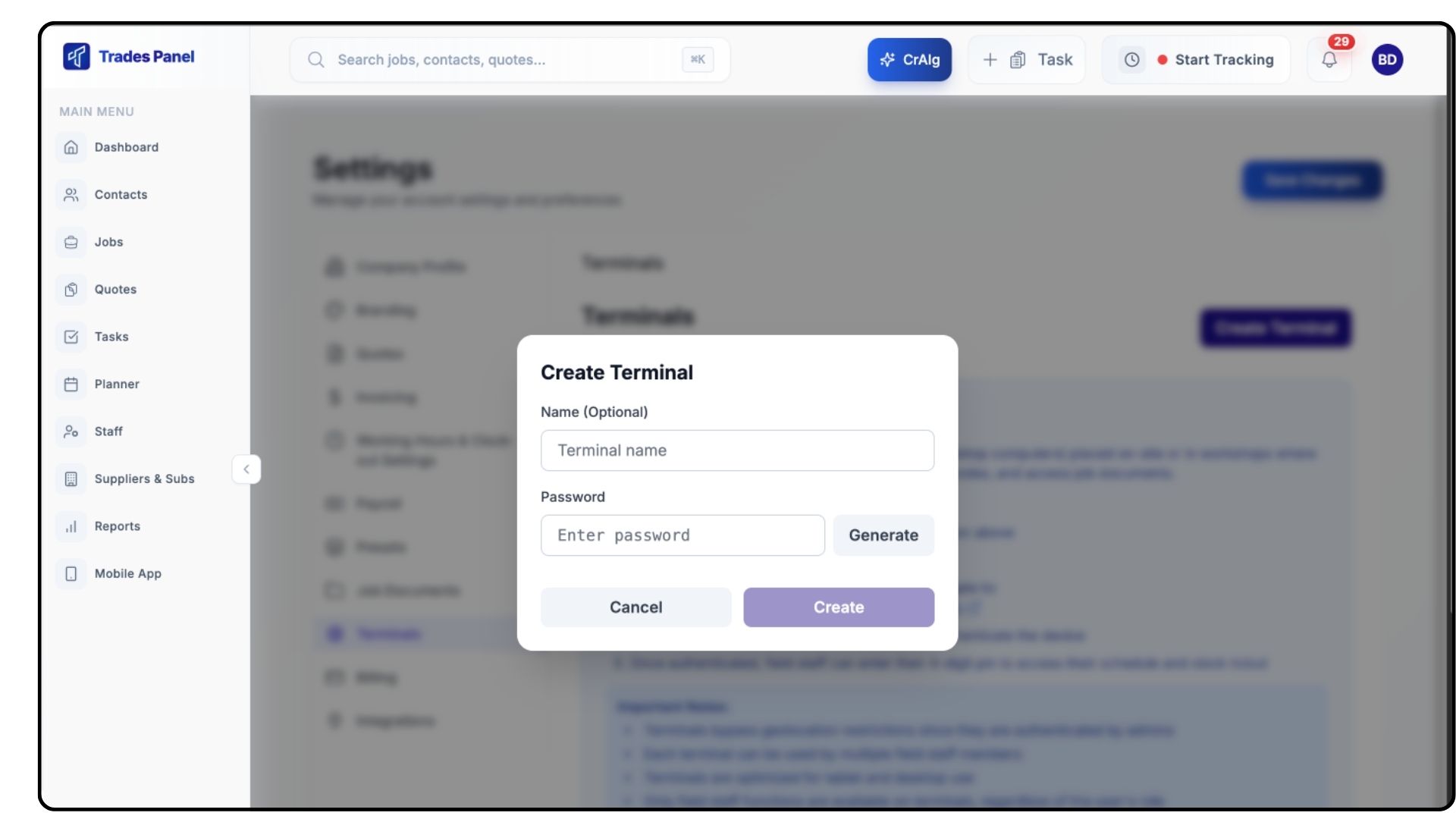
Enter a clear Terminal Name.
Set a Password for accessing the terminal.
Click Save.
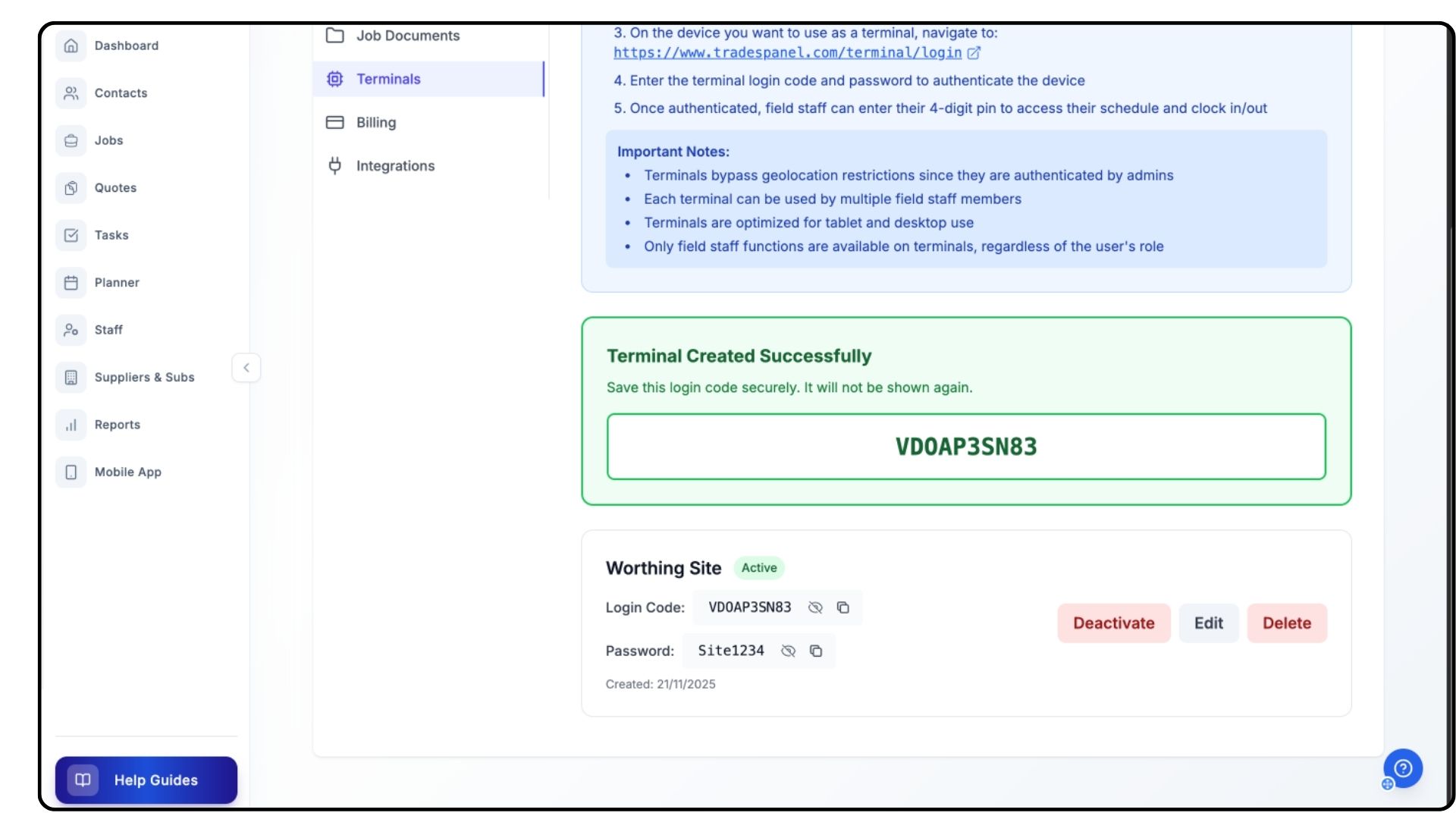
A Unique Terminal Code will now appear — make a note of this, as you’ll need it when logging into the terminal device.
Logging into the Terminal Device
What It Does
Lets you activate the terminal using your unique code and password so staff can begin clocking in.
Steps
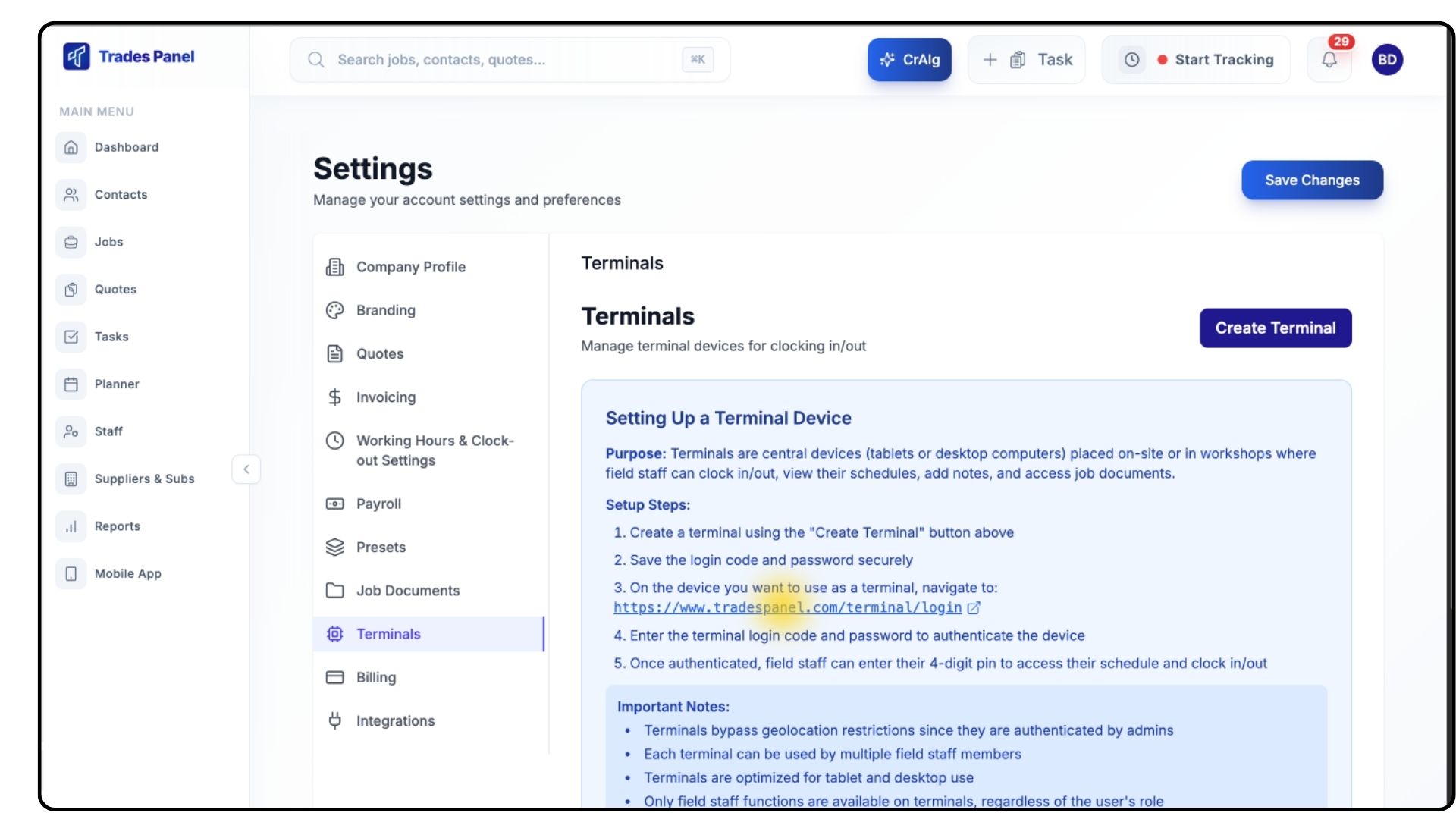
Follow the link provided in the Terminal description.
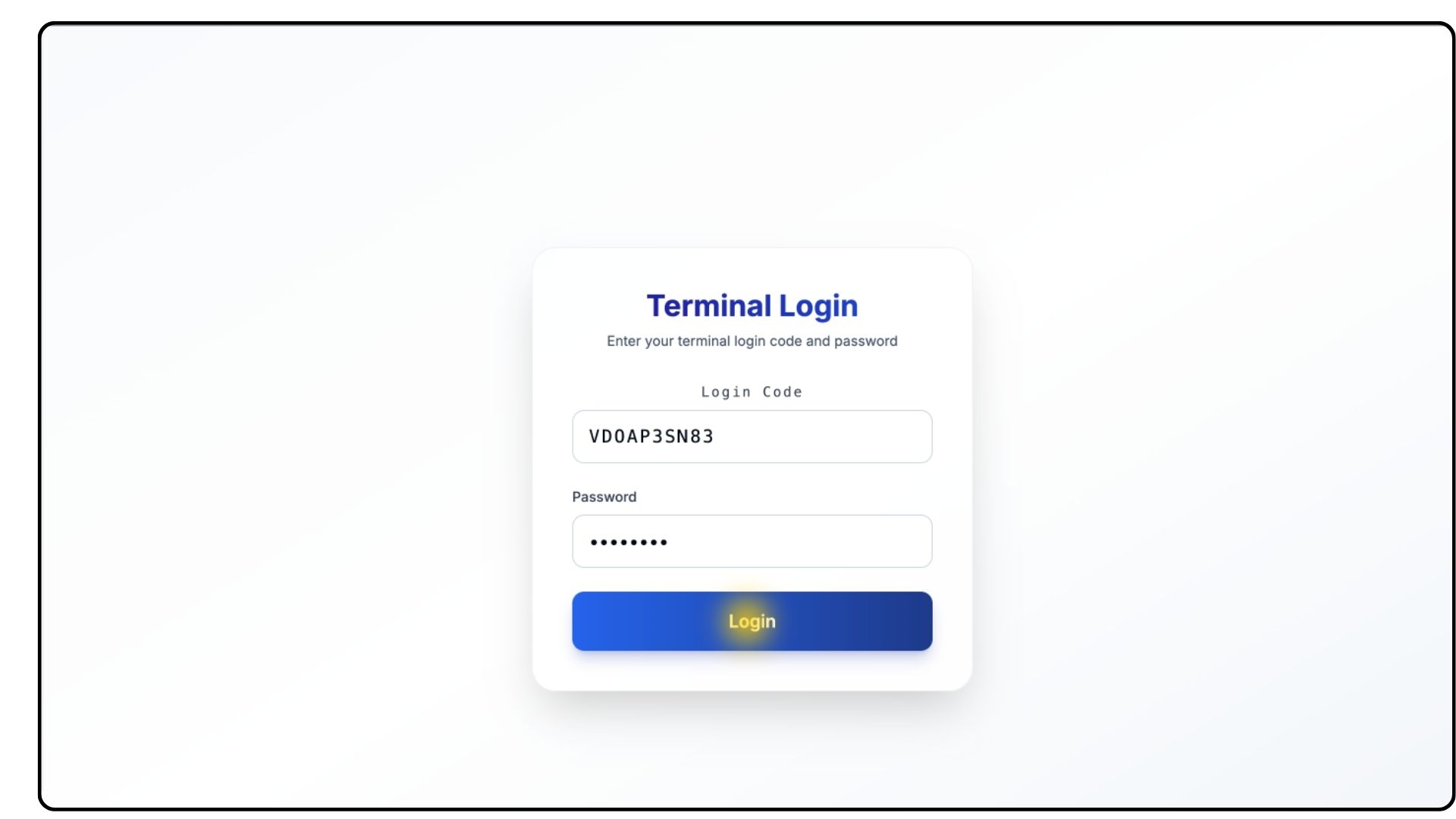
Enter your Terminal Code in the first box.
Enter the Password you created.
If you forget these details at any point, return to the Terminals page in Settings to view or reset them.
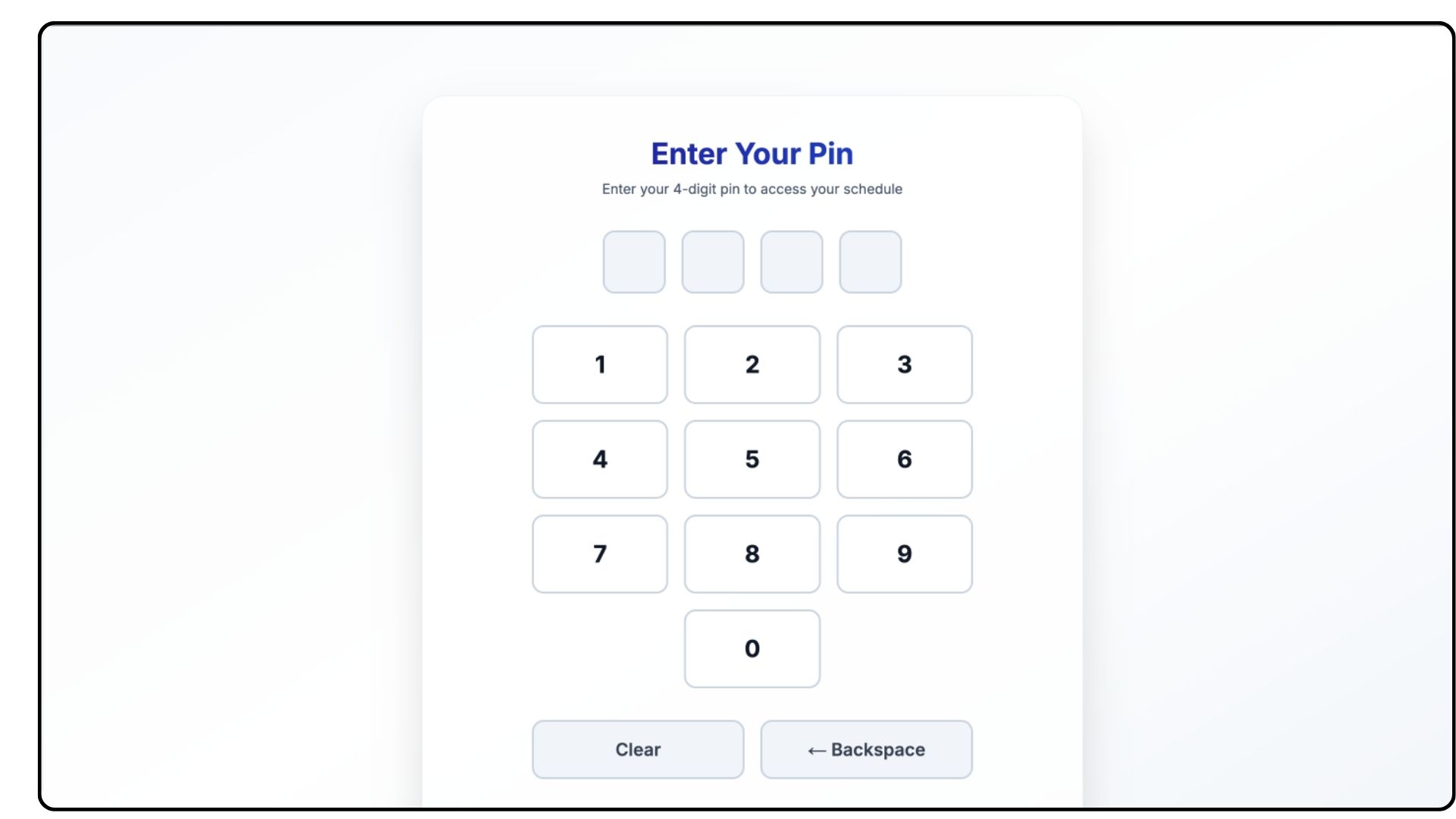
Once logged in, you’ll see a keypad — this is where staff enter their PINs to access their account.
Setting Up Staff PINs
What It Does
Staff must have a PIN assigned to log in and clock in using the Terminal.
Steps
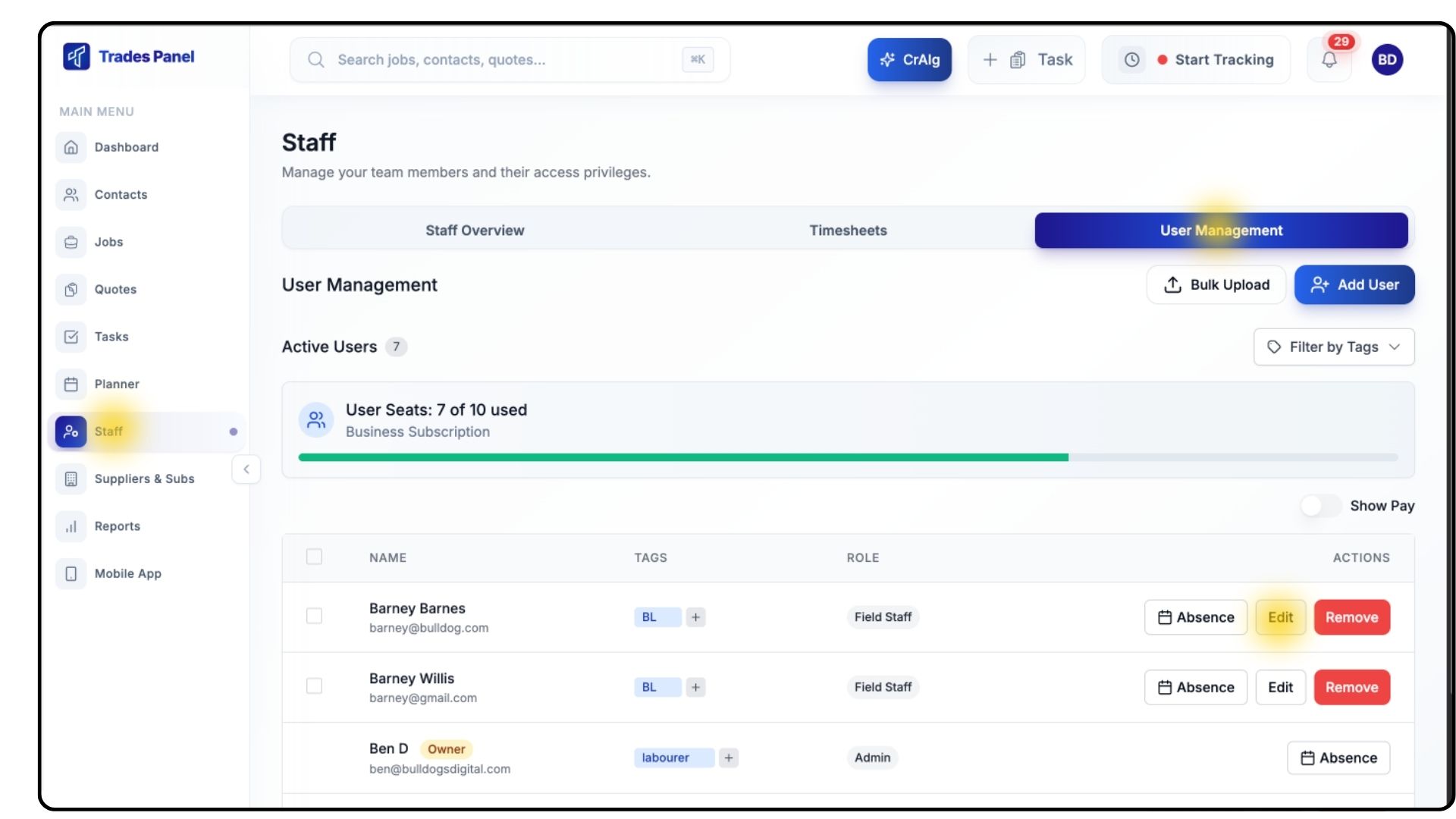
Go to Staff in the main menu.
Select User Management.
Find the staff member you want to assign a PIN to and click Edit.
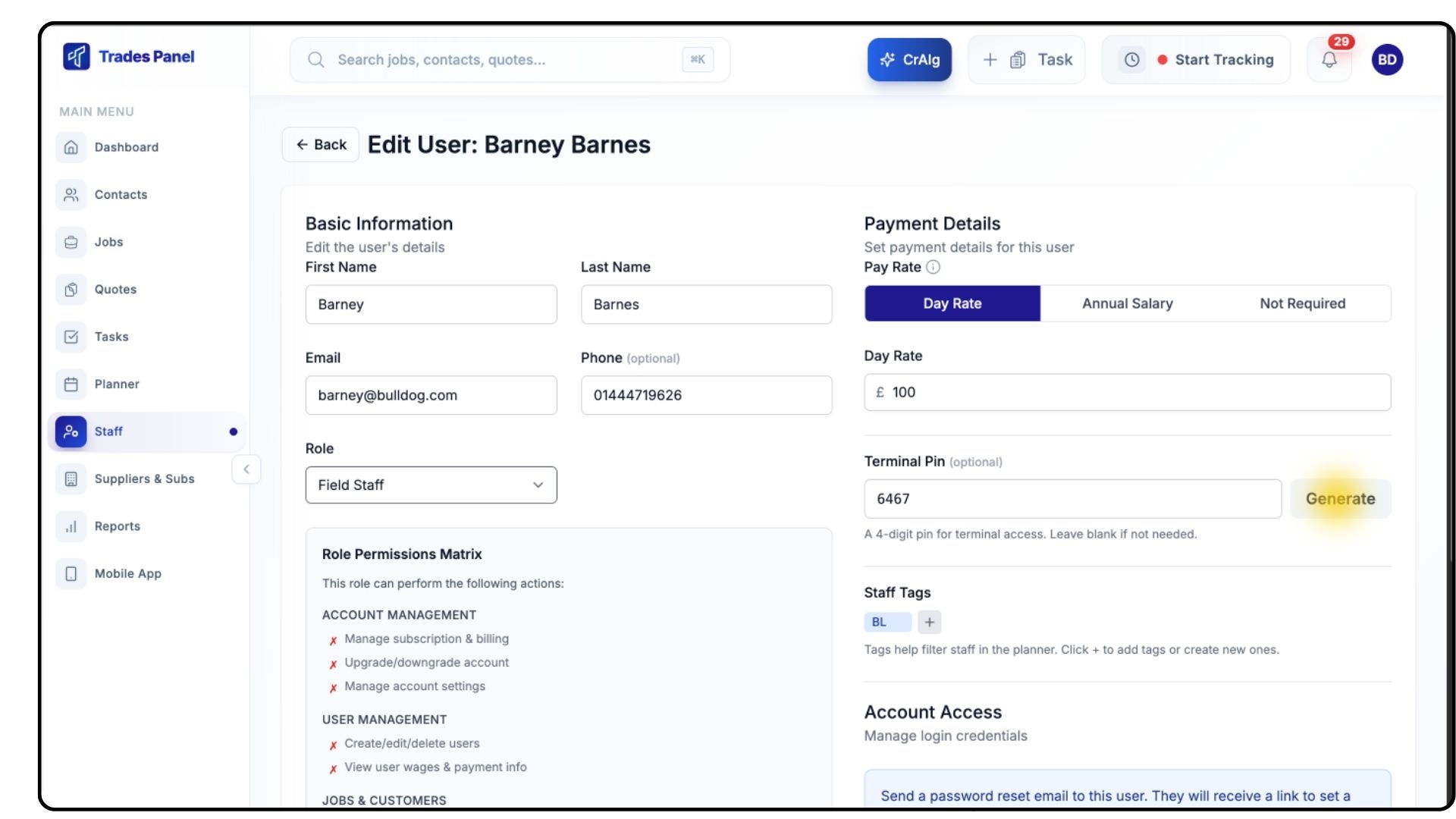
Enter a new PIN manually or click Generate to create one automatically.
Click Save Changes in the bottom-right corner.
Using the Terminal On-Site
What It Does
Gives staff a shared hub to access their schedules, log time, and complete daily tasks.
Steps
Staff enter their PIN via the keypad to log in.
They can now:
View their daily schedule
See their assigned tasks and job items
Access notes and documents linked to their jobs
Clock in and out for each event or job item
All clock-ins and clock-outs recorded via the terminal sync automatically with Timesheets and Staff Overview.
Common Questions
Q: Can we have more than one terminal?
Yes — create as many as you need for different sites or locations.
Q: What happens if a staff member forgets their PIN?
Admins can view or reset it by editing the staff member’s details in User Management.
Q: Does the terminal work on tablets or only computers?
Terminals work on all devices, apart from mobile.
Q: Do staff need an account to use the terminal?
Yes — each person must be added as a user and assigned a PIN.