What It Does
The Documents section in Trades Panel allows you to upload, store, and organise all job-related files directly within your project.
This ensures your team can easily access the information they need at any time, keeping everything in one place.
The Notes section complements this by providing a space for team communication, progress tracking, and actionable task creation.
Explore document management features.
Accessing the Documents Section
What It Does
All project files can be uploaded and managed within the Documents tab of each job.
Steps
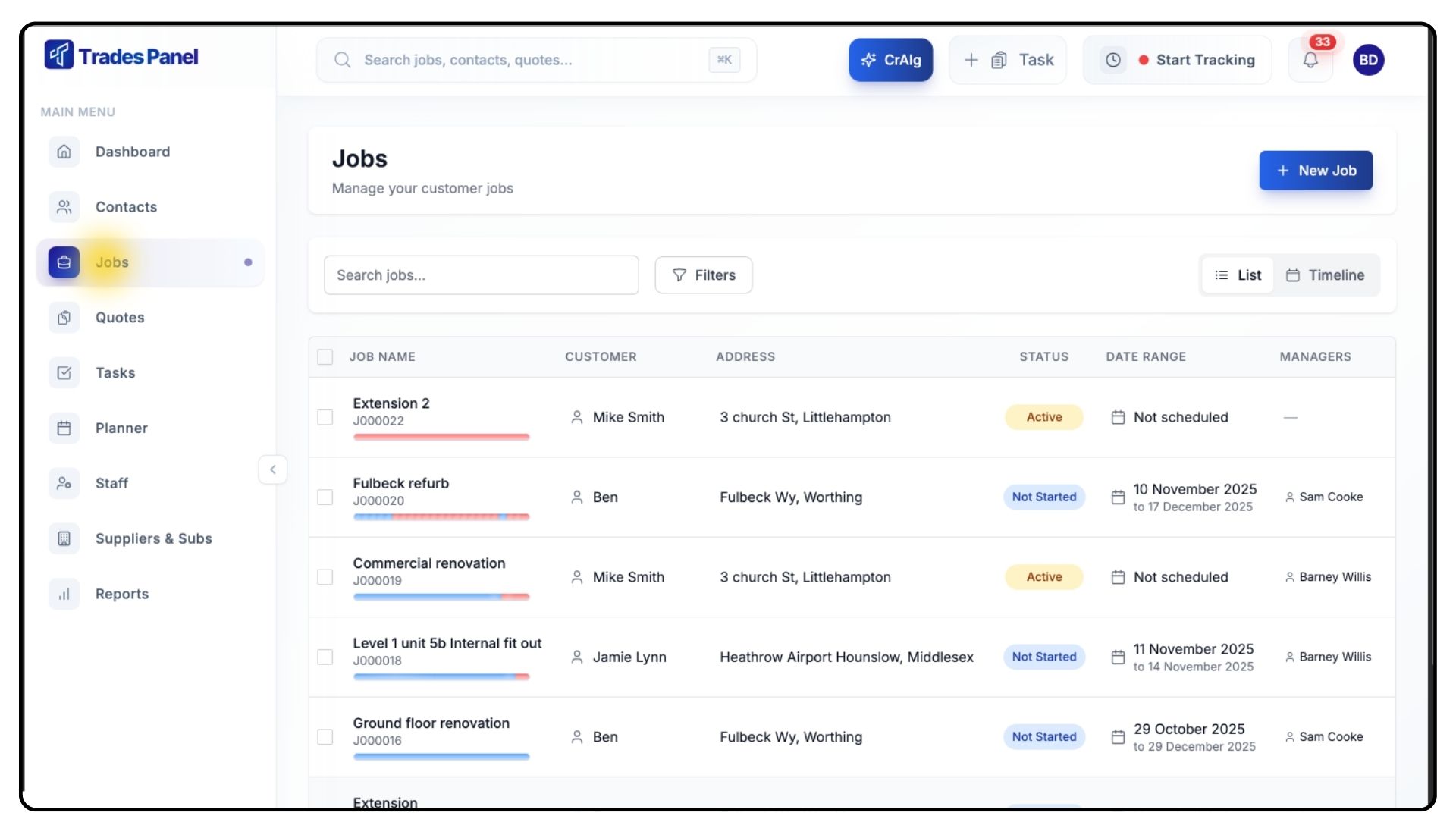
Go to Jobs from the main menu.
Open the project you want to work on.
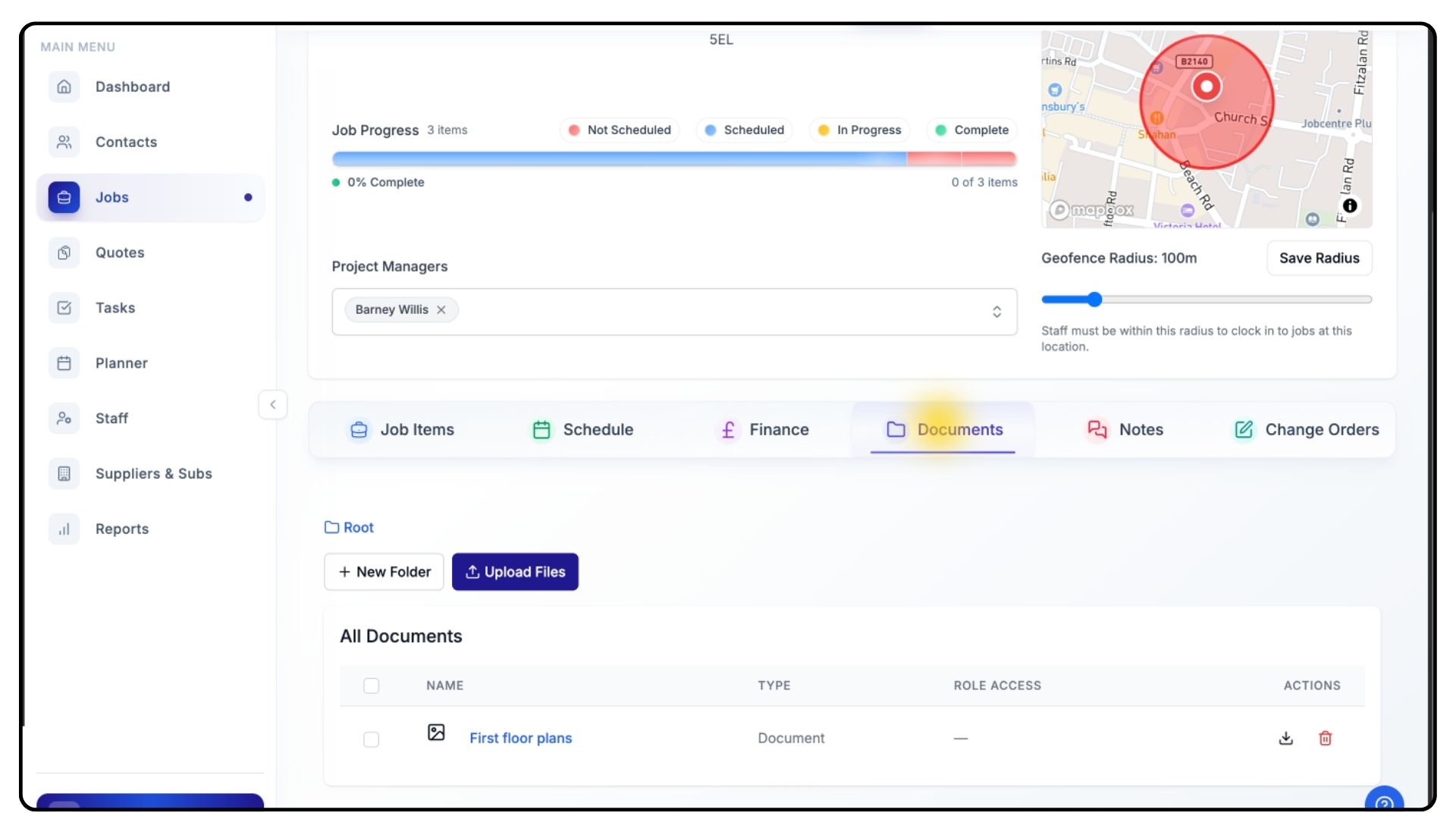
Once inside, click on the Documents tab.
This is where you can upload and organise all your job-related files.
Uploading Files
What It Does
You can upload any type of document — such as drawings, permits, purchase orders, or correspondence — directly to your job.
Steps
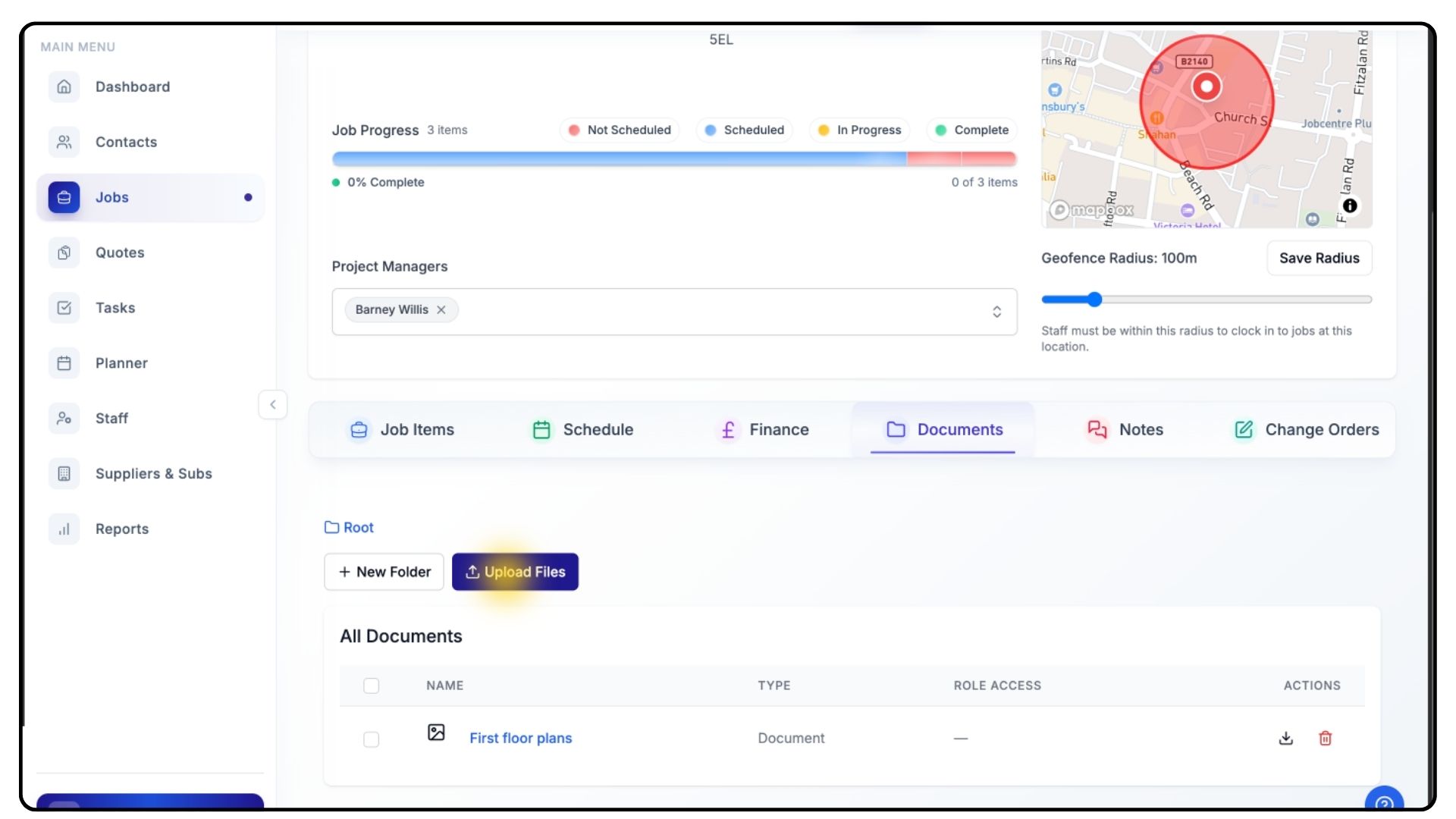
Click Upload Files.
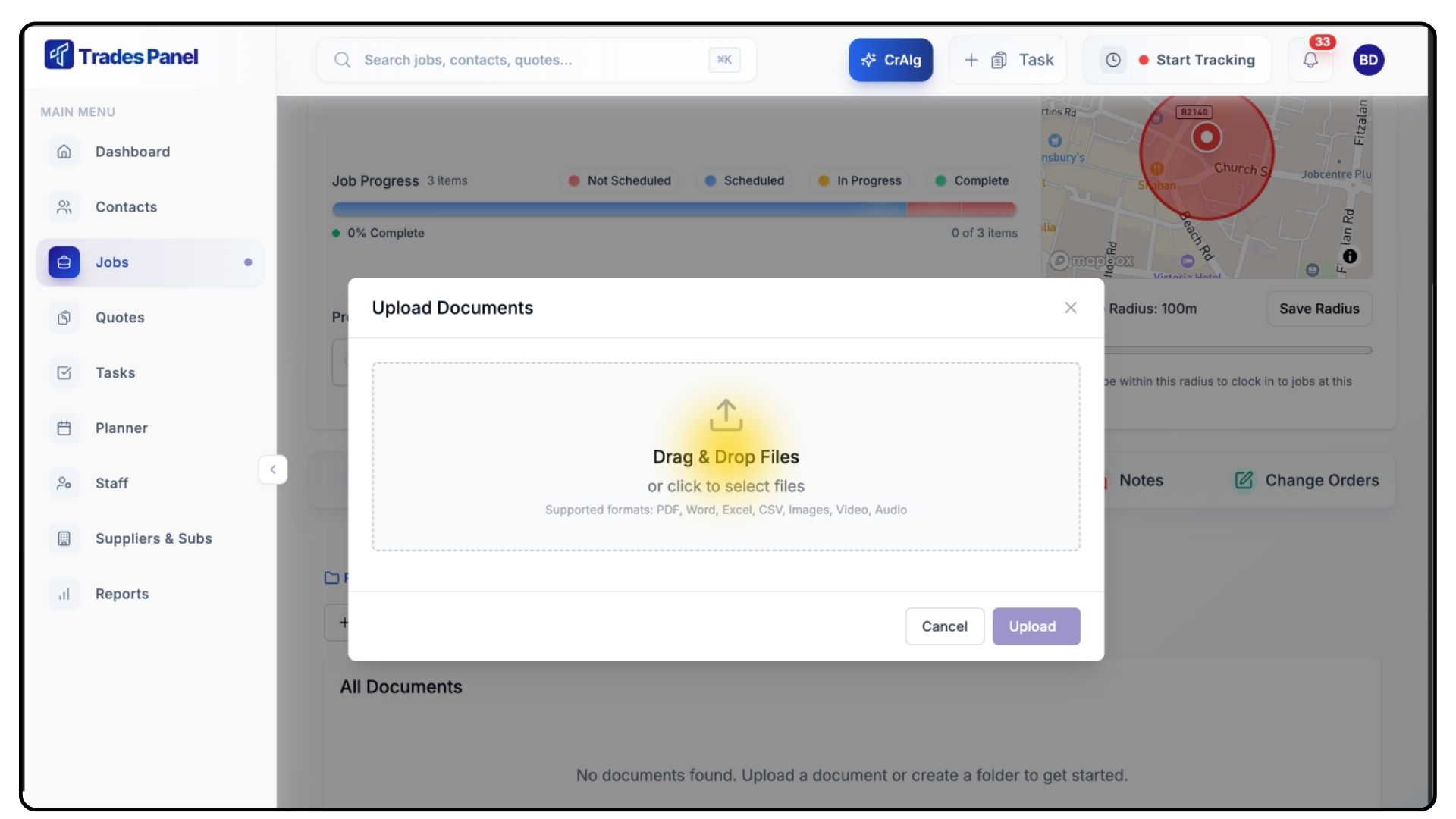
Select the document you want to add.
Give your document a clear and descriptive title so it’s easy to identify later.
Click Upload to confirm.
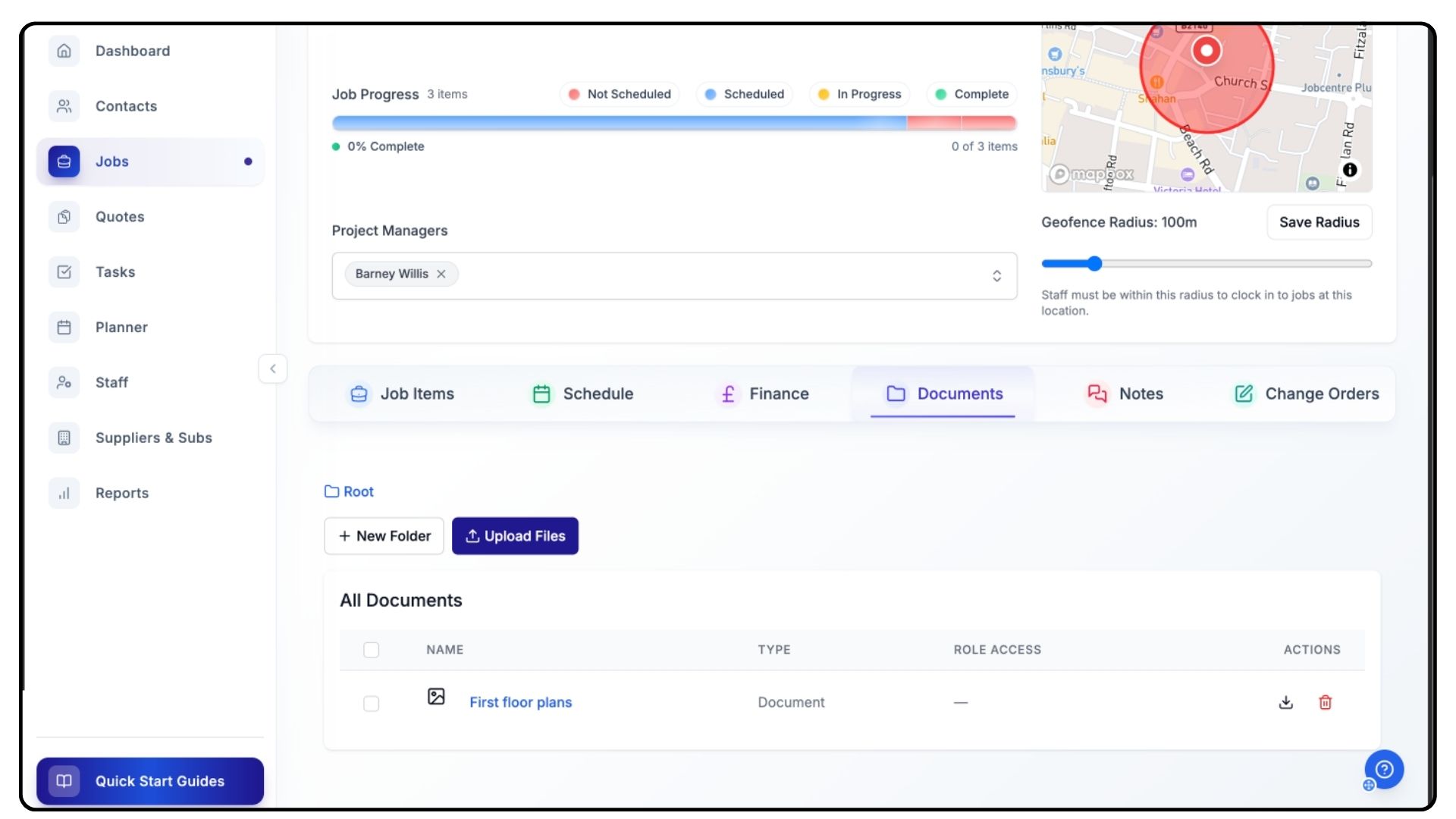
Your document will now appear in the Documents List for that project.
Creating and Managing Folders
What It Does
Folders help you keep your files structured and easy to navigate. Trades Panel allows you to create unlimited nested folders with full access control.
Steps
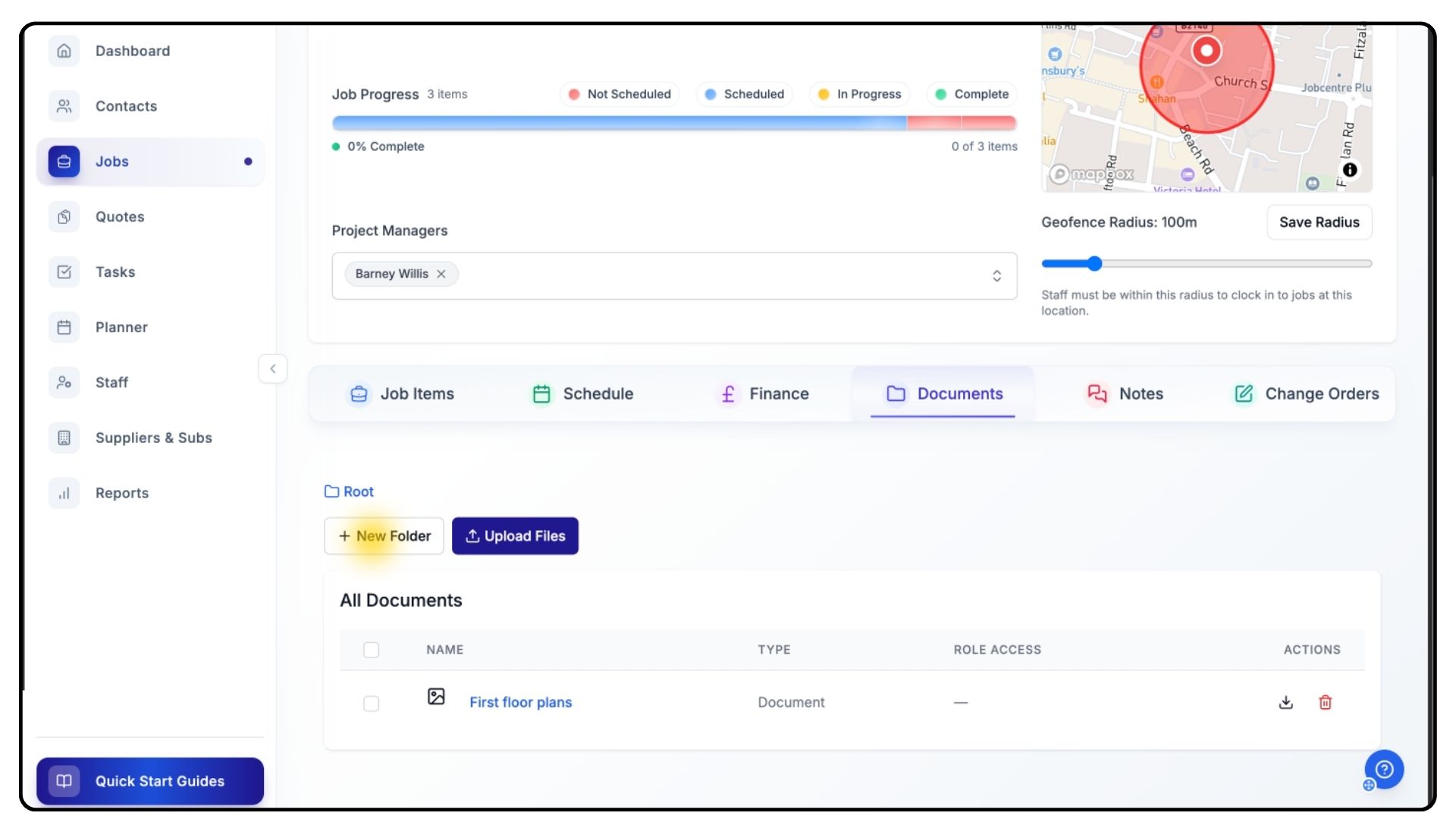
To create a folder, click Add New Folder.
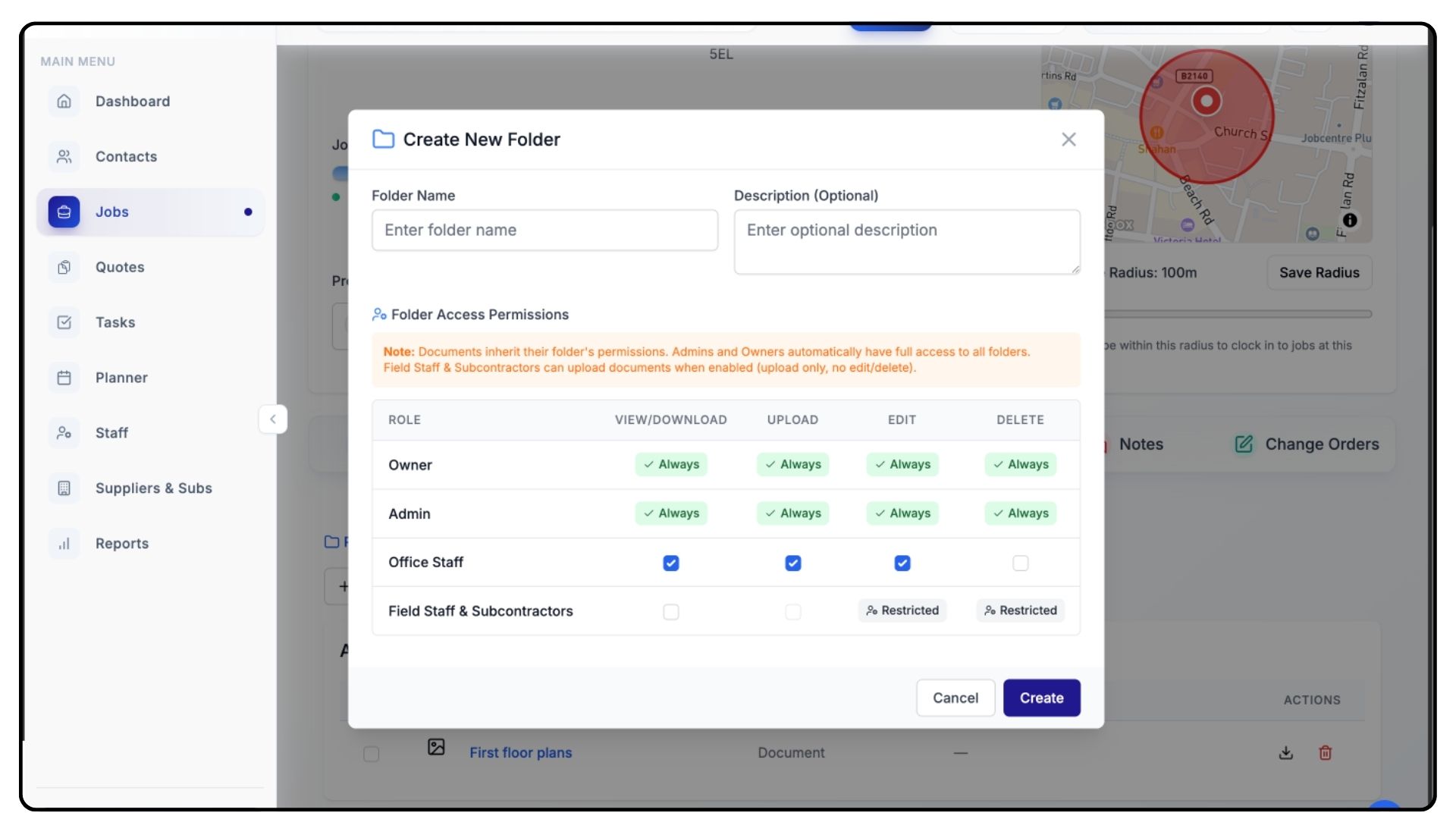
Enter a Folder Name and (optionally) a Short Description.
Set Access Permissions to control who can:
View
Edit
Download
Upload
Delete files within that folder.
Permissions can be set individually for each user role — just tick the boxes that apply.
Once you’re happy, click Create.
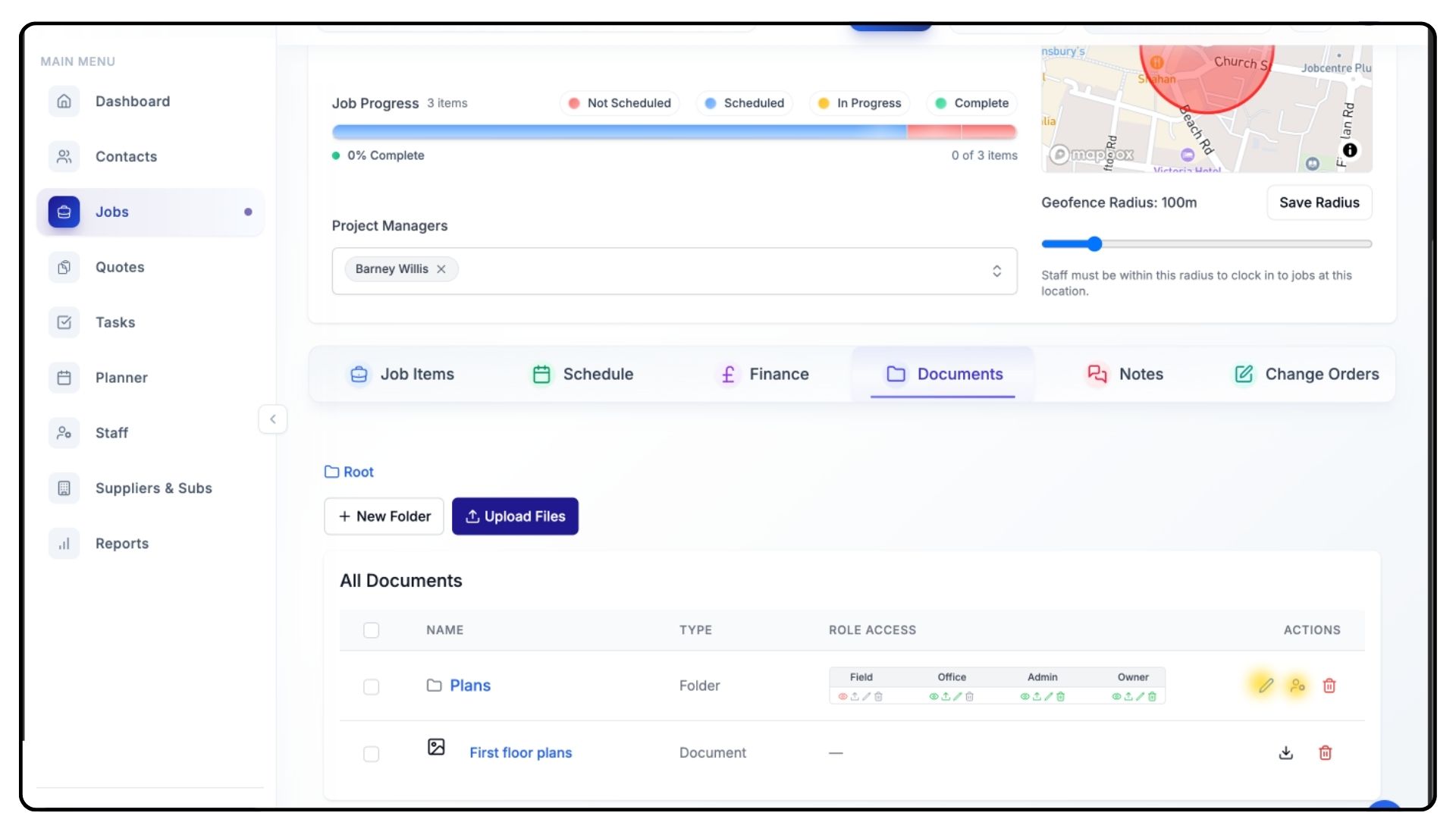
Your new folder will now appear in the Folder List.
To make changes later:
Click the Pen Icon to edit the folder name or description.
Click the Person Icon to adjust access permissions.
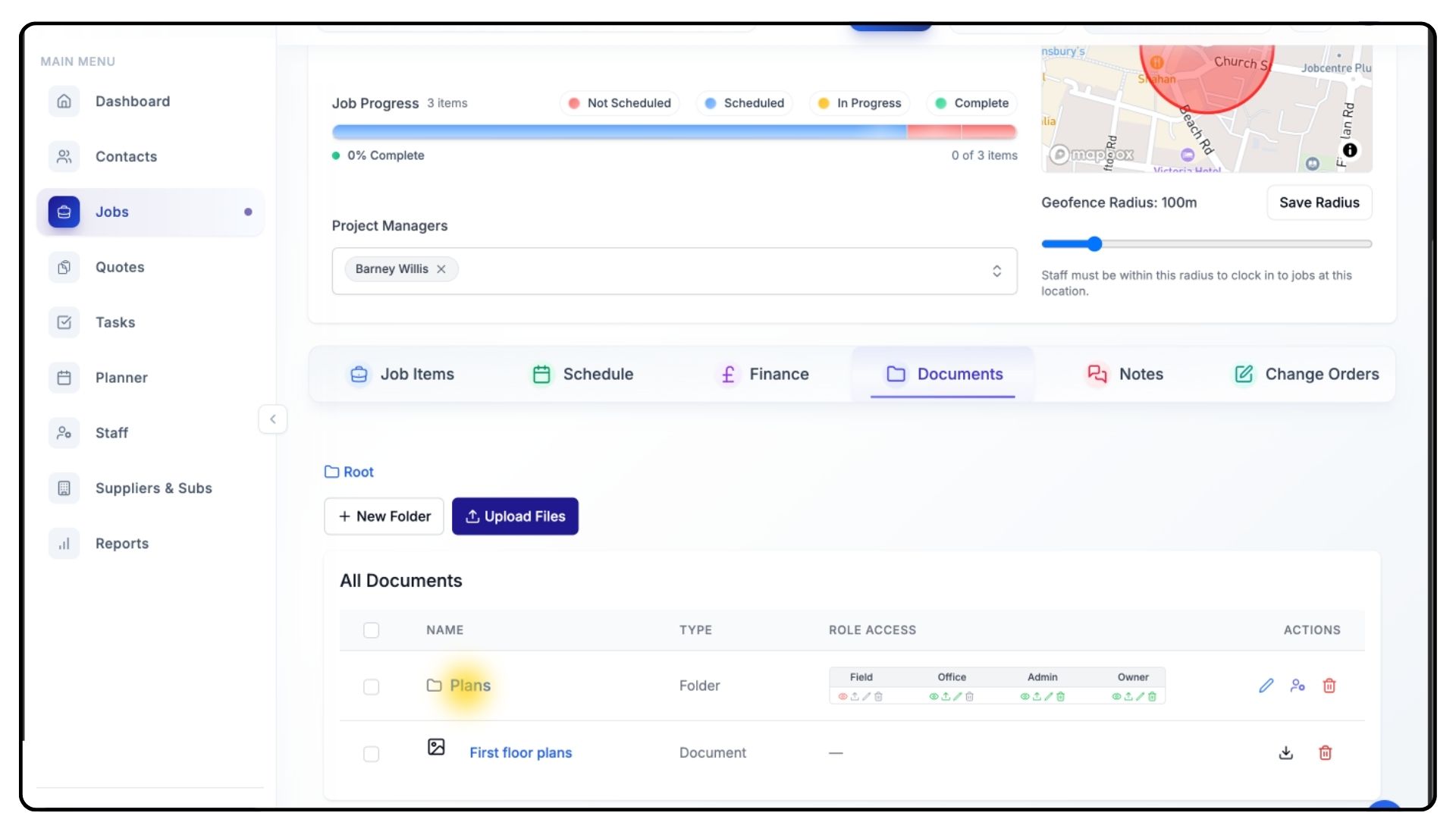
To upload files directly into a specific folder:
Click the Folder Name to open it.
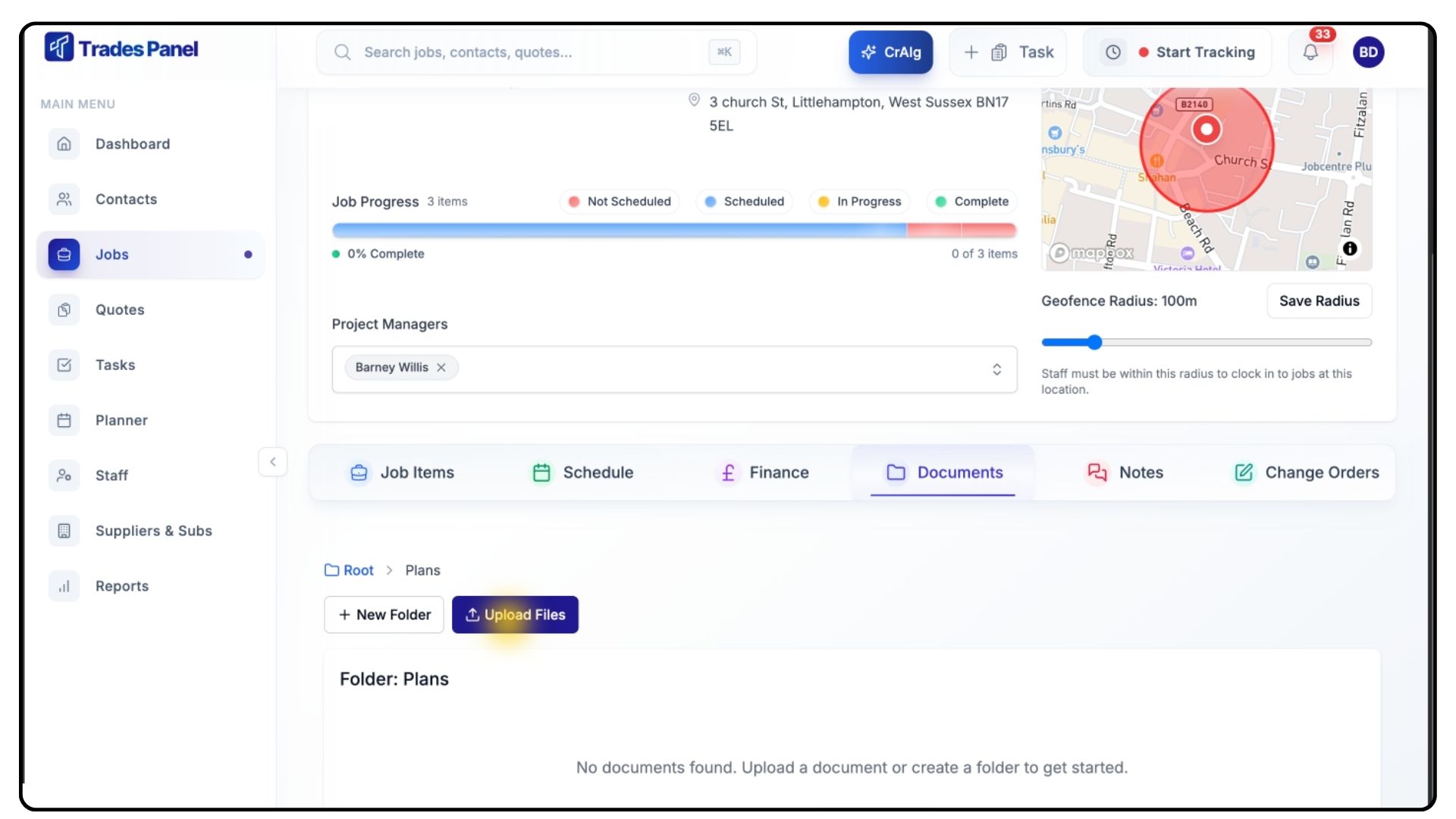
Click Upload Files and repeat the upload process.
Accessing the Notes Section
What It Does
The Notes section lets you record project updates, share important information, and communicate with your team directly within the job.
Steps
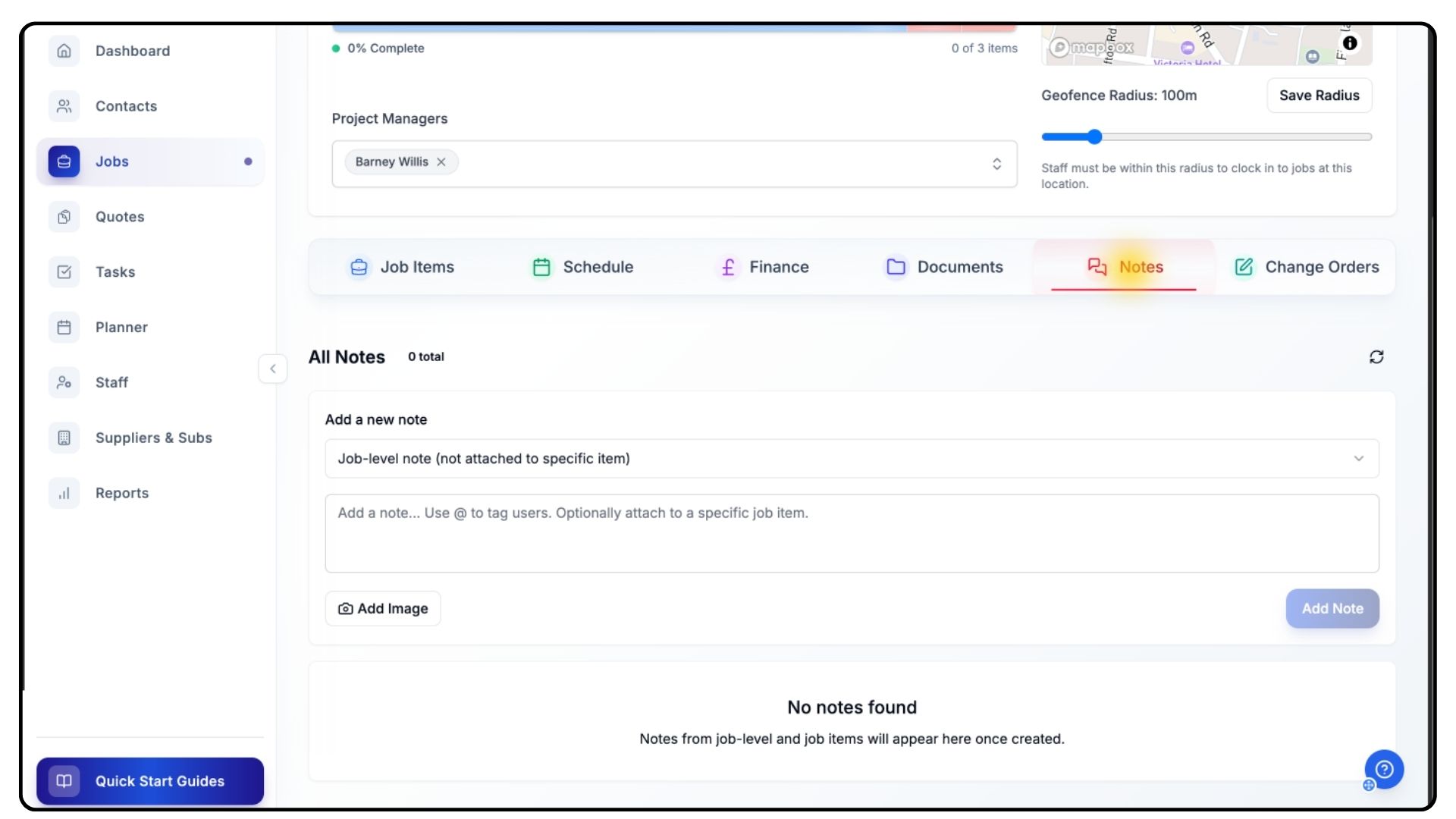
Click on the Notes tab from within your job.
Notes can be used for:
Progress updates
Reminders
General communication between team members
Creating a Note
What It Does
Each note can be linked to a job item, tagged with users, and include attachments for context.
Steps
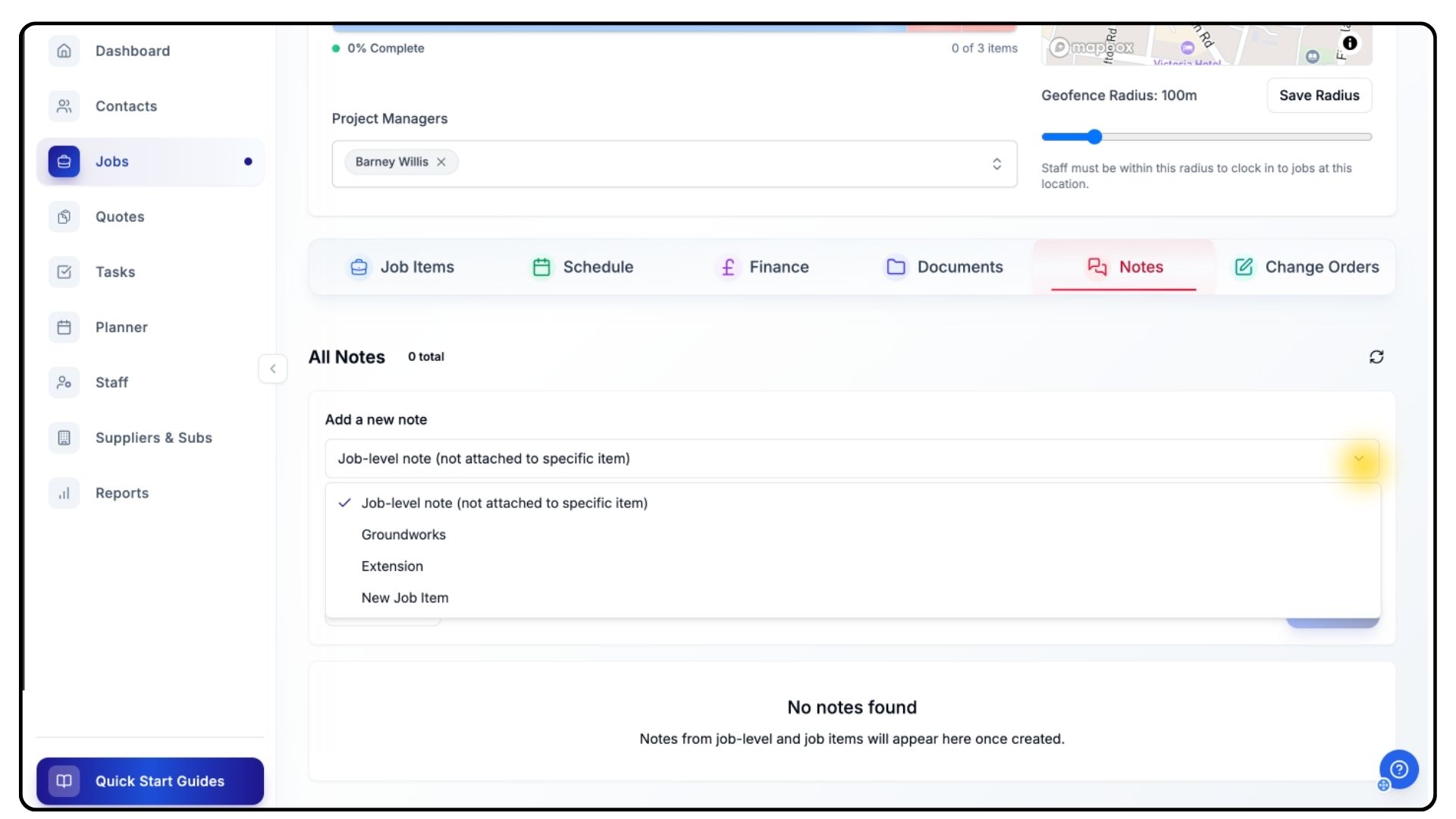
Select the Job Item it relates to from the dropdown menu.
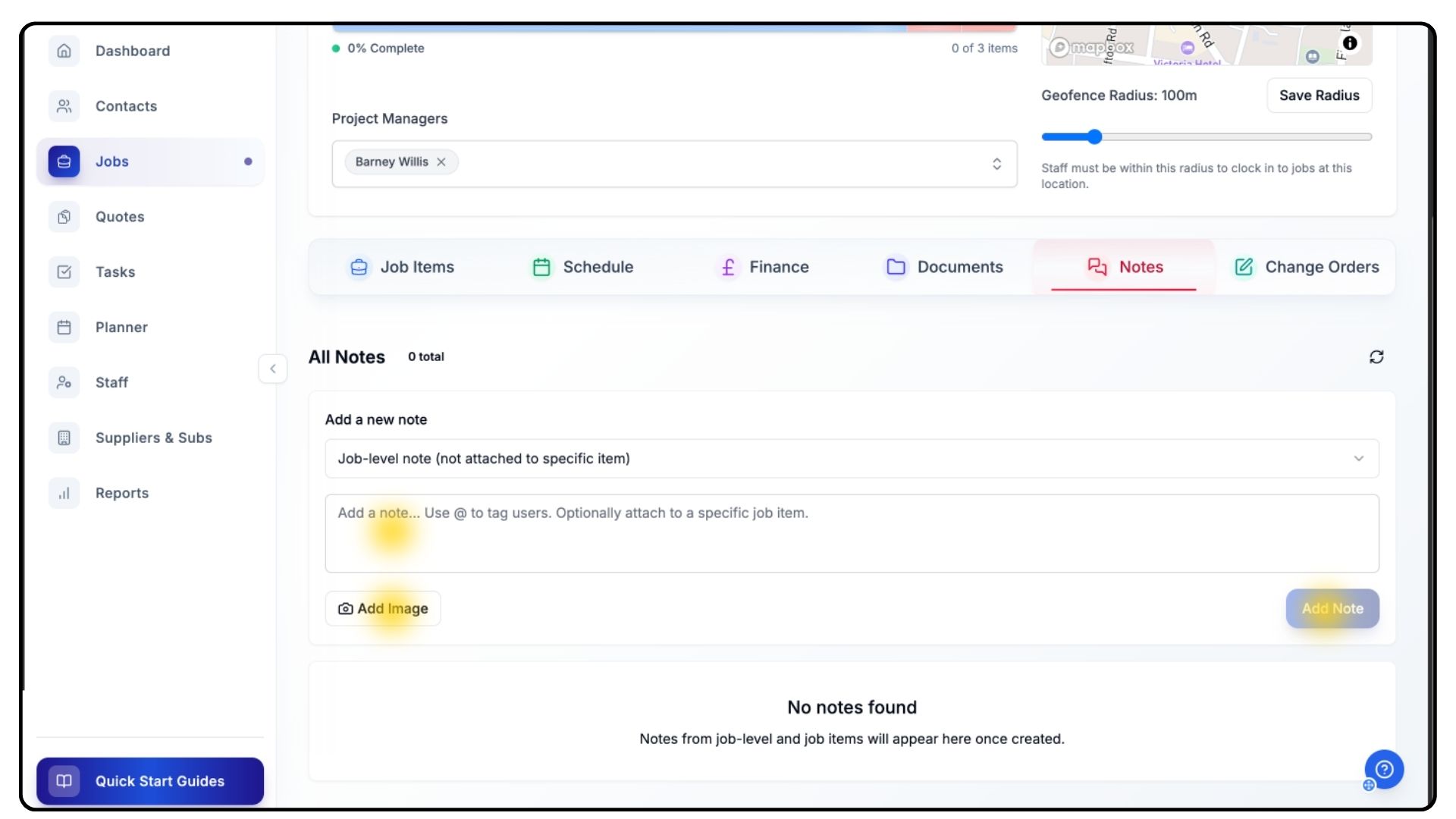
Type your note in the Text Box provided.
Use the @ symbol to tag other users if you need to notify them.
Attach an image (optional) to provide additional context.
Review your note and click Add Note.
The note will now appear in the job and be visible to your entire team.
Other users can leave comments on your note for quick collaboration and updates.
Creating a Task from a Note
What It Does
If a note contains an actionable item — such as confirming deliveries or assigning work — you can convert it into a task directly from the Notes tab.
Steps
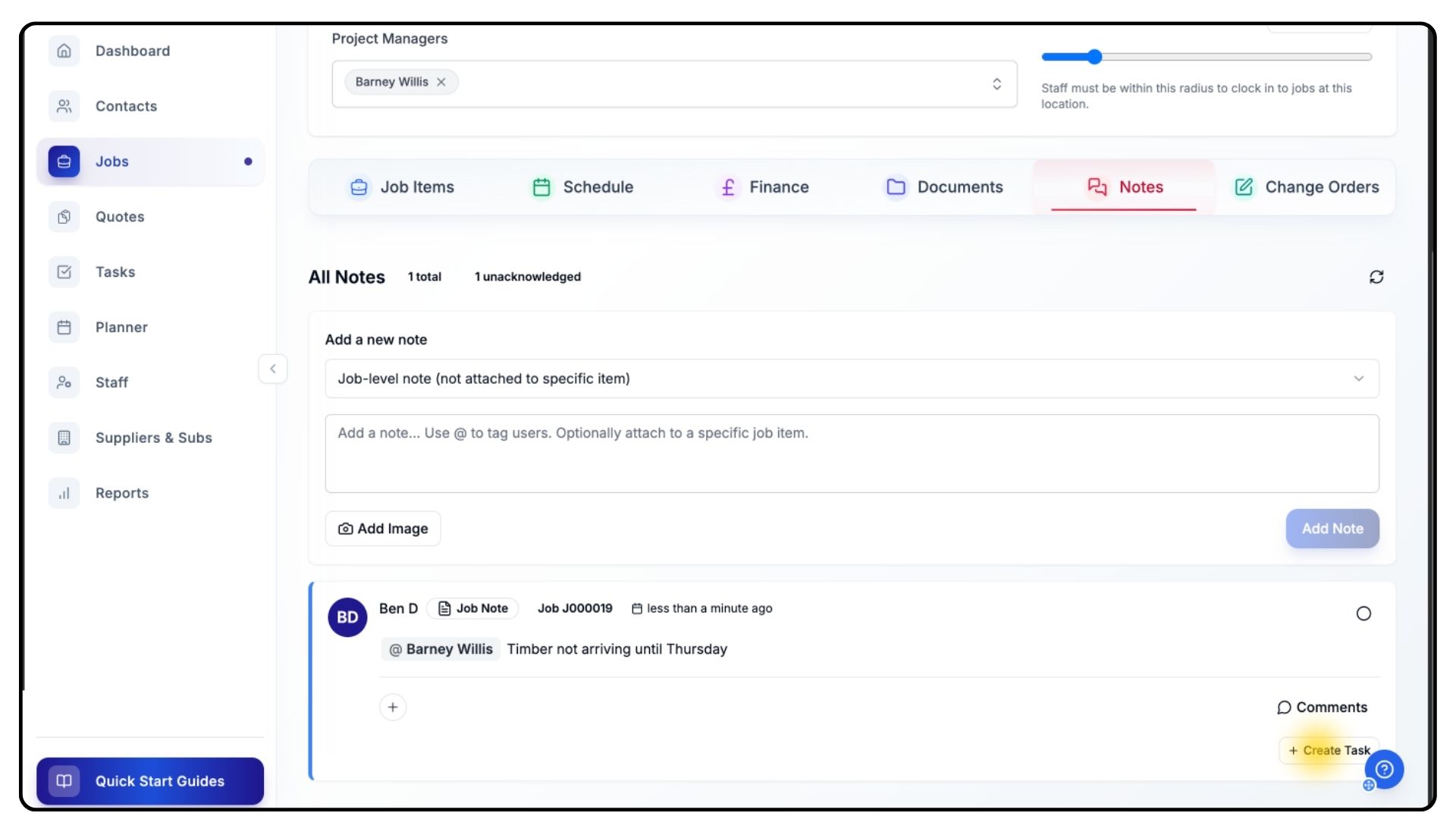
Below each note, click the Create Task button.
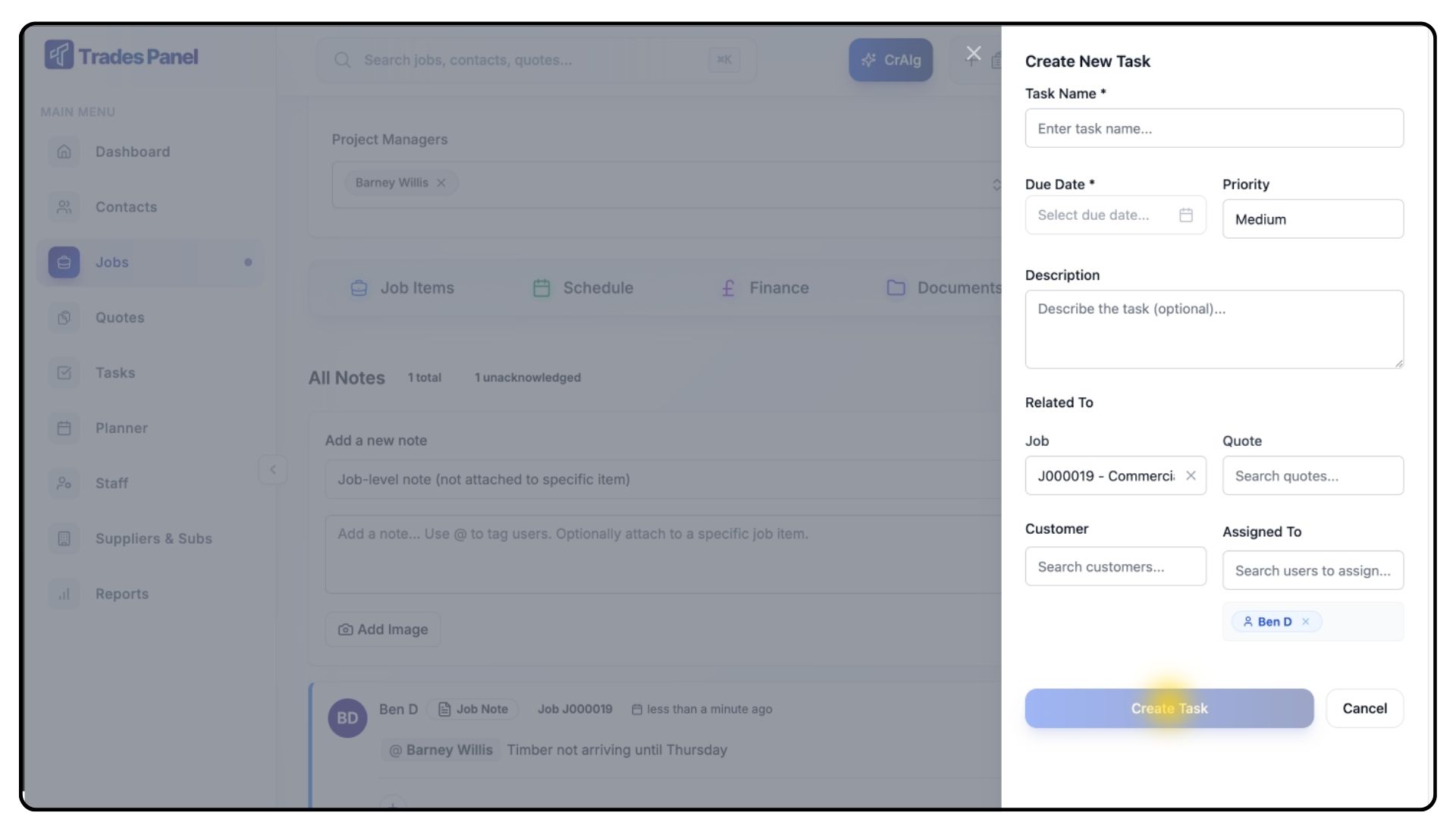
Fill out the required fields in the task creation form:
Title – a clear name for the task.
Due Date – when it needs to be completed.
Priority Level – choose from Low, Medium, High, or Urgent.
Description – include details of what needs to be done and why.
Related To – select the relevant job, quote, or customer.
Assign the task to a specific team member.
Click Create Task to confirm.
The new task will now appear in the Tasks Section from the main menu, where it can be tracked and updated as needed. We cover how to create and navigate tasks deeper in our Tasks Tutorial.
Final Steps
What It Does
The Documents and Notes sections help centralise information and improve collaboration across your team.
Steps
Keep all project-related files organised in dedicated folders.
Use notes to log updates, issues, or reminders during the project.
Convert key notes into tasks to ensure nothing is missed.
Regularly review and update folder permissions to maintain data security.
Common Questions
Q: Can I upload multiple files at once?
Yes. You can upload several files in one go by selecting multiple documents when prompted.
Q: Are there limits on folder depth or number of folders?
No. Trades Panel allows unlimited folders and subfolders.
Q: Can I restrict file access to specific users?
Yes. You can assign view, edit, or delete permissions by user role for every folder.
Q: Can notes be deleted or edited after posting?
Yes. Notes can be edited or removed if you have the correct permissions.
Q: How do I know when someone tags me in a note?
You’ll receive an in-app notification whenever you’re tagged using the @ symbol.