What It Does
The Staff Absences section in Trades Panel allows you to create, review, approve, and track annual leave, sickness, and other absences for your team.
It provides a clear, centralised overview of each staff member’s time off.
Accessing Staff Absence Reports
What It Does
This is where you view detailed absence histories and generate reports for individual staff members.
Steps
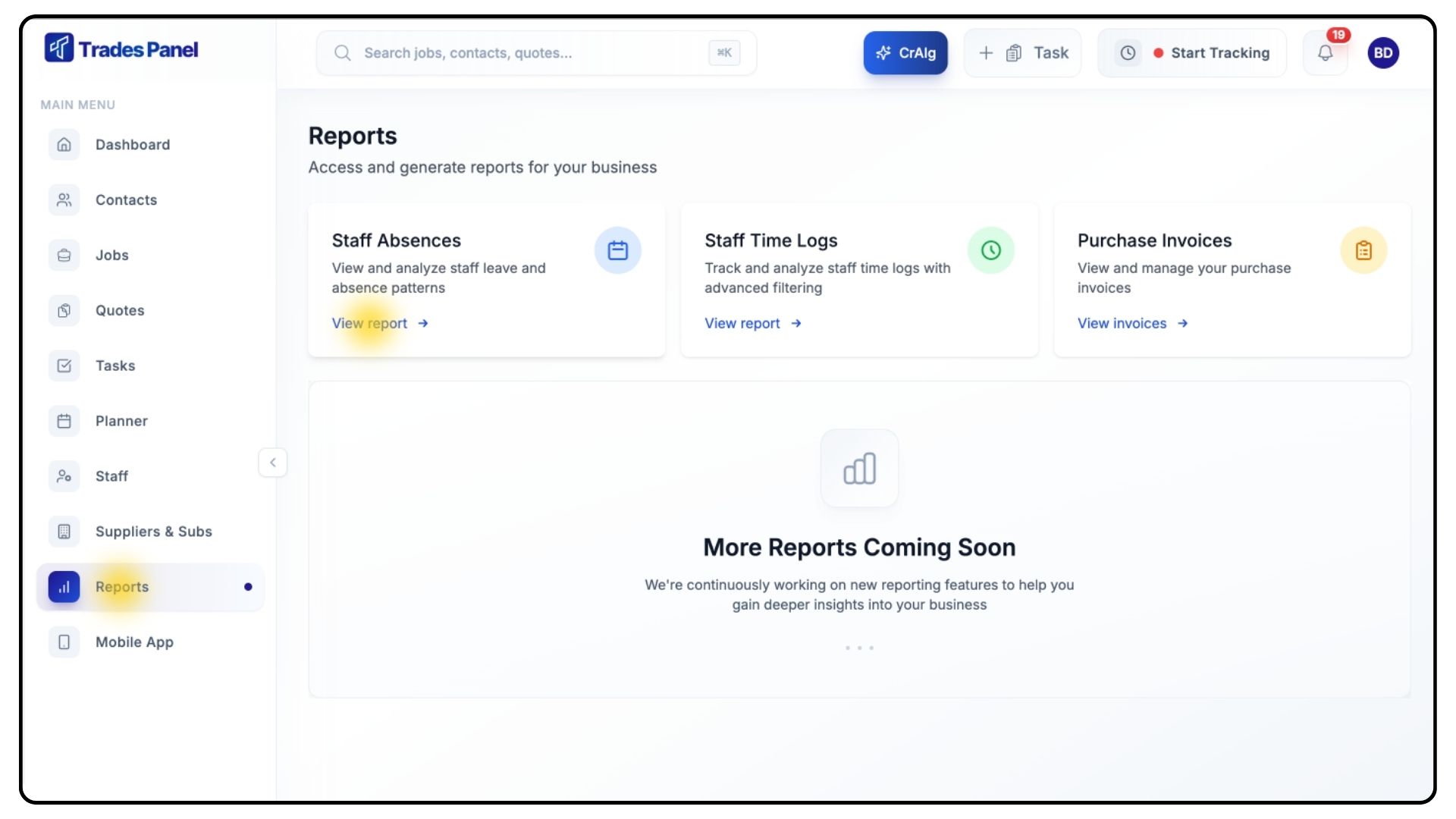
Go to Reports from the main menu.
Click Staff Absences.
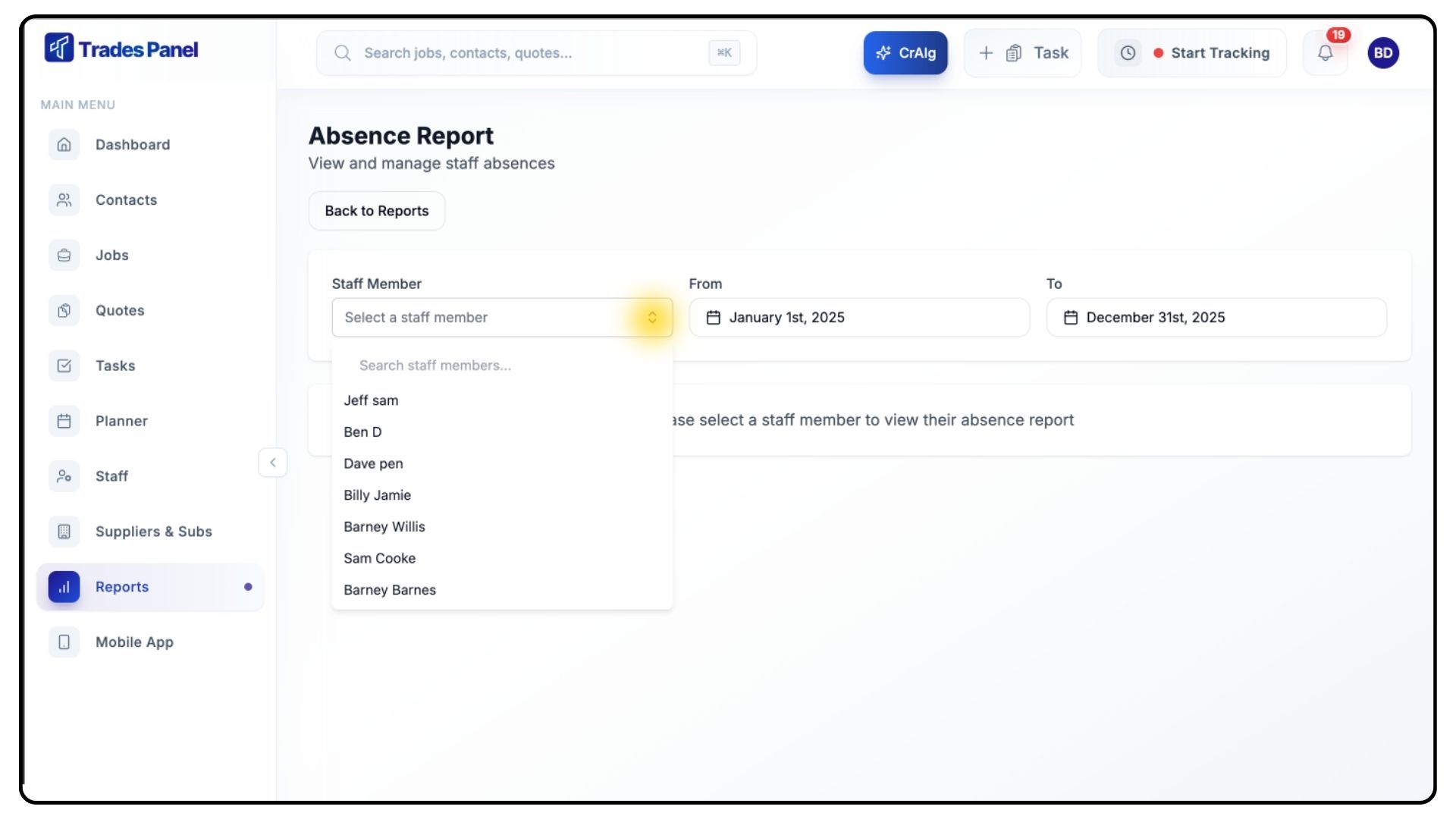
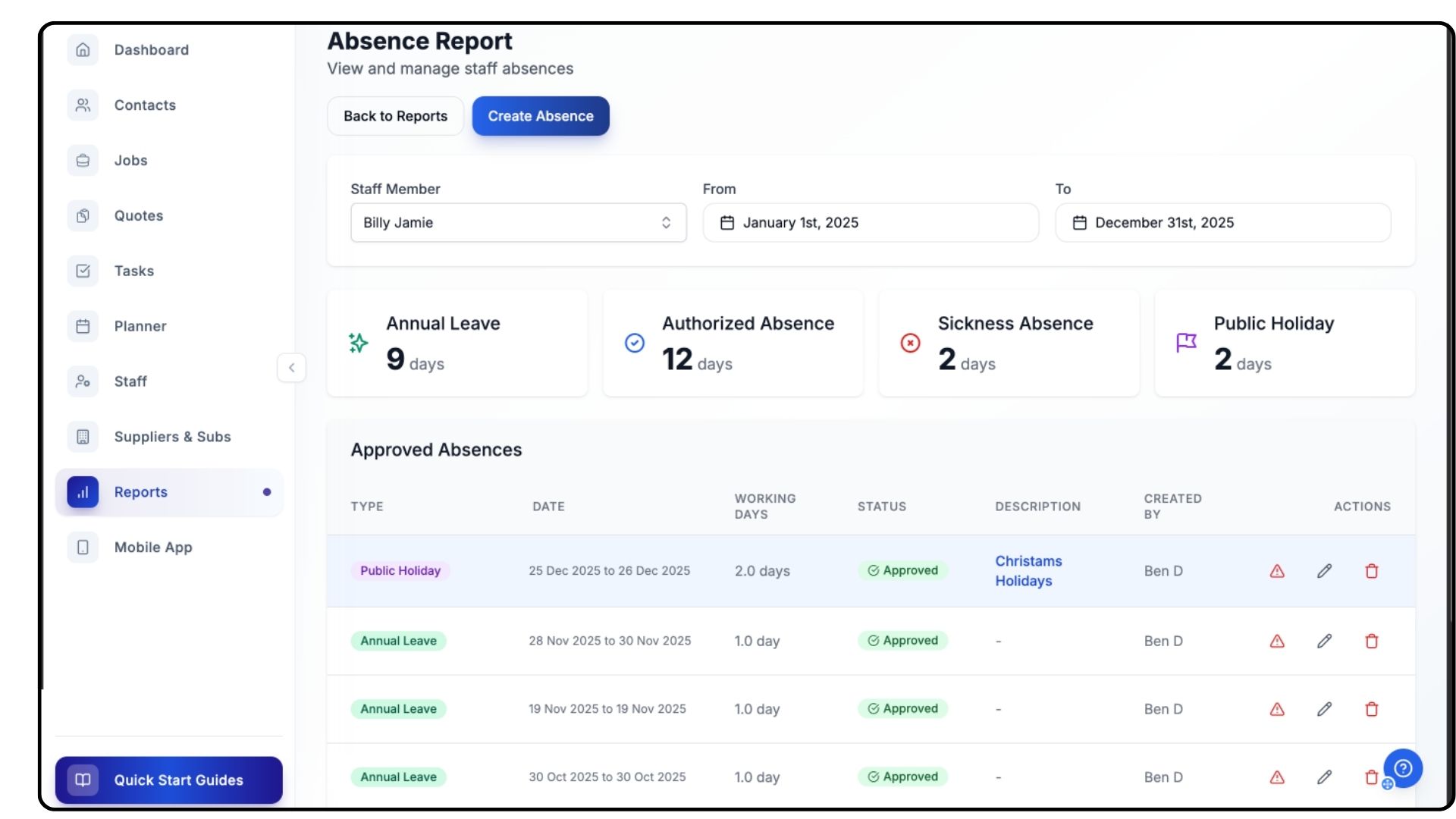
Use the Staff Member dropdown at the top to select the person whose absences you want to view.
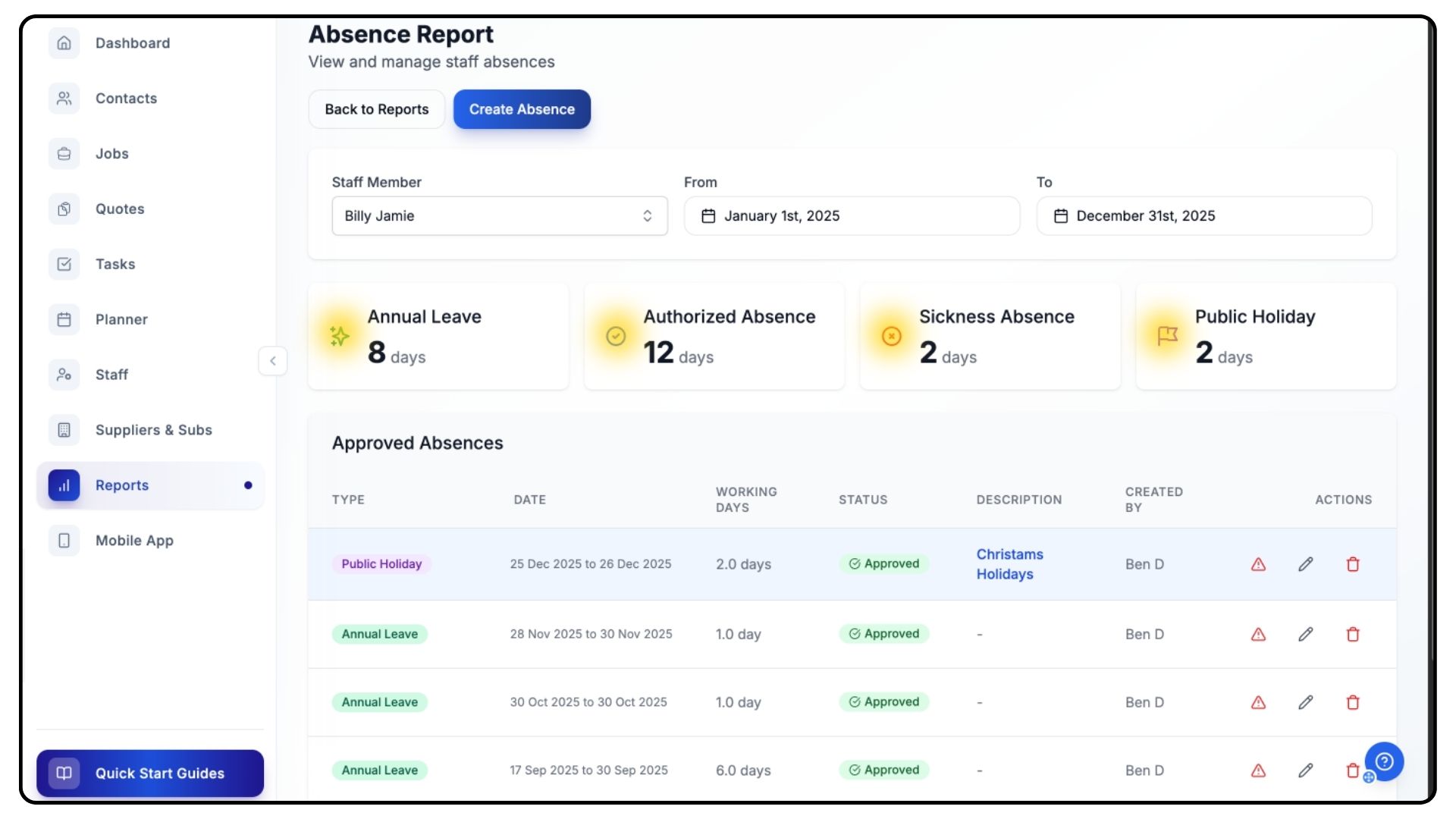
Once selected, you’ll see a summary including:
Total Annual Leave Days
Sickness Days
Authorised Absences
Public Holidays
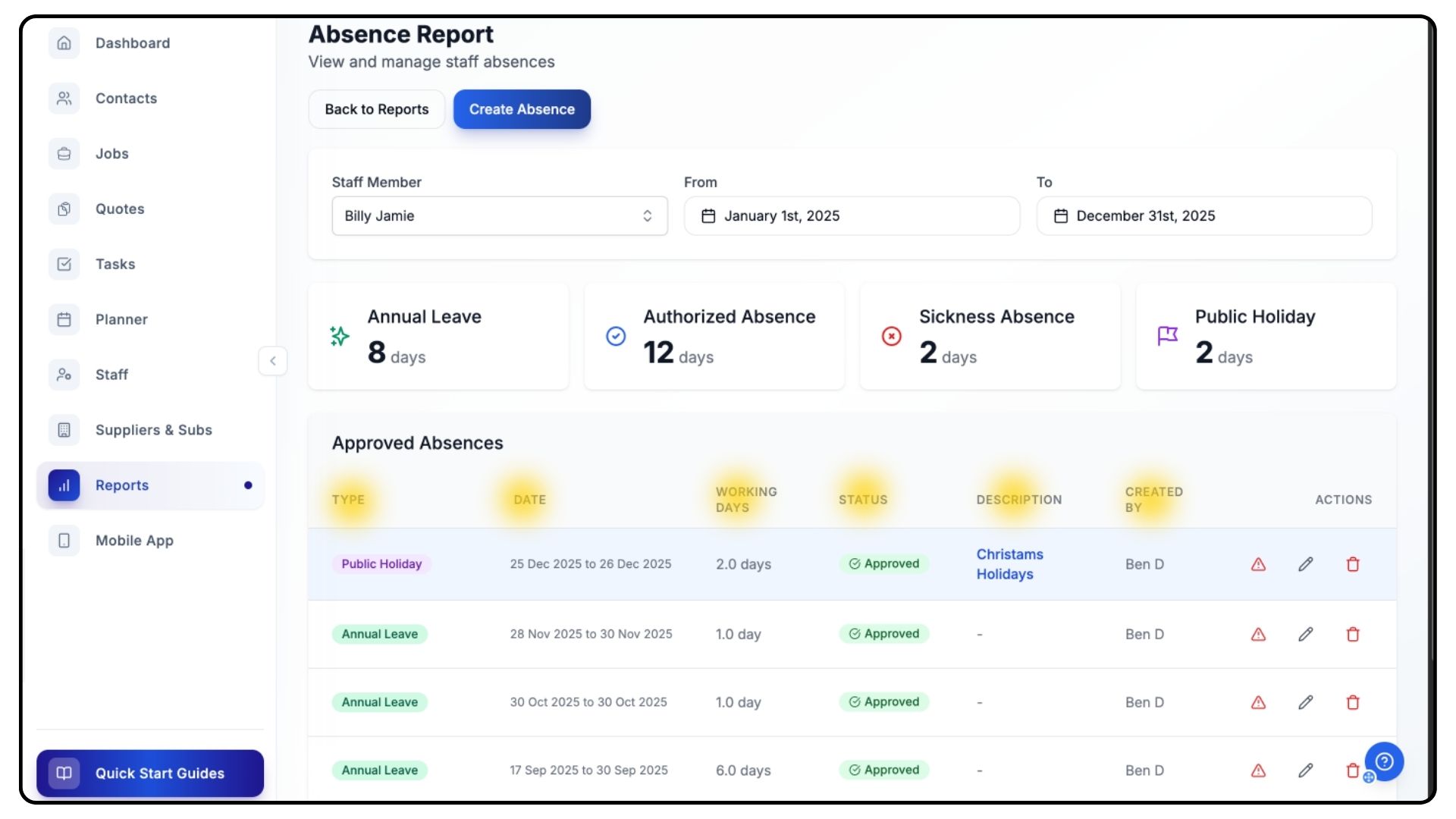
Below this, you’ll find a full list of recorded absences, displaying:
Absence Type
Dates
Number of Days
Status
Description
Created By
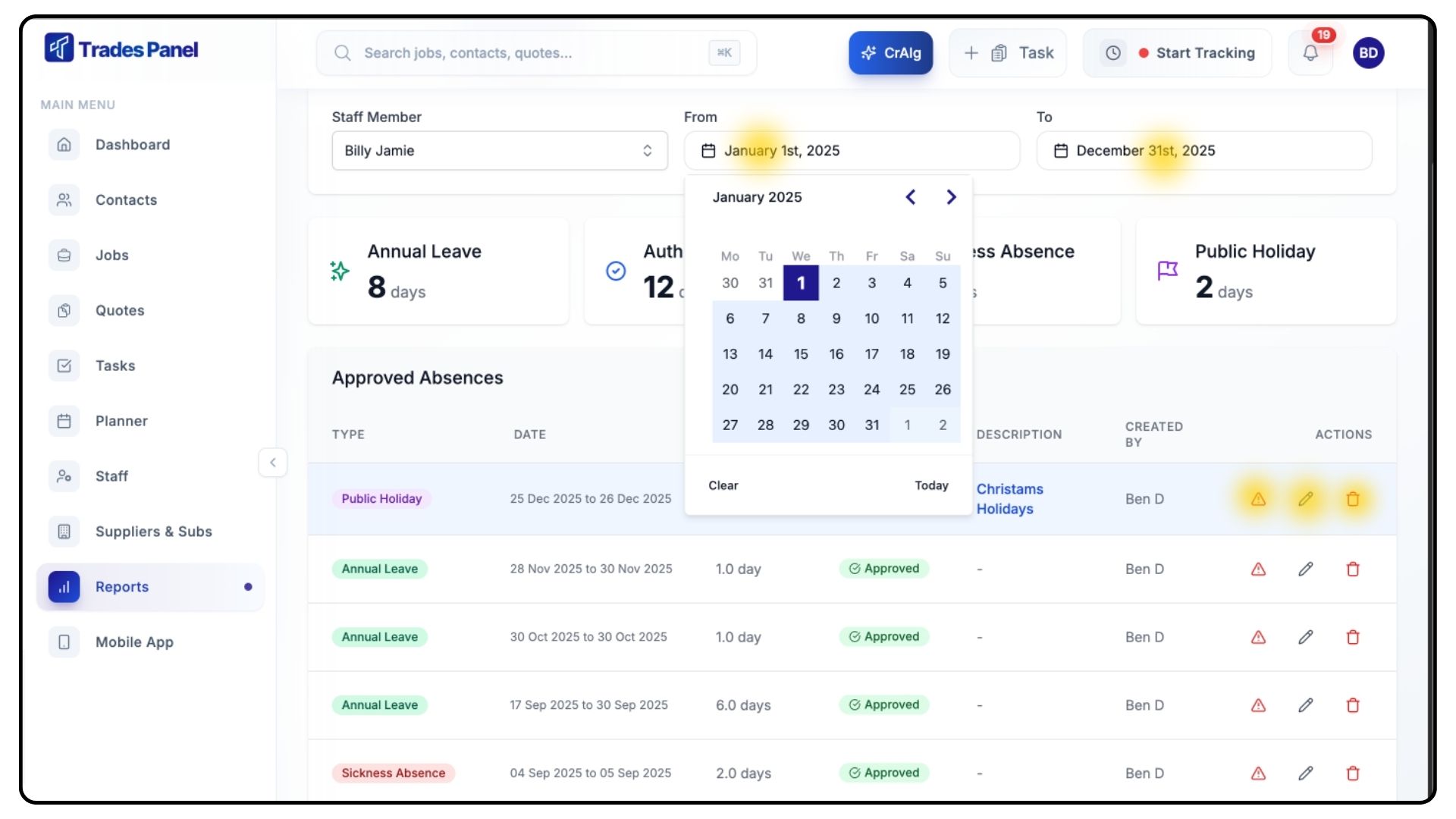
To manage records:
Click the Red Warning Icon to deny an absence.
Click the Pen Icon to edit the entry and the Bin Icon to delete.
Use the two Date Range dropdowns at the top to filter the report by a specific time period. Totals update automatically based on your selected range.
Creating a New Absence
What It Does
Allows admins to record annual leave, sickness, and other absences for any staff member.
Steps
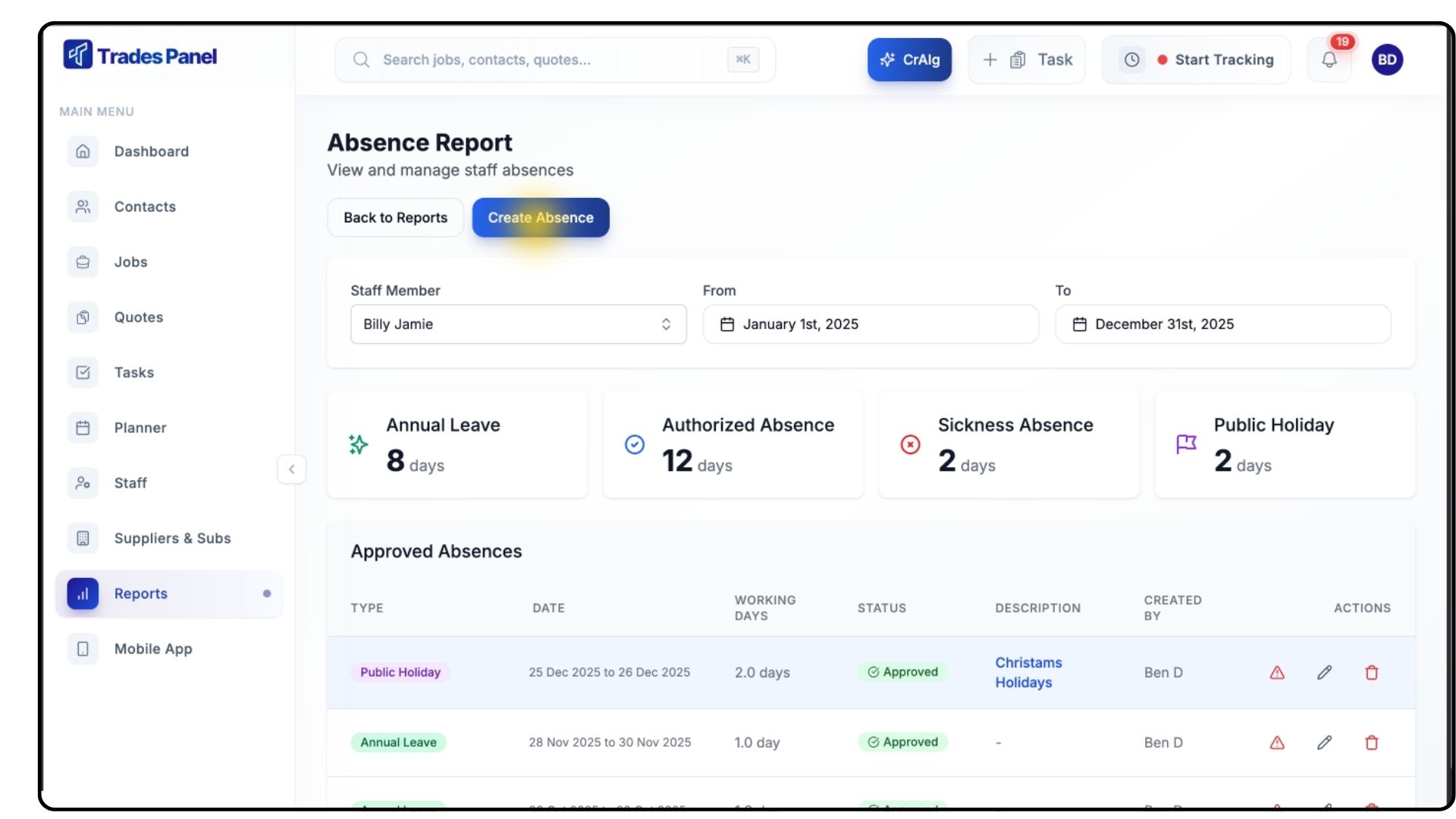
Click Create Absence at the top of the page.
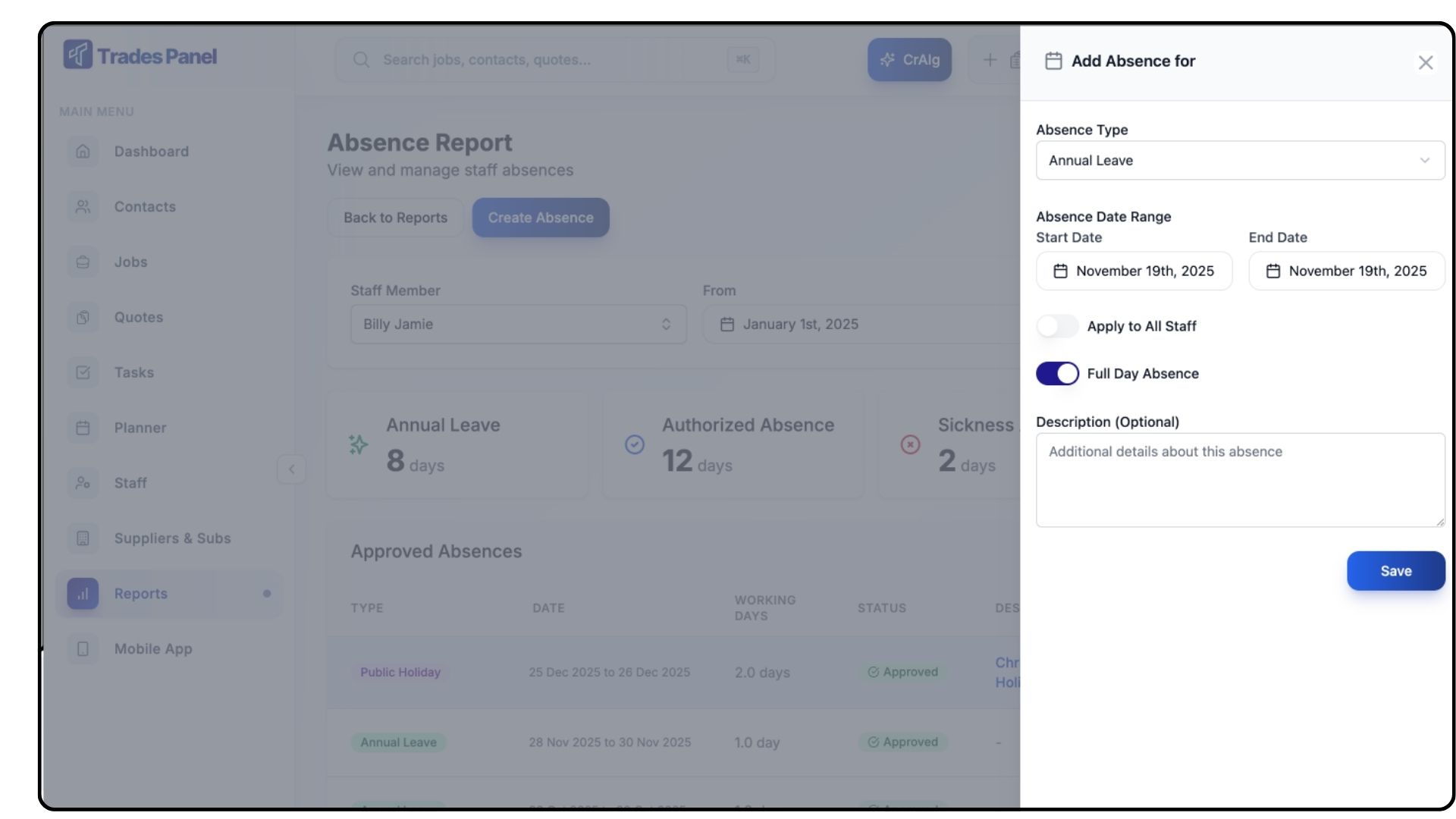
A form will appear. Fill in the following:
Choose the Absence Type (e.g., Sickness Absence).
Select the Start Date and End Date.
You’ll see a toggle labelled Apply to All Staff — use this only for company-wide absences (e.g., public holidays).
Use the Full Day toggle to specify whether the absence covers:
Full Days, or
Partial Days (switch off the toggle and enter Start/End Times)
Add a short Description if you want to note the reason for the absence.
When finished, click Save.
The absence will now appear under that staff member’s record.
Viewing Absences Through User Management
What It Does
Provides a second way to access staff absence histories directly from team profiles.
Steps
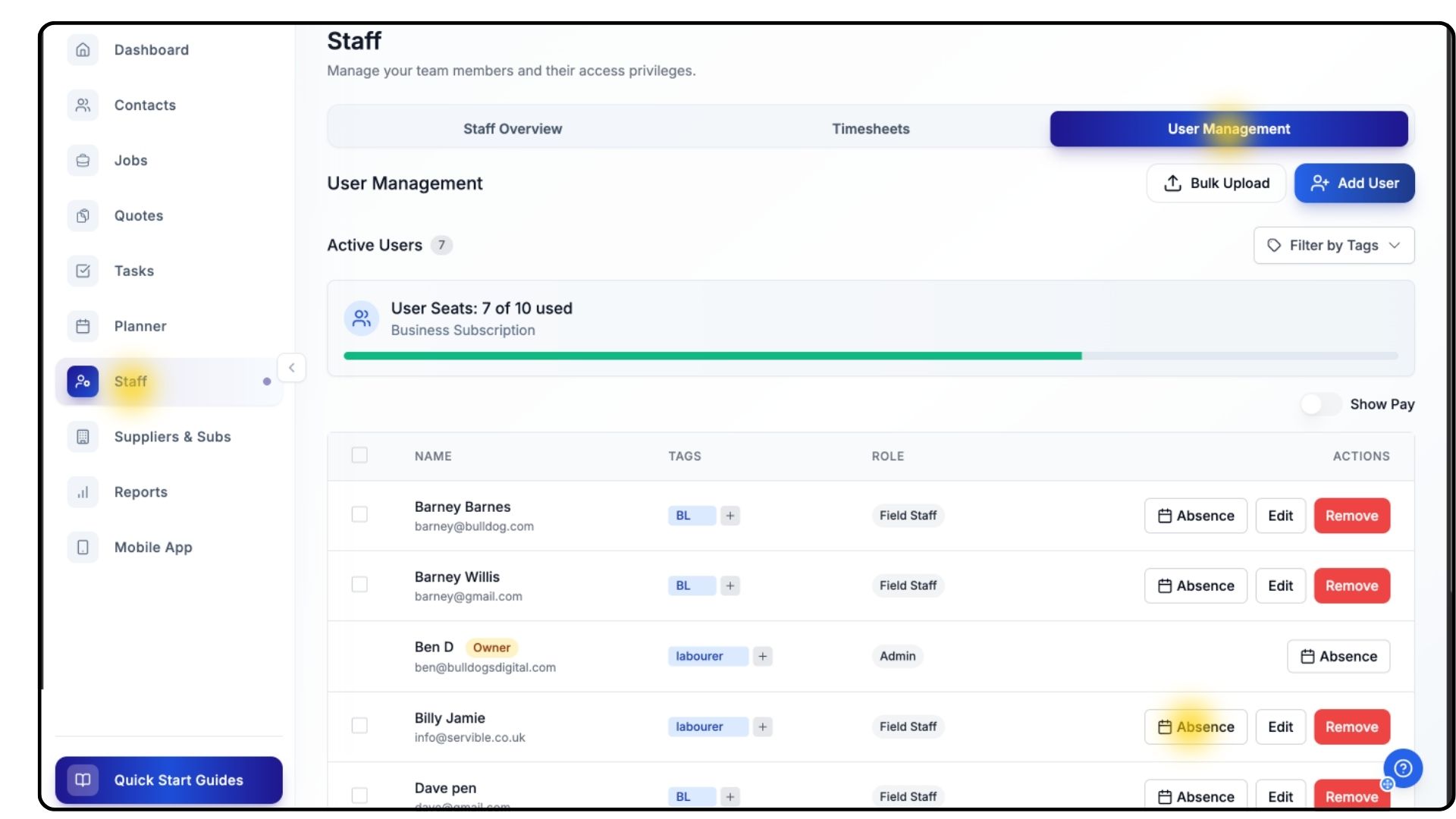
Go to Staff from the main menu.
Click User Management.
Next to each staff member’s name, click the Absence button.
This opens the full absence history for that individual, including all approved and pending requests.
Common Questions
Q: Can staff submit absence requests themselves?
Yes — staff can request annual leave from their own account, and admins can approve or deny them here.
Q: Can absences be edited or deleted after saving?
Yes — use the pen icon to edit or the red warning icon to deny/reject an absence.
Q: Does “Apply to All Staff” mark a company-wide holiday?
Yes — it applies the selected absence to every staff member at once.
Q: Do date filters affect the totals shown?
Yes — totals update based on your chosen date range.