The Staff Overview section in TradesPanel provides a live, real-time snapshot of your team’s activity.
It allows you to see who’s on-site, who’s clocked in, what job items they’re working on, and which events are overdue or on hold — all in one place.
Accessing the Staff Overview
What It Does
Opens the live dashboard showing team activity and site locations.
Steps
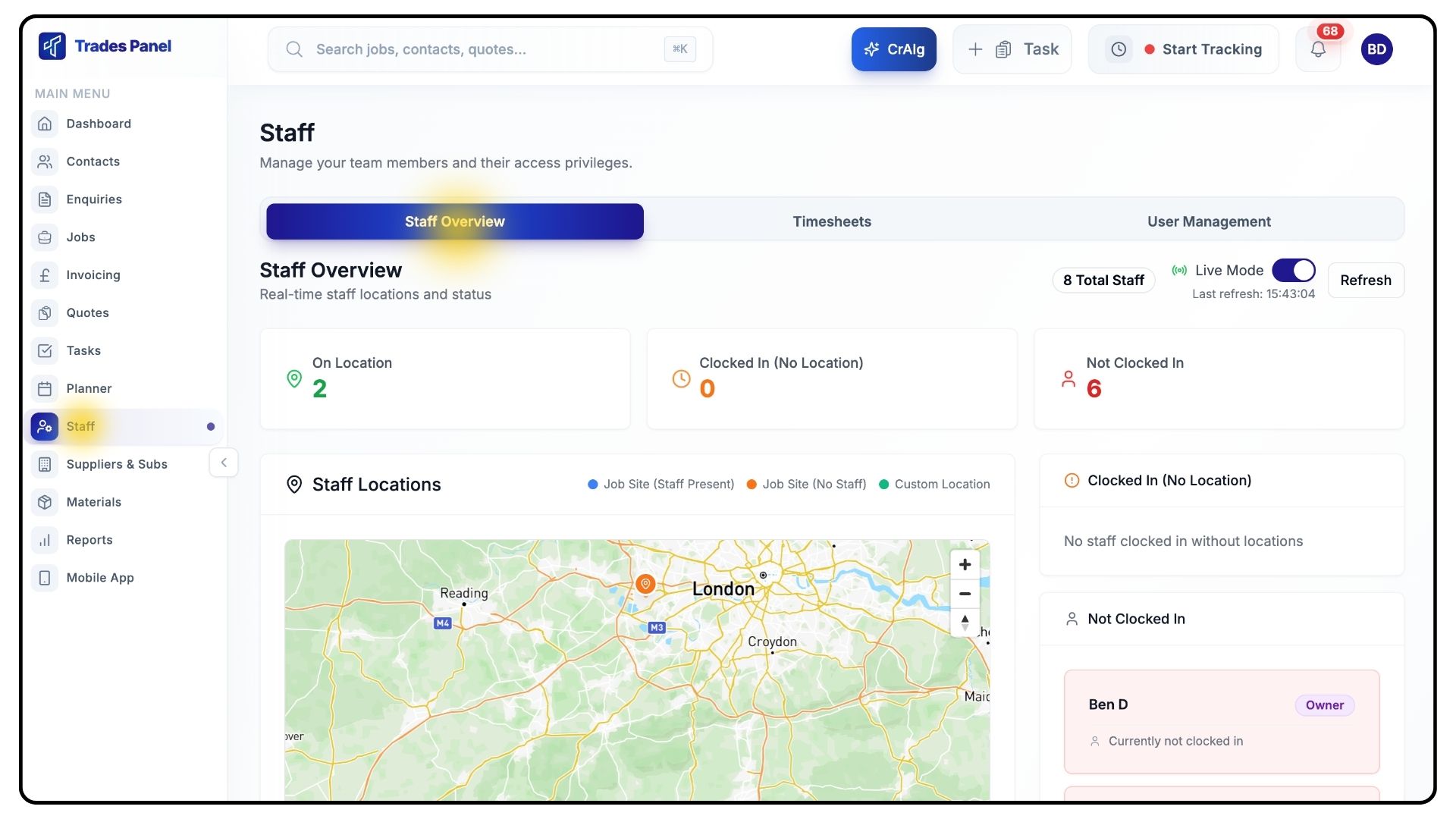
Click Staff from the main menu.
Select the Overview tab at the top of the page.
Understanding the Activity Summary
What It Does
Displays a real-time breakdown of your team’s clock-in status.
Steps
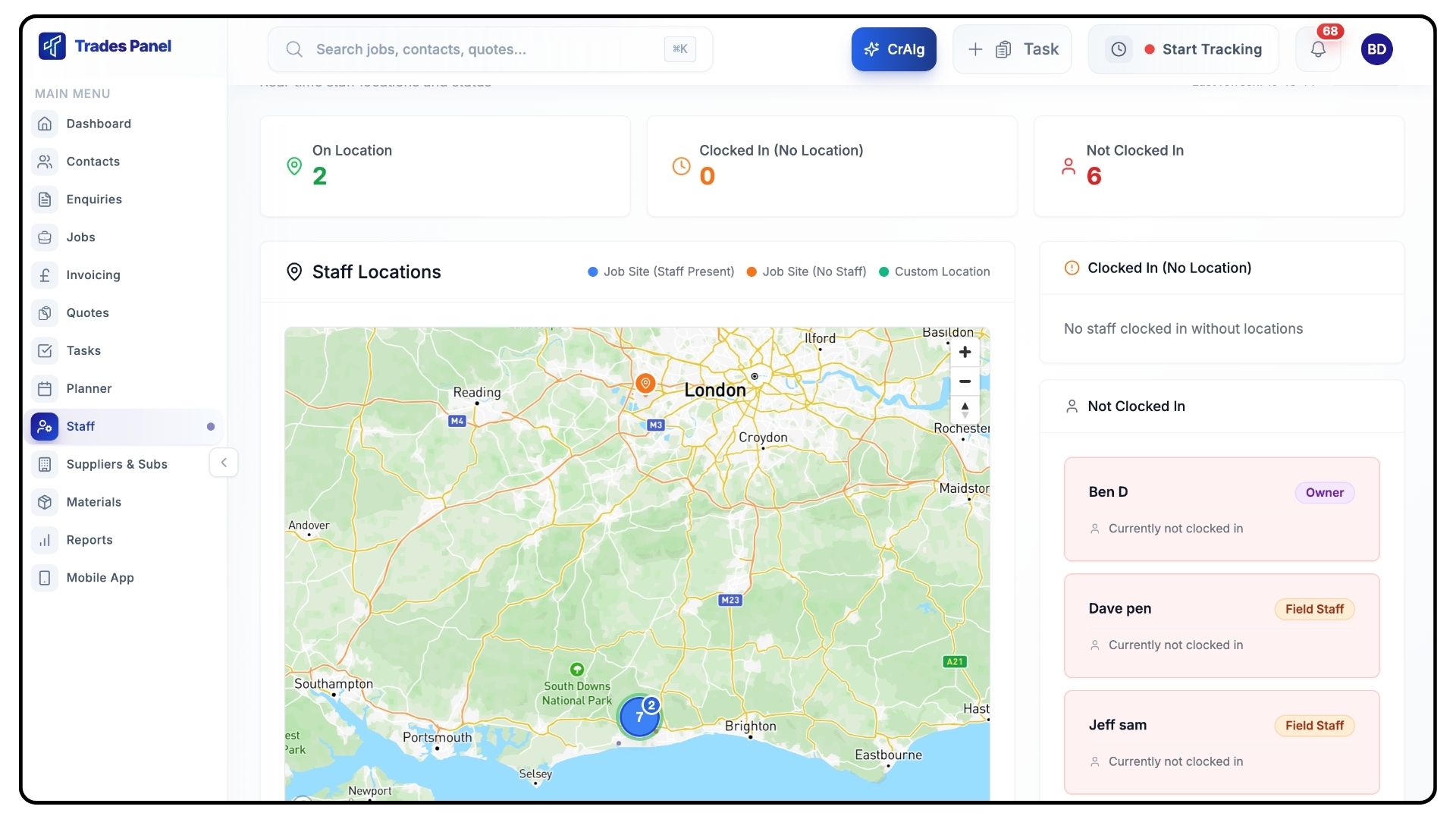
At the top of the screen, you’ll see summary figures showing:
Who’s on-site
Who’s clocked in
Who hasn’t yet clocked in
On the right-hand panel, individual staff members are listed under:
Clocked In
Not Clocked In
This gives you immediate visibility of team activity across all jobs.
Using the Staff Location Map
What It Does
Shows all active job sites and custom clock-in locations on a live map.
Steps
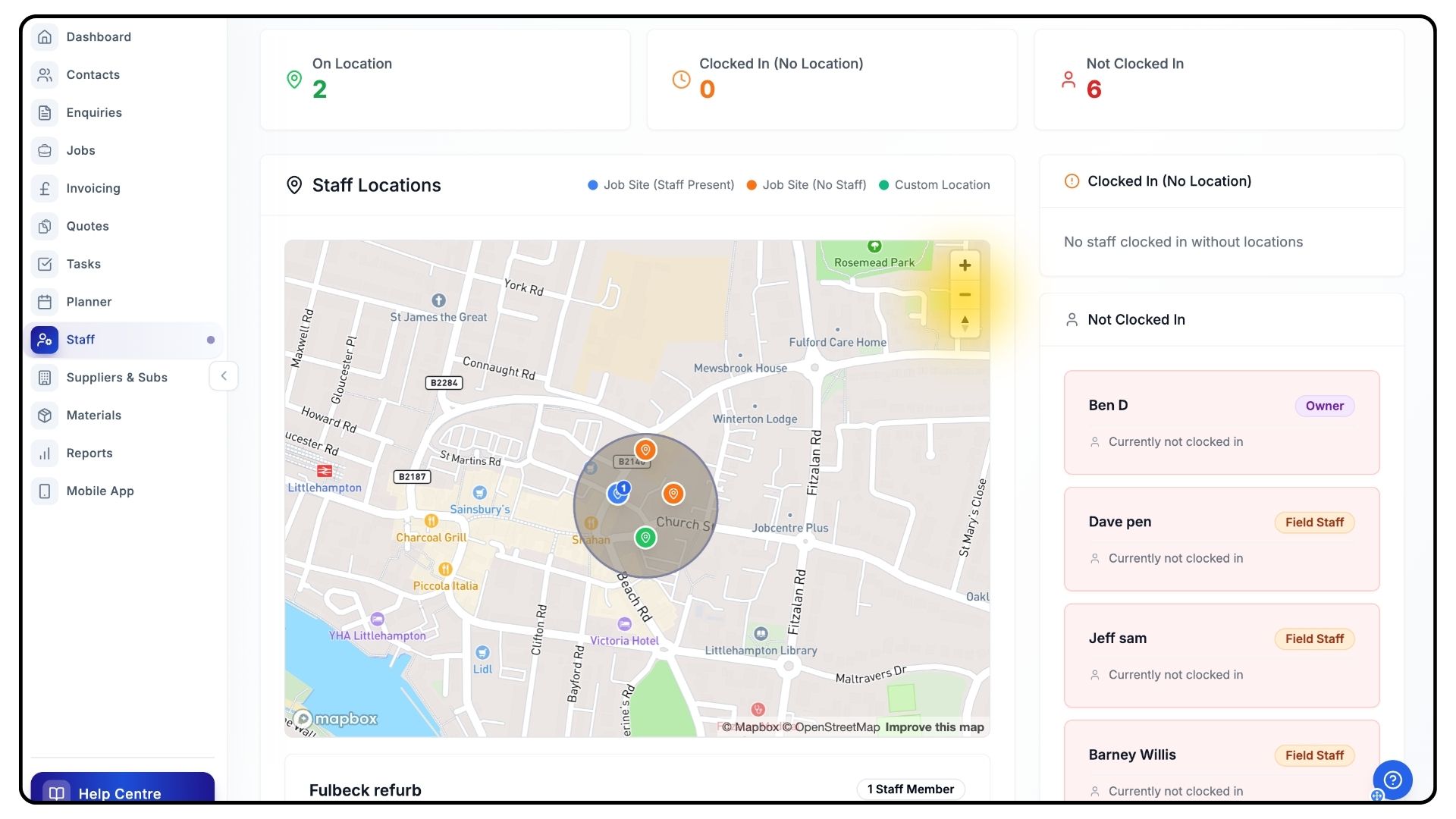
In the centre of the page, you’ll see the staff location map.
You can:
Use the plus and minus buttons
Use your scroll wheel
to zoom in or out.
When zoomed out, nearby locations group into clusters to reduce clutter.
Clusters show how many locations are in that area. Click a cluster to zoom in and reveal individual pins.
Each pin represents either:
A Job Site
A Custom Clock-In Location
Pin colours indicate activity:
Orange – Job site with no staff clocked in
Blue – Job site with staff currently clocked in
Green – Custom clock-in locations (e.g. office or yard)
If staff are clocked in at a location, a badge appears on the pin showing how many team members are currently there.
When zoomed in closer, you’ll see geofence circles around each location, showing the clock-in radius.
If multiple jobs share very close coordinates, TradesPanel automatically spreads the pins slightly when zoomed in to keep them selectable.
Viewing Job or Location Details
What It Does
Provides detailed information about a selected job site or location.
Steps
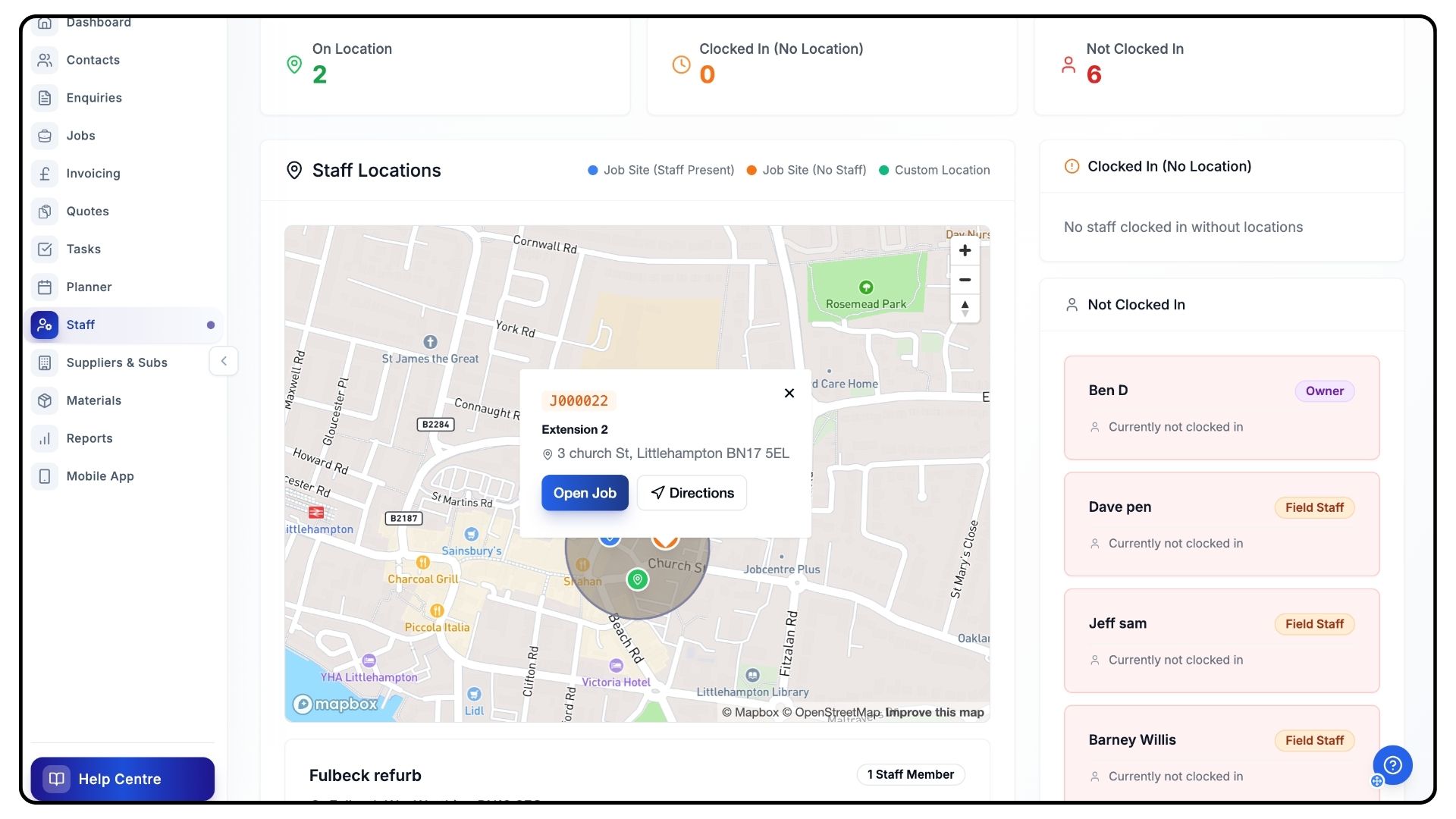
Click on any pin to open a popup.
For job sites, the popup shows:
Job reference
Job name
Address
Staff currently clocked in
Quick actions such as Open Job or Get Directions
For custom locations, the popup shows:
Location details
A Directions button
On desktop, you can also hover over a pin to preview the job or location name without opening the full popup.
Reviewing Clocked-In Staff and Job Items
What It Does
Shows what each staff member is currently working on and how long they’ve been active.
Steps
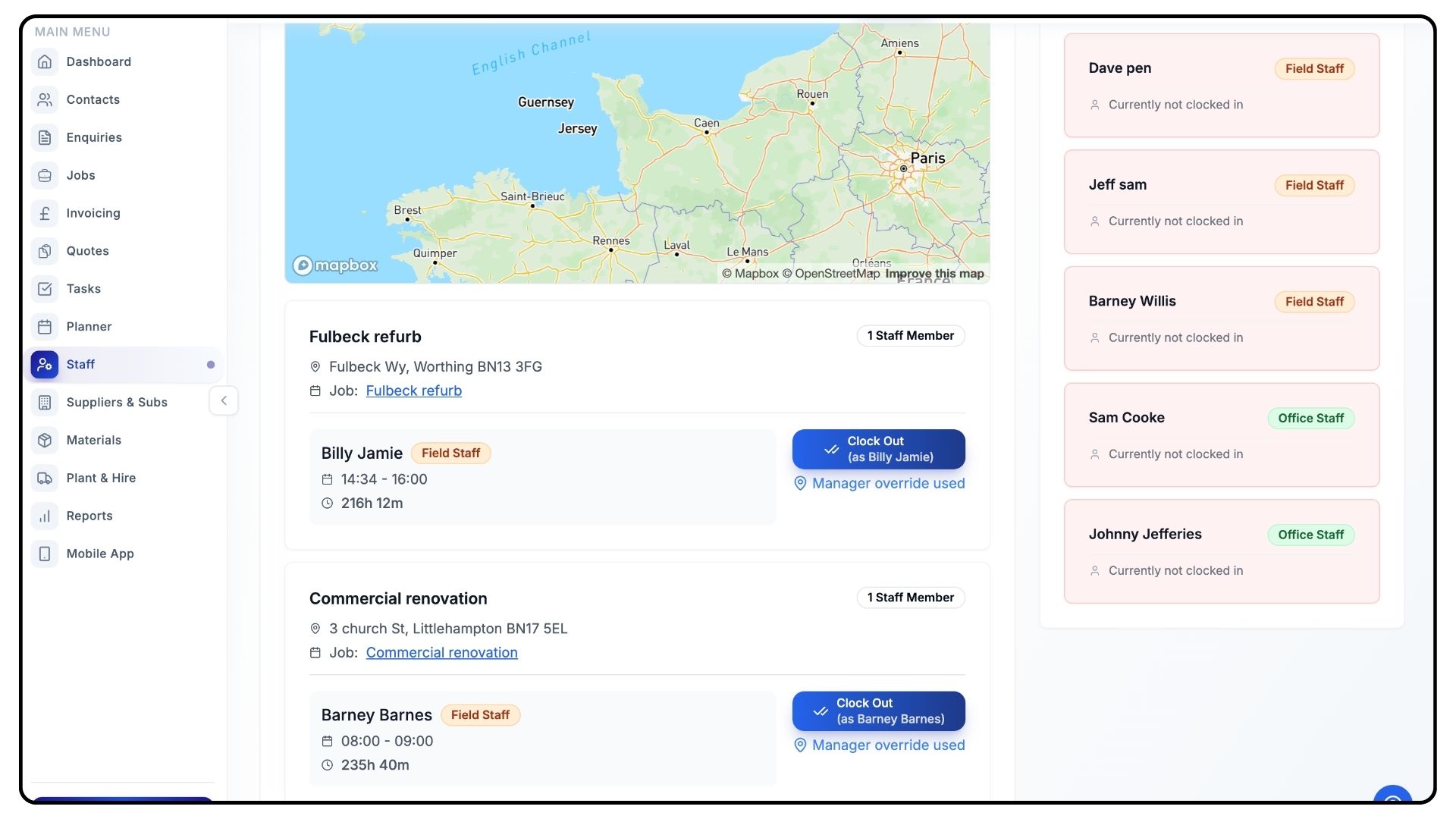
Below the map, you’ll see a list showing:
The job item each clocked-in staff member is assigned to
How many hours they’ve been working
To manually clock someone out:
Click the Clock Out button next to their name.
Choose whether to mark the event as:
Complete, or
On Hold
Then click Submit.
Monitoring Overdue and On-Hold Events
What It Does
Highlights events that require attention.
Steps
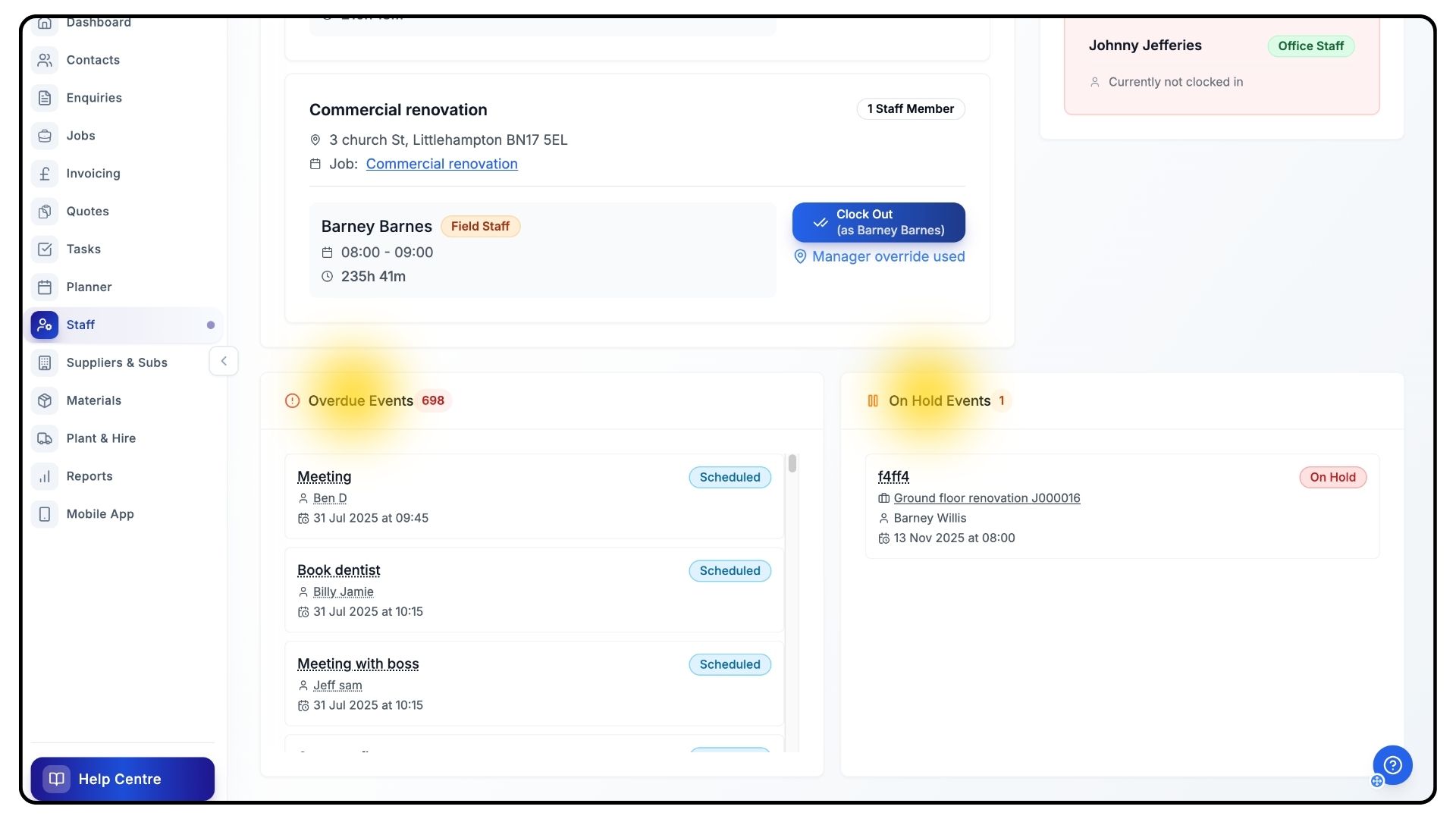
At the bottom of the Overview page, you’ll find:
Overdue Events
On-Hold Events
These sections highlight events that are behind schedule or awaiting action, helping you prioritise work and stay organised.
And that’s how to use the Staff Overview section in TradesPanel to monitor your team’s live site activity and event progress.
For more tutorials and step-by-step walkthroughs, visit the Help Centre section in the navigation bar.