A job is priced in two layers. Job items are the stages of the work, such as Groundworks or First Fix. Line items sit inside a job item, and each one carries its own labour, materials and plant, with a cost and a sell price for each.
Who can do this: owners, admins and office staff.
Add a job item
- Open the job. The Job Items tab opens first.
- Click Add Job Item. A job item called New Job Item is added to the job straight away and opens for editing.
- Type over the title with the name of the stage.
- Enter a Description of what the stage covers.
- Add line items (below).
- Click Save.
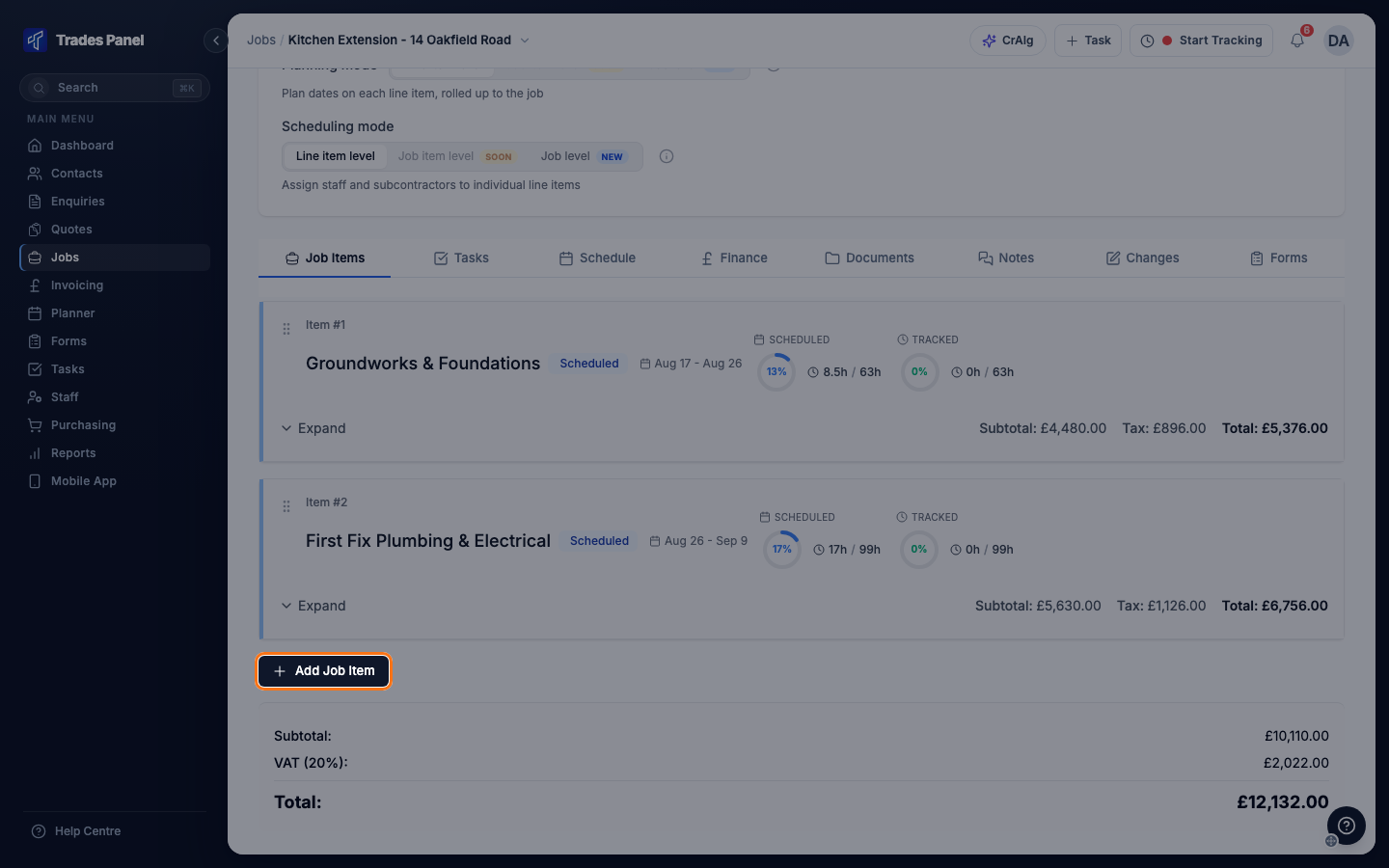
Drag a job item by the handle on its left to change the order.
Add a line item
Line items are added while the job item is open for editing. To edit a saved job item, click Expand, then Edit.
- Click Add Line Item.
- Enter the description in the box on the left. This is what the customer sees.
- Fill in the Labour, Materials and Plant rows the work needs, and leave the others empty. Typing in a row's Category box searches your presets, and picking one fills in its cost and sell price.
- Use Add material or Add plant for a second row of either.
- Click Save Changes.
Each row has a Qty, Unit Cost and Unit Sell. Total Cost and Total Sell update as you type, and Line Totals adds up the whole line.
Margin % works out from the cost and sell price. Type a margin instead and the sell price is worked out from it. The margin box stays greyed out until the row has a unit cost.
Enter labour
On the labour row, Qty is a Duration and the two rates are £/day cost and £/day sell.
Type the duration with a unit: 3d for three days, 4h for four hours, 2h30m, or combinations such as 1d4h. A plain number with no unit is read as hours, so 3 against a day rate prices three hours, not three days.
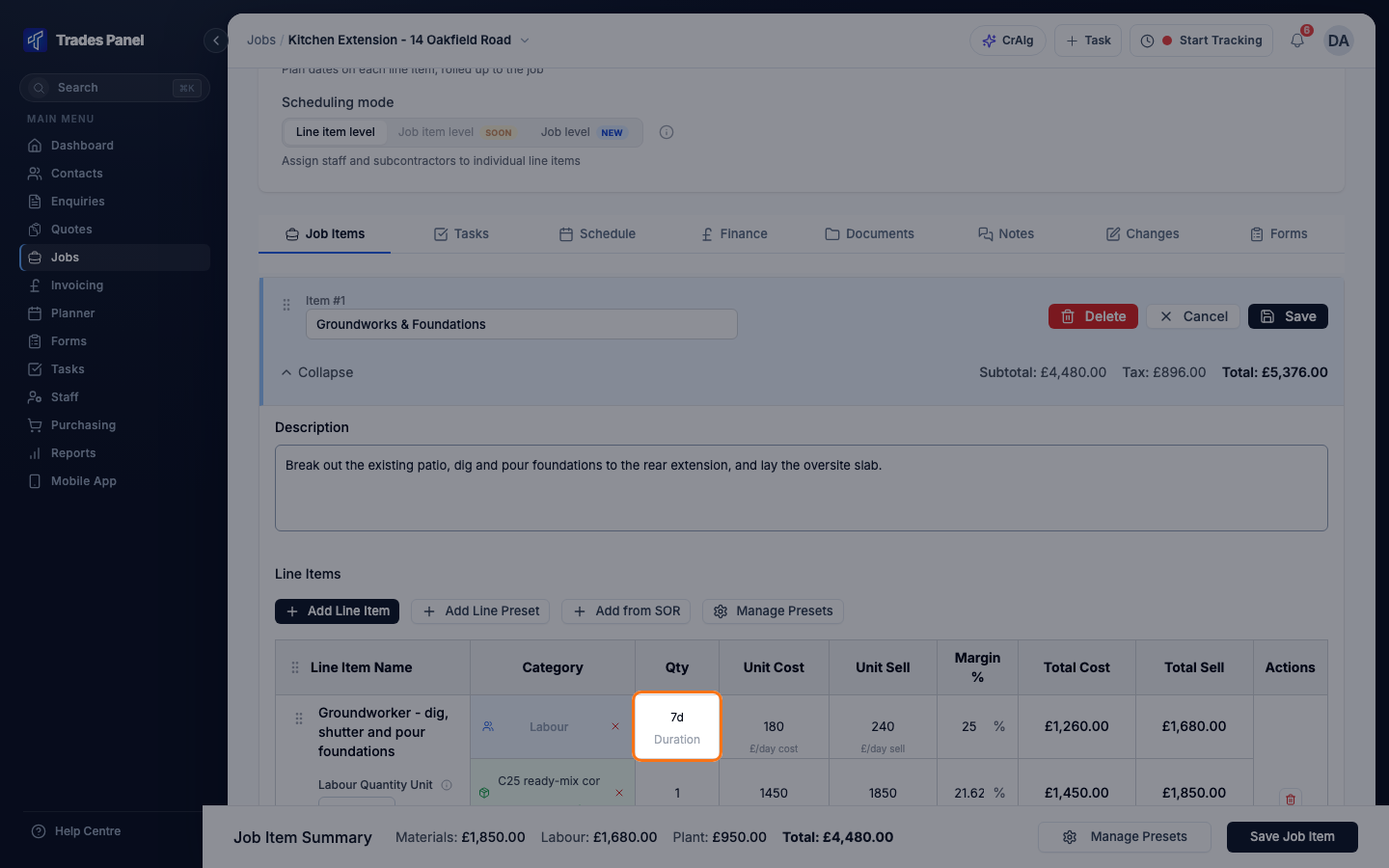
A day is the length of your account's standard working day, 9 hours unless your account has different working hours. See Your Account's Working Hours.
To price labour by area, length or count instead, change Labour Quantity Unit from Time to m², Lm, Nr, Item or Per. Enter the quantity in that unit; the rates become a price per unit. The Duration box stays, and is the time the work takes on the schedule.
Add a saved package of work
- Add Line Preset adds a saved package of line items in one go. The Quantity you enter scales every quantity in the package.
- Manage Presets opens your preset library beside the job.
- Add from SOR adds a rate from your schedule of rates.
See Line Presets: Price a Repeatable Work Package for the steps, and Set Up Labour, Material and Plant Presets to set presets up.
Dates on a job item
On a job planned at line item level, a saved job item shows its plan dates with Open on the schedule. Plan dates are set on the job's Schedule tab, not on the job item. See Edit the Plan from the Chart and Plan Dates and Scheduled Dates.
Delete a job item
Open the job item for editing and click Delete. Its line items are deleted with it.
A job item that is on an invoice, or has payments recorded against it, cannot be deleted until those are removed.
Related articles
- Create and Manage a Job - create the job first
- Your Account's Working Hours - the length of a day for labour pricing
- Set Up Labour, Material and Plant Presets - your saved rates
- Line Presets: Price a Repeatable Work Package - add a whole package of work at once
- Edit the Plan from the Chart - set dates for each job item and line item
- Book Staff onto a Job - book people onto the work you have priced
- Create a Change Order - change the price once the customer has agreed it