Use the Staff Time Logs report to change the times on a log, clock off someone who is still clocked in, or remove a log that should never have been recorded. Changes count straight away on Timesheets and in the job's labour cost.
Who can do this: owners and admins, on anyone's logs. Office staff can edit and clock off their own logs only, and not once a log has been marked paid: its times are then locked to everyone but owners and admins. Only owners and admins can delete a log.
To change a day's total without touching the original log, for example a day somebody never clocked, add an adjustment instead. See Correct Somebody's Hours.
Edit a clock-in or clock-out time
- Go to Reports > Staff Time Logs and click List.
- Find the log. Filtering by Staff Members and Date Range is usually quickest.
- Click the pencil in the log's Actions column. In Calendar, you can instead click the log and then Edit.
- Set Clock In Time and Clock Out Time to the correct times.
- Click Save Changes.
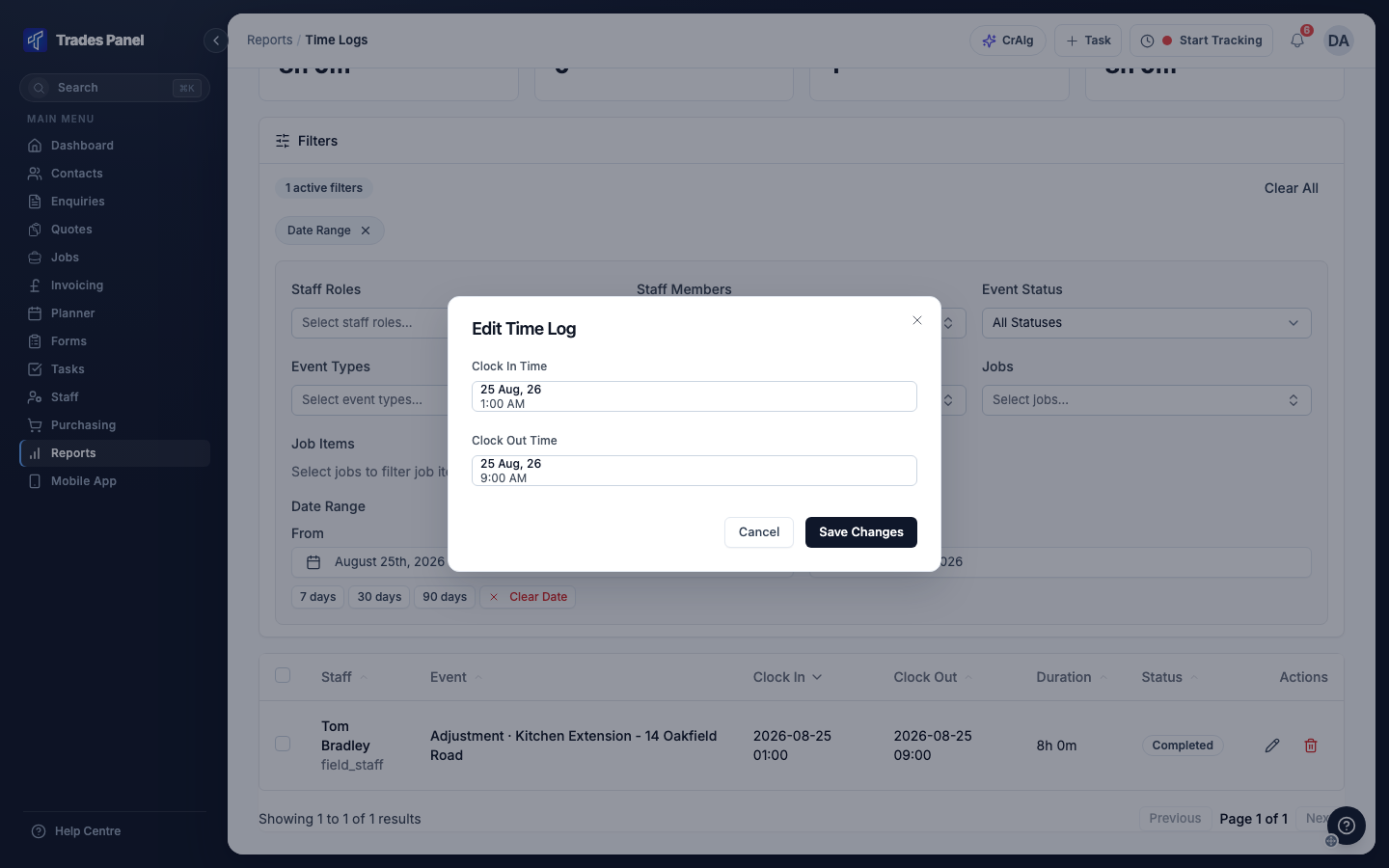
The clock-out time must be later than the clock-in time. The job, the staff member and the type of log cannot be changed. The duration updates to match the new times.
Clock someone off
A log that is still running shows Active and has a clock icon in Actions instead of the pencil.
- In List, click the clock icon on the running log.
- For scheduled work, choose what happens to the work:
- On Hold - work paused
- Complete - work finished, which also marks the event complete
- For a break, downtime, travel or a custom clock-in location, click Clock Off.
The log closes at the current time. A log you close for somebody else shows an orange triangle in the Status column, marking it as a manager override. If the person stopped work earlier, edit the clock-out time afterwards.
If the job has forms that must be filled in before clocking out, the clock-off is refused until they are complete. See Add a Form to a Job.
To stop shifts being left open in the first place, see Set Up Auto Clock-Out.
Delete a log
- In List, click the bin icon in the log's Actions column. In Calendar, you can instead click the log and then Delete.
- Check the details in the confirmation and click Delete.
To delete several logs at once, tick the box at the left of each row, then click Delete in the bar that appears above the table. The box in the header row selects every log on the current page.
A running log cannot be deleted. Clock it off first.
Related articles
- Staff Time Logs - reading the report, its filters and the Status icons
- Correct Somebody's Hours - add an adjustment to a day
- Timesheets - weekly hours per person
- Mark Staff Paid After Payroll - record that a week has been paid
- Set Up Auto Clock-Out - close shifts people forget to end
- The Job Finance Tab - where logged labour shows against a job