A contact can have as many addresses as you need - for example a landlord with several properties, or a customer whose billing address is not the site. Each quote and job is raised against one of the contact's addresses.
Who can do this: owners, admins and office staff.
Before you start: the contact must already exist. Addresses are added from the contact's record, not from the New Contact page. See Add and Manage Contacts.
Add an address
- Open the contact. The Addresses tab is open.
- Click Add Address.
- Enter the Street. This is the only required field.
- Enter the City, County and Postcode.
- Add Access Notes for anyone visiting - a key safe, a gate code or where to park.
- Click Add Address.
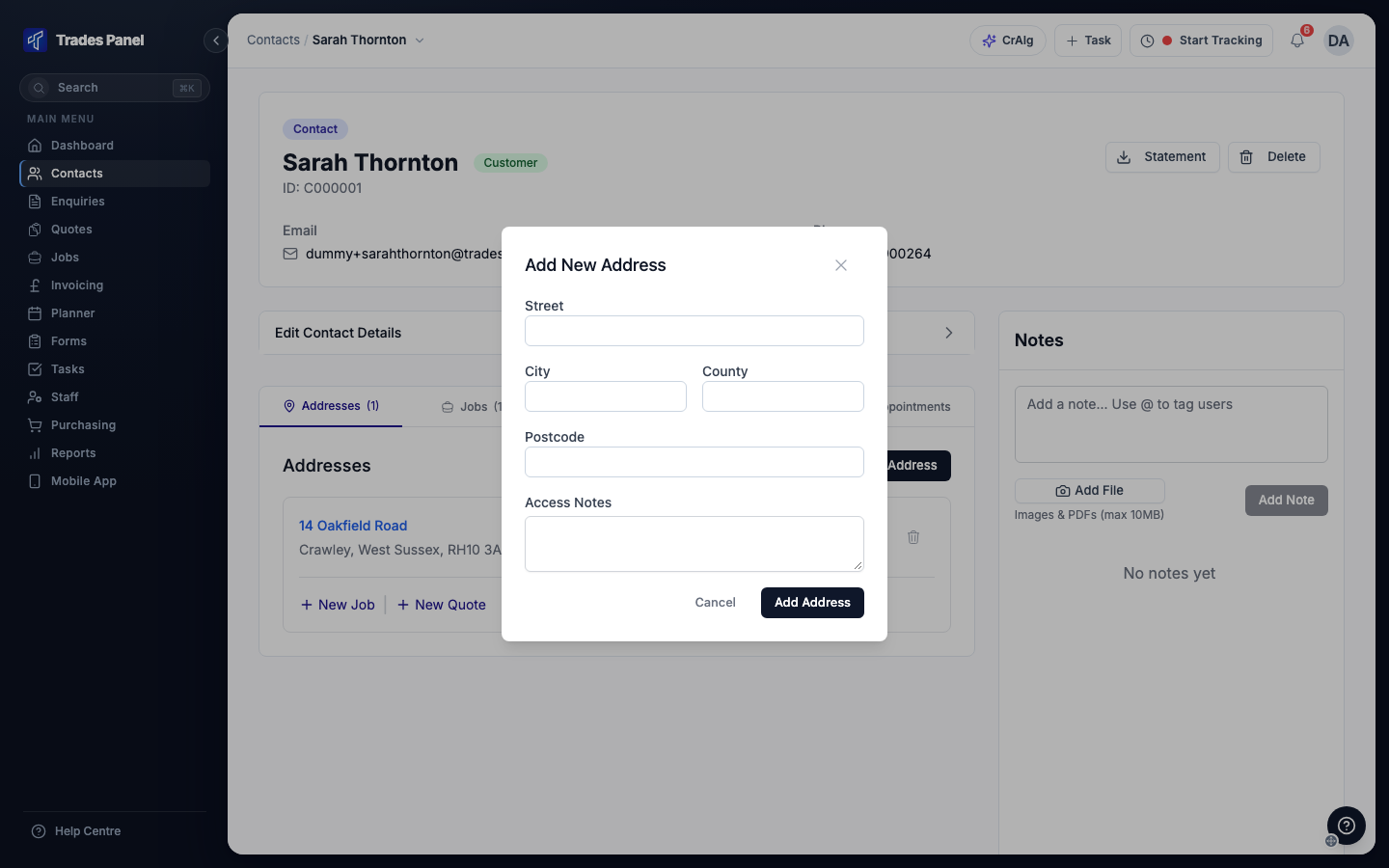
The address appears as a card on the Addresses tab. Enter a postcode if you can: the address needs a street, city and postcode before it can be placed on a map for clock-ins.
Start a quote or job at an address
Each address card has New Quote and New Job links. These start a quote or job with the contact and the address already filled in. See Create a Quote and Create and Manage a Job.
Each card also shows how many Jobs and Quotes are at that address. Click Show related items to list them.
Set a billing address for a business customer
A business customer can have a billing address that is different from their site addresses. It is used as the customer's address on quote proposals. Without one, the proposal uses the quote's own address.
- Add the billing address on the Addresses tab, as above.
- Click Edit Contact Details to expand it. Business Customer must be turned on.
- Choose the address under Billing Address. If you have just added it and it is not in the list, reload the page.
- Click Save Changes.
The billing address then shows in the contact's header.
Edit or delete an address
On the address card, click the pencil to edit it, then Save. Click the bin to delete it.
Changing an address changes it on every quote and job raised there. Deleting an address removes it from the contact. Jobs and quotes raised at that address are not deleted, and the confirmation tells you how many there are.
The address's location for clock-ins
The map pin and geofence that staff clock in within belong to the address, so every job at that address shares them. You set them on the job's Location tab, or by editing the address here. See Set a Job's Location So Staff Can Clock In.
Plan: location features are on the Crew, Business and Pro plans.
Related articles
- Add and Manage Contacts - creating and editing contacts
- Import Contacts in Bulk - adding many contacts with their addresses at once
- Create and Manage a Job - choosing the address for a new job
- Set a Job's Location So Staff Can Clock In - the address's pin and geofence
- Create a Quote - choosing the address for a new quote
- Book a Site Visit - using a stored address for an appointment