A job's geofence is the circle around its site address that staff must be inside to clock in to the job on the mobile app. It is switched on by placing the address on the map.
Who can do this: owners, admins and office staff.
Plan: Crew, Business and Pro. On the Free plan the map is replaced by an upgrade prompt, and clock-ins are not checked against the site.
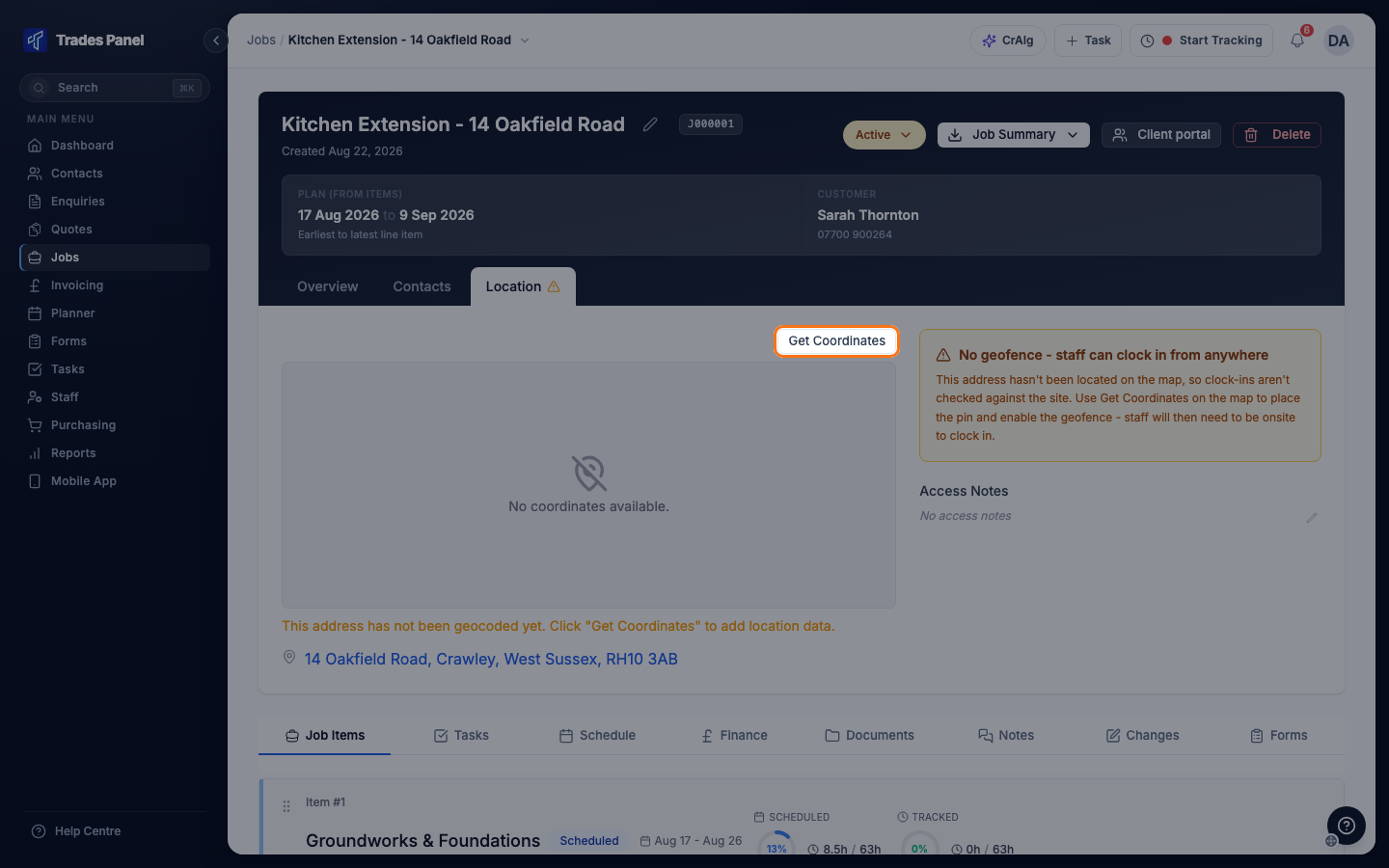
Until the address is placed on the map, there is no geofence and staff can clock in to the job from anywhere. The job's Location tab shows a warning icon, and the tab reads No geofence - staff can clock in from anywhere.
Place the address on the map
- Open the job and click the Location tab in the header.
- Click Get Coordinates. The address needs a street, a city and a postcode.
The pin appears on the map with a 100m geofence around it, and the tab reads Geofence active.
The location belongs to the address, not the job. Every job at that address uses the same pin and geofence.
Move the pin
If the pin is not where staff arrive on site, move it.
- Click Adjust Pin.
- Drag the pin to the right place.
- Click Save Location.
Change the geofence radius
- Drag the Geofence Radius slider. It runs from 50m to 500m.
- Click Save Radius.
A larger radius lets staff clock in further from the pin. A smaller one needs them closer to it.
If the address changes
Changing the street, city or postcode of the address on the customer's record removes the pin, because it no longer marks the right place. Open the job's Location tab and click Get Coordinates again.
Access notes
Access Notes on the same tab hold anything staff need to get on site, such as a key safe code or where to park. Owners, admins and office staff can edit them.
Related articles
- Create and Manage a Job - create the job and its address
- Set Up Custom Clock In Locations - clock-in places that are not job sites, such as a yard or merchant
- See Who Is Clocked In Right Now - see every site and geofence on one map
- Add and Manage a Contact's Addresses - edit a customer's addresses
- Staff Time Logs - the clock-ins this controls