Booking someone onto a job puts the work in their diary, lets them clock in against it, and sets the job's scheduled dates. You book from the job itself, in a planner that shows only that job.
Who can do this: owners, admins and office staff.
How you book depends on the job's scheduling mode. On a job scheduled at line item level, you book people onto individual line items. On a job scheduled at job level, you book them onto the whole job.
Book a line item (line item level)
- Open the job and stay on the Job Items tab.
- Click Expand on the job item.
- Under the line item, click Assign on the Scheduled side.
- The planner opens with your staff down the left and the job's line items down the right. The line item you chose is highlighted.
- Press and hold the grip handle on the left edge of the line item's card (the column of dots), drag it onto a person's row at the time you want them to start, and let go.
You can also open the same planner from the Schedule tab: click a line item's bar, then Assign staff in the panel that opens.
A drop in Daily View books from the time you let go to the end of that person's working day, or until the line item's labour hours are used up, whichever comes first. In Weekly View and Overview a drop books from the start of the person's working day for the line item's remaining labour hours, up to the end of their working day. Working hours come from the person's own hours if they have them, otherwise your account's. See Your Account's Working Hours.
Job Hours Scheduled at the top shows how many of the job's labour hours are booked. If a line item needs more than one day, drag it again onto the next day. Once all its hours are booked, the card's tooltip reads Fully scheduled - drag to add more assignments.
The line item then reads Scheduled, and the people booked show on its Scheduled side.
Book the whole job (job level)
- Open the job and click the Overview tab in the job header.
- Under Staff Assignments, click Assign staff.
- The planner opens with a single card for the job on the right.
- Drag the job card onto a person's row at the time you want them to start, and let go. Each drop books the rest of that person's working day.
- Repeat for every person and every day you need.
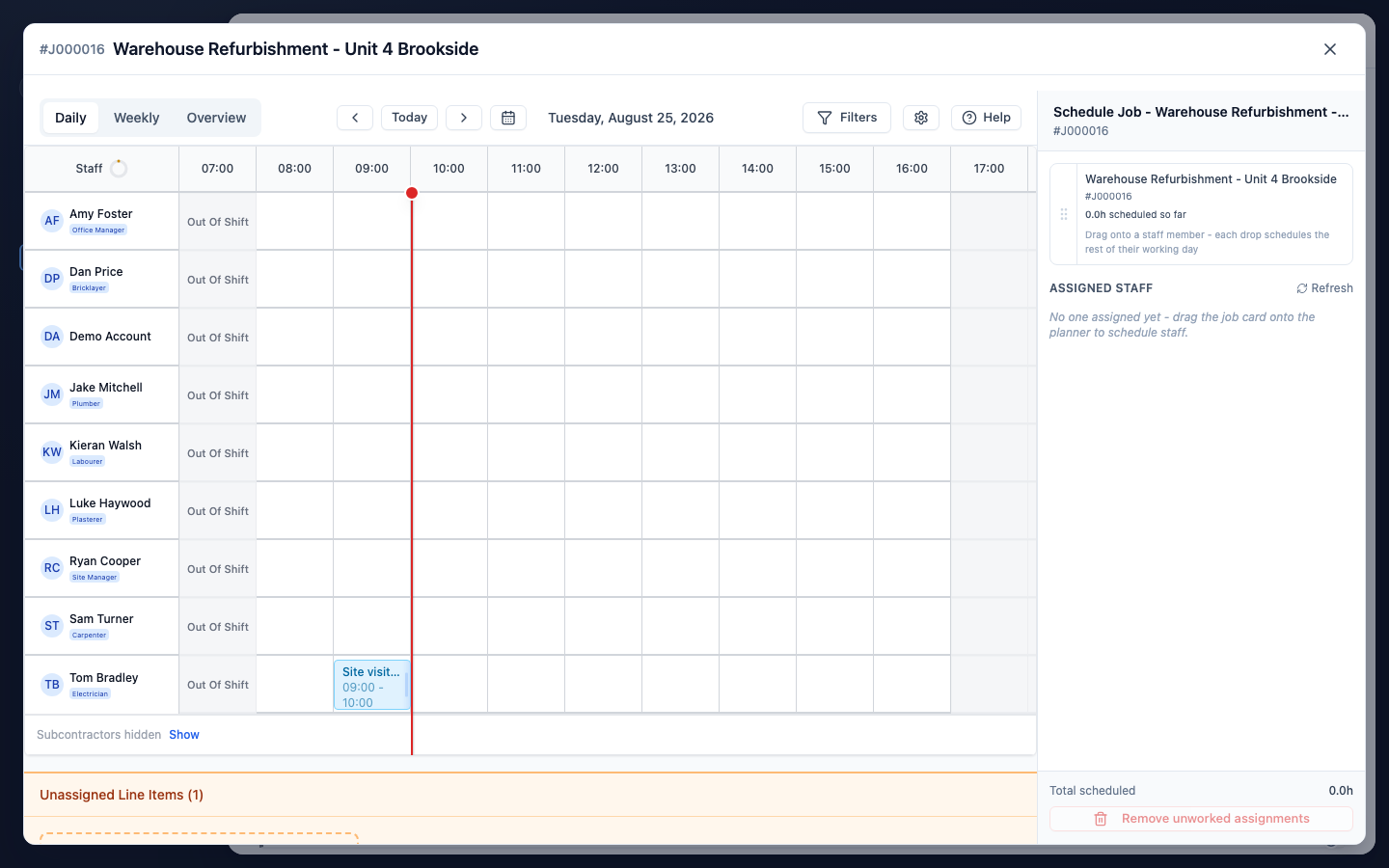
There is no hours target on a job level job. Assigned Staff, under the job card, lists everyone booked with their hours, and Total scheduled shows the running total.
Book several people or days at once
In Weekly View or Overview, the lower half of a card's grip is an area select button. Click it, drag a rectangle over the people and days you want, and confirm the number of events in the panel that opens. See Book a Crew or a Run of Days at Once.
Take a booking off
On a line item: on the Job Items tab, click ⋮ on the Scheduled side of the line item.
- Remove Specific Assignees lets you choose who to take off.
- Remove All Assignees removes every booking on the line item that is still at Scheduled status. It asks you to confirm first.
On a job level job: click Assign staff, then Remove unworked assignments at the bottom of the panel. It removes staff bookings nobody has clocked into and subcontractor bookings that have not finished. Anything clocked into, and past subcontractor bookings, are kept.
To remove a single booking, click it in the Planner and choose Delete.
Related articles
- Scheduling Modes - line item level or job level booking
- Plan Dates and Scheduled Dates - how bookings set a job's scheduled dates
- How to Schedule and Assign Work Using the Planner - book work across every job at once
- Book a Crew or a Run of Days at Once - several people or several days in one go
- Your Account's Working Hours - the hours a booking fills
- Staff Time Logs - what counts as clocked into