Settings > AI connections lists the AI apps, such as Claude, connected to your Trades Panel account. Use it to disconnect an app and, as the account owner, to choose which admins may connect.
Who can do this: the account owner and admins. Office staff and field staff do not see AI connections.
Open AI connections
- Click your avatar in the top-right corner, then Settings.
- Click AI connections, the last item in the Business group.
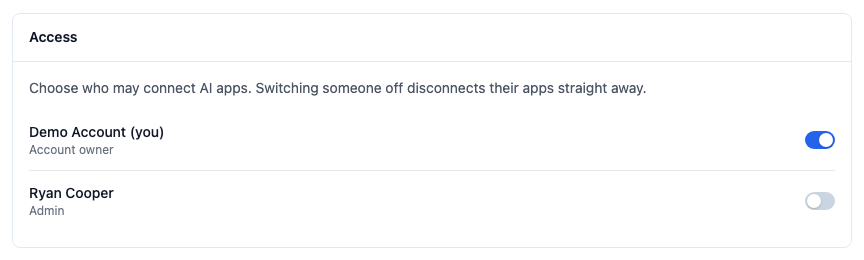
The screen has up to three sections:
- Your connections - the apps you have connected, with when each was connected and when it was last active.
- All connections - every connection in the account and who made it. Account owner only.
- Access - the owner and every admin, each with a switch. Account owner only.
Let an admin connect
Who can do this: the account owner.
- Open Settings > AI connections.
- Under Access, turn on the switch next to the admin's name.
The admin can connect from then on. Admins start with the switch off. The account owner starts with it on.
Turning a switch off disconnects that person's apps straight away and stops them connecting again. Changing someone's role turns their switch off, so an admin moved to another role and back has to be switched on again.
Disconnect an app
- Open Settings > AI connections.
- Click Disconnect next to the connection.
- Click Disconnect again to confirm.
The app loses access to your account straight away. It can be connected again later.
You can disconnect your own connections. The account owner can disconnect anyone's, from All connections.
Then remove the connector in Claude too, from the Connectors page where you added it, so Claude stops offering it.
Other things that disconnect an app
- Changing or resetting your password.
- Revoke All Other Sessions, under Session Management on your profile page. Click your avatar, then Your Profile.
- Being removed from the account, or moved to office staff or field staff.
Signing out in the ordinary way does not disconnect an app.
Related articles
- Connect Claude to Trades Panel - add the connector in Claude
- Claude Cannot Connect to Trades Panel - when connecting is refused or a connection stops working
- Roles and What Each One Can See - change someone's role