Suppliers and subcontractors are the businesses you buy materials and labour from. You need one before you can raise a quote request, purchase order or purchase invoice for them.
Who can do this: owners, admins and office staff.
A subcontractor is a record on your own account. Adding one does not send them anything or give them a login. To give someone access to your jobs, add them under Staff instead.
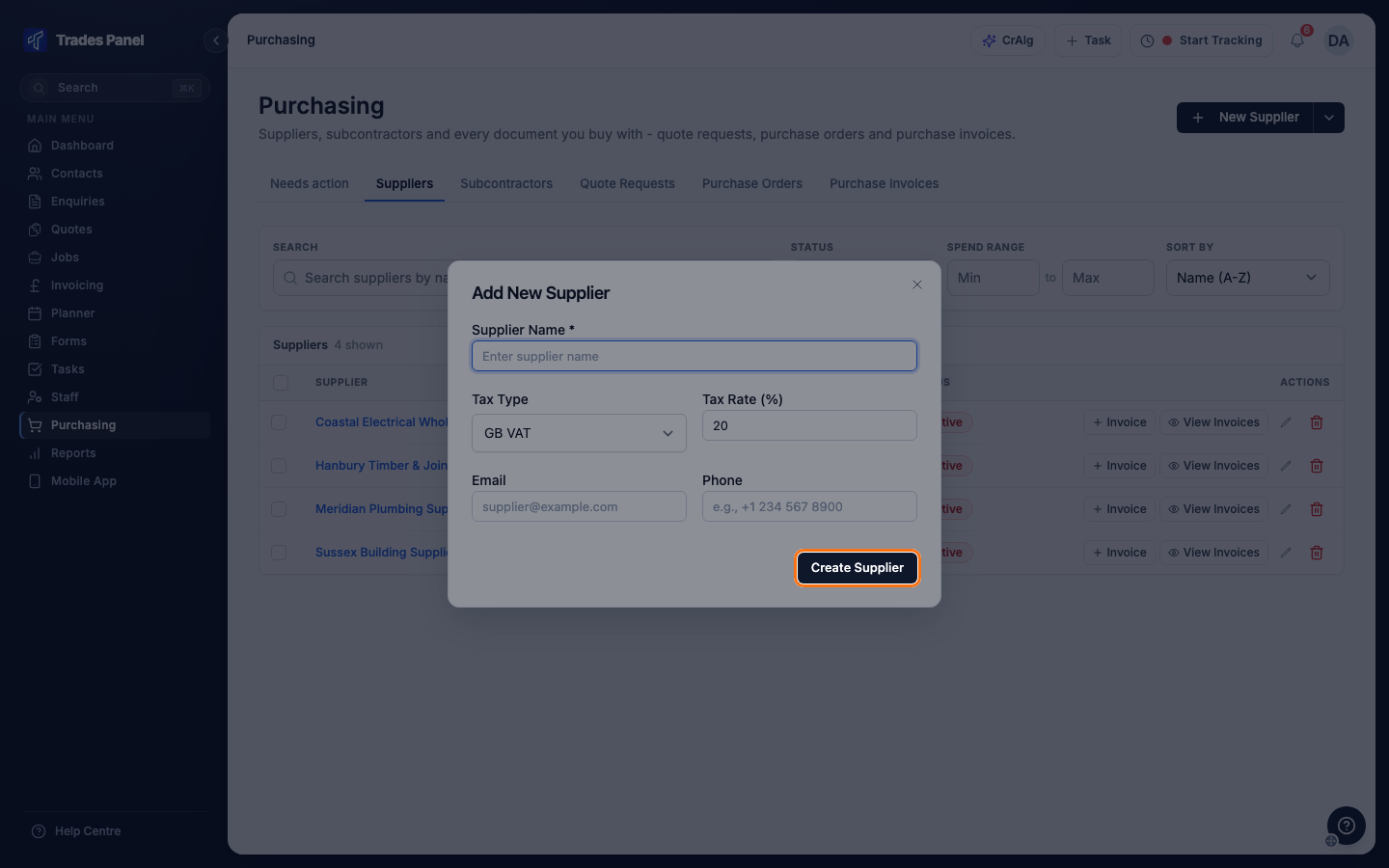
Add a supplier
- Go to Purchasing and open the Suppliers tab.
- Click New Supplier.
- Enter the Supplier Name. This is the only required field.
- Check Tax Type. It starts at GB VAT if your account charges VAT, otherwise None. When it is not None, Tax Rate (%) appears, filled in with your account's VAT rate.
- Add an Email and Phone if you have them.
- Click Create Supplier.
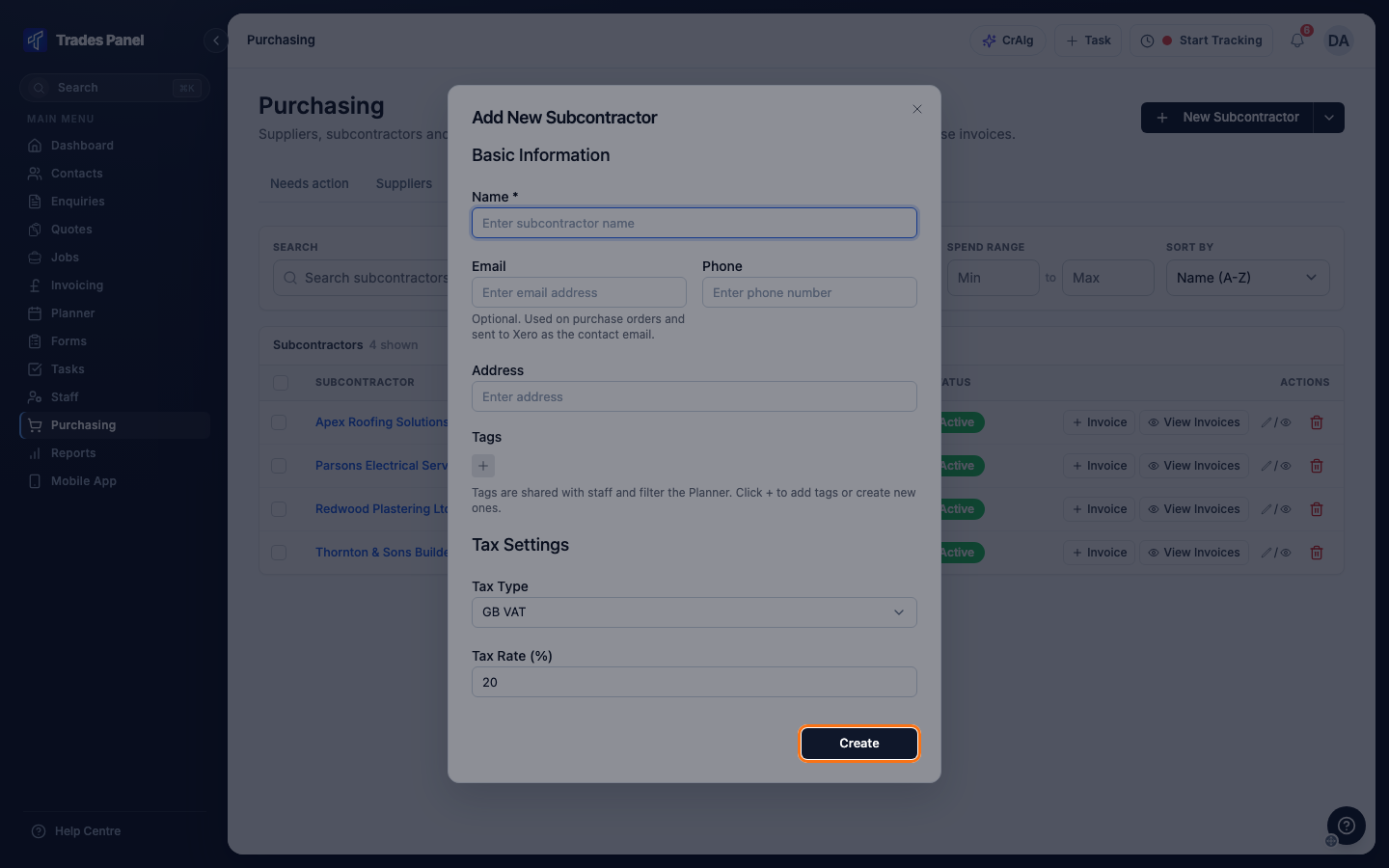
Add a subcontractor
- Go to Purchasing and open the Subcontractors tab.
- Click New Subcontractor.
- Enter the Name. This is the only required field.
- Add an Email if you have one. It goes on purchase orders and is sent to Xero as the contact email.
- Add Phone, Address and Tags as needed. Tags are shared with your staff tags and can be used to filter the Planner.
- Check Tax Type and Tax Rate (%), as for a supplier.
- Click Create.
Add several at once
- On the Suppliers or Subcontractors tab, click the arrow beside the main button and choose Bulk add suppliers or Bulk add subcontractors.
- Copy the rows from a spreadsheet and paste them into the table. The columns are Name, Email and Phone, plus Address for subcontractors. You can also type rows in with Add row.
- Click Create. The button shows how many will be added.
You can add up to 50 in one go. Every row needs a name. Two subcontractors in the same batch cannot share an email address. When it finishes, any rows that could not be added are listed with the reason.
Edit one
Click the pencil on the row.
- For a supplier, this opens the same dialog. Click Update Supplier to save.
- For a subcontractor, this opens the Edit Subcontractor page, which also has Status, Notes and the jobs they are assigned to. Click Save Changes to save.
Active, Inactive and Suspended
- A supplier shows Active when it has an approved purchase invoice dated in the last 60 days, and Inactive otherwise. A new supplier is Inactive until its first invoice is approved.
- A subcontractor's status is whatever you set on the Edit Subcontractor page: Active, Inactive or Suspended. New subcontractors start as Active.
Find one
The bar above each list has a Search box (name, contact or email), a Status filter, a Spend range, and Sort by (Name (A-Z), Most recent or Highest spend). The Subcontractors tab also filters by Tags.
Each row has Invoice, which starts a purchase invoice for that business, and View Invoices, which opens their invoices in a new browser tab.
Remove one
Click the bin on the row, then Delete.
Related articles
- Purchasing - what each tab in Purchasing holds
- Request a Quote from Suppliers - asking suppliers to price a list
- Labour, Material and Plant Budgets - recording a supplier or subcontractor bill against a job
- Add and Manage Staff - giving someone a login to your account