The Planner shows everyone's bookings, time off and working hours side by side. Use it to find a gap before you book someone, and to find planned work with nobody on it.
Who can do this: owners, admins and office staff.
Choose a view
Click Planner in the main menu, then pick a tab at the top left.
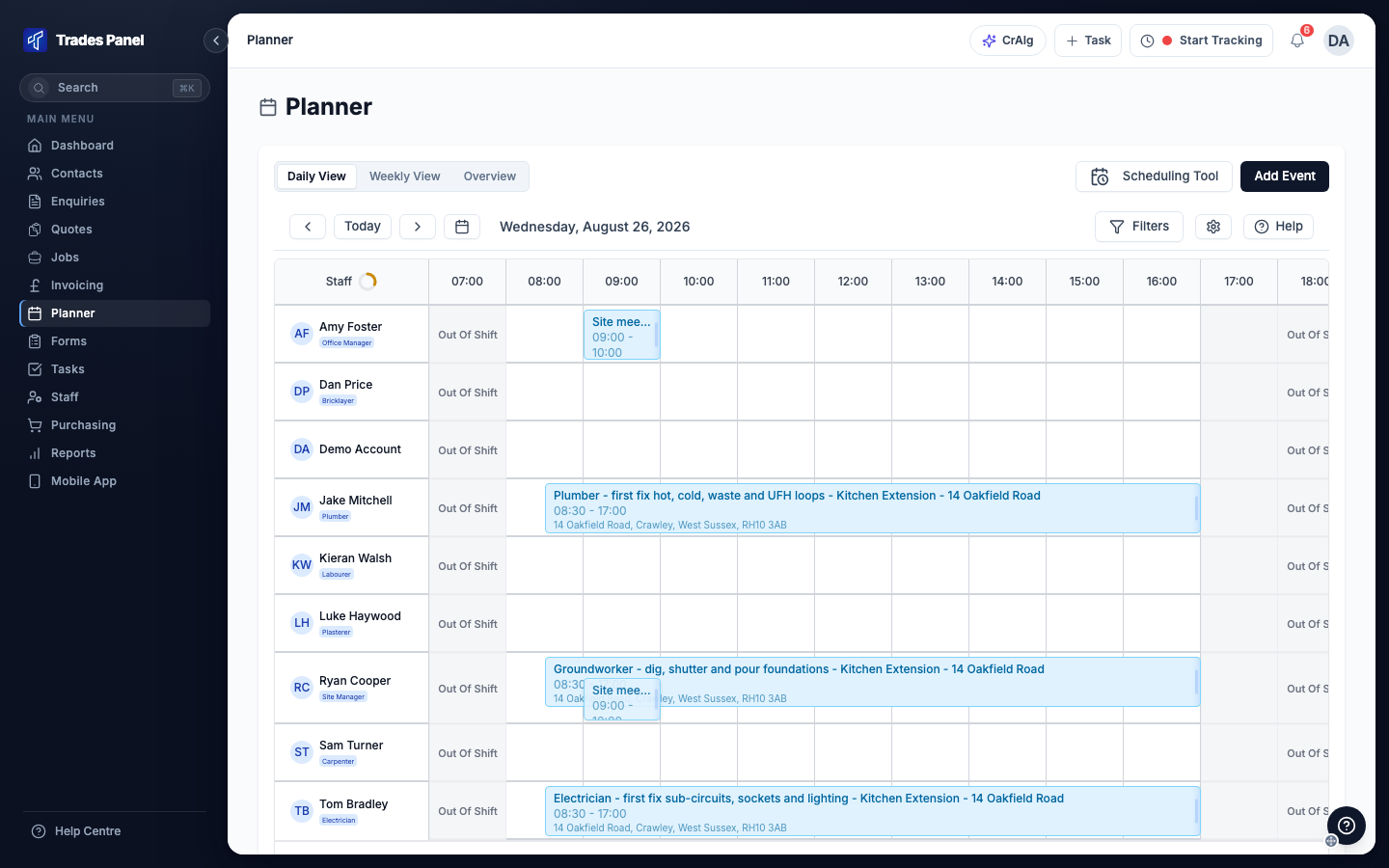
- Daily View shows one day, an hour per column. Use ‹, ›, Today or the calendar button to change day.
- Weekly View shows Monday to Sunday. Use it to find a free day.
- Overview shows several weeks at once. Previous, Today and Next move through the dates, the zoom buttons and Reset change how many days you see, and Set Custom Date Range shows dates you choose.
Read a person's row
- Bookings show as bars with the work and the times. Click one to see its details.
- Shaded time is time the person does not work. In Daily View, hours outside their working day, and the whole of a non-working day, are marked Out Of Shift. In Weekly View, non-working days are marked Out of Shift. Working hours come from the person's own hours if they have them, otherwise your account's. See Your Account's Working Hours.
- Absence shows as a red block with its type, such as Annual Leave, Sickness or Holiday. Only approved absence is shown. See Record and Approve Staff Absence.
Two bookings at the same time on the same person both show on their row. The Planner does not stop you double-booking someone, so read the row before you book.
In Daily View and Overview, a circle beside Staff or above each day shows how much of your staff's available hours are booked. Click it to see the figures for each person.
Find work nobody is booked on
Unassigned Line Items, along the bottom of the Planner, lists line items whose plan dates fall in the days you are looking at and that have nobody booked on them. When it is empty, all the planned work in those days has someone on it.
To book one of them, open the Scheduling Tool. See How to Schedule and Assign Work Using the Planner.
Filter who you see
Click Filters above the grid. The button shows a count when a filter is on.
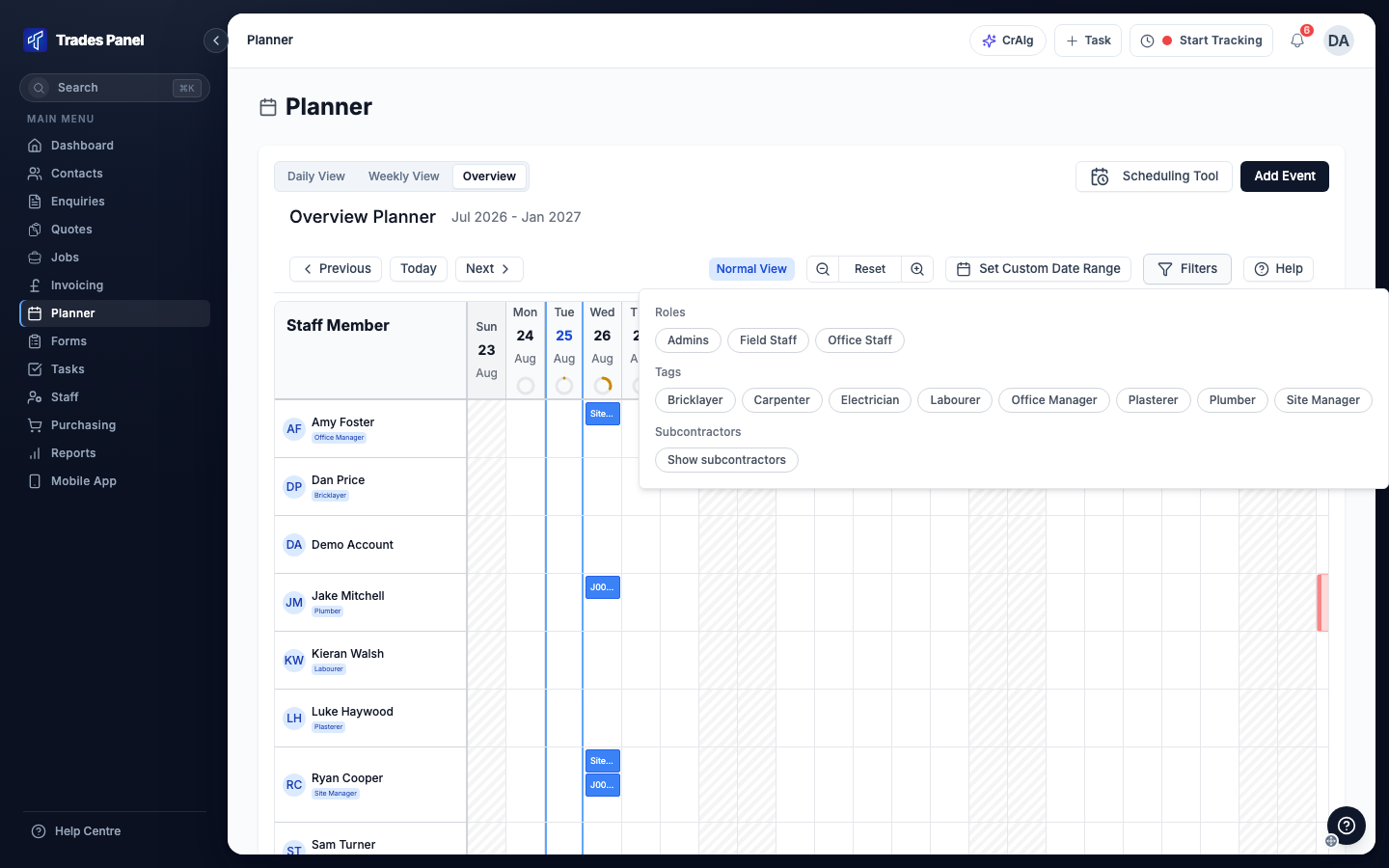
- Roles shows only people with that role, such as Admins, Office Staff or Field Staff. See Roles and What Each One Can See.
- Tags shows only people with that tag. Use it to show one trade, such as your plumbers. Tags are set on each person's staff record. See Add and Manage Staff.
- Show subcontractors adds a row for each active subcontractor, so you can see and book them on the Planner.
Clear filters turns them all off.
Subcontractor rows are off to start with. While they are off, a Subcontractors hidden line under your staff has a Show button that switches them on. The Planner remembers the setting next time you open it.
Related articles
- How to Schedule and Assign Work Using the Planner - booking people onto work
- Book a Crew or a Run of Days at Once - booking several people or days in one go
- Your Account's Working Hours - the hours that are shaded
- Record and Approve Staff Absence - time off on the Planner
- Add Suppliers and Subcontractors - adding a subcontractor so they appear here