A line preset is a priced package of work, such as one square metre of 100mm blockwork. It combines labour, material and plant presets in the quantities one unit of the work needs. When you apply it, you enter how many units the job needs and every part is added at that quantity.
Who can do this: owners and admins create line presets in Settings. Owners, admins and office staff can apply them to quotes and job items.
Before you start: the labour, materials and plant the package uses must exist as presets. See Set Up Labour, Material and Plant Presets.
Create a line preset
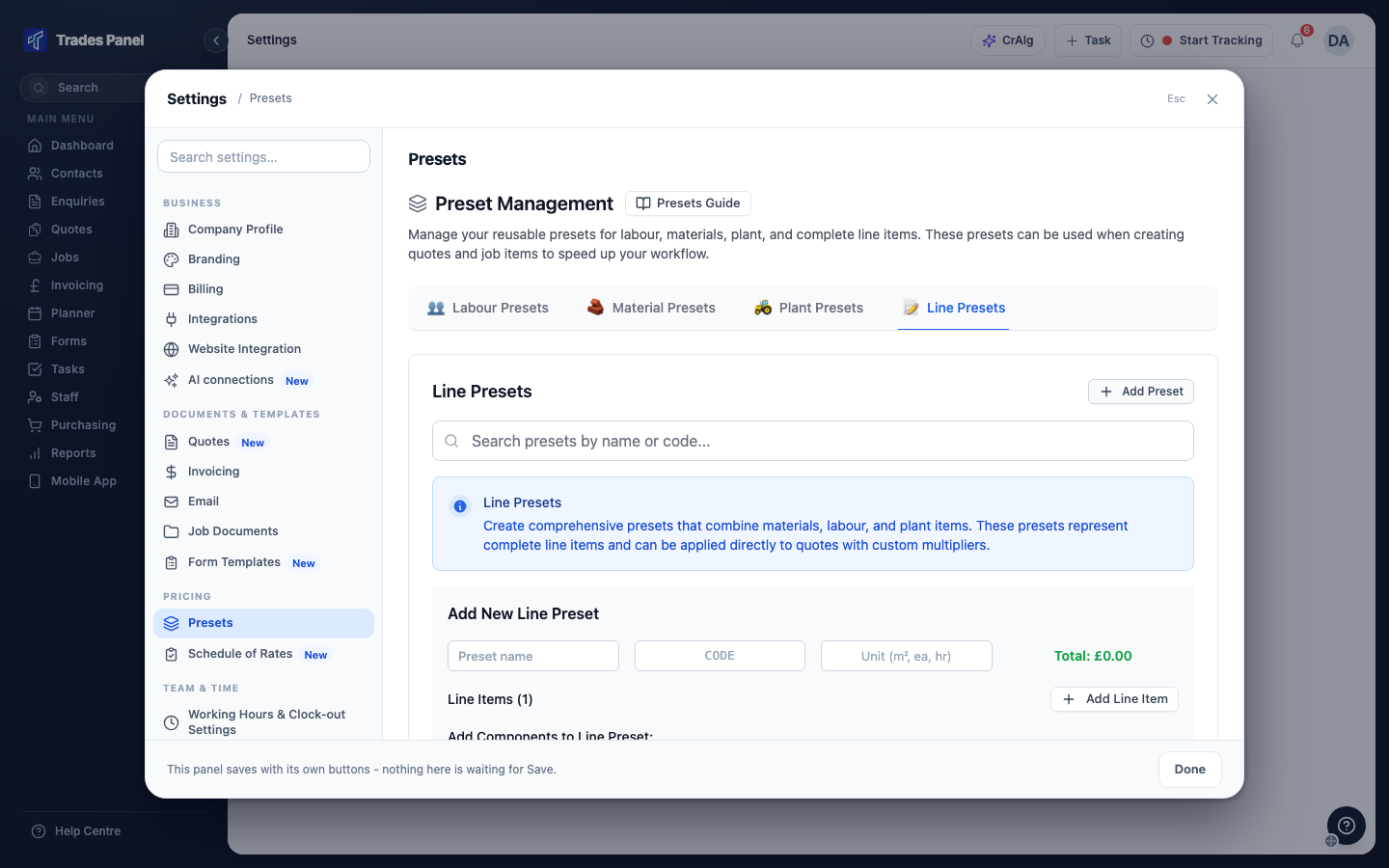
- Click your profile icon in the top-right corner, choose Settings, then click Presets.
- Click the Line Presets tab, then Add Preset.
- Enter a Preset name, a CODE of up to 12 characters, and the Unit you price
the work in, for example
m²,Lmorea. - In the first line item, type a Description of the work.
- In the Labour, Materials and Plant boxes, start typing a preset's name or code and pick it from the list.
- Set the quantity of each one needed for one unit of the preset. For a preset priced per m², enter what one square metre uses.
- Use Add material or Add plant to add more of either to the same line item, and Add Line Item to add another line item.
- Click Save Line Preset.
For labour priced by time, enter how long one unit takes in the duration box, for example
30m or 1h. A number with no unit is read as hours. For labour priced per m², metre or
item, enter the quantity. If the labour preset has a Duration set, the duration fills
in from it.
Save Line Preset stays greyed out until the preset has a name, a code, a unit, and at least one labour, material or plant preset picked in a line item.
If a material or plant you need is not in the list, click + Create Preset at the bottom of the list to add it without leaving the form.
To change a line preset later, click the pencil on its row on the Line Presets tab. The bin deletes it. Neither changes quotes or jobs it has already been applied to.
Apply a line preset to a job item
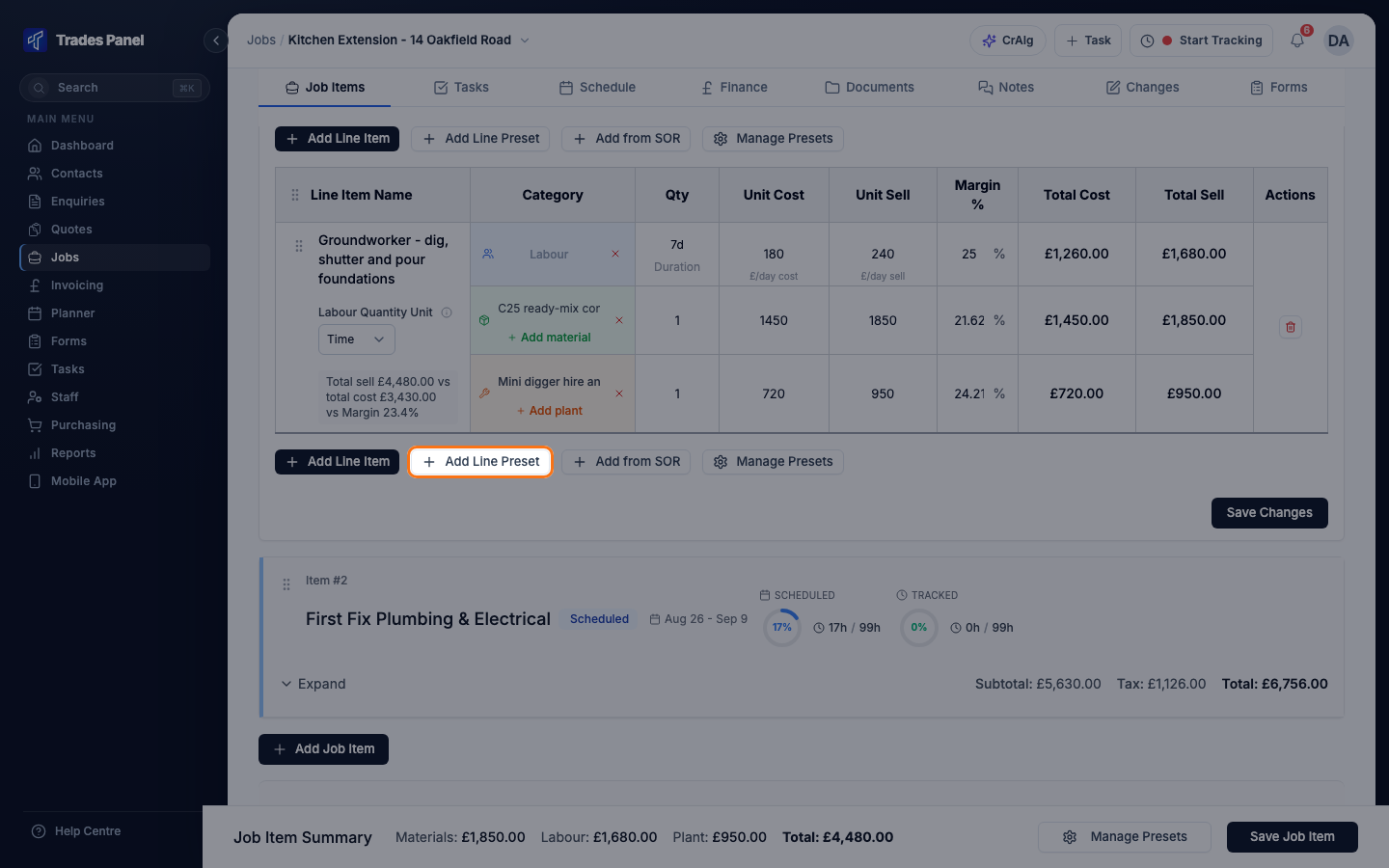
- Open the job. On the Job Items tab, click Expand on the job item.
- Click Edit.
- Click Add Line Preset below the line items.
- Click the preset you want, or search for it by name or code.
- Enter the Quantity - the number of units of the preset the job needs, such as 12 for 12 m².
- Check the preview, then click Apply Preset.
- Click Save Changes.
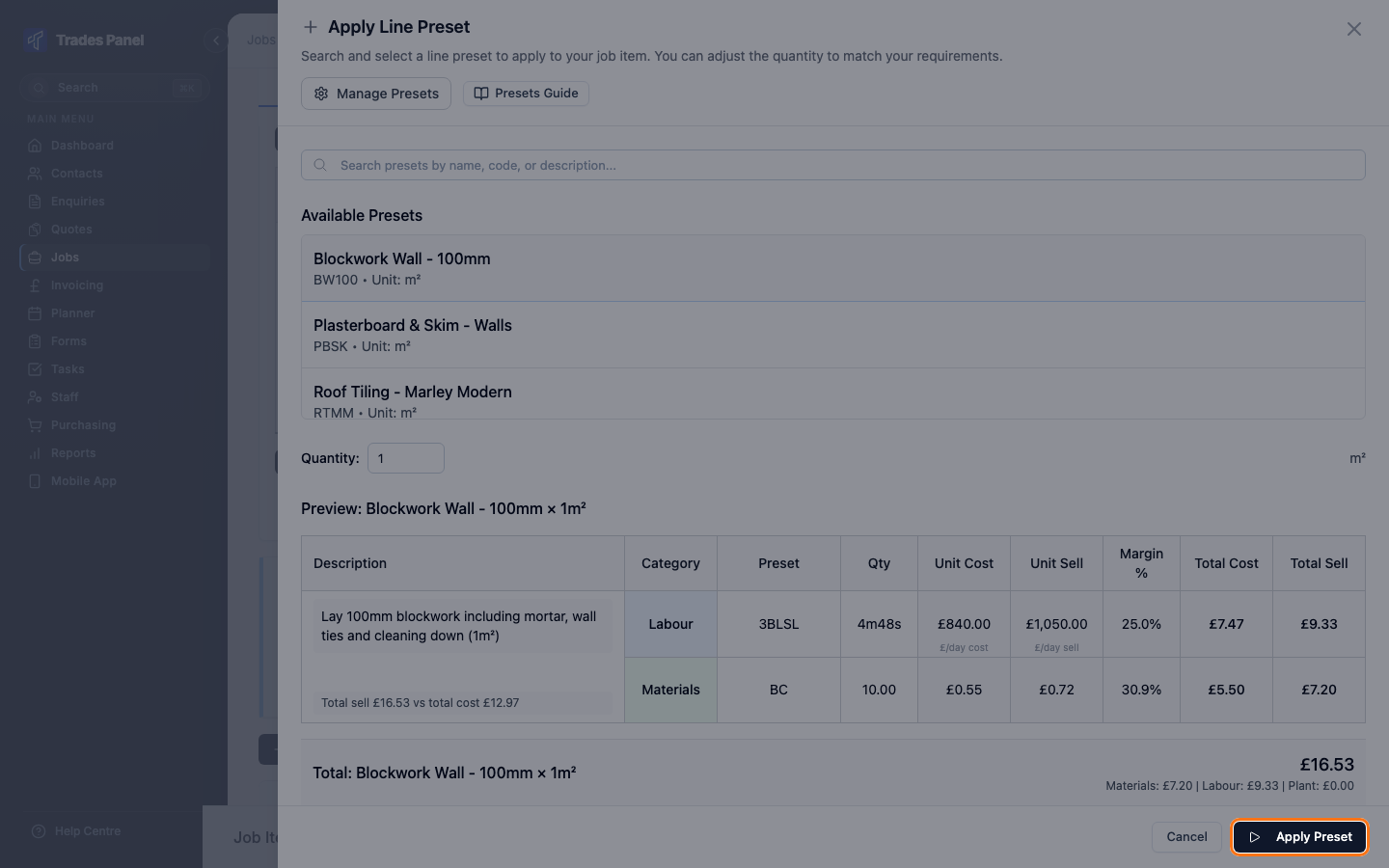
Every quantity in the preset is multiplied by the Quantity you enter. Each line item in the preset is added as its own line, named after its description and the quantity, for example Lay 100mm blockwork (12m²).
Apply Preset stays greyed out until you have picked a preset.
Once added, the lines are ordinary line items. You can change their quantities or remove parts of them, and the preset itself is not affected. Labour time is worked out from your account's working day. See Your Account's Working Hours.
Apply a line preset to a quote
- Open the quote for editing.
- In the quote item you want to price, click Add Line Preset.
- Pick the preset, enter the Quantity, and click Apply Preset.
- Save the quote.
The preset's line items are added to that quote item, multiplied by the quantity, in the same way as on a job item.
Related articles
- Set Up Labour, Material and Plant Presets - the labour, materials and plant a line preset is built from
- Create a Quote - build and price a quote
- Build a Job Up: Job Items and Line Items - job items and line items
- Your Account's Working Hours - the working day labour time is based on