Book an appointment from a contact's record for a survey, site visit or follow-up. The appointment is added to the Planner for each member of staff you assign.
Who can do this: owners, admins and office staff.
Book an appointment
- Open the contact and click the Appointments tab.
- Click Create Appointment.
- Enter a Title, such as Survey for rear extension. Description is optional.
- Set the Date, Start Time and End Time. When you change the start time, the end time moves to one hour later. Change it if the visit is longer.
- Under Assign Staff Members, pick at least one person. You can add several.
- Under Location, click Select Address to use one of the contact's addresses, or type a location under Or enter location manually.
- Click Create Event.
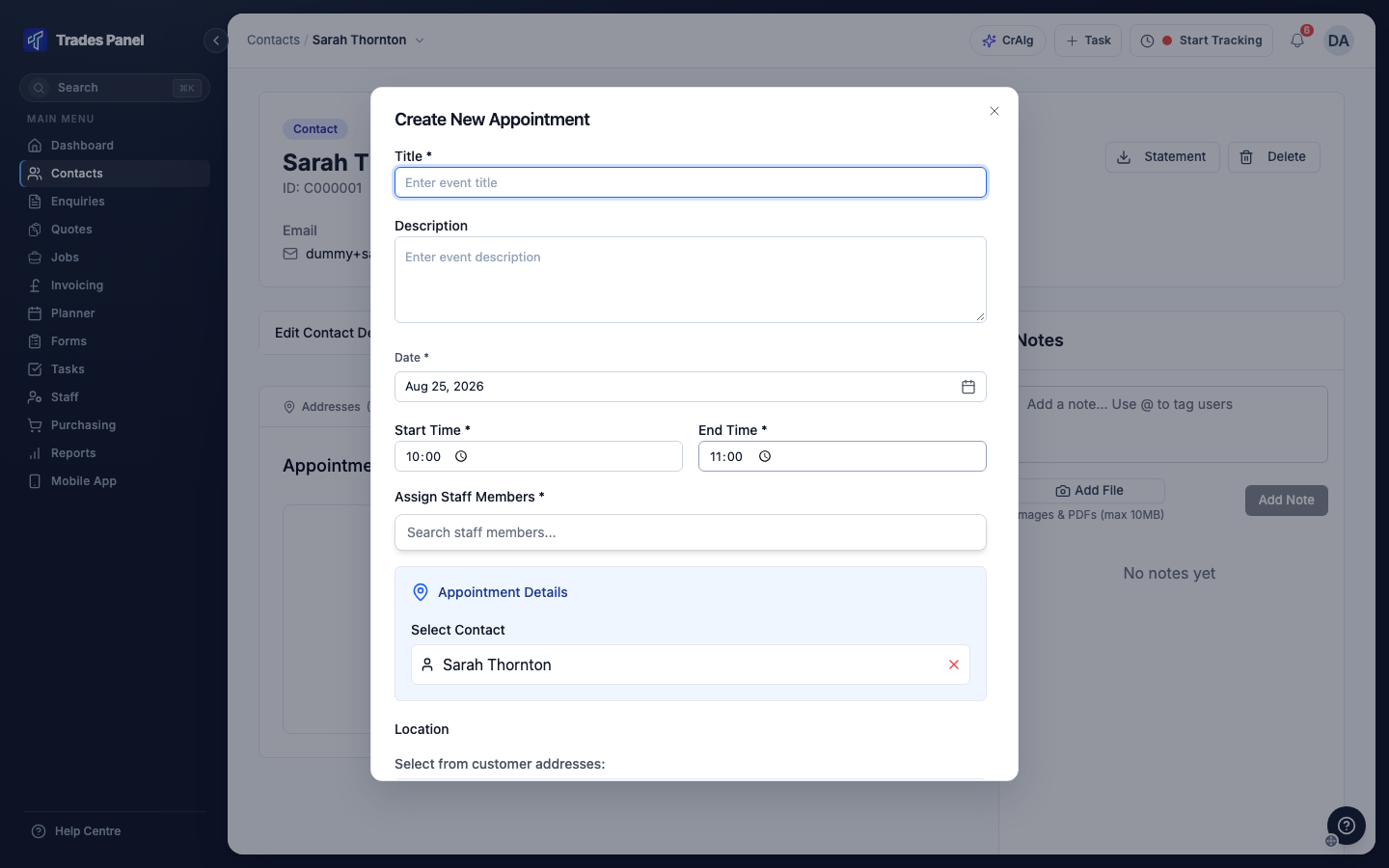
The contact is already filled in under Appointment Details. To use a site address that is not listed, add it to the contact first - see Add and manage a contact's addresses.
Find, change or cancel an appointment
Each appointment is a card on the contact's Appointments tab, showing its status, date, time, staff and location.
- View Planner opens the Planner at that week. See How to Schedule and Assign Work Using the Planner.
- Edit (or Edit All when several staff are assigned) changes the appointment for everyone on it. Click Update Event to save.
- Delete removes the appointment, including from the Planner.
An appointment that someone has clocked time against cannot be deleted, and that person cannot be removed from it.
Related articles
- Add and manage contacts - the contact's record
- Add and manage a contact's addresses - storing site addresses
- How to schedule and assign work using the Planner - where appointments appear