Marking staff paid records that a week's hours have been paid, so the Timesheets grid shows what is still outstanding. It does not send any money or create anything in your accounts.
Who can do this: owners and admins.
Mark a week as paid
- Go to Staff > Timesheets.
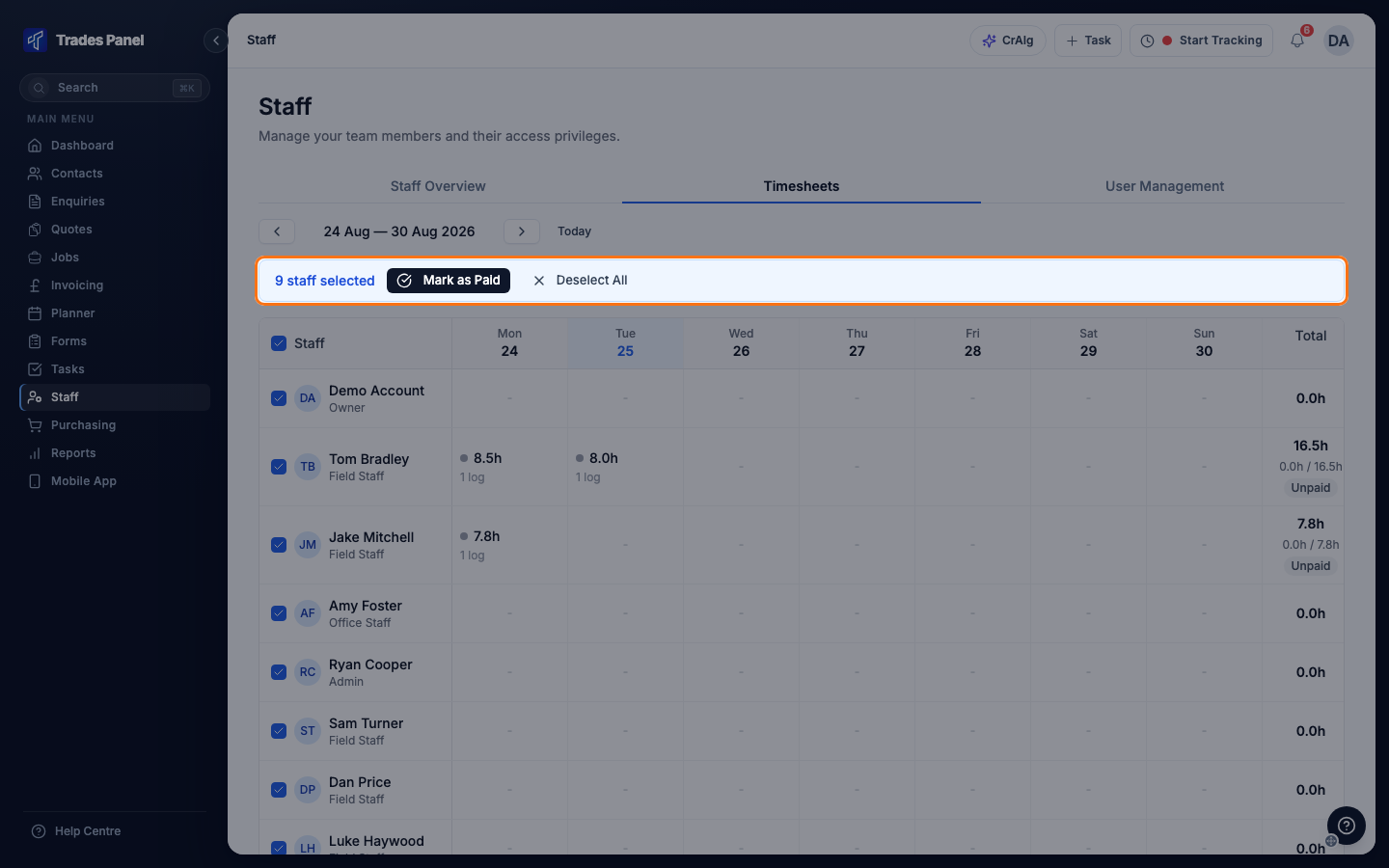
- Move to the week you have paid for. Everyone you tick is marked paid for the week on screen.
- Tick each person you have paid, or tick the box beside Staff in the header to select everyone.
- Check the bar above the grid shows the number of staff you expect, then click Mark as Paid.
A message confirms how many staff were marked. Their days turn green, the Total column shows the paid hours matching the week's hours, and the badge changes to Paid. Each log in an opened day carries a green Paid label.
Deselect All on the bar clears the ticks without marking anyone.
If a week still shows Partial
Two kinds of entry are not marked paid, even when the person is ticked:
- an adjustment waiting for approval - approve it, then mark the week again. See Correct somebody's hours.
- a shift that is still running - once the person clocks out, or the shift is closed automatically, mark the week again.
Days with a yellow dot are the ones to open. The logs without a green Paid label are the ones still outstanding.
Undo it
Open the day and click the green Paid label on a log. That log goes back to unpaid straight away. Do this for each log you want to undo.
Related articles
- Timesheets - reading the weekly grid
- Correct somebody's hours - fix a day before you pay it
- Set up auto clock-out - close shifts people forget to end
- Set a staff member's pay rate - set each person's pay rate