Adding a form to a job makes it available to your team on that job. You also choose when it has to be filled in, so a safety check can stop anyone clocking in until it is done.
Who can do this: owners, admins and office staff. Only owners and admins can change or remove a form once it is on a job.
Before you start: the form needs an active template. See Build a form.
Add the form
- Open the job and click its Forms tab.
- Click Add Form.
- Search for the template and click it.
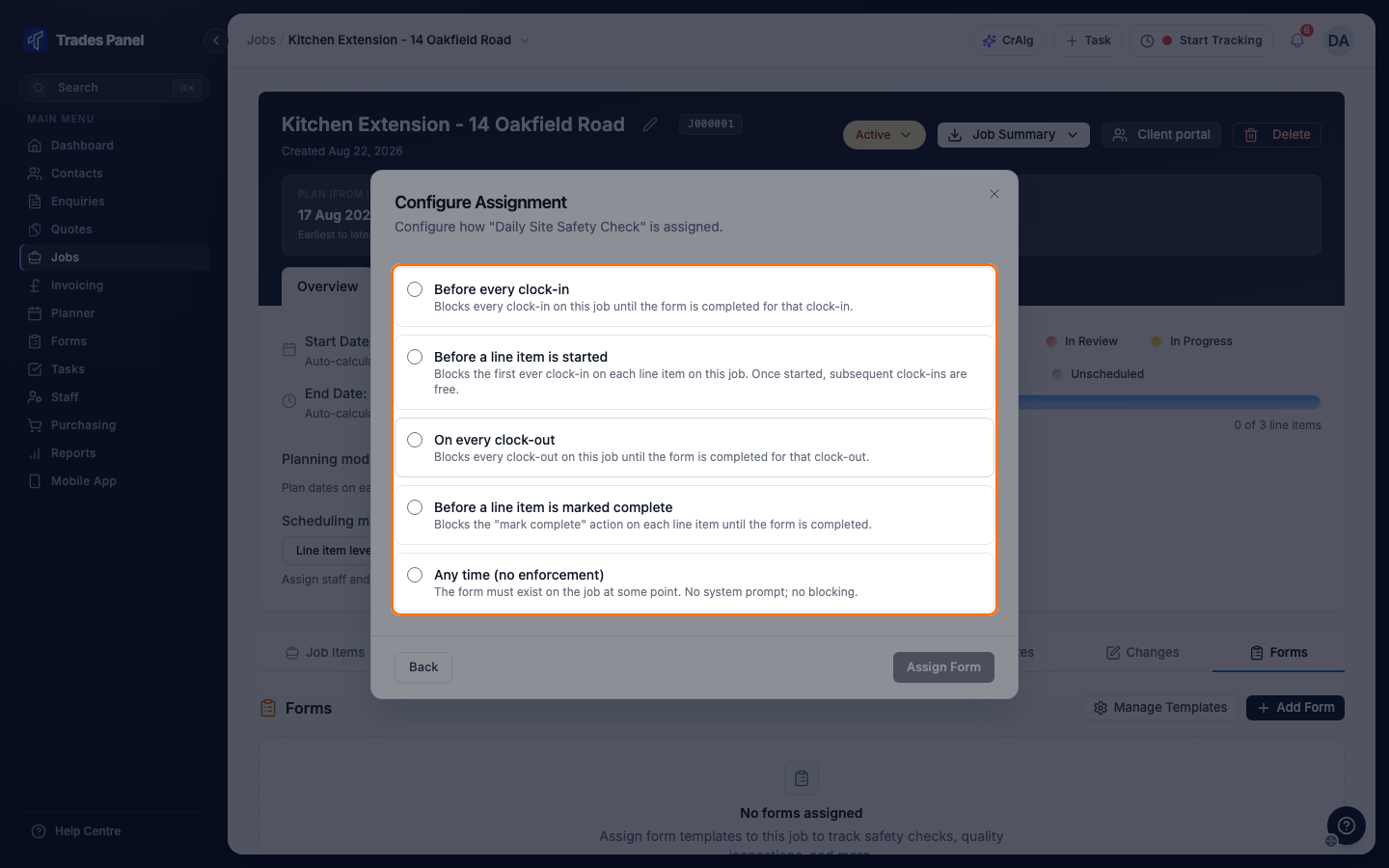
- Choose when the form has to be filled in. The options are below.
- If you chose Any time (no enforcement), you can set a Due date (optional).
- Click Assign Form.
The form appears on the job's Forms tab straight away. Nobody is sent a notification.
When the form has to be filled in
Before every clock-in - nobody can clock in on the job until they have filled in the form for that clock-in. Use it for a daily safety check.
Before a line item is started - the form is needed before the first clock-in on each line item. Later clock-ins on that line item are not stopped.
On every clock-out - nobody can clock out of the job until they have filled in the form. Use it for end-of-shift reports. This also applies when someone in the office clocks a person off from their time log.
Before a line item is marked complete - a line item cannot be marked complete until the form is filled in. Use it for a quality sign-off.
Any time (no enforcement) - nothing is stopped. Your team fills the form in from the Forms screen on the app or terminal whenever it is needed, as many times as needed.
Before a line item is started is not offered on a job scheduled at job level. See Scheduling modes.
What counts as filled in
A form that stops a clock-in, clock-out or sign-off counts as done as soon as it is submitted. It does not wait for the office to approve it. If you reject it, it counts as not done again and is asked for again.
The person sees the forms they still need at the moment they are stopped, on the mobile app or on a site terminal. After submitting them, they carry on.
Change a form on a job
You cannot change when a form has to be filled in once it is on the job. Remove it and add it again with the new option. A form can only be removed while nothing has been submitted against it. See Retire a form without losing the records.
The same template can be on a job more than once, but only with a different option each time.
To change the due date on an Any time form, click the date on its row.
Related articles
- Build a form - create the template first
- Fill in a form on your phone - what your team sees
- Review, approve and reject form submissions - check what comes back
- Retire a form without losing the records - stop a form on a job
- Scheduling modes - why a line item option may be missing