CrAIg reads invoice PDFs and fills in a purchase invoice for each bill it finds. You check each one and approve it, and it is saved as if you had typed it in.
Who can do this: owners, admins and office staff.
Cost: 5 AI credits per invoice. Counting the invoices in your files is free, and you see the total before anything is charged.
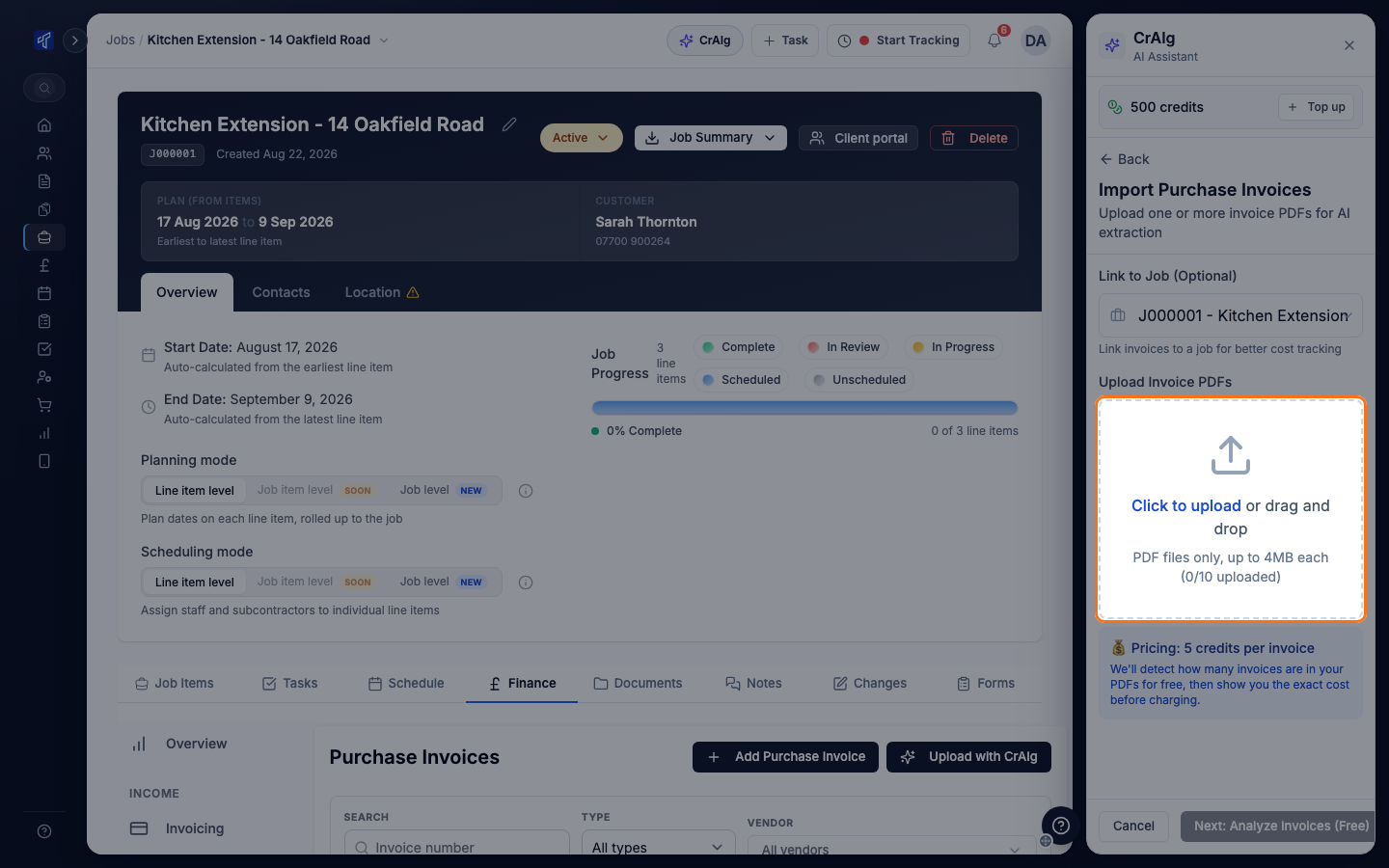
Upload the PDFs
- Open the job, click the Finance tab, then Purchase Invoices under Outgoings, and click Upload with CrAIg. The job is filled in for you. You can also click Upload with CrAIg on the Purchase Invoices tab in Purchasing.
- Under Link to Job (Optional), check the job is the right one, or choose one. You need a job to match the invoice lines to job items later.
- Drop your PDFs into the upload area, or click it to choose them. PDF files only, up to 4MB each and up to 10 at a time.
- Click Next: Analyze Invoices (Free).
- Check the list of invoices CrAIg found in each file, and the Cost Breakdown below it.
- Click Process Invoices. The button shows how many credits it will use.
A page for the import opens. It reads Processing purchase invoices... while CrAIg works, then shows one card per invoice.
If you do not have enough credits, Process Invoices cannot be clicked and the panel says how many more you need. Owners and admins can click Top up at the top of the CrAIg panel.
Check and approve each invoice
Click an invoice's card to open it.
- Under Select Vendor, check the supplier or subcontractor. If CrAIg could not match one, the card says Vendor selection required and shows the name it read. Search for the vendor, or create a new one from the same field.
- Check Document Type (Invoice or Receipt) and Invoice Type. The type decides which of the job's budgets the cost counts towards.
- Check Link to Job (Optional).
- Check each line's description, quantity and price. Use the edit button on a line to change it, or Add Line Item to add one.
- Choose the Job Item and Component for each line. To put every line on the same job item, choose it under Bulk Assign Job Item and click Apply to All.
- Click Approve & Create Invoice.
The invoice is saved and the card shows View Invoice. Repeat for each card. The page heading counts how many of the invoices have been approved.
A line left without a job item still counts towards the job's total, under Misc Costs.
Related articles
- Record a Supplier or Subcontractor Bill
- entering a bill by hand, which uses no credits
- What CrAIg Can Do - what CrAIg does and where credits come from
- Labour, Material and Plant Budgets - where the invoice's cost shows on the job
- A Cost Is in the Wrong Budget or Missing
- when an invoice does not show where you expect
- Add Suppliers and Subcontractors - adding vendors before you upload