A pay rate is what a member of staff costs you. Trades Panel uses it to turn the hours they log on a job into labour cost on that job's Finance tab and Labour Budget.
Who can do this: owners and admins. Only owners and admins can see pay rates.
Time logged by someone with no pay rate counts as £0.00, so set a rate for everyone who works on jobs.
Set or change a pay rate
- Click Staff in the main menu and open the User Management tab.
- Click Edit on the person's row.
- Under Pay Rate, choose Hourly Rate or Annual Salary.
- Enter the figure in the box that appears.
- Click Save Changes.
You can also set a pay rate when you first add someone, on the Add User page or in Bulk Upload. See Add and Manage Staff.
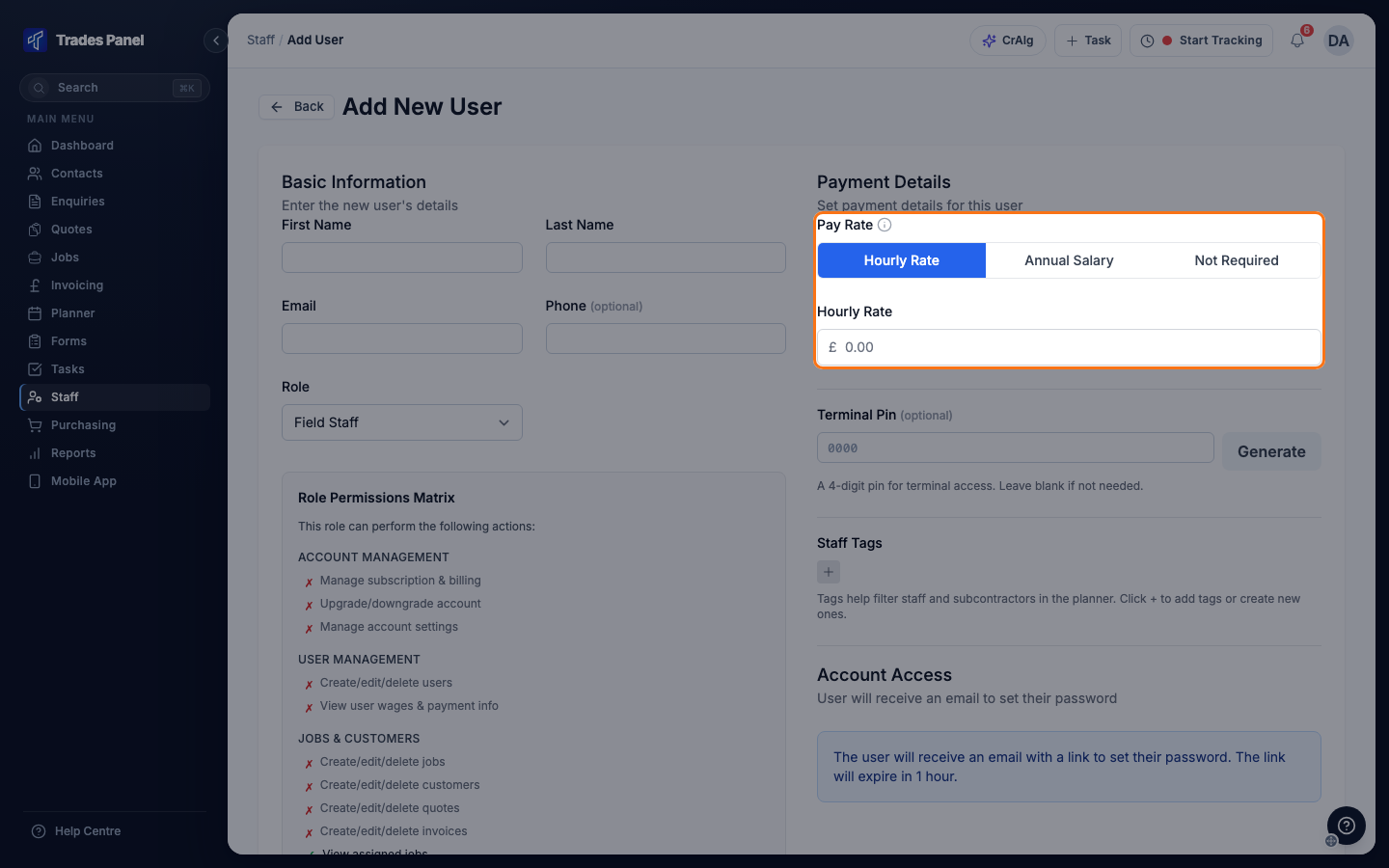
The three options are:
- Hourly Rate - each hour logged costs this amount.
- Annual Salary - the hourly cost is worked out as the salary divided by 1,920 working hours a year. Labour lines costed this way are marked as an estimated rate. For an exact hourly cost, use Hourly Rate instead.
- Not Required - no rate. Their logged time counts as £0.00.
Staff who were set up on a day rate show under Hourly Rate. Enter an hourly figure for them and save.
When the new rate applies
Labour cost always uses each person's current rate. Changing a rate changes the labour cost of hours they have already logged on every job, as well as hours they log from now on.
See everyone's rates
On the User Management tab, switch on Show Pay. Two columns appear: Pay Rate, the type of pay, and Rate, the figure. Anyone on Not Required shows a dash.
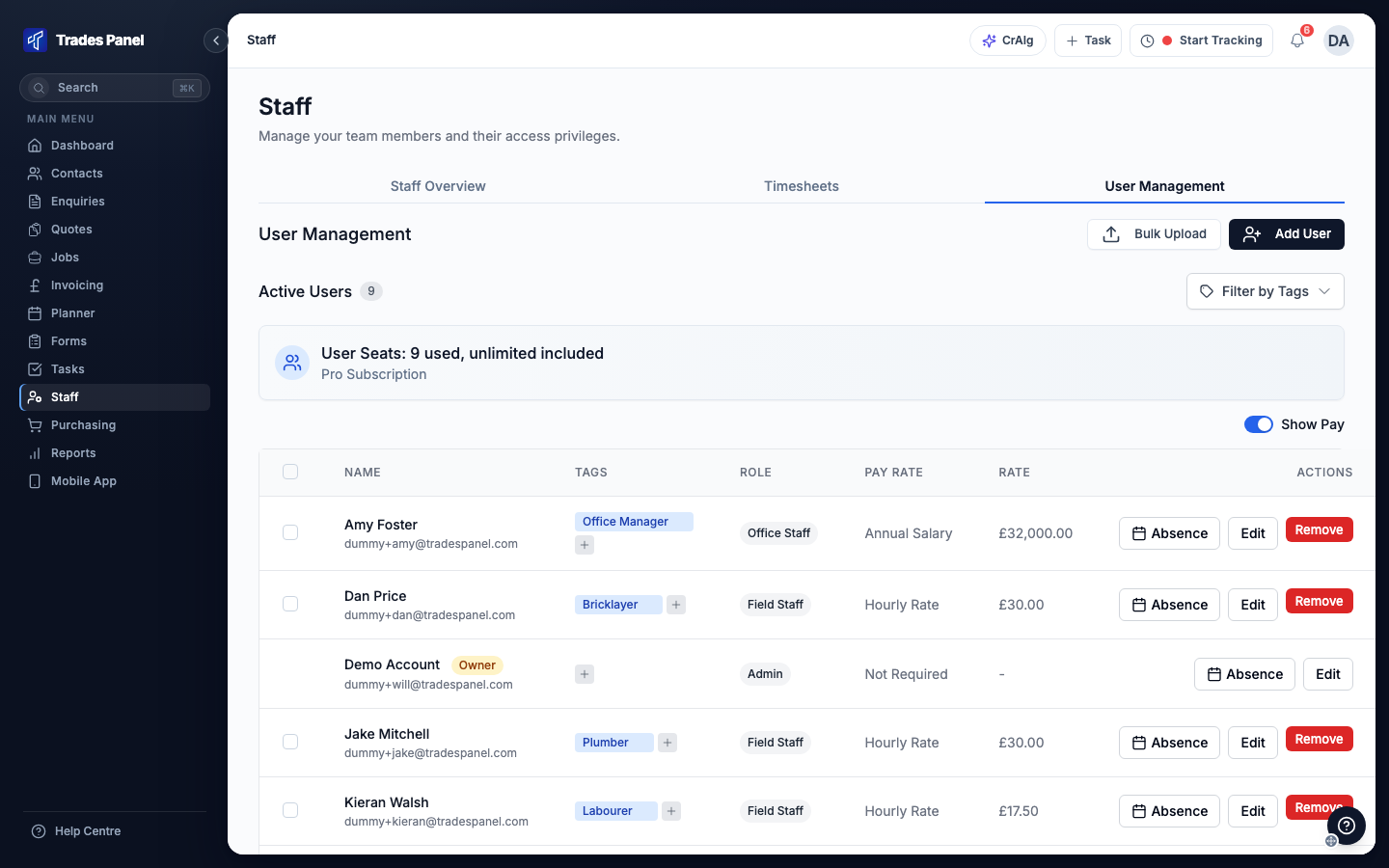
If someone with time on a job has no rate, that job's Labour Budget shows a warning that a user with labour activity has no pay rate set.
Related articles
- Add and Manage Staff - adding people and editing their details
- Labour, Material and Plant Budgets - where labour cost appears on a job
- The Job Finance Tab - a job's costs and profit
- A Cost Is in the Wrong Budget or Missing - when labour shows £0.00
- Staff Time Logs - the hours being costed