The client portal is a private web page for one job. Your customer opens it from a link and a six-digit code, with no account or password. They can follow the job's progress, open the folders and notes you share with them, and reply to your updates. They cannot change anything.
Who can do this: owners, admins and office staff. Plan: Crew, Business or Pro.
Before you start: the job needs a customer, and that customer needs one valid email address. The sign-in code is always emailed to it. See Add and Manage Contacts.
Turn on the portal
- Open the job and click Client portal in the job header.
- Under What the customer sees, set the switches (see below).
- Click Enable.
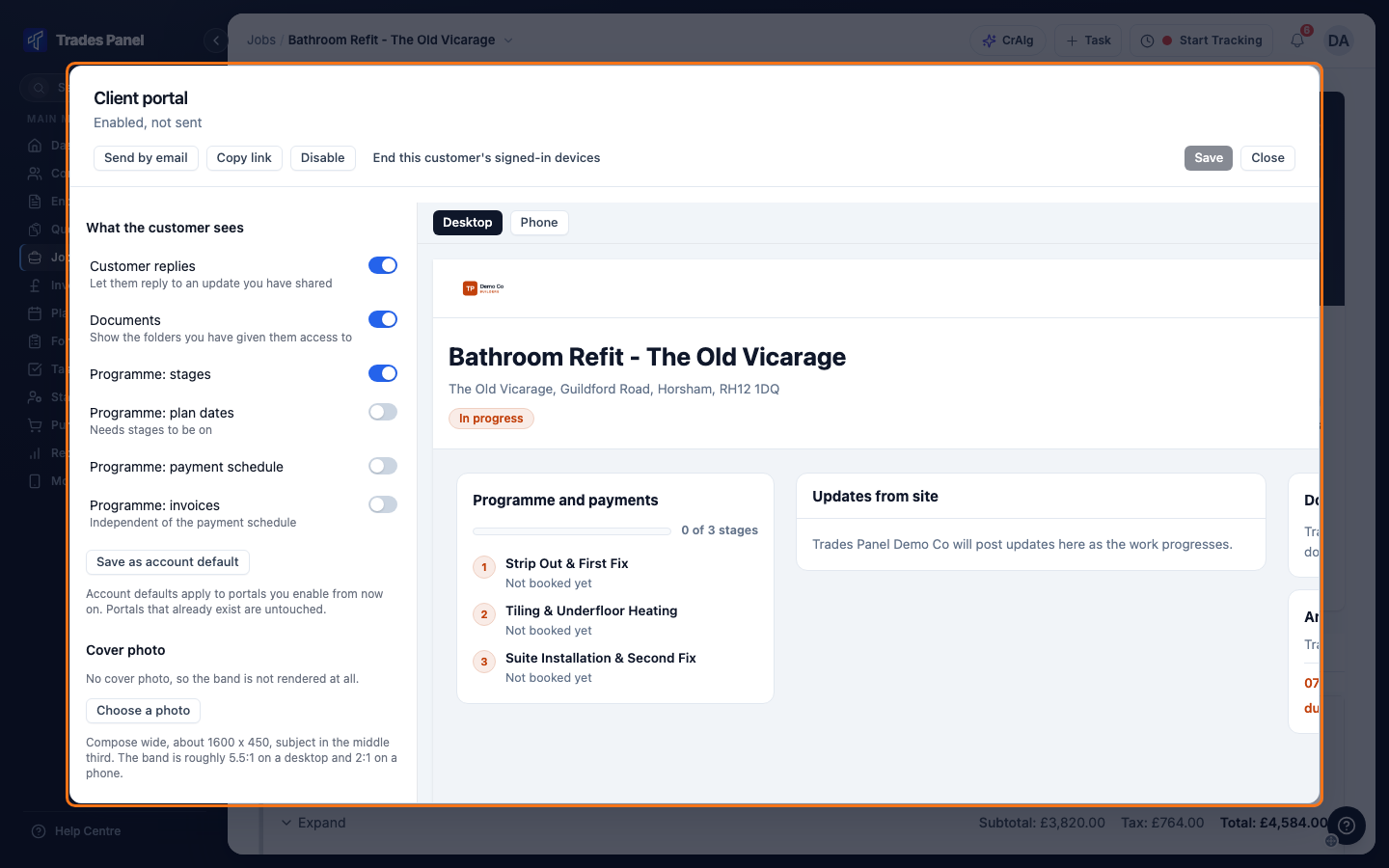
Enabling sends nothing. The header reads Enabled, not sent until you send or copy the link, and the link does not open the portal before then.
Choose what the customer sees
The switches under What the customer sees are:
- Customer replies - let the customer reply to an update you have shared.
- Documents - show the folders you have given them access to.
- Programme: stages - list the job items and their progress.
- Programme: plan dates - show the planned dates of each stage. Needs stages to be on.
- Programme: payment schedule - show the payment stages and whether each is paid.
- Programme: invoices - show invoiced stages, even with the payment schedule off.
After changing a switch, click Save. The preview on the right shows the saved settings. Click Desktop or Phone to see it at either size.
A new portal starts with your account's defaults. To make the current switches the default for portals you turn on from now on, click Save as account default. Owners and admins can also change the defaults under Settings > Features, in Client portal defaults.
To add a banner across the top of the customer's page, click Choose a photo under Cover photo, pick or upload a photo, then click Save. A wide photo works best.
Share folders and notes
Nothing on the job's Documents or Notes tabs is shown to the customer until you share it. You can share once the portal is turned on.
- Folders: under Folders the customer can open, tick each folder to share. Each tick saves straight away. The customer can view and download the files, never upload. Office staff can only tick folders their role can edit. See Who Can See Which Job Files.
- Notes: tick Visible to customer when you add a note, or click Show to customer on an existing note. Field staff can share notes too, from the mobile app. See Leave a Note on a Job.
When you share a note, the customer gets an email within a few minutes saying there is a new update, without the note itself. Nothing is emailed until you have sent or copied the link.
Send the link
Save any changes first. Send by email and Copy link stay greyed out while there are unsaved changes.
- Send by email: click it, then Yes, send it. The customer gets an email from your company name, via Trades Panel, with a link to their job page.
- Copy link: click it, then Copy and mark as sent, and pass the link on yourself, for example by text message. Once the link has been sent, Copy link copies it straight away.
Either way, the header then shows when the link was sent or copied. Use the same buttons to send it again.
What your customer sees
- They open the link. Trades Panel emails them a six-digit code.
- They enter the code and click Continue. The code works for 10 minutes. Resend code sends a new one.
Once signed in, that device stays signed in for 90 days. If the customer has a portal on more than one of your jobs, they can switch between them.
The portal shows the job's progress in plain words: Booked in, In progress, Paused or Finished. Beyond that, it shows only the sections your switches allow, the notes and folders you have shared, and your company's phone number and email address.
If the link does not work, the customer sees a page saying there is nothing to show.
Replies from your customer
A reply shows on the note in Trades Panel with a Customer badge, and owners and admins get a notification. Replies are one way: comments your team adds to the note are not shown to the customer. To answer them, share a new note or contact them directly.
Turn off the portal
- Open the job and click Client portal.
- Click Disable, then Yes, disable it.
The link stops working straight away. The settings and the conversation are kept.
To sign the customer out everywhere, for example after they lose a phone, click End this customer's signed-in devices, then Yes, end them. This signs them out of all of their jobs with you but does not turn off any portal. They sign back in with a new code.
Related articles
- Who Can See Which Job Files - folder access, including the customer
- Leave a Note on a Job - adding notes and showing them to the customer
- Set Up a Payment Schedule - the payment stages the portal can show
- How to Add Your Company Branding to PDFs - the logo and colour on the portal
- Send the Programme of Works as a PDF - another way to share the programme