Each job has two tax settings of its own: the VAT Rate Type and the CIS Status. They are on the job's Finance tab, under Tax Settings.
Who can change this: owners, admins and office staff. Tax Settings only appears when VAT is switched on for your account.
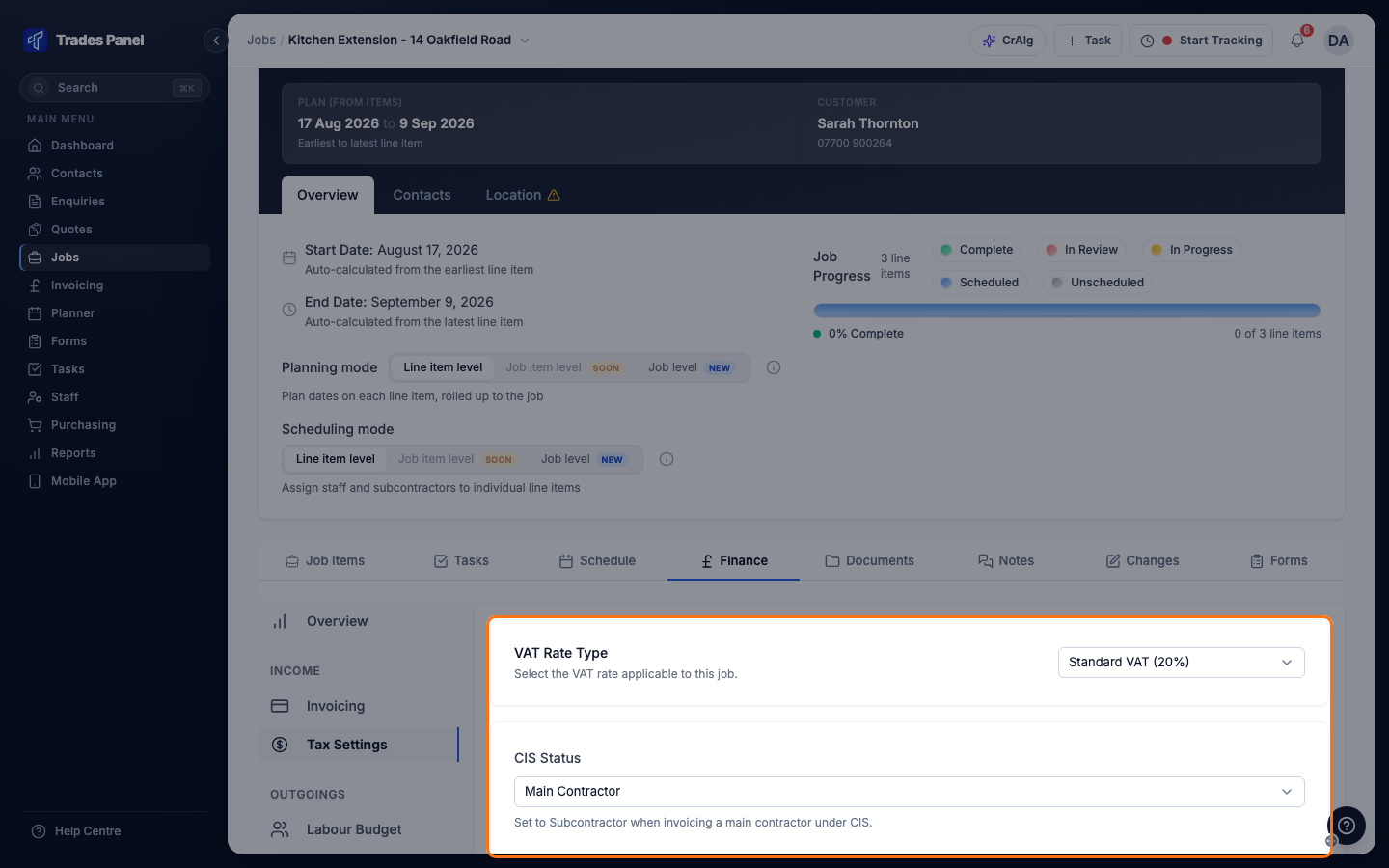
VAT Rate Type
The VAT rate used on this job's job items and totals. The options are:
- Standard VAT - your account's VAT rate, shown in brackets. This is the default.
- Reduced Rate VAT (5%)
- Zero Rated (0%)
- Reverse Charge VAT - VAT not applicable - for construction work under the domestic reverse charge, where your customer accounts for the VAT.
Choosing a different rate recalculates the VAT and totals on the job's job items, and the page reloads. Check the Job Total on the Job Items tab afterwards.
CIS Status
- Main Contractor - the default. No CIS deduction is applied to the job's invoices.
- Subcontractor - for work you invoice to a main contractor under CIS. The deduction rate that applies to you is shown underneath.
On a Subcontractor job, each labour line has a CIS tick box when you build a payment schedule from job items. Labour is ticked as on-site, which the deduction applies to; untick it for off-site labour. Invoices raised from those schedules show the CIS deduction and the amount payable after CIS. See Set Up a Payment Schedule.
Your deduction rate
The rate comes from your account's CIS registration:
- Registered - 20%
- Not Registered - 30%
- Gross Payment Status - 0%
Owners and admins set it in Settings > Invoicing, under CIS Registration, along with your UTR Number, which is shown on CIS invoices. Your account's VAT is switched on in the same tab by choosing a Tax Type other than None.
Related articles
- The Job Finance Tab - the job's revenue, costs and payments
- Set Up a Payment Schedule - building schedules, including the CIS tick boxes
- Raise an Invoice and Record a Payment - raising the invoices that show VAT and CIS
- Build a Job Up: Job Items and Line Items - the labour lines CIS applies to
- Create a Quote - VAT on a quote