Field staff purchase orders let your team get a purchase order number in the mobile app before they buy something for a job. They give the number to the supplier, then send the purchase to the office with a photo of the receipt or goods. The office checks it and approves it.
A field purchase order records something already bought. Trades Panel does not send it to the supplier.
Who can do this: owners and admins turn it on. Field staff raise purchase orders in the mobile app. Owners, admins and office staff review them on the web.
Turn it on
- Click your avatar at the top right, then Settings.
- Open the Features tab.
- Under Field Staff Purchase Orders, switch on Allow mobile field purchase orders.
- Click Save Changes at the bottom of Settings.
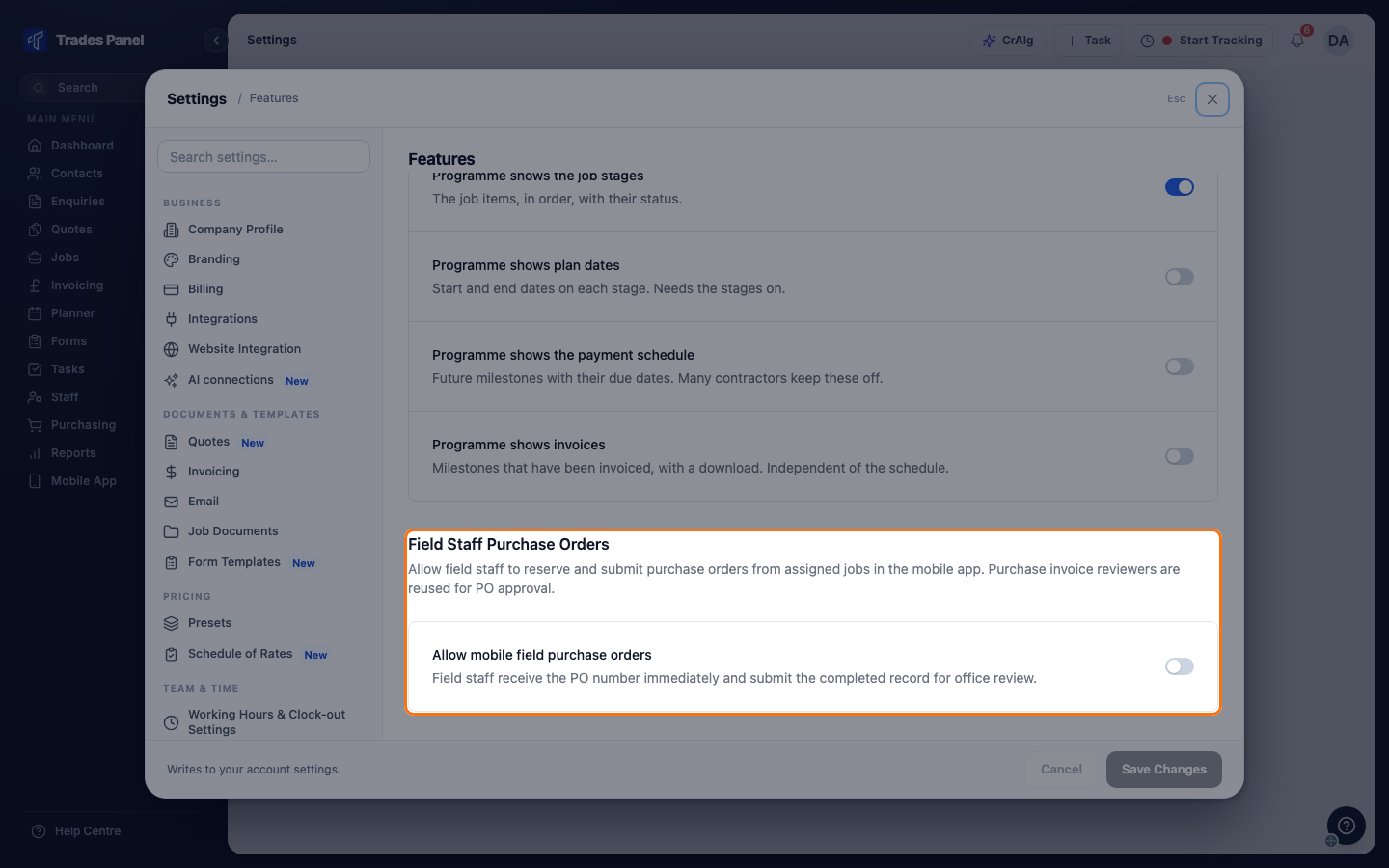
The setting applies to every field staff member. Office staff, admins and owners can raise purchase orders in the mobile app whether it is on or not.
Choose who reviews them
When field staff submit a purchase order, a review task goes to the people chosen as Purchase invoice approvers, in the Field Staff Purchase Invoices section of the same Features tab. If nobody is chosen, no task is created.
The approvers list only shows while Allow field staff to upload purchase invoices is on, or once approvers have been chosen. To choose approvers:
- Switch on Allow field staff to upload purchase invoices.
- Under Purchase invoice approvers, choose one or more people.
- If you do not want field staff uploading purchase invoices, switch it off again. The approvers stay chosen.
- Click Save Changes.
Raise a purchase order in the mobile app
- Open the menu and tap Purchases, then tap + and choose New PO. Field staff can also open the job and tap the receipt icon at the top of the screen.
- Trades Panel gives you a purchase order number straight away. Give it to the supplier before you leave.
- Choose the Assigned job and the Supplier. If the supplier is not listed, type its name under New supplier name and tap Add.
- Enter a Short description and the PO total excluding VAT.
- Add 1 to 10 photos of the receipt or goods, with Camera or Library.
- Tap Submit for review.
The purchase order saves as you go. If you stop before submitting, it stays Incomplete: open it from Purchases and tap Edit draft to finish it, or Void purchase order to close the number off. Once submitted it reads Pending review, and you cannot change it.
Field staff can choose jobs they are booked onto or manage, or every job if Field staff can see all jobs is on. Only jobs that are Not Started, Active or On Hold are listed.
When an owner, admin or office staff member submits one from the app, it is approved straight away with no review.
Approve or reject it in the office
Open the Review Purchase Order task, or go to Purchasing in the main menu, open the Purchase Orders tab and set Approval status to Pending review. Field purchase orders carry a Field purchase badge. They do not appear on the Needs action tab until they are approved.
Open the purchase order. You can change the Job, Supplier, Purchase description and PO total excluding VAT, and add photos under Purchase evidence. Then:
- Save changes and approve - saves your changes and approves it. It needs at least one photo.
- Reject - rejects it. Nothing more can be done with it.
Any owner, admin or office staff member can approve or reject, not only the approvers.
Finish one your team did not submit
A purchase order that was started on the phone but never submitted reads Incomplete. Find it by setting Approval status to Incomplete, then open it:
- Save - saves your changes. It stays Incomplete.
- Save and approve - completes and approves it. A photo is optional here.
- Void - closes it off. It keeps its number but cannot be edited or approved, and the field worker sees it as voided.
After approval
An approved purchase order shows Upload or match PI. Click it when the supplier's invoice arrives: the purchase invoice form opens with the purchase order number, total, supplier and job filled in. See Record a Supplier or Subcontractor Bill.
Related articles
- Roles and What Each One Can See - the other settings that widen field staff access
- Why Did a Task Appear That I Did Not Create? - the review task
- Purchasing - the Purchase Orders and Needs action tabs
- Order Materials for a Job - raise a purchase order from the office
- Add Suppliers and Subcontractors - complete a supplier added from the app