The materials list is a spreadsheet of every material on a job. Use it to order materials, send a list to a merchant, or check what the job needs before work starts.
Who can do this: owners, admins and office staff. Plan: Crew, Business or Pro.
Before you start: the job needs at least one material on a line item. Until it has one, the download button is greyed out. See Build a Job Up: Job Items and Line Items.
Download the list
- Open the job and click the Finance tab.
- Under Outgoings, click Material Budget.
- Click Download materials list.
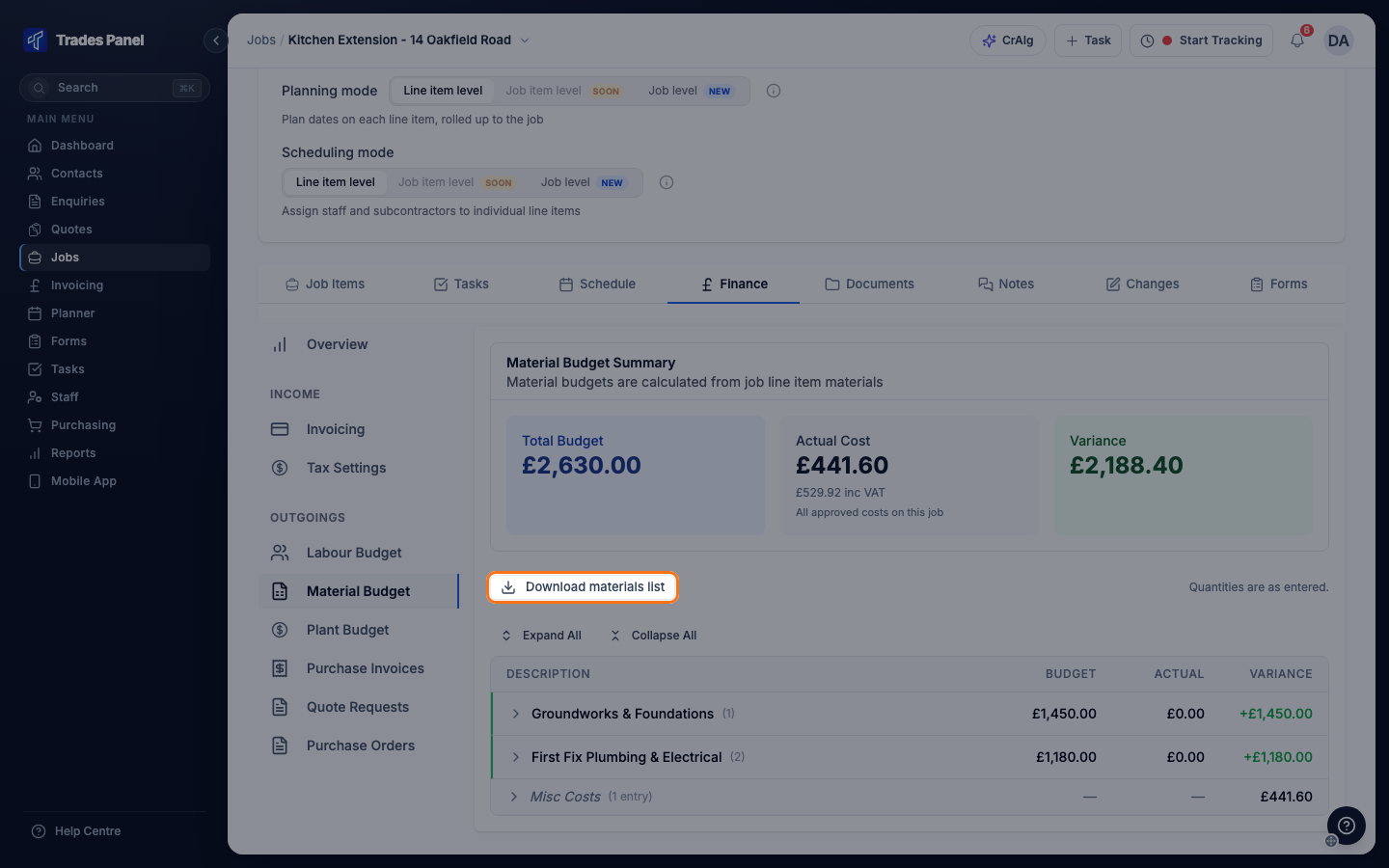
The file downloads straight away as an Excel workbook named materials- followed by the job
number and the date, for example materials-J000123-2026-10-30.xlsx.
What is in the file
The workbook has two sheets. Both start with your company name, the job number and title, and the date it was downloaded.
Buying list
One row for each material, added up across every job item on the job. The columns are Code, Material, Total qty, Unit cost, Total cost and Used in job items.
- Lines that use the same material preset are combined into one row. Materials typed in by hand are combined when their names match exactly.
- Code comes from the material preset. A material typed in by hand has no code.
- Unit cost and Total cost are your cost price, not the price you charge. If the same material has different costs on different lines, Unit cost lists each cost, highest first, followed by "(varies)".
- Used in job items lists the job items the material appears on, for example "Item #1, Item #3".
- Rows are sorted by Total cost, highest first, with a Total row at the bottom.
Quantities are added up exactly as they were entered. Materials have no unit of measure, so check that lines being combined use the same unit. The quantity on the Total row adds every material together and is not a meaningful figure.
By job item
One row for every material line on the job, in job item order. The columns are Item #, Job item, Line item, Code, Material, Qty, Unit cost, Total cost, Unit price and Total price.
This is the only sheet that shows your sell prices (Unit price and Total price). It ends with a Total row.
What the list includes
- Materials on every job item, whatever its status.
- Materials from change orders once the change order has been applied. See Approve and Apply a Change Order.
- Figures as entered on the line items, with no VAT added.
It does not include what you have actually spent. Purchase invoices, purchase orders and the actual cost on the material budget stay in Trades Panel. See A Cost Is in the Wrong Budget or Missing.
Amounts use your account's currency.
If the download does not start
- The button is greyed out: the job has no materials yet. Add a material to a line item, then come back to Material Budget.
- "Nothing to export": the materials were removed since the page loaded. Refresh the page.
- "Failed to download materials list": try again. If it keeps failing, contact support.
Related articles
- Order Materials for a Job - ask suppliers for prices and raise purchase orders
- Set Up Labour, Material and Plant Presets - set the code and name that group the buying list
- Request a Quote from Suppliers - price the materials with your suppliers
- The Job Finance Tab - budgets, actual costs and profit on a job