A job's planning mode decides where its plan dates (also called anticipated dates) are kept: on each line item, or as one start and end for the whole job. Each job has its own mode.
Planning mode does not affect who is booked onto the job. That is the job's scheduling mode, which is set separately. Any combination of the two works.
The options
- Line item level - each line item has its own plan dates. The job's plan runs from the earliest line item to the latest. This is the default for a new account.
- Job level - the job has one plan start and end. Line items have no plan dates of their own.
Job item level is shown with a Soon label and cannot be selected.
What it affects
- Schedule tab - on a line item level job, every line item has its own plan bar. You can lay line items out from their labour hours and link them so moving one moves what depends on it. On a job level job there is one plan bar, on the job row, and no links. See Understanding the Job Schedule View.
- Job header - the dates tile reads Plan (from items) on a line item level job and Plan (whole job) on a job level one.
- Job Items tab - on a line item level job, each line item shows its plan dates. On a job level job it does not.
- Converting a quote - a job created in job level planning takes the quote's Anticipated Start Date and Anticipated End Date as its plan. A job created in line item level planning starts with no plan dates.
Check which mode a job is in
Open the job. On the job header's Overview tab, Planning mode shows three options with the current one highlighted. Click the i button beside it to compare them.
Change a job's planning mode
Who can do this: owners, admins and office staff.
- Open the job and click the Overview tab in the job header.
- Under Planning mode, click the mode you want.
The change applies straight away and a Planning mode updated message appears. It does not affect any bookings.
Switching to job level also removes the links between milestones and job items on the Schedule tab. The milestones stay on their dates.
The default for new jobs
New jobs take the mode set in Settings > Features > Default planning mode for new jobs (click your avatar in the top-right corner, then Settings). After changing it, click Save Changes at the bottom of the Settings window. It applies to jobs created afterwards, including jobs converted from a quote, and never changes an existing job.
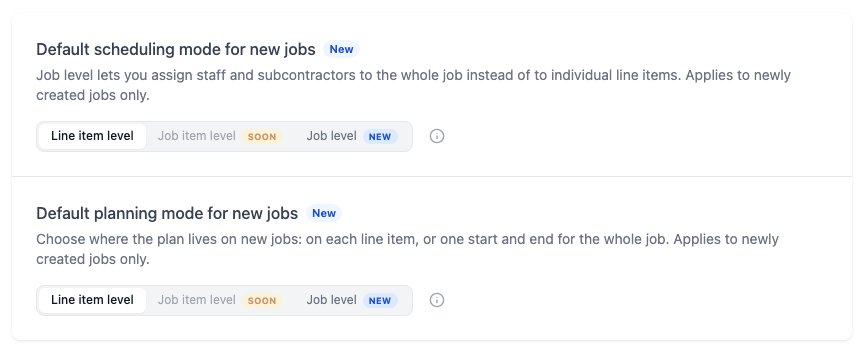
If a job's mode is different from the default, a line under Planning mode offers Make it the default. Clicking it changes the account setting for every new job.
Related articles
- Plan Dates and Scheduled Dates - the two sets of dates on a job
- Edit the Plan from the Chart - set plan dates on the Schedule tab
- Scheduling Modes - book staff per line item or onto the whole job
- Create a Quote - where a quote's anticipated dates are entered