Access to a job's documents is set by role, not by person. Each folder on a job has its own access, and every file inside the folder follows it. Files at the top level of a job, outside any folder, follow an account-wide setting.
What it affects
- Which folders and files a person sees on a job's Documents tab, on the web and in the mobile app
- Whether they can upload, rename or delete there
- Whether the New Folder, Upload Files and Add link buttons work for them
The roles
Owner and Admin can always do everything, in every folder and at the top level. This cannot be changed.
Office Staff can be given any mix of view, upload, edit and delete.
Field Staff & Subcontractors can be given view and upload only. Edit and delete always show Restricted for this role, and upload needs view to be ticked first.
You cannot give one person different access from others on the same role. A person's role is set on their staff record - see Roles and What Each One Can See.
Folder access
You set a folder's access when you create it, in the table at the bottom of Create New Folder. The columns are View/Download, Upload, Edit and Delete.
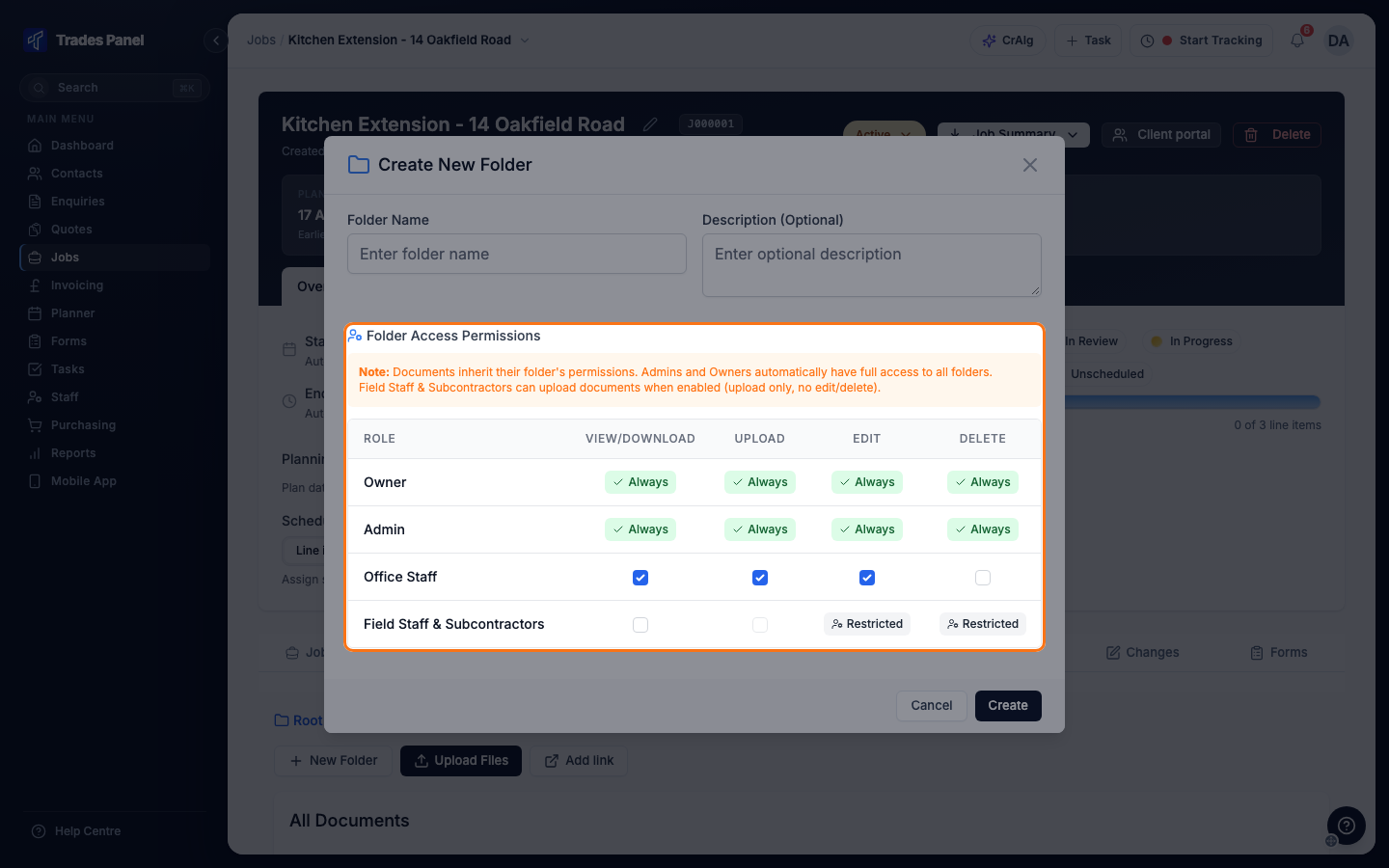
A new folder starts with:
- Office Staff: View/Download, Upload and Edit ticked, Delete unticked
- Field Staff & Subcontractors: nothing ticked
Each folder row in the list shows a Role Access grid with what each role can do in it.
Change a folder's access later
Click the Manage permissions button on the folder's row, change the ticks, and click Save Permissions.
Who can change this: owners and admins, and office staff who have Edit on that folder. Office staff can only give another role access that they have themselves.
Top-level access
Files that are not in a folder follow Document Root Permissions, which applies to every job in the account. The columns are View, Upload and Delete.
The default is:
- Office Staff: view and upload, but not delete
- Field Staff: no access
Where to change it: Settings > Job Documents, then click Save Changes at the bottom of the Settings window. Only owners and admins can open this page.
The same page holds the job document template, which creates a set of folders, with their access, on every new job. See Set Up Job Document Templates.
Sharing a folder with the customer
If the job's client portal is turned on, the access table has an extra Customer portal row. Ticking its View/Download box shows that folder's files to the customer on the portal. Customers can only view. You can also share folders from the client portal itself. See Share a Job With Your Customer on the Client Portal.
Related articles
- Store a Job's Documents - uploading, folders, moving and deleting files
- Set Up Job Document Templates - the same folders and access on every new job
- Roles and What Each One Can See - changing someone's role
- Share a Job With Your Customer on the Client Portal - turning on the portal and sending it to the customer