Once a quote is saved you can send it to the customer, record their answer, and convert it into a job when they accept.
Who can do this: owners, admins and office staff.
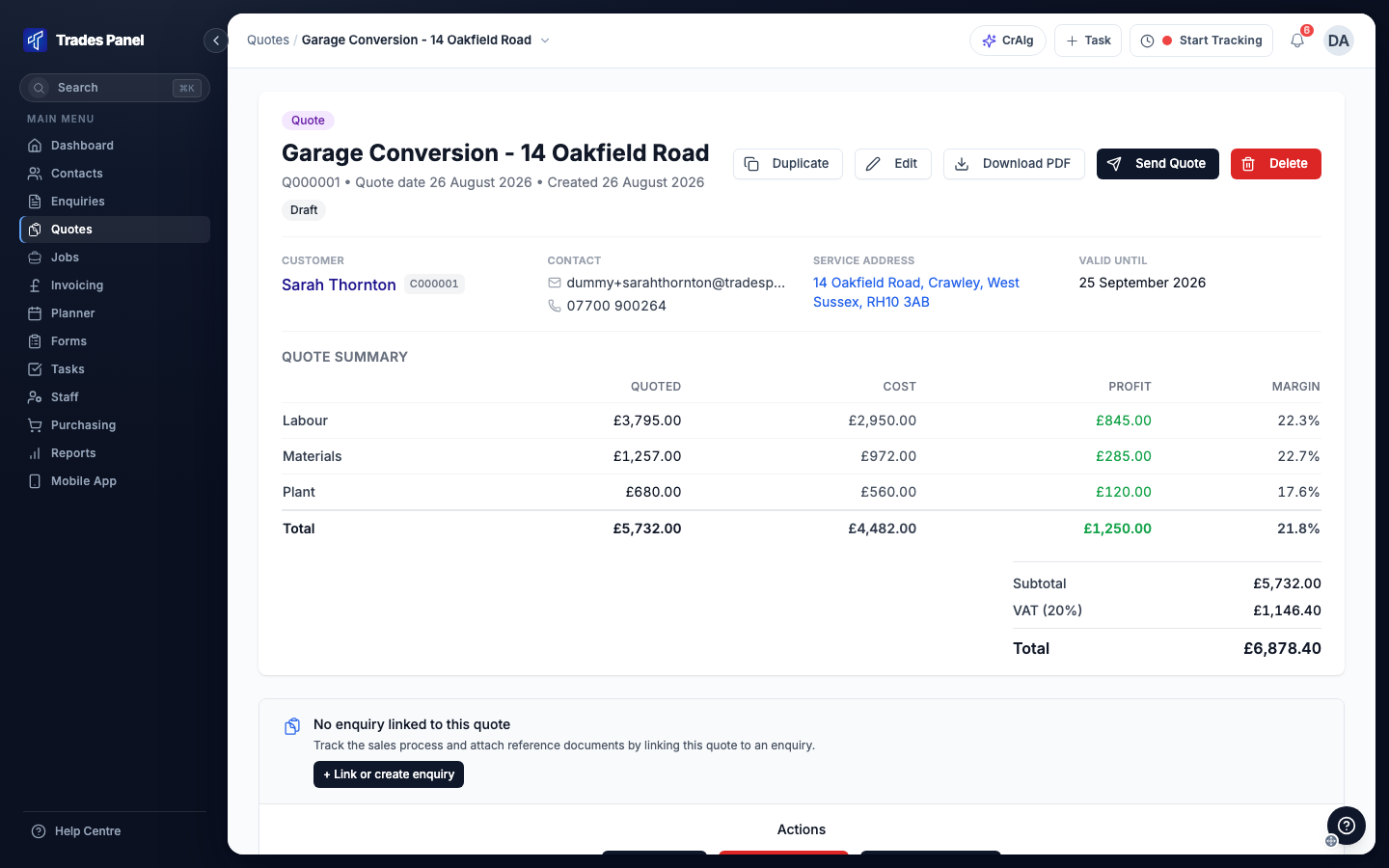
Download the PDF
- Open the quote and click Download PDF.
- Pick a template from the list. The preview shows the document the customer will get.
- Click Download PDF at the bottom of the dialog.
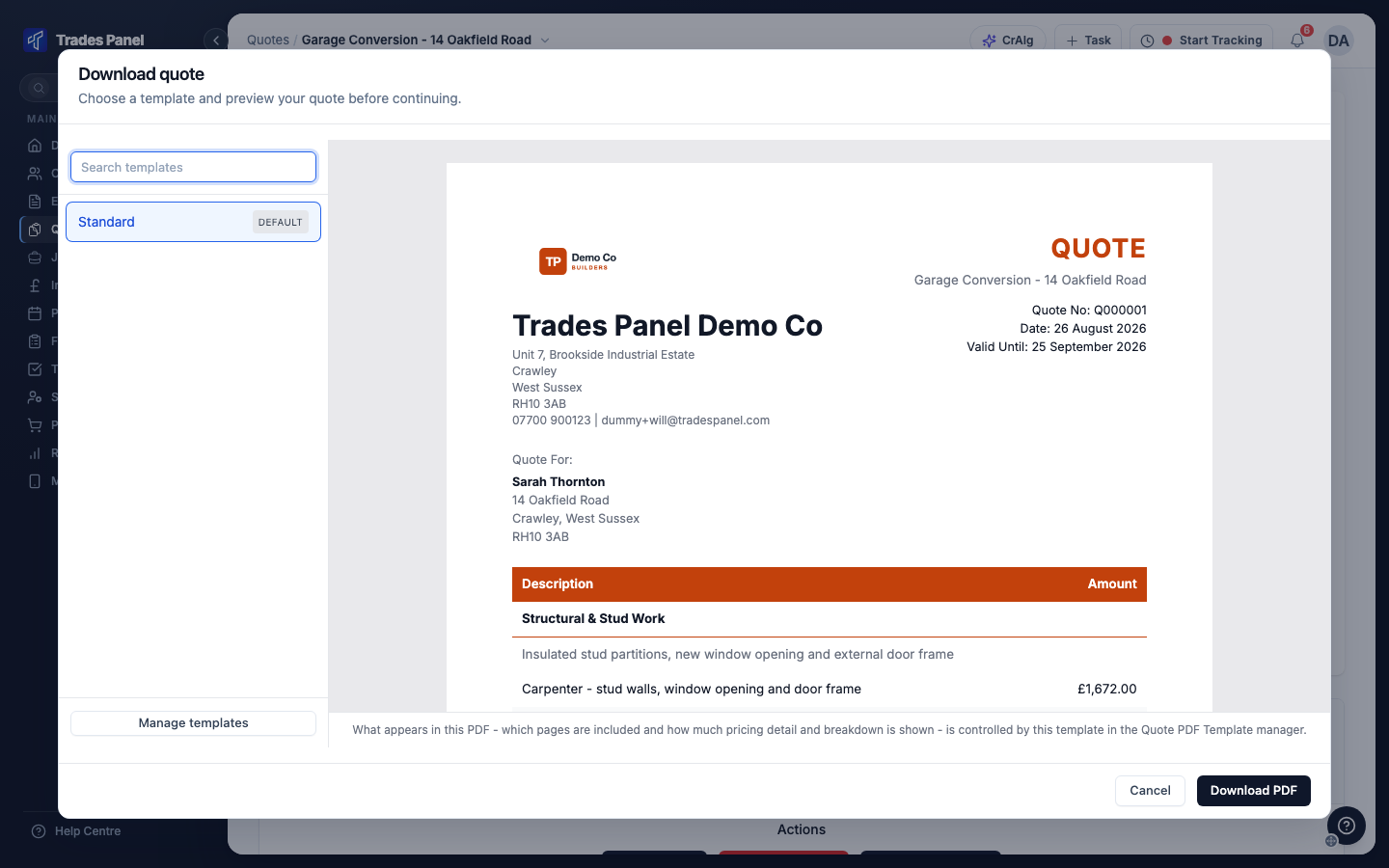
How much pricing detail the quote shows is set on the template, not in this dialog. Manage templates opens Settings > Quotes, where your templates are edited. See Choose What a Quote PDF Shows.
Email it to the customer
- Open the quote and click Send Quote.
- Pick a template and click Continue.
- Check the email. The customer's email address, a subject and a short message are filled in, and the PDF is attached.
- Click Send Quote.
The quote moves to Sent, and the email is listed under Email History at the bottom of the quote.
The attachment is named from your document label and the quote number, such as
Quote-Q000001.pdf. The label is set in Default document label under Settings >
Quotes.
Record that you sent it another way
If you sent the quote outside Trades Panel, record it so its status is right.
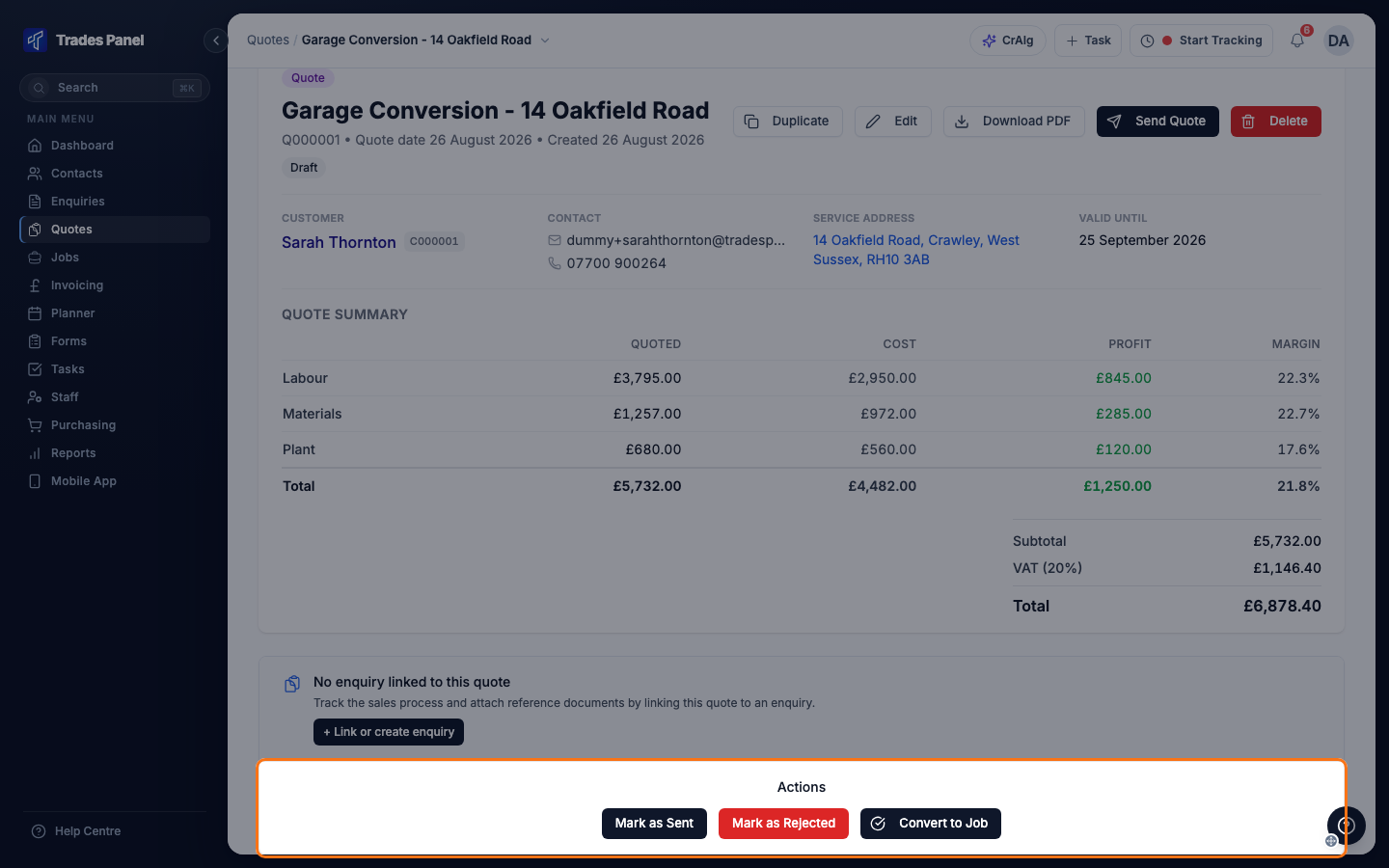
- In the Actions section of the quote, click Mark as Sent.
- Pick the Sent Date.
- If the quote is linked to an enquiry, you can move the enquiry to a new stage here.
- Click Confirm.
Record that the customer said no
Click Mark as Rejected. If the quote is linked to an enquiry, you are asked whether to mark the enquiry Lost as well - click Mark as Lost or Skip.
Convert the quote to a job
When the customer accepts, convert the quote into a job.
- In the Actions section, click Convert to Job.
- If the quote is linked to an enquiry, choose Mark as Won or Skip.
- Wait while the job is created. The new job opens when it is ready.
The job has the quote's title, customer, address, items and pricing, and starts as Not Started. To book the work in, see Create and Manage a Job.
The quote moves to Accepted and shows a View Job link. A quote can be converted once. After that it cannot be edited or deleted. Any change to the work is made on the job, with a change order - see Create a Change Order.
If your plan's job limit has been reached, the job is not created and a message says so. Upgrade, or remove a job, then try again.
Related articles
- Create a Quote - build and price the quote
- Quote Statuses - what each status means
- Choose What a Quote PDF Shows - the templates you pick from when you download or email a quote
- Create and Manage a Job - running the job the quote becomes
- Create a Change Order - changing the work after the quote is accepted
- How to Add Your Company Branding to PDFs
- your logo and colour on the quote PDF