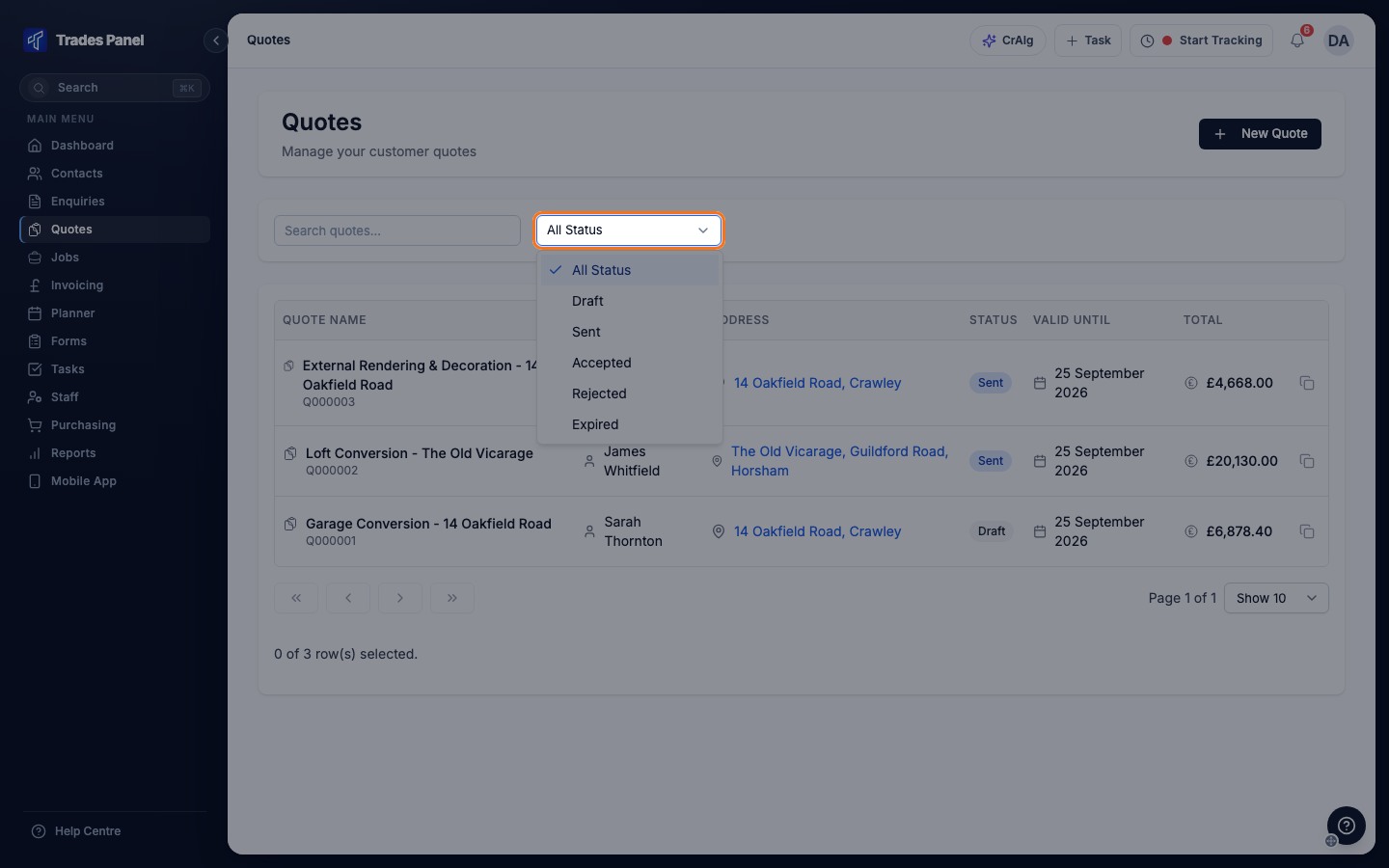
Every quote has a status. It shows on the Quotes list and at the top of the quote, and the status dropdown above the list shows the quotes in one status at a time.
The statuses
- Draft - saved but not sent. Every new quote starts here.
- Sent - sent to the customer. A quote moves here when you email it with Send Quote, or when you click Mark as Sent and confirm the date.
- Accepted - converted to a job with Convert to Job. There is no other way to mark a quote accepted. An accepted quote cannot be edited, deleted, marked as sent or rejected, or converted again.
- Rejected - the customer said no. Set with Mark as Rejected. A rejected quote can still be marked as sent or converted to a job.
- Expired - shown in the status dropdown. A quote does not move to Expired when its Valid Until date passes. Use the Valid Until column on the Quotes list to see which quotes are out of date.
What you can do in every status
Duplicate and Download PDF are available whatever the status. To quote the same work again after a quote has run out or been rejected, duplicate it and set a new Valid Until date on the copy.
Where to change it
The status buttons are in the Actions section of the quote. Owners, admins and office staff can use them. See Send a Quote and Convert It to a Job for the steps.
Related articles
- Create a Quote - build, edit and save a quote
- Send a Quote and Convert It to a Job - email, mark sent or rejected, and convert
- Change Order Statuses - statuses once the quote is a job