The Export button on a job's Schedule tab downloads the job's programme of works as a PDF, ready to attach to an email. There are three versions, and they differ in what they show.
Who can do this: owners, admins and office staff.
Export the schedule
- Open the job and click the Schedule tab.
- Click Export in the toolbar.
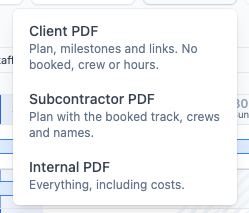
- Choose Client PDF, Subcontractor PDF or Internal PDF.
- If a dialog asks, leave Include line item schedule ticked to add a chart of every line item, or untick it for job items only. Then click Export PDF.
The file downloads to your computer. Trades Panel does not send it to anyone.
The dialog in step 4 only appears for the Subcontractor and Internal versions, on jobs planned by line item. The Client version always shows job items only.
Which version to send
- Client - for the customer. The plan, milestones and links between job items, with no booked days, crews or hours. If staff are booked to the job as a whole, their names are listed.
- Subcontractor - for your staff and subcontractors. Adds the booked days, crews and who is assigned to each job item and line item.
- Internal - for your office. Adds the budgeted labour, material and plant costs of each job item.
Every version carries your company details and the client's, and uses your company branding. See How to Add Your Company Branding to PDFs.
Keeping it up to date
The PDF shows the schedule as it was when you exported it. It does not update when the plan changes, so export it again after you move work that the client or a subcontractor is working to.
The whole plan is always exported, even if the chart is narrowed with Lookahead.
Related articles
- Understanding the Job Schedule View - what each bar and colour means
- Edit the Plan from the Chart - set the plan before you send it
- How to Add Your Company Branding to PDFs
- your logo and colour on the PDF
- How to Schedule and Assign Work Using the Planner
- book the people the Subcontractor version names