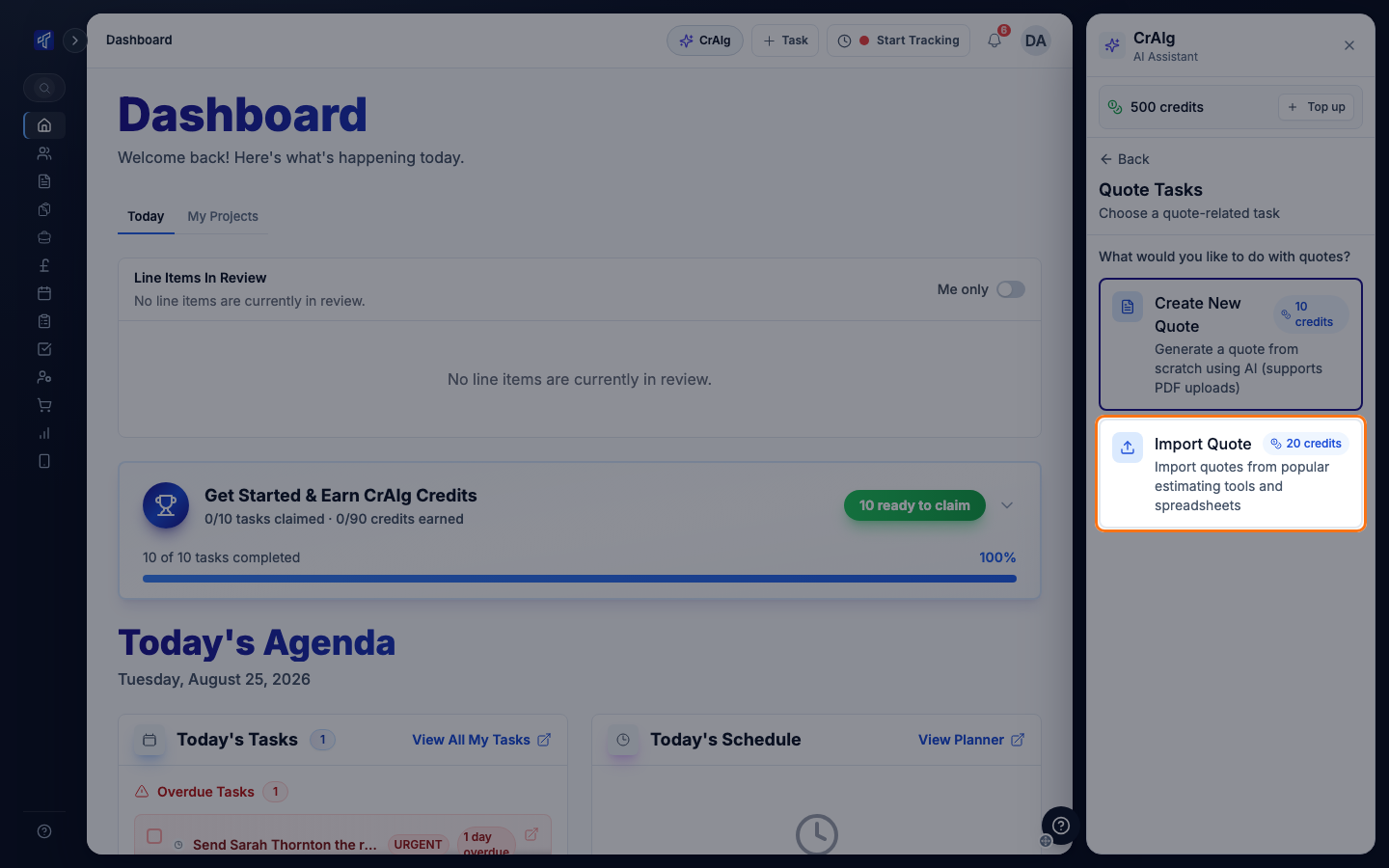
CrAIg tasks are paid for in AI credits. Your account has one balance, shared by everyone who uses CrAIg, and it is shown at the top of the CrAIg panel.
What each task costs
- Create New Quote - 10 credits.
- Import Quote from a ProQuant Estimating PDF - 20 credits.
- Import Quote from a Price A Job or HBXL EstimatorXpress CSV - 20 credits with Use AI Reorganization turned on, and none with it turned off. See Import a Price A Job Estimate.
- Purchase Invoices - 5 credits for each invoice CrAIg finds in your PDFs. Counting the invoices is free, and you see the total before anything is charged. See Let CrAIg Read an Invoice PDF.
Credits are taken when CrAIg starts the task. Rejecting the draft afterwards does not return them.
When a task is greyed out
A quote task your balance does not cover is greyed out, reads Insufficient credits in place of its price, and cannot be selected. Nothing is charged.
For purchase invoices, Process Invoices cannot be clicked until your balance covers every invoice found, and the panel says how many more credits you need.
To carry on, earn or buy more credits as below.
Where credits come from
Your plan. Paid plans include 100 credits a month, added when your subscription renews. On annual billing, the year's 1,200 credits are added at once when the subscription starts or renews. The Free plan includes none.
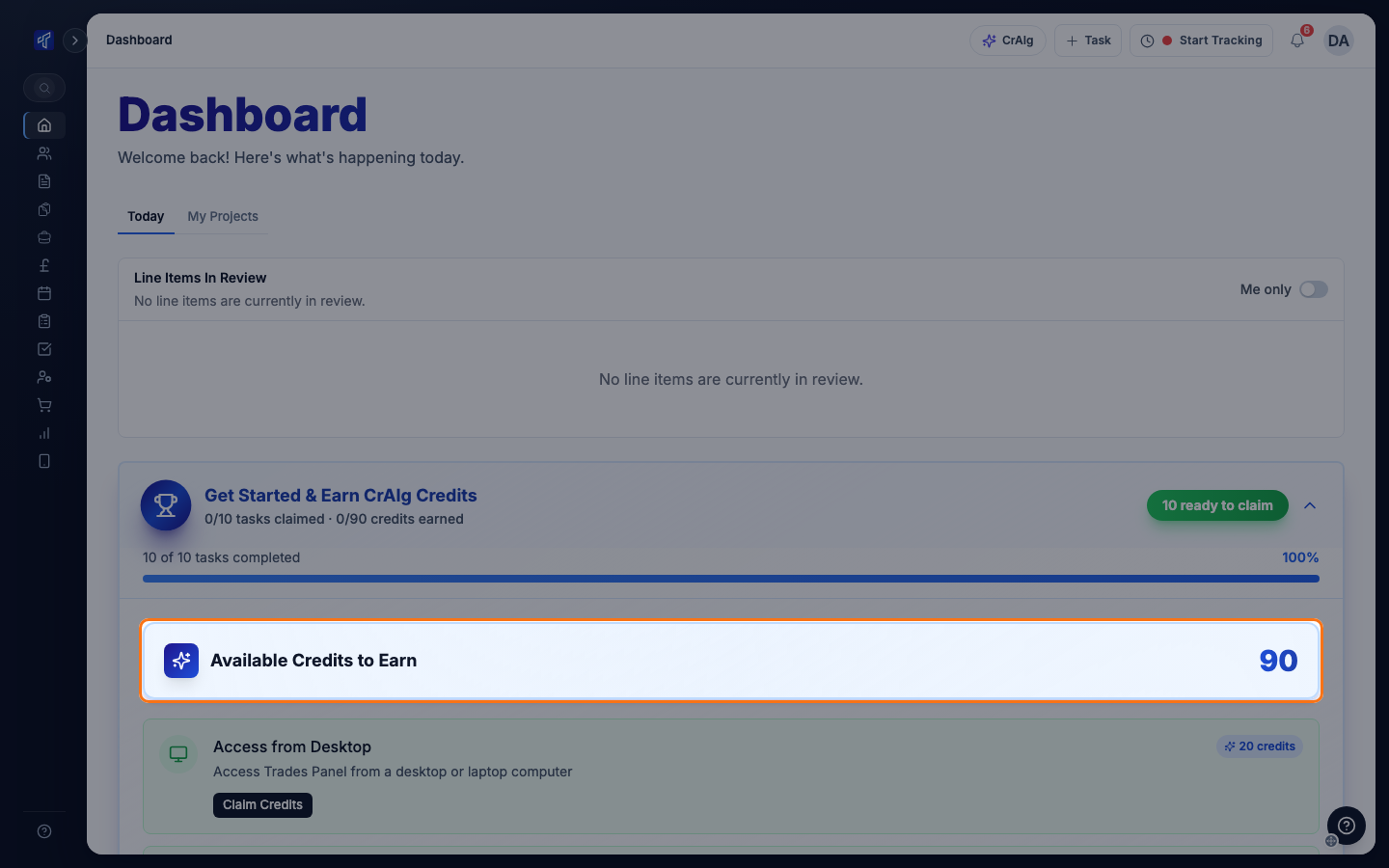
Setting up your account. New accounts have a Get Started & Earn CrAIg Credits card on the dashboard. Each setup task on it, such as adding a team member or creating your first quote, is worth credits. When you finish one, click Claim Credits on it. The card closes once every task is claimed.
Buying them. Owners and admins can buy credits in packs of 100, at £9.99 plus VAT a pack.
Unused credits carry over from month to month, and bought credits do not expire.
Buy credits
Who can do this: owners and admins.
- Click CrAIg in the top bar.
- Click Top up beside your balance. The CrAIg Credits page opens.
- On the Purchase Credits tab, choose how many packs you want, up to 10.
- Click Purchase Pack and pay by card.
You come back to the CrAIg Credits page, and the credits are added to your balance.
The same page shows how many credits you have used this month and when your next monthly credits are due. The Transaction History tab lists every credit added and used.
Office staff do not see Top up. Ask an owner or admin to buy credits.
Related articles
- What CrAIg Can Do - the tasks CrAIg can do and how to open it
- Draft a Quote with CrAIg - a 10 or 20 credit quote task
- Let CrAIg Read an Invoice PDF - the 5 credit invoice task
- Import a Price A Job Estimate - CSV imports, which can use no credits