You cannot type hours into the Timesheets grid. To change a day, you add an adjustment: a separate entry that moves the day's total and keeps your note with it.
Who can do this: owners and admins.
Add an adjustment
- Go to Staff > Timesheets and move to the week you want to correct.
- Click the day on the person's row. For a day they never clocked, click the dash.
- Click Adjustment at the bottom right of the day.
- Choose how to enter the change:
- Set day total - type what the day should come to, for example 7h 30m.
- Add/subtract duration - click the + button to switch between adding and taking off time, then type the amount, for example 0h 30m.
- Check the line above the buttons. It shows the adjustment and the new day total.
- Optionally, choose a Job, and a Line item on that job (see below), and add Notes saying why.
- Click Submit.
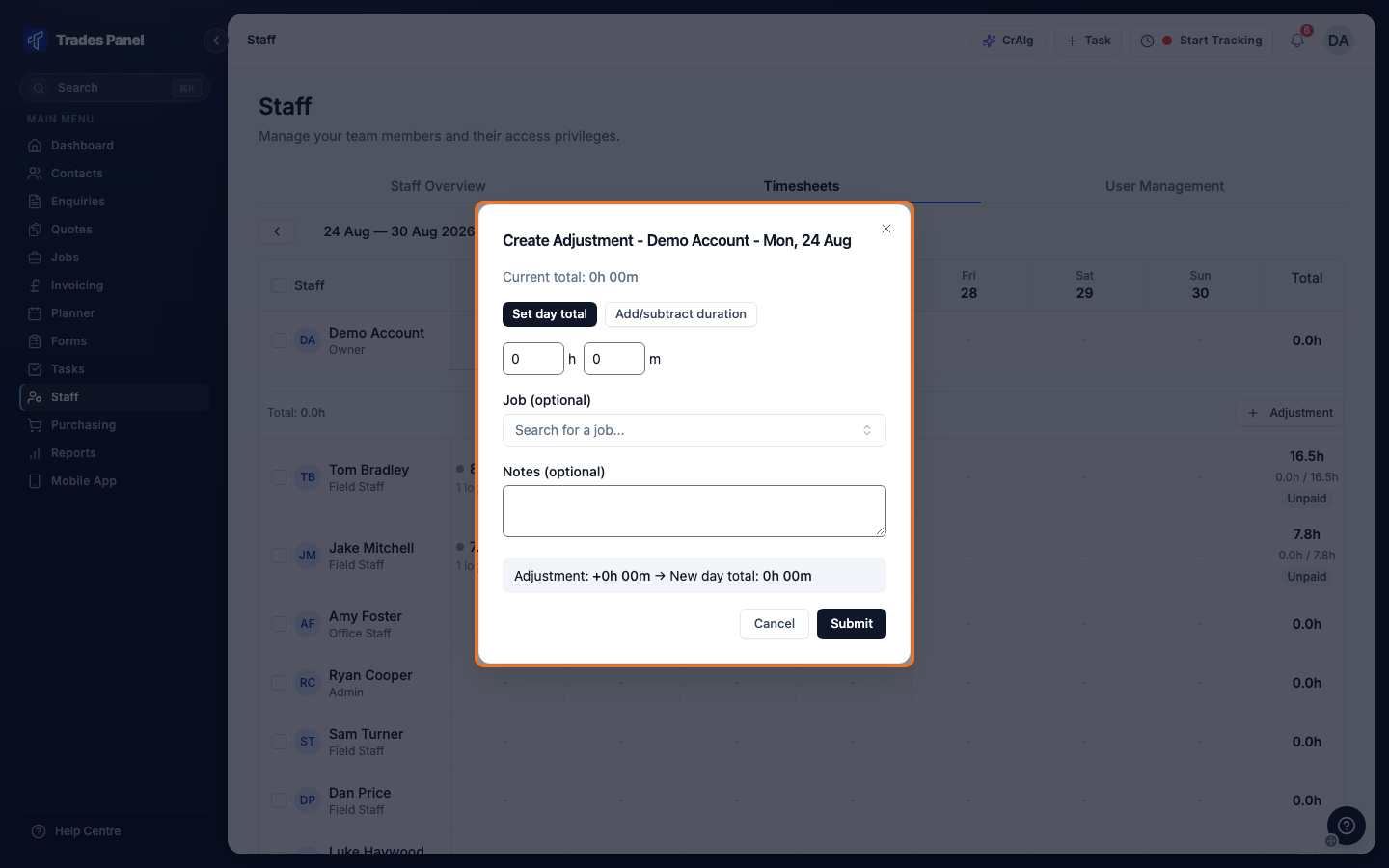
The hours boxes start at 0h 0m, so with Set day total the preview reads as clearing the day until you type the new figure.
The adjustment appears in the day straight away, with your note, and the day and week totals update.
Put the time against a job
Choose a Job to count the hours towards that job's labour cost. Type at least two characters of the job number or title to search.
Once a job is chosen, Line item (optional) lets you put the time against one of its line items. Leave it on None (job Miscellaneous) to put it against the job as a whole. The line item box is not shown for a job scheduled at job level. See Scheduling Modes.
Without a job, the hours count on the timesheet only.
Undo an adjustment
Add another adjustment to the same day. Set day total with the correct figure is the simplest way, because it works out the difference for you.
Approve or reject a pending adjustment
An adjustment made by an owner or admin counts straight away. An adjustment raised by
anyone else waits for approval: the day shows it as +1.0h pending under the total, and
it is not counted or paid until it is approved.
- On Staff > Timesheets, click Approvals above the grid. It appears only while something is waiting, and its number is how many.
- Each one shows who it is for, the day, the time and who raised it.
- Click the tick to approve it, or the cross to reject it.
An approved adjustment joins the day's total. A rejected one stays on the day, struck through, and is never counted.
Related articles
- Timesheets - reading the weekly grid
- Edit or Delete a Time Log - change a clock-in or clock-out time, or remove a log
- Mark Staff Paid After Payroll - record that a week has been paid
- Staff Time Logs - every log, including adjustments, with filters and export
- The Job Finance Tab - where logged labour shows against a job
- Set Up Auto Clock-Out - stop forgotten clock-outs inflating a day