Once a change order is built, you submit it, send it to the customer, record their answer, and apply it so the job's items and totals update.
Who can do this: owners, admins and office staff.
Before you start: the change order must be in Draft with at least one job item saved on it. See Create a Change Order.
Check the figures
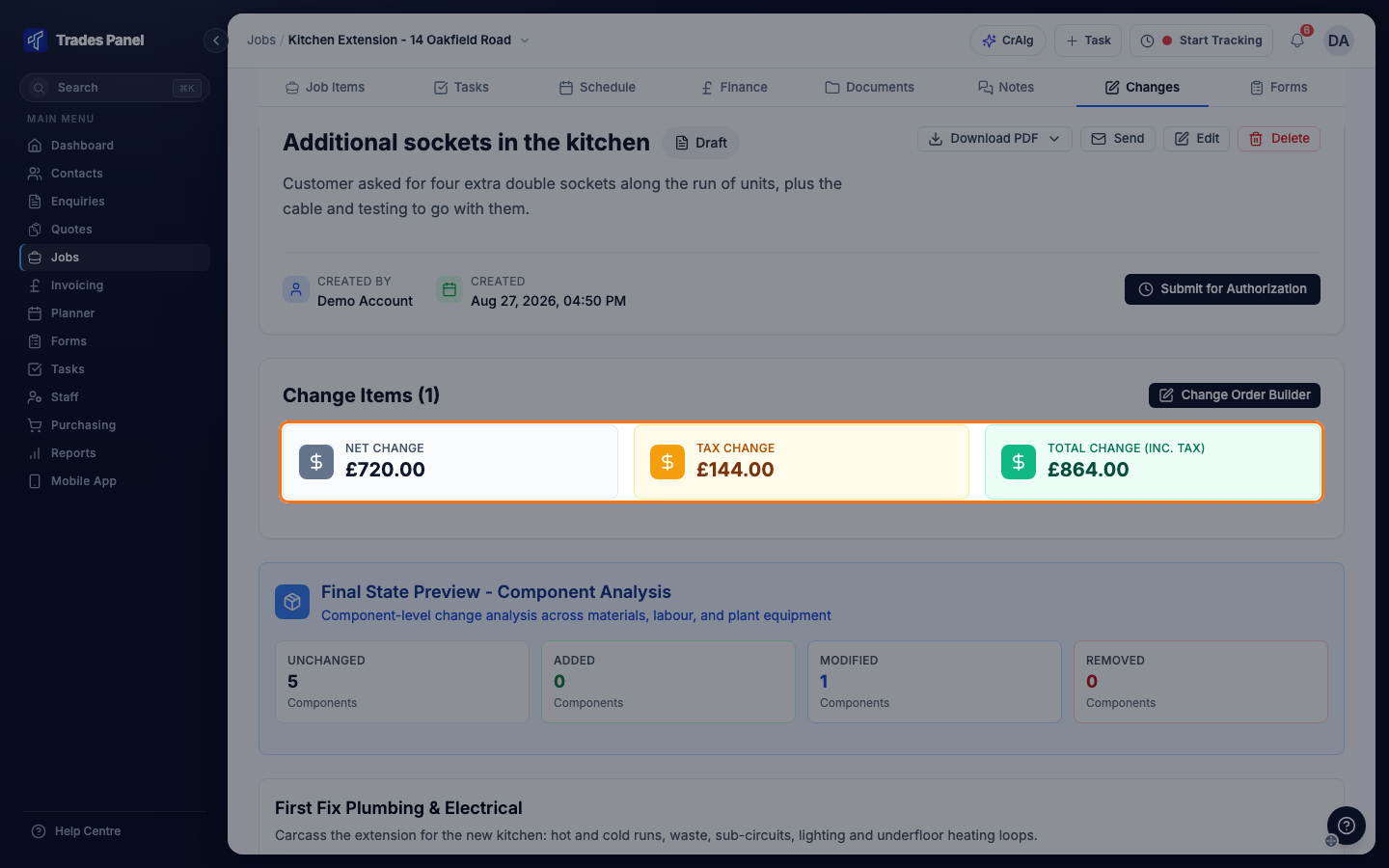
Click the change order on the job's Changes tab to open it. Three figures sit under Change Items:
- Net Change - the difference, excluding VAT
- Tax Change - the VAT on that difference. It is not shown when the job has no VAT
- Total Change (inc. tax) - the amount including VAT
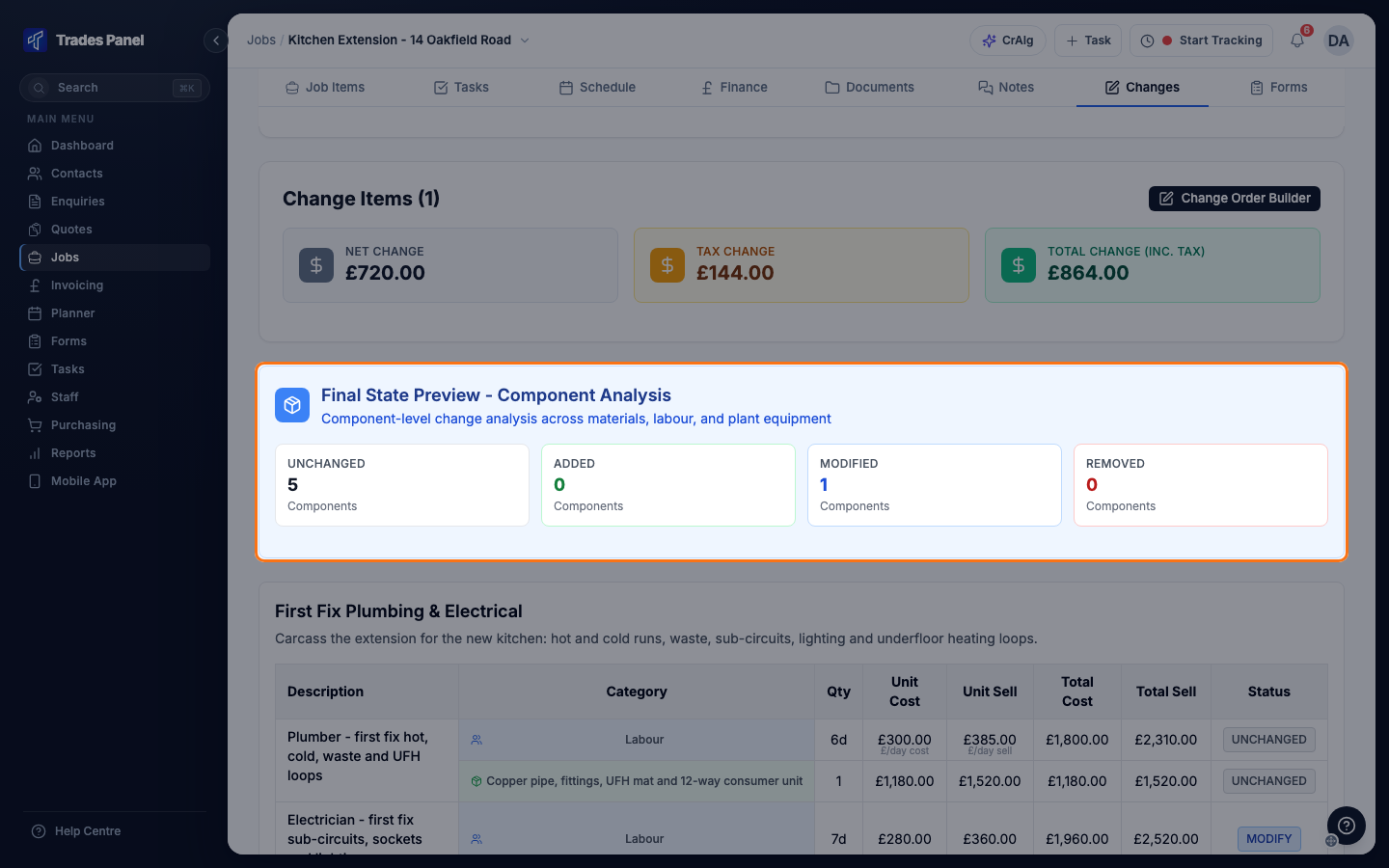
Below them, Final State Preview - Component Analysis counts the materials, labour and plant in the affected job items as Unchanged, Added, Modified or Removed, and lists every line with its own status.
Submit it and send it to the customer
- Click Submit for Authorization. The status becomes Awaiting Authorization, and Edit and Change Order Builder are no longer available.
- Click Send.
- Check the To address, which is filled in from the customer's email, and choose the PDF format.
- Click Send.
Every email sent is listed under Email History at the bottom of the change order.
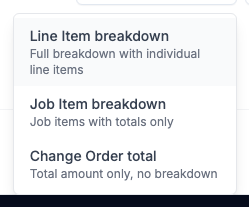
The three PDF formats are:
- Line Item breakdown - every line item
- Job Item breakdown - job items and totals only
- Change Order total - the total amount, no breakdown
Download PDF offers the same three formats if you want to send it yourself. To give the customer one PDF of every change order on the job, click Variation Account on the Changes tab.
Record the customer's answer
Trades Panel does not collect the customer's approval for you. When they reply, open the change order and click one of:
- Approve - they have accepted it
- Reject - they have declined it. A rejected change order cannot be reopened
- Move Back to Draft - returns it to Draft so you can change it, then submit it again
Apply it to the job
- Open the approved change order.
- Click Apply to Job Items.
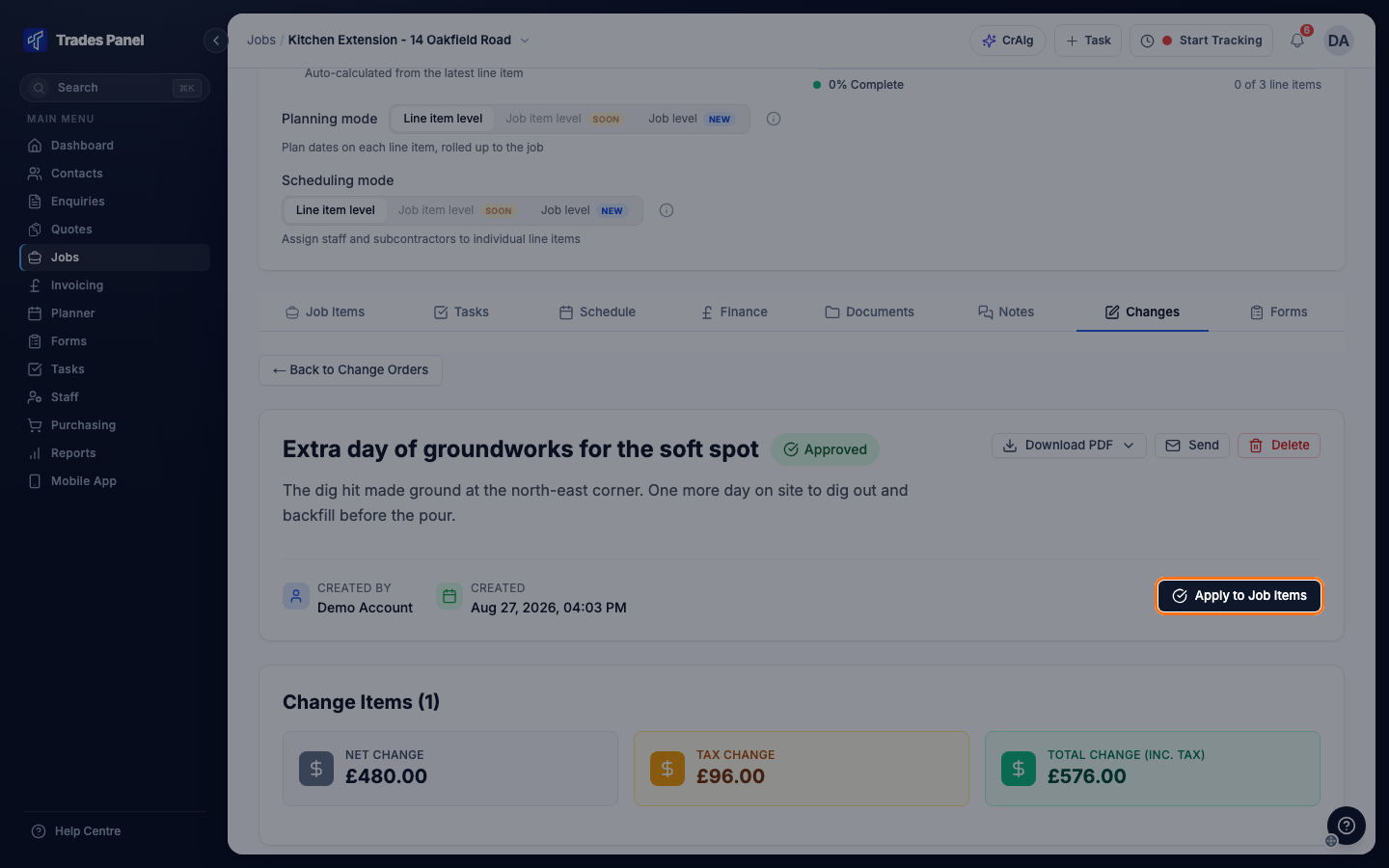
When it finishes, the status is Completed and an Applied date appears beside the created date. On the job's Job Items tab, changed job items show their new lines and values, removed ones are gone, and new ones are added.
Line items the change order adds have no planned dates. Plan them on the job's Schedule tab.
If the status reads Applied (Errors) instead, the job items were updated but the job's totals or dates were not recalculated. Contact support.
Related articles
- Create a Change Order - build the variation before it is sent
- Change Order Statuses - what each status means
- How to Add Your Company Branding to PDFs
- put your logo and colour on the change order PDF
- Understanding the Job Schedule View - plan the dates of new line items
- Set Up a Payment Schedule - bill for the extra work once it is on the job
- The Job Finance Tab - the job's figures after a change order is applied