A purchase invoice records a bill or receipt from a supplier or subcontractor. When it is linked to a job, its cost counts towards that job's labour, material or plant budget.
Who can do this: owners, admins and office staff.
Before you start: the supplier or subcontractor can already be on your account, or you can add them as you go. See Add Suppliers and Subcontractors.
Start the bill from a job
- Open the job, click the Finance tab, then click Purchase Invoices under Outgoings.
- Click Add Purchase Invoice.
- In Select Vendor for Purchase Invoice, find the supplier or subcontractor and click Select. To add a new one, open the New Vendor tab and click Create New Supplier or Create New Subcontractor.
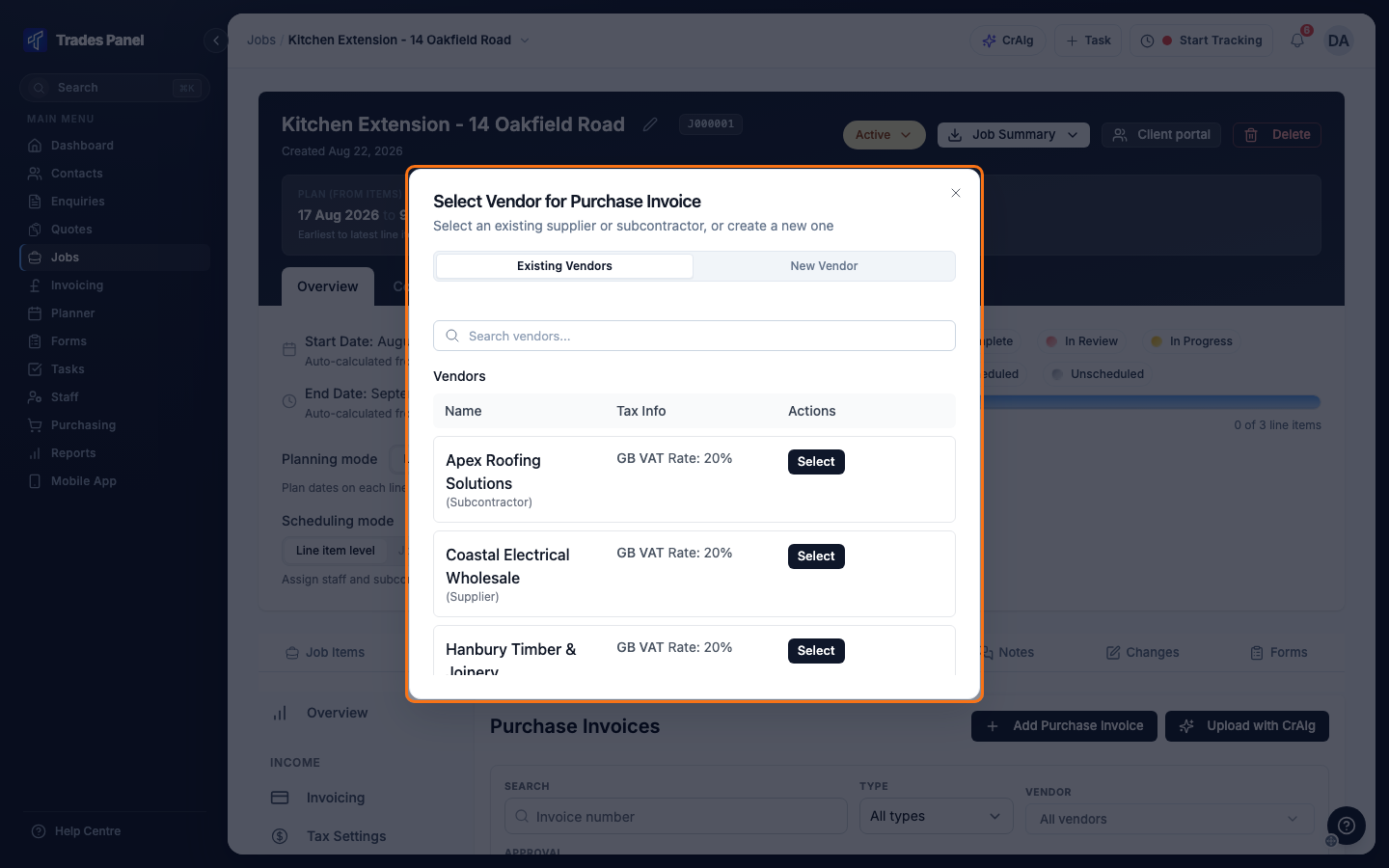
The invoice form opens with the vendor and the job already filled in.
You can also start from Purchasing in the main menu: open the Purchase Invoices tab and click Add Purchase Invoice. Choose the vendor in Select Vendor and the job in Link to Job on the form.
Fill in the bill
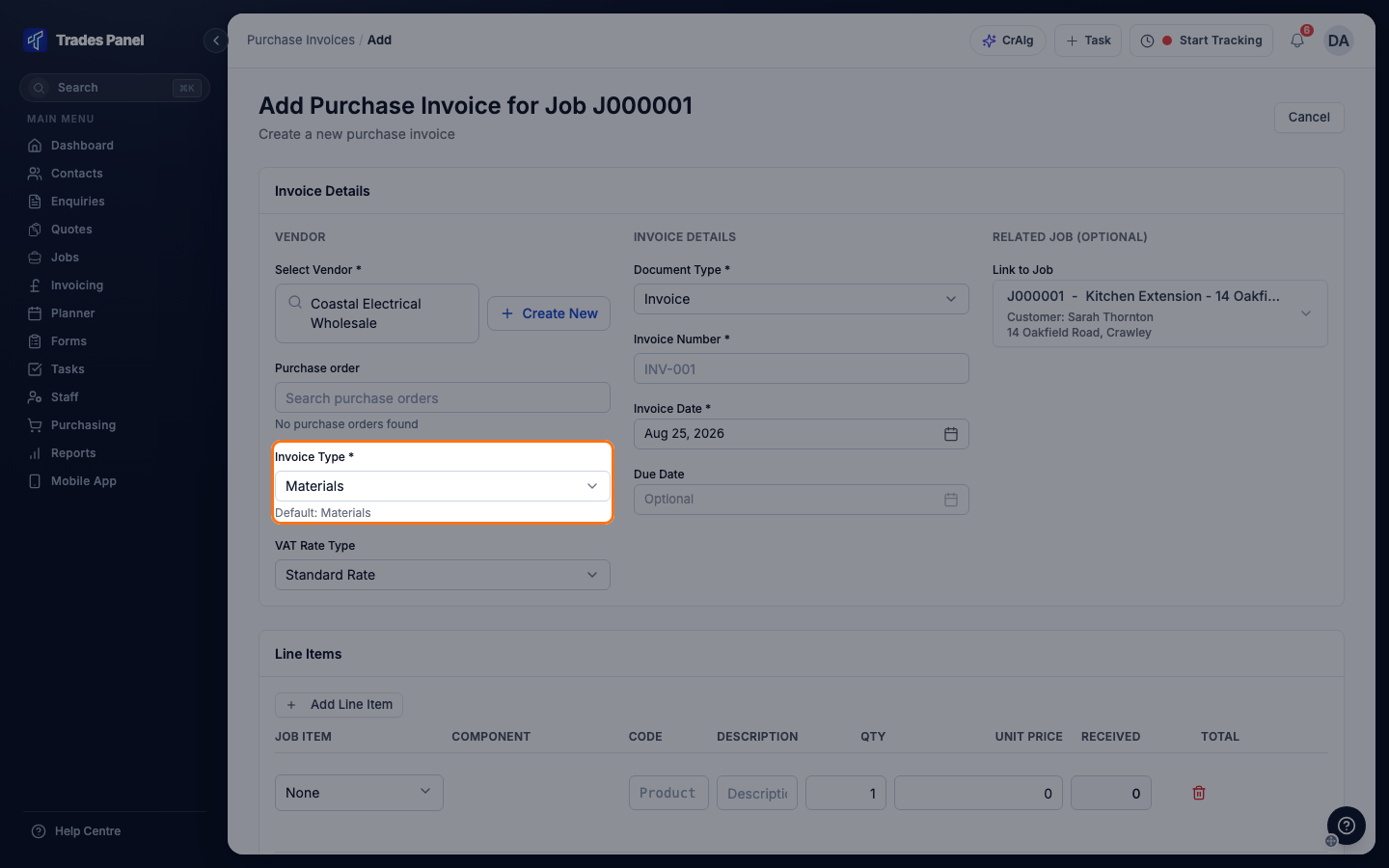
- Set Invoice Type: Materials, Plant & Equipment or Subcontracting. This decides which of the job's budgets the cost counts towards. The form starts on Materials, so change it for a subcontractor's bill.
- Set VAT Rate Type to match the bill. Choose Reverse Charge for a bill marked "reverse charge" or "customer to account for VAT", and Zero Rated (0%) for a bill with no VAT.
- Set Document Type. Choose Receipt for something already paid for at the counter. A receipt has no due date.
- Enter the Invoice Number and Invoice Date. Due Date is optional.
- If you ordered these items on a purchase order, search for it under Purchase order.
- Click Add Line Item for each line on the bill. Enter the description, quantity and unit price, and choose the Job Item and Component the line paid for.
- Check the Subtotal, VAT and Total match the bill, then click Create Invoice.
The bill is saved and counts towards the job's budget straight away. You are taken back to the job's Purchase Invoices page.
Choosing a Job Item and Component on each line puts the cost against that part of the job. A line left on None still counts towards the job's total, under Misc Costs. The Job Item list only has options once the bill is linked to a job.
If you save without a job, Trades Panel asks you to confirm. Click Cancel & Add Job to go back and choose one, or Proceed Without Job.
Purchase invoices do not record a CIS deduction. For a subcontractor's bill that shows one, enter the amounts before the deduction.
Approve a bill uploaded from site
When Field Staff Purchase Invoices is switched on under Settings > Features, field staff can photograph bills on the mobile app. These wait for approval and do not count towards any budget until they are approved. The approvers chosen in that setting are given a task for each one.
- Open the Purchase Invoices page on the job, or the Purchase Invoices tab in Purchasing.
- Click Pending approval. Bills waiting for approval have an amber Pending badge.
- Click Review on the bill.
- Check the details against the bill, correct anything that is wrong, and click Approve Invoice.
Bills waiting for approval also appear on the Needs action tab in Purchasing.
Change a bill later
Click the edit button on the bill's row, or open the bill and click Edit. Make your changes and click Update Invoice.
Related articles
- Let CrAIg Read an Invoice PDF - filling in the bill from a PDF instead of typing it
- Labour, Material and Plant Budgets - where the bill's cost shows on the job
- A Cost Is in the Wrong Budget or Missing
- when a bill does not show where you expect
- Purchasing - every purchase invoice across all jobs, and the Needs action tab
- Add Suppliers and Subcontractors - adding the businesses you buy from
- Request a Quote from Suppliers - getting prices and raising purchase orders before the bill arrives
- Build a Job Up: Job Items and Line Items
- the job items and costs a bill's lines are matched to
- Field Staff Purchase Orders - purchase orders your team raises from the mobile app, and matching their bills