Every person on your account has one role. It decides what they can see and do in Trades Panel, on the web and in the mobile app. Everyone on the same role has the same access.
The roles
Account Owner - the person who opened the account. They can do everything, and they are the only person who can manage the subscription, change the plan and update billing. An account has one owner, and the role cannot be given to anyone from the Staff screen.
Admin - can do everything the owner can except the subscription, plan and billing. That includes changing account settings, adding and removing staff, seeing pay rates and using the Timesheets tab.
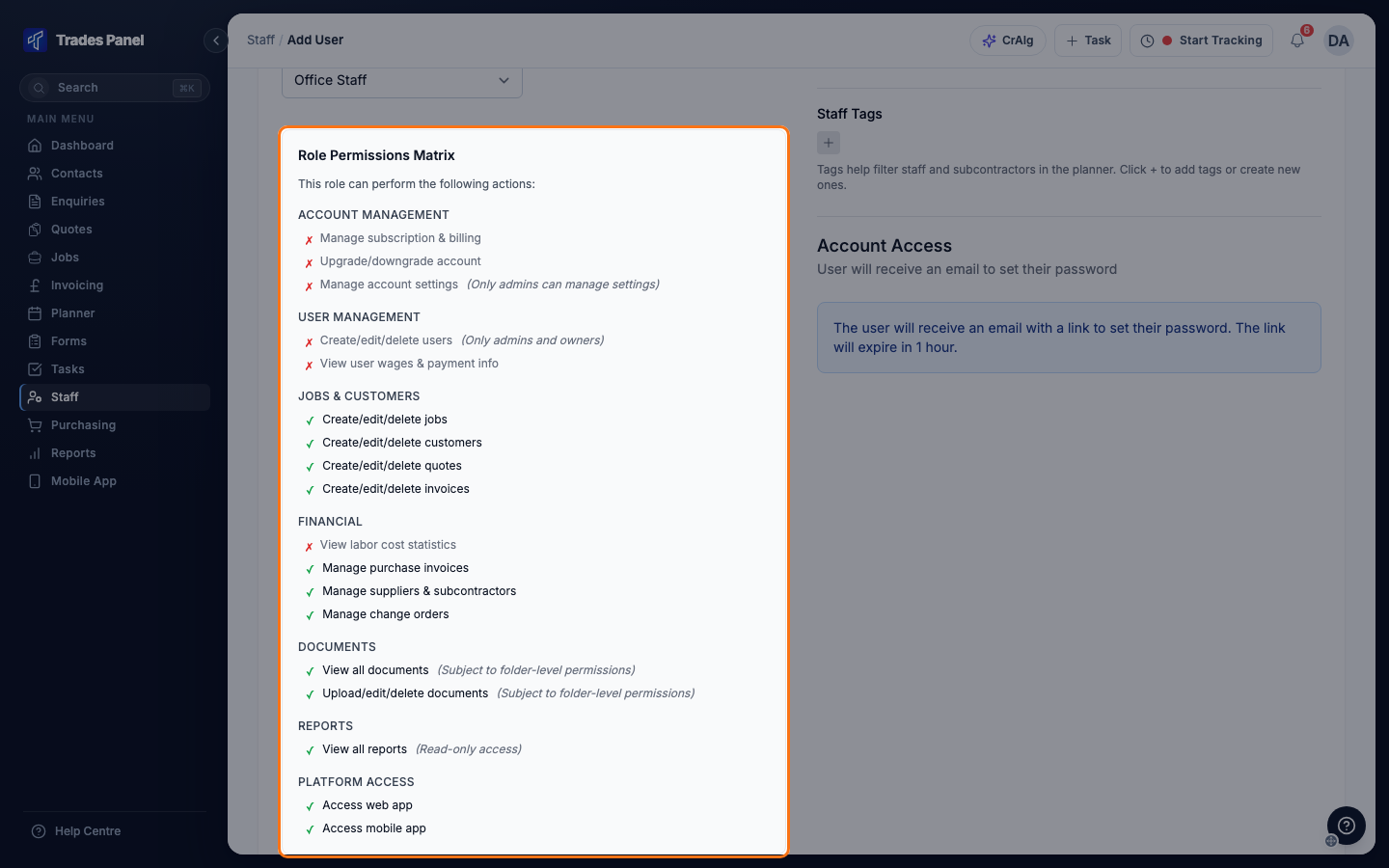
Office Staff - runs the day-to-day work on the web and mobile apps. They can create and edit jobs, quotes, invoices and contacts, book staff in the Planner, and manage suppliers, subcontractors, purchase invoices and change orders. They can view reports. They cannot:
- change account settings
- add, edit or remove staff
- see pay rates, the Timesheets tab or labour costs in reports
Field Staff - uses the mobile app only. Signing in to the web app takes them to a page to download the mobile app instead. They see the jobs they are booked onto or are project manager of, and on those they can:
- clock in and out
- add notes and fill in forms
- view and upload documents, depending on folder access
- create and update tasks
- check plant and equipment out and back in
Field staff cannot create jobs, quotes, invoices or contacts, and cannot see costs, pay rates or reports.
Settings that widen field staff access
Owners and admins can give all field staff more access under Settings > Features:
- Field staff can see all jobs - every active job on the account, not only the ones they are booked onto.
- Field staff can clock in without being scheduled - start a timer on a job they can see without being booked onto it.
- Allow field staff to upload purchase invoices - photograph bills in the mobile app. Each one waits for approval. See Record a Supplier or Subcontractor Bill.
- Allow mobile field purchase orders - get a purchase order number in the mobile app before buying from a supplier, then submit the purchase for approval. See Field Staff Purchase Orders.
These apply to every field staff member. You cannot switch them on for one person.
Access to each folder of job documents is set separately, per role. See Who Can See Which Job Files.
Only the account owner and admins can connect an AI app such as Claude to Trades Panel. The owner can connect straight away; an admin can connect once the owner turns them on. Office staff and field staff cannot connect. See Manage AI Connections.
Change someone's role
Who can do this: owners and admins.
- Click Staff in the main menu and open the User Management tab.
- Click Edit on the person's row.
- Choose a new Role. The list under it shows what the role can do.
- Click Save Changes.
To change several people at once, tick the boxes beside them and click Change Role.
You cannot change your own role, and only the account owner can edit the owner's record.
Related articles
- Add and Manage Staff - adding people and choosing their role
- Who Can See Which Job Files - folder access by role
- Set a Staff Member's Pay Rate - pay rates, which only owners and admins see
- Remove a Member of Staff - ending someone's access
- Manage AI Connections - choosing which admins can connect an AI app